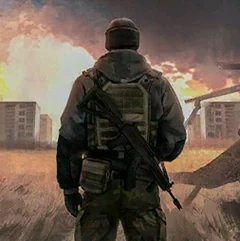
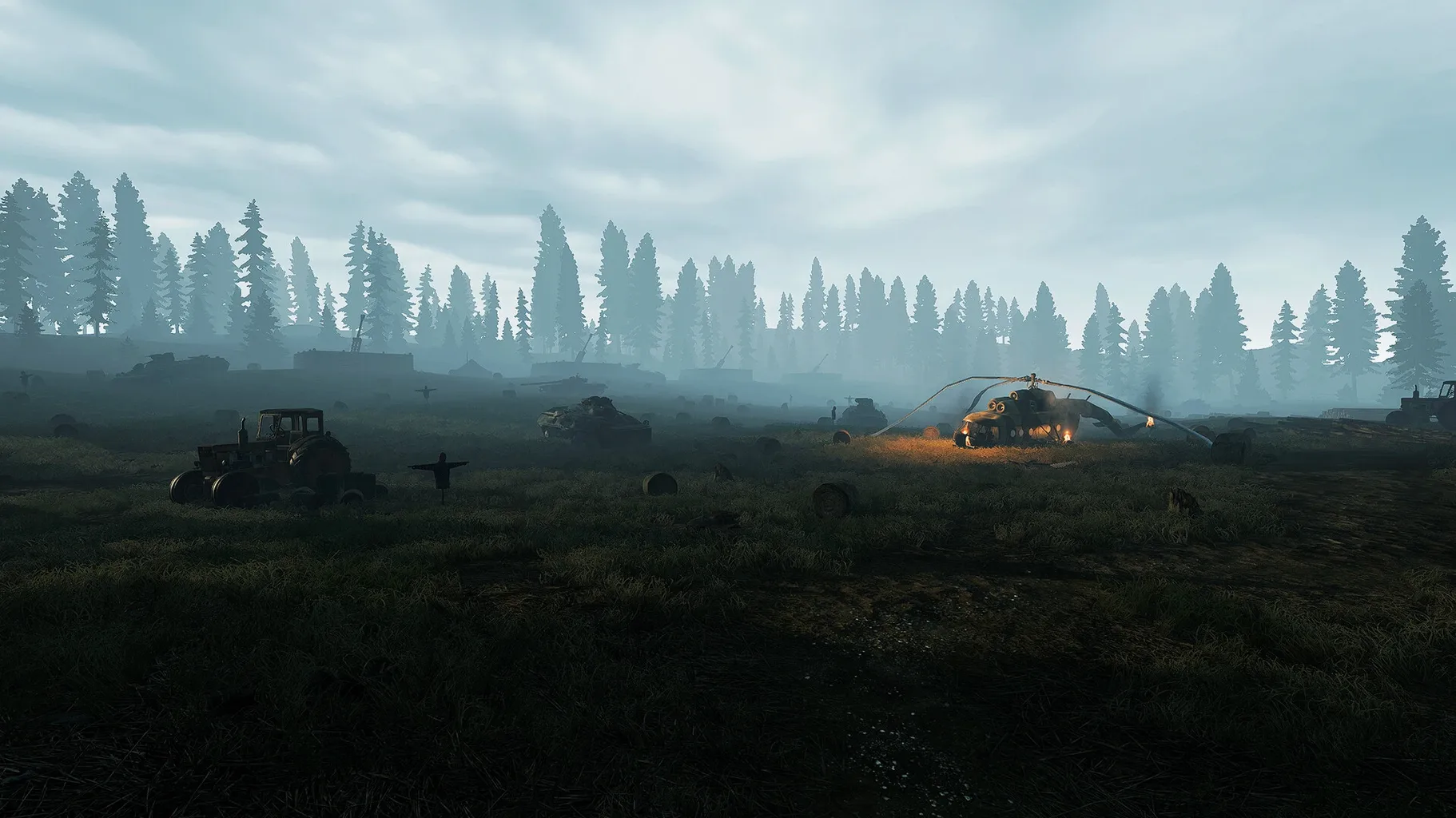
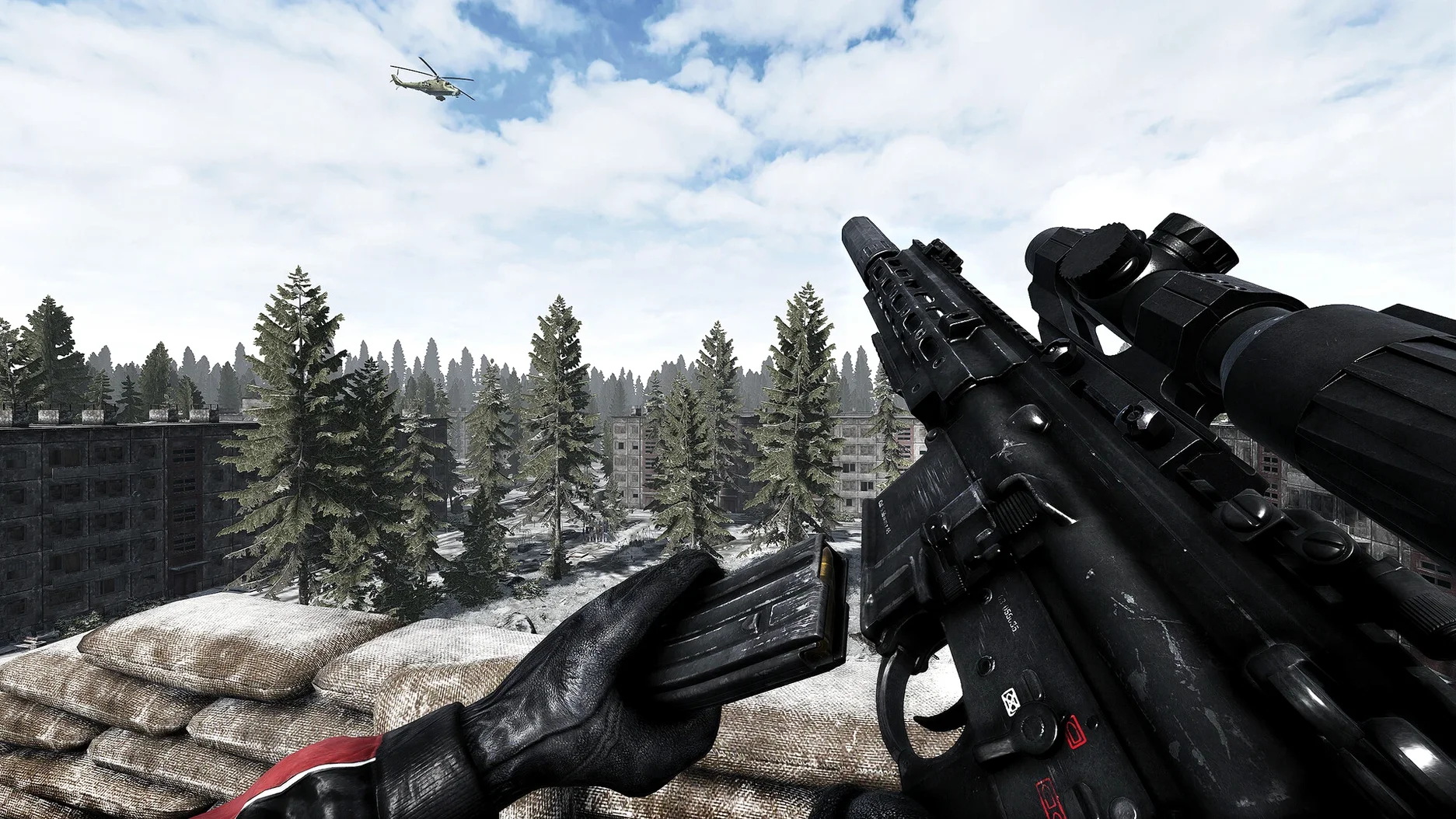
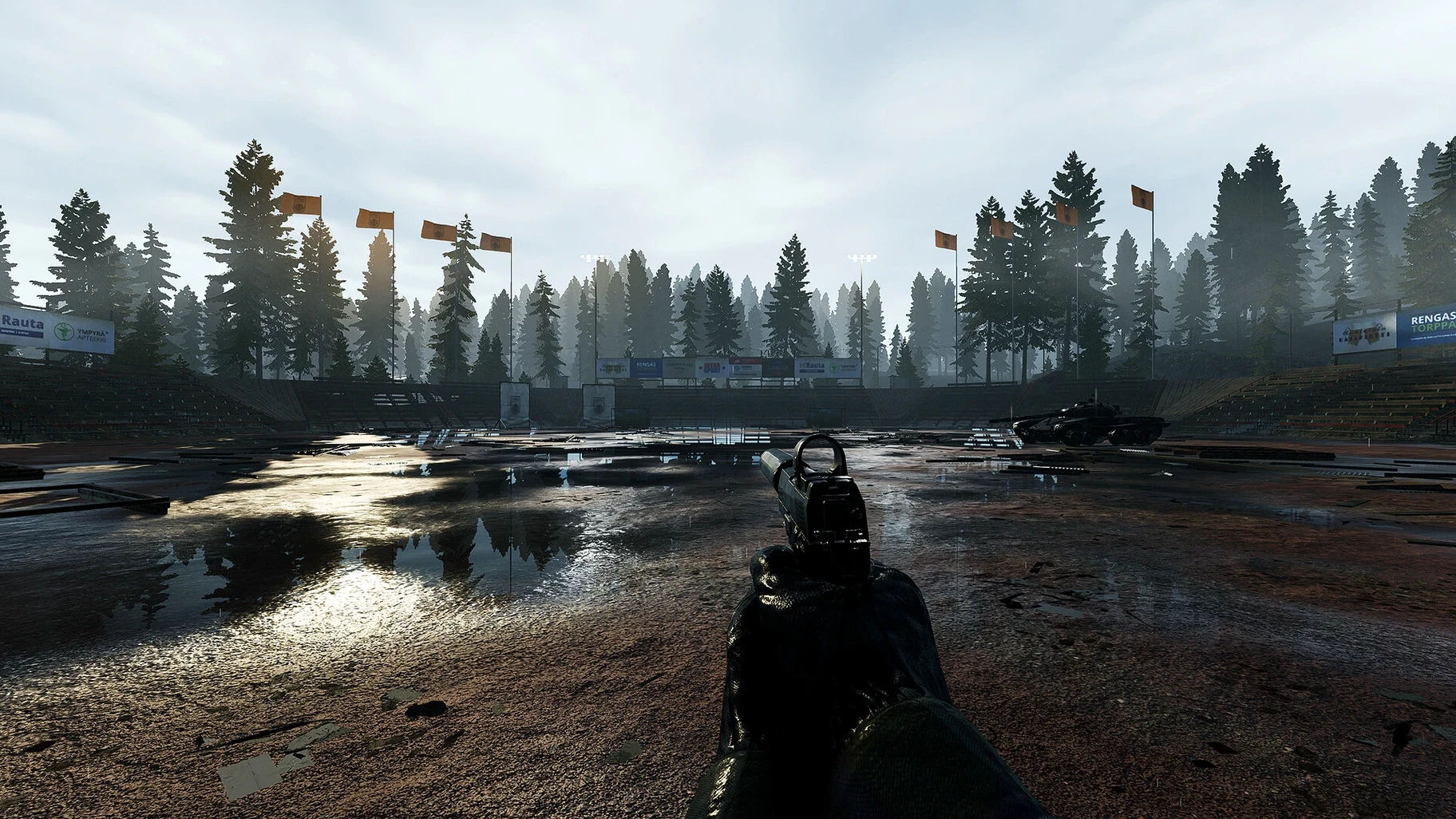
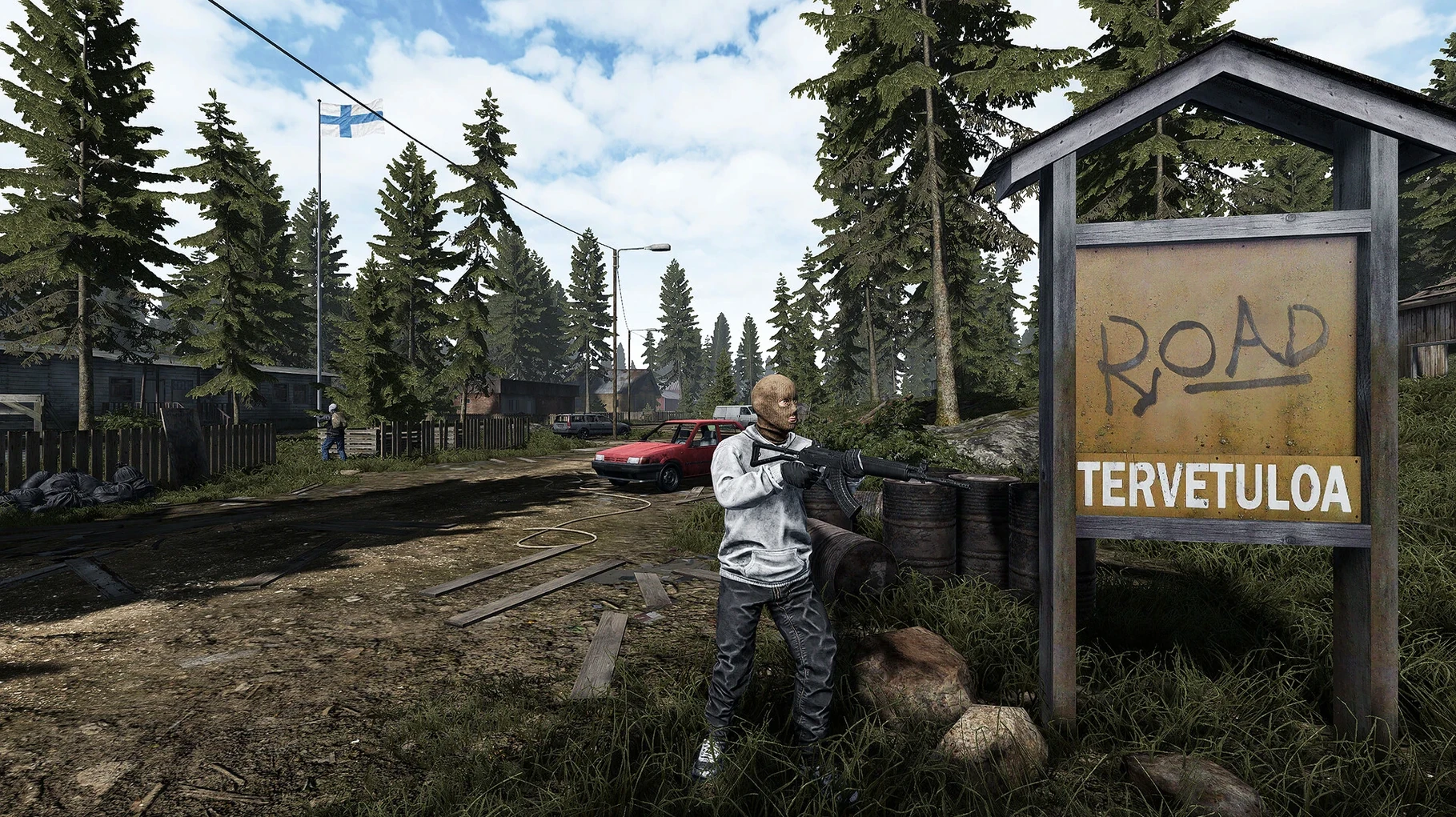
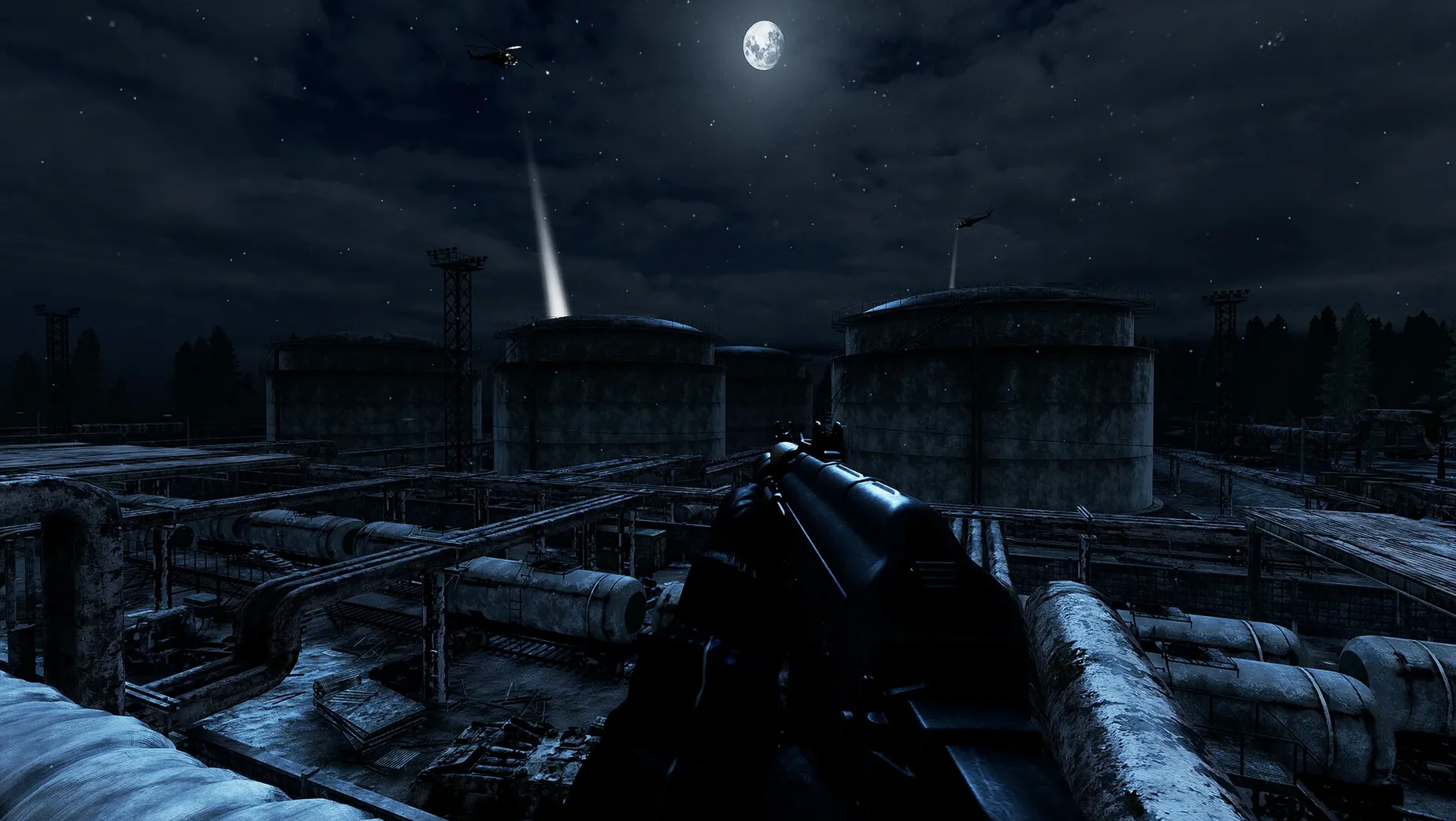
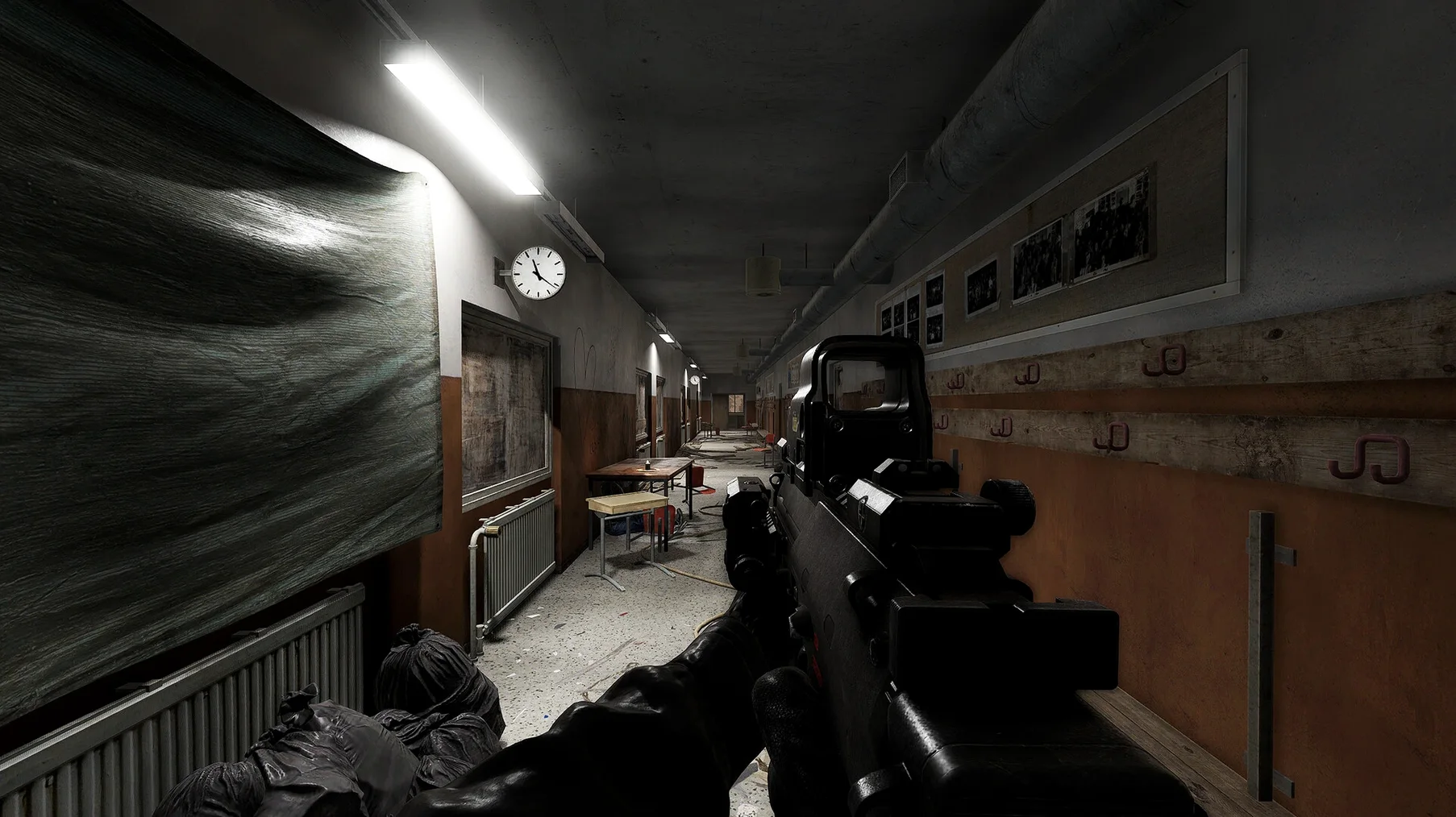
Road to Vostok drops you into a hardcore single-player survival scenario along a post-apocalyptic border zone between Finland and Russia. The interface is English, and the current build is 0.1.1.3.
Scavenging and surviving in a solo-only world
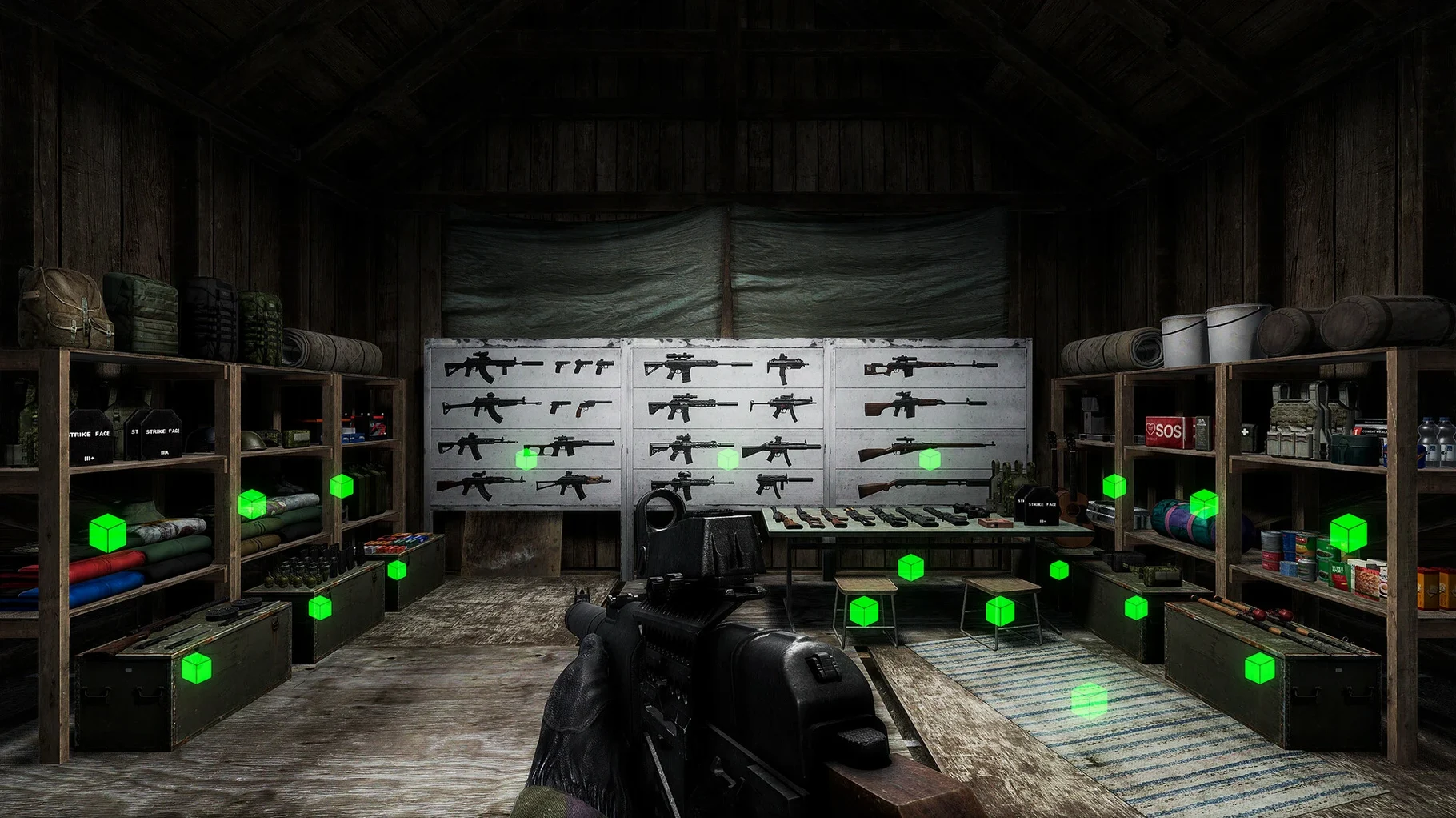
What is in the box is a focused survival loop: scavenge, manage resources, and stay alive in a hostile environment. There are no multiplayer modes or co-op options; this is a solo experience by design. The game emphasizes tension and preparation rather than fast action, so expect to spend time planning your next move.
Running the Game
The game ships as a disk image. Mount it, drag the app into your Applications folder, and launch it from Launchpad. It runs on both Intel and Apple Silicon Macs; the developer used macOS Tahoe on a Mac mini M4 for testing. No version-specific patch notes were provided for 0.1.1.3, so you get the core survival loop as described.
I have spent a few sessions with the early build, and a pattern emerges quickly. The first hour is about learning which loot is worth carrying and which scraps you leave behind. A manual laborer or a scavenger-type player will find the resource loop familiar — you are constantly weighing inventory space against potential value. The difference here is that one bad encounter can set you back significantly, so playing cautiously pays off more than rushing.
Lowering sensitivity for steadier aim
Before you head into the border zone, open the settings panel and make a few changes. The default sensitivity felt too high for precise aiming in tense moments; lowering it by a few ticks helped keep shots on target. The field of view slider is also worth adjusting — widening it gives you better peripheral awareness in the open areas, while narrowing it helps during close-quarters looting in abandoned buildings.
The audio mix defaults to a wide dynamic range. If you play with headphones, that works fine. On desktop speakers, the environmental sounds can drown out footstep cues. Switching the audio preset to a more compressed setting makes those audio hints clearer without losing the atmosphere.
Troubleshooting common survival blockages
The game does not launch after dragging to Applications
This is the most common issue with disk-image installs. The drag operation can leave file permissions in a state where the app cannot write its save data. Fix it by right-clicking the app in Applications, selecting Properties, and ensuring the permissions allow read and write for your user account. If that does not help, delete the app, re-mount the disk image, and drag it again — sometimes the initial copy is incomplete.
Stuttering or lag when moving between zones
Road to Vostok loads area data as you cross zone boundaries. On older Intel Macs, this can cause a brief hitch. Lowering the texture quality from High to Medium reduces the amount of data that needs to stream in, which smooths those transitions. On Apple Silicon machines, the default settings usually handle it fine, but lowering the render distance can help if you notice stutter.
Inventory screen feels sluggish
When your pack fills up, the inventory UI can lag as it calculates weight and condition for each item. This is not a bug — it is the simulation catching up. Try dropping items you do not need in a safe spot rather than carrying everything. The game rewards lean loadouts, and the interface responds faster when you are not hauling a full backpack.
- macOS Tahoe (used for testing)
- Intel or Apple Silicon
Questions from the notes
Is Road to Vostok multiplayer?
No. It is a single-player survival game only, with no multiplayer or co-op modes.
What language is the game in?
The interface language is English.
Install procedure
- Mount the downloaded disk image.
- Drag the app into the Applications folder.
- Launch the app from Launchpad after copying finishes.
Reports from players
Sign in or create a tester account to file a report.
No reports filed yet.