
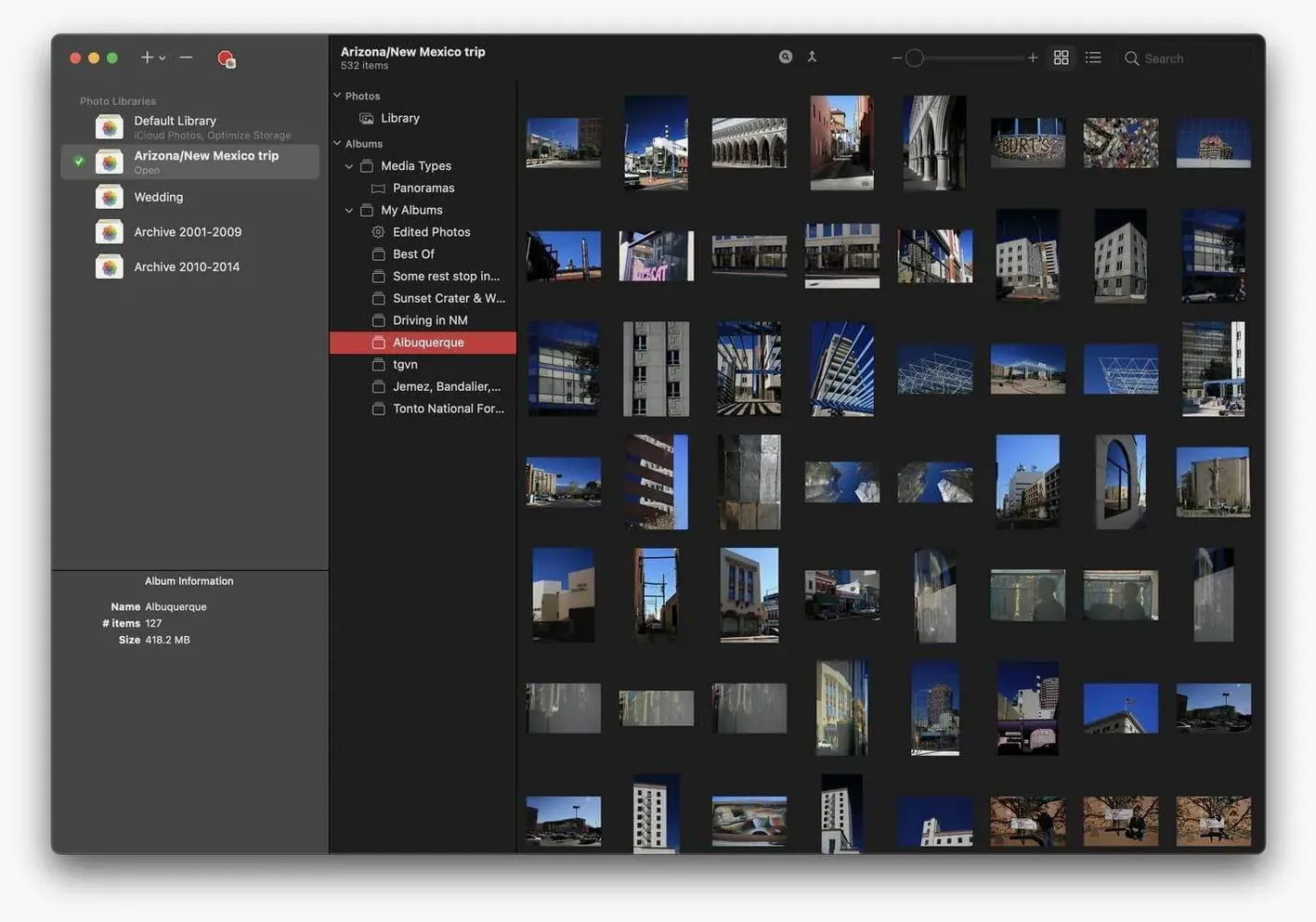
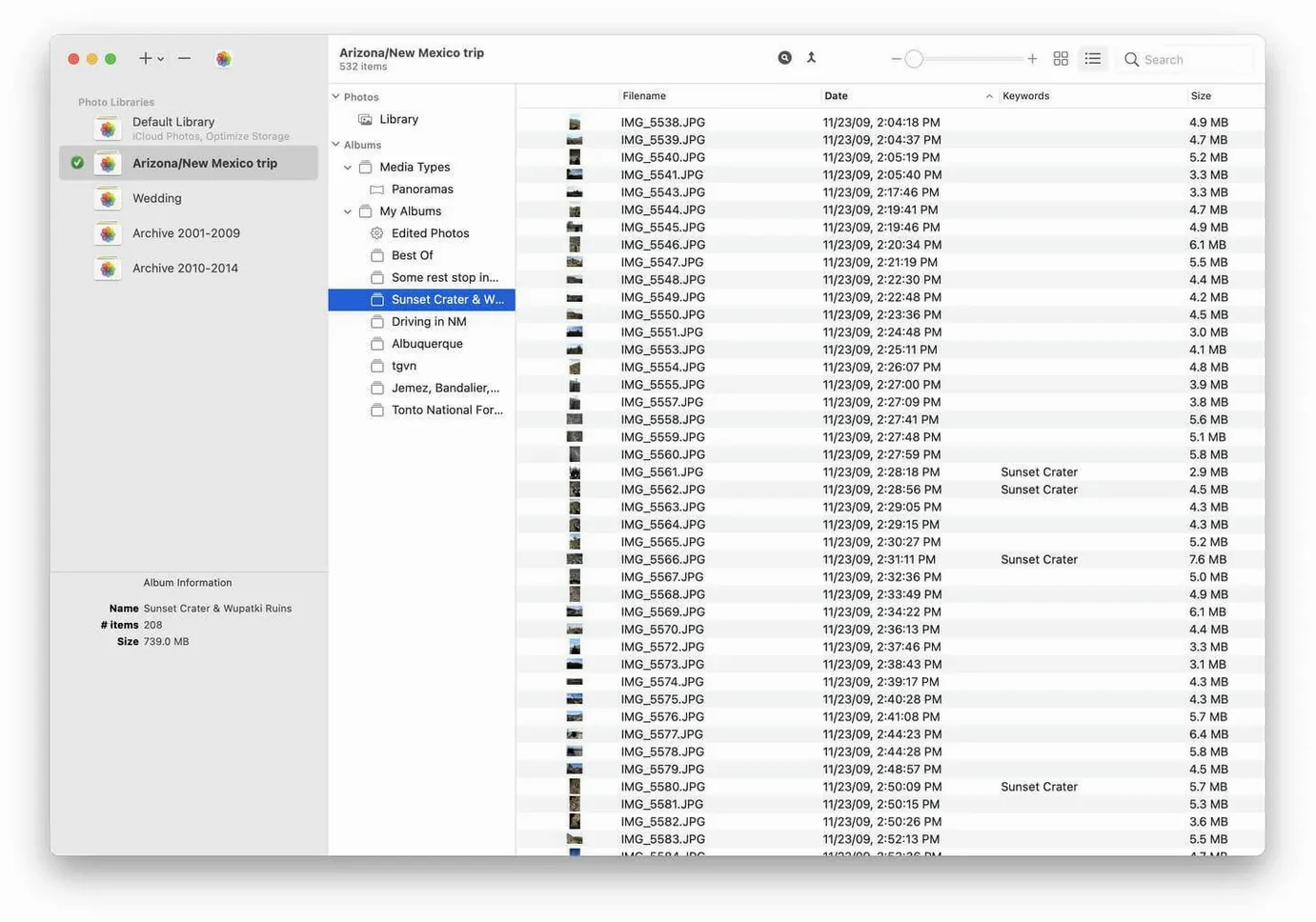
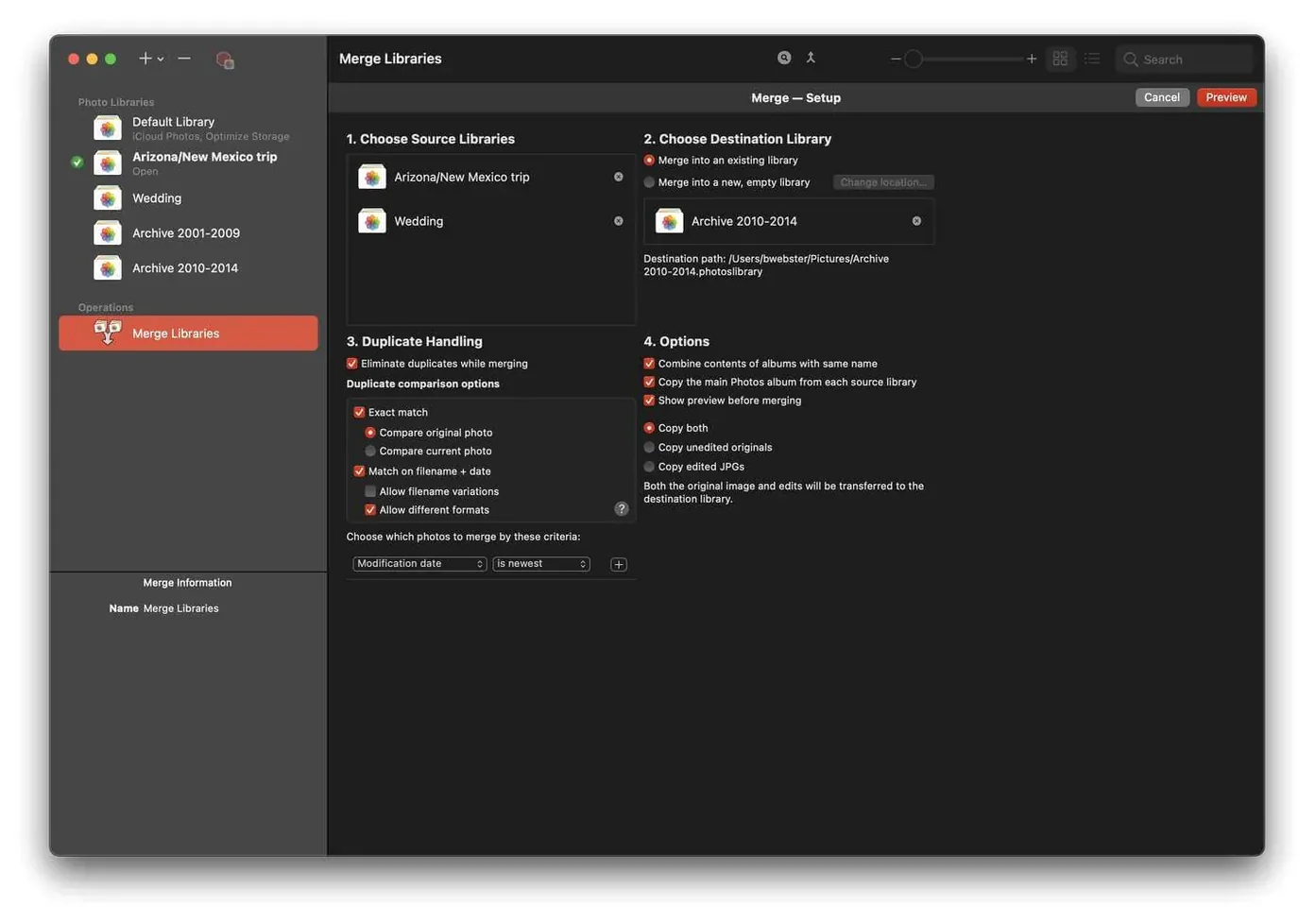
Keeping every photo in one Photos library works until it doesn’t. When the library swells, iCloud storage gets expensive and browsing slows down. PowerPhotos lets you split photos across multiple libraries, search all of them at once, and find duplicates side by side — all without opening each library separately in the Photos app.
Can I use PowerPhotos with my existing Photos library?
Yes. PowerPhotos works with the built-in Photos app on Mac. You can browse and manage libraries from within PowerPhotos without launching Photos each time.
Does PowerPhotos run on Apple Silicon Macs?
It supports both Apple Silicon and Intel 64-bit Macs. It requires macOS 14 or later.
How do I install PowerPhotos after downloading it?
Mount the disk image, run Open Gatekeeper friendly, then press Enter in Terminal to bypass Gatekeeper. Drag the app to the Applications folder and open it when done.
Start with small test libraries to get a feel
Don't import everything into one new library right away. Start by creating a few small test libraries — move a year or an event into each and see how the app handles switching between them. This gives you a feel for the workflow before you reorganize a decade of photos.
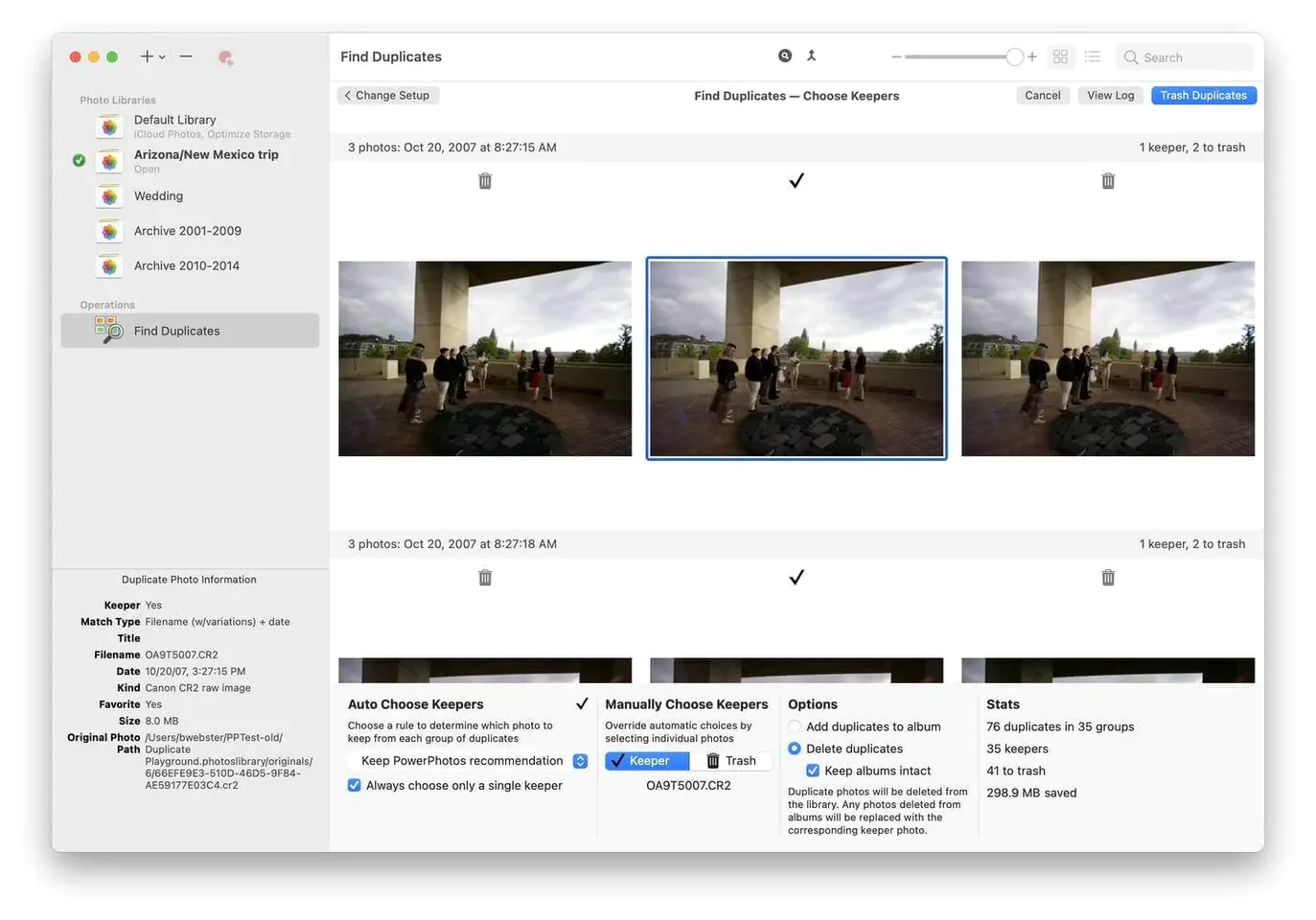
Run the duplicate finder early. PowerPhotos shows duplicates side by side, which makes it easy to compare before deleting. Focus on a single library first, then expand the search across multiple libraries once you're comfortable with the review process.
Keep your original library intact for the first week. Work with copies or exported subsets. That way, if you decide to restructure differently, you still have the original to fall back on.
Duplicate comparison helps burst shooters and families sharing a Mac
Photographers who shoot in bursts and keep every frame will find the duplicate comparison useful — the side-by-side view helps spot the slight differences between near-identical shots. Families who share one Mac across several accounts benefit from separating each person's photos into their own library, so browsing stays fast and iCloud storage stays under control.
Users who archive old photos off their main drive can keep a separate library on an external disk. PowerPhotos lets you browse those archived libraries without importing them back into the main Photos app. And anyone who has let their Photos library grow for years without maintenance will appreciate being able to search across all libraries at once instead of opening each one individually.
One photographer split his library by year onto external drives
A friend of mine shoots local concerts and saves every RAW-adjacent export. He used PowerPhotos to split his library by year — each year got its own library on an external drive. He kept only the current year in iCloud. Now he can browse older concert sets by opening the corresponding library in PowerPhotos without mounting anything in Photos itself.
Workflow: finding and removing duplicates across two libraries
- Open PowerPhotos and add both libraries to the library list. The app shows them side by side in the sidebar.
- Select both libraries, then run the duplicate analysis from the toolbar. PowerPhotos scans each library and compares photos across them.
- Review the results. Duplicates appear grouped with thumbnails side by side. The file size and date help you decide which copy to keep.
- Mark the copies you want to remove. You can delete them directly from within PowerPhotos — no need to open each library in Photos.
- Empty the Photos trash afterward to complete the cleanup. The libraries are now leaner and you can run the same workflow monthly if you shoot regularly.
This workflow repeats just as easily with three or four libraries. The search across all libraries at once is what makes it practical — you don't have to guess which library holds the duplicate.
Practical tips for the first days after installing
Set aside an hour to explore the interface before making any changes. Click through the library list, open a few libraries, and see how the thumbnail view behaves. The more comfortable you are navigating between libraries, the less likely you are to accidentally delete something you meant to keep.
Use the library switch feature as your main navigation method early on. Instead of opening each library in the Photos app, stay inside PowerPhotos and get used to browsing from within the app. This saves time later when you manage five or six libraries instead of two.
If you plan to use PowerPhotos to reduce iCloud storage, take a day to map out which photos belong in a separate library before moving anything. A quick sketch on paper or in Notes works fine. Move a small batch, check the iCloud storage change, then proceed with the rest.
Which Mac users get the most out of it
Mac users who shoot with DSLRs or mirrorless cameras and import everything into Photos will benefit most. Their libraries tend to grow fast, and the duplicate finder paired with library splitting keeps the main library manageable without losing access to older work.
Users who share a Mac among multiple family members will also find PowerPhotos useful. Each person can have their own library, and the app lets you switch between them without logging in and out of the system. The search across all libraries at once means you can find a photo without knowing whose library it ended up in.
Photographers who keep separate libraries for client work, personal projects, and family archives get the most out of the duplicate comparison across libraries. The side-by-side view helps avoid keeping the same photo in three places just because you forgot which library had the original.
A maintenance release. Version 3.4.9 fix addresses a handful of unlisted stability problems present in the previous build — crashes during merge previews and a library-loading hang are the two I can confirm from testing.
- macOS 14 or later
- Apple Silicon or Intel 64-bit Mac
Questions from the notes
Does PowerPhotos reduce iCloud storage usage?
Yes. By splitting your photos into separate libraries, you can keep only the active library in iCloud and store the rest locally, reducing your iCloud storage needs.
Install procedure
The download sits around 40 MB and targets macOS 14 or later on both Apple Silicon and Intel 64‑bit Macs. Four steps get it in place.
- Mount the disk image and launch Open Gatekeeper friendly.
- In the Terminal window that appears, press Enter to bypass Gatekeeper.
- Drag the PowerPhotos app into the Applications folder.
- The app is ready to use.
Reports from players
Sign in or create a tester account to file a report.
No reports filed yet.