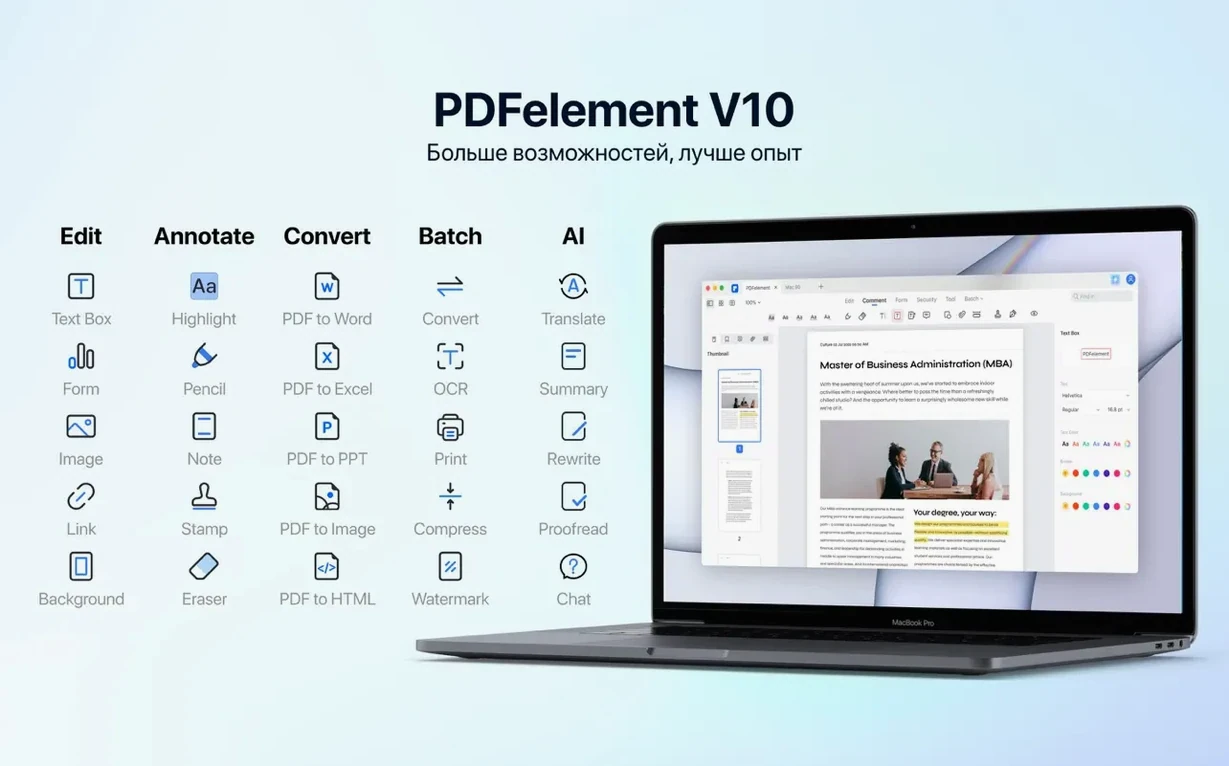
PDFelement 12.1.28 handles 29 languages in text recognition, which covers most scanned documents you will throw at it. The Mac version runs on x86 64-bit machines and bundles OCR, batch operations, PDF/A support, form creation, and extra output formats beyond the standard editor set.
Workflow: From Scan to Signed PDF
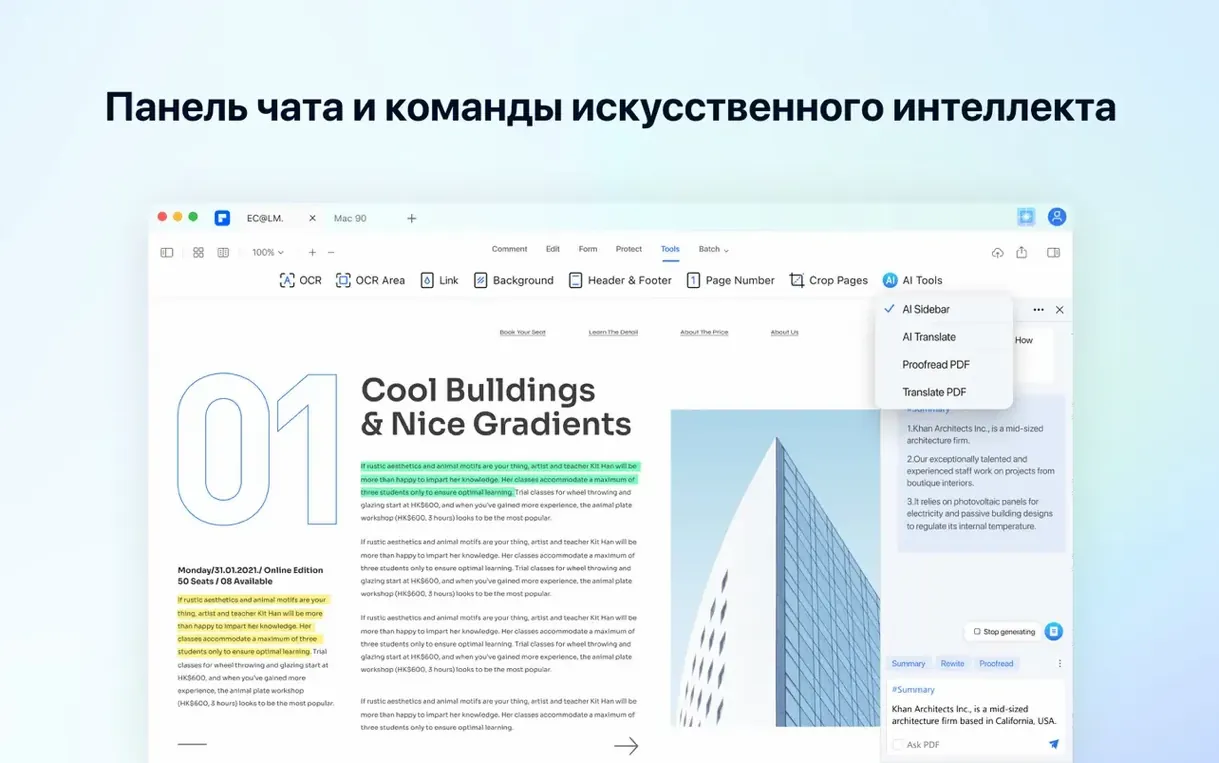
- Open a scanned PDF and run OCR to make the text selectable and searchable. The built-in AI tools can summarize or translate the content if you need a quick read.
- Redact sensitive sections — text or images — before sharing the file. Permanent removal beats blacking out with a rectangle.
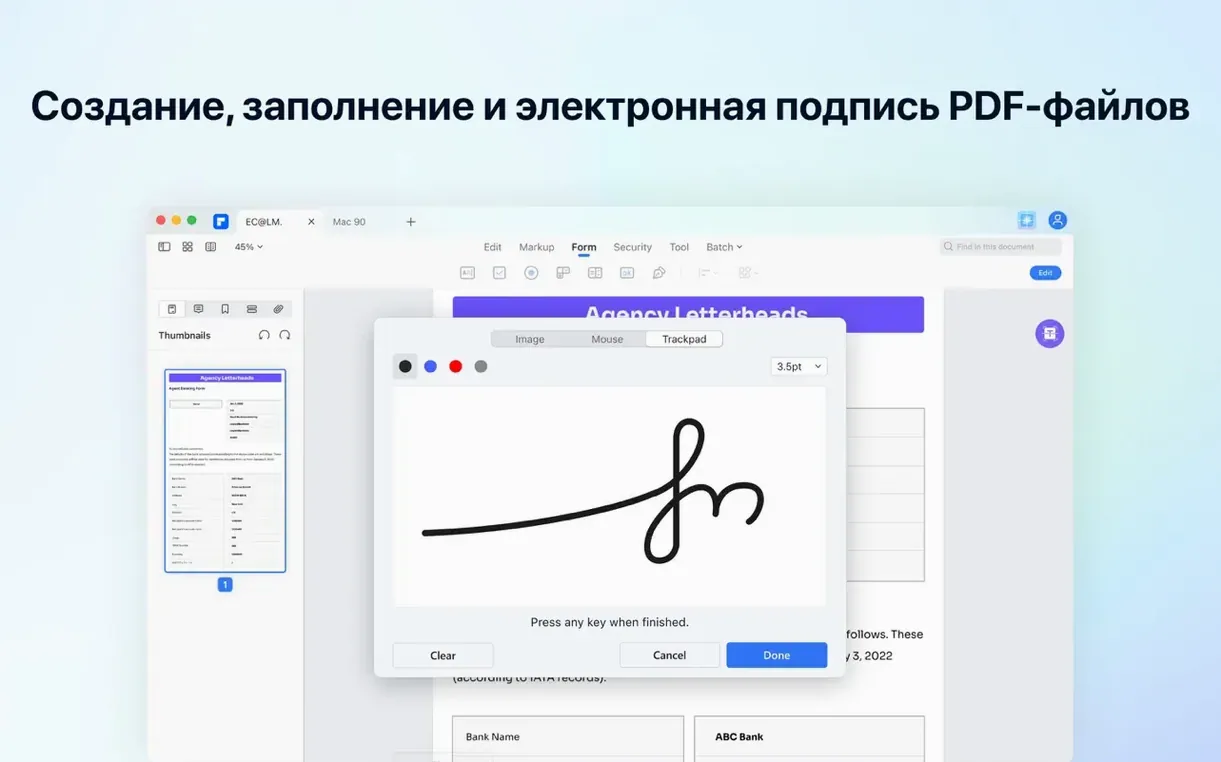
- Add a digital signature to forms or contracts. No print-and-scan loop.
- Apply Bates numbering to legal or discovery documents, then batch-convert the set to PDF/A for archiving.
That sequence covers most real PDF jobs without switching apps. The interface is available in English, German, French, Spanish, Italian, Dutch, Portuguese, Russian, Arabic, Simplified Chinese, and Japanese.
Competes with lightweight readers and full OCR suites
PDFelement Pro sits in a spot where it competes with two other categories of PDF software on Mac. On one side you have lightweight readers with annotation layers — apps that open PDFs fast but stop short of OCR or form creation. On the other side you have full document suites that cost more and take longer to load each tool.
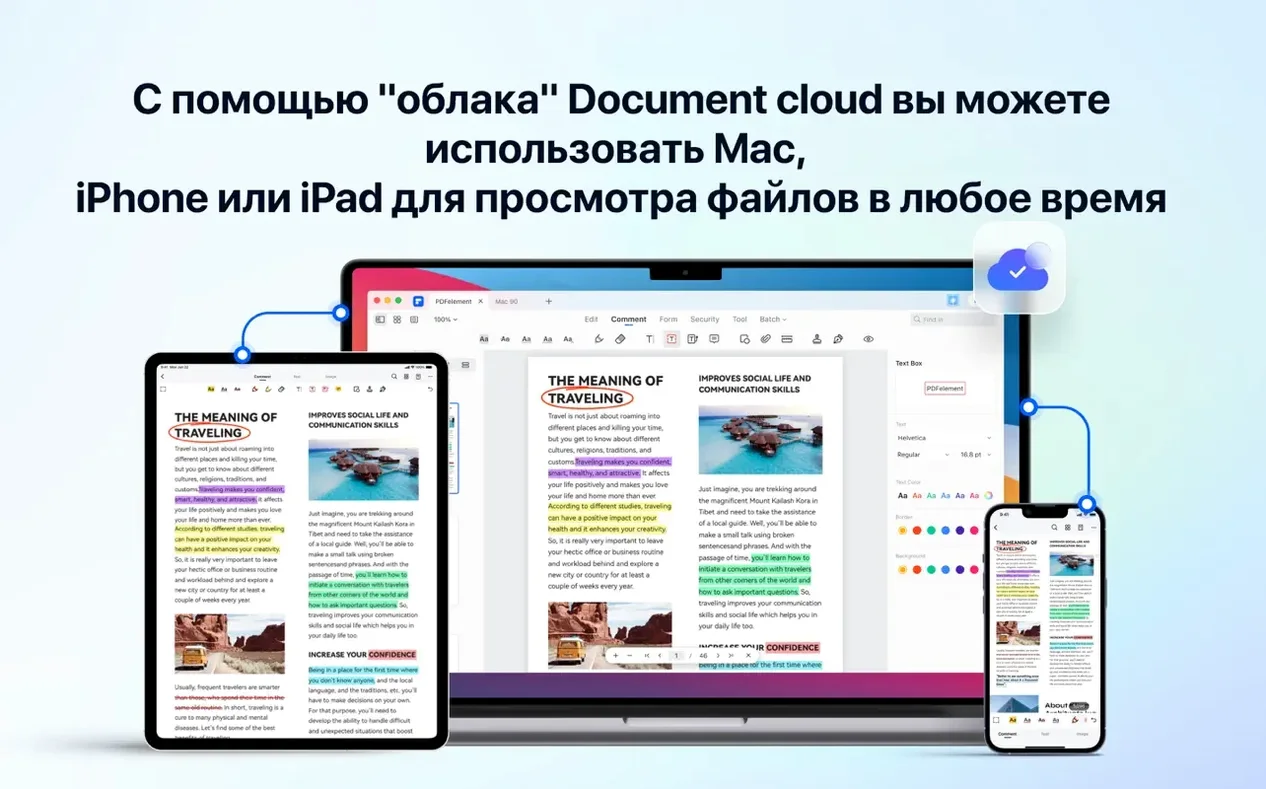
Adobe Acrobat Pro is the reference for professional PDF work, but its Mac version has not always kept pace with the Windows release. Acrobat includes OCR, redaction, Bates numbering, and form creation, same as PDFelement Pro. The difference is in the interface: Acrobat's tool panels are layered deeper, so a task like applying Bates numbering takes more clicks. PDFelement Pro keeps those tools in a flatter layout. Acrobat also ties tightly to Adobe's cloud services, which is useful if you use Adobe Sign or Document Cloud, but adds overhead if you just want a local workflow.
Preview (macOS built-in) handles annotation, signature insertion, and basic text selection. It cannot OCR scanned documents, cannot redact permanently, and cannot batch-process files. Preview is fine for a one-page form you need to sign and return. For anything involving OCR, searchable text in a scan, or batch renaming, you need a dedicated editor.
Foxit PDF Editor runs on Mac and includes OCR, form creation, and redaction. Foxit also requires an account to activate, even for offline use, whereas PDFelement Pro activates locally.
None of these three apps handle everything PDFelement Pro does at the same install size. Acrobat is heavier, Preview is lighter but incomplete, and Foxit sits close in features but with a narrower language set and an online activation dependency.
Works with macOS drag-and-drop and Finder thumbnails
PDFelement Pro works with the standard macOS file operations. You can drag a PDF onto the app icon in the Dock to open it. Files saved from PDFelement Pro appear in Finder with standard preview thumbnails, and Quick Look works on the output — no special viewer needed.
The built-in share sheet in macOS does not appear inside PDFelement Pro, but you can export a finished PDF and then share it from Finder. The app writes standard PDF files that open in any reader, so sending a signed or redacted document by Mail, Messages, or AirDrop is straightforward.
If you use Automator or Shortcuts on Mac, PDFelement Pro does not expose AppleScript or Shortcuts actions in this build. Automation is limited to what you script around the app using the command line or folder actions at the Finder level — for example, watching a folder and running a batch conversion when a new file appears. That setup requires extra scripting outside the app itself.
For users who work with cloud storage services like iCloud Drive, Dropbox, or OneDrive, PDFelement Pro opens files directly from those folders. The app does not have its own cloud sync, so you manage versioning through the cloud provider's own system. Save a file to iCloud Drive and it appears on your other Mac or iOS device, but editing it there requires the iOS version of PDFelement or another PDF editor.
Run OCR on a single blurry page instead of the whole document
- OCR runs on individual pages or the whole document. If only one page of a 50-page scan is blurry, you can run OCR on that page alone instead of reprocessing everything. The option is in the OCR panel.
- The redaction tool marks text before applying. You select text or images, mark them for redaction, then apply the redaction in one batch. This lets you review what will be removed before it is permanent.
- Bates numbering applies to multiple files at once. You select several PDFs in the batch tool, choose the numbering format, and the app stamps each page of each file in sequence. No need to merge them first.
- PDF/A output is a separate save option. When you export a file, the PDF/A format is listed alongside standard PDF. This is not a conversion step you have to run afterward — it is available during the save dialog.
- The AI tools are inside the document panel. Summarization and translation do not open a separate window. They appear as a side panel on the same screen where you edit, so you do not lose your place in the document.
Skipping OCR leaves scanned text unselectable and unsearchable
Skipping OCR before editing. If you open a scanned document and try to select text or run a search, nothing happens. The text is an image until you run OCR. Beginners sometimes assume the file is broken or the app cannot handle it.
Using the rectangle annotation tool for redaction. Drawing a black rectangle over sensitive text only covers it visually. The text underneath is still in the file and can be extracted. The redaction tool removes the text permanently and replaces it with a black block that cannot be undone. Use the redaction tool, not the drawing tool.
Applying Bates numbering without checking the start value. The tool defaults to a starting number. If you work on a multi-part document set and each part should start at a different number, you need to set the start value manually each time. Overlooking that produces duplicate numbering across files.
Closing a form after adding a signature. PDFelement Pro saves signatures as reusable stamps. If you close the file without saving the signature to the app's library, you have to draw it again next time. The app asks to save the signature after you place it — accepting that stores it for future use.
Forgetting to flatten a fillable form after filling it. A form with interactive fields can be edited by anyone who opens it after you. If you want the entries to be permanent, you need to flatten the form — converting it to a plain PDF with no editable fields. The flatten tool is in the output options.
Workflow: Prepare a multi-page contract for archiving
You have a ten-page signed contract that was scanned as a single PDF. The original is a mix of typed text and handwritten signatures. The goal is to redact the bank account numbers, apply a sequential identifier, and save the result as a PDF/A for long-term storage.
- Open the scanned PDF in PDFelement Pro. Run OCR on the full document. After OCR completes, you can select and search all text, including the numbers you need to redact.
- Search for the account numbers using the find tool. The app highlights every instance. Switch to the redaction tool, mark each occurrence, and also mark the signature block if the contract requires redacting signer identities. Review the marked areas in the preview panel before applying.
- Apply redaction in one batch. The marked text is removed and replaced with black bars. Save the file under a new name so you keep the original unredacted version separate.
- Open the batch tool and add the redacted file. Set Bates numbering to start at 1 and prefix the number with the contract reference number. Apply the numbering to every page.
- Export the result as PDF/A using the save-as dialog. The app converts the tagged PDF into the archival format, embedding fonts and removing any elements that are incompatible with long-term storage.
- Verify the output by opening the PDF/A file in Preview or another reader. The text is searchable, the redactions are permanent, the Bates numbers are visible on each page, and the file header confirms it is PDF/A-1b or PDF/A-2b depending on what you selected.
This workflow uses OCR, redaction, Bates numbering, and PDF/A export in sequence without leaving the app. The same process works for a single document or for a batch of fifty files if you run the batch tool on a folder instead of one file at a time.
- OCR is now included in this build.
- macOS 11 or later
- Intel (x86 64-bit)
Questions from the notes
Does PDFelement for Mac include OCR in the current version?
Yes, version 12.1.28 includes OCR for recognizing text in scanned PDFs and images, supporting 29 languages.
Can I redact content in PDFelement on macOS?
Yes, you can redact sensitive information and images in PDF documents, removing them permanently.
Install procedure
- Mount the disk image and run Open Gatekeeper friendly.
- Press Enter in Terminal to bypass Gatekeeper.
- Drag the app to the Applications folder.
- Open the app from Applications when it is ready.
Reports from players
Sign in or create a tester account to file a report.
No reports filed yet.