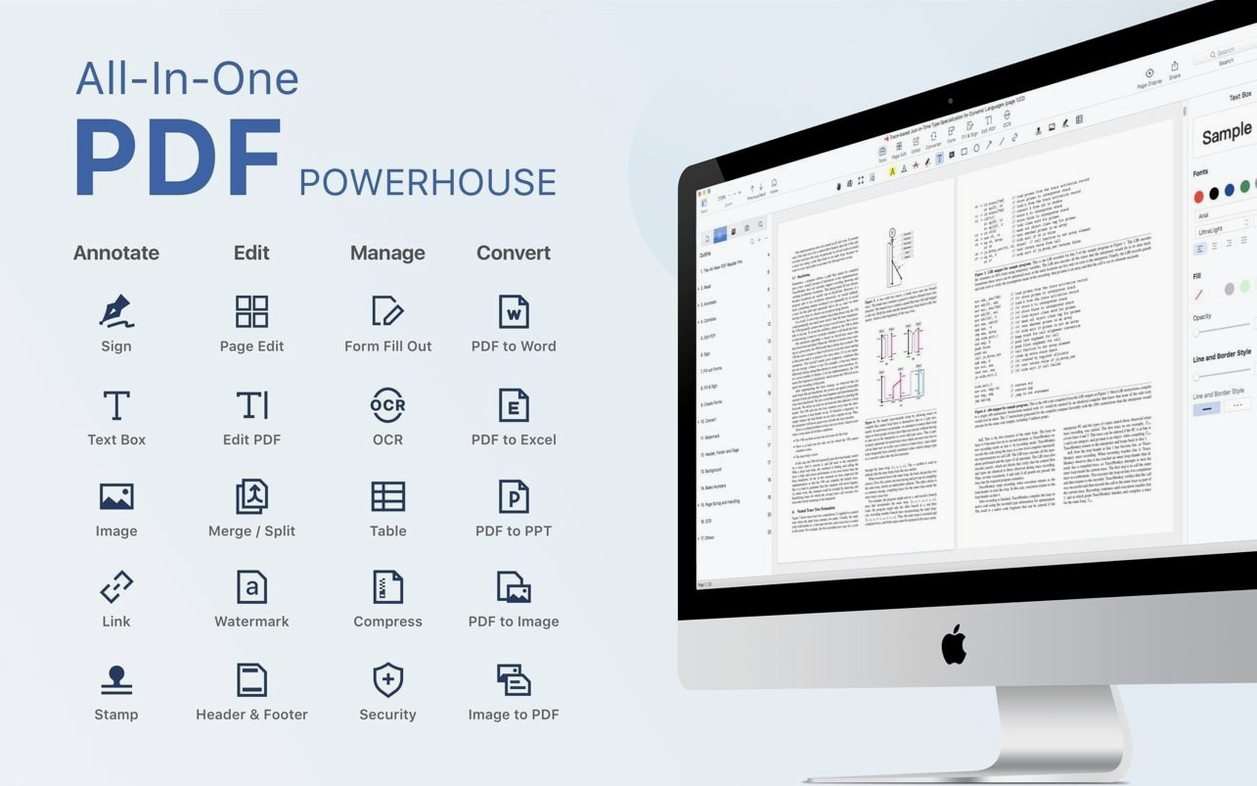
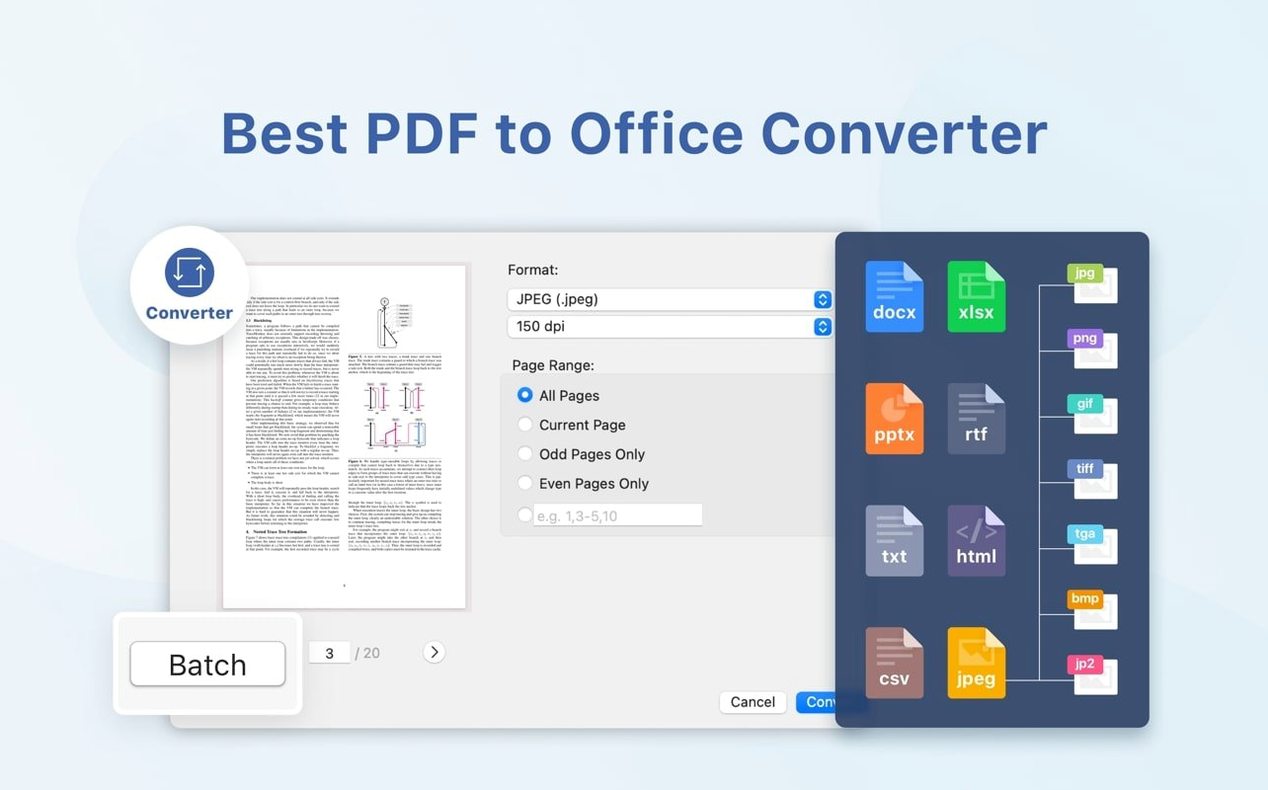
PDF Reader Pro supports a handful of export formats — Word, PowerPoint, Excel, RTF, HTML, text, images, and CSV — but it is a PDF editor first, and that is where its utility sits. It is a PDF editor first, and that is where its utility sits.
Reading and annotating
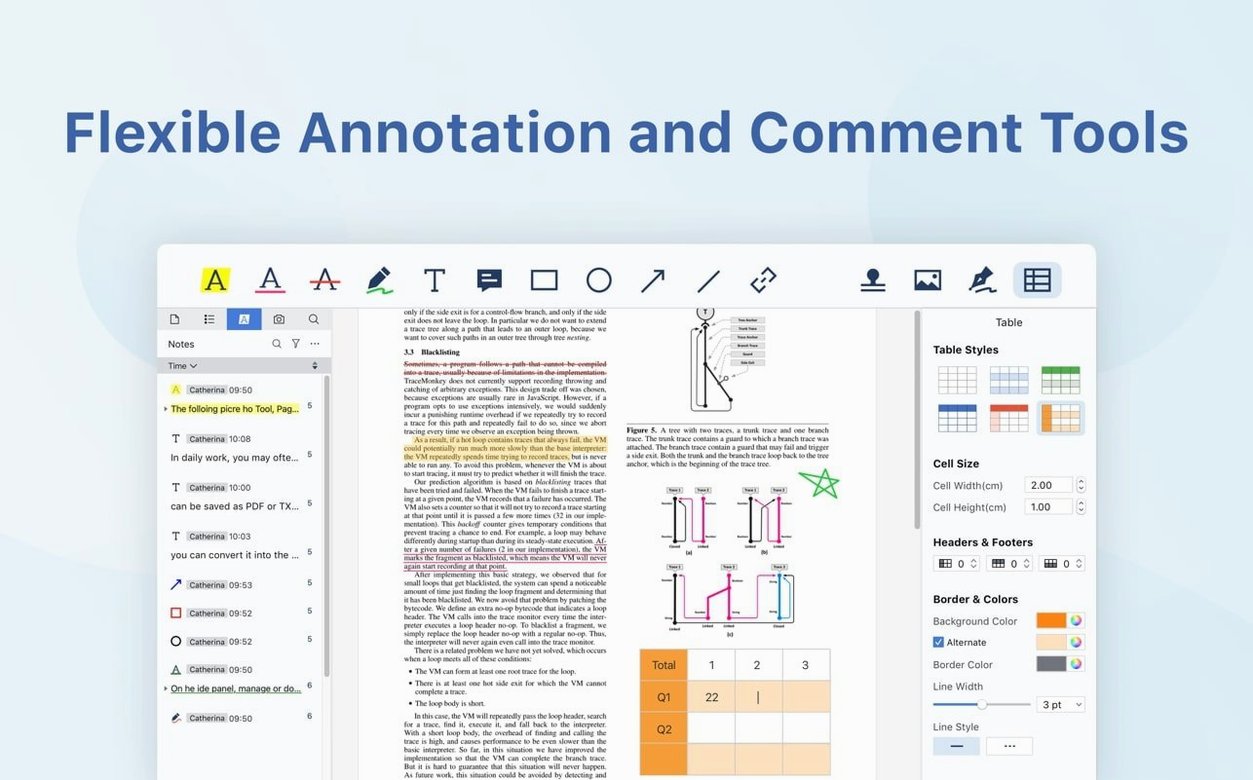
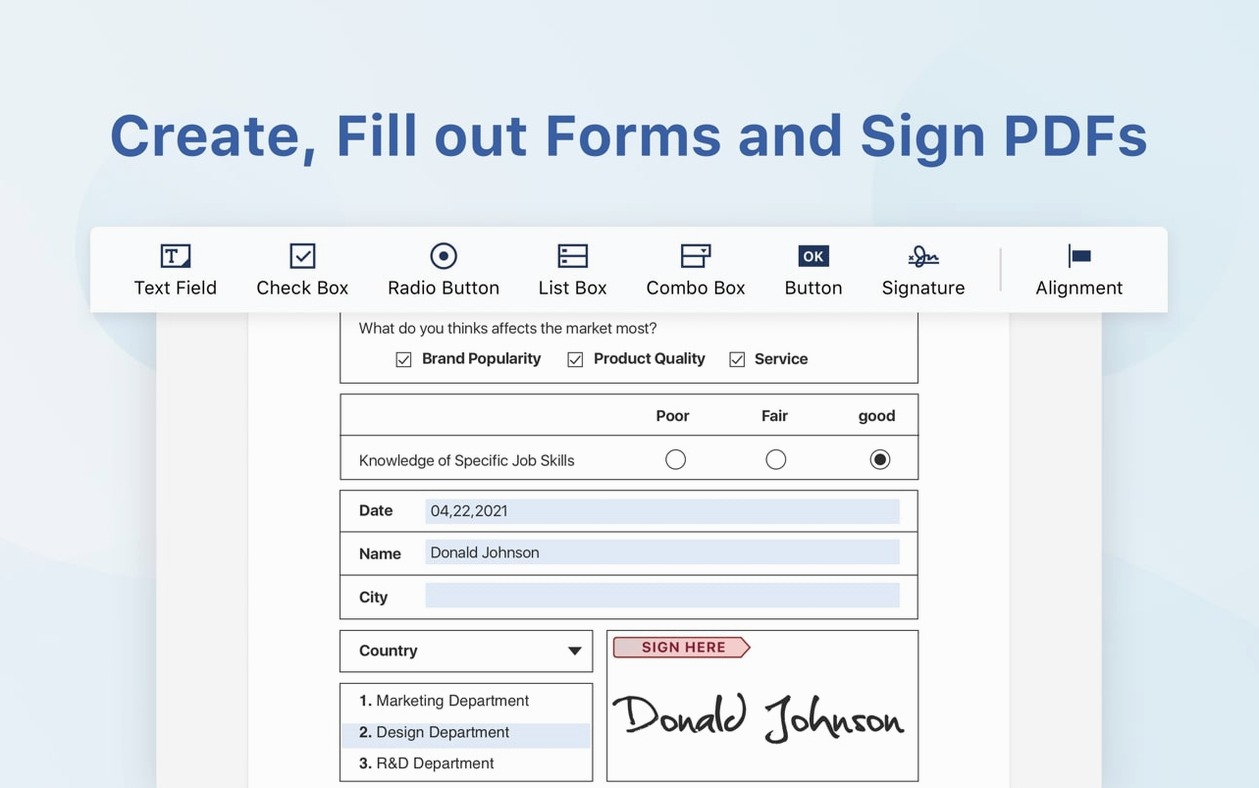
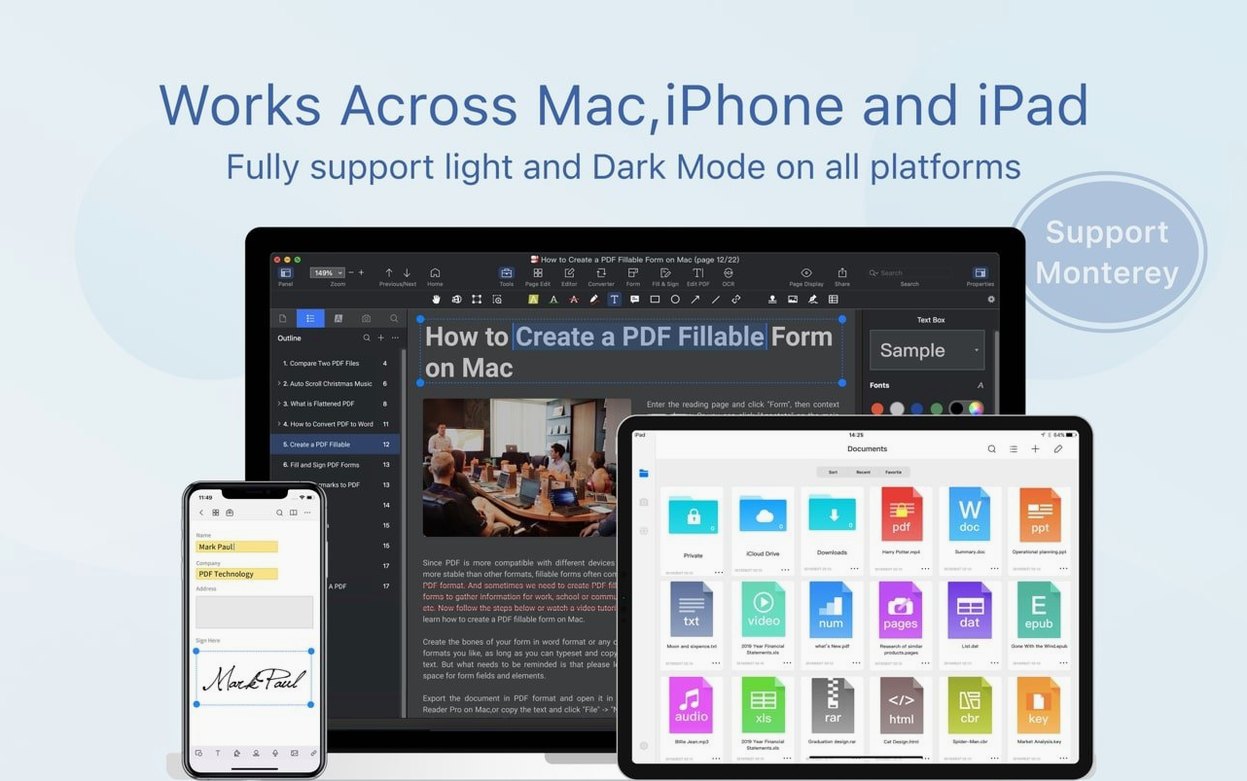
Open a PDF, mark it up with annotations, and have the app read it back to you with text-to-speech. Form filling is built in, so interactive fields work without a separate tool.
Converting and merging
Export PDF content to the formats above when you need it in another app. Multiple documents merge into one PDF in a few steps, which covers most batch workflows.
Most problems come from a few repeatable situations
Most problems with PDF Reader Pro come from a few repeatable situations. Knowing what they are cuts down the fiddling time.
Gatekeeper stops the first launch
The install steps cover this: after mounting the disk image, run Open Gatekeeper friendly, then press Enter in Terminal to bypass Gatekeeper. Do that before dragging the app into the Applications folder, not after. If you have already launched it and got the blocked message, quit the app, run the command again, and relaunch.
PDFs that will not convert cleanly
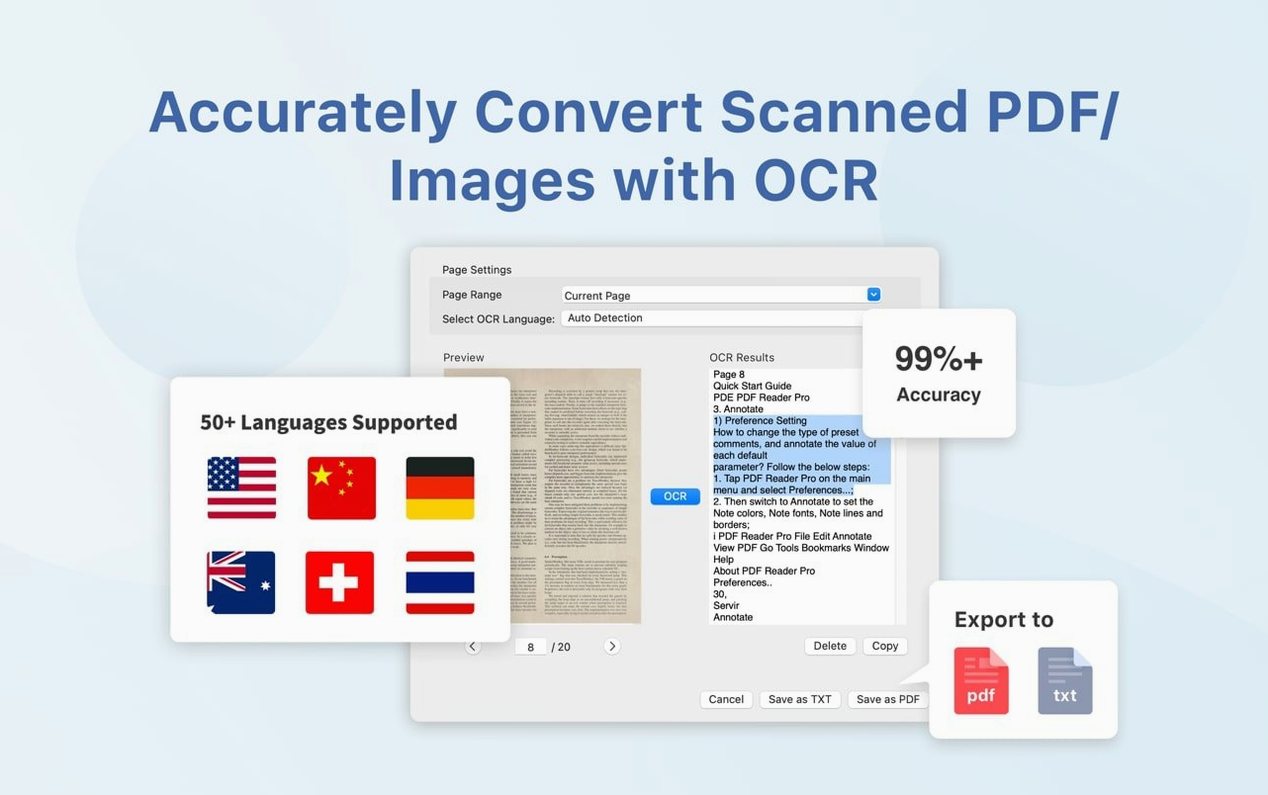
Scanned documents sometimes export with rough text because the text layer is missing. Run the text recognition tool first, then convert. That applies to exports to Word and text formats. Image-heavy PDFs convert better to images or CSV than to RTF, so match the format to the content when the output looks off.
Dropbox sync not picking up changes
Sync relies on the file being saved in a Dropbox folder. If you edited a PDF elsewhere and then moved it into Dropbox, the app may not track it until you reopen and save it from the synced location. Keep the working copy inside the Dropbox folder from the start.
Text-to-speech reading the wrong thing
Text-to-speech reads the visible text on the page. If you have annotations or form fields with helper text, those can get read aloud too. Select the block of text you want read, and the app limits itself to that selection.
Works on both Intel and Apple Silicon Macs
People ask a few things repeatedly. Here are straight answers.
Does it work on both Intel and Apple Silicon Macs? Yes. The app supports ARM and x86 64-bit Macs, and the minimum system is macOS 11. That covers most Macs from the last several years.
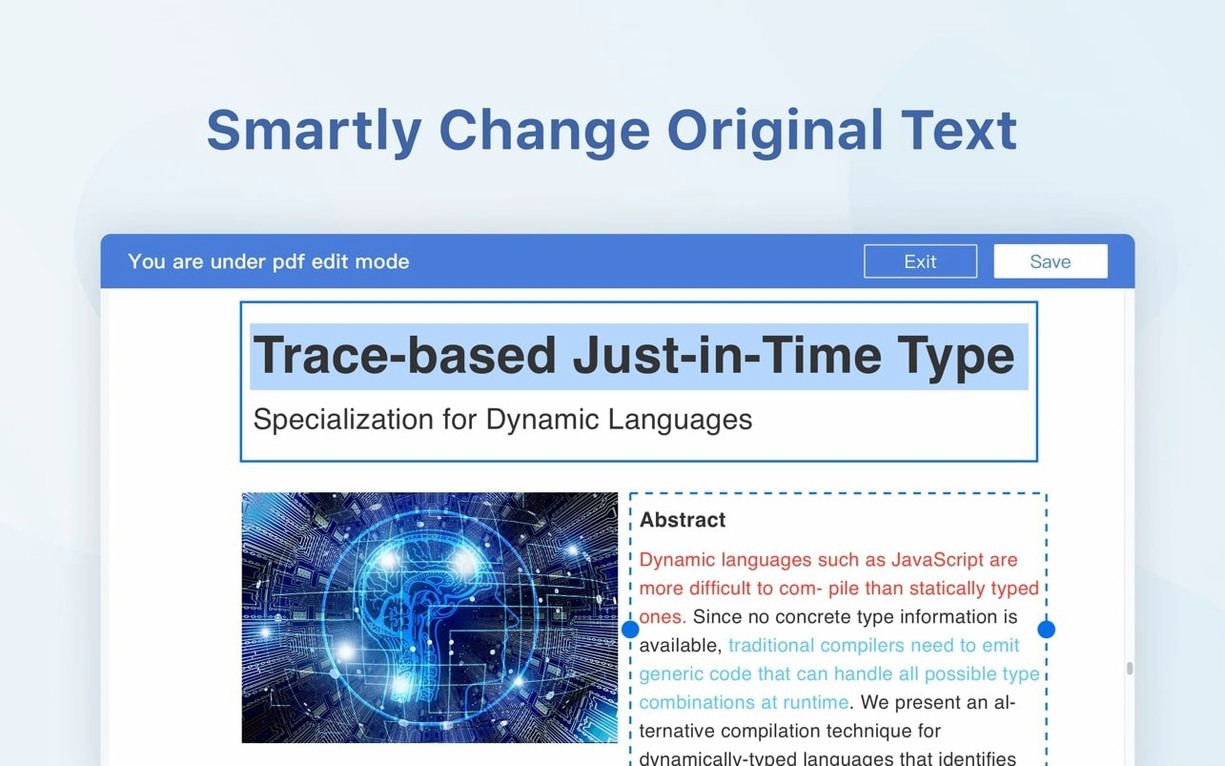
Can it replace a full Office suite? No. It exports PDF content to Word, PowerPoint, Excel, and other formats, but it is not a document editor. Use it to get content out of a PDF, then work in the target application.
Is the interface in English only? No. It ships with eleven interface languages, including Russian, English, German, Spanish, Italian, Traditional Chinese, Simplified Chinese, Dutch, Polish, French, and Japanese. The language setting follows your system or can be changed in the app preferences.
Do I need a separate signing tool? No. Version 5.3.0 brought eSign workflows, signature fields, and online signing. The signing tools are part of the app, not an add-on.
Does it handle scanned PDFs? No. It is not an archive tool. It is a PDF editor. For scanned documents, the text recognition feature builds the text layer so you can search and convert.
Best for document reviewers who mark up drafts daily
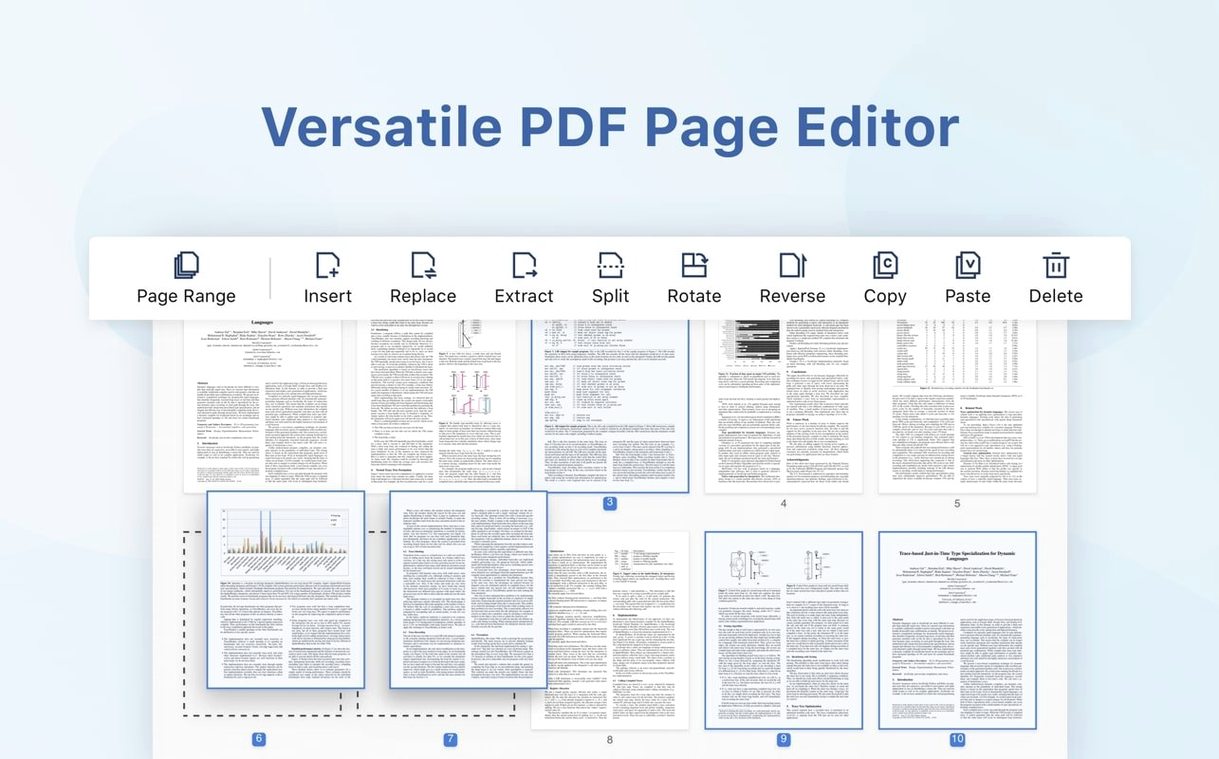
The clearest fit is people who live inside PDFs for review work. Document reviewers who mark up drafts with annotations, fill forms, and send signed copies back will use most of the core features daily. The merge and split tools also matter for anyone who assembles reports from multiple source PDFs or breaks a large document into chapters.
Office workers who handle contracts benefit from the eSign workflows added in version 5.3.0. Signature fields and online signing shorten the back-and-forth that usually comes with approvals. If you work with a mix of PDF and Office files, the export options to Word, PowerPoint, Excel, and RTF save the step of retyping content.
Students and researchers who collect papers will find the split and merge functions useful for organizing sources. Text-to-speech helps when proofreading long documents aloud, and the presentation mode covers reading a PDF to a room without exporting slides.
It is also a reasonable pick for someone who wants one tool for reading, light editing, and cloud storage sync. Dropbox sync keeps the working set consistent across devices, which matters if you switch between a desk and a laptop.
Bookmarks saved per document and presentation mode
Several features do not announce themselves but make daily use smoother.
- Bookmarks are saved per document. If you work through a long PDF over several sessions, set bookmarks as you go and jump back without scrolling.
- Presentation mode turns the PDF into a full-screen view for showing documents to a group. It is not a slide converter, but it works when the source is already a PDF.
- Insert pages from another PDF lets you build a new document from parts of existing ones. That is faster than merging whole files and then removing unwanted pages.
- CSV export is handy when the PDF contains tabular data you need in a spreadsheet. The output is not always perfect, but it beats retyping rows of figures.
- Text recognition improves search and conversion for scanned PDFs. Run it before you need the text, not after you are stuck with an unsearchable file.
None of these are hidden settings. They are just features that sit quietly in the menu until a specific task calls for them. Knowing they exist means you reach for the right tool when a document needs it.
Version 5.3.0 added eSign workflows, signature fields, and online signing, so contracts move faster. Files sync with Dropbox if you keep documents in the cloud.
- macOS 11 or later
- Intel or Apple Silicon
Questions from the notes
Can PDF Reader Pro open 7z files?
No. PDF Reader Pro is a PDF editor and viewer. It handles PDF documents, not compressed archives.
Install procedure
- Mount the disk image and run Open Gatekeeper friendly.
- Press Enter in Terminal to bypass Gatekeeper.
- Drag the app into the Applications folder.
- Launch the app from Applications.
Reports from players
Sign in or create a tester account to file a report.
No reports filed yet.