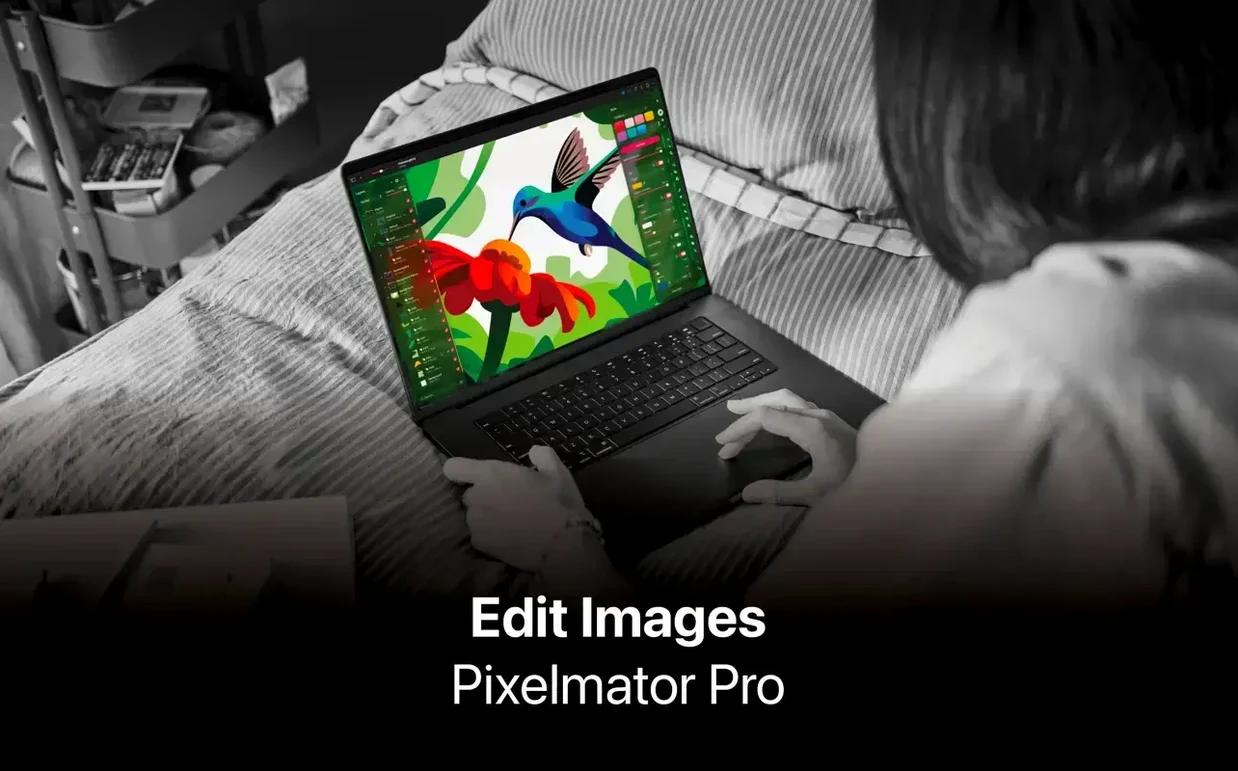
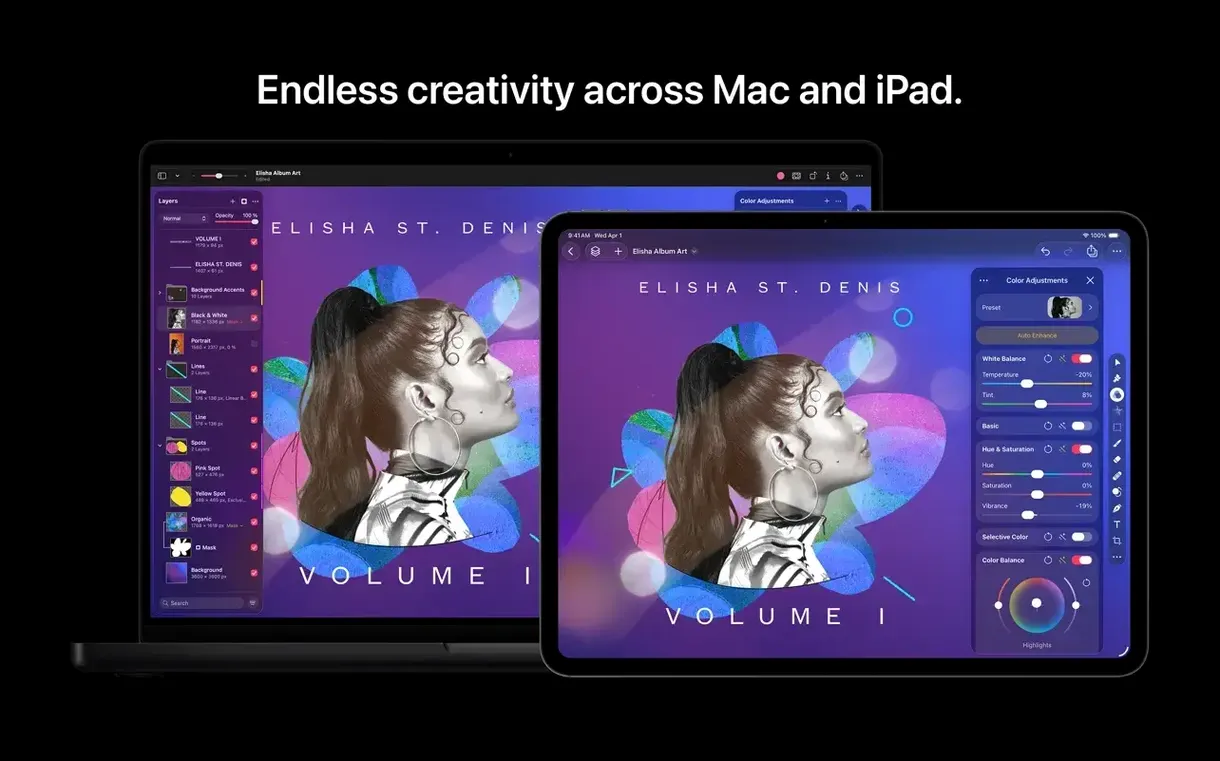
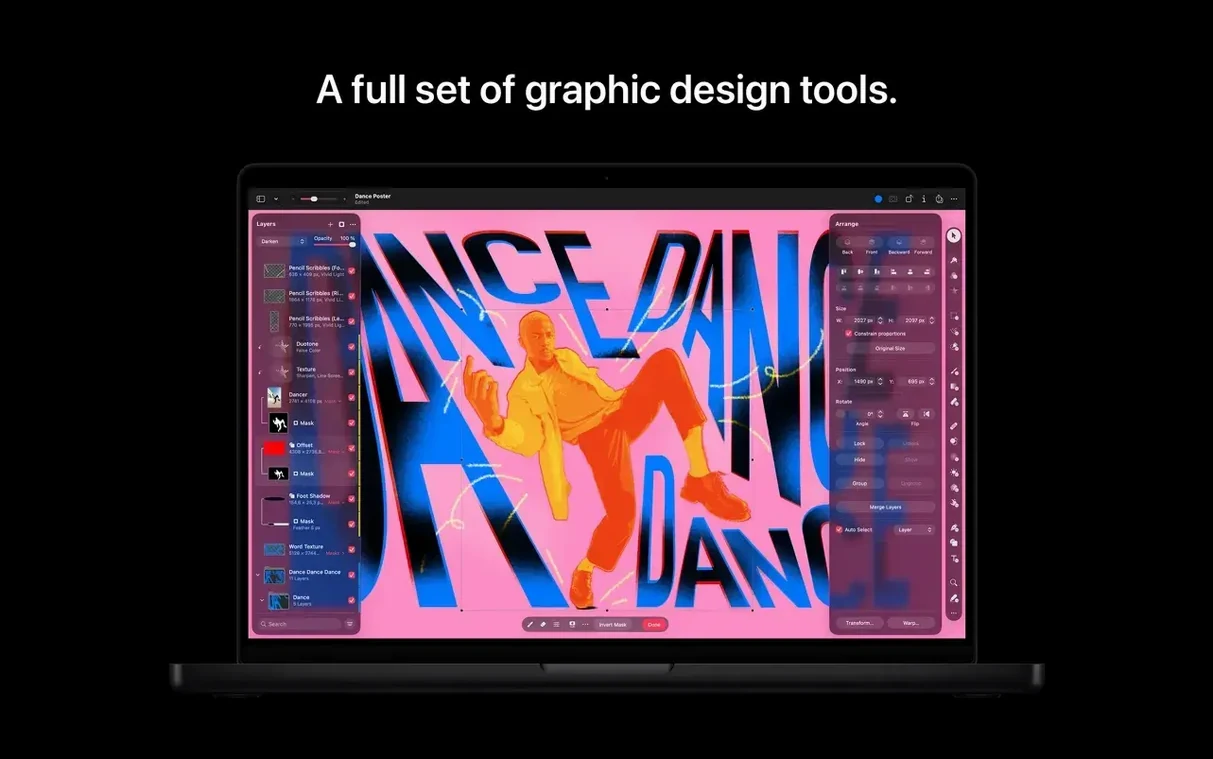
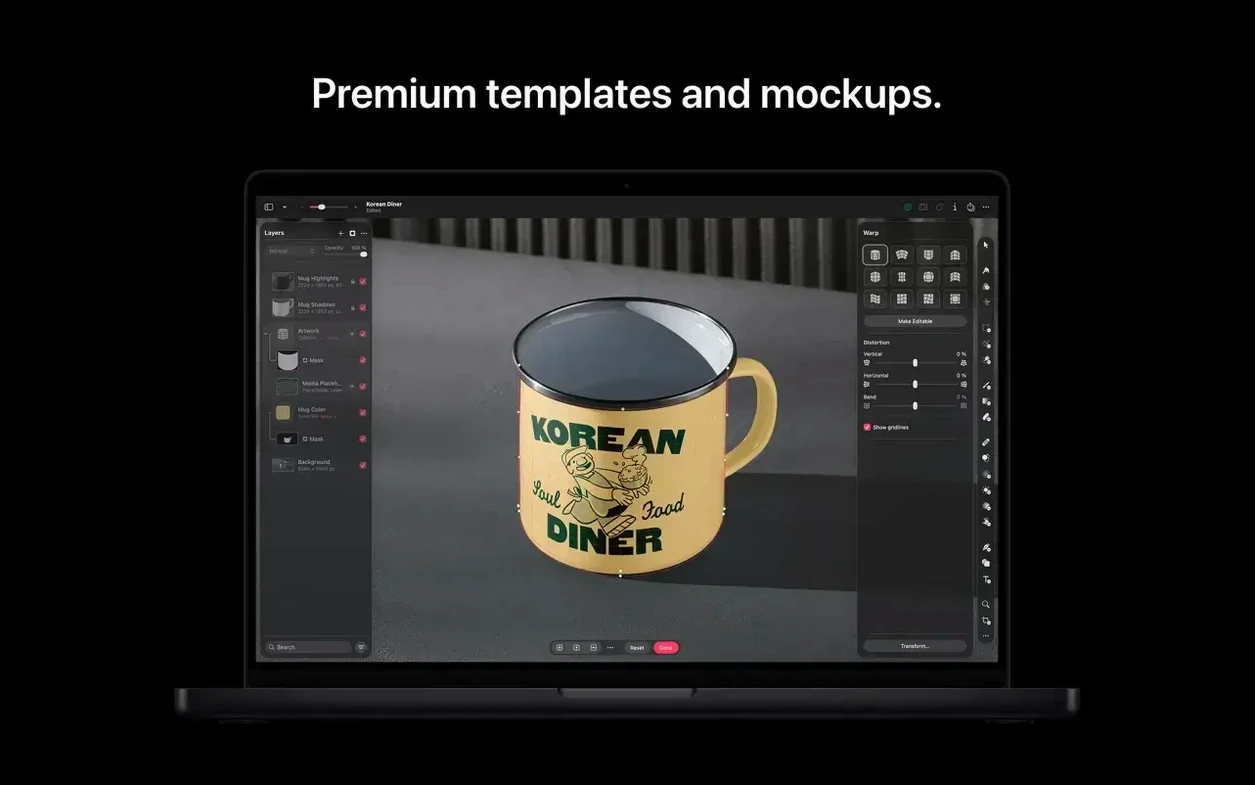
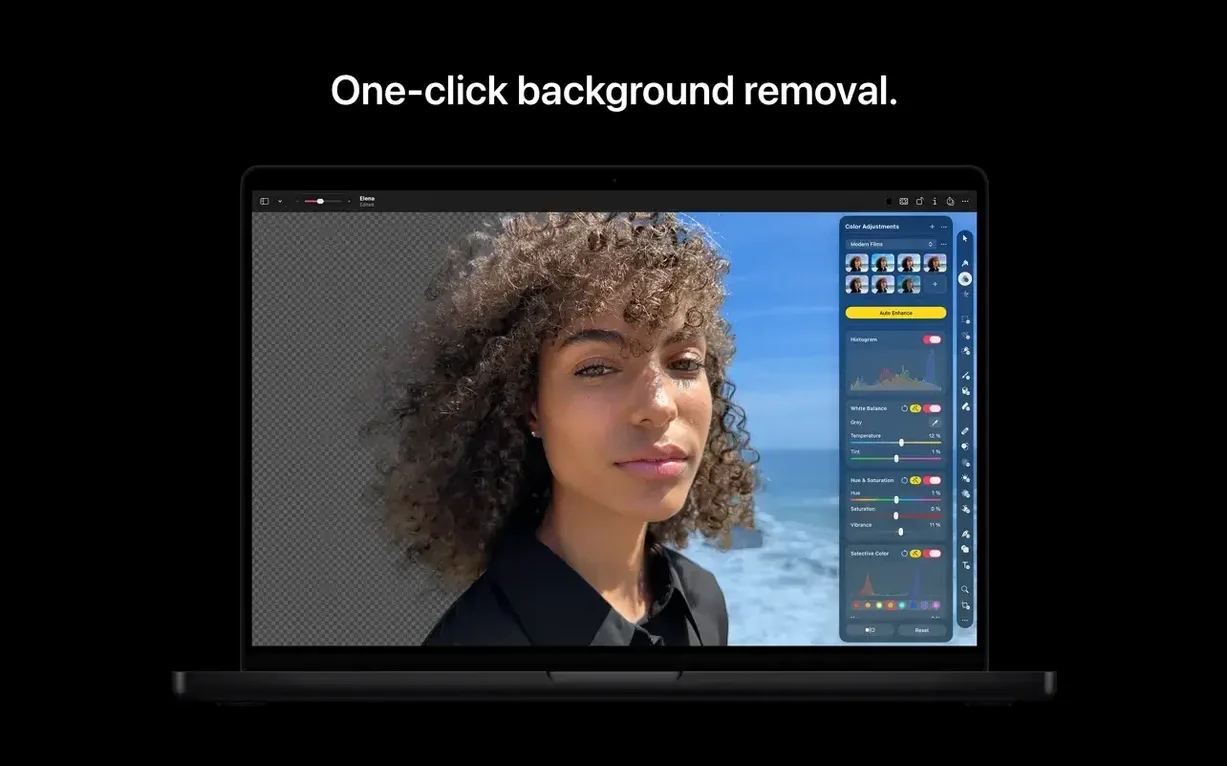
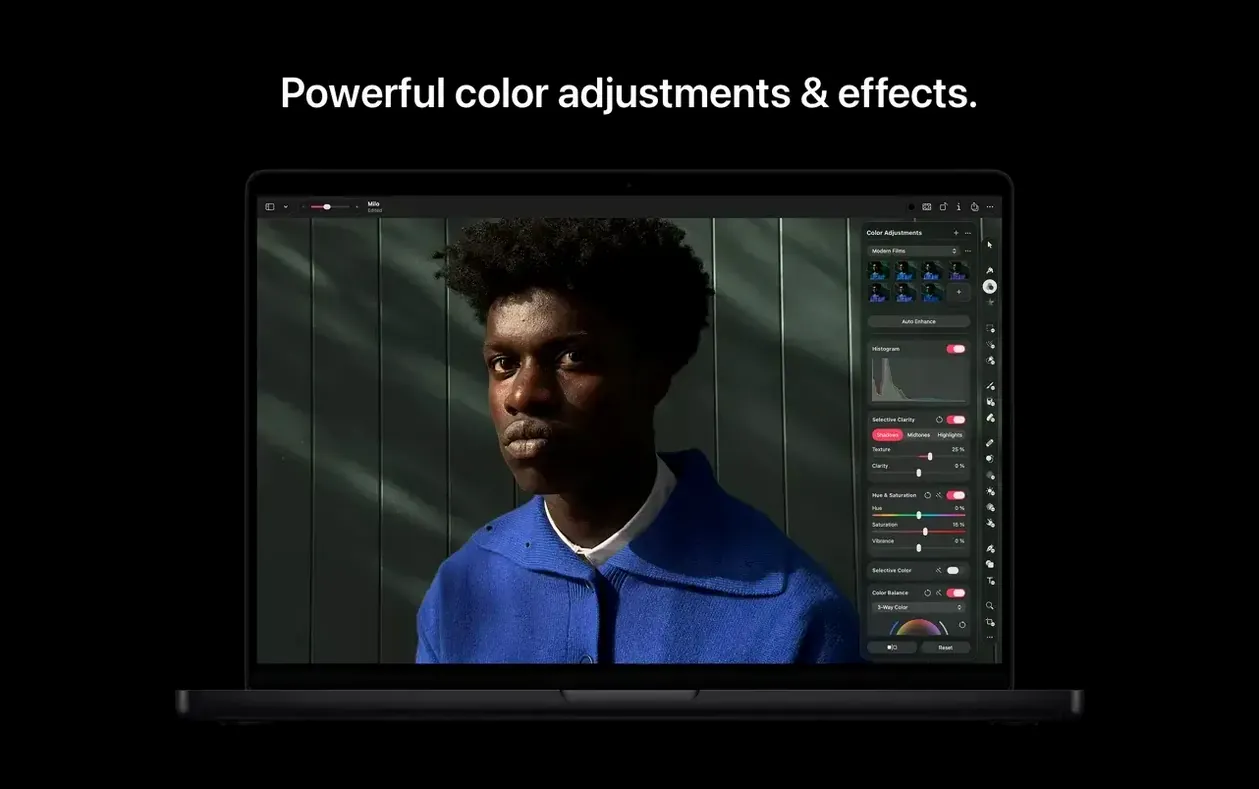
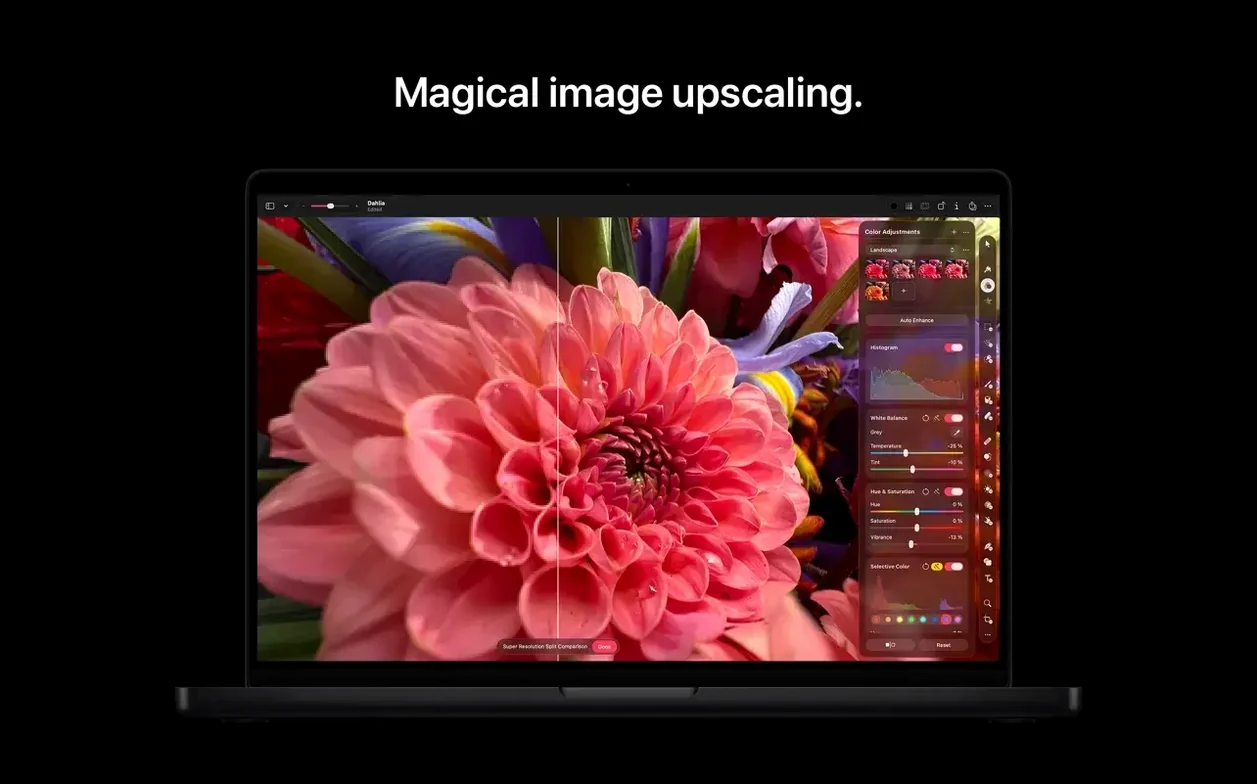
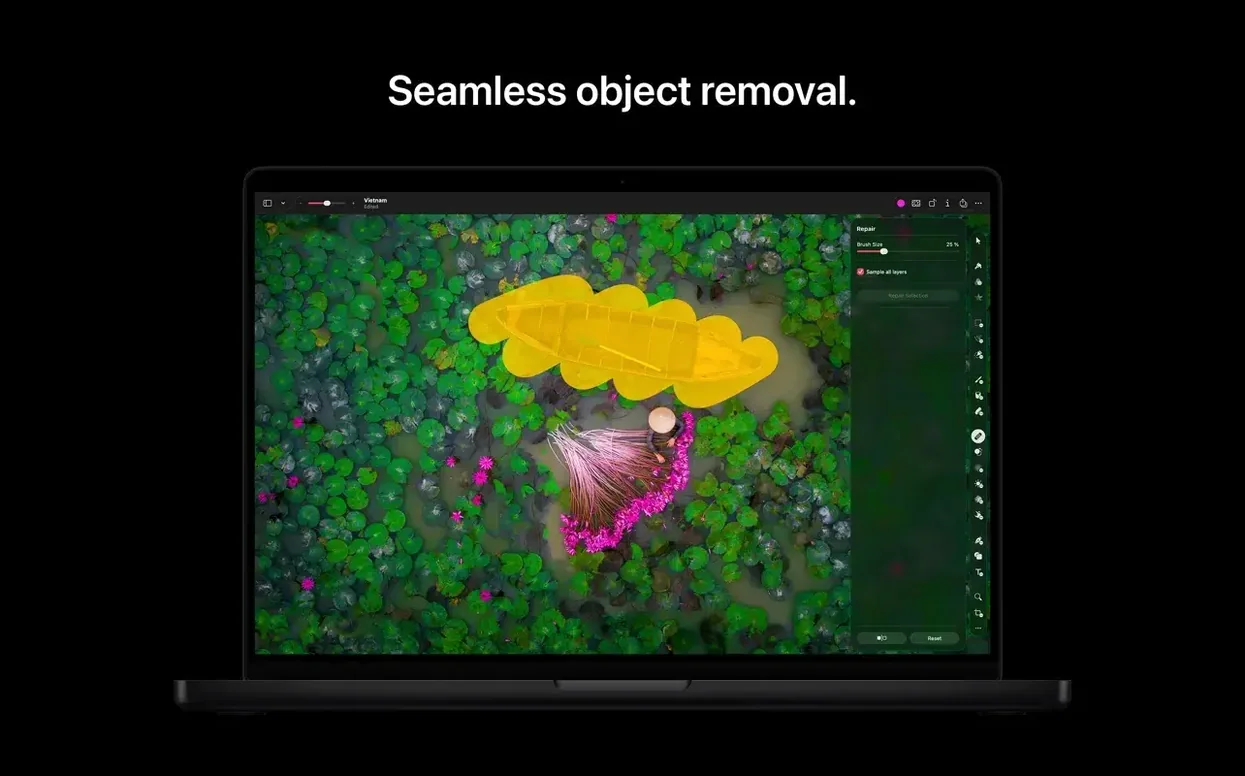
Pixelmator Pro has been around long enough that most Mac users who edit images have at least heard of it. Version 4.3, released under Apple’s ownership, keeps the same core workflow while adding three new features that change how you start or modify an image.
The big additions are Generate Image and Generate from Image, both of which work from text descriptions. You can also generate custom vector shapes the same way, and Content Hub gives you a library of photos, graphics, shapes, and illustrations to drag into your composition. Everything else — non-destructive layers, RAW editing, retouching tools, integration with the Photos app, and support for formats like PSD, SVG, HEIF, and PDF — stays intact.
Interface languages include English, French, German, Spanish, Italian, Russian, Japanese, Korean, and both Traditional and Simplified Chinese. The app runs natively on Apple Silicon and requires macOS 26. For sharing, it can send images directly to Photos, Mail, and AirDrop. Accessibility also got attention: Switch Control and VoiceOver support are improved in this version.
Browse included graphics in Content Hub first
After installation, it is worth spending time with Content Hub before diving into other tools. Open the Content Hub panel and browse the included graphics and shapes — they are organized by category, and dragging one into a document gives you an immediate feel for how layer handling works. The single-window interface keeps everything on one canvas, so you can try different assets without switching panels.
RAW editing can be tested with a few camera-format files. Drag a RAW photo onto the window and Pixelmator Pro opens it in a dedicated module. Sliders for exposure, contrast, and white balance are laid out in a logical order, and any adjustments stay non-destructive until you choose to export. It is a good habit to make a small adjustment, then close and reopen the file to verify the original data is preserved.
The Automator panel is useful for batch tasks. Set up a sequence of steps — resize, convert to JPEG, apply a watermark — and run it over a folder of images. Test it first on a copy of a few files to confirm the order and outcome are what you expect. Automator actions can be saved and reused, so a common workflow only needs to be configured once.
Edits sync back to the Photos app library
Pixelmator Pro integrates directly with the Photos app. From within Photos, you can select an image and choose to edit it in Pixelmator Pro. Once edits are saved, the changes appear back in your Photos library. This round-trip workflow is convenient for users who keep their photo catalog in Photos but want more control over retouching or compositing than Photos itself offers.
Sharing to Mail and AirDrop is handled from the Share menu inside Pixelmator Pro. For quick delivery of a finished design or photo, you can send it without leaving the app. The same menu also provides an export to Photos if you prefer to manage files there.
Because Pixelmator Pro opens layered PSD files, designers who work with Adobe Photoshop on other machines can transfer files to macOS and continue editing. SVG support also means vector assets from tools like Affinity Designer or Adobe Illustrator can be imported and adjusted. The app handles common raster formats such as JPEG, TIFF, PNG, HEIF, and GIF, so it slots into most existing file workflows without conversion steps.
Real-world scenario: graphic designer preparing social media assets
A graphic designer needs to produce a set of social media posts for a campaign. The client provides a PSD file with several layers, a folder of product photos in RAW format, and a brief with text descriptions for a few vector icons. The designer opens the PSD in Pixelmator Pro — layers remain editable, so text and object positioning can be adjusted. The RAW photos are edited non-destructively: white balance is corrected, exposure is lifted in one shot, and a blemish is removed with the retouching tool. For the icons, the designer uses the new generate custom vector shape feature, typing descriptions like "circle with leaf border" and refining the results until the shapes fit the campaign style. The final assets are composed in a single document, then shared to Mail for client review. The campaign folder is also batch-processed through Automator to output JPEGs at the correct dimensions for each platform.
Drag parts of an image to reshape them
The repositioning tool is not a clone stamp — it lets you drag parts of an image to reshape them. It works well on simple backgrounds and can fix perspective issues without cutting and pasting. The tool is under the retouching section and is worth a try on architectural photos or product shots.
Content Hub includes both raster and vector assets. The vector shapes can be recolored and scaled without losing quality, making them useful for layout mockups or icon sets. The hub is searchable, so typing a keyword, such as "leaves" or "tiles", filters the library quickly.
Interface languages are available in the Preferences panel. Changing the language does not require a restart — the UI updates immediately. This is helpful for users who work in a bilingual environment or want to verify that menu labels match a colleague's screen.
Generate an image from a typed description
Generate Image is the most visible addition. Instead of starting from a blank canvas or a photo, you type a description and the app produces an image. Results vary depending on the detail of the prompt, but the feature is accessible from the same menu as new document creation. It does not replace photography or illustration — it provides a starting point or fills a gap when source material is missing.
Generate from Image works on an existing photo or composition. You describe a change — "make the sky overcast," "remove the car from the driveway" — and the app attempts to apply it. This is not a replacement for manual retouching on complex scenes, but on simple subjects it can save time. The repositioning tool and clone tools remain available for finer control.
Custom vector shape generation follows the same prompt-based approach. Typing "arrow with rounded end" or "hexagonal frame" produces a vector that you can style with strokes and fills. For designers who need quick icons or decorative elements, this reduces the need to search through symbol libraries or draw from scratch.
Content Hub is a panel that stays open while you work. It contains photos, graphics, shapes, and illustrations. Dragging an asset into a document places it on a new layer. The hub is updated by Apple, so the available content may change over time. It is not a replacement for your own asset library, but it is a convenience for projects that need generic elements like backgrounds, frames, or clip-art-style illustrations.
Improved Switch Control and VoiceOver support means the app works better with accessibility hardware. Switch Control allows users with limited hand mobility to operate the app through external switches, and VoiceOver reads UI elements aloud. These improvements make Pixelmator Pro usable by a wider range of people without sacrificing features.
- Adds Content Hub for inserting photos, graphics, shapes, and illustrations.
- Adds Generate Image for creating images from text descriptions.
- Adds Generate from Image for text-based edits and transformations.
- Adds custom vector shape generation from text descriptions.
- Adds improved support for Switch Control and VoiceOver.
- macOS 26
- Apple silicon
- Also runs on macOS 10.13 High Sierra or later (Intel models)
Questions from the notes
Does Pixelmator Pro support RAW files?
Yes, it supports RAW image editing directly in the app without needing an external converter.
Install procedure
- Mount the downloaded disk image.
- Drag the app into the Applications folder alias.
- Launch the app from Launchpad after copying finishes.
Reports from players
Sign in or create a tester account to file a report.
No reports filed yet.