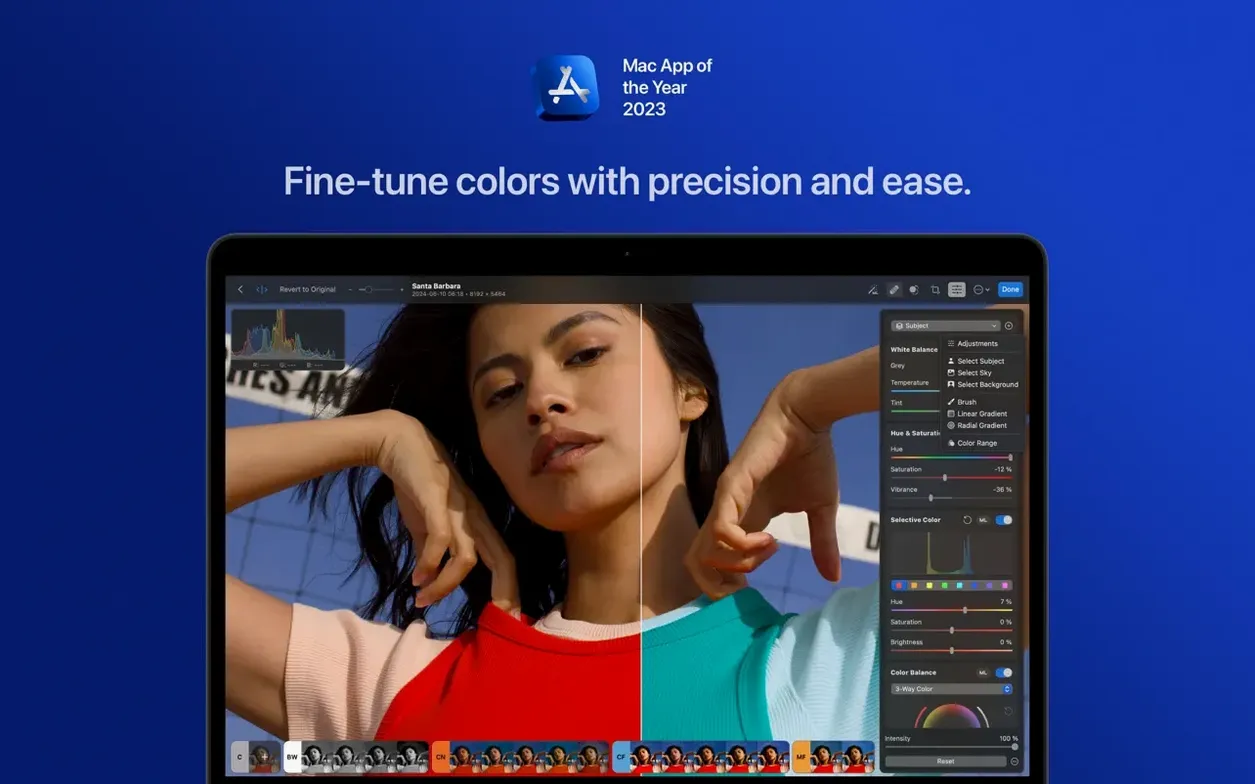
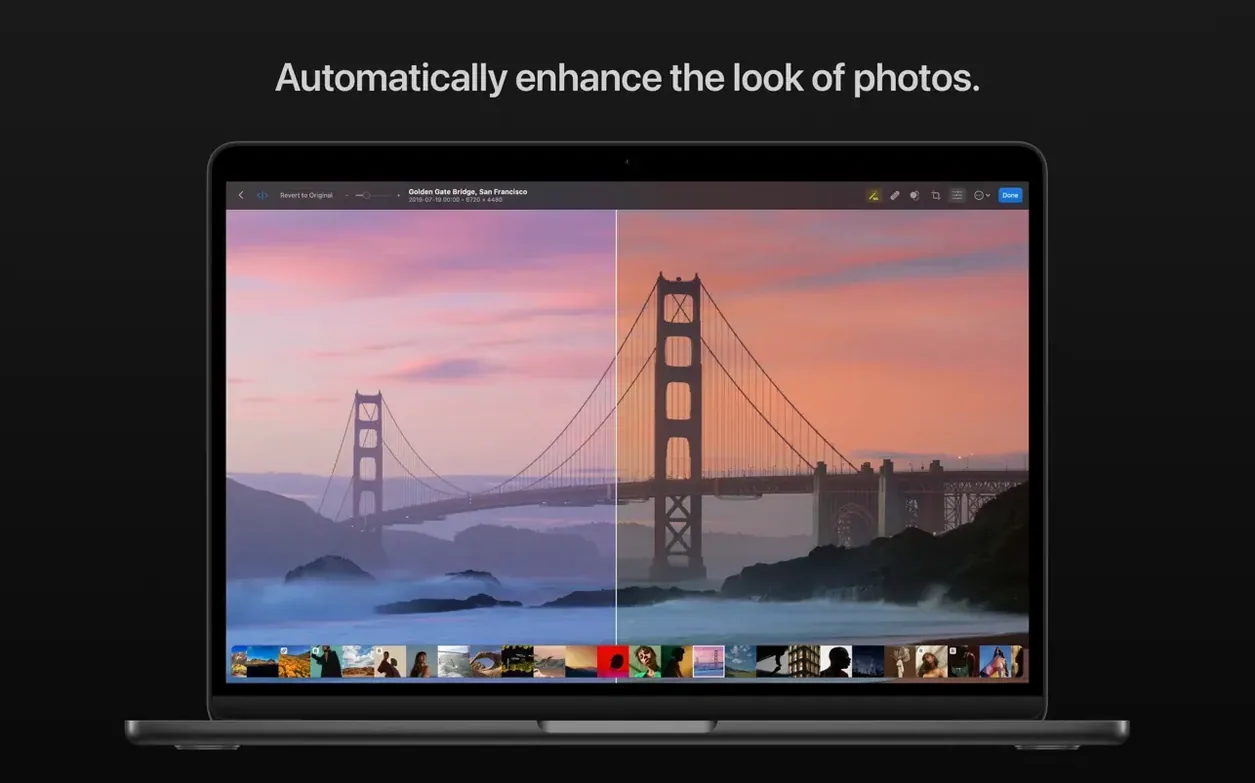
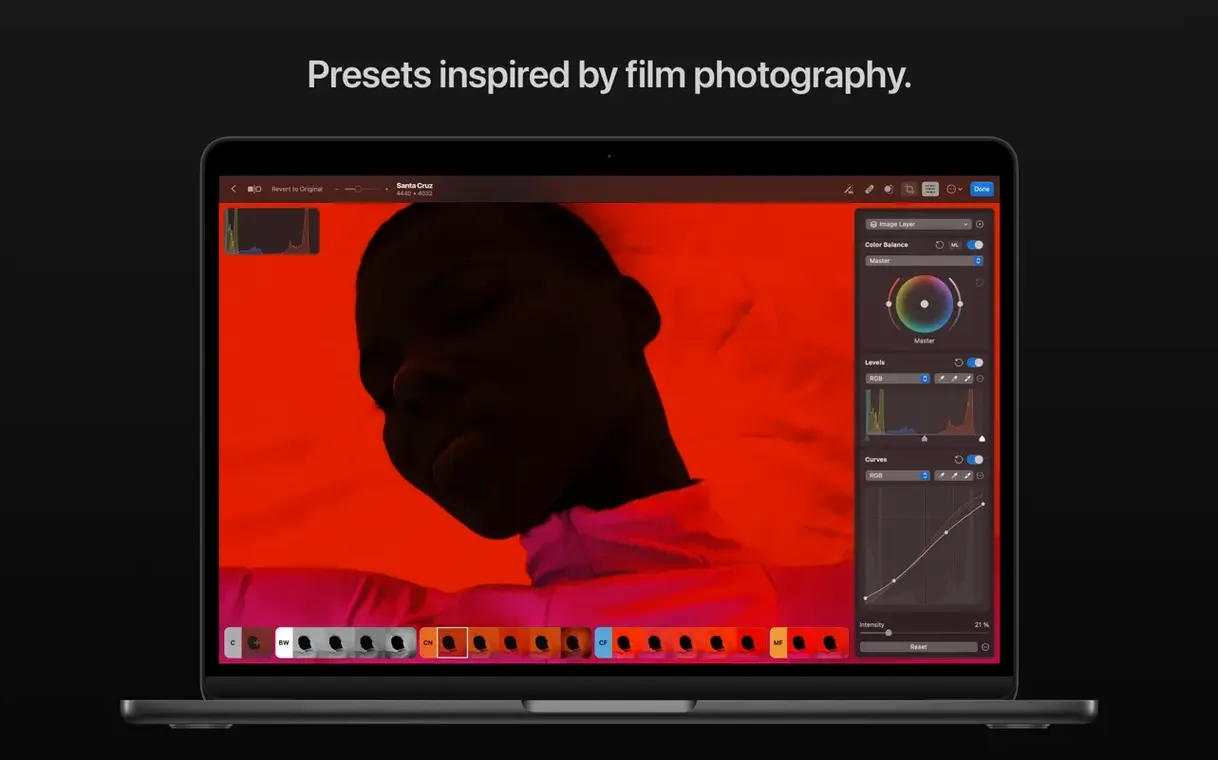
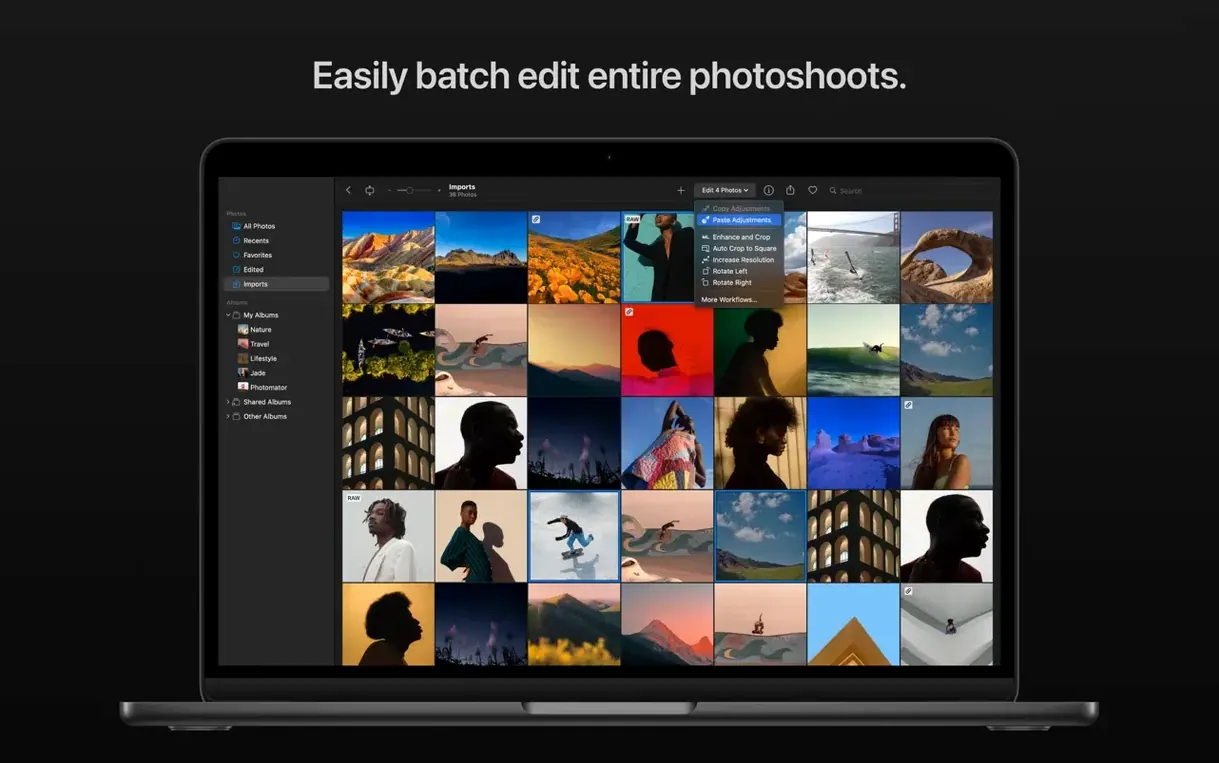
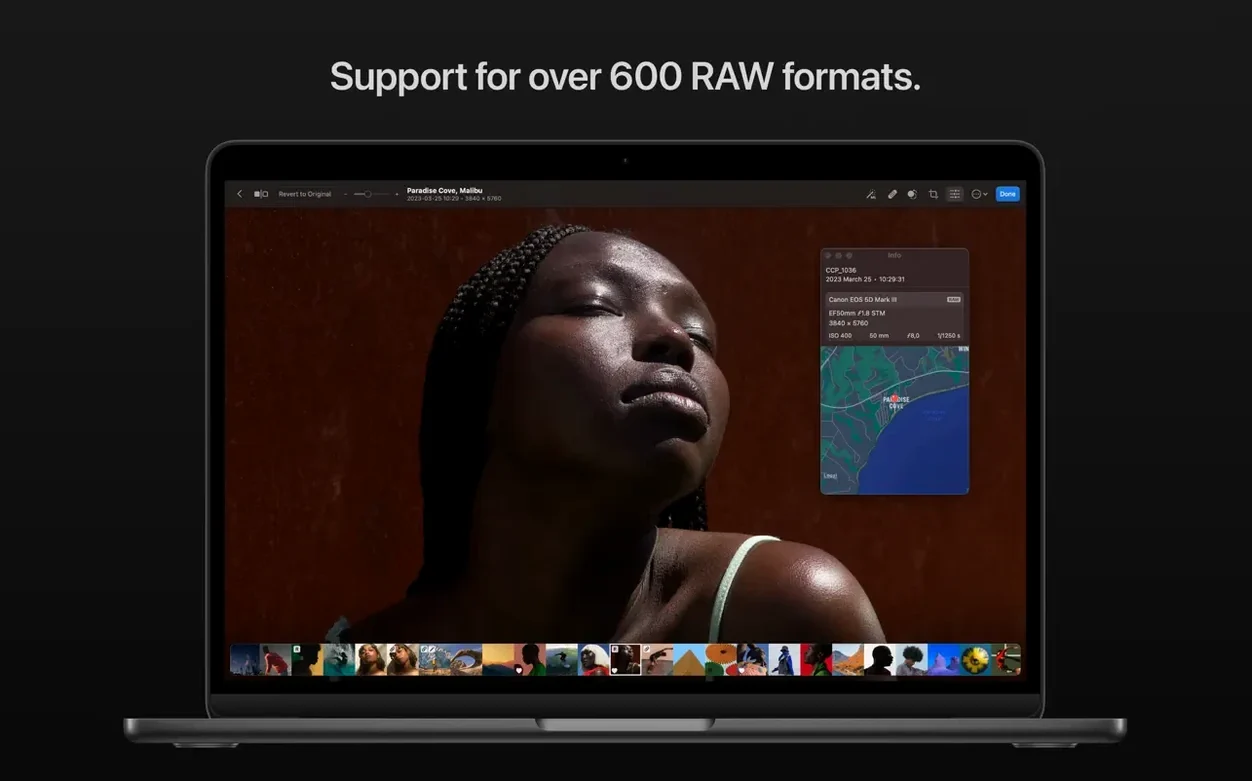
Photographers and anyone who edits photos on a Mac have a solid option in Photomator. It handles retouching, color correction, and RAW processing without getting in the way. The current version builds on that with a few targeted additions.
Good for:
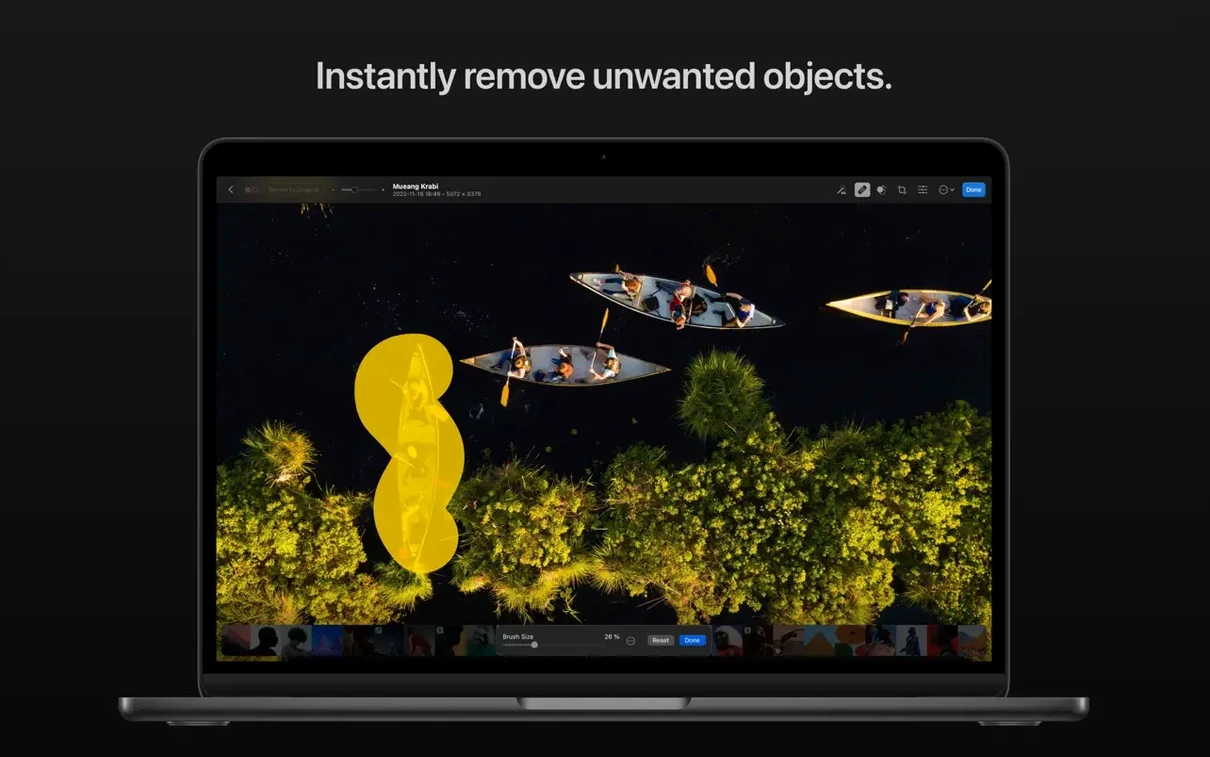
- Upscaling photos and removing unwanted objects with clone and repair tools.
- Copying and pasting edits between photos, or matching the look of one photo to another.
- Using AI-based automatic selection for subject, sky, or background.
- Fixing color banding with the Smart Deband tool.
- Working with RAW files from the latest Sony, Fujifilm, Nikon, and Panasonic cameras (see What's New).
Keep in mind:
- Requires macOS 13 (Ventura) or later. Works on both Intel and Apple Silicon Macs.
- Uses Metal, Core ML, and Core Image — it's built tight into Apple's ecosystem.
- Interface available in English, French, German, Spanish, Italian, Portuguese, Japanese, Korean, and two forms of Chinese.
RAW support for recent Sony, Fujifilm, Nikon, and Panasonic bodies
The jump to 3.4.15 is mostly a maintenance release with a clear focus: keeping RAW support current. If you shoot with a recent Sony, Fujifilm, Nikon, or Panasonic body, the practical difference is immediate — no waiting for a future update to open your files. For everyone else, the bug fixes and performance improvements mean the app behaves a little more predictably than before. Nothing in the interface shifted, no new panels appeared. The workflow stays the same; the underlying compatibility just quietly widened.
File format confusion and macOS permission quirks
Most issues I see come down to one of three things: file format confusion, macOS permission quirks, or a misunderstanding about where edits live.
- RAW files from a newly released camera won't open. Photomator 3.4.15 covers the latest bodies from Sony, Fujifilm, Nikon, and Panasonic, but if you are on an older version, check which build you are using. The update is needed for those compressed RAW formats. If the files still fail after updating, verify the camera actually saves compressed RAW — some models offer both compressed and uncompressed options, and only one might be supported.
- Edits don't sync to the Photos app or iCloud Drive. This usually happens when the original file is stored outside the Photos library. Photomator can sync edits with Photos and iCloud, but it expects the source to be within that managed library. Moving the file into Photos first and then opening it from Photomator fixes it. Also check that macOS Ventura's Photos app is signed into your iCloud account.
- Batch editing doesn't apply to all selected files. Batch editing works across RAW and other formats together, but only if every file in the batch is a format Photomator can write metadata to. Some RAW formats are read-only for metadata — you can adjust them, but the adjustments are saved as sidecar files or to the app's internal catalog, not embedded. If the batch seems incomplete, check whether the unaffected files are a RAW variant that uses sidecar saves.
- The clone or repair tool leaves a visible seam. The tool is sample-based. If the source area you selected has texture or lighting that does not match the target area, the result looks pasted. Try sampling from the same distance and angle as the area you are fixing. For larger objects, work in smaller passes.
What to know before installing on your Mac
Works on Intel Macs and Apple Silicon, with performance gains on M-series
Both. The app is compiled as a universal binary for x86 (64-bit) and ARM. Intel Macs from the Ventura era and all M-series machines are supported. Performance benefits from Apple Silicon because the app uses Metal and Core ML, which are optimized for that hardware, but nothing is locked out on Intel.
What happens if I edit a photo in Photomator and then open it in another app?
It depends on the file type. For JPEG, TIFF, and PNG, edits are saved directly to the file, so other apps see the changes. For RAW files, Photomator stores adjustments non-destructively — the original RAW data stays untouched. If you open that RAW elsewhere, you will see the unedited version unless you export a processed copy. The app can match the look of one photo to another, which is useful if you are moving between editors and want consistency.
Handles Fujifilm compressed RAW and Adobe DNG, including new camera support
Yes to both. Photomator handles over 650 RAW formats, including compressed Fujifilm RAF files and DNG. The 3.4.15 update specifically added support for compressed RAW from the Fujifilm GFX 100S II and GFX 100RF, plus the compressed varieties from the newest Sony, Nikon, and Panasonic bodies. If you shoot in a less common RAW variant — say, C-RAW from Canon — test a sample first; coverage is broad but not universal.
Does the AI selection work offline?
Yes. The AI-based subject, sky, and background selection runs on the Mac using Core ML. No data leaves the machine. That also means it works without an internet connection, which matters if you edit on location.
Built on Apple's Metal, Core ML, and Core Image for native macOS performance
Photomator is built on Apple's own imaging stack — Metal for GPU acceleration, Core ML for machine learning tasks, and Core Image for core processing. That makes it a native citizen on macOS Ventura rather than a port from another platform.
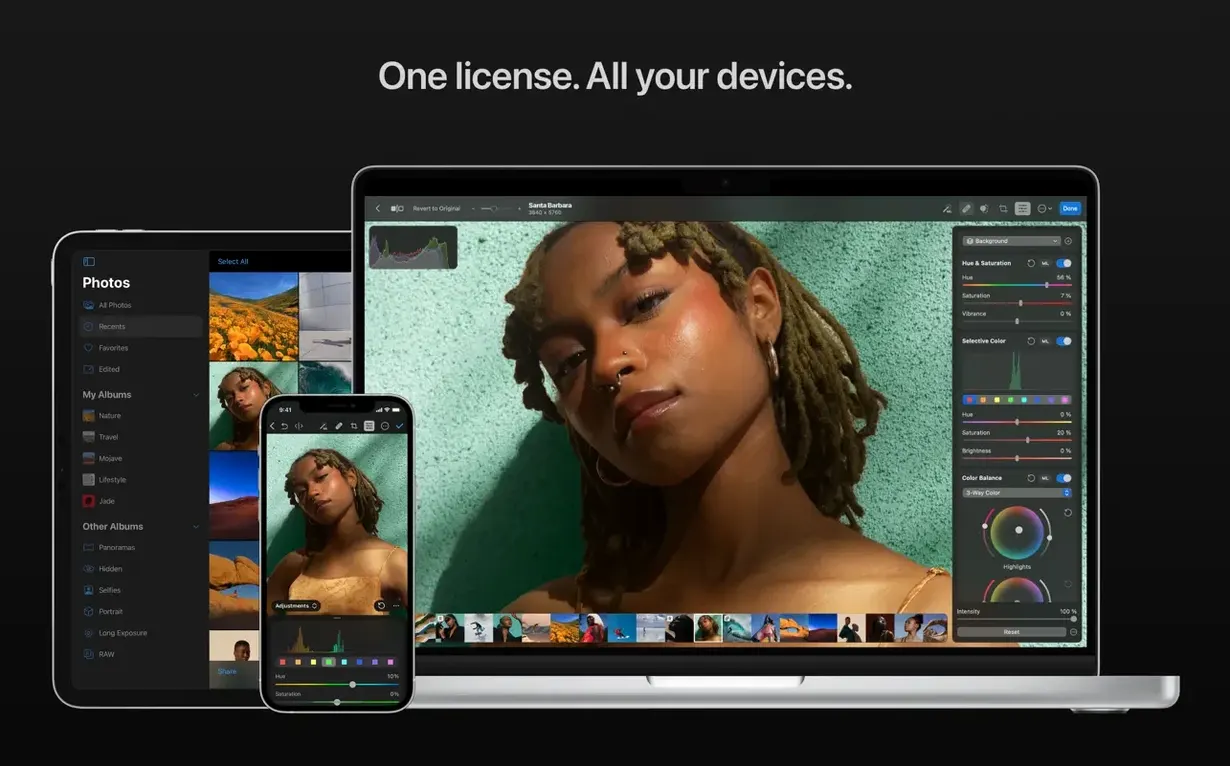
The Photos app integration is the most visible tie-in. Edits you make in Photomator can appear in the Photos library if you set it up. That is useful if you keep a master catalog there and only jump to Photomator for heavier retouching. iCloud Drive sync works through the same path: edit in Photomator, save, and the adjusted version propagates to your other Macs and iOS devices through the Photos sync.
For workflows that involve multiple tools, the copy-and-paste edits feature helps. You can adjust one photo, copy the adjustment set, and apply it to the rest in a batch. That works across formats, so you can match a JPEG to a RAW look. The color match tool goes further — it analyzes the color profile of a reference photo and applies it to the current one. That is handy if you want consistency across a set shot in different lighting.
Best for RAW shooters who buy cameras within a year of release
The app is broad enough that several distinct groups will find it useful.
- RAW shooters who buy cameras within a year of release. The 3.4.15 update added support for five recent camera models. If you tend to upgrade bodies frequently, Photomator's update cycle is worth watching — it typically adds new RAW support within a few months of a camera's ship date.
- Edits, AI selection, and Denoise all run locally. If you prefer owning your workflow without monthly fees, it is a clean fit.
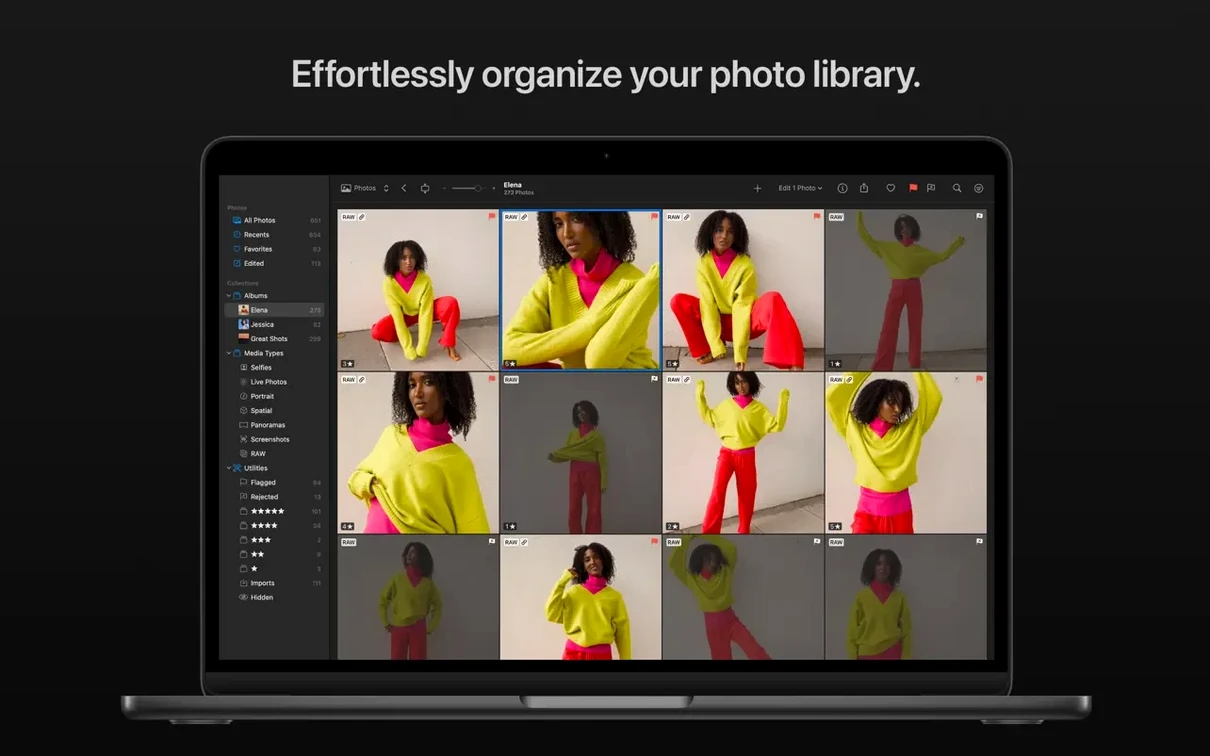
- Batch editors working with mixed format sets. The ability to edit RAW files alongside JPEGs in a single batch pass saves time. The copy-and-paste edits feature extends that to series where each frame needs similar correction.
- Anyone who needs to remove color banding from gradients. The Smart Deband tool is unusual in a non-specialist editor. If you shoot skies, product shots with smooth gradients, or anything that shows posterization, that tool alone may justify the install.
- Users on macOS Ventura who want deep integration with Photos and iCloud. If you already use those Apple services to manage your library, Photomator slides in without requiring a separate catalog or import workflow.
- Bug fixes and performance improvements.
- Added support for compressed RAW images from Sony Alpha ILCE-7M5, FUJIFILM GFX 100S II, and FUJIFILM GFX 100RF cameras.
- Added support for High Efficiency and High Efficiency Star RAW images from Nikon Z5II and Nikon Z50II cameras.
- Added support for RAW images from Panasonic LUMIX DC-S1RM2 cameras captured in High Resolution mode.
- macOS 13 (Ventura) or later.
- Intel or Apple Silicon.
Questions from the notes
Does Photomator support RAW images from the latest cameras?
Yes. Version 3.4.15 adds support for compressed RAW from Sony Alpha ILCE-7M5, Fujifilm GFX 100S II and GFX 100RF, plus High Efficiency RAW from Nikon Z5II and Z50II, and RAW from Panasonic LUMIX DC-S1RM2 in High Resolution mode.
Can I remove objects from a photo in Photomator?
Yes, it includes clone and repair tools for removing unwanted objects from images.
Install procedure
- Mount the downloaded disk image.
- Drag the app to the Applications folder shortcut.
- After copying finishes, open the app from Launchpad.
Reports from players
Sign in or create a tester account to file a report.
No reports filed yet.