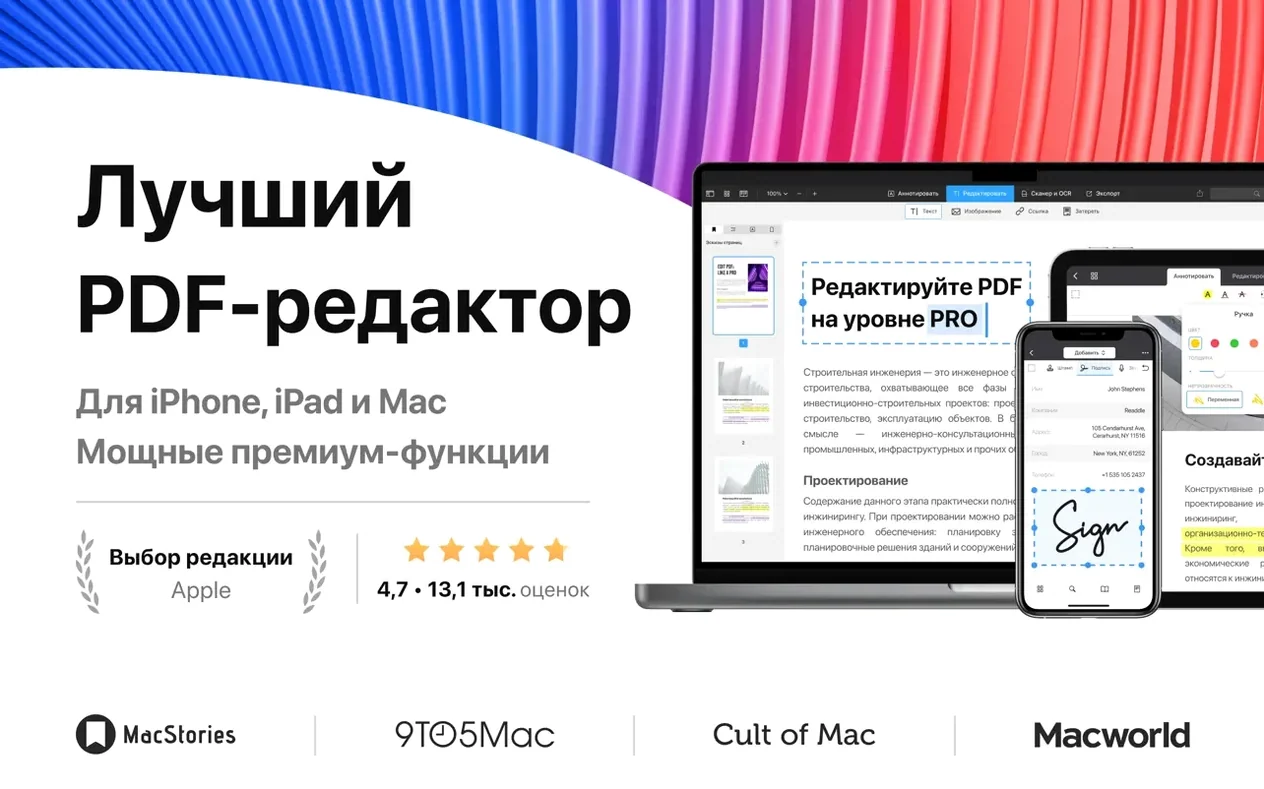
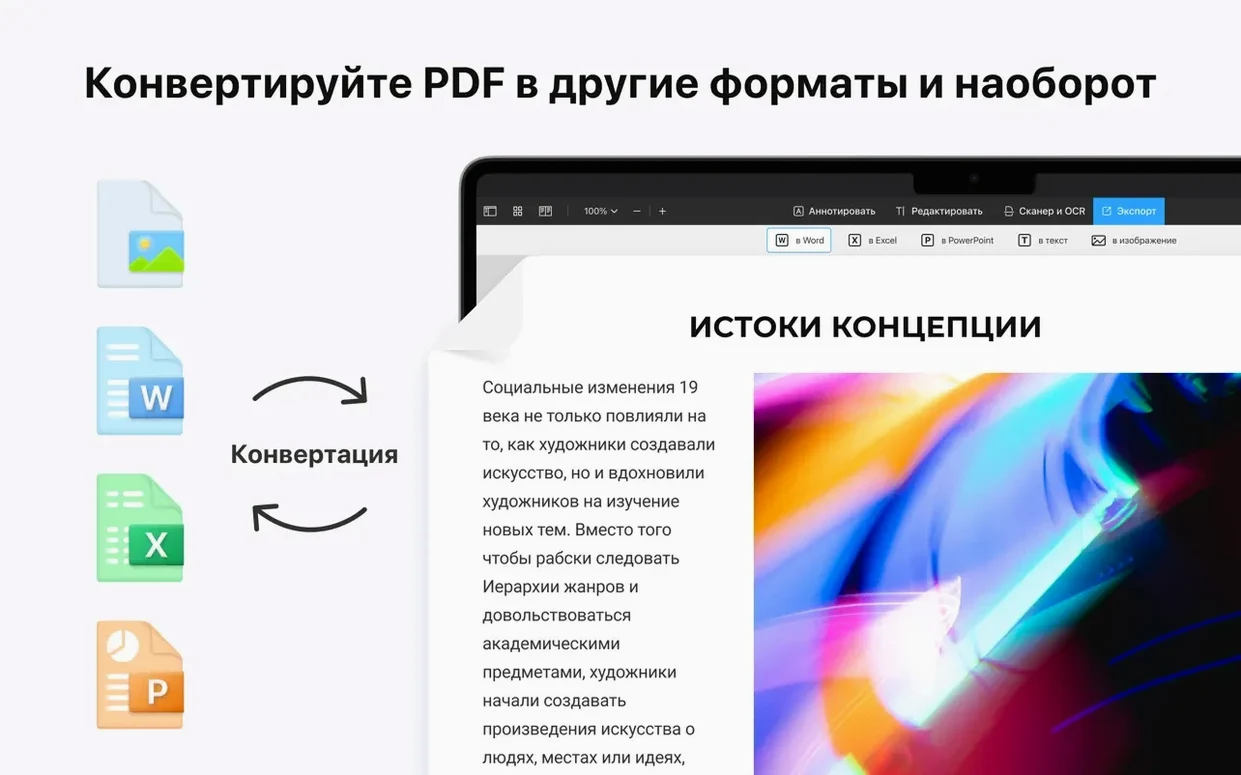
PDF Expert is a PDF editor and reader for Mac, built by Readdle Technologies Limited. Before anything else, it runs on macOS 12 or newer, and it supports both Intel and Apple Silicon Macs. No activation is required, which removes one layer of friction when you first open it.
What you get once it's running:
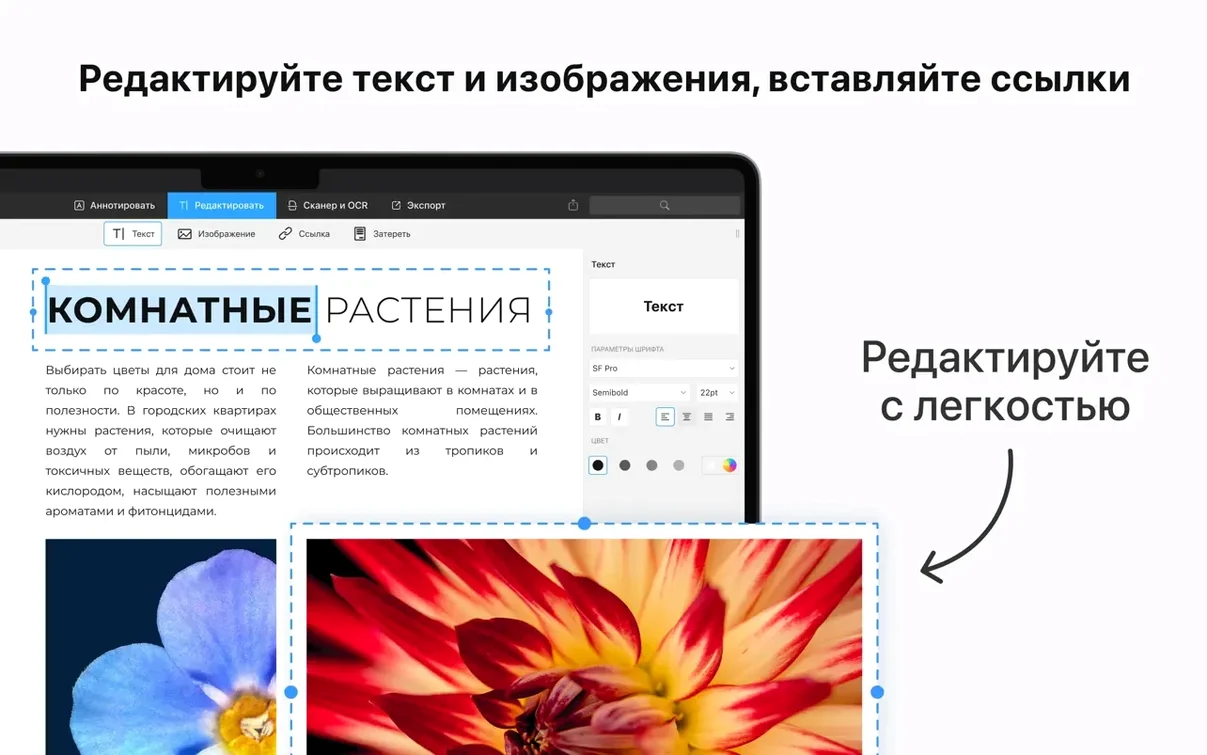
- Text editing inside PDFs, including adding links and creating a table of contents.
- Form filling with saved signatures for repeated sign-offs.
- Document merging when you need to combine separate files.
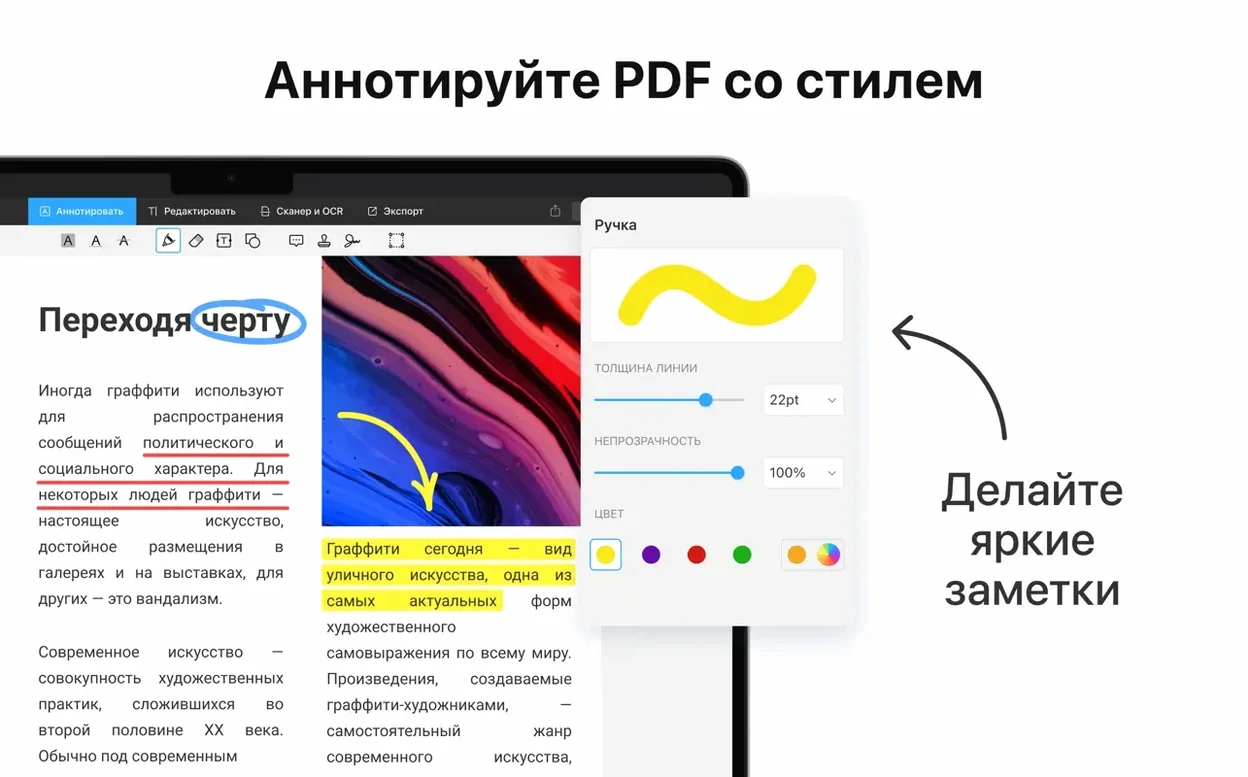
- Annotation tools for marking up pages without altering the original layout.
- Interface languages cover English, French, Spanish, German, Italian, Russian, Ukrainian, Portuguese, Simplified Chinese, and Japanese.
It complements macOS's built-in PDF handling by adding the editing layer that's otherwise missing.
Filling and signing a form from start to finish
A typical workflow with PDF Expert is filling out a form that someone sent you. Here's how it goes from the moment you open the file.
- Open the PDF in PDF Expert. If the form has fillable fields, they appear as highlighted areas. Click into the first field and type your response.
- For signature fields, click the signature icon in the toolbar. PDF Expert lets you create a signature using your trackpad or by importing an image of your signature. Once saved, it's stored for future forms.
- After filling all fields, check that nothing is missing. PDF Expert highlights incomplete mandatory fields when you try to save or print.
- If you need to add text that the form didn't anticipate—an extra note, for example—use the annotation tools to place a text box anywhere on the page.
- When the form is complete, you can either save a copy with a new name or export it as a flattened PDF to lock the content. The merge and split functions also let you combine the completed form with supporting documents.
This process covers the majority of form-based tasks people encounter. The same steps apply whether you're signing a lease, filling out a tax worksheet, or completing a permission slip.
Saved signatures carry across documents
PDF Expert includes several features that aren't obvious on the first day but save time once you know them.
- Saved signatures carry across documents. You only set up your signature once. After that, it appears in the signature menu whenever you open a new PDF. No need to scan or draw it again.
- Password protection is per document. You can set a password on individual files without changing system-wide security settings. This is useful for sharing sensitive contracts or personal documents.
- Handoff support means you can start reading a PDF on your Mac and continue on an iPhone or iPad without manually transferring the file. It works with the same iCloud account.
- The table of contents feature is not just for navigation. If you're merging several documents into one PDF, you can create a table of contents so readers can jump to specific sections without scrolling through the whole file.
- Image editing lets you replace or remove pictures embedded in a PDF. This is handy when a logo or photo in a document is outdated and you need to update it before sending the file out.
Runs natively on macOS 12 or later
PDF Expert requires macOS 12 or later and runs on both Apple Silicon and Intel Macs. It's a native Mac application, not a port or a web wrapper, which means it behaves like any other document editor on your system. The installer is a disk image file. After mounting it, you drag the app into your Applications folder. The entire install process takes less than a minute.
The app does not require internet access to function once installed. It opens, reads, and edits PDFs offline. There is no background process that continues running after you quit the app. It respects the standard macOS file handling—opening a PDF from Finder or from within the app works the same way.
The app version 3.11.1 (1146) is the current release.
Close the sign-in screen on first launch
If you're using PDF Expert for the first time, a few habits make the initial experience smoother.
- Close the sign-in screen on first launch. The app shows a login prompt when you open it for the first time. Close that window. The activation completes automatically the next time you launch the app, and you won't see the prompt again.
- Open a simple document first. Try PDF Expert with a PDF that has no forms or complex formatting. This lets you see how the app handles text selection, zoom, and navigation before you tackle a filled form or a document that needs editing.
- Set up your signature immediately. Go to the signature tool and create your signature. Save it. This takes thirty seconds and saves you from having to redo it later when you're in a hurry.
- Use the merge function as a quick binder. If you have several related PDFs—like a cover letter, a resume, and references—you can merge them into a single document before sending. This avoids the confusion of multiple attachments.
- Test password protection on a copy. Before you lock a document you care about, set a password on a duplicate file first. Make sure you remember the password. There is no recovery option if you forget it.
Annotations do not edit the original text
A few common missteps appear regularly when people start using PDF Expert. Knowing them in advance saves time.
- Assuming annotations edit the original text. Highlighting, underlining, or adding comments does not change the underlying text. Annotations are a separate layer on top of the page. If you want to actually change the text, you need to use the text editing tool instead.
- Not checking field auto-fill behavior. PDF Expert can remember text you type into certain form fields. This is convenient, but it also means that if someone else uses your Mac, their data might auto-populate. Clear the form field cache if you share your computer.
- Forgetting to flatten a completed form. If you fill out a form and save it without flattening, someone else can edit the fields later. Flattening converts the filled content into a static image layer, preventing further changes. Use the export or save-as option that says "flatten" when you need to lock the document.
- Overlooking Handoff requirements. Handoff only works if you're signed into the same iCloud account on all devices and have Bluetooth and Wi-Fi enabled. If the PDF doesn't appear on your iPhone, check those settings before assuming the app is broken.
- Confusing merge with split. Merge combines multiple PDFs into one. Split divides a single PDF into separate files. Beginners sometimes try to split a merged document and wonder why it doesn't revert to the original separate files. The split function creates new files based on page ranges, not on the original separate documents.
- Ignoring the table of contents feature. Some users jump through a long document by scrolling instead of generating a table of contents. PDF Expert can build one for you automatically based on headings or bookmarks. It makes navigating a fifty-page report much faster.
These points cover the common friction points and the features that reward a few minutes of setup. That alone makes it a straightforward addition to any Mac user's toolkit, especially if you regularly deal with forms or multi-page documents.
- macOS 12 or later
- Intel or Apple Silicon
- No activation required
Questions from the notes
Does PDF Expert require an activation code?
No, the current version does not require activation. It activates automatically after the first launch.
Can I sign forms with PDF Expert?
Yes, you can fill out forms and save signatures for future use.
Install procedure
- Open the downloaded disk image.
- Drag the app to the Applications folder shortcut.
- Launch the app from Launchpad once the copy finishes.
- On first launch, close the sign-in screen if it appears; activation happens automatically on the next launch.
Reports from players
Sign in or create a tester account to file a report.
No reports filed yet.