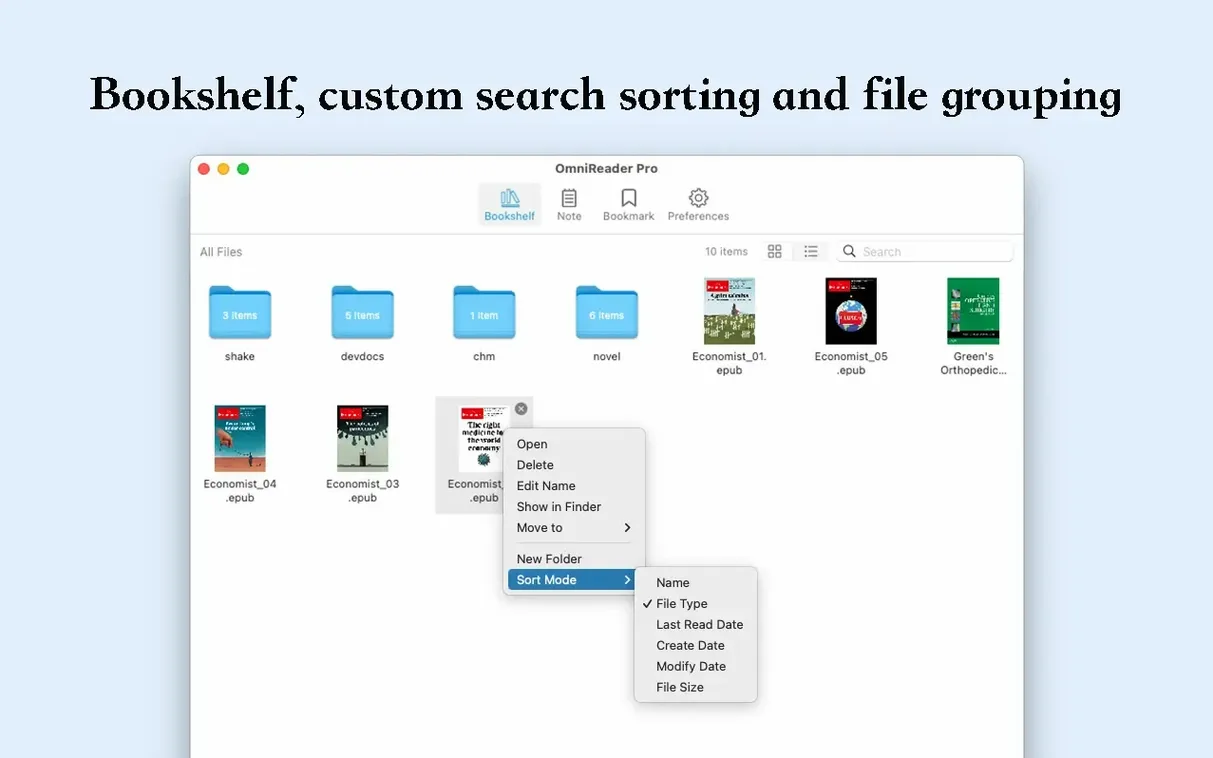
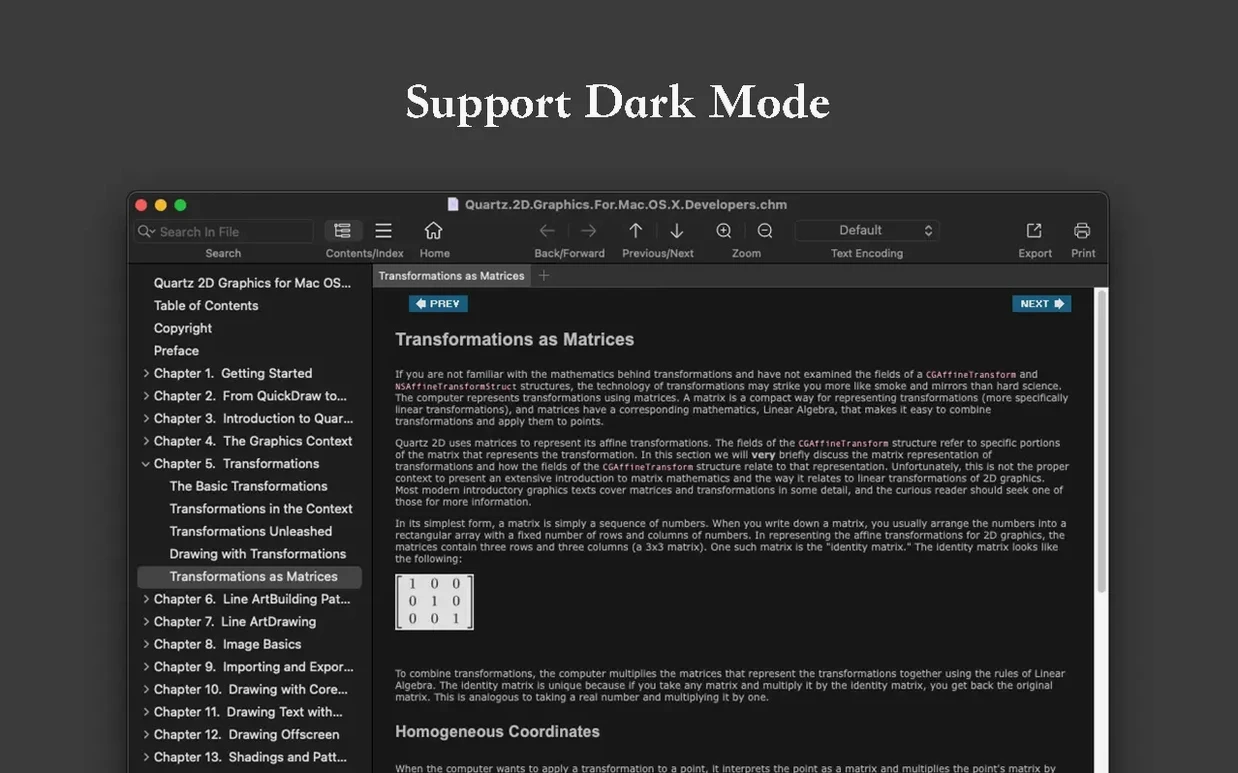
OmniReader Pro is a Mac app for reading and managing books and documents, with support for EPUB, CHM, and Kindle files.
Start with your own files
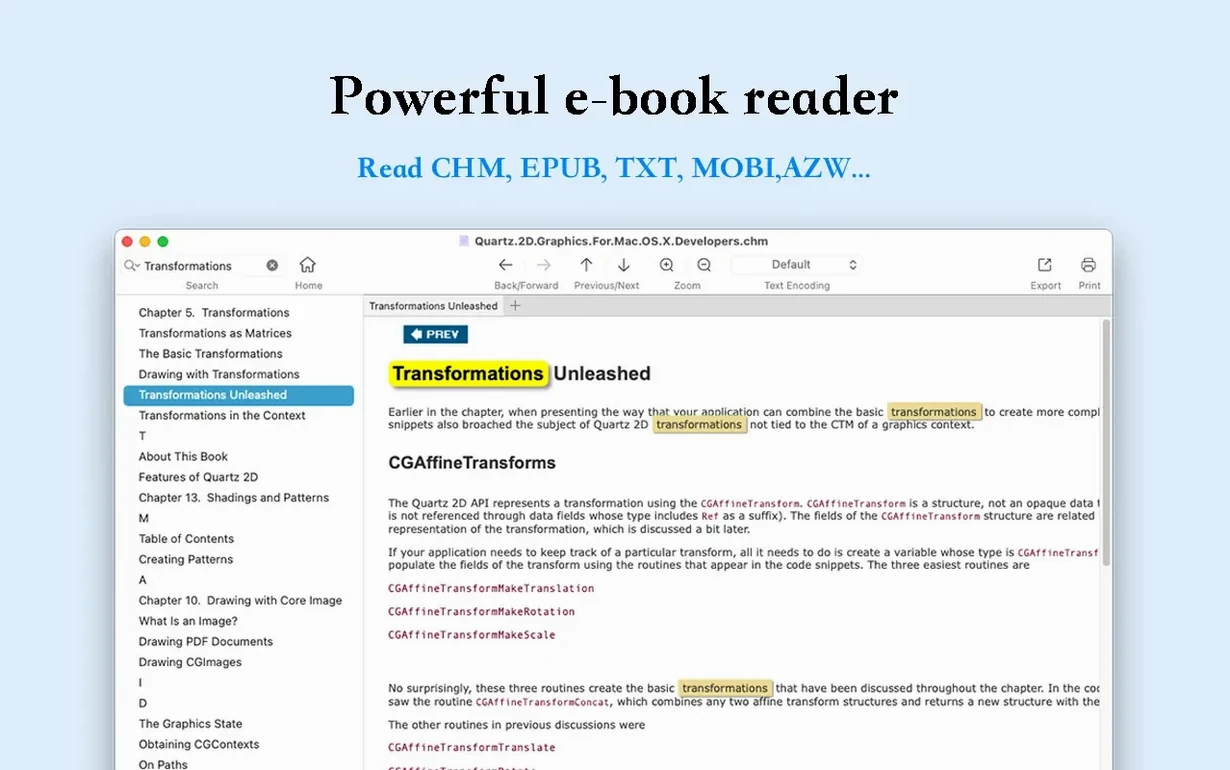
Open an EPUB or CHM file and use the forward and back history to jump between sections as you read. If text looks garbled, adjust the file encoding handling — that fixes most legacy documents. The app automatically resizes images to fit the window, so you don't have to scroll sideways.
Export and extract
When you need a copy in another format, export to EPUB or PDF. You can also extract all images to a folder, which is handy for reference or reuse. Page printing works directly from the app if you need a paper version.
Skipping the encoding setting garbles CHM and EPUB text
The most common slip is skipping the encoding setting. A CHM file from a Windows help system or an EPUB with an unusual byte order mark will show garbled text. New users often assume the file is damaged, but OmniReader Pro's file encoding handling usually resolves it. Check the encoding menu before you move on.
Another one: closing the sidebar without knowing how to reopen it. The sidebar collapse is convenient for full-screen reading, but if you collapse it and forget the toggle, you may think the navigation is gone. The toggle stays in the same place — look for the icon near the document pane.
People also overlook the basic file information option. That screen shows the author, title, and format details. Beginners who want to verify a file's metadata or check whether it's a proper EPUB will save time by opening that panel instead of hunting through Finder properties.
Finally, the zoom and page turning controls can confuse someone who tries to use the mouse wheel before checking the app's behavior. The app supports both, but the zoom step size and mouse direction aren't immediately obvious. Take a moment to turn a few pages with the toolbar buttons before relying on keyboard or scroll.
Export to EPUB or PDF for annotation in Apple Books or Preview
OmniReader Pro works alongside the usual macOS workflow tools. Export to EPUB or PDF means you can process a document in OmniReader Pro and then open the result in Apple Books or Preview for annotation. The PDF export is especially useful when you need a universally readable copy for colleagues who don't use this app.
The extract-all-images feature is a good middleman between a document and your image editor. Pull screenshots from a CHM help file or illustrations from an EPUB into a folder, then open them in any graphics app for cropping or conversion.
If you use macOS virtual desktops or split-screen, OmniReader Pro's window behaves like any other native Mac window. You can snap it to one side while you browse references in a browser or take notes in a text editor. The app's toolbar stays accessible even at smaller widths, so split-screen reading is practical.
Confirm both formats load and verify PDF output on day one
Day one: open one EPUB and one CHM file to confirm both formats load correctly. Adjust the encoding on the CHM if needed. Export a short document to PDF and open that PDF to verify the output. Extract images from a test EPUB, just to see what the folder structure looks like.
Day two: use the full-text search across a longer book. The search results highlight in the document, which helps you confirm the feature works and learn how the highlight color behaves against different background themes. Practice using the page back-and-forward history while jumping between search results.
Day three: test the file information panel on a few documents. Get comfortable with the zoom slider and the page turning method you prefer. Try printing a single page to a PDF printer or to paper, even if you don't need the printout — you want to know how the page breaks land.
Set file encoding to match source language for legacy documents
The most impactful setting is the file encoding. If you regularly read old CHM help files or EPUBs from non-English sources, set the encoding to match the source language. Chinese (Simplified) is available, which covers many legacy documents. For Western EPUBs, UTF-8 or CP1252 are the common starting points.
Adjust the auto image sizing if you prefer seeing images at their original resolution. The automatic adjustment is on by default, which keeps images scaled to the window width. Turning it off may require horizontal scrolling on large images, but it preserves detail.
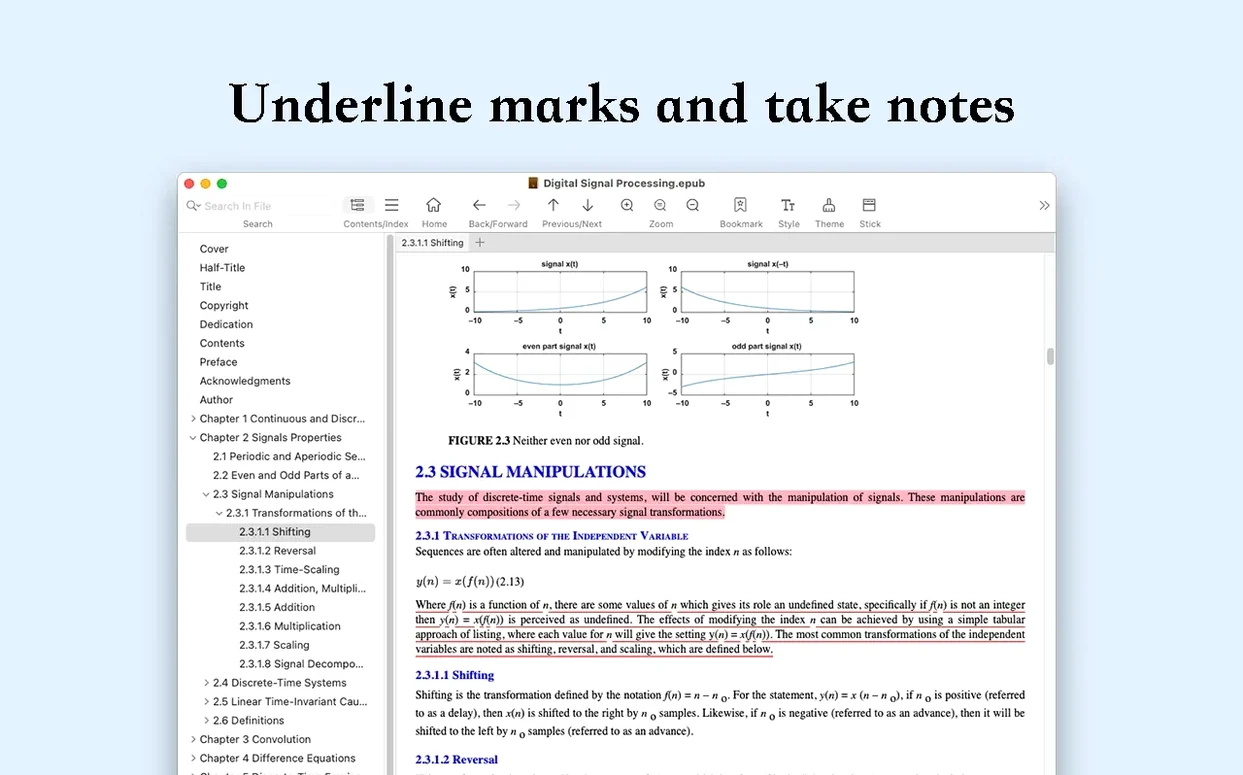
Set the sidebar behavior to your reading style. If you read single-page layouts most of the time, collapse the sidebar and rely on the back-and-forth history for navigation. If you jump between table of contents entries frequently, keep the sidebar expanded. There's no wrong choice — it depends on the document.
- macOS 10.13 or later
- Intel or Apple Silicon
Questions from the notes
Can OmniReader Pro open Kindle files?
Yes, it supports Kindle files in addition to EPUB and CHM formats.
Install procedure
- Mount the disk image and run Open Gatekeeper friendly.
- Press Enter in Terminal to bypass Gatekeeper.
- Drag the app to the Applications folder.
- Open the app when installation is complete.
Reports from players
Sign in or create a tester account to file a report.
No reports filed yet.