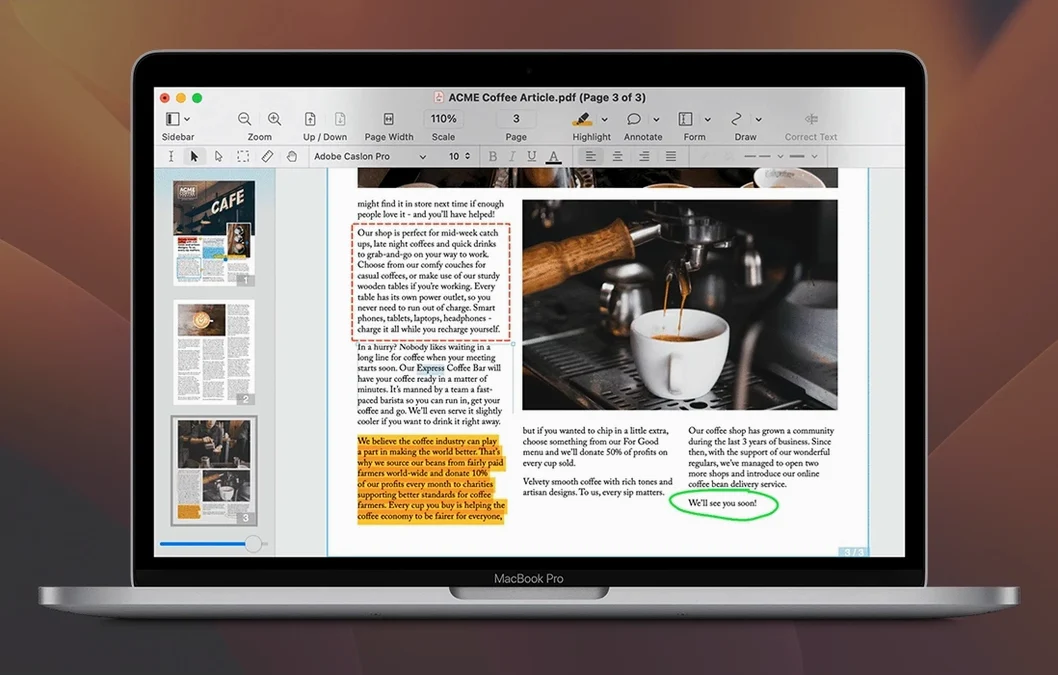
Nitro PDF Pro is a PDF editor for Mac with OCR, annotation, signing, and export tools.
What does the current version bring?
Version 13.3.1 delivers PDF editing, OCR, and form tools for Mac. It adds the ability to highlight, underline, and strikethrough text, redact sensitive information, and record audio annotations. No major feature changes from the previous version — this release focuses on stability and compatibility.
Core editing workflow remains unchanged
The core editing workflow remains unchanged. You can still move, resize, copy, and delete images in PDFs, create editable tables of contents and document portfolios, and preserve fonts and formatting when copying rich text, including columns. Cross-platform fillable forms and file attachment handling also work as before.
Is it compatible with Apple Silicon?
Yes. Nitro PDF Pro runs on both Intel and Apple Silicon Macs. Minimum requirement is macOS 10.14 Mojave, 1 GB RAM, up to 2 GB disk space, and a display resolution of at least 1280x800.
Gatekeeper blocks the unsigned installer by default
Gatekeeper is the most frequent roadblock. The fix is straightforward: after mounting the disk image, open Terminal, type sudo spctl --master-disable, press Enter, authenticate, then run the installer. You can re-enable Gatekeeper afterward with sudo spctl --master-enable. If you skip this step, the app will bounce in the Dock and refuse to open.
Another snag is the OCR failing on certain scanned documents. If the source scan is low resolution (under 200 DPI) or the text is skewed, Nitro PDF Pro may not recognize characters reliably. Re-scanning at 300 DPI or higher usually solves it. For already-scanned files, try converting to a clean grayscale image before opening in the app.
Users also report that form fields don't always populate correctly when exporting to Word or Excel. This is expected — the export tool preserves layout and text, but dynamic form elements may flatten into static content. If you need editable fields in the Office document, fill the form inside Nitro PDF Pro first, then export the filled version.
Text edit tool works on blocks, not flowing paragraphs
The most common beginner mistake is treating the text edit tool like a word processor. Nitro PDF Pro edits text in blocks, not freely flowing paragraphs. If you try to add a sentence in the middle of a paragraph, the block may shift or break. The better approach is to use the add-text tool for small insertions and leave block-level edits for larger changes.
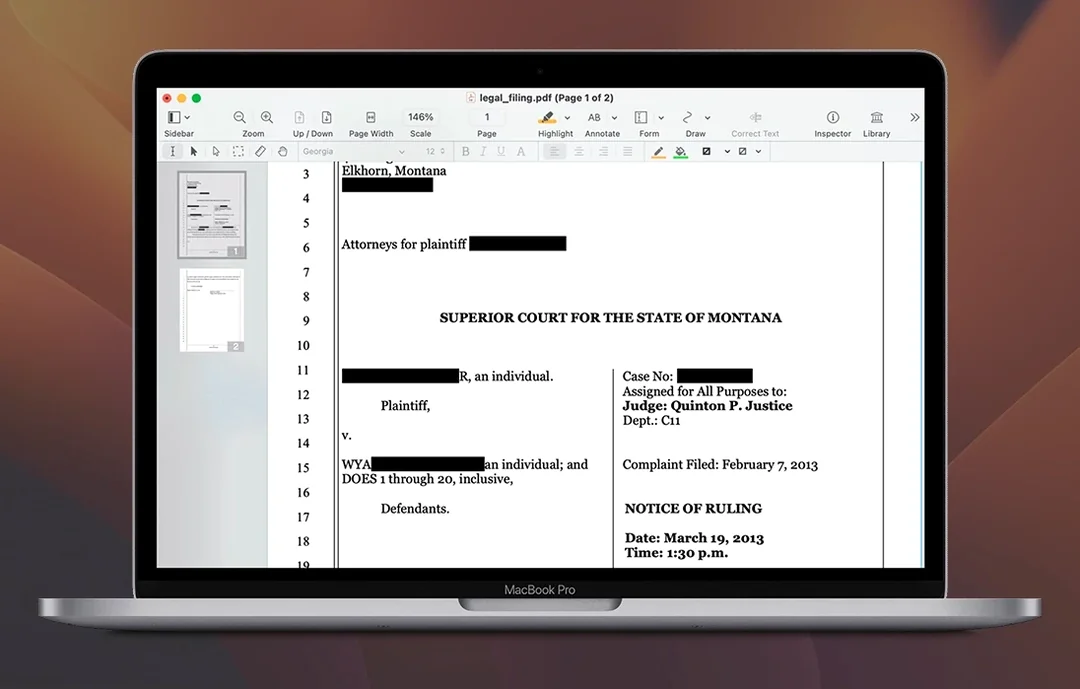
Another mistake is ignoring the redaction tool when sharing sensitive documents. Beginners often use the highlight tool to cover text, then export or print — but highlights are removable. The redaction tool permanently removes content. Always use redaction for confidential information like social security numbers or financial data.
New users also forget to save a backup before making heavy edits. Because Nitro PDF Pro works on the original file, undoing can only go back a few steps. Keep a copy of the untouched PDF before you start editing, especially for multi-page documents or legal forms.
Drag PDFs from Finder or set as default viewer in Get Info
Nitro PDF Pro integrates well with the macOS file system. You can drag PDFs from Finder directly into the app window, or set it as the default PDF viewer in the Get Info panel. The export tools send converted files straight to your chosen folder, and the app respects macOS's standard Open and Save dialogs, including iCloud Drive locations.
For team workflows, the comment and annotation system uses a sidebar that mirrors the structure of tools like Adobe Acrobat. You can export comments as a summary or extract them alongside the document. Audio annotations are stored as file attachments, so they stay portable when you move the PDF between Macs.
Batch processing works via the included automation tools. You can apply watermarks, headers, footers, or page numbering to multiple PDFs at once. This is useful for teams handling scanned contracts or invoices. The app also supports Automator workflows if you need to chain actions like OCR-then-export for recurring tasks.
Line numbers tool updates automatically as pages change
The line numbers tool is tucked into the layout section. If you're reviewing legal documents or technical specs, you can add line numbers to the entire document or selected pages. They update automatically when you insert or delete pages.
Bookmarks in the navigation pane work with the table of contents feature. If you create a table of contents from headings, the bookmarks are generated automatically. You can also add manual bookmarks to specific pages for quick jumping.
The website-to-PDF converter preserves hyperlinks. When you convert a webpage into a multi-page PDF, clickable links survive the conversion. This is useful for archiving reference material without losing navigation.
Document portfolios let you bundle related files — PDFs, images, spreadsheets — into a single PDF container. Recipients see all files in a sidebar and can open them individually. The portfolio keeps the original file formats intact, so you can edit the spreadsheet and reattach it.
Workflow: prepare a scanned contract for signing
This walkthrough covers a common scenario: taking a scanned paper contract, making it editable, filling it out, and sending it for signature.
- Open the scanned PDF in Nitro PDF Pro. If the scan is crooked, use the rotate and crop tools under the page layout menu to straighten it.
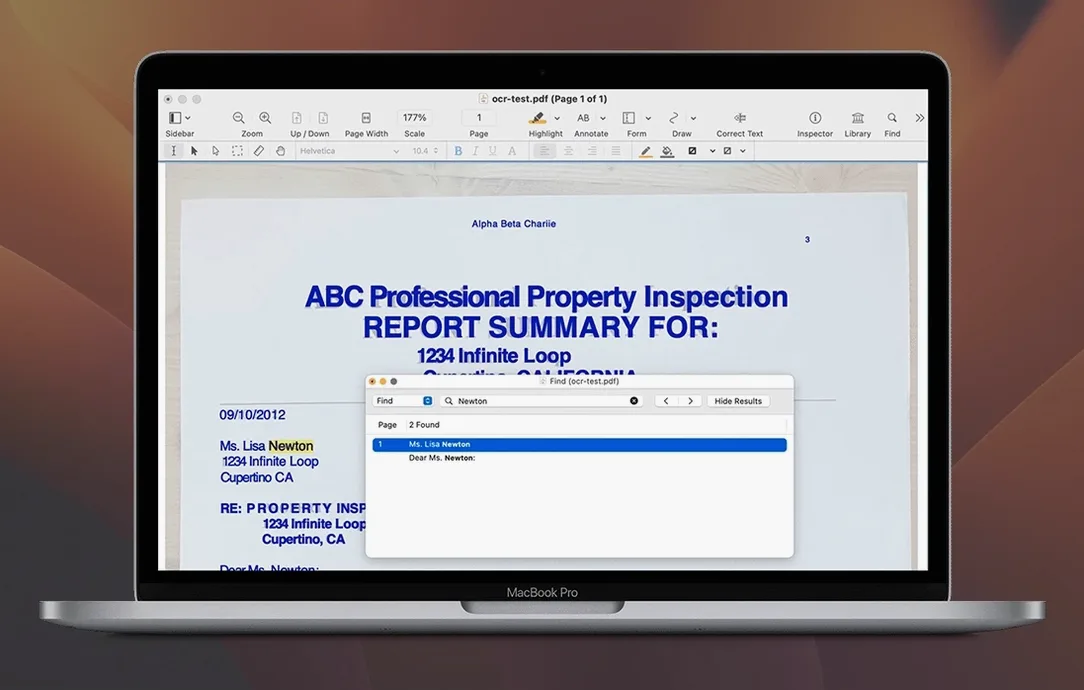
- Run OCR by going to the OCR toolset. Choose "Recognize text" and select all pages. The app processes the document and makes text selectable and searchable.
- Review the OCR results. Zoom in on any tables or small print. If the text looks garbled, adjust the source scan settings — the OCR works best with clean, high-contrast input.
- Fill in the contract fields. Use the form fill tool for any existing form fields, or the add-text tool to insert your name, date, and other details into blank areas. The text blocks let you position content precisely.
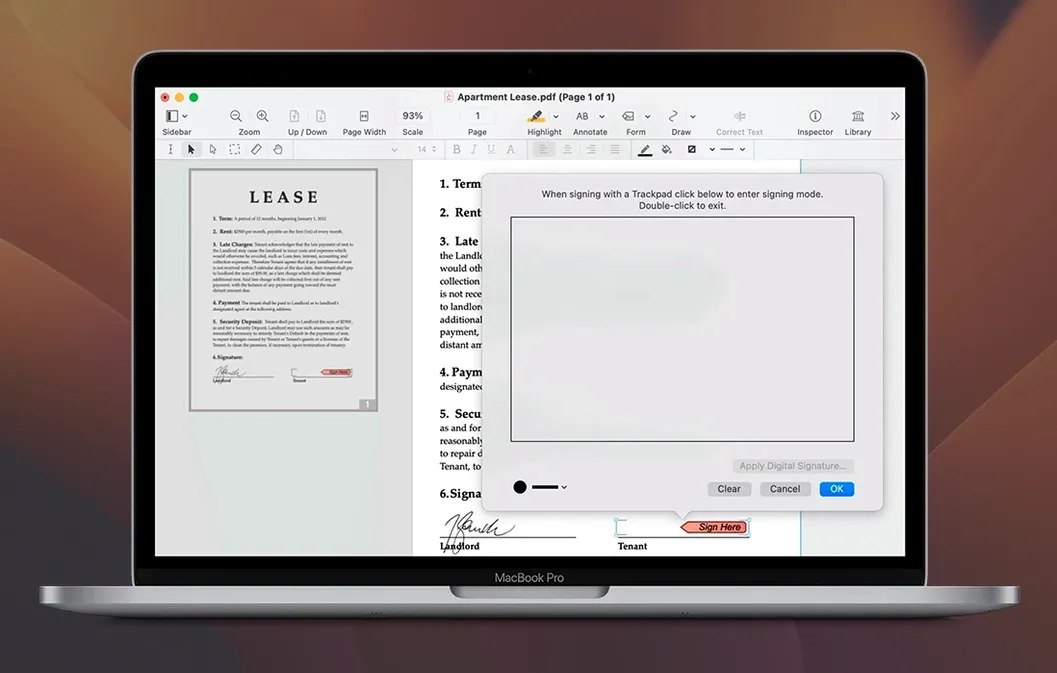
- Add your signature. Use the signature tool to create a new signature from your trackpad or camera, or import a saved signature image. Place it in the signature block.
- Review and annotate. Use highlight or underline to mark key clauses. Add a sticky note comment if you need to flag a section for the other party.
- Export for sending. Save the completed PDF, then use the export tool if the recipient needs a Word or Excel version. Otherwise, share the PDF directly — the signature and annotations stay embedded.
This workflow keeps everything in one app and avoids switching between a scanner utility, a PDF reader, and a separate signing tool.
- macOS 10.14 Mojave or later
- Intel or Apple Silicon processor
- 1 GB RAM
- Up to 2 GB disk space
- Display resolution at least 1280x800
Questions from the notes
Does Nitro PDF Pro support OCR for scanned documents?
Yes. The official Mac documentation confirms it includes OCR for scanned documents.
Install procedure
- Mount the disk image and run Open Gatekeeper friendly.
- Press Enter in Terminal to bypass Gatekeeper.
- Drag the app into the Applications folder.
- Open the app when installation is complete.
Reports from players
Sign in or create a tester account to file a report.
No reports filed yet.