Nik Collection 9 runs on any Mac with macOS 13.3 or later, and it works on both Intel and Apple Silicon machines. That covers the bulk of Macs still getting OS updates, so compatibility is rarely the reason to skip it. The suite plugs into Adobe Photoshop, Lightroom, Affinity Photo, and DxO PhotoLab, which means it slots into your existing workflow rather than replacing it.
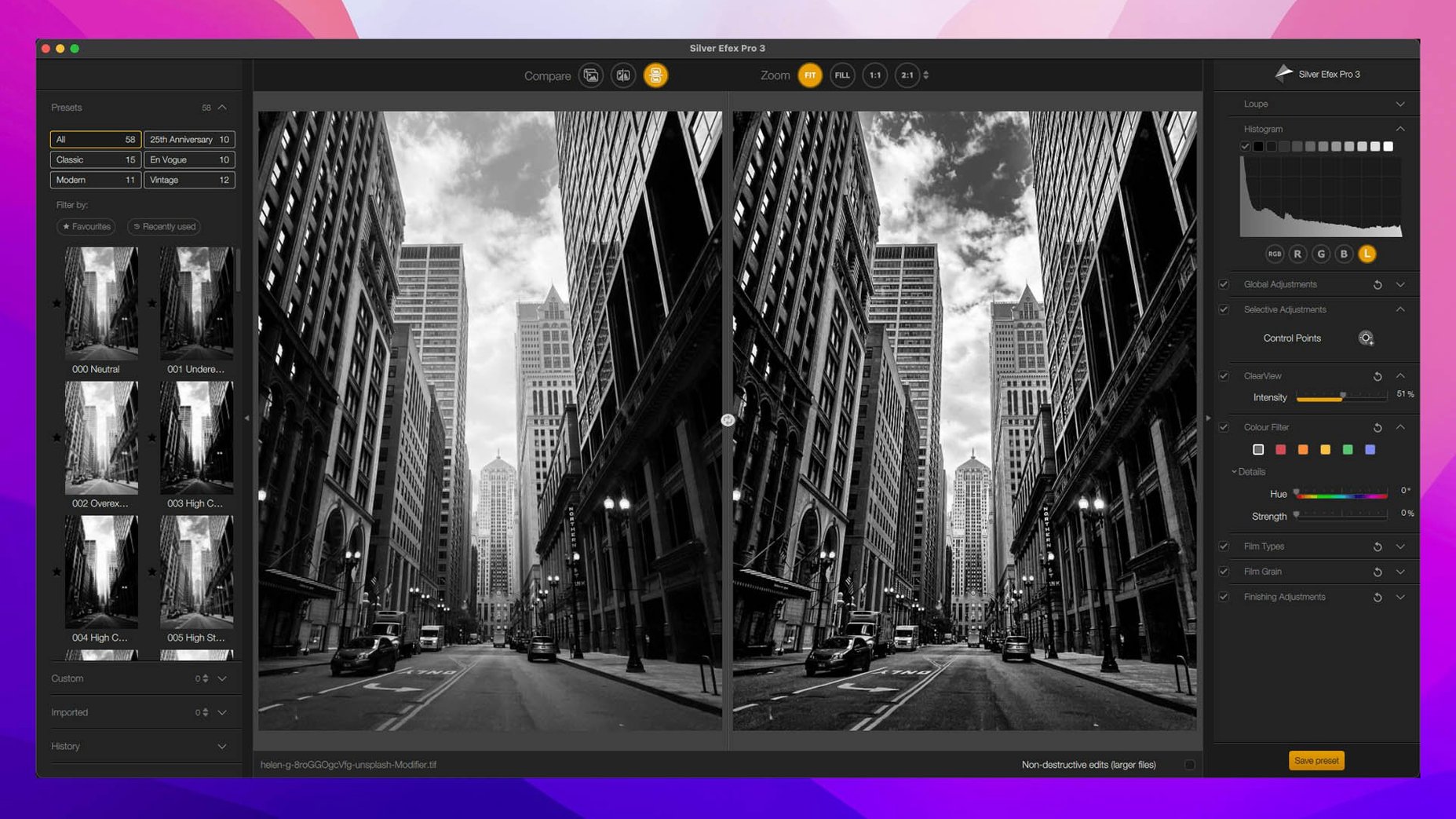
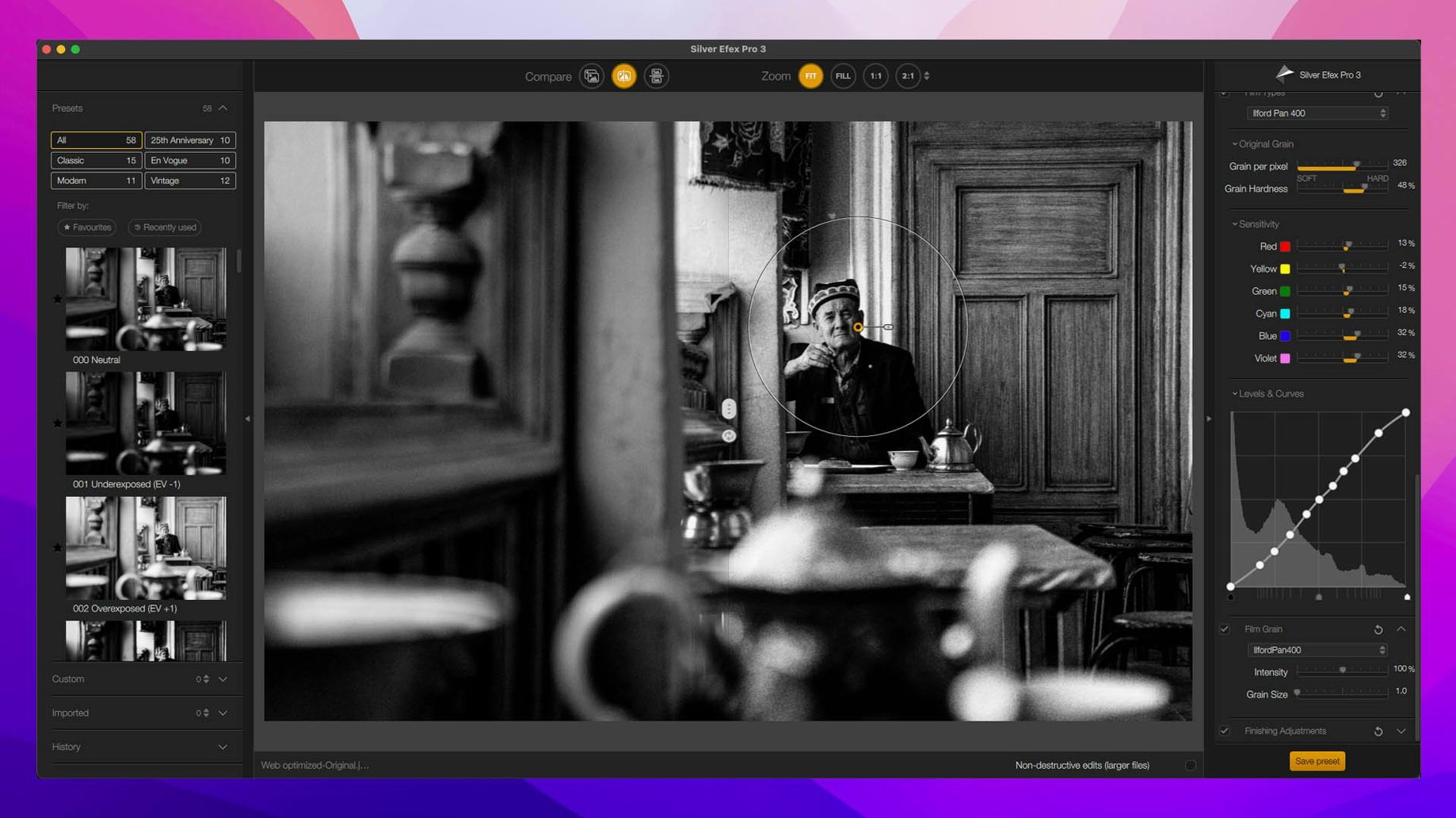
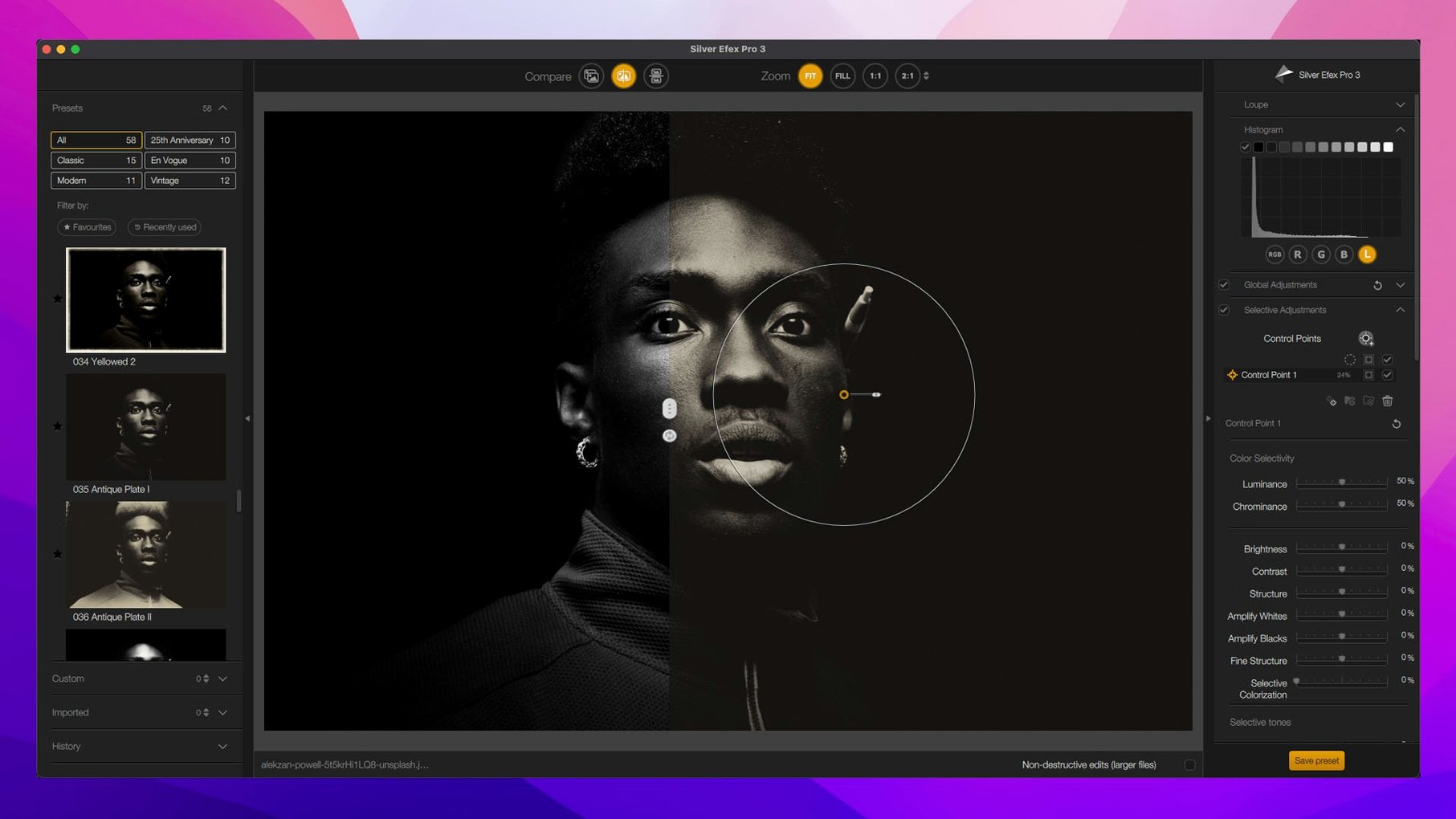
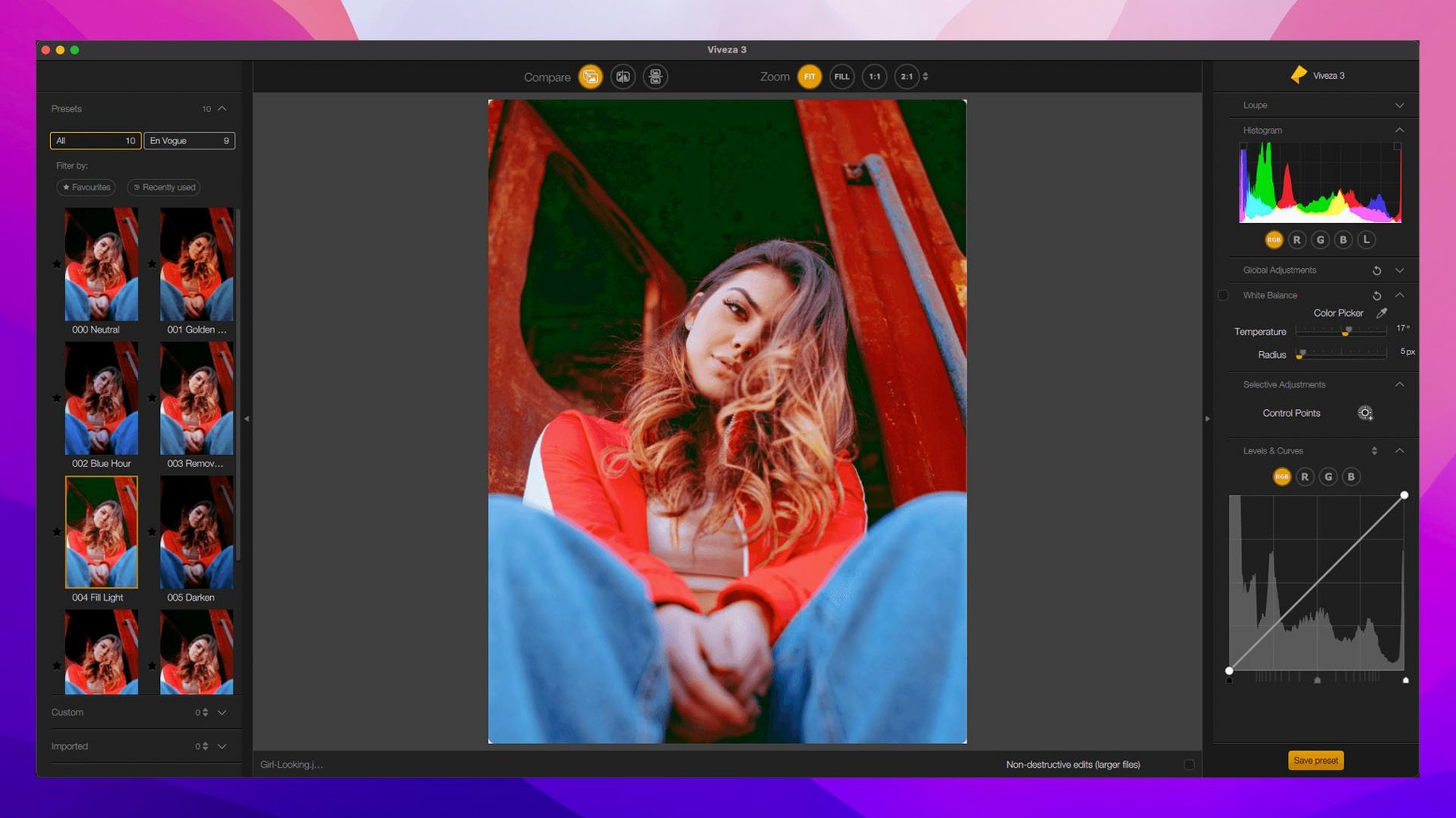
In a typical session, the plugins divide the work by job. Color Efex Pro handles the creative pass, with 52 filters and 250 effects, plus a Selective tool when you only want an effect on part of the frame. Silver Efex Pro is the dedicated black-and-white module, while Analog Efex Pro brings over 80 tools for film looks and vintage treatments. HDR Efex Pro covers tone mapping, and Dfine quietly does noise reduction before you sharpen.
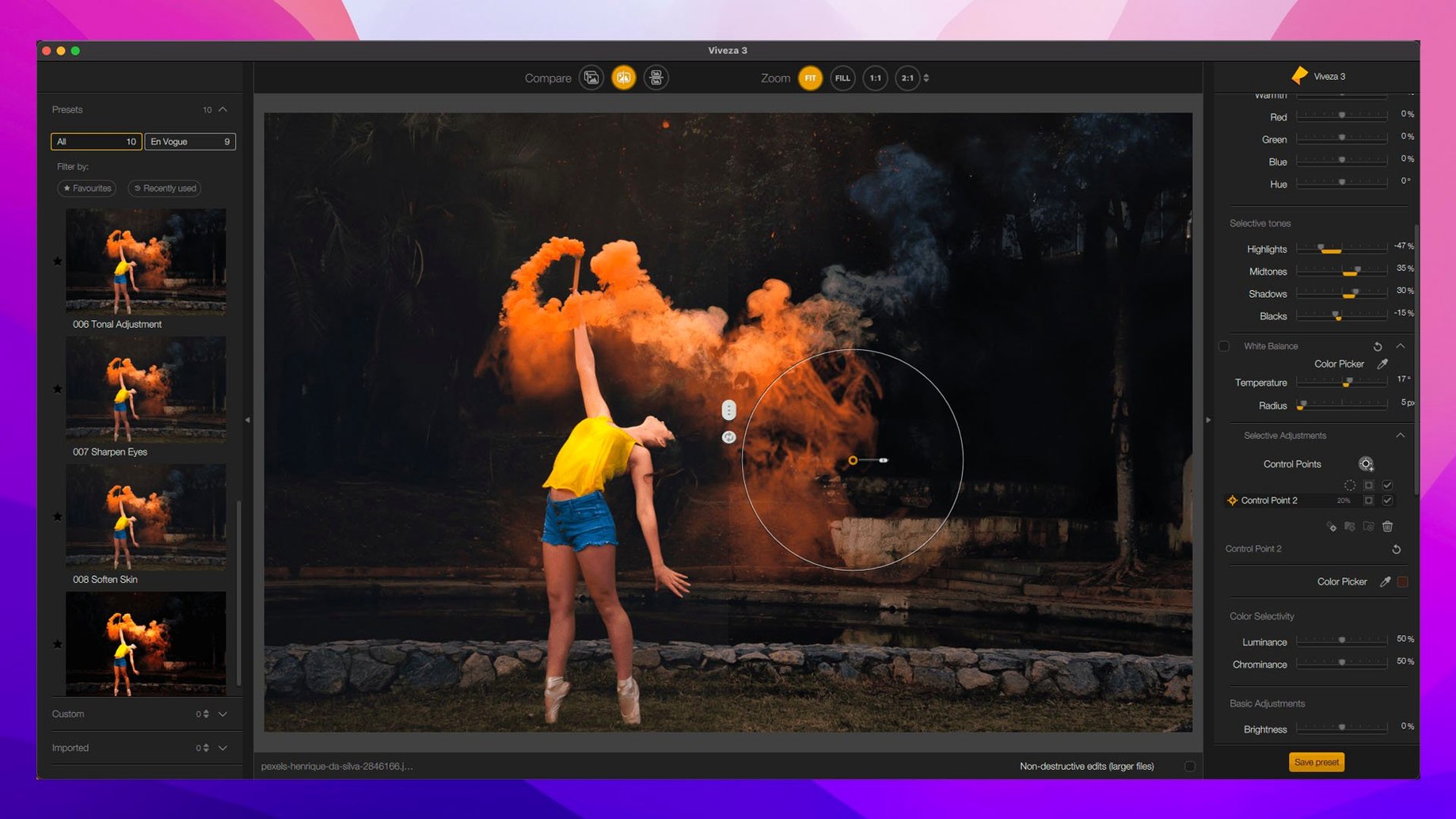
Sharpener Pro sits at the end, with a preview of the image area so you see exactly what the output will look like. Viveza is the local-adjustment plugin, and Perspective Efex fixes geometry. Nik Collection 9 adds Mask Overlays, Depth Masks, and AI Masks, so masking is less guesswork. You can also copy and paste local adjustments between images, which speeds up batch edits on a series of similar shots.
Preset Hover Preview in v9 lets you scan looks without committing. The suite is a set of tools with clear roles, and the new masking options make it easier to keep edits contained.
Integrates as plugins inside Photoshop, Lightroom, and Affinity Photo
Nik Collection 9 installs as plugins, not standalone applications. That means you launch Photoshop, Lightroom, Affinity Photo, or DxO PhotoLab, then call the Nik tools from inside the host. The integration is straightforward: each plugin appears in the host's filter or plugin menu, and the image you're editing is handed off to the Nik interface. When you finish adjusting, the result comes back into the host's layer stack as a new layer or flattened image, depending on your settings.
On macOS, the plugins respect the system's file dialogs and standard keyboard conventions. If you use multiple monitors, each plugin window stays on the display where you opened it. The suite also plays well with macOS color management — your display profile carries through, so what you see in the plugin matches the host.
If you work with Apple Photos, there is no direct path — Nik Collection does not install as a Photos extension. The workaround is to export a TIFF from Photos, edit in an external editor like Affinity or Photoshop, run the Nik plugins there, then reimport the result.
Cleans noise, grades color, and sharpens a landscape shot in Lightroom Classic
Say I have a landscape shot open in Lightroom Classic that needs noise reduction, color grading, a mild vintage feel, and sharpening for print. I start with Dfine. From Lightroom's Photo menu, I pick Edit In and select Nik Dfine. The plugin opens with the image loaded and automatically samples the noise profile. The interface is simple — a few sliders for noise reduction and contrast detail. I adjust until the sky looks clean but the grass retains texture, then click Save. The edited image comes back to Lightroom as a new TIFF stacked beside the original.
Next, Color Efex Pro. I open it the same way. The plugin shows the 52 filters as thumbnails down the side. I hover over a few — the new Preset Hover Preview updates the main image instantly, so I can flick through looks without clicking. I settle on a subtle warm tone using the new Color Grading tool, which gives me separate wheels for shadows, midtones, and highlights. I drag the shadows toward blue and the highlights toward gold. That is the creative pass done.
For the vintage feel, I switch to Analog Efex Pro. The interface presents over 80 tools grouped into cameras, films, and lenses. I pick a film stock preset that softens the contrast and adds a slight grain. I tweak the grain slider until it matches the texture I want.
Back in Lightroom, I notice the horizon is crooked. I open Perspective Efex. The plugin detects the horizon line automatically and offers a leveling guide. I confirm the correction and save. The image returns straightened, with any transparent edges filled by the content-aware option.
Finally, Sharpener Pro. I open the image there, and the preview overlay shows exactly which areas will be sharpened. I set it to output for a glossy magazine — the plugin has preconfigured profiles for different print stocks and screen viewing. I save the result, and the final layered TIFF sits in Lightroom with all adjustments applied non-destructively from the host's side.
Runs natively on Apple Silicon Macs without Rosetta
Do the plugins work with Apple Silicon natively? Yes. Nik Collection 9 runs natively on both Intel and Apple Silicon Macs. No Rosetta translation is needed on an M-series machine, which means the plugins launch and respond at native speed.
Can I use it without Photoshop? Yes. The suite also integrates with Lightroom, Affinity Photo, and DxO PhotoLab. Those are the officially supported hosts. If you use another editor, check whether it supports external plugin standards compatible with the suite — but the listed hosts are the ones that work out of the box.
Do I need to install every plugin or can I pick? The installer lets you choose which components to deploy. If you only want Silver Efex Pro and Color Efex Pro, you can deselect the rest. That saves disk space and keeps the plugin menus shorter.
Will it affect my host's performance when I am not using it? No. The plugins load only when you invoke them. While they are not open, they consume no memory or CPU resources. The host runs normally.
Can I undo an edit made with Nik inside the host? Yes. When the plugin returns the edited image, it usually arrives as a new layer. You can delete that layer, hide it, or mask it like any other layer in your host. If your host supports nondestructive editing, the Nik edit behaves like any external edit.
Do the new Depth Masks and AI Masks work on all images? They work best when the host provides a depth map or when the image has clear subject separation. For flat or low-contrast scenes, the AI mask may need manual refinement. The tool is a starting point, not a guaranteed cutout.
Changes sRGB output to Adobe RGB or ProPhoto RGB in preferences
After installing, open any plugin and check the preferences panel. A few defaults are worth adjusting immediately:
- Output color space — The default is usually sRGB. If you edit in a wide-gamut space like Adobe RGB or ProPhoto RGB, switch the output to match your host's working space. This prevents a color shift when the image returns.
- Bit depth — Sharpener Pro supports 16-bit processing. Make sure the output bit depth matches your workflow. If the host is set to 16-bit, keep it there.
- Preview quality — The preview can run at full quality or a faster draft. On a modern Mac, full quality is fine. If you are on an older Intel machine with a large display, the draft mode may feel snappier during slider moves.
- Default sharpening profile — Sharpener Pro ships with profiles for screen and various print types. Pick the one closest to your intended output. You can always override it per image, but setting the default saves a step.
These small tweaks take two minutes and avoid the most common "why does it look different after save" complaints. The rest of the defaults are sensible. Nik Collection 9 is designed to be usable out of the box — the settings worth changing are the ones that align it with your host and output.
- Added Depth Masks and AI Masks for more precise selections.
- New Color Grading tool in Color Efex.
- New Chromatic Shift, Glass Effect, and Halation effects.
- Mask Overlays let you see where edits are applied.
- Preset Hover Preview shows effects before you click.
- Copy and paste local adjustments between images.
- macOS 13.3 or later
- Intel or Apple Silicon
Questions from the notes
Does Nik Collection 9 work on Apple Silicon Macs?
Yes, Nik Collection 9 supports both Intel and Apple Silicon Macs, as long as you're running macOS 13.3 or later.
Which host applications does Nik Collection 9 integrate with?
It integrates with Adobe Photoshop, Lightroom, Affinity Photo, and DxO PhotoLab.
Install procedure
- Use the included installation and activation instructions.
- Follow the bundled steps to install and activate the software.
Reports from players
Sign in or create a tester account to file a report.
No reports filed yet.