Monte Carlo simulation is the feature that separates OmniPlan Pro from a plain Gantt chart. Instead of guessing a single finish date, you run thousands of schedule iterations and get a probability curve. That alone justifies the Pro tier for anyone who reports to stakeholders who ask 'how sure are you?'.
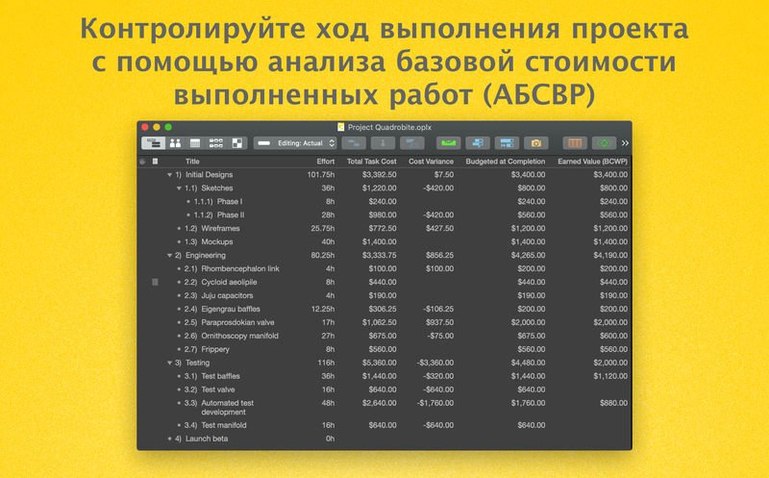
- Earned value analysis — track cost and schedule performance against a baseline, with SPI and CPI metrics built into the reports.
- Change tracking — see what moved, who moved it, and when. Useful for audits and for keeping clients honest about scope creep.
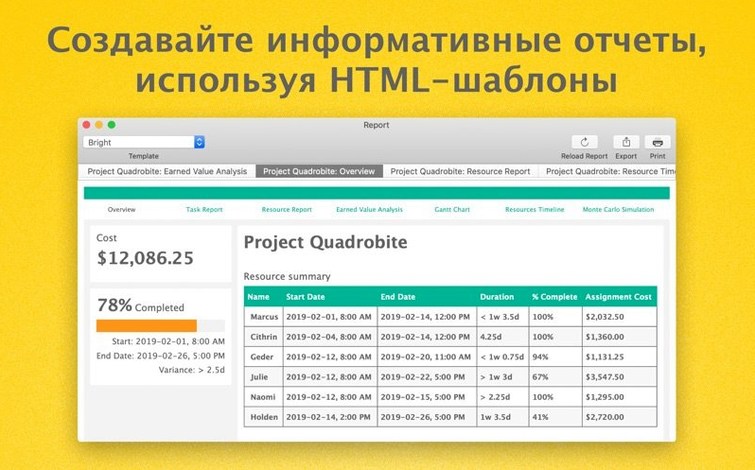
- HTML reports — export project status to a browser-ready document. No PDF plugin required, just send the file.
- Resource optimization — level assignments, resolve overallocations, and watch cost overruns before they happen.
- OmniOutliner and OmniGraffle export — move a task list into OmniOutliner for notes or into OmniGraffle for a diagram that actually matches the plan.
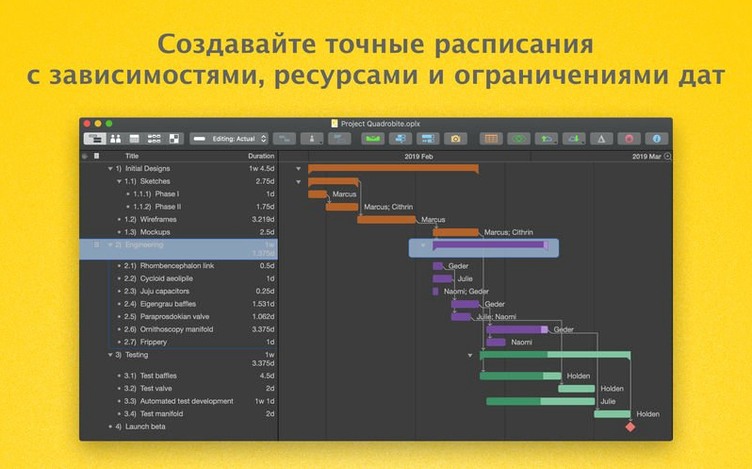
- Milestones and summaries — structure a project the way your brain works: high-level phases with clear checkpoints, not just a flat list of tasks.
The 4.11.0 update adds a performance improvement for editing tasks with many assigned resources, which is exactly the kind of slowdown that makes you close the app. If you manage projects on a Mac and want more than a timeline, OmniPlan Pro is the tool.
Adjust the calendar before adding any tasks
OmniPlan Pro ships with sensible defaults, but a few adjustments save clicks in every session. The calendar setup is the first place to visit. Open the calendar view and mark company holidays, personal days off, and any non-working weeks. This prevents the scheduler from assigning work on dates nobody is available.
Second, set the default task duration and work hours under the preferences panel. If your team works six-hour days or shifted schedules, the auto-scheduler needs to know. Otherwise, it spreads tasks across a standard 9-to-5 that doesn't match reality.
Third, enable the critical path display. It's not on by default in every view, but once you turn it on, you see which tasks actually drive the finish date. That single toggle changes how you read the Gantt chart. Finally, if you work with Microsoft Project files, go to the import settings and confirm the mapping for custom fields. A mismatch there creates silent data loss that you only spot hours later.
Sync a mobile-app plan via WebDAV on Monday morning
Monday morning, you open a plan for a mobile app release. You start by checking the change tracking log. Three tasks had their durations modified since Friday, and one milestone got pushed back two days. You accept the reasonable changes and reject the outlier — a resource reassignment that doesn't make sense.
With the plan current, you run a Monte Carlo simulation. You set it to 5000 iterations and let it calculate. You open resource optimization and see a developer overallocated across two parallel tasks. You split the tasks, shift one to start after the other, and re-run the simulation. The curve tightens. Now you have a defensible schedule.
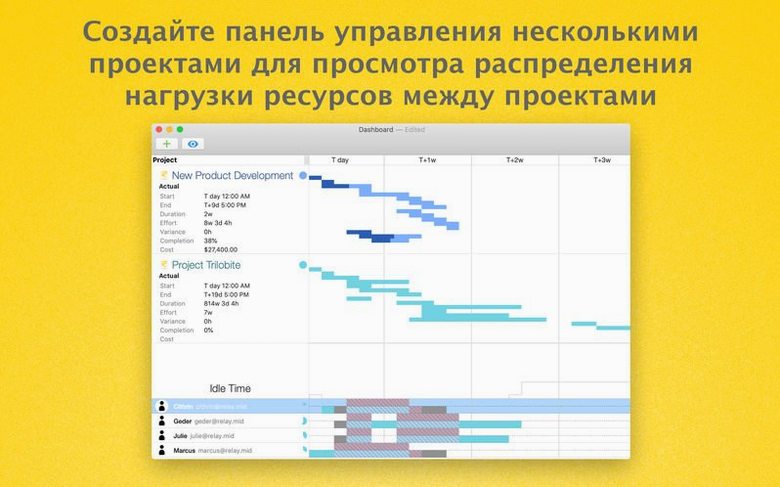
Before lunch, you export an HTML report and email the link to the project sponsor. The report includes the earned value metrics, so they see the CPI is healthy. After lunch, you open the multi-project dashboard. Three other plans are linked here — the backend team's schedule, the design sprints, and the QA cycle. You notice the QA plan depends on a design milestone that still shows as incomplete. You send a quick note to the design lead through OmniPlan's collaboration tools. By the end of the day, you update the task, run another simulation, and close the session knowing the critical path is still intact.
Automate weekly status reports with AppleScript
OmniPlan Pro doesn't live in isolation. On macOS, you can use AppleScript to automate repetitive tasks — for example, exporting a weekly status report as a CSV and then running a shell script to email it. The AppleScript support in the Pro version lets you tie project data into your existing workflow without manual copy-paste.
The export options cover the main scenarios. PDF for static distribution, CSV for spreadsheet analysis, and ICS for calendar integration. If you add a milestone date, you can push an .ics file into Apple Calendar or any calendar app that reads the format. That keeps the team's personal calendars in sync with the project plan.
For teams that use OmniOutliner, you can send a task list there for structured note-taking during a meeting. For diagrams, OmniGraffle imports the same data and turns it into a network diagram that matches the schedule. The reverse path also works: changes in OmniOutliner or OmniGraffle can be re-imported, so the plan stays the source of truth.
The multi-project dashboard in the Pro version pulls from plans stored on Omni Sync Server or WebDAV. If your organization uses a WebDAV-enabled file server, each project manager publishes their plan, and you see the combined picture without merging files manually.
Avoid weekend work by setting the project calendar first
The most common misstep is forgetting to set the project calendar before entering tasks. New users add deadlines and durations, then wonder why the Gantt chart shows work on weekends or during a holiday. The scheduler respects whatever calendar you give it, so an empty calendar means every day is a work day.
Another mistake is ignoring the critical path entirely. Without it, you treat every task as equally important. Then you spend time rushing a non-critical task while the real bottleneck sits unaddressed. Enable the critical path view from the start and check it after every major change.
Overusing constraints is a close third. Beginners add start-no-earlier-than and finish-no-later-than constraints to every task, thinking it adds control. In practice, it locks the scheduler into a corner and makes Monte Carlo simulation less useful. Use constraints sparingly — only for externally imposed deadlines or fixed delivery dates.
Finally, people underuse the change tracking. They edit tasks directly without commenting, and then nobody knows why a date shifted. If you are collaborating, always make changes through the tracking system. It builds an audit trail that saves arguments later. If you are working alone, it still helps you remember what you changed last week and why.
- Improved compatibility with newer versions of macOS.
- Improved performance when editing a task with many assigned resources.
- macOS 12 or later
- Both Intel and Apple Silicon supported
Questions from the notes
What macOS versions does OmniPlan Pro support?
OmniPlan Pro requires macOS 12 or later and runs on both Intel and Apple Silicon Macs.
Install procedure
- Mount the disk image and launch Open Gatekeeper friendly.
- Press Enter to bypass Gatekeeper in the Terminal window.
- Drag the app into the Applications folder.
- Start the app after installation.
Reports from players
Sign in or create a tester account to file a report.
No reports filed yet.