When you need to turn a messy idea into a clear diagram, the last thing you want is a compatibility headache. OmniGraffle Pro handles that part so you can focus on the structure. Version 7.26 runs on macOS 14 or later, supports both Apple Silicon and Intel Macs, and requires no special workarounds beyond the usual Gatekeeper bypass during install.
Requires macOS 14 Sonoma or newer
OmniGraffle Pro 7.26 needs macOS 14 (Sonoma) or newer. It runs natively on Apple Silicon and Intel, so performance feels consistent across hardware. The installer comes as a disk image with a Gatekeeper-friendly script — mount it, run the terminal command, drag the app to Applications, and you are done. No extra kexts or dependencies.
Imports Visio files and generates diagrams from Xcode projects
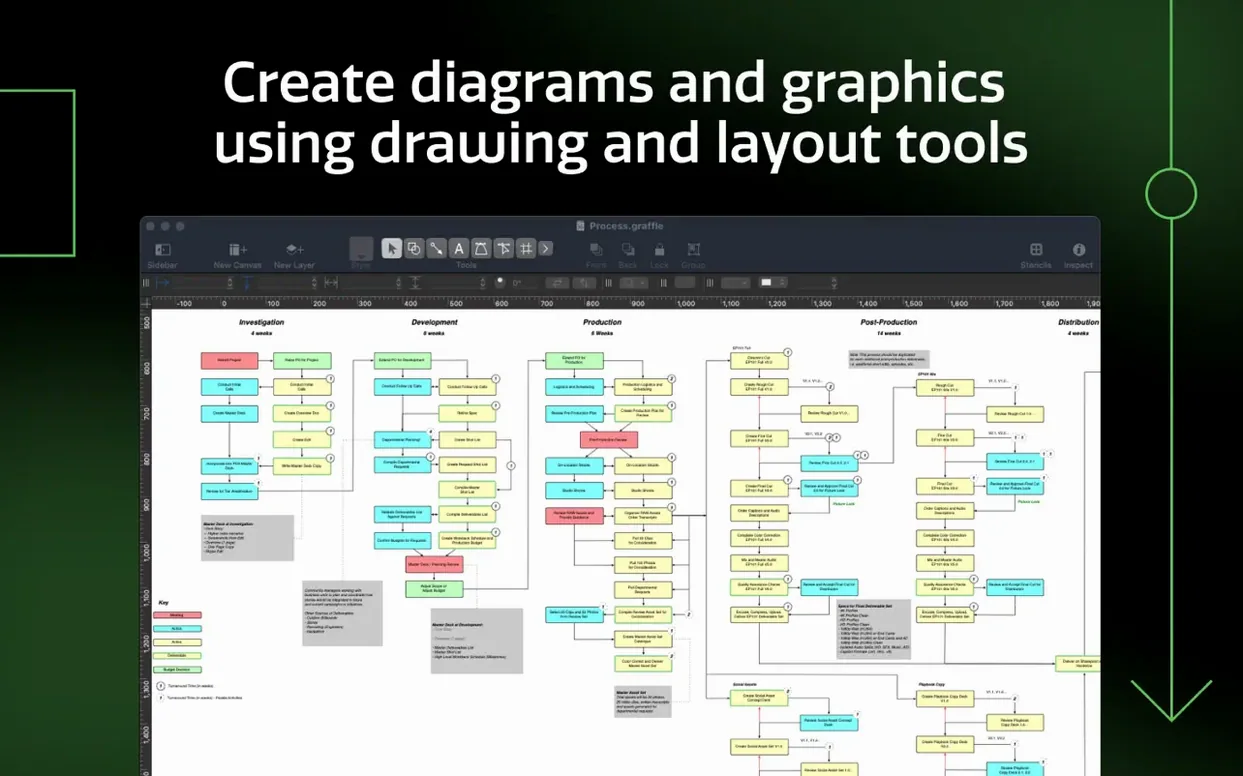
OmniGraffle Pro handles everything from quick wireframes to multi-layer technical diagrams. It can import Microsoft Visio VSD and VDX files, export OmniGraffle layers as Photoshop layers, and automatically generate diagrams from Xcode projects. You can convert lines or text into editable shapes, work with artboards, and switch the interface between a dozen languages including English, French, Japanese, and Simplified Chinese. The complexity is there if you need it, but the baseline is a clean, responsive diagramming app that stays out of your way.
Its real strength isn't just the tool set — it is how that tool set connects to the rest of your Mac.
Integration with macOS and other apps
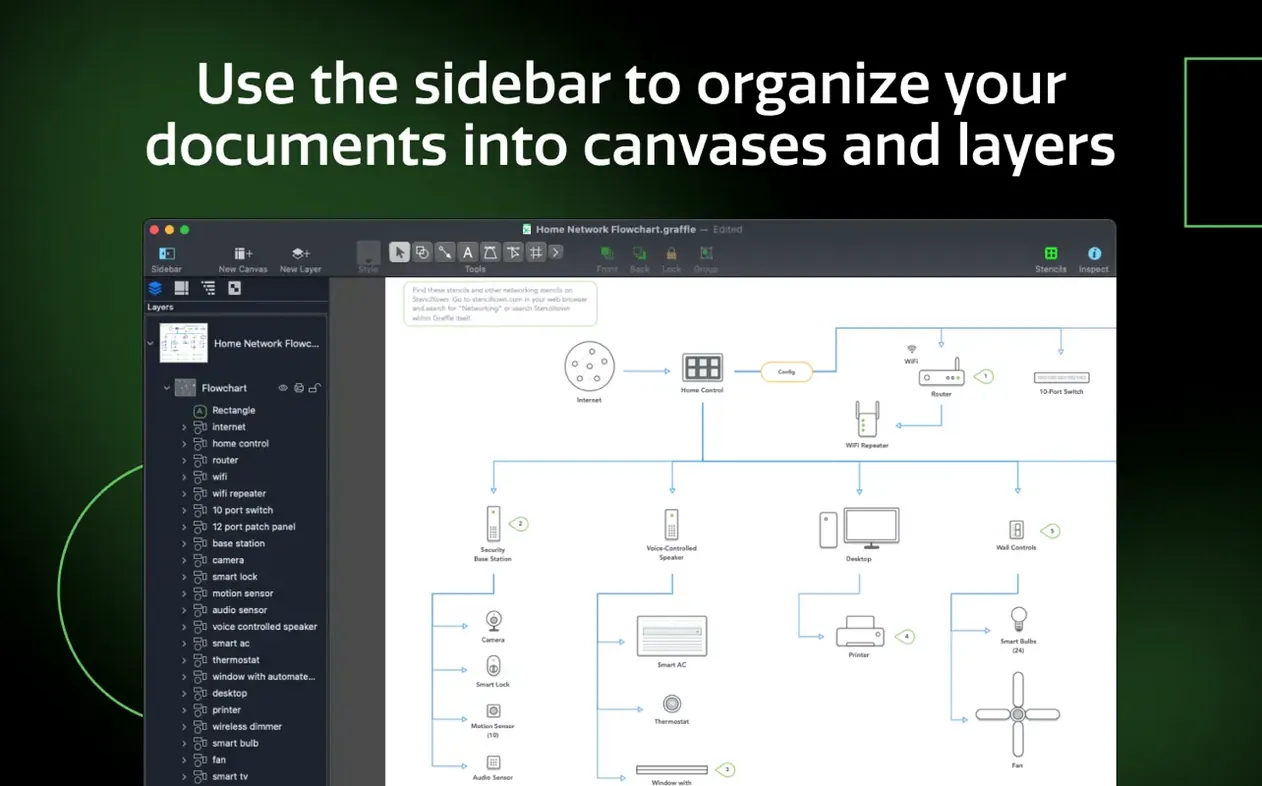
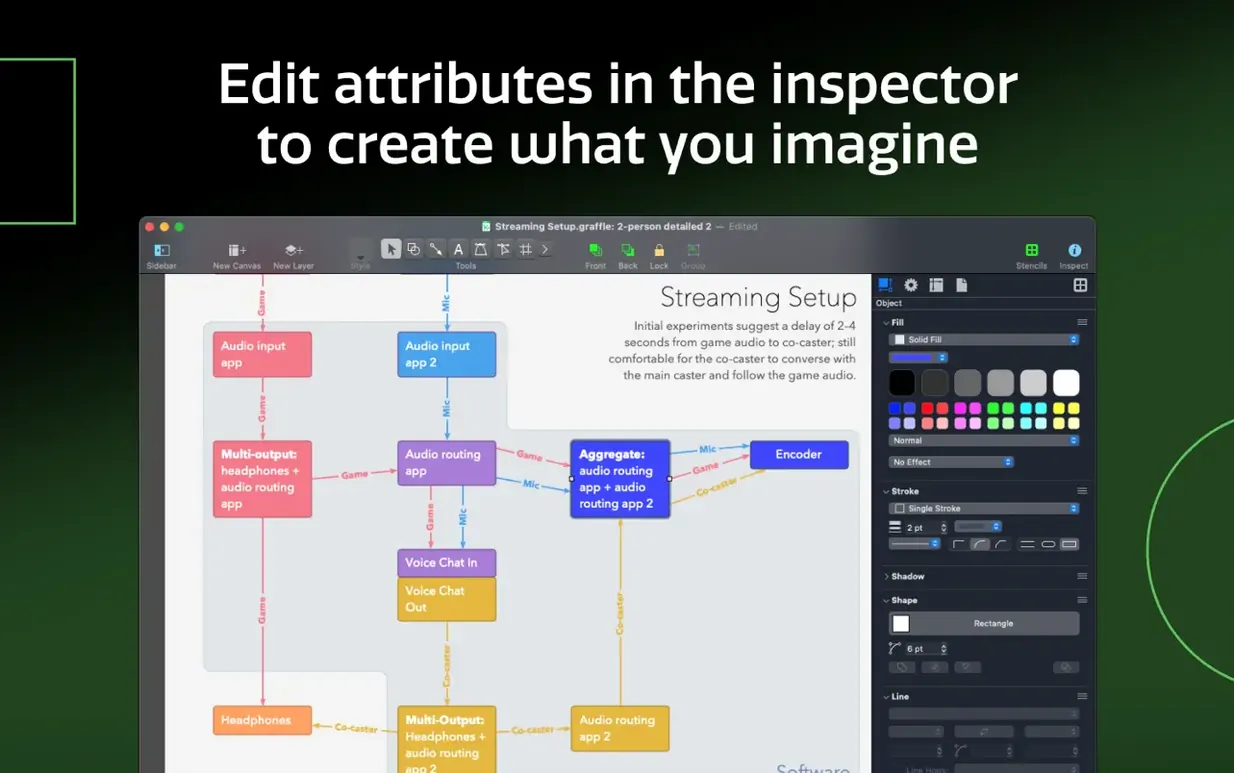
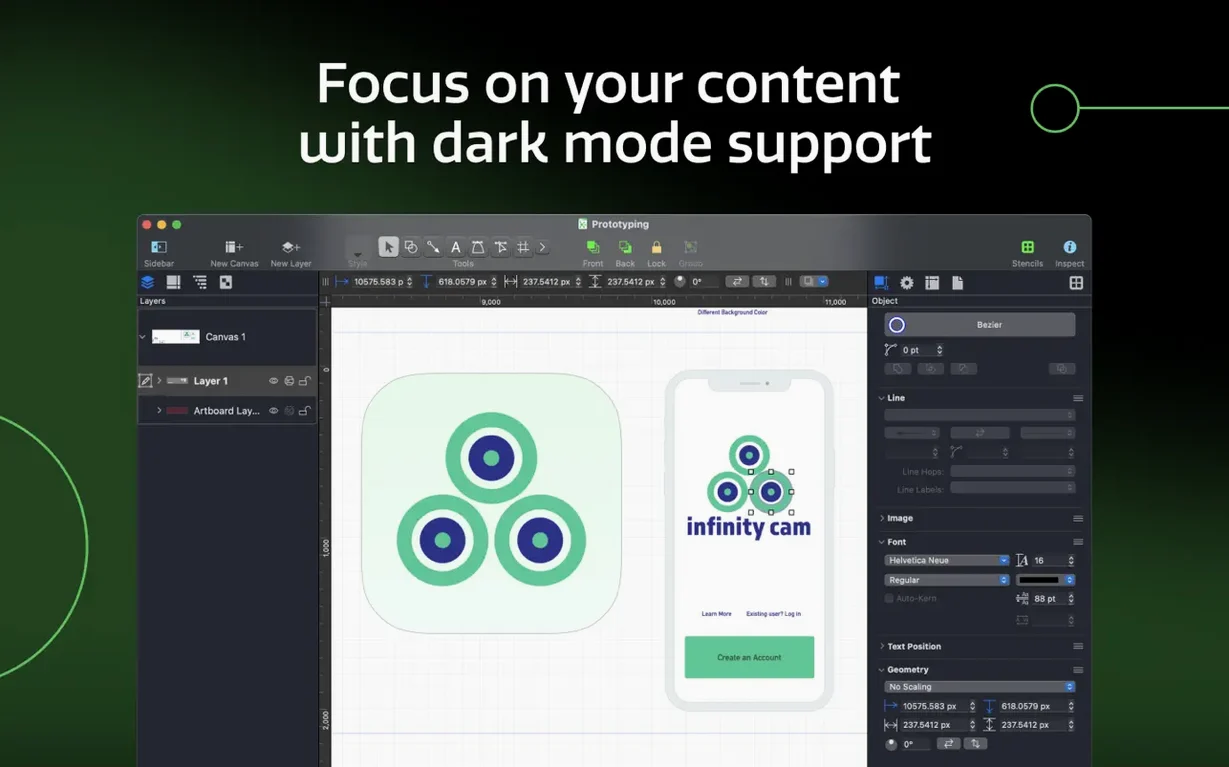
OmniGraffle Pro works with macOS features you probably already use. Shared layers behave predictably across artboards, so elements like headers or background grids can be edited once and reflected everywhere. The sidebar and inspectors manage canvases, layers, and shapes without cluttering the canvas. Keyboard shortcut sets can be shared between machines or team members, which helps if you switch between a MacBook and a Mac desktop regularly.
The Visio compatibility is practical for anyone who receives diagrams from Windows colleagues. OmniGraffle imports VSD and VDX documents, along with VSS stencils and VST templates. When you need to send something back, it exports to VDX. That means you can open a corporate flowchart, clean it up, and return it in a format the Windows side can still open.
For developers, the Xcode project import is a direct bridge. Point OmniGraffle at an Xcode project, and it generates a diagram of the class hierarchy and relationships automatically. That saves the manual tracing step when documenting existing code. On the export side, OmniGraffle can send layers to Photoshop, which is useful if a wireframe needs polish or mockups in a design tool.
Tables group shapes into rows and columns
Some features live in the menus rather than the toolbar, and they reward a second look.
- Tables let you group shapes into rows and columns. Instead of aligning individual boxes one by one, create a table, drop text into cells, and the layout stays consistent when you resize or reorder. Good for org charts or decision matrices.
- Convert text to shapes and convert lines to shapes. These turn editable text or strokes into fully editable vector objects. Useful when you want a custom letterform or a line style that the default tools cannot produce.
- Shared layers are not new but easy to forget. A shared layer appears on every canvas in the document. Put a watermark, logo, or navigation bar there, change it once, and every canvas updates. No copy-paste synchronization.
None of these are hidden, but they are the kind of features you discover after the first few diagrams and wonder how you managed without.
Workflow: from a rough sketch to a Visio-ready diagram
Say you have a process flow scribbled on paper and need to send it to a stakeholder who uses Visio on Windows. Here is a clean path through OmniGraffle Pro.
- Create artboards. Start a new document and add artboards for each phase of the process. Artboards keep related shapes together and make the final export predictable.
- Place shapes and connect them. Drag rectangles for steps, diamonds for decisions, and lines for the flow. No need to be pixel-perfect yet — you can adjust alignment later.
- Use a table for repeated elements. If the process involves a checklist or parallel steps, insert a table, define the number of rows and columns, and type into each cell. Resize the table once instead of adjusting each cell.
- Apply a shared layer for headers. Create a shared layer containing a title block and a date field. Because it is shared, every artboard shows the same header. Change the date in one place and it updates everywhere.
- Convert key text to shapes. If any text uses a font the recipient may not have, select those labels and convert them to shapes. The visual stays identical when opened in Visio.
- Export as VDX. File > Export, choose Visio VDX. The shared layer and table structure carry over. Send that VDX to your colleague.
This workflow takes advantage of the import/export features and the table tool without requiring any plugins or extra steps. The result is a document that works on both platforms.
Natural fit for wireframers with artboards and Photoshop export
Several types of Mac users will find this a natural fit. Wireframers — whether for web or software — benefit from the combination of artboards, shared layers, and Photoshop export. You can sketch a screen flow, then hand off layered mockups to a designer. Process modelers in corporate environments appreciate the Visio compatibility. If your organization is standardized on the Microsoft stack, OmniGraffle closes the gap without asking anyone to switch tools. Technical illustrators who draw system architectures or network topologies get the full shape library and the ability to convert lines and text into custom vector art. Developers documenting existing codebases save time with the Xcode import. And team leads who share resources across multiple Macs can distribute shortcut sets and stencils so the team stays consistent.
No single feature sells the app — it is the sum of how those features integrate with macOS, with Visio, with Photoshop, and with your own workflow.
- Improves compatibility with macOS Golden Gate 27.
- Requires macOS 14 or newer.
- macOS 14 or later
- Apple Silicon or Intel processor
- Architecture: universal
Questions from the notes
Does OmniGraffle Pro support Apple Silicon?
Yes, version 7.26 runs natively on Apple Silicon (M1 and later) and Intel Macs.
Install procedure
- Mount the disk image and run Open Gatekeeper friendly.
- Press Enter in Terminal to bypass Gatekeeper.
- Drag the app to the Applications folder.
- Launch the app when installation is complete.
Reports from players
Sign in or create a tester account to file a report.
No reports filed yet.