Open the Relationship Calculator and you immediately see what MacFamilyTree 11 does differently: it shows how two people in your tree are connected, complete with the exact path of ancestors between them. That single feature tells you this is a genealogy app built for people who actually work with family data, not just collect names.
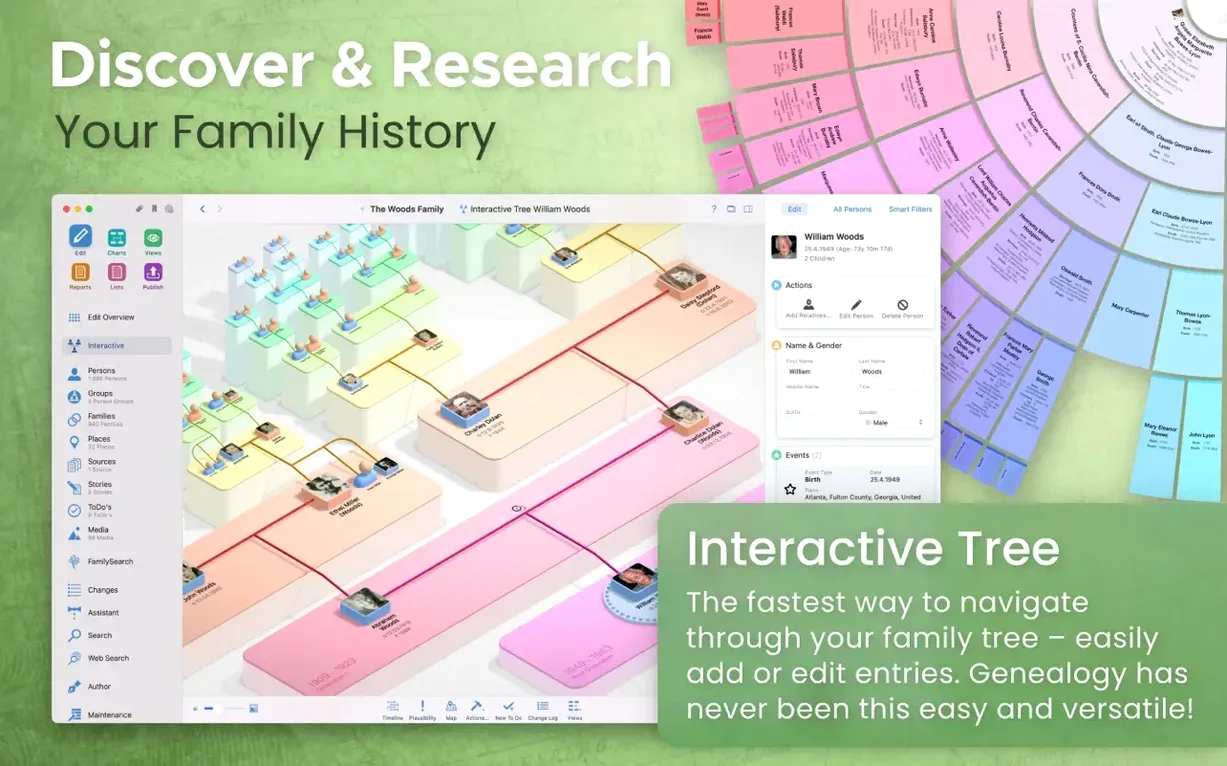
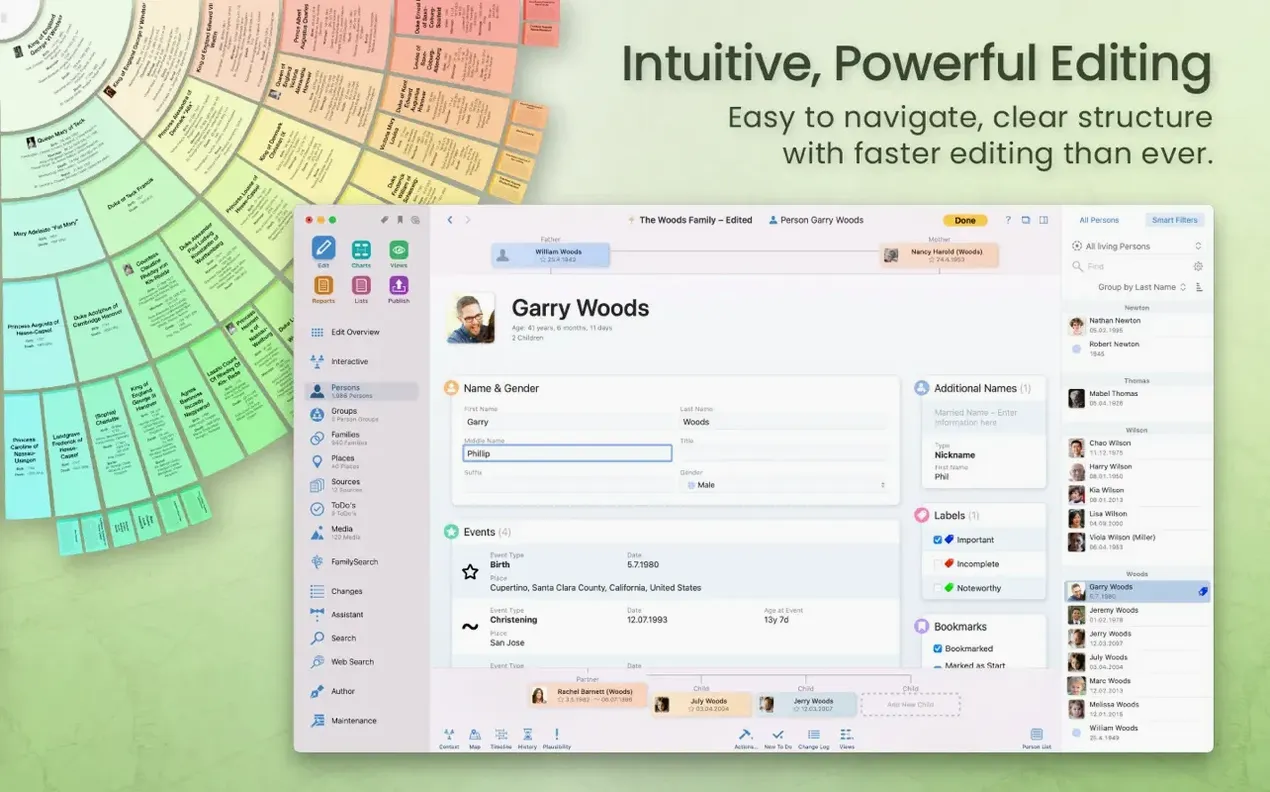
Tree view — the main workspace where you add, edit, and arrange people. Drag to reorder branches, collapse side lines, and zoom in on a single ancestor.
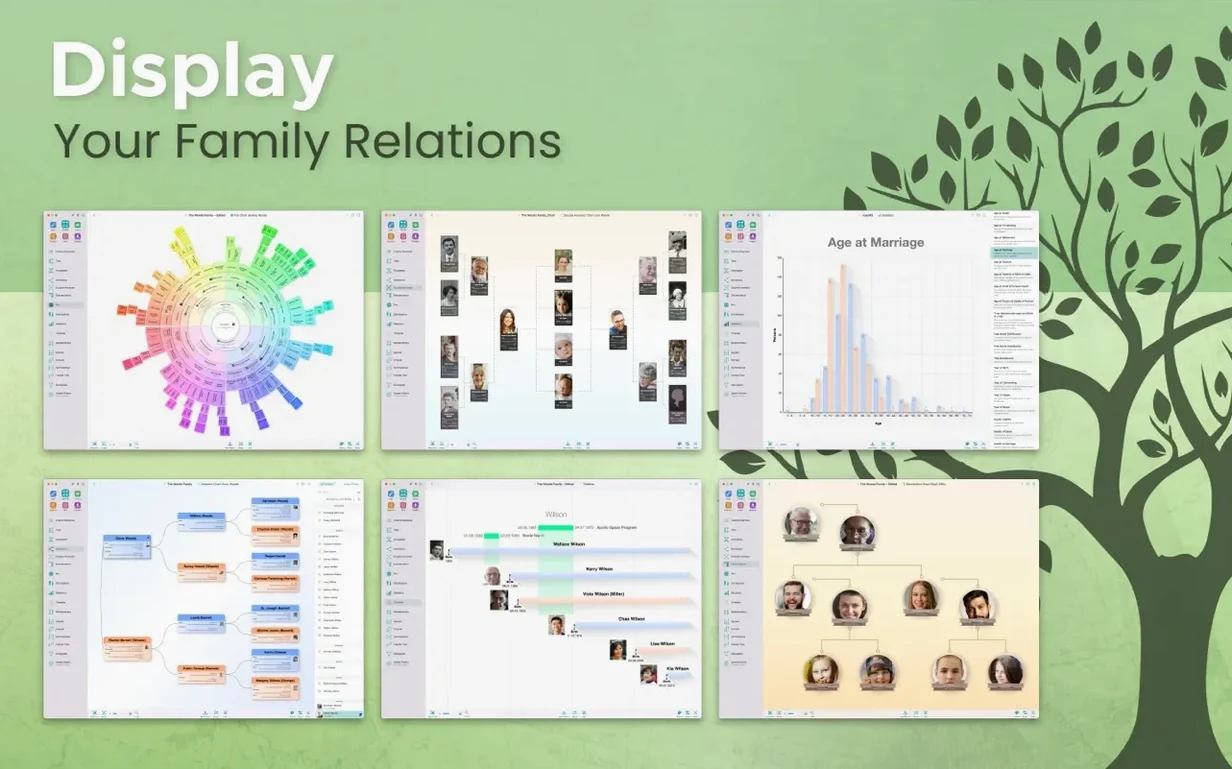
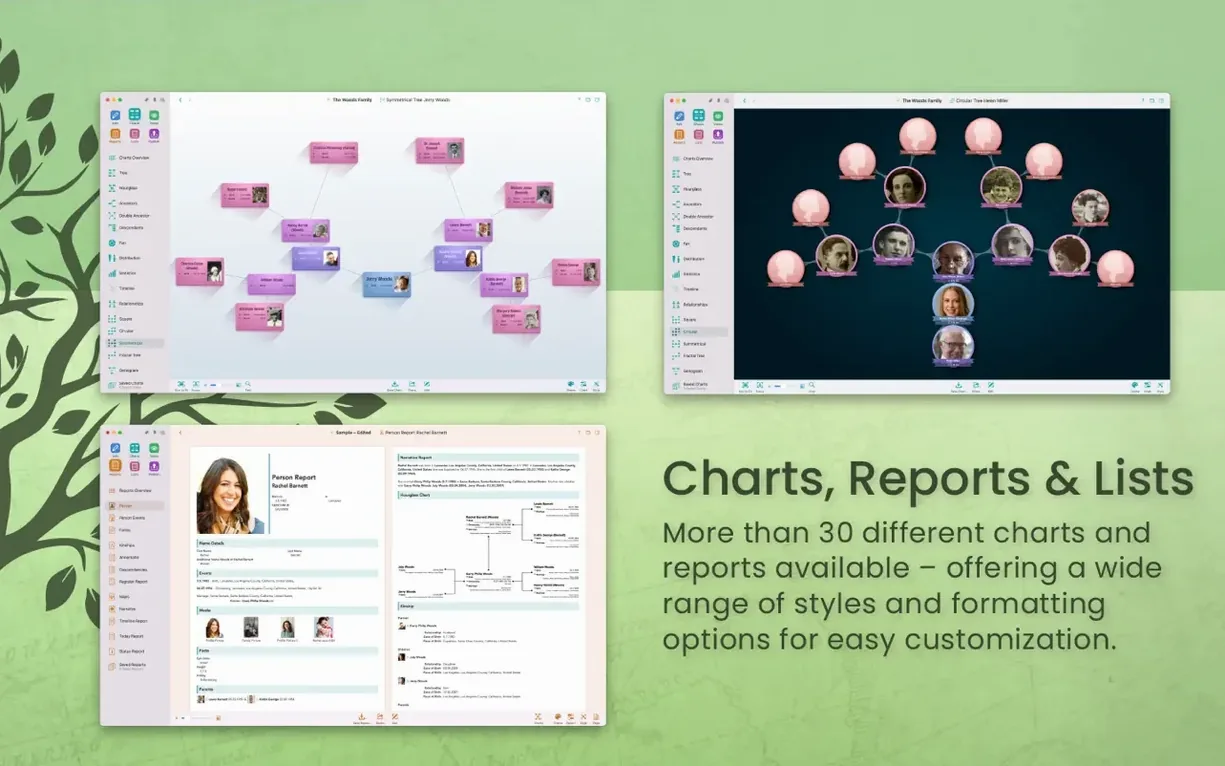
Charts & diagrams — eight built-in layouts including fan charts, hourglass, and pedigree. Export them as PDF, image, or print directly.
Reports — generate ancestor reports, descendant reports, statistical summaries, and custom books with your own layout and cover.
GEDCOM import/export — the standard genealogy exchange format. Bring in data from other software or share your tree with relatives.
FamilySearch integration — search the FamilySearch database from inside the app and attach records directly to people in your tree.
MobileFamilyTree sync — uses iCloud to keep your tree in sync with the iPhone/iPad companion app. Requires an iCloud account.
Web publishing — generate a password-protected website for your tree so family members can browse it without needing the app.
Adjust privacy controls for living people
MacFamilyTree 11 arrives with sensible defaults, but a few adjustments make the difference between a generic setup and one that fits how you actually research. Open Preferences and look at these first.
Privacy controls for living people. The app can automatically mark living individuals as private, which keeps them out of exported reports, published websites, and shared views. If you plan to send a GEDCOM file or create a website for distant relatives, enable this before you do anything else. It saves hunting through branches later to hide records manually.
Default chart behavior. The tree view starts at the home person. Set your own home person early — yourself, a known ancestor, or whoever sits at the center of your research — so every chart opens on that person instead of requiring a search each time. This is a one-click setting that removes friction every time you open a diagram.
iCloud sync toggles. If you use MobileFamilyTree on an iPhone or iPad, verify that sync is enabled on the correct tree. MacFamilyTree can store multiple trees locally or in iCloud, and syncing the wrong one duplicates cleanup work. Pick one tree, enable sync, and stick with it.
Language selection. The interface supports sixteen languages. If you work with records in a language different from your system language — say, German parish registers on an English-system Mac — switching the interface to that language can make navigation feel less jarring. It is a personal preference, but worth checking before you import a large dataset.
Suits family historians with existing data
MacFamilyTree 11 is not a beginner-only tool or an expert-only one. It sits in a sweet spot for three types of users.
Family historians with existing data. If you already have a GEDCOM file from another genealogy app or from FamilySearch, MacFamilyTree imports it cleanly and keeps the relationship structure intact. The hourglass chart, pedigree view, and relationship calculator give you visualization tools that help spot gaps in your research faster than reading through a text list.
Mac users who also own an iPhone or iPad. The iCloud sync with MobileFamilyTree is the tightest integration between a desktop genealogy app and a mobile companion. You can add a photo or note on your phone while visiting a relative, then see it on your Mac later without exporting or emailing files. This works best if you are already inside the Apple ecosystem and do not want to manage sync manually.
People preparing printed or digital family books. The book creation feature lets you assemble ancestor reports, descendant charts, and narrative text into a single document with your own layout. For someone who wants to produce a printed family history for a reunion or a holiday gift, this removes the layout work that normally takes days in a separate application.
Pulls ahead with 3D tree view
Reunion. Reunion has been on the Mac longer than most genealogy apps, and its user base is loyal. It offers comparable chart types and GEDCOM support. MacFamilyTree 11 pulls ahead in the visual department — the 3D tree view and the virtual globe statistical map are not things Reunion does. Reunion leans harder on a traditional, spreadsheet-like data entry interface, while MacFamilyTree treats the tree view as the primary workspace. If you prefer entering data through forms and tables first, Reunion may feel faster. If you want to see the tree grow as you add people, MacFamilyTree is more natural.
Gramps. Gramps is free, open-source, and runs on Mac, Windows, and Linux. It is powerful but its interface has not changed much in years. MacFamilyTree 11 is more polished, with consistent drag-and-drop behavior and a cleaner layout. Gramps supports a wider range of third-party plugins and report options, but setting them up takes time. MacFamilyTree works out of the box with fewer configuration steps. For someone who just wants to build a tree and generate a few charts, MacFamilyTree is the simpler choice.
Ancestry.com’s Mac companion. Ancestry offers a web-based tree builder and a mobile app, but no dedicated Mac desktop application. MacFamilyTree does not replace Ancestry’s record search directly, but it does integrate FamilySearch search inside the app. If you prefer working offline and syncing later rather than always being online, MacFamilyTree is the better option. The web approach works fine for casual tree building, but falls short when you want to generate complex charts or export a book.
Requires macOS 12 Monterey or later
People sometimes ask whether MacFamilyTree runs on older Macs. The app requires macOS 12 Monterey or later and works on both Intel and Apple Silicon Macs. If your Mac is still on Big Sur or earlier, it will not open. The developer has not backported version 11 to older systems.
Another frequent question is about GEDCOM version compatibility. MacFamilyTree 11 imports and exports GEDCOM 5.5.1, which is the current standard used by most genealogy software and online services. If you have data in an older GEDCOM format, the app handles most conversions during import. Some custom fields from other programs may not map exactly, but the core family relationships survive intact.
People also ask whether they can share a tree with family members who do not own the app. The answer is yes, through the web publishing feature. MacFamilyTree generates a password-protected website that anyone can open in a browser. You control which people and records appear, and you can update the site whenever you make changes to your tree. The family members browsing it do not need an account or any software.
A less obvious question concerns data portability. If you ever decide to switch to a different genealogy app, your data is not locked inside MacFamilyTree. The GEDCOM export gives you a standard file that opens in Reunion, Gramps, Ancestry, and most other tools. The charts and books you generate are not part of that export, but the core family data moves freely.
Start with a small test tree of fifty people
Start with a small test tree. Import a GEDCOM file with no more than fifty people, or manually add a few generations from one branch of your family. This lets you explore the chart types and report options without the clutter of a full database. You will learn which views help you spot missing information and which ones you will rarely open.
Use the relationship calculator on your test tree. Enter two people who share a known ancestor and confirm the path matches what you expect. This verifies that your data structure is correct before you scale up. If the path looks wrong, fix the relationship links now rather than after you have imported hundreds of records.
Set up iCloud sync last. Add your core data first, confirm the tree looks right, then enable sync. If you enable sync immediately and your iCloud account has old test trees or empty data from a previous attempt, you may end up merging the wrong dataset. A clean tree synced once is less trouble than cleaning up a multi-device merge.
- Stability improvements.
- macOS 12 Monterey or later
- Apple Silicon or Intel 64-bit
- iCloud account required for syncing between devices
Questions from the notes
Does MacFamilyTree 11 run on Intel Macs?
Yes. It supports both Apple Silicon and Intel 64-bit Macs running macOS 12 Monterey or later.
Install procedure
- Open the downloaded disk image.
- Drag the app into the Applications folder alias.
- After copying finishes, launch the app from Launchpad.
Reports from players
Sign in or create a tester account to file a report.
No reports filed yet.