
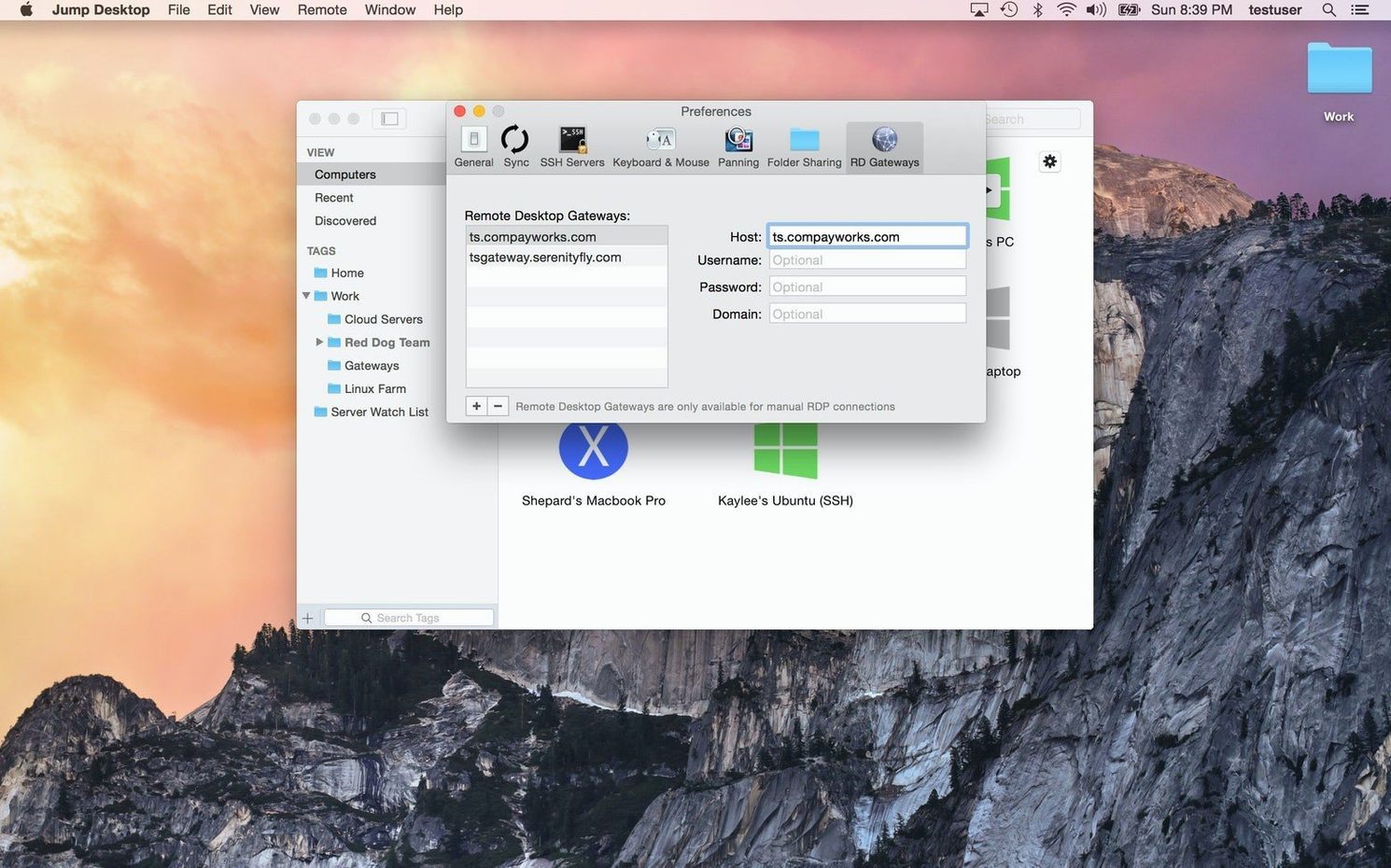
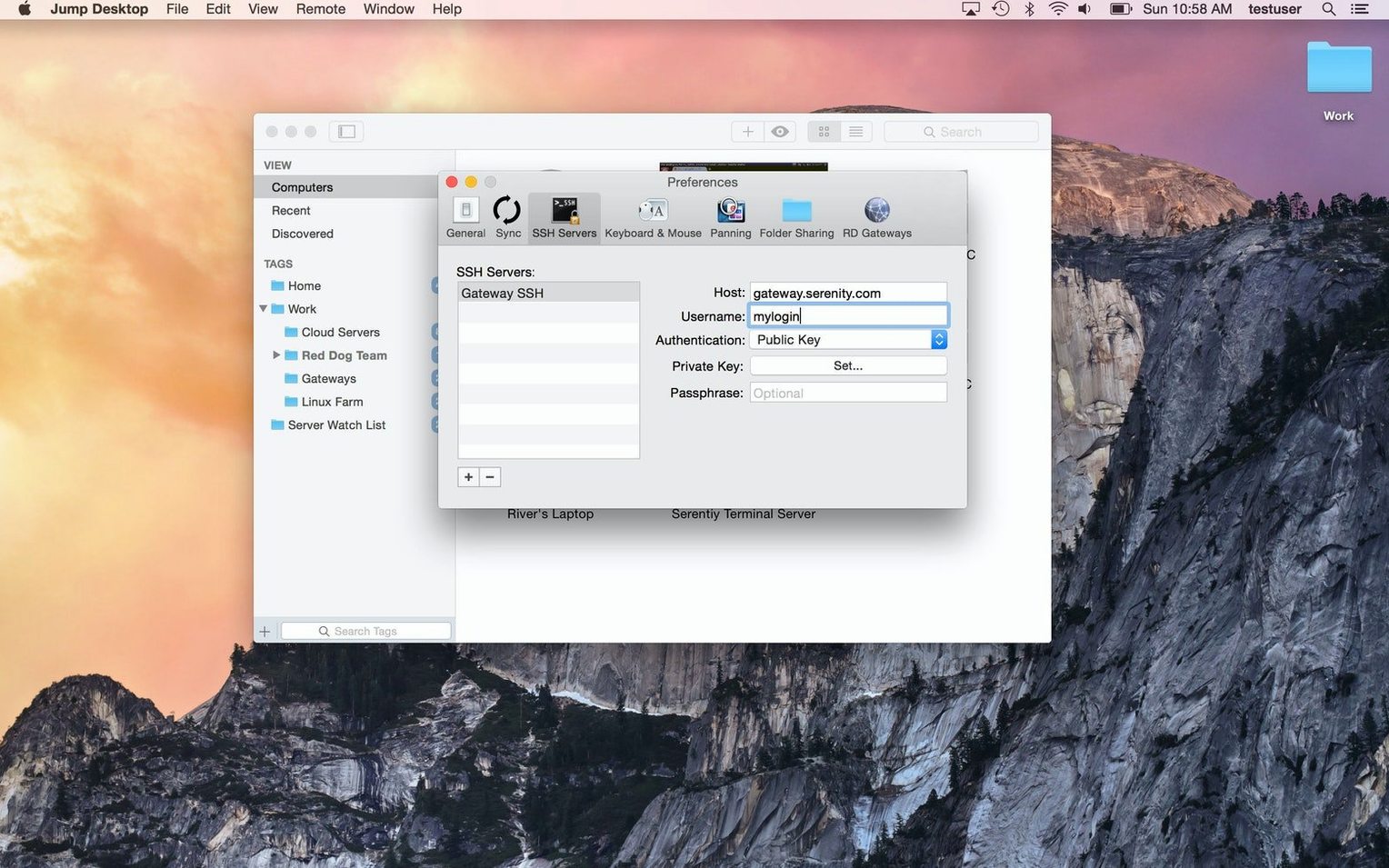
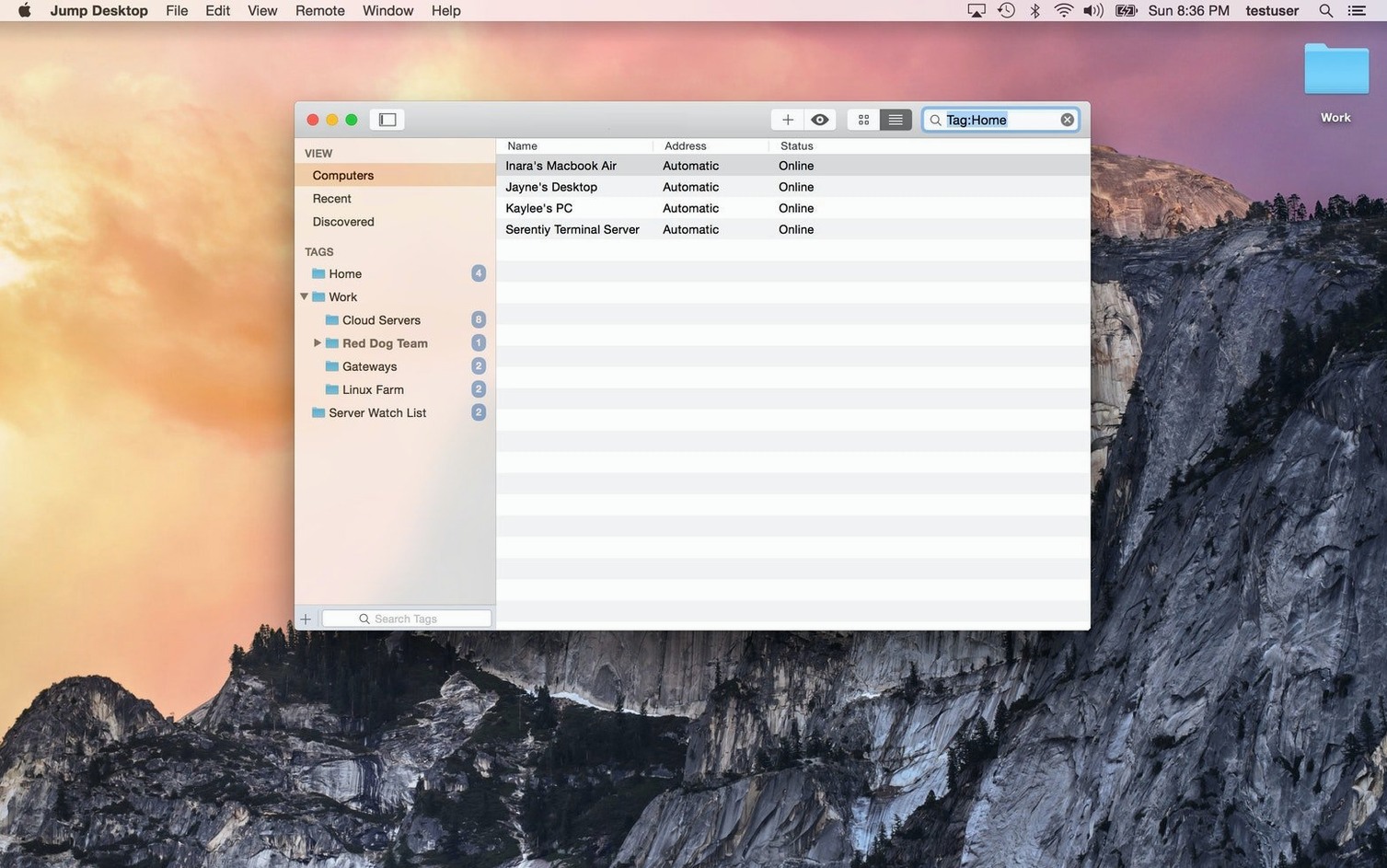
If you already use a remote desktop client for daily connections, you know the difference between something that works and something that works well. Jump Desktop is the latter kind. It connects to Macs, PCs, and any VNC or RDP host, but the value for experienced users is in the details.
What an experienced user will notice
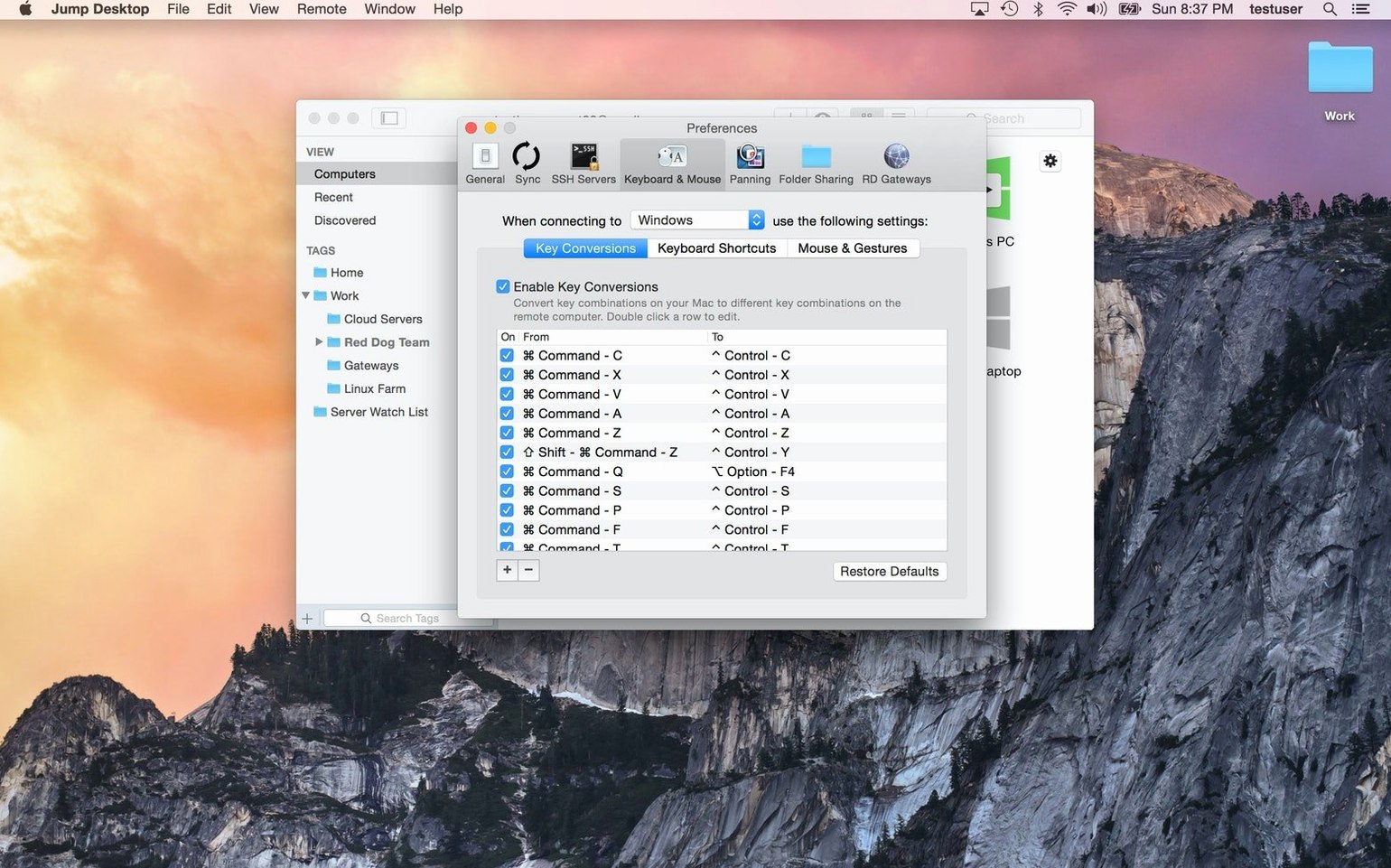
- Keyboard remapping — Remap shortcuts between Mac and Windows layouts without leaving the session. Useful when managing mixed-OS environments.
- File transfer — Send and receive files between local and remote machines. No separate cloud upload step required.
- Jump Desktop Connect — A lightweight companion app on the target computer handles the connection, no complex router configuration needed.
- Real-time interaction — View and control remote desktops with low latency. Works over RDP and VNC.
- Native Apple Silicon and Intel support — The Mac version runs natively on both architectures.
Setting up the connection
Install Jump Desktop on your Mac and the free Jump Desktop Connect on the remote computer. The app finds the host automatically over your local network or via the internet. If you manage multiple machines, it keeps each connection profile separate — you name them, set the protocol (RDP or VNC), and save any custom keyboard layouts per machine. No guesswork, no per-machine configuration hunt.
Why the companion app must remain running on the remote computer
People usually ask whether the companion app needs to stay running on the remote computer. Yes — Jump Desktop Connect must be active on the target machine for an incoming connection to work. It runs as a background service and doesn't interfere with other work.
Another frequent question is about internet vs. local network use. Jump Desktop works on both. On the same local network, it finds the host automatically. Over the internet, the connection uses the pairing system from Jump Desktop Connect, so you do not need to open router ports or set up static IPs. Log in with the same Google account or email address on both ends, and the connection routes through the developer's relay infrastructure.
Some ask whether they can connect to a headless Mac — a machine without a monitor plugged in. This depends on the host hardware. Some Macs output a display signal even without a monitor; others do not. Jump Desktop shows whatever the remote machine's graphics hardware sends. If the remote desktop appears blank, the host's GPU may not be generating a frame without a display attached.
About security: connections between the client and the companion app are encrypted. The developer does not publish the cipher details in the app description, but typical remote desktop tools use TLS. The same login system that pairs the machines also authenticates the session. No separate password per machine is needed unless you add one.
How Jump Desktop keeps macOS virtual desktops undisturbed
Jump Desktop works alongside macOS virtual desktop features. If you use multiple desktops on the Mac side, the remote session runs inside its own window and does not interfere with your local workspace switching. You can Command+Tab between Jump Desktop and local apps normally.
For file transfer, the drag-and-drop behavior integrates with the macOS file manager. Drop a file from Finder onto the Jump Desktop window and the transfer starts. On the receiving end, the file lands in the remote machine's file system. No FTP client or cloud sync is needed.
The keyboard remapping applies at the session level. If you connect to a Windows PC from a Mac keyboard, the Command key maps to Control automatically. You can also customize this per connection. That means muscle memory from one OS does not fight you when you switch to the other.
Jump Desktop does not replace macOS Screen Sharing or Apple's Remote Desktop. It is a separate tool for cross-platform connections. If your workflow involves Windows RDP hosts, Linux VNC servers, or Macs running a different display manager, Jump Desktop handles those without relying on macOS built-in protocols.
Scenario: An IT support person managing mixed environments
Imagine you support a small team that uses Macs for design work, a Windows server for internal tools, and a Linux machine for a database backend. You do not want to switch between three different client apps. With Jump Desktop, you set up one connection profile for each machine. The Macs connect via VNC, the Windows server uses RDP, and the Linux box also uses VNC. All profiles sit in the same window. You jump from one to the next by clicking the saved entry. The keyboard remapping per profile means the Windows shortcuts behave like Windows shortcuts, and the Mac shortcuts behave like Mac shortcuts. No mental translation layer.
The companion app on each remote machine means you do not need to train the team on port forwarding or VPN setup. Install Jump Desktop Connect on each target, log in with the shared team email, and the machines appear in your client automatically. When someone's Mac needs a file from the Windows server, you transfer it directly between the two remote sessions.
Current MAS build for macOS 11 and later on Apple Silicon and Intel
From the build label, it is identified as a release compatible with macOS 11 and later on both Apple Silicon and Intel. The activation is handled by the TNT team, meaning no serial entry or login prompt appears at launch. The app opens directly to the connection list.
For daily use, the practical difference between this build and earlier ones is that the Gatekeeper bypass step is no longer needed after the initial install. The Mount-and-Terminal workaround applies only during installation. Once the app is in the Applications folder and launched, it stays authorized. No repeated re-authorization or periodic activation checks have been reported by users of this release.
Users coming from older builds will find the same interface. The connection list, keyboard remapping panels, and file transfer dialogs have not been rearranged. The stability improvements in 10.15.28 relate to background connection handling — the app reconnects faster if the network drops briefly during a session.
- macOS 11 or later
- Intel or Apple Silicon processor
- English interface
Questions from the notes
Does Jump Desktop support keyboard shortcut remapping between Mac and Windows?
Yes. You can remap keyboard shortcuts between Mac and Windows layouts directly within the app, which helps when working across different operating systems.
What protocols does Jump Desktop use to connect?
It connects to remote computers using RDP and VNC. The companion Jump Desktop Connect app is used for remote access on the target machine.
Is Jump Desktop compatible with Apple Silicon Macs?
Yes. The Mac version supports both Apple Silicon (M1/M2/M3) and Intel Macs natively.
Install procedure
- Mount the disk image and launch Open Gatekeeper friendly.
- Press Enter in Terminal to bypass Gatekeeper.
- Drag the app to the Applications folder.
- Open the app when installation is complete.
Reports from players
Sign in or create a tester account to file a report.
No reports filed yet.