
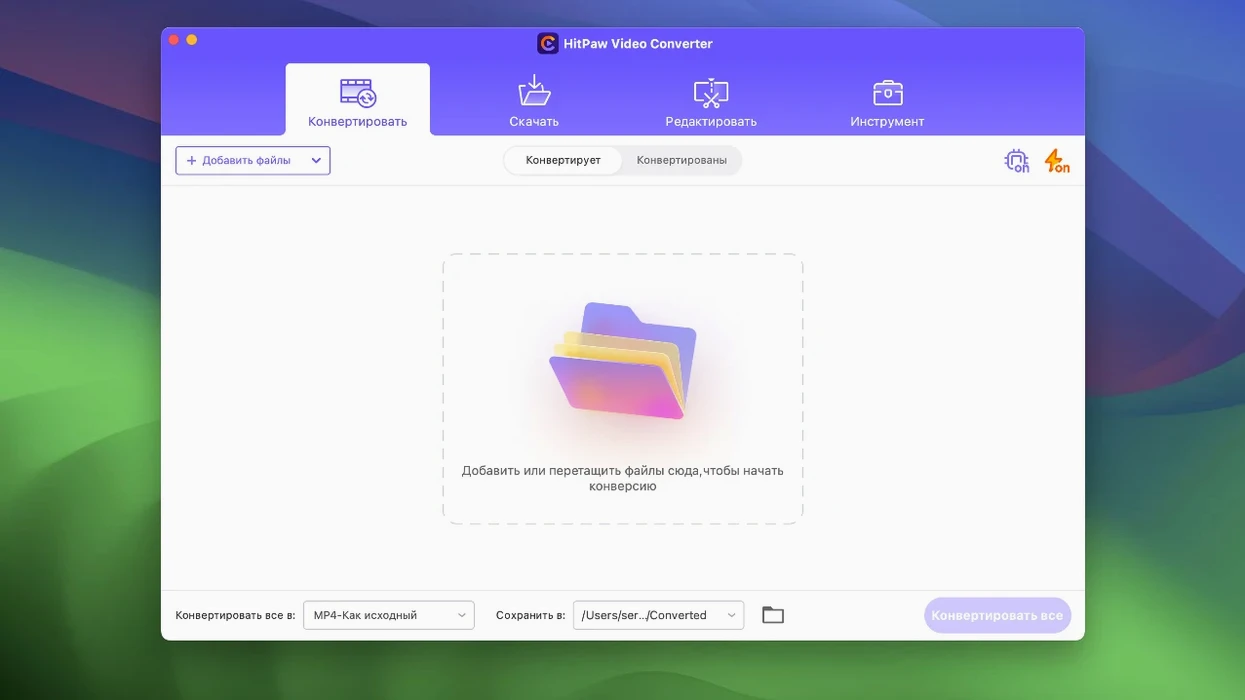
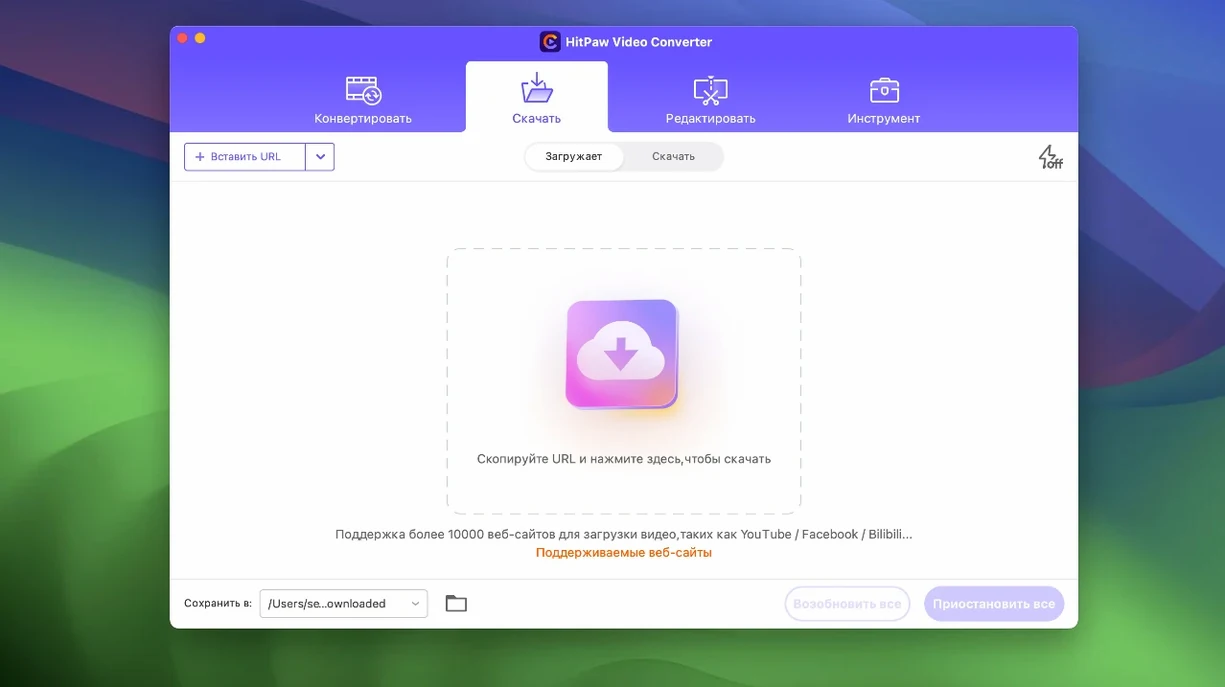
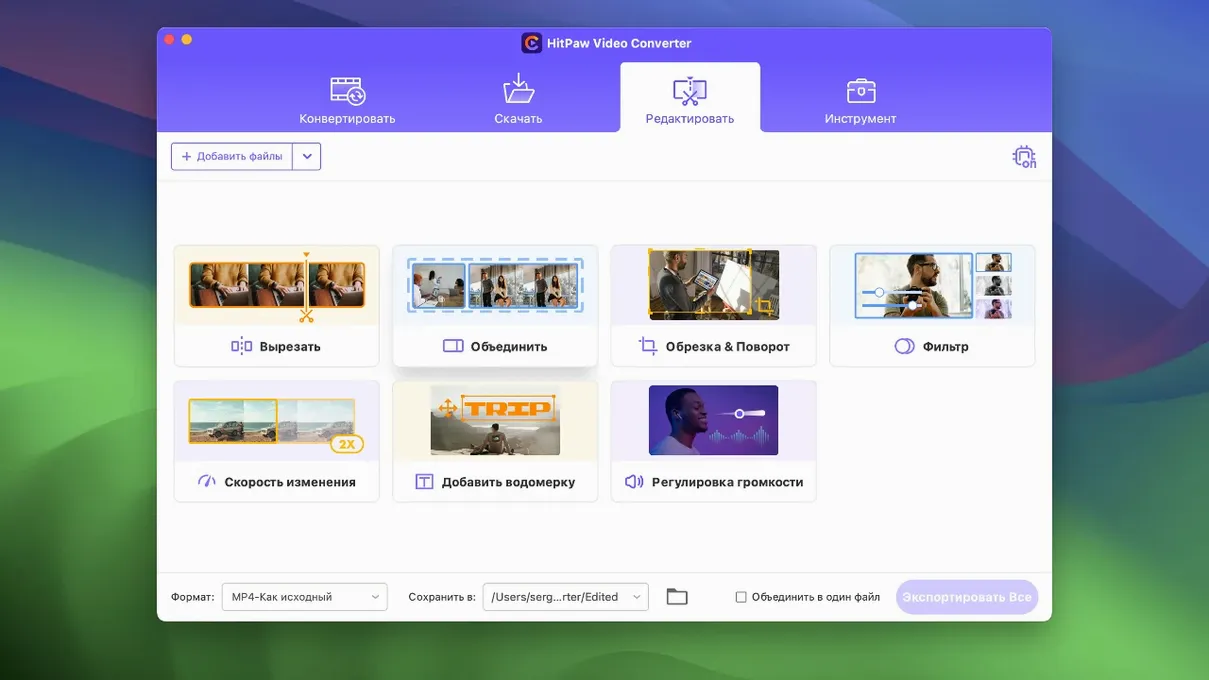
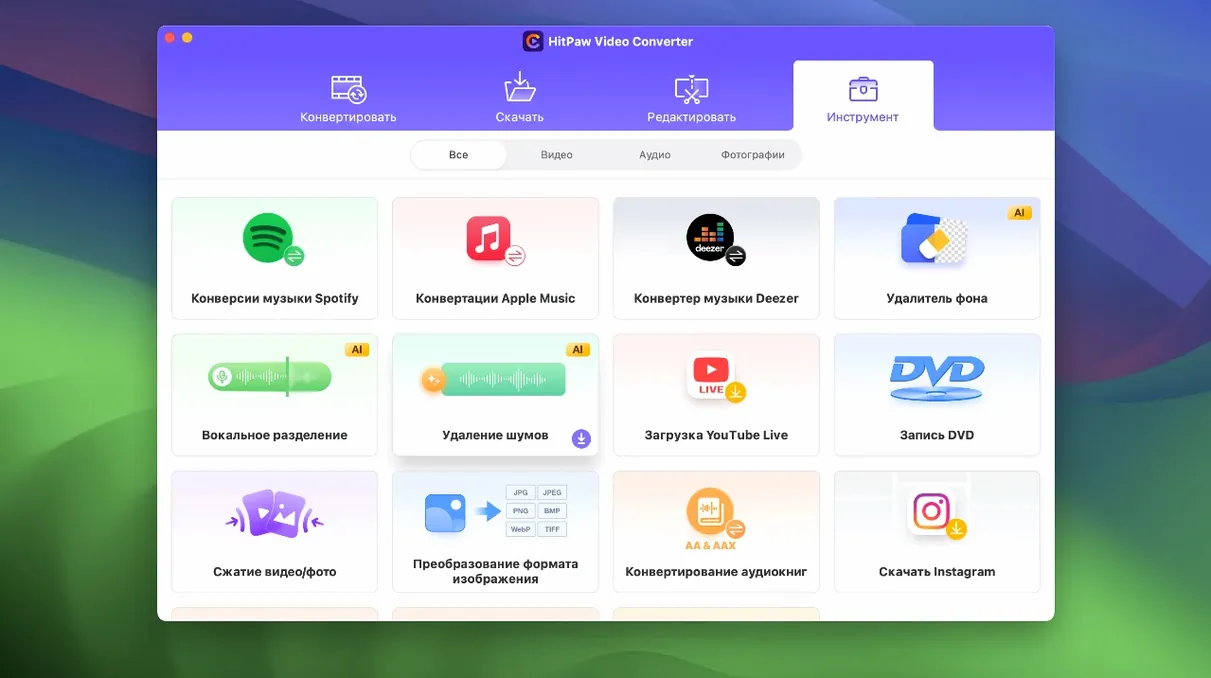
HitPaw Video Converter 4.5.0 is a Mac application for converting, downloading, compressing, and editing video and audio files.
Converts video, music, DVD, and images without quality loss
- Converting video, music, DVD content, and images between formats like MP4, MOV, AVI, VOB, MKV, and MP3 without quality loss.
- Compressing large video files — the compression module got optimized in this release.
- Basic video editing, with an improved editor module display in version 4.5.0.
- Using the built-in auto reframe feature, new in this version.
- Working in one of sixteen interface languages, including English, French, German, Spanish, and Japanese.
Runs on Intel Macs only, no native Apple Silicon
- Runs on macOS 10.15 and later, Intel x86 64-bit only — no native Apple Silicon build.
- The app converts files at high speed, though actual performance depends on your hardware and source file.
Compared to other Mac video tools, HitPaw Video Converter 4.5.0 covers a wider set of jobs in one app. It converts, compresses, downloads, and does basic editing. That makes it closer to a Swiss-army tool than a specialist editor. Another option is HandBrake, which is free and can convert almost any format, but it does not download from websites and its editing is minimal. A third contender is Audials One, which also handles conversions and online downloads but tends to focus more on music and streaming recording. HitPaw’s advantage is the combination of conversion, download, and compression with a unified interface, plus the auto reframe feature that the others lack entirely.
What 4.5.0 changes in everyday use
The update from October 2024 brings three changes you will notice quickly.
- Compression module optimized. Compressing a large video — say, an hour-long recording — now takes fewer steps. The module runs the same underlying encoder but the interface responds faster during preview and encoding. You do not need to change your usual workflow.
- Editor module display improved. Trimming, cropping, and cutting are easier to find and use. The preview window scales better with the editor panel open, so you are not hunting for the playhead or timeline sliders behind overlapping panels.
- Auto reframe added. This is the most visible new feature. It automatically adjusts the aspect ratio of a video — useful when you want to repurpose a horizontal clip for vertical social-media stories, or the other way around. It bakes the change into the output file so you do not need to calculate the crop coordinates manually.
Workflow: convert and auto-reframe a download for Instagram Stories
Here is a typical task from start to finish using the new auto reframe feature.
- Open HitPaw Video Converter and go to the Download tab. Paste the link of a video from one of the 10,000 supported websites. Pick the highest resolution available in the list and start the download.
- When the download finishes, drag the file into the Converter tab. Choose MP4 as the output format — the app keeps the original quality for the conversion.
- Click the Edit icon on the file card. In the editor panel, turn on Auto Reframe. The app scans the video and sets crop boundaries so the subject stays centered. If you want to adjust, you can drag the crop rectangle manually. Apply the change.
- Back in the Converter tab, pick an output folder and start the conversion. The auto reframe is applied during the encode. The result is a vertical MP4 ready to upload.
The whole process takes about as long as the download plus the encode. No extra tools needed.
Start with the Download tab for Apple Music and Spotify links
If you are new to HitPaw Video Converter, a few things will save you time.
- Check the download list first. The Download tab supports Apple Music, Spotify, and Deezer links. Many users overlook those because the app name says "video." If you need audio from a streaming service, try pasting the song URL directly.
- Use a preset for compression. When you add a file to the Converter tab and pick an output format, look for the compression presets under the settings gear. They let you target a file size or quality level without touching the codec settings. The optimized compression module in 4.5.0 handles these faster than before.
- Batch convert similar files. You can add multiple files to the queue and set the same output format for all. The auto reframe, if enabled, applies per file — you can turn it on for one file and leave it off for another in the same batch. The queue processes them sequentially.
- Check the language list early. The interface supports sixteen languages. If English is not your first language, switch it in the settings on the first launch. It is a one-time change and the menu labels update immediately.
The app uses Intel x86 code, so it runs under Rosetta on Apple Silicon Macs. Performance will be slower than on an Intel Mac, but conversion still finishes in reasonable time for typical files under an hour.
- Optimized the compression module.
- Optimized the editor module display.
- Added auto reframe feature.
- macOS 10.15 or later
- Intel x86 64-bit processor
Questions from the notes
Does HitPaw Video Converter 4.5.0 work on Apple Silicon Macs?
No. The app uses x86 64-bit architecture and runs on Intel-based Macs. On Apple Silicon models, it would need to run under Rosetta 2, which is not officially supported.
What formats can HitPaw Video Converter handle?
It supports MP4, MOV, AVI, VOB, MKV, MP3, and others for converting video, music, DVD content, and images.
What's new in version 4.5.0?
The compression module and editor module display were optimized, and an auto reframe feature was added.
Install procedure
- Mount the disk image and launch Open Gatekeeper friendly.
- Press Enter to bypass Gatekeeper in the Terminal window.
- Drag the app into the Applications folder.
Reports from players
Sign in or create a tester account to file a report.
No reports filed yet.