
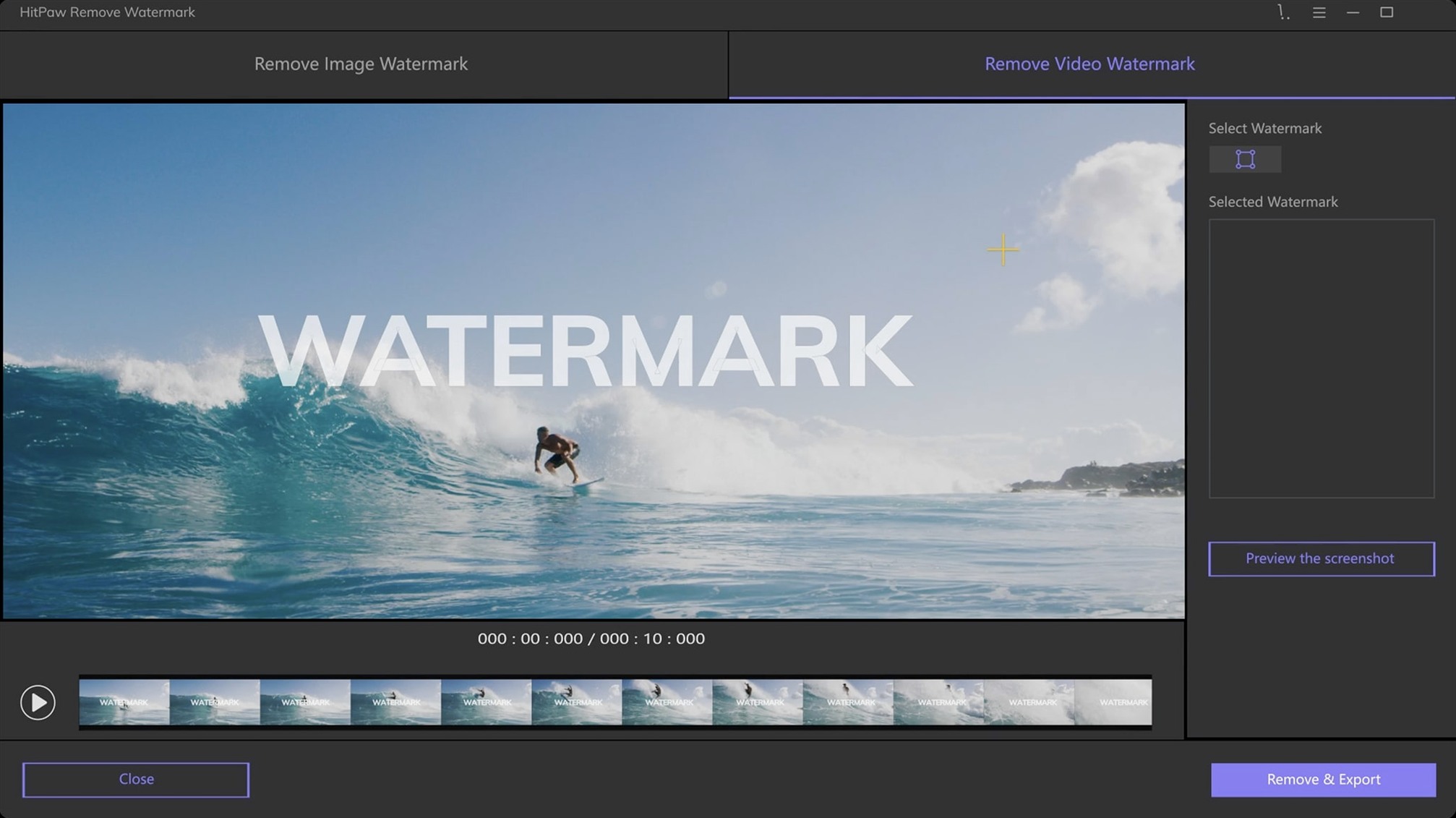
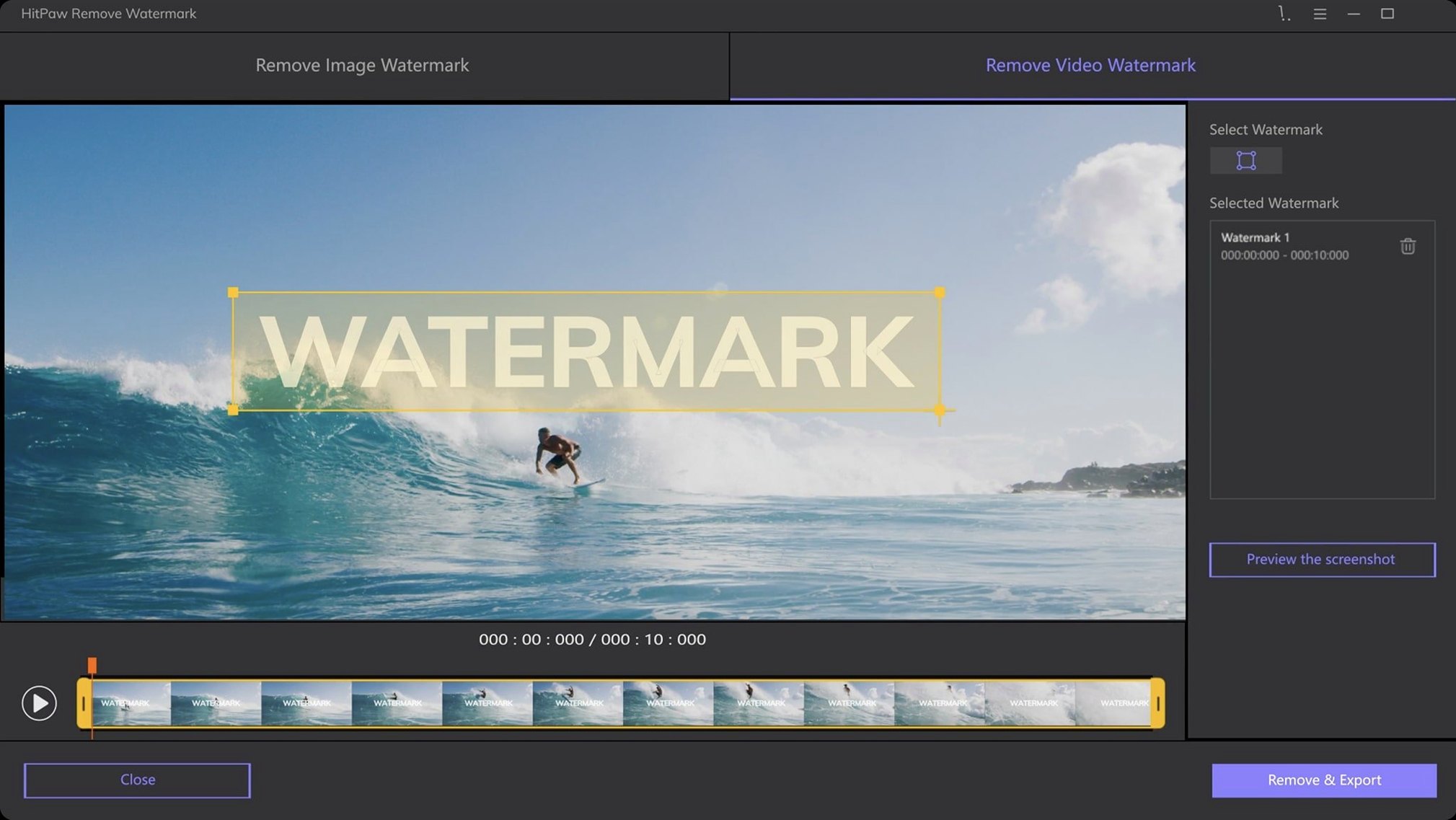
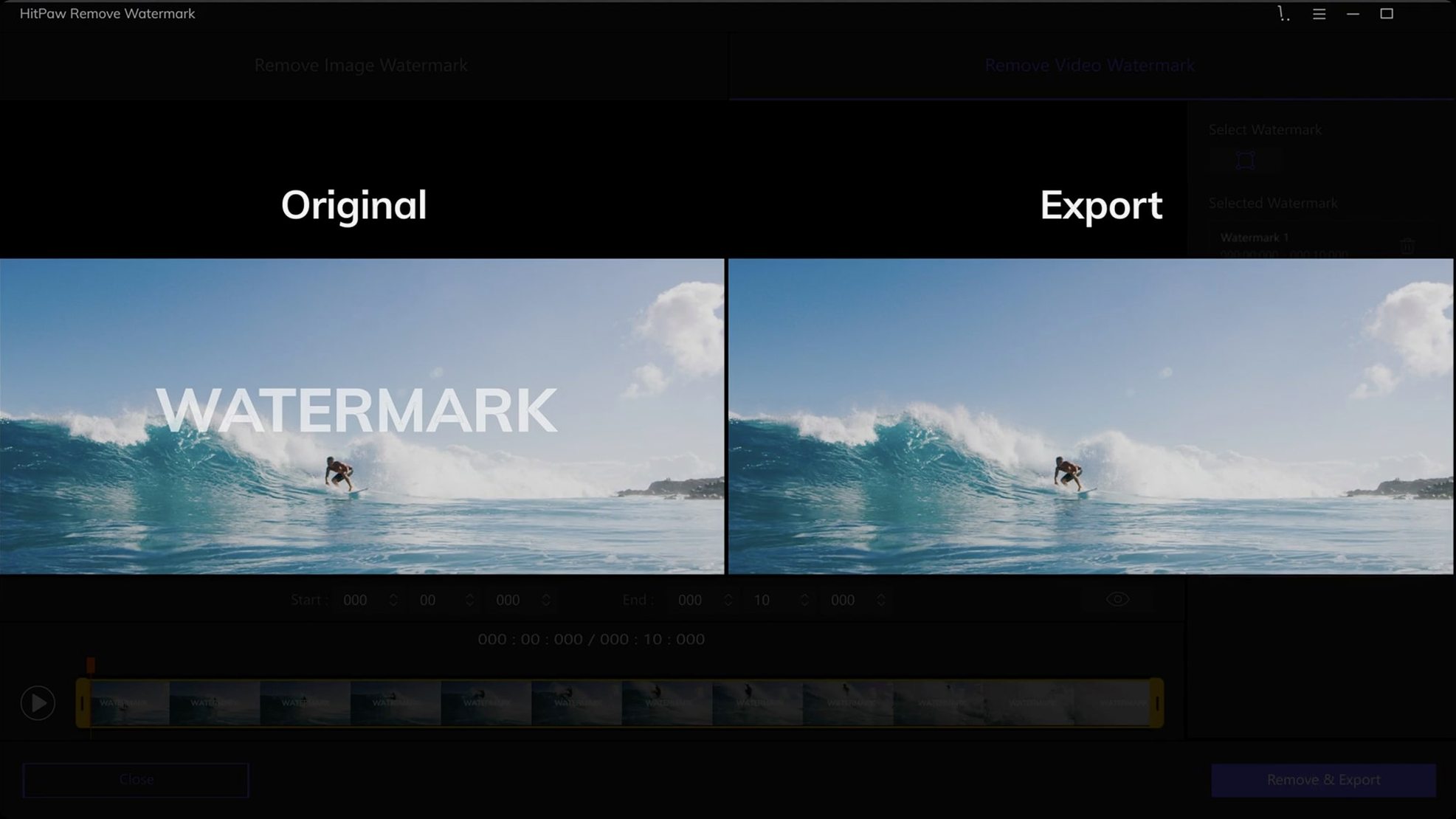
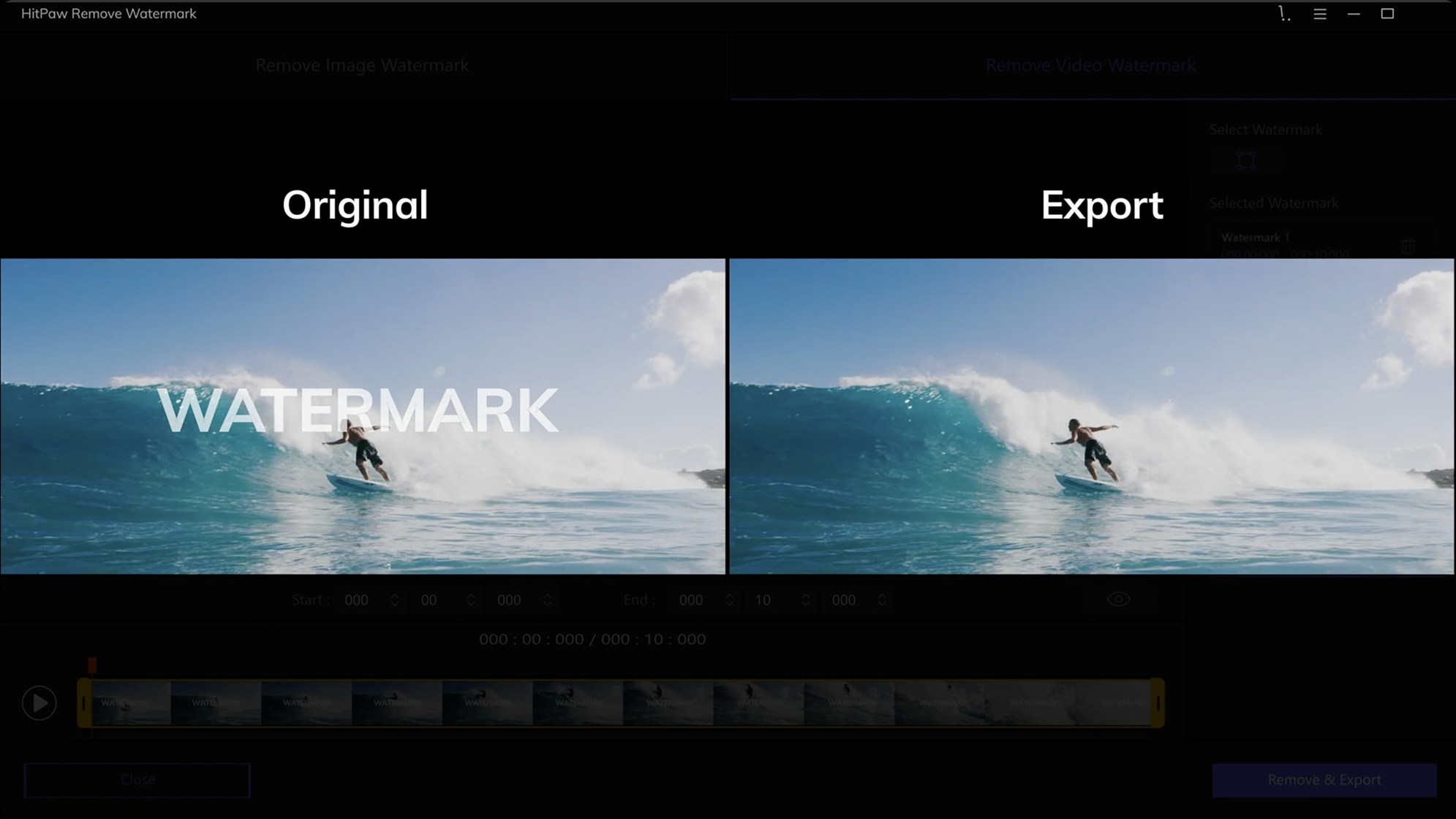
Version 2.4.7 of HitPaw Watermark Remover landed on September 12, 2025. It is a graphical Mac app for taking watermarks off both still images and video files. The tool gives you rectangle, triangle, and freeform selection, so you can mark exactly the area to clean, whether it is a logo in a corner or a caption running across the frame.
Who will get use out of it
This is for anyone who edits or repurposes media and needs a watermark gone without opening a full video editor. If you work with clips downloaded from social platforms, or you have old footage with a timestamp burned in, the app handles the removal in a few clicks. It reads common formats like MP4, MOV, AVI, MKV, and WebM, so you will not be stuck converting files first.
Runs on 64-bit Intel Macs with macOS 10.15 or later
The current build runs on 64-bit Intel Macs with macOS 10.15 or later. The interface is available in ten languages, including English, German, Spanish, and Japanese. It is a practical tool for the occasional cleanup job, not a substitute for a professional editor.
What to expect on your Mac
HitPaw Watermark Remover 2.4.7 is a 64-bit Intel application, so it runs on any Mac with a Core-series or Xeon processor. The minimum is macOS 10.15, which covers most systems from 2018 onward, and does not require a discrete GPU. The app is self-contained: it opens a single window with your source file on the left and a preview on the right after processing. You drag a file or use the import button, select the watermark area with one of three selection shapes, pick a removal mode, and run it. The interface is straightforward, with no timeline, layers, or export presets to dig through. For video, you choose the output format and location, then let it process the whole clip file-by-file.
Mistakes beginners make
Most issues come from the selection step. New users often draw a box that is too small, missing parts of the watermark. If the selection cuts through the text or logo instead of surrounding it, the repair can leave visible fragments. The freeform tool helps here — it takes a bit longer to trace, but it catches edges better than the rectangle or triangle tools for irregular shapes.
Another common mistake is picking the wrong removal mode. The three modes — smooth filling, edge filling, and texture repair — behave differently depending on the background behind the watermark. Beginners tend to use smooth filling for everything, then complain about blur in the repaired area. If the watermark sits over grass, fabric, or a busy pattern, texture repair usually matches the detail better. Edge filling works for simple backgrounds like a solid sky or a wall.
People also forget to check the output format before starting a batch of video files. The app defaults to MP4, which is fine for most uses, but if you need a different container like MOV or AVI, you have to set it in the export options first. Running a whole batch and then realizing the format is wrong wastes time.
Settings worth changing first
Before your first removal job, open the app and verify the output folder. The app saves to a default location, and if you work on several files in a row, finding them later can be annoying if you did not set a custom path. Change the output folder to something you remember, like a dedicated project folder or your desktop.
For video work, set your preferred output format before importing the clip. The app supports MP4, MOV, AVI, and others, so pick the one that matches how you plan to use the result. If you are unsure, MP4 with H.264 is the safest choice for compatibility with editors and players.
If you remove watermarks from images, note that the supported image formats are limited to JPEG, PNG, WebP, and BMP. If your source uses a different format like TIFF or HEIC, convert it first. The app does not handle those.
A real-world scenario: a video editor cleaning up a licensed clip
A video editor working on a sponsored short film receives a raw clip from a stock-footage site. The clip has a small, semi-transparent watermark in the lower-right corner. The background is a concrete wall with subtle grain. The editor drags the MP4 file into HitPaw Watermark Remover, uses the rectangle tool to surround the watermark with a margin of about ten pixels on each side, and selects texture repair as the removal mode. After a short processing run, the repaired area blends with the concrete grain well enough that the rest of the edit does not need masking or color correction. The editor exports the cleaned clip as MP4 and drops it into the timeline, saving the time of cloning or rebuilding that corner manually in a video editor.
- macOS 10.15 or later
- 64-bit Intel processor
- Interface languages: Russian, English, German, Spanish, Italian, Korean, Portuguese, French, Czech, Japanese
Questions from the notes
Does HitPaw Watermark Remover work on Apple Silicon Macs?
The listed requirements mention 64-bit Intel architecture. The app may run under Rosetta, but this is not confirmed.
What video formats does it support?
It supports AVI, MKV, MP4, FLV, F4V, MOV, WMV, WebM, 3GP, RMVB, MPEG, TS, and MTS.
Install procedure
- Mount the disk image and launch Open Gatekeeper friendly.
- Press Enter in the Terminal window to bypass Gatekeeper.
- Drag the app to the Applications folder.
- Open the app when installation is complete.
Reports from players
Sign in or create a tester account to file a report.
No reports filed yet.