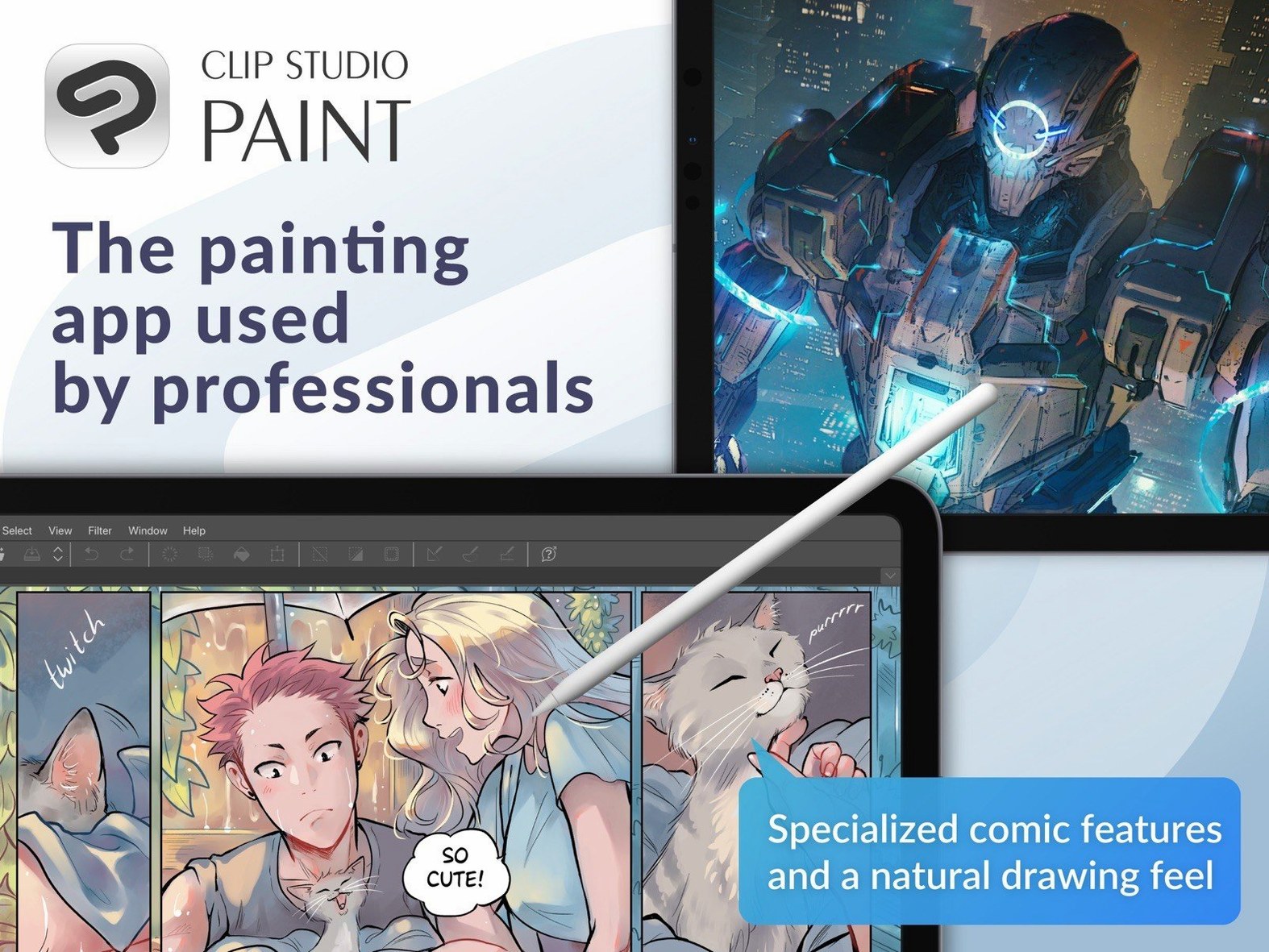
You're blocking out a manga panel with a 3D reference figure, then you switch to vector lines for the final inks. Clip Studio Paint 4.1.4 handles both without leaving the app. Here's what it means for your Mac.
Requires macOS 14 and an OpenGL 3.3 GPU
macOS 14 or later — runs on both Intel and Apple Silicon Macs, but you need at least 2 GB of memory (8 GB recommended) and an OpenGL 3.3 compatible GPU. A tablet with pen pressure is supported, and an internet connection is required for some functions and license verification.
3D modeling and drawing tools
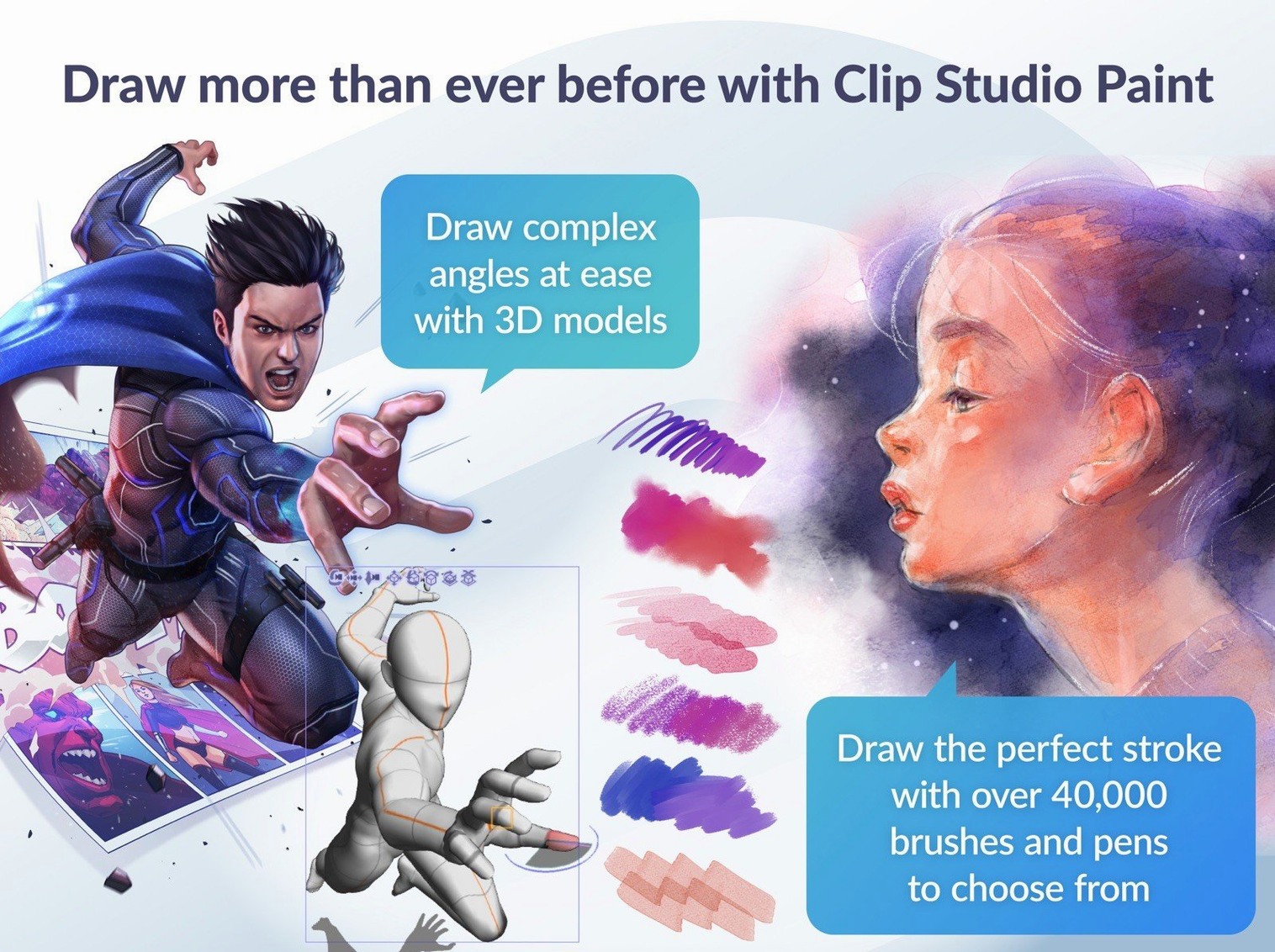
3D objects and figures — drag them into your scene, pose them, and draw over them. Version 4.1.4 changed how 3D materials behave when you drop them on a 3D layer outside a frame folder, so the workflow feels more predictable.
Drawing and animation tools
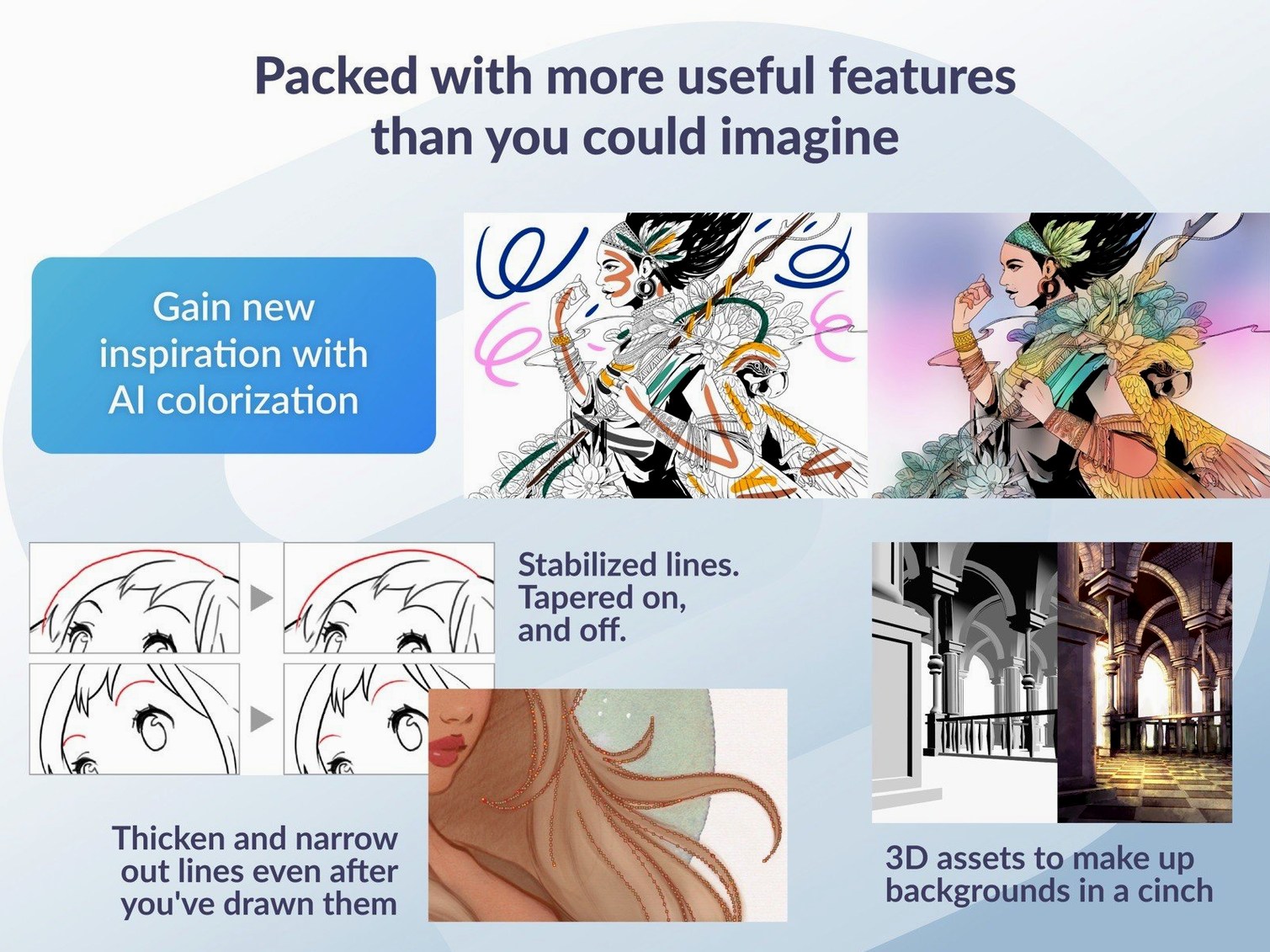
Vector tools — clean, scalable lines that stay editable.
Onion skin and light table — see previous frames for smoother animation.
Export options — sequential images, GIFs, and movie files.
Layered PSD import/export — move work between Photoshop and Clip Studio without flattening.
Built for comic and manga workflows, not generic painting
On macOS, the main alternatives are PaintTool SAI 2 and Krita. Each has a different focus.
Clip Studio Paint is built for comic and manga workflows from the ground up. The page management tools in EX, the 3D reference figures, and the specialized rulers (perspective, parallel, radial) are things the other two don't match. Vector layers are native, not an afterthought.
Krita is a strong general-purpose painting program with animation support, but its vector tools are limited to basic shapes and paths — nothing like the vector layer that lets you adjust line thickness after drawing. Krita's 3D support requires importing an external model file and offers no posing controls. It is free and open-source, which matters for some users, but the comic-specific features (story editor, panel rulers, speech balloon tools) are missing or community-plugin quality.
PaintTool SAI 2 is lightweight and fast for linework and coloring, but it has no animation timeline, no 3D support, no page management, and no vector layers. It is a pure raster painting tool. For a manga artist who works in multiple-page chapters, SAI 2 would require exporting each page separately and managing sequence elsewhere. Clip Studio keeps everything inside one project file.
If your work is single illustrations or concept art, Krita or SAI 2 might be enough. If you need page management, 3D references, or frame-by-frame animation, Clip Studio is the practical choice.
Set your interface language before starting a project
Before you start a serious project, a few settings save time later.
- Interface language — Version 4.1.4 added Simplified Chinese as a display language. Check Preferences > General and pick yours from the list: English, German, Spanish, Simplified Chinese, Korean, French, or Japanese.
- Color mixing behavior — If you use the Blend tool and see unexpected results, go to Tool Property and check that Color mixing is not set to Running color. Version 4.1.4 fixed a force-close issue tied to that setting, but it is still worth confirming before a long session.
- Changing it after you have placed keyframes can leave behind orphaned cels or keyframes — a known issue fixed in 4.1.4, but better to set it once at the start.
- Quick Filter and Quick Effect defaults — These are canvas preview filters. If you see edge artifacts on the preview, disable Quick Effects in the View menu. Version 4.1.4 corrected the artifact issue, but the preview is still not final output, so I leave effects off until I export.
Imports Manga Studio 4 files without conversion
Can I import my old Manga Studio files? Yes, Clip Studio Paint 4.1.4 can import files from Manga Studio 4 EX and 4 Debut. You open them through File > Open — no conversion step needed.
Does it work with Wacom and other pen tablets? Yes, pen tablets with pressure sensitivity are supported. The app reads pressure data from any standard tablet driver. If you have issues, check that the tablet's own software is installed and that the driver is compatible with macOS 14 or later.
Do I need an internet connection? For some functions and to verify the software license, yes. The initial license check requires a connection. After that, you can work offline for most tasks, but features like cloud materials or some 3D asset downloads need a connection.
How much memory does it actually use? The minimum is 2 GB, but 8 GB is recommended. If you work with large canvases (A4 at 600 dpi, for example) or multi-page projects, memory usage climbs. On 8 GB machines, close other applications while running Clip Studio to avoid slowdowns.
Can I use it for animation professionally? The frame-by-frame animation tools, timeline, onion skin, and light table are sufficient for short animations and GIFs. Export options include sequential images, GIFs, and movie files. For feature-length animation, you would want a dedicated video editor for final assembly, but Clip Studio handles the drawing stage well.
Workflow for a single manga page with a 3D reference
This workflow uses the tools in Clip Studio Paint 4.1.4 to go from blank canvas to exported page.
- Create the project — Open Clip Studio Paint and choose File > New. Set the page size (standard manga page, for example, B4 at 600 dpi, or A4). Select the number of pages — for a single page, just one.
- Place a 3D reference figure — Drag a 3D figure from the Material palette onto the canvas. The figure appears as a 3D layer. Use the rotation and pose controls to position it. This is your underlay for proportions and perspective. Version 4.1.4 improved drag-and-drop behavior when you are outside a frame folder, so the figure lands on the right layer every time.
- Draw the rough sketch — Create a new raster layer above the 3D layer. Use a brush to sketch the composition, using the figure as reference. Keep the 3D layer visible but dimmed.
- Ink with vector lines — Create a new Vector layer. Switch to the Pen tool (or a vector-compatible brush). Draw the final lines. Because they are vector, you can adjust line thickness with the line correction tool later.
- Add tones and colors — Use raster layers for screentones or flat colors. Clip Studio has dedicated tone and gradient tools under the Layer menu.
- Export — Go to File > Export. Choose PSD (layered) if you are sending the file to another editor. Choose a single image format (PNG, JPEG) for sharing online. For print, use TIFF at the same resolution as the original.
Quick Look previews for .clip files in macOS 15
- Preview .clip files in Finder — On macOS 15, you can select a .clip file and press the space bar to see a preview. Version 4.1.4 improved Quick Look support, so previewing works faster and more reliably. You do not need to open Clip Studio just to check what is inside a file.
- PSD export and Finder display — Exporting PSD files of certain sizes used to show incorrectly in Finder on macOS 15. Version 4.1.4 fixed that. The exported PSD now shows the correct thumbnail and dimensions in the file browser.
- Version 4.1.4 fixed that cleanup behavior, so the timeline stays tidy without manual housekeeping.
- Simplified Chinese UI — The added display language in 4.1.4 is worth noting if you work with Chinese-language resources or prefer that interface. It is not a niche addition — it is a full translation of menus and palettes.
- Fixed PSD exports of certain sizes so they display correctly in Finder on macOS 15 or later.
- Improved Quick Look previews of .clip files on macOS 15.
- Fixed an issue where cels or keyframes could remain after deleting resized clips or changing frame rate.
- Fixed a force-close related to Color mixing set to Running color.
- Adjusted 3D material drag-and-drop behavior.
- Added Simplified Chinese as a display language.
- macOS 14 or later
- Intel or Apple Silicon
- 2 GB memory (8 GB recommended)
- OpenGL 3.3 compatible GPU
- Tablet and stylus with pen pressure supported
- Internet connection for some functions and license verification
Install procedure
- Mount the downloaded disk image and run the standard installer.
- Choose EX or PRO on first launch.
Reports from players
Sign in or create a tester account to file a report.
No reports filed yet.