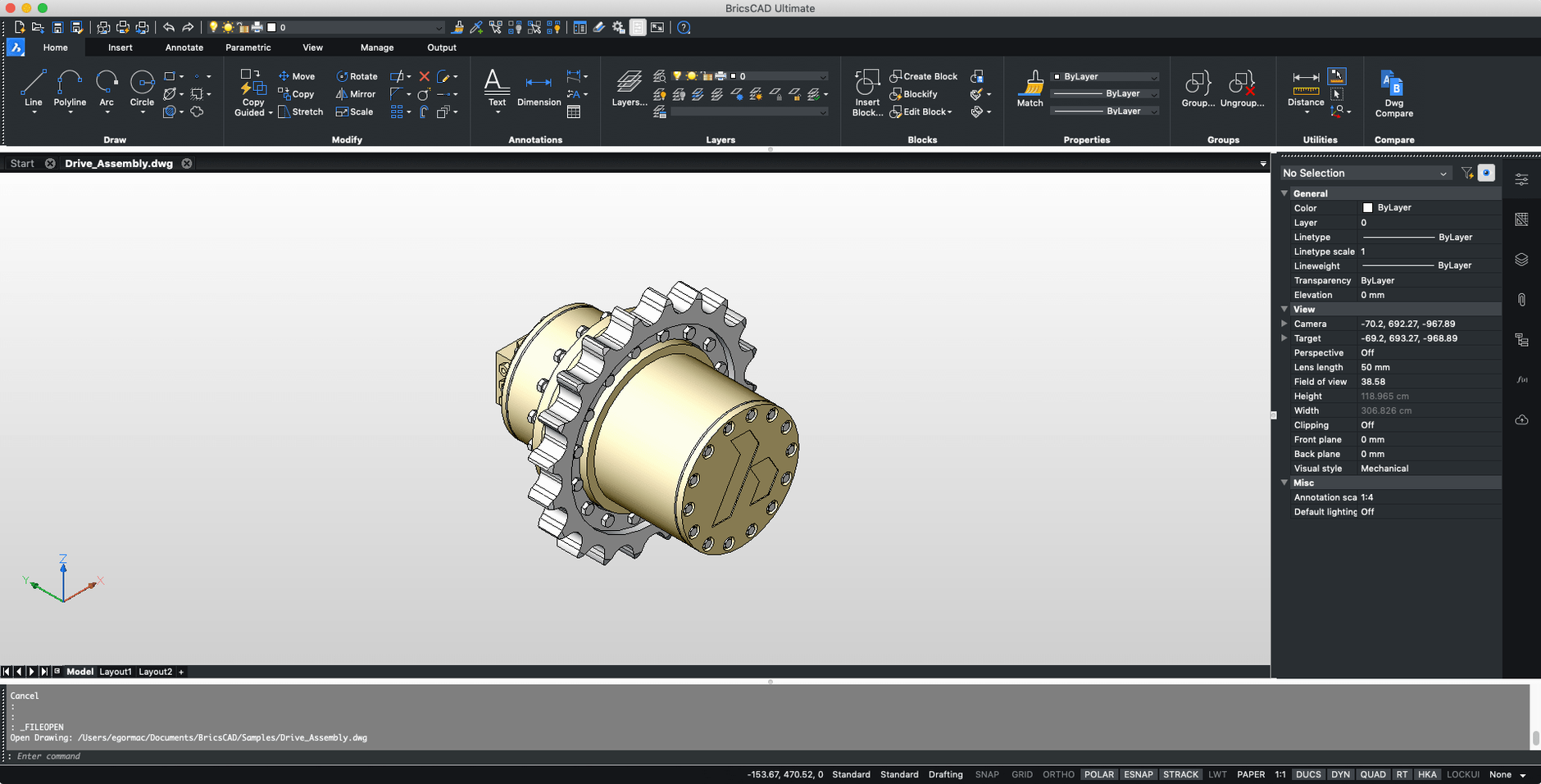
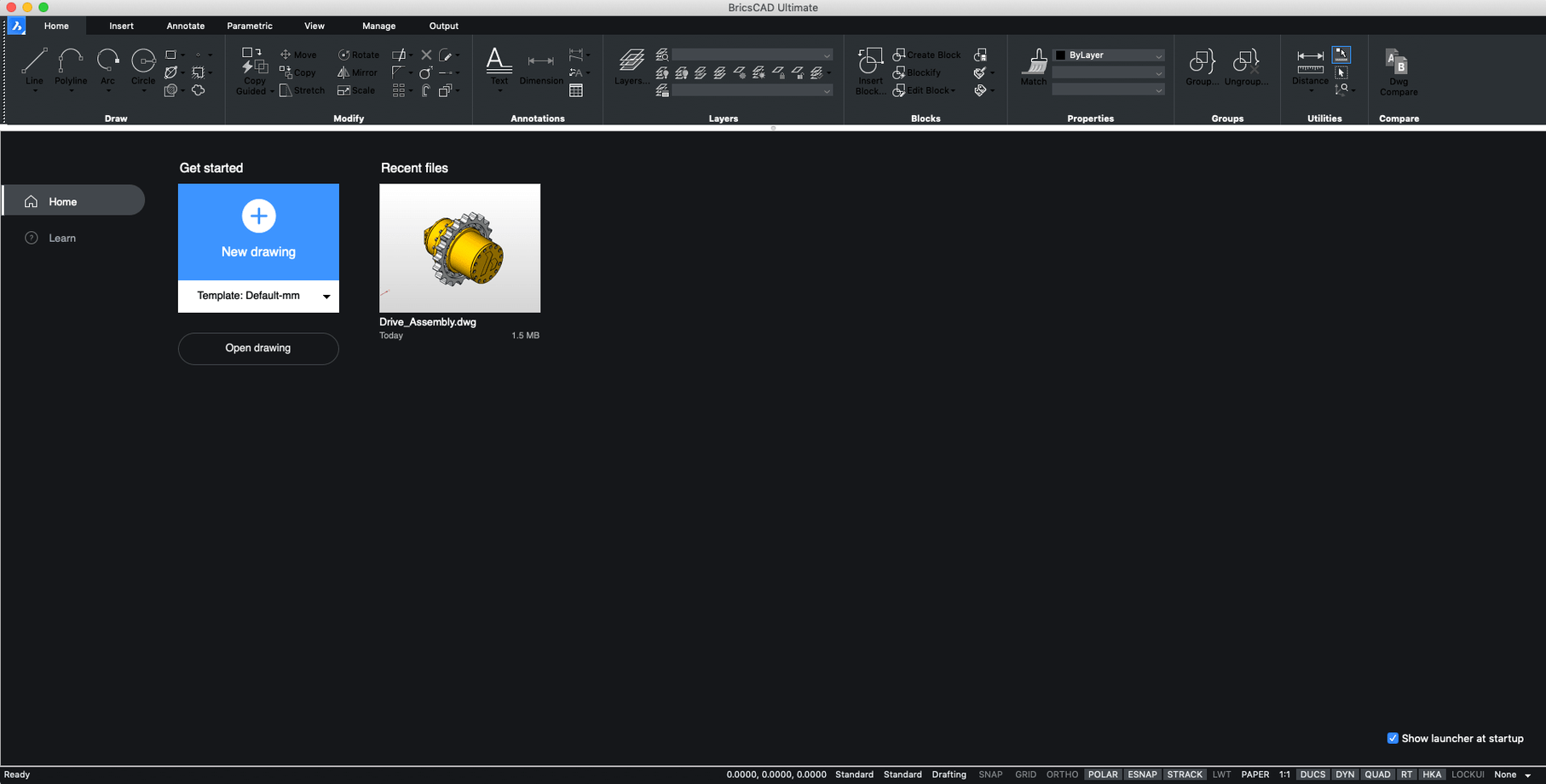
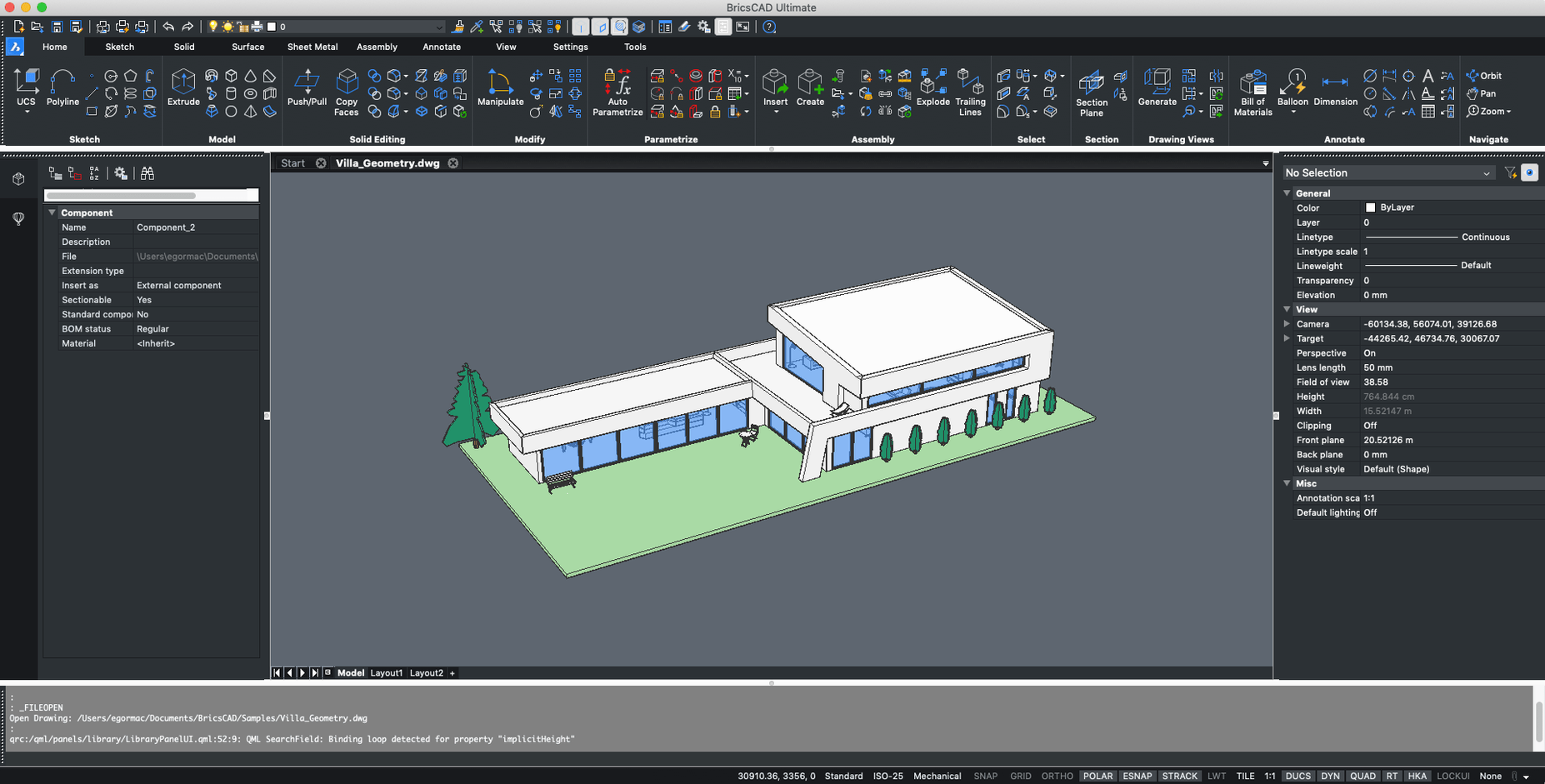
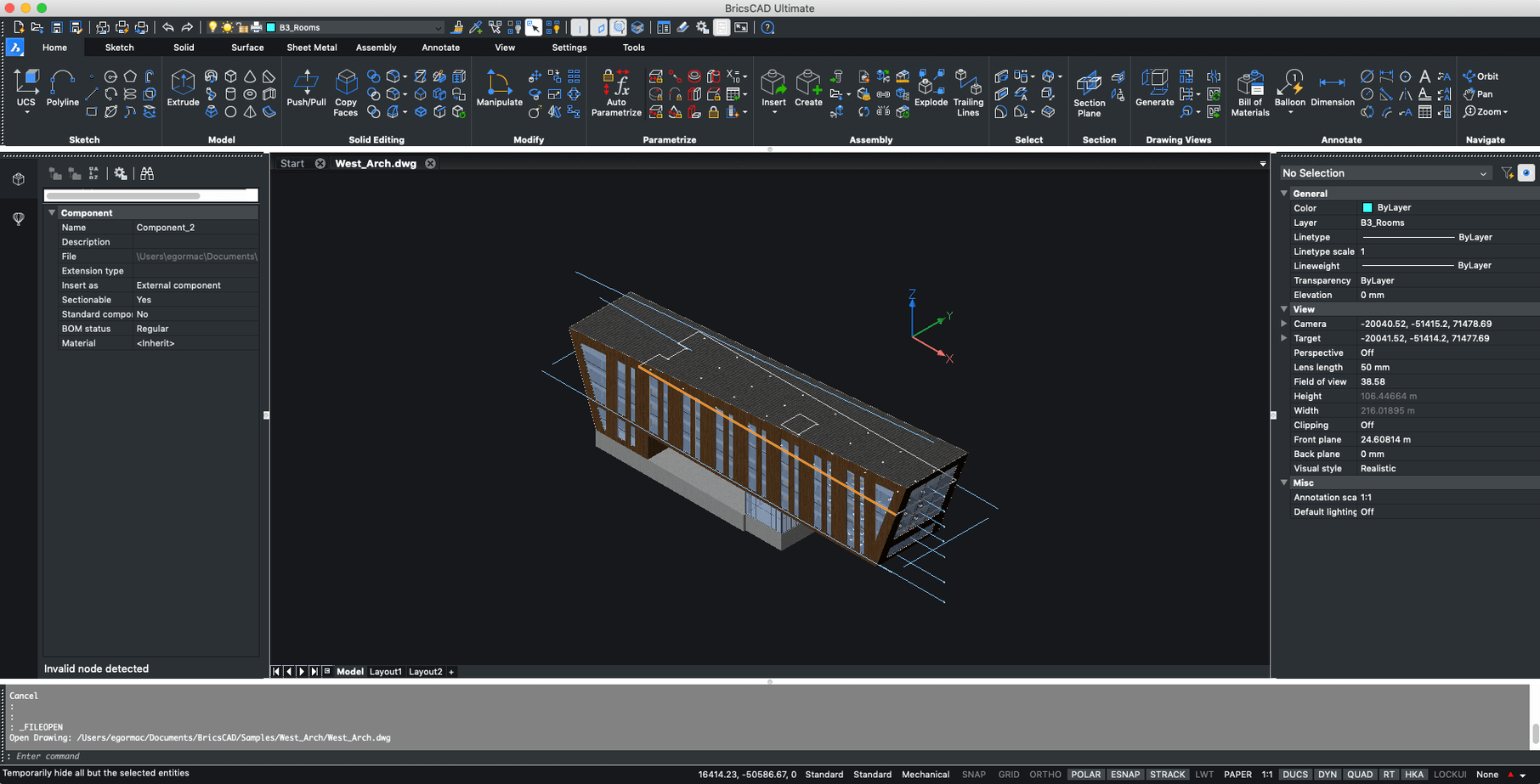
BricsCAD is a Mac CAD application for 2D drafting and 3D modeling, positioned as an AutoCAD alternative with compatibility for AutoCAD files, custom menus, toolbars, scripts, and snaps.
Direct modeling and parametric constraints for 3D work
- Direct modeling and parametric constraints for 3D work.
- Sheet metal and BIM features, depending on the edition.
- AutoCAD-style command line and customization options.
- Support for DWG files without conversion.
Running on Apple silicon
BricsCAD 24.2.04-05-1 is an x86 64-bit build, so on Apple silicon it runs through Rosetta 2—support has been there since V21.2.06. The current version is supported on macOS 12 or higher, including Sonoma, Ventura, Monterey, and Big Sur. It works in both English and Russian.
Architects and engineers working with mixed-format files save time
Architects working on mixed-format projects—where one colleague sends a DWG and another sends a DXF—save time because BricsCAD reads both without conversion steps. Engineers who handle structural layouts or mechanical parts can use the parametric constraints for quick dimension adjustments without re-drawing. Designers moving from AutoCAD find the command-line behavior familiar; the customization menu and script support let them carry over existing shortcuts and macros. CAD users on macOS who need a single app for 2D drafting and occasional 3D modeling will find the edition range covers both ends without needing a second tool.
Installer fails to launch on macOS 10.15 without Rosetta 2
- Installer does not launch on macOS 10.15: The build is x86 64-bit. If the installer fails to open, right-click the .app file and select Open, or check that Rosetta 2 is enabled in System > Software Update > Advanced (for Apple silicon machines).
- Activation instructions missing or unclear: The included activation instructions are in the installer package. If you do not see them, look for a .txt or .pdf file inside the same folder as the installer. Follow each step exactly; the process is sequential.
- Custom AutoCAD menus do not appear: BricsCAD reads .mnu and .mnr files from AutoCAD. Place the menu files in the user support folder (BricsCAD > Support) and reload the menu through the Customize dialog. The command
CUILOADalso works for partial menus. - Text in dialogs shows Russian unexpectedly: The build includes both Russian and English. Go to Tools > Options > Language and switch to English. Restart the app.
- DWG file opens but shows blank geometry: Check the layer visibility. Use
LAYERto turn on all layers. If the file came from a newer AutoCAD version, verify that BricsCAD V24 support covers that DWG format version.
All editions now included in a single installer package
Based on the release notes for V24.2.04-05-1, everyday work sees a few practical shifts. The installer now contains all editions in one package—Shape, Lite, Pro, Mechanical, BIM, Ultimate—so you do not need separate downloads depending on the edition you activate. When you launch the app, the edition picker shows the available options. V25 installs independently of V24; you can keep both on the same machine without conflicts, which helps when testing files across versions. For Apple silicon users, Rosetta 2 support has been stable since V21.2.06, and the current V24 build runs on macOS 12 and later, so Sonoma, Ventura, Monterey, and Big Sur are all supported. No new keyboard shortcuts or interface elements were added in this point release—the changes are behind the scenes, mostly around installer behavior and compatibility checks.
Run the first-run wizard and enable Dynamic Input
- After installing, run the app once and let it generate the default workspace files. Do not skip the first-run wizard.
- Go to Tools > Options > Drafting Settings and enable Dynamic Input if you rely on AutoCAD-style coordinate entry. It is off by default.
- If you use custom scripts, copy them into the BricsCAD Support folder before loading them from the script editor.
- Test a small DWG file from your own projects first—do not jump straight into a production file. Confirm that views, layers, and dimensions look correct.
- Set the language to English (if needed) on day one to avoid surprises in dialog boxes later.
- Bookmark the Help menu’s Command Reference section; the command names in BricsCAD are close to AutoCAD but not identical for every tool.
Scenario: a furniture designer switching from AutoCAD
A furniture designer works in macOS 12 on an Intel iMac. They receive client DWG files with custom linetypes and block definitions made in AutoCAD 2023. After installing BricsCAD 24.2.04-05-1, they open the DWG file directly. The linetypes render correctly, and the block definitions appear in the drawing explorer. The designer then uses the parametric constraints to adjust a table leg height across multiple instances—changing one dimension updates all related parts. For the finish detail sheet, they switch to 2D drafting mode, add dimensions with the same snap behavior they used in AutoCAD, and export to PDF. No file conversion, no re-creating blocks. The entire workflow, from client file import to deliverable, stays in one application.
- macOS 10.15 or later
- Intel processor (Apple silicon supported via Rosetta 2)
Install procedure
- Use the included installation instructions.
- Follow the included activation instructions.
Reports from players
Sign in or create a tester account to file a report.
No reports filed yet.