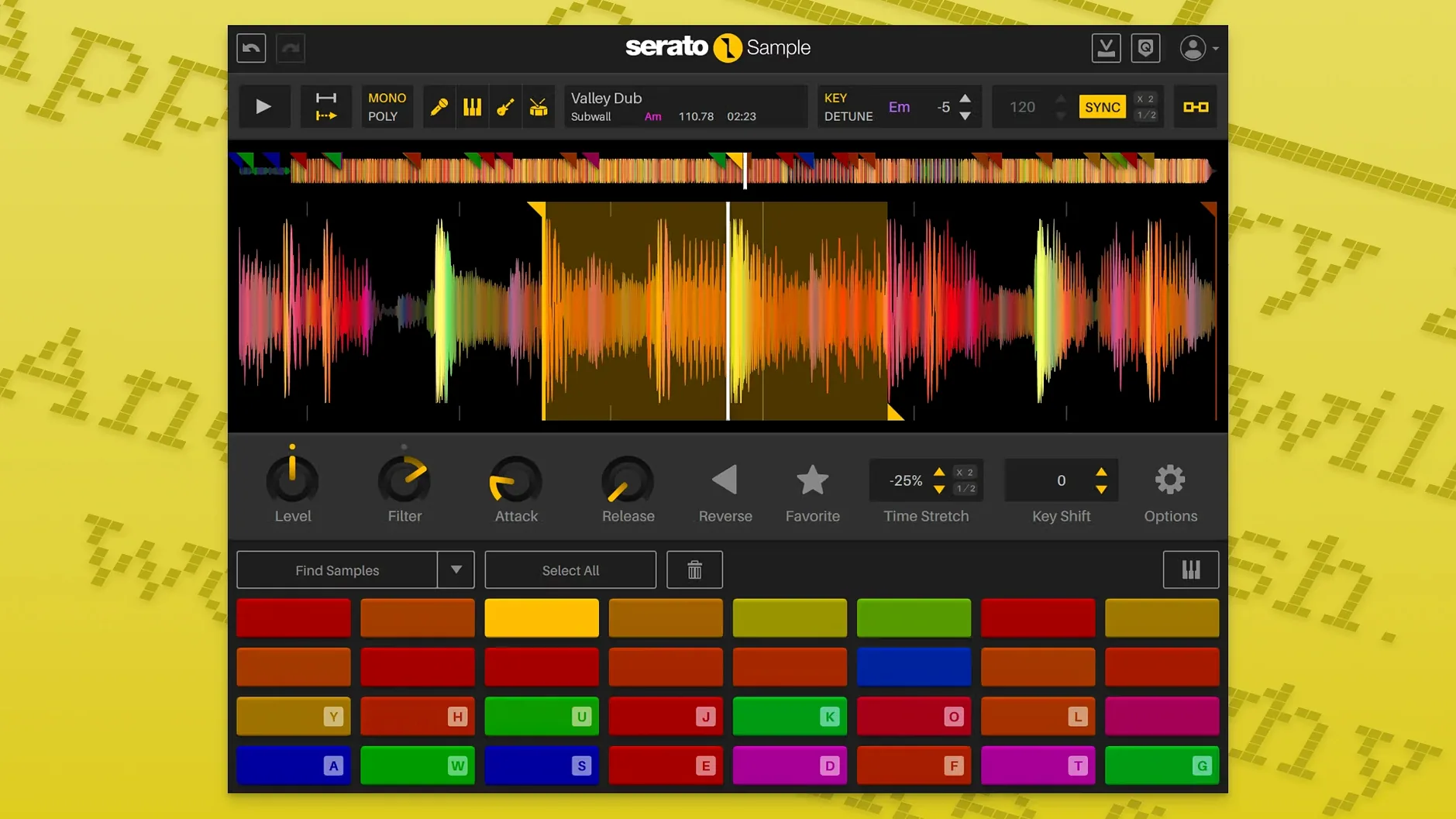
Serato Sample 2.2.0 adds individual stem level adjustment and host automation for Stem On and Stem Levels, plus support for AlphaTheta SLAB and macOS Tahoe. It remains a sampler plugin for DAW hosts that handles syncing, chopping, pitch-shifting, time-stretching, and stem separation.
Where it sits in a session:
- On a track for chopping and re-pitching a single sample via MIDI, computer keyboard, mouse, or piano roll.
- On a bus when you want to isolate and process stems separately — vocals, drums, bass, melody — using Serato Stems.
- As a tempo-matching tool on unquantized samples, thanks to beatgrid support.
- As a pitch-shifting instrument with Pitch 'n Time for tight tempo and key changes.
- On a return track for one-click stem isolation and alignment before further effects.
- As an automation source when you need Stem On or Stem Levels to change over time from the DAW.
It works as a DAW plugin, not a standalone app
Serato Sample works as a plugin inside a DAW — it is not a standalone application. You load it on a track just like any VST, AU, AAX, or VST3 instrument. It does not require additional Serato hardware or software, though it uses the same stem separation technology found in Serato Stems. The plugin is 64-bit only, so older 32-bit DAWs will not see it.
Because it ships as a single disk image installer, the process is straightforward: mount the image, run the installer, and point it to your plugin folder. No online activation is needed. The plugin will appear in your DAW's instrument list after a rescan. If you download the Mac version from a torrent, make sure you grab the build labeled for ARM and x86 — the installer detects your architecture automatically.
Some users wonder whether stem separation happens live or as a one-time render. In Serato Sample, the separation is processed when you load an audio file and activate the stem feature. It is not real-time in the sense that you can tweak the separation algorithm on the fly, but you can adjust the level of each stem (acapella, melody, bass, drums) individually after the separation is done. The Stem On and Stem Levels parameters can also be automated by your DAW for changes over time.
The plugin uses Pitch 'n Time for pitch and tempo changes, which is the same engine found in Serato DJ and other Serato products. It handles unquantized samples by letting you adjust the beatgrid manually, so a drum break that drags or rushes can be synced to your project tempo. No extra software is required for this.
Workflow: chopping a drum break and building a beat
Start with a drum break that is not perfectly timed — a classic break that swings or shifts slightly. Drag the audio file onto Serato Sample's waveform display. The plugin analyzes the file for BPM and key and creates a beatgrid automatically. Listen to the first bar: if the grid is off, adjust the beatgrid markers by clicking and dragging them to align with the transients.
Once the grid is correct, switch to Keyboard Mode. Your sample is now mapped across the keys of your MIDI keyboard (or the computer keyboard in the plugin's internal mode). Each key triggers a slice of the break, quantized to the beatgrid. Play a few notes to hear how the slices map out — you can reorder slices by dragging them in the waveform editor.
To isolate specific sounds from the break, activate the stem separation feature. The plugin splits the audio into four stems: drums, bass, melody, and vocals. Because this is a drum break, you will mostly hear the drums stem. Mute the other stems by pulling their level sliders to zero, or leave them at a reduced level if the bleed sounds musical. You can automate the drum stem level to fade in and out over the arrangement.
Now build a pattern. Record a MIDI clip in your DAW while playing the slices on your keyboard. Layer a second instance of Serato Sample on another track with a different sample — a bass note or a vocal phrase — and repeat the process. Use the Pitch 'n Time engine to shift the pitch of the bass sample to match your project key, and fine-tune the time-stretching if the sample's tempo drifts from your grid.
After you finish the pattern, go back and automate the Stem On parameter on the drum break track. For example, turn stem separation off during the verse (so the full break plays) and turn it on during the chorus (so only the kick and snare cut through). The automation is written into your DAW's track timeline, and Serato Sample follows it.
Ignoring the beatgrid is the most common mistake
The most common mistake is ignoring the beatgrid. Beginners often load a sample, hear it loop, and start playing without checking whether the grid matches. If the sample is even slightly off, the slices will not land on the beat, and the rhythm will feel loose no matter how tight your MIDI timing is. Always verify the grid after loading a new sample — it takes a few seconds and saves re-recording takes later.
Another frequent issue is over-relying on stem separation for every sample. Stem separation works well on mixed audio with clear separation between elements, but it can produce artifacts on dense or heavily compressed material. If the drums sound muddy after separation, it is often better to work with the full sample and use filters or EQ to isolate what you need rather than pushing the stem separation too hard. The individual stem level sliders are useful, but they cannot fix a poor separation result.
Some users forget that Serato Sample is a plugin and not a standalone sampler. When they close their DAW and reopen it, any automation they wrote for Stem On or Stem Levels is saved with the project, but the stem separation itself is processed again when the plugin loads the audio. This is normal and does not change the sound — it just means the first playback after loading a project might have a brief processing delay as the plugin re-analyzes the sample.
Beginners also tend to ignore the computer keyboard input mode. If you do not have a MIDI controller connected, the plugin still lets you trigger slices using your laptop keyboard. This is a quick way to audition chops during the initial sound selection phase. It is not meant for performance, but it works fine for sketching ideas.
Lastly, people sometimes load very long audio files (entire songs) into a single instance expecting to play them chromatically. Serato Sample handles long files, but the waveform view can become cluttered, and the beatgrid might struggle to find a consistent tempo across multiple sections. It is better to load shorter, tempo-stable loops or break songs into smaller sections before importing.
Runs natively on Apple Silicon and Intel Macs
Serato Sample 2.2.0 requires macOS 11 Big Sur or later. It runs natively on both Apple Silicon (ARM) and Intel (x86) Macs. The installer is universal, so it places the correct binary for your architecture without any additional steps. If you are on an older Mac that cannot run at least Big Sur, the plugin will not install or launch.
The plugin uses the standard VST, AU, AAX, and VST3 formats. This means it will appear in any DAW that supports these formats on macOS — Logic Pro, Ableton Live, FL Studio, Cubase, Pro Tools, and others. There is no standalone mode, so you need a host application to use it.
Because it is a sampler plugin, it loads audio files from your hard drive or SSD into memory. Stem separation adds a temporary processing load when you first enable it, but once the stems are analyzed, playback is handled by the plugin's audio engine without additional overhead.
Pitch and tempo changes via Pitch 'n Time are processed in real time. On an Apple Silicon Mac, this runs efficiently because the plugin is compiled natively. On an Intel Mac, it also works well, though very aggressive time-stretching (extreme ratios) may introduce audible artifacts. This is a limitation of the algorithm, not the hardware.
Mouse wheel scrolling on parameters works when you hover over them. This is a small change in version 2.2.0, but it means you can adjust sliders and knobs without clicking and dragging — just hover and scroll. It is a minor quality-of-life improvement that reduces repetitive strain from fine adjustments.
Best for producers who chop loops and re-pitch vocals
Music producers who work with samples as a primary sound source benefit most. If your workflow involves chopping loops, re-pitching vocal phrases, or layering drum breaks, Serato Sample handles these tasks in one plugin without needing separate tools for pitch shifting, time stretching, or stem separation.
Beatmakers who work in genres like hip-hop, electronic, and pop will find the beatgrid and key detection useful because samples in those genres often come from varied sources with inconsistent tempo. Being able to drop in a dusty break or a vinyl sample and have it snap to your project tempo without manual warping saves time.
Producers who use Ableton Live, Logic Pro, or FL Studio will appreciate the host automation integration for Stem On and Stem Levels. This allows for dynamic changes within a track — for example, gradually bringing in only the vocal stem during a breakdown — without having to duplicate the plugin instance or render audio.
Users who work with acapellas or isolated vocal takes are a secondary audience. The stem separation can pull vocals from mixed tracks, but it is not a replacement for a dedicated vocal isolation tool. For quick reference tracks or sampling vocal phrases, it works well. For clean, studio-grade acapellas, you would still want the original multitrack.
Finally, anyone on an Apple Silicon Mac who wants a modern, natively compiled sampler should consider this plugin. Many older samplers are Intel-only and run through Rosetta 2, which adds overhead and sometimes latency. Serato Sample runs natively on both architectures, so you get full performance on any recent Mac.
The mouse wheel now scrolls parameters when hovered, which makes quick tweaks less fussy. It runs on Apple Silicon and supports macOS 11 and later.
- Stem levels can be adjusted individually.
- Stem On and Stem Levels can be automated by the host DAW.
- Support for AlphaTheta SLAB was added.
- Mouse wheel scrolling works on parameters when hovered.
- Support for macOS Tahoe was added.
- macOS 11 Big Sur or later
- Intel or Apple Silicon
- Interface language: English
Questions from the notes
Can I play samples with a MIDI keyboard?
Yes, Serato Sample can play samples from a MIDI keyboard, computer keyboard, mouse, or piano roll.
Does it work on Apple Silicon Macs?
Yes, Serato Sample supports Apple Silicon and runs on macOS 11 and later.
Can I automate stem levels?
Yes, Stem On and Stem Levels are exposed as host automation parameters, and stem levels can be adjusted individually.
Install procedure
- Open the downloaded disk image.
- Run the standard installation procedure.
Reports from players
Sign in or create a tester account to file a report.
No reports filed yet.