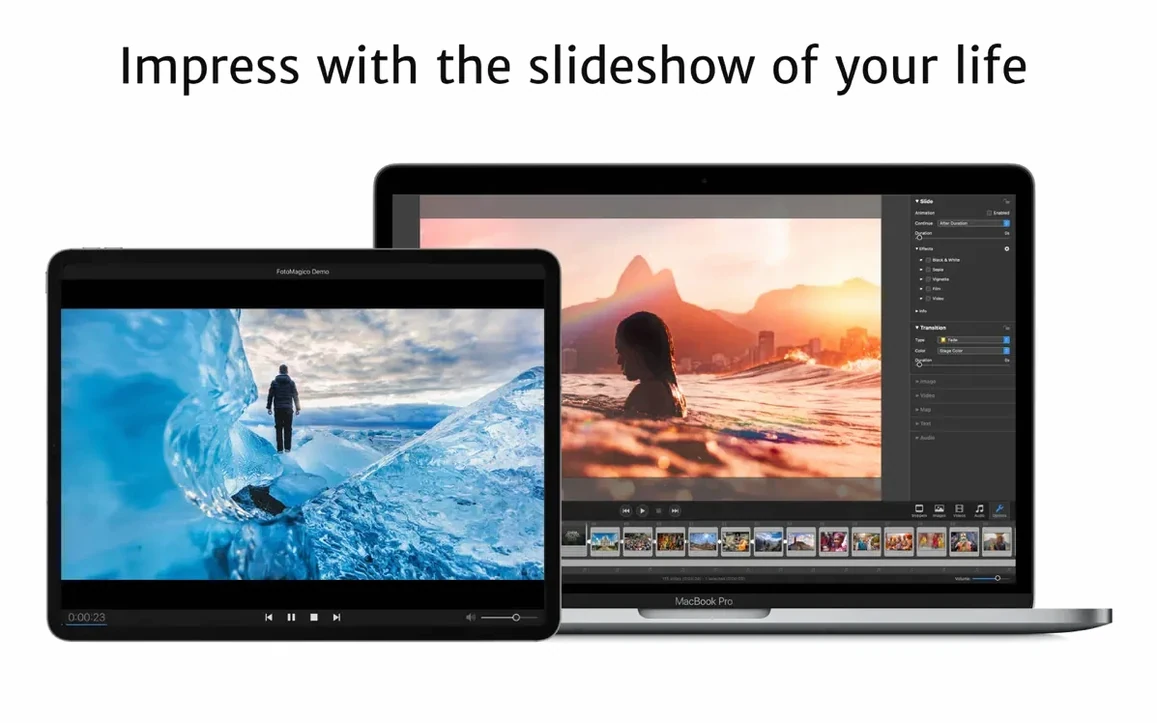
FotoMagico 6.10 exports to any QuickTime-compatible format, which covers most of what you'd want to hand off to a client or a friend. That alone puts it ahead of simpler slideshow tools that lock you into one output.
Fine-tune every image
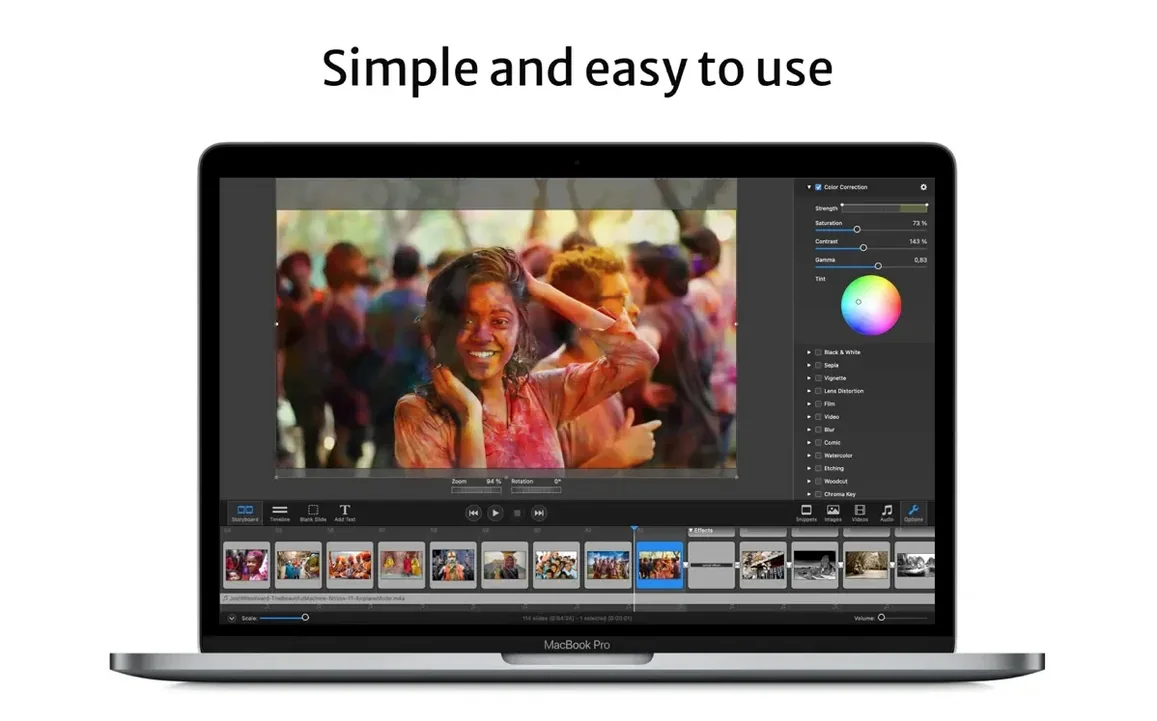
The editor lets you resize, move, rotate, zoom, and combine images on a stage that matches your output. That means precise alignment for multi-image layouts or a slow pan across a high-res photo without the software guessing for you.
Playback on any Mac
It ships a separate player for viewing high-resolution slideshows on computers that don't have FotoMagico installed. You can also export for iPad or burn to DVD via iDVD or Roxio Toast. The app picks the best resolution your hardware supports, so it works on large displays and HDTVs without extra setup.
Run it on current hardware
Version 6.10 requires macOS 14 Sonoma or newer and runs on both Apple Silicon and 64-bit Intel Macs. Support for older macOS versions is gone, so if you're still on Monterey, you'll need to update before installing.
Sits between drag-and-drop and video editors
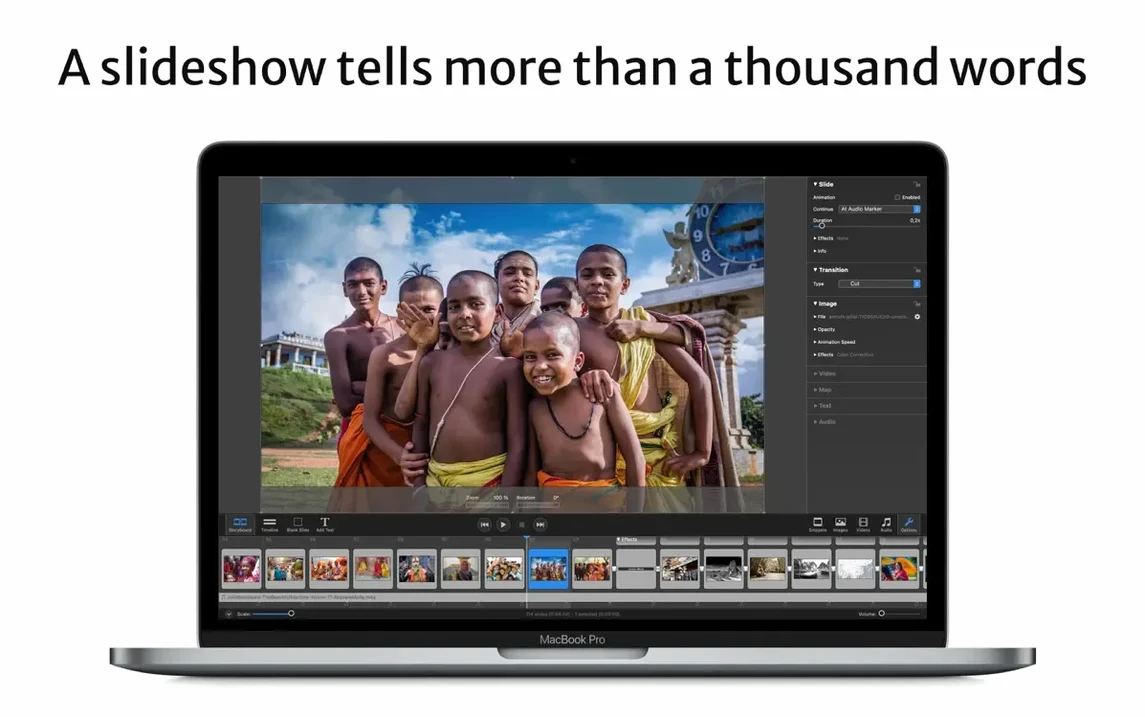
Most slideshow editors fall into two camps: drag-and-drop apps that limit you to preset templates, or video editors that treat slideshows as a side feature. FotoMagico sits in between. It gives you more control over timing, transitions, and image positioning than a template-based app, but without the timeline complexity of a video editor.
Apple's own Photos app can make quick slideshows with music, but it doesn't let you zoom into specific parts of an image or layer multiple photos on the same slide. FotoMagico does both. For multi-screen presentations or events where you need exact framing, that difference matters.
Another option is to build slideshows inside Final Cut Pro, which gives you full control over every frame. But Final Cut isn't designed for slideshows out of the box. You spend time setting up each image, adjusting keyframes, and rendering previews. FotoMagico plays the slideshow in real time at full resolution, so you see the final result as you work.
A real-world scenario: event photographer
Consider someone who shoots weddings or corporate events. They deliver a curated set of photos to the client, but the client also wants a slideshow to run on a large screen during the reception or at a booth. The photographer needs to pick, arrange, and export the slideshow quickly, without editing video in a timeline.
FotoMagico fits that workflow. The photographer imports the selected images, sets the timing per slide, and adds transitions. The output goes to a QuickTime-compatible format that plays on the event's Mac or PC. If the client wants to show it on an iPad at a display table, the iPad export handles that. No rendering wait, no extra software on the client's machine.
Pulls images from Final Cut and Aperture catalogs
FotoMagico doesn't operate in isolation. It integrates with Final Cut and Aperture through plugins, so you can pull images directly from those catalogs. That saves steps if you already manage your photos in one of those apps.
Projects can live on iCloud Drive, which keeps them in sync between your Mac and an iPad. That setup works well for starting a project at your desk and then adjusting it on the go. The iPad version reads the same project file, so you don't need to re-import or re-arrange anything.
macOS features like the Metal graphics framework boost real-time playback performance on Apple Silicon Macs. The app also uses Swift UI for its interface, which keeps it responsive without heavy system overhead. For exporting, the QuickTime-based format feeds into any app that accepts standard video files, from HandBrake to DaVinci Resolve, if you need further editing.
Starts with stage size presets for Instagram or custom resolutions
You start a new project and choose a stage size. If the slideshow is for Instagram Stories, you pick the vertical format from the presets. Otherwise, you set a custom resolution or match your display's native size. Then you drag in a folder of photos from the Finder.
Each image lands on the stage. You click one, resize it with the handles, and position it so the subject fills the frame. You add the next image and set a zoom effect that slowly moves across the photo from left to right. You check the preview, and the slideshow plays at full resolution immediately, no render bar needed.
Once the images are placed, you adjust the timing. Some slides need five seconds, others need ten. You set the transitions between them to a simple crossfade. Then you add a text caption to a photo, positioning it in the bottom third of the frame. You pick a font and size using the built-in controls.
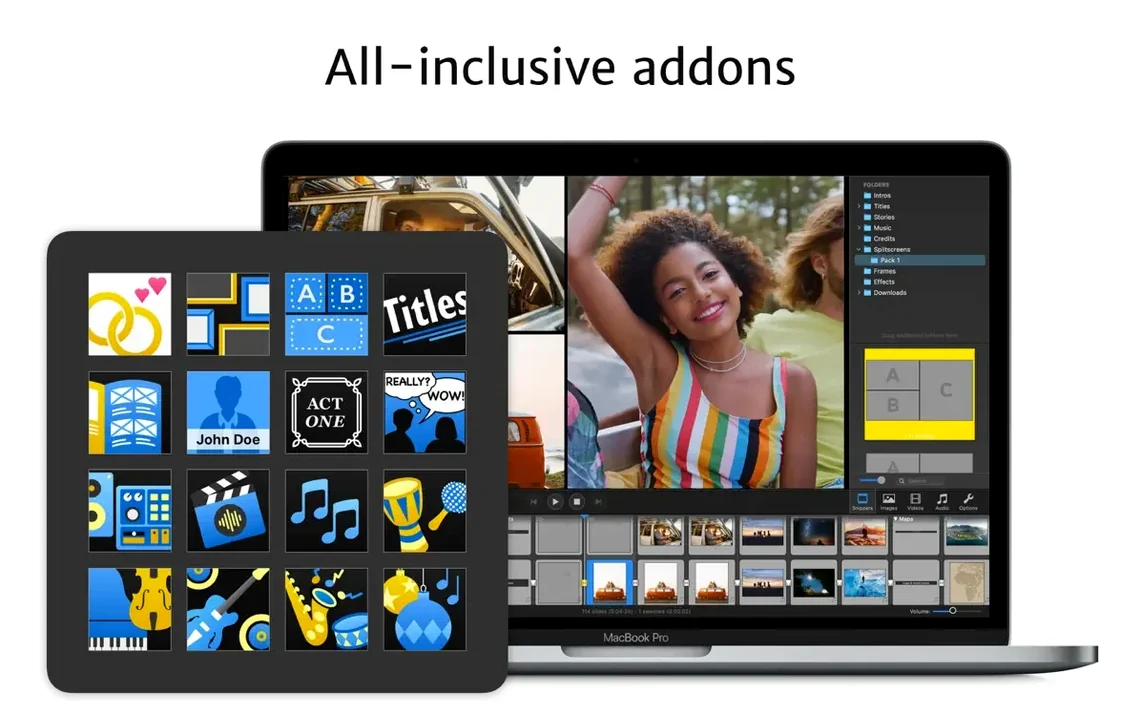
For the final touch, you import a track from the music addon. It loops automatically unless you set a specific duration. You save the project and export it as a QuickTime file. You also generate a standalone player version that you send to the client. The player includes a viewing limit, so the slideshow expires after a set number of plays or a specific date.
The whole session stays inside FotoMagico. You don't open a video editor, you don't render a test file to see if the zoom looks right. The real-time preview handles that. When you're done, you close the app. If you need to make changes the next day, the project file opens exactly where you left it, including the undo history.
- Added support for macOS 27 Golden Gate.
- Dropped support for Catalina through Ventura.
- Fixed a crash on quitting the app.
- Improved snippet alignment on unusual stage sizes.
- Localized more Map Assistant controls.
- Made various stability improvements.
- macOS 14 Sonoma or newer
- Apple Silicon or 64-bit Intel Mac
- Interface languages: English, German, French
Install procedure
- Mount the disk image and open the Gatekeeper-friendly package.
- Press Enter in Terminal to bypass Gatekeeper.
- Drag the app to your Applications folder.
- Launch FotoMagico once the copy finishes.
Reports from players
Sign in or create a tester account to file a report.
No reports filed yet.