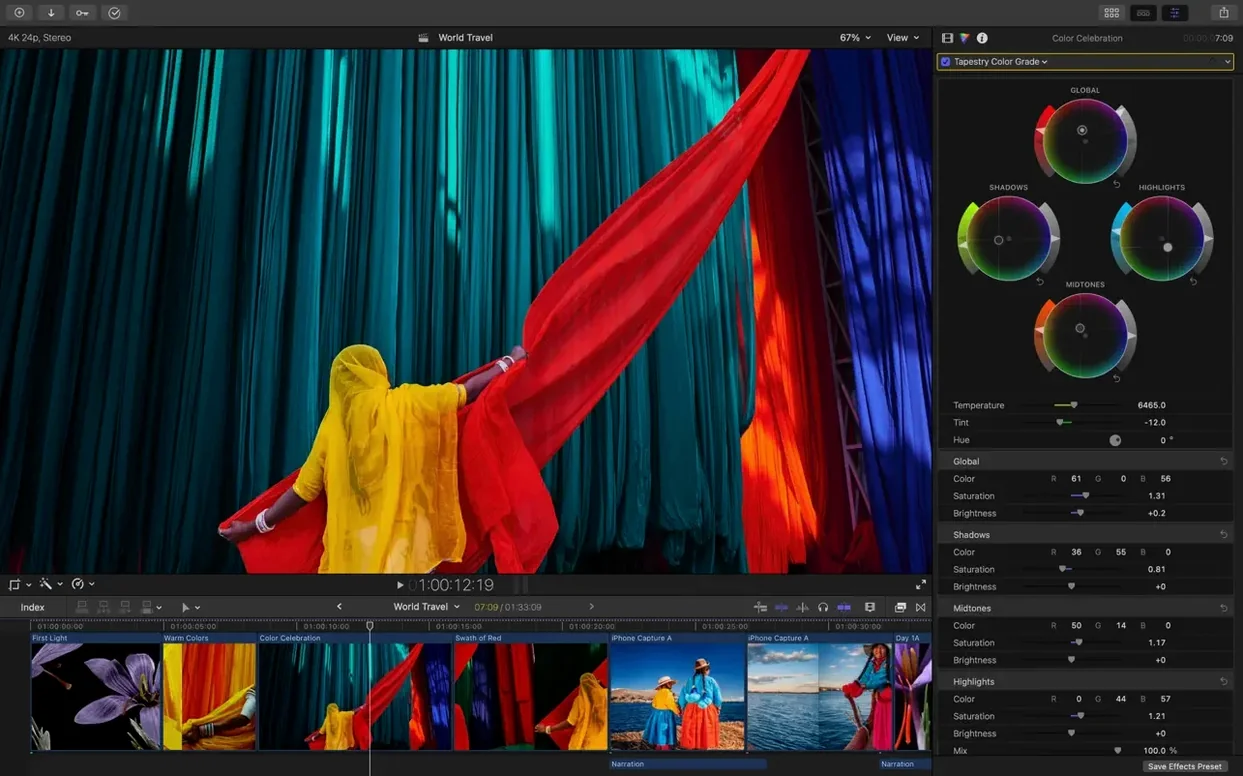
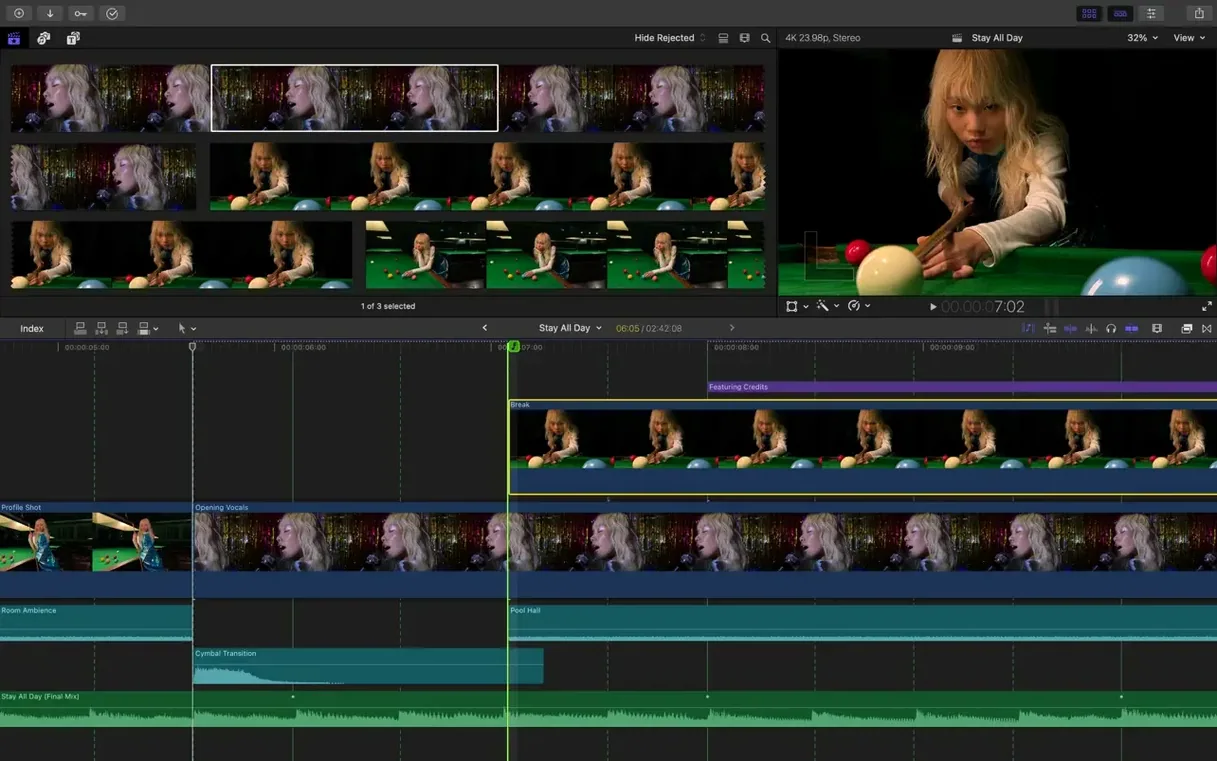
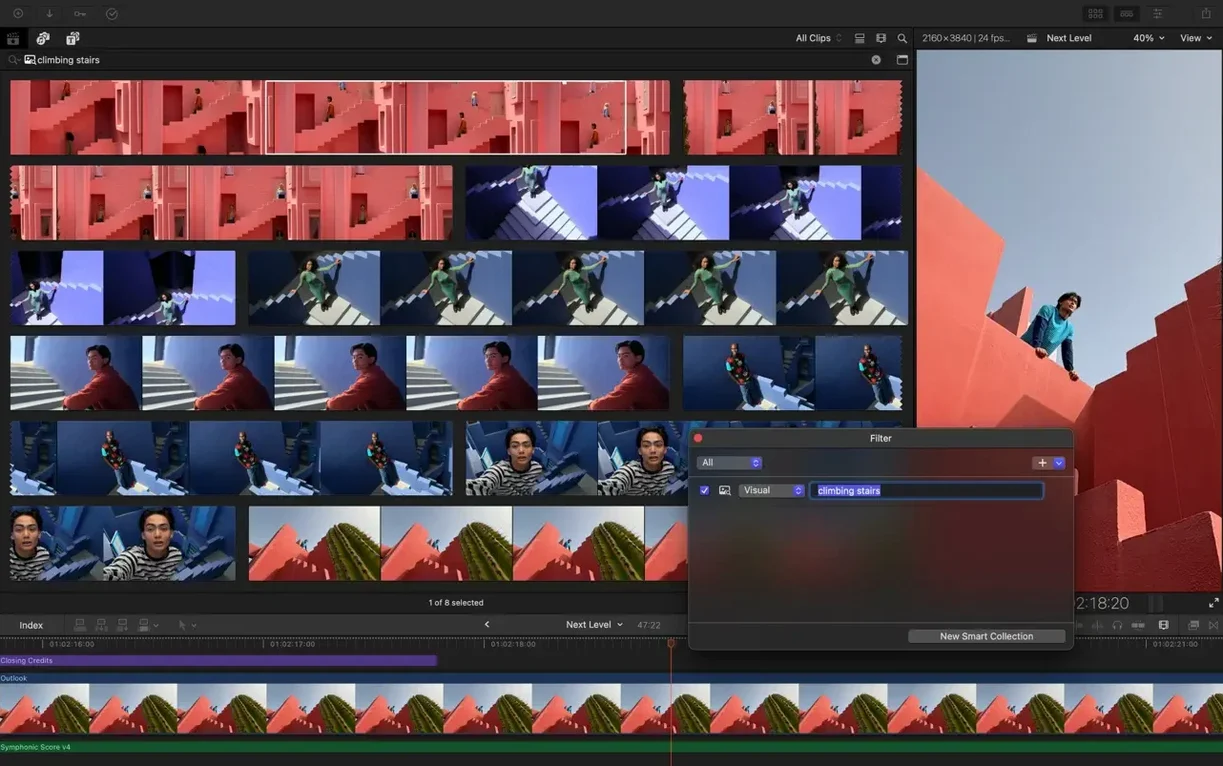
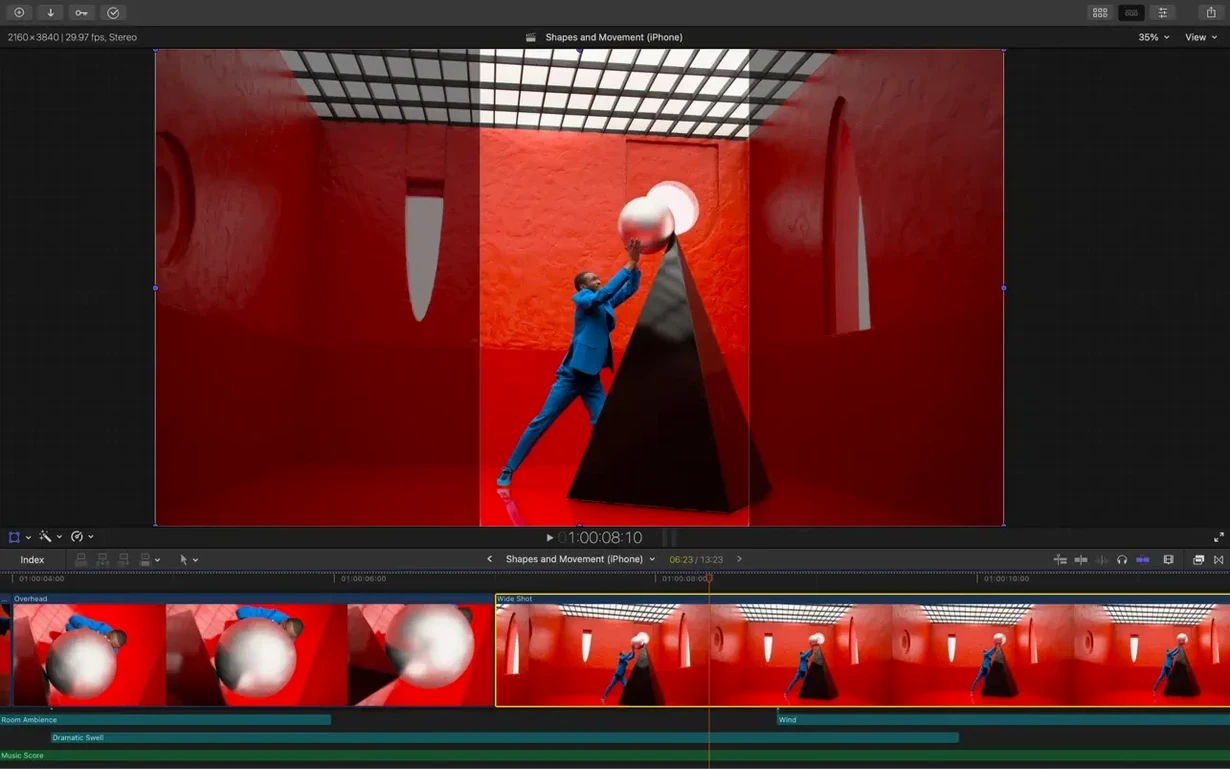
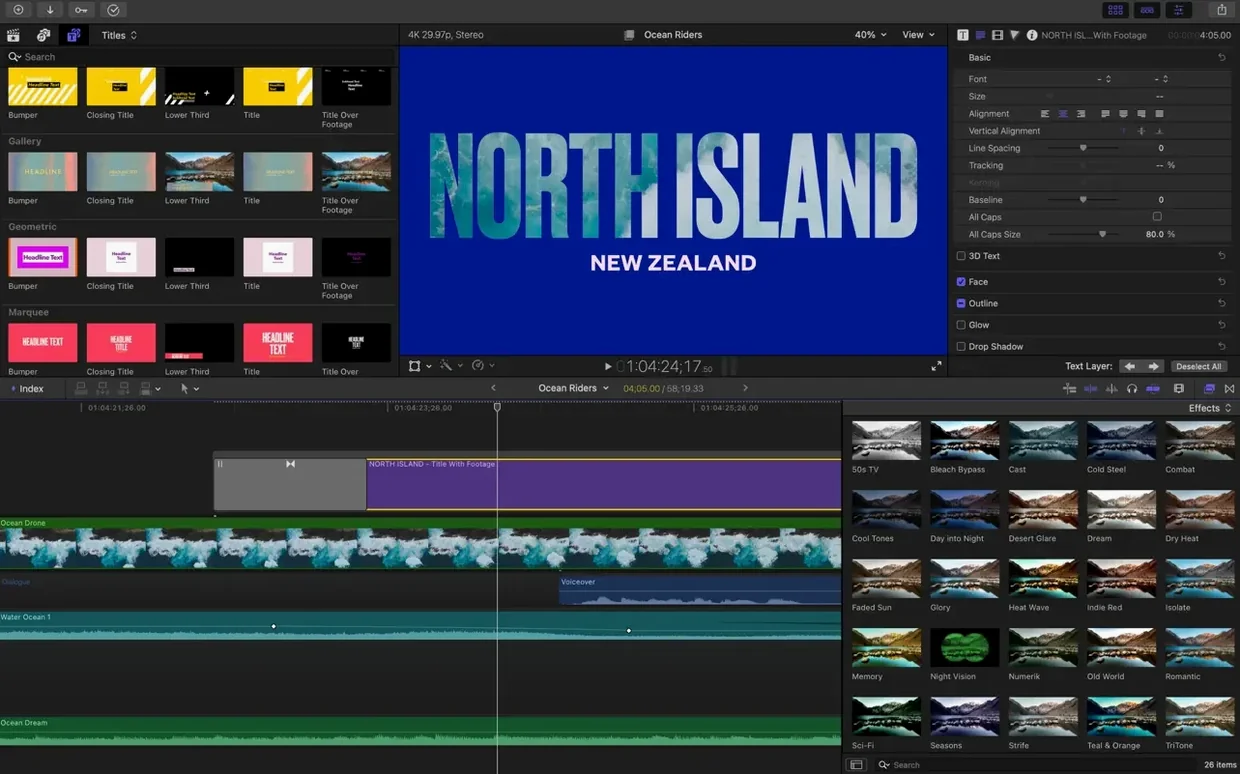
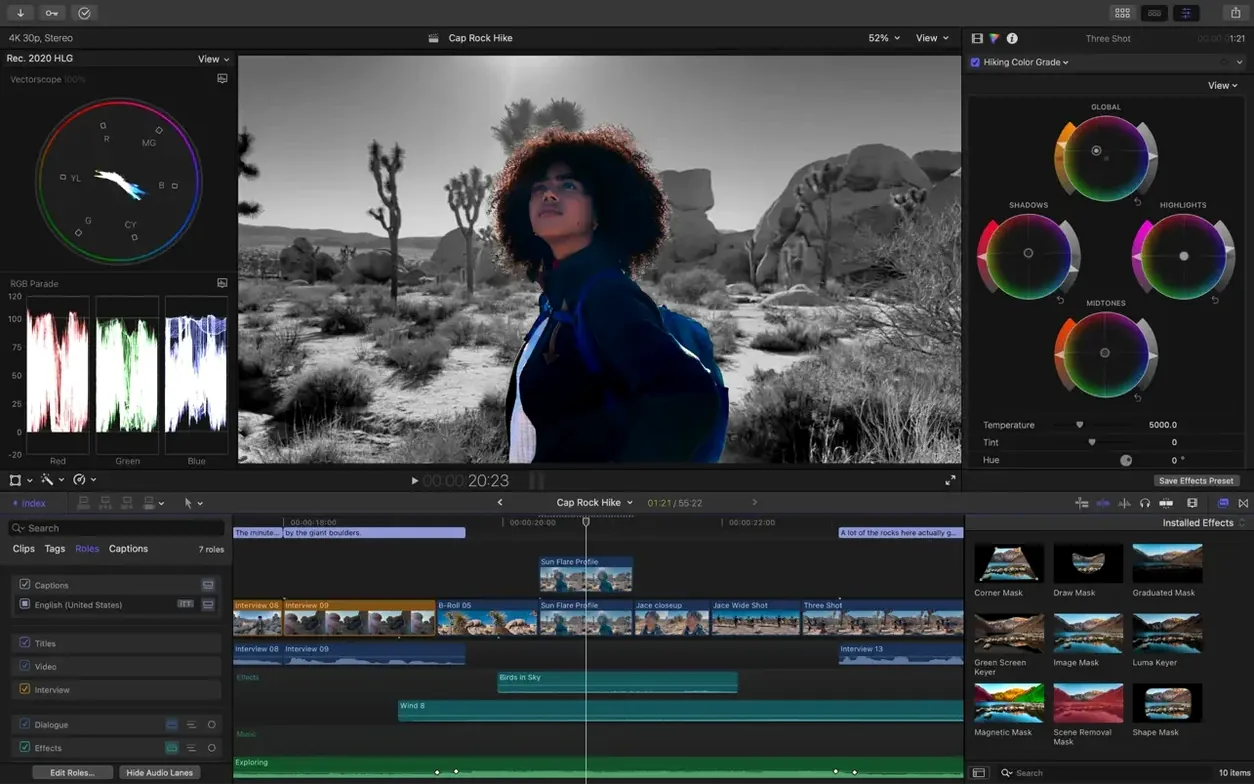
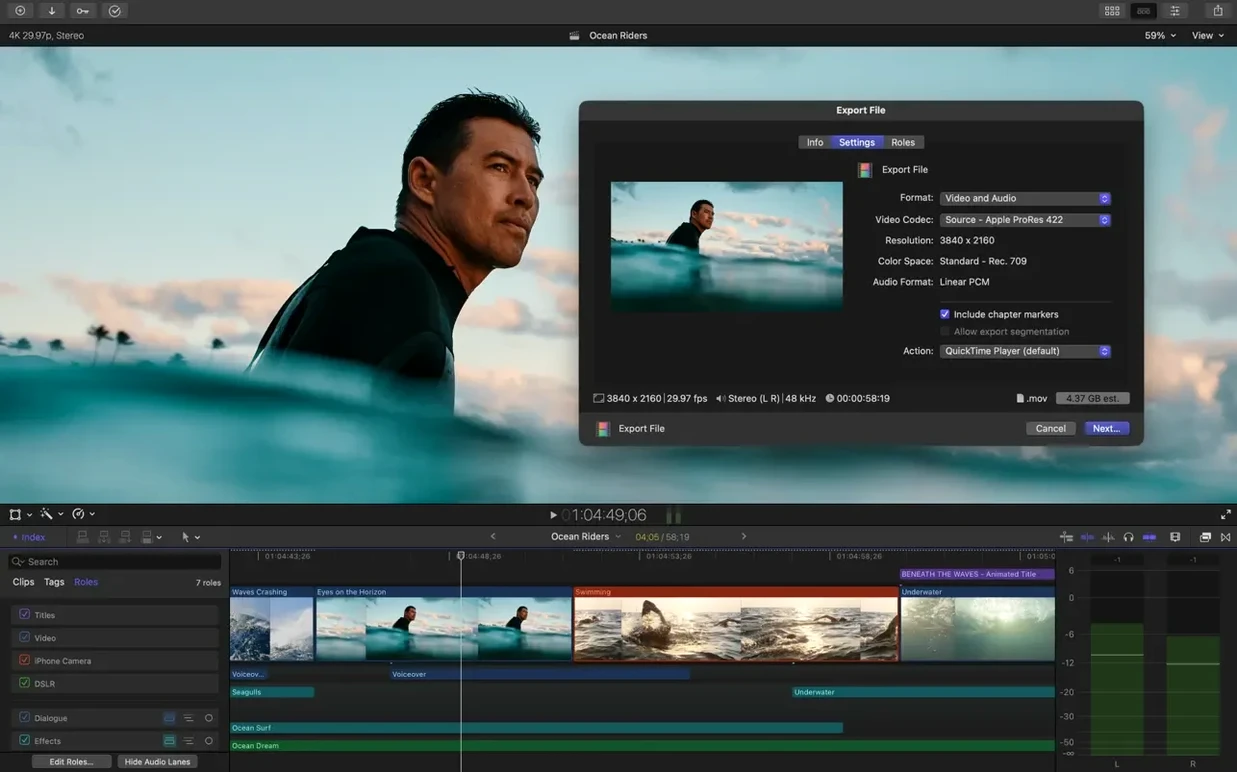
Final Cut Pro 12.3 brings a set of tools that go beyond the basics. Generate Captions adds subtitles with customizable appearance, Auto Mask isolates recognized objects for targeted color work, Match Color aligns shots from different cameras and lighting, and Edit Detection splits rendered video into separate clips. These join the existing deeper features: the Magnetic Timeline with clip connections, audio roles, multichannel editing, and waveform-based sync.
What an experienced editor will use
- Custom keywords for clip ranges and smart collections to keep large libraries organized.
- Object Tracker to attach titles and effects to moving faces or objects.
- Smart Conform to convert projects to square or vertical formats.
- Support for third-party extensions and FxPlug plugins.
- Media handling for ProRes, RED, XAVC, AVCHD, Avid DNxHR/HD, H.264, and HEVC.
Workflow fit
Final Cut Pro runs on both Intel and Apple Silicon Macs, with some features requiring Apple silicon. The app is also available on iPad, which fits a workflow that moves between devices.
First days with Final Cut Pro 12.3
After installing and launching the app from Launchpad, open a test library before importing anything you care about. Libraries are the top-level container in Final Cut Pro — events and projects live inside them. Create a new library, set its storage location to an external drive if you have one, and point the app to your media. This keeps the system drive from filling up with render files and proxies.
Spend the first session getting familiar with the interface layout: the browser, the viewer, the timeline, and the inspector. Drag a few clips into the Magnetic Timeline and see how connected clips behave when you move the primary storyline. Try collapsing and expanding audio roles — the app groups audio into assigned roles like dialogue, music, and effects by default. Multichannel clips with separate roles become manageable without manual splitting.
If you work with footage from different cameras, import clips from two or more sources and create a multicam clip. Final Cut Pro 12.3 supports automatic synchronization for up to 64 camera angles. Let the app sync by timecode, markers, or audio waveforms. Switch between angles in real time as the clip plays — the edit point snaps to the angle you select, and the result stays on the primary storyline.
Requires macOS 15.6 and 5.8 GB of disk space
Final Cut Pro 12.3 requires macOS 15.6 or later and runs on both Intel Macs with a Metal-capable graphics card and Apple Silicon Macs. The installer takes about 5.8 GB of disk space, and you will want more room for media, render files, and proxy copies. Apple recommends at least 8 GB of RAM; that is the floor for basic editing. Libraries with multiple streams of 4K or higher-resolution material will use more memory and disk space, but you already know that from the system requirements.
Some features are exclusive to Apple Silicon Macs. Object Tracker, certain effects, and real-time playback of specific codecs benefit from the media engines on M-series chips. Auto Mask and Match Color also run faster on Apple silicon. On Intel machines, those features either require an internet connection or a longer wait for processing. The app does not block Intel Macs from editing — it just offloads some tasks to the cloud or uses software fallbacks.
Languages supported in the interface are English, German, Spanish, Simplified Chinese, French, and Japanese.
Check macOS 15.6 compatibility before installing
Can I open projects from earlier Final Cut Pro versions?
Final Cut Pro 12.3 can open libraries created in Final Cut Pro 10.x and 11.x. The library file itself is backward-compatible only if you export an XML file — the project data in the library format does not downgrade. If you collaborate with editors on older versions, use XML import and export (available in File > Import XML and File > Export XML) to move timelines between systems.
Third-party plugins and FxPlug support with macOS 15.6 check
Yes. The app supports third-party extensions and FxPlug plugins. Many visual effects, transitions, and title generators built for earlier versions of Final Cut Pro still work in 12.3. You will need to check the developer's compatibility note for macOS 15.6 and the architecture (Intel or Apple silicon). Some plugins from the FxPlug 2 era may not run on Apple Silicon without an update.
Works on Intel Iris or UHD Graphics with slower playback
On Intel Macs, you need a Metal-capable graphics card. Integrated Intel GPUs that support Metal (such as Intel Iris Plus or UHD Graphics 630) will work, but expect slower playback with high-resolution or compressed codecs. Proxies help — you can create proxy media copies from your original files and edit with those, then switch back to original for export. Apple Silicon Macs have unified memory and dedicated media engines that handle most formats natively.
What about caption workflows?
Final Cut Pro 12.3 can generate, edit, and save hidden captions (a common format used for closed captions). The Generate Captions feature adds subtitles with customizable appearance, so you can adjust font, size, position, and color without leaving the app. Captions export as sidecar files or embed into compatible formats. If you need subtitles for social media posts, this saves the extra step of a third-party captioning tool.
Four headline features change daily workflow: captions, masks, color, edits
The four headline features — Generate Captions, Auto Mask, Match Color, and Edit Detection — each change a part of the daily workflow. Before 12.3, adding subtitles meant generating them outside the app or manually placing text. Now you run Generate Captions on a timeline, choose a style preset, and the app creates captions from the audio track. You can adjust timing and text afterward if the automatic detection misses a word.
Auto Mask replaces some manual rotoscoping. Select a person or object in a clip, enable Auto Mask, and the app tracks the selection across frames. Once the mask is created, you can apply color corrections or effects that affect only the masked area. It does not replace complex keying for every scenario, but it cuts time for simple isolation shots. The feature requires Apple silicon for real-time tracking; Intel Macs process it frame by frame.
Match Color compares the color profile of a clip with a reference clip and adjusts the primary color balance. It is useful for multicam shoots where cameras have different white balance or color science. The tool runs locally and does not require internet, but the algorithm works best when both clips have similar exposure and composition.
Edit Detection looks at a rendered video file and splits it into separate clips at cut points. If you work with exported footage that lost its original timeline structure — for example, a screen recording that was exported as a single file — you can drop it into the timeline and let Edit Detection find the edits. The result is a set of individual clips in the browser, ready for rearrangement.
Enable Detailed Timeline and turn off Background Render first
Open Final Cut Pro's Preferences (press Command-Comma) and check the Editing tab. Set Show Detailed Timeline to On if you want waveform thumbnails and clip labels visible at all zoom levels. In the Playback tab, switch Background Render to Off until you finish editing — this prevents the app from rendering transitions and effects while you are still arranging clips, saving processing time and disk space.
In the General tab, choose Save Copy of Library to External Drive if you work with a primary library on your system drive. The app can back up the library file automatically. Set the location to a drive with enough free space. For the Import tab, decide whether you want to leave files in place or copy them into the library. Leave files in place keeps your source media where it already lives; copy to library consolidates everything into the library package for portability.
If you plan to deliver for YouTube or Vimeo, set up export presets early. The Share menu includes destinations for both platforms. You can customize resolution, codec, and compression settings per destination. Saving a preset avoids re-entering settings for every export.
The K'ed version from Antibiotics x TEAM EDiSO runs on macOS 15.6 and newer, both Intel and Apple Silicon. Just mount the disk image, drag to Applications, and launch.
- Generate Captions adds subtitles with customizable appearance.
- Auto Mask isolates recognized objects for color correction or enhancement.
- Match Color matches color across different cameras and lighting conditions.
- Edit Detection splits rendered video into separate clips.
- macOS 15.6
- Both Intel and Apple Silicon
- 8 GB RAM
- 5.8 GB disk space
- Metal-capable graphics card for Intel Macs
- Some features require an Apple silicon Mac
- Some features require an internet connection
Questions from the notes
Does Final Cut Pro 12.3 work on Intel Macs?
Yes, the app supports both Intel and Apple Silicon Macs. Some features require an Apple silicon Mac.
What media formats does Final Cut Pro support?
It works with ProRes, RED, XAVC, AVCHD, Avid DNxHR, Avid DNxHD, H.264, and HEVC.
Can I convert a project to vertical format?
Yes, Smart Conform converts video projects to square or vertical formats.
Install procedure
- Mount the downloaded disk image.
- Drag the app to the Applications folder alias.
- Launch the app from Launchpad after copying is complete.
Reports from players
Sign in or create a tester account to file a report.
No reports filed yet.