
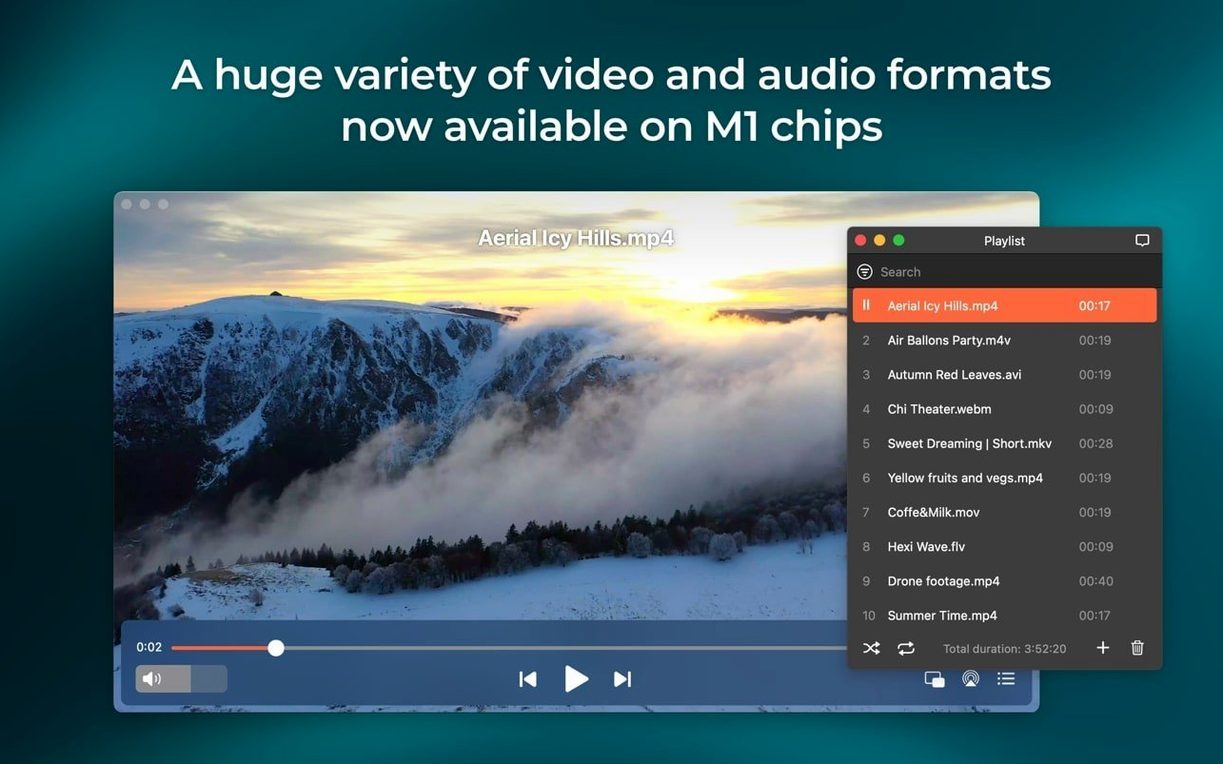
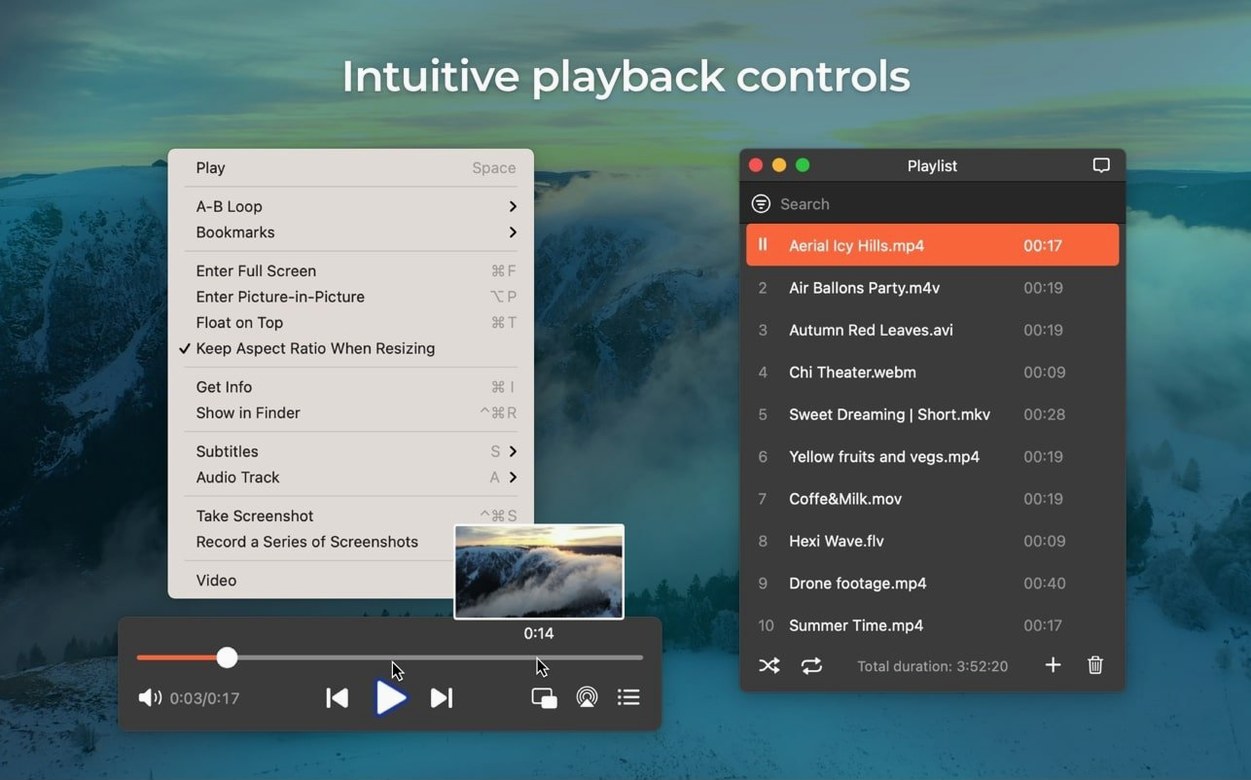
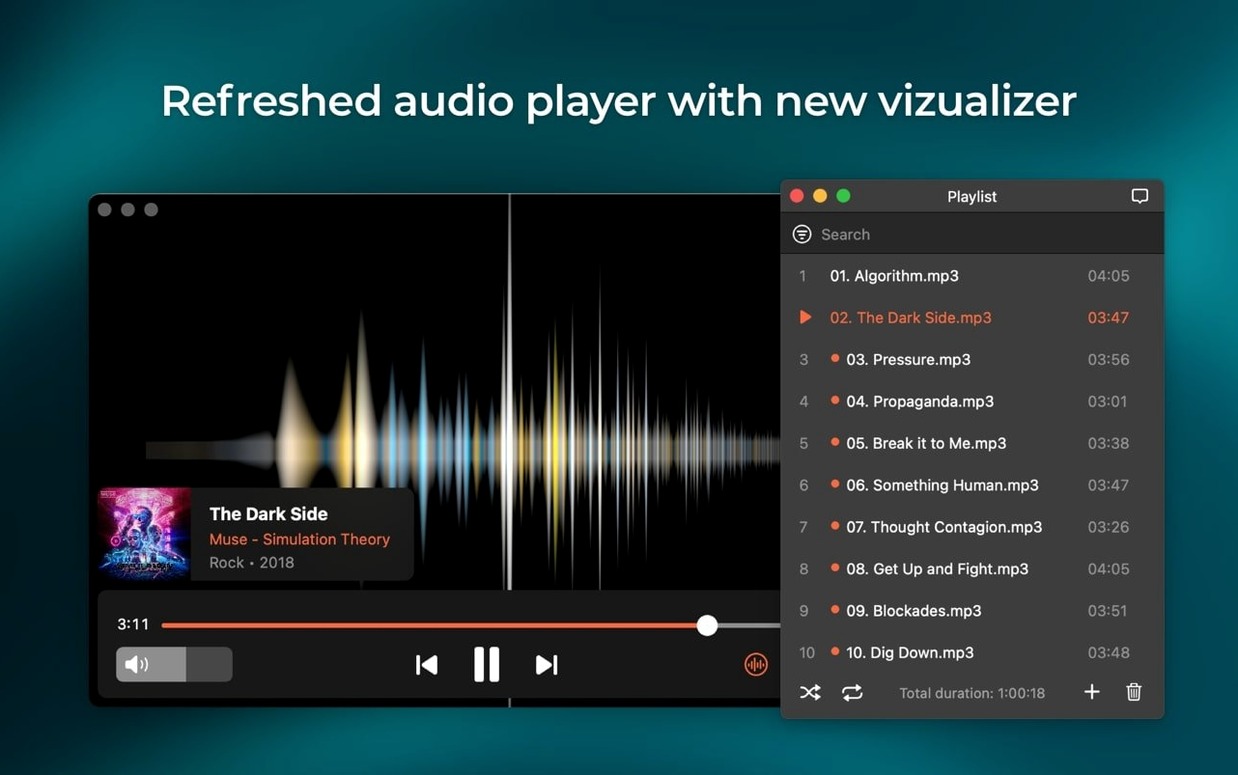
Elmedia Player Pro is a multifunctional macOS media player for video and audio playback, supporting a wide range of file formats and online streaming.
Requires macOS 10.12 or later on Intel and Apple Silicon
Version 8.24 requires macOS 10.13 or later
The player requires macOS 10.12 or later and runs on both Intel and Apple Silicon Macs. Version 8.24 improved compatibility with macOS 26. Interface languages include English, German, Spanish, Italian, Chinese (Simplified), Korean, Dutch, Polish, French, Czech, Swedish, and Japanese.
What file formats does it support?
It plays FLV, SWF, WMV, AVI, MOV, MP4, MP3, DAT, FLAC, M4V, MPG, and MKV. Version 8.24 added M4B audiobook file support. It also handles hardware-accelerated decoding for HD playback.
What extra features does it include?
The player has a built-in web browser for playing online video inside the player. It can download RTMP streams and output audio to headphones, speakers, or other devices. You can save screenshots during playback as TIFF, PNG, or GIF.
Version 8.24, released in December 2025, brings a handful of practical changes to everyday use. M4B audiobook files now open natively, which saves a conversion step if you listen to audiobooks. The streaming improvements are aimed at real-world use: the Mac no longer drifts into sleep mid-stream, and the device list opens without errors on the first try. The player operates consistently on macOS 26 due to its compatibility, yet the baseline requirement moved to macOS 10.13 — thus, if you remain on 10.12, an upgrade is necessary prior to installing this version.
Open Gatekeeper and drag the app into Applications
After mounting the disk image and running the Open Gatekeeper friendly command, press Enter in the Terminal window to bypass Gatekeeper, then drag the app into the Applications folder. Once installed, take a few minutes to check a few things before diving into your media library.
- Test your audio output path — open a file with AC-3 or DTS audio (an old DVD rip works well) and check that the player is routing audio to your intended device. If you use S/PDIF or HDMI, passthrough should work automatically. If not, verify that your system audio settings match.
- Try an M4B audiobook file — version 8.24 added support for this format. Open one and see that the player picks it up without needing a third-party converter. This is a good way to confirm the new support works on your setup.
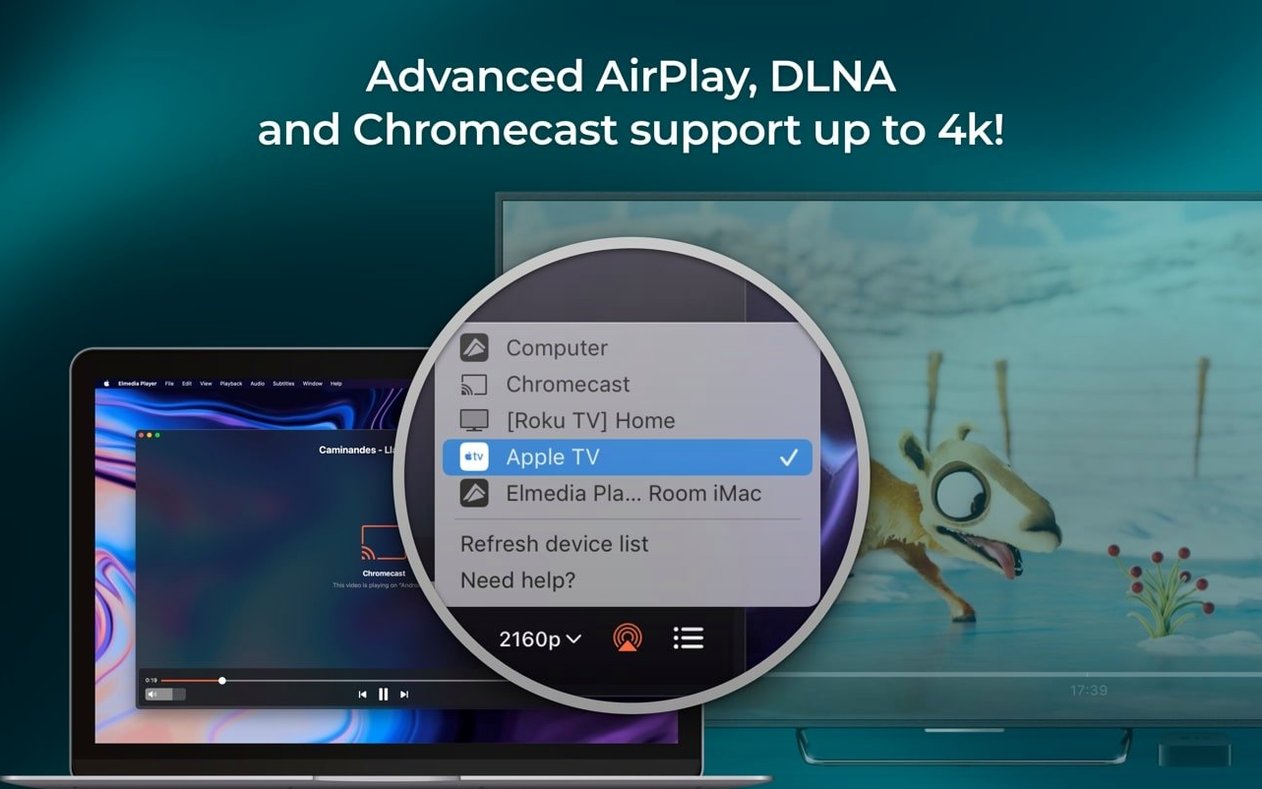
- Set up AirPlay streaming — if you have an AirPlay device or another Mac running Elmedia, open the streaming device list from the player’s menu. The fix in 8.24 means the list should appear immediately. Stream a short video to confirm the Mac stays awake and the stream reaches the target device.
- Check hardware-accelerated decoding — play a 1080p or 4K file and watch for smooth playback. The player uses hardware acceleration when available, so you do not need to toggle anything manually. If stuttering occurs, your file may use a codec the player does not accelerate.
Download online videos and find other easy-to-miss features
The player includes a few features that are not immediately obvious but show up once you start using it regularly. These are all documented in the version 8.24 release notes or the core feature set.
- Online video download — the built-in web browser lets you play online video, but you can also download the video and its audio track separately. This works with many streaming sites, though RTMP streams are explicitly supported for downloading.
- Screenshot during playback — pause a video and use the screenshot function to capture a frame. You can save it as TIFF, PNG, or GIF. Handy for taking stills from tutorials or reference footage without running a separate screen capture tool.
- Multi-channel audio routing — the player supports two, four, or eight audio channels. If you have a surround sound setup, this lets you send audio to multiple outputs (headphones, speakers, other devices) without extra software.
- Flash EXE conversion — if you have old Flash-based executables, the player can convert them to SWF format. This is a niche feature but useful for accessing legacy content on modern macOS versions.
Runs on Intel and Apple Silicon with macOS 10.12 or later
The player runs on both Intel and Apple Silicon Macs with macOS 10.12 or later. Version 8.24 raises the minimum to 10.13, so if you are on 10.12, you will stay on an earlier build. On Apple Silicon, the player uses the ARM code path; on Intel, the x86 (64-bit) path. Neither requires additional compatibility layers.
Hardware-accelerated decoding means the player offloads video processing to the GPU when available. This keeps CPU usage lower during playback of high-bitrate files. The player does not require a dedicated graphics card — integrated GPUs from the past decade work fine for most content.
AirPlay streaming sends audio and video to AirPlay-compatible devices on the same network. The Mac must stay awake during streaming, and version 8.24 improves that behavior so the system does not sleep mid-stream. The device list fix means you should see available targets immediately rather than after a delay or error message.
For audio passthrough with AC-3 or DTS, your audio path must support S/PDIF or HDMI. Most modern external DACs and AV receivers handle this. Built-in laptop speakers and standard 3.5mm jacks do not support passthrough, so the player will decode the audio internally instead.
- Added support for M4B audiobook files.
- Improved compatibility with macOS 26.
- Improved preventing the Mac from sleeping while streaming.
- Fixed streaming to certain devices.
- Fixed errors when opening the list of devices for streaming.
- macOS 10.12 or later
- Intel or Apple Silicon
Questions from the notes
Can Elmedia Player Pro stream video from the web?
Yes, it includes a built-in web browser for playing online video inside the player, and it can download RTMP streams.
Install procedure
- Mount the disk image and run Open Gatekeeper friendly.
- Press Enter in the Terminal window to bypass Gatekeeper.
- Drag the app into the Applications folder.
- Use the app after installation.
Reports from players
Sign in or create a tester account to file a report.
No reports filed yet.