
Streaming from a Jellyfin server usually means fighting with a web player or a clunky client. Infuse Pro skips that entirely by connecting directly to the server and treating it like local storage.
How does Infuse handle Jellyfin libraries?
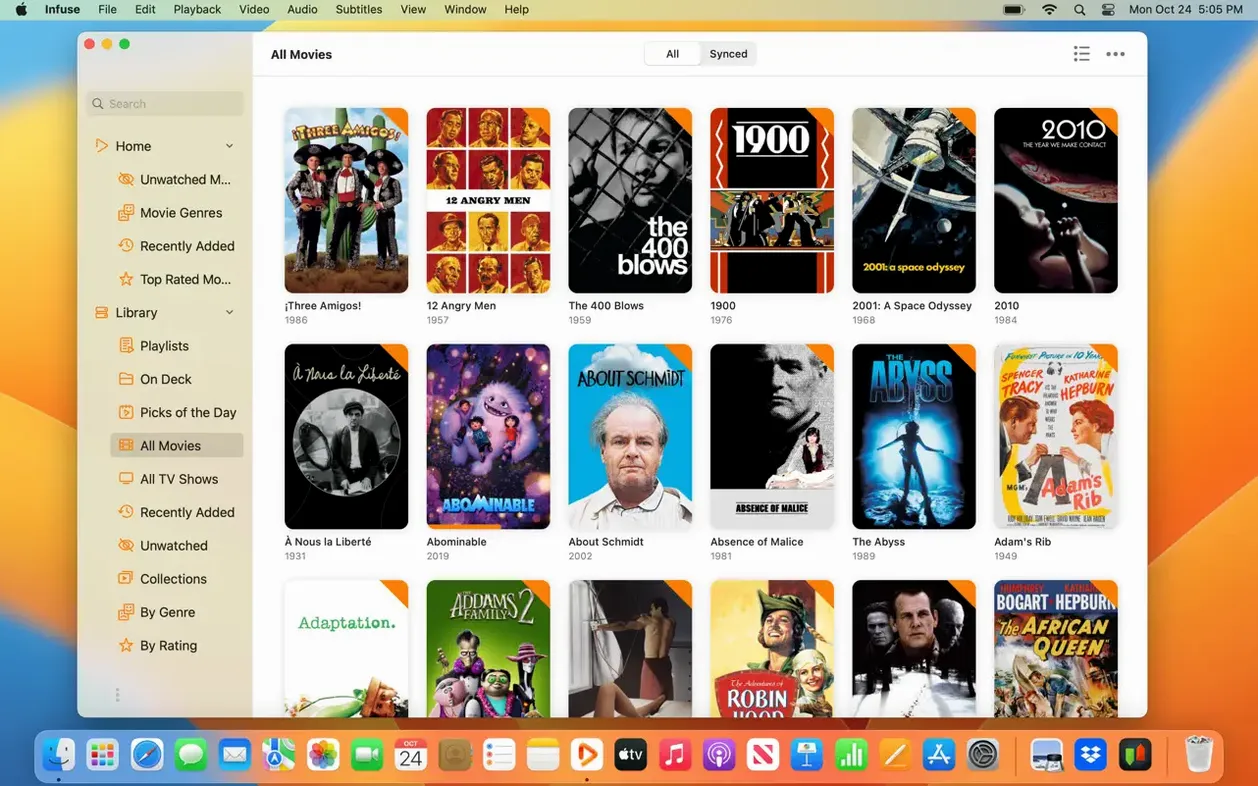
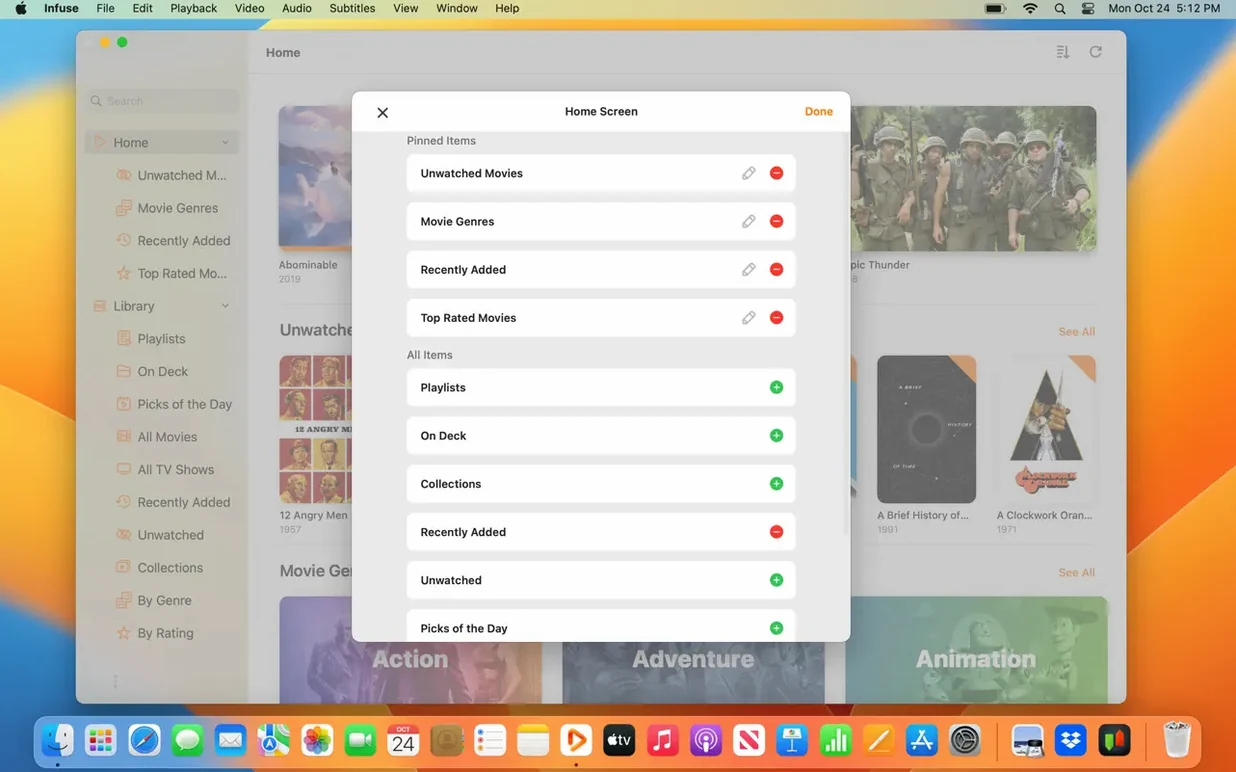
Infuse pulls your Jellyfin library into its own interface with cover art, metadata, and playback resume. It reads the server over the network without transcoding, so the Mac handles the decoding.
Does it sync across devices?
With Infuse Pro, watched status and the in-progress queue sync through iCloud across Mac, iPhone, iPad, Apple TV, and Vision. Trakt adds another layer for history, ratings, and comments if you keep that ecosystem.
Which file sources does it accept?
Beyond Jellyfin, Infuse connects to Plex, Emby, Dropbox, Google Drive, OneDrive, Box, pCloud, Yandex.Disk, and Mega.nz. Local network storage works over SMB, NFS, FTP, and WebDAV.
What Macs run it?
Infuse 8.5.5 runs on Apple Silicon and 64-bit Intel Macs with macOS 12 or later. The same app covers the rest of Apple's hardware, which keeps the interface consistent.
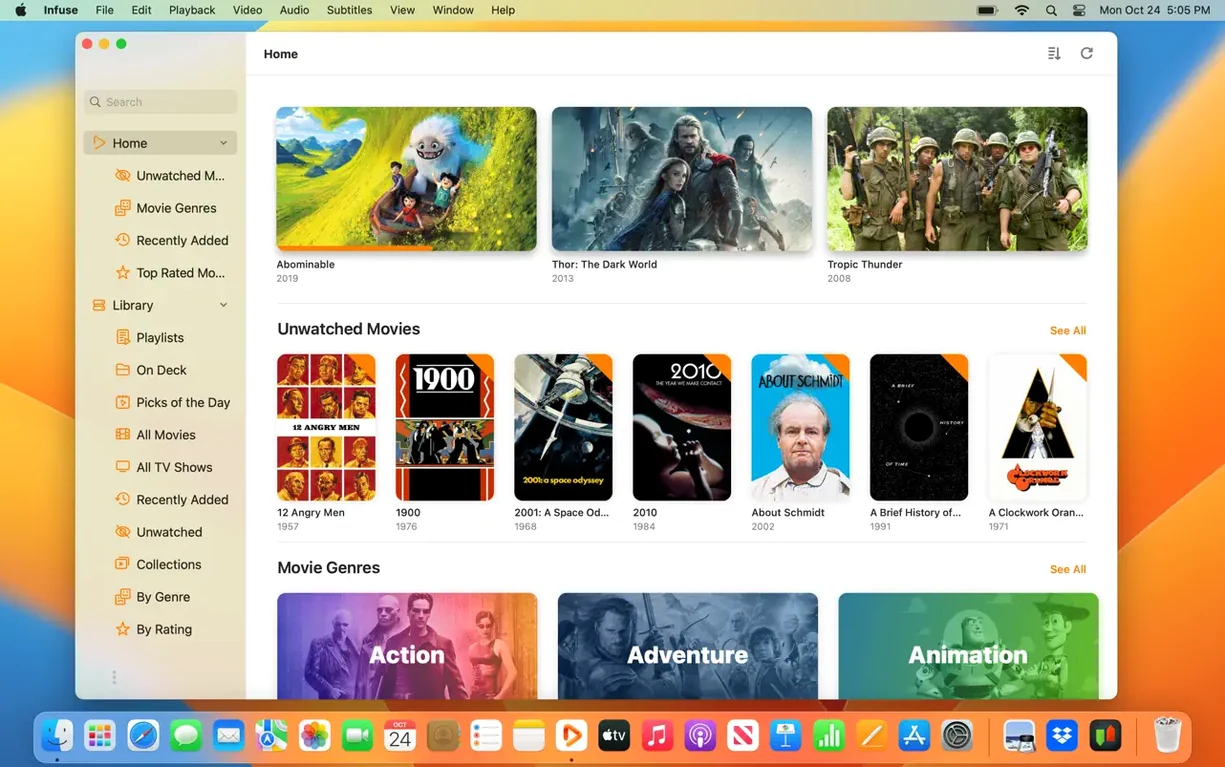
Lands on the library view, pulling metadata from Jellyfin
You launch Infuse and it lands on the library view, pulling metadata from your Jellyfin server. The covers load in a grid, and you pick something from a half-finished series. Tap play, and the video starts directly — no browser tab, no waiting for a transcoder to spin up. The Mac decodes the file, so if it is a remux or a high-bitrate encode, the hardware handles it.
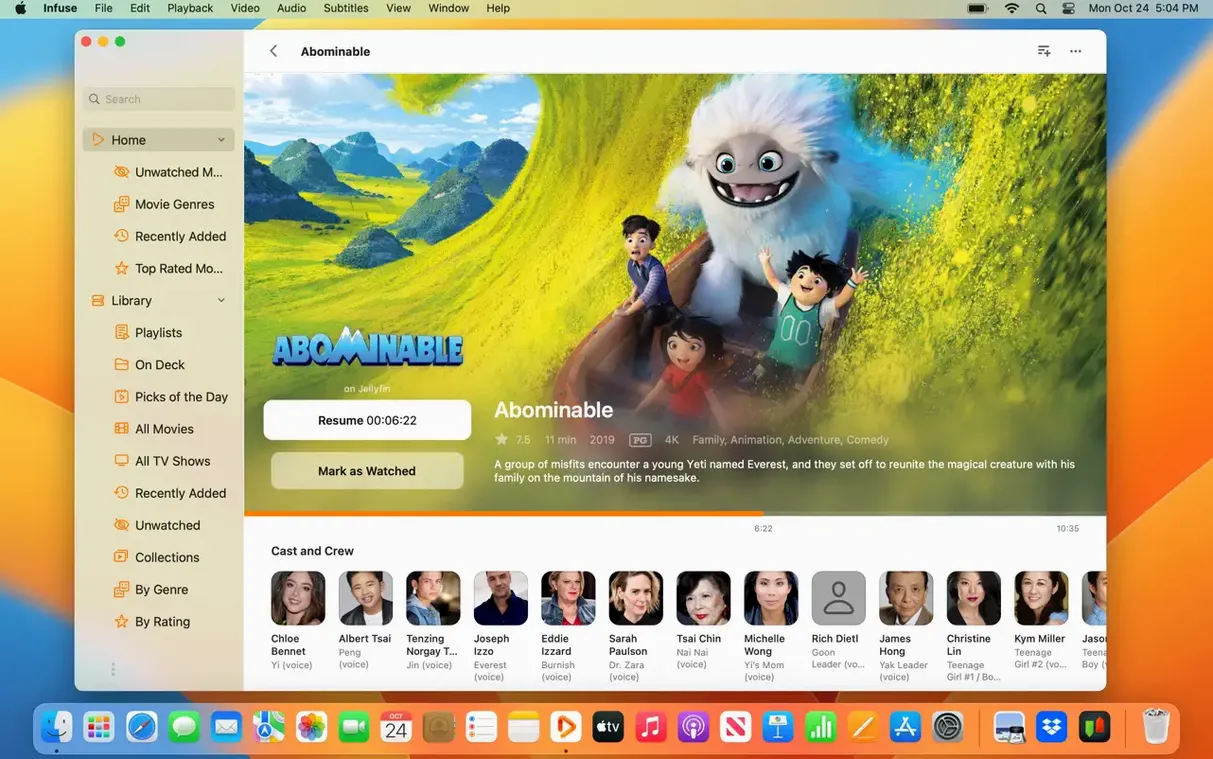
Partway through, you pause and switch to a different Mac across the room. Open Infuse there, and the timeline shows exactly where you left off because iCloud sync pushes the position and watched state between devices. No manual bookmarking, no guessing where you stopped.
Later, you add a subtitle file by dragging it onto the player window. It overlays immediately. If the sync was off, a quick tap adjusts the delay. You finish the episode, and Infuse marks it watched in both its own list and on the Jellyfin server, keeping the two in step.
Requires macOS 12 or newer, drag-and-drop install
Infuse Pro 8.5.5 requires macOS 12 or newer and runs on both Apple Silicon and 64-bit Intel machines. The app download is a standard disk image: mount it, drag the app into Applications, and launch. No extra installers or background services are needed.
The interface supports over thirty languages, so the menus can switch to Russian, German, Chinese, Japanese, or any of the others listed. The player decodes formats like MKV, ISO, and WTV natively, and it passes through Dolby Digital Plus and DTS audio where the hardware allows. Subtitles load from OpenSubtitles or from local files you supply.
Network streaming works over SMB, NFS, FTP, and WebDAV for local shares, plus cloud sources like Dropbox, Google Drive, and Yandex.Disk. If you use Plex, Emby, or Jellyfin, Infuse connects to those servers directly. The Mac does the video decoding, so the server does not need to transcode.
Workflow: watching a downloaded MKV with external subtitles
Here is a complete workflow from having the file on your Mac to finishing the episode.
- Add the file to Infuse. Open the app and navigate to the Files tab. Browse to the folder with your MKV, either on the local drive or a network share over SMB. Infuse scans the folder and adds it to the library with its poster art and metadata.
- Load subtitles. Download an SRT file for the same content. Drag it from Finder onto the Infuse window while the file is selected. The subtitle track appears in the player controls. If the timing is off, adjust the sync by a few seconds using the subtitle settings.
- Start playback. Double-click the movie. The player opens full-screen with the Dolby Digital Plus track selected by default if your audio setup supports it. The Mac decodes the video directly.
- Pause and resume later. Press the space bar to pause. Close Infuse. On another device with the same iCloud account, open Infuse and find the movie at the top of the Continue Watching row with the correct timestamp.
- Mark as watched. When the credits roll, Infuse flags the file as finished. This status syncs to iCloud and, if you have Trakt connected, to your Trakt history as well.
Keeps a local media library on a NAS for multi-device playback
Infuse Pro fits users who keep a local media library on a NAS or external drive and want to watch those files across multiple Apple devices. If you run a Jellyfin, Plex, or Emby server and dislike their web clients, Infuse replaces that interface entirely while keeping the server for metadata and organization.
People with cloud storage — Dropbox, Google Drive, or OneDrive — who download video files to their Mac can stream directly from those services without copying everything locally first. The same applies to users with a mixed file collection of MKV, ISO, and MOV that other players stumble on.
Anyone who switches between a Mac, iPad, and Apple TV during a series will find the iCloud sync useful. No tracking what episode you were on or searching for the right timestamp. Trakt users get an additional layer for ratings and comments that follows them outside Infuse.
The 64-bit Intel and Apple Silicon support means it works on older MacBook Pros and modern Mac minis alike, as long as they are on macOS 12 or newer. The language list covers nearly forty locales, so non-English users get a fully localized interface.
- Version 8.5.5 released September 16, 2026.
- Release notes cover fixes and improvements for iOS and iPadOS builds.
- macOS 12 or later
- Apple Silicon or 64-bit Intel
- Interface languages: English, Russian, German, French, Spanish, and 27 more
Questions from the notes
Does Infuse Pro need a Jellyfin server running to work?
Yes, for Jellyfin content — Infuse connects to your existing server over the network. It doesn't replace the server, just the way you watch what's on it.
Install procedure
- Open the downloaded disk image.
- Drag the app into the Applications folder shortcut.
- Launch Infuse from Launchpad once the copy finishes.
Reports from players
Sign in or create a tester account to file a report.
No reports filed yet.