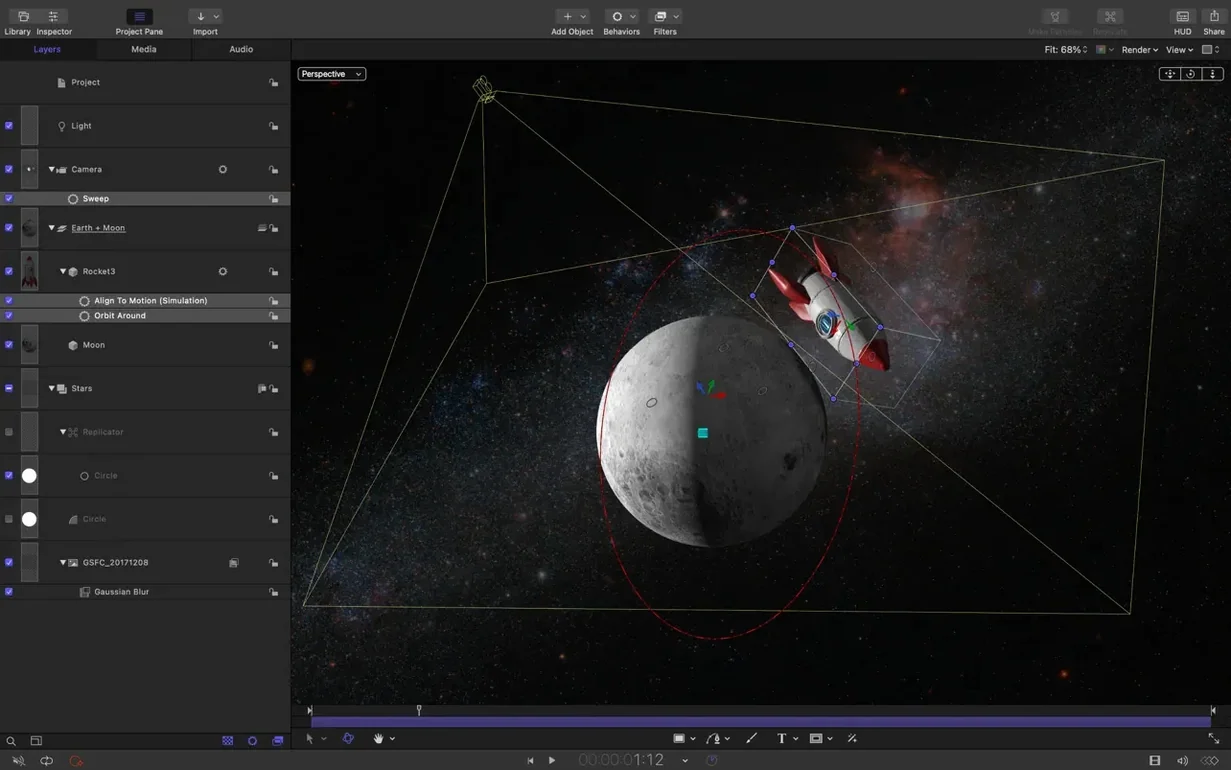
Video editors often need motion graphics — titles, transitions, lower thirds — but building them from scratch in a general-purpose app takes time. Motion solves that by giving you a dedicated tool for the job, with controls tuned for the kind of quick, polished work that Final Cut Pro X editors do every day.
What Motion does
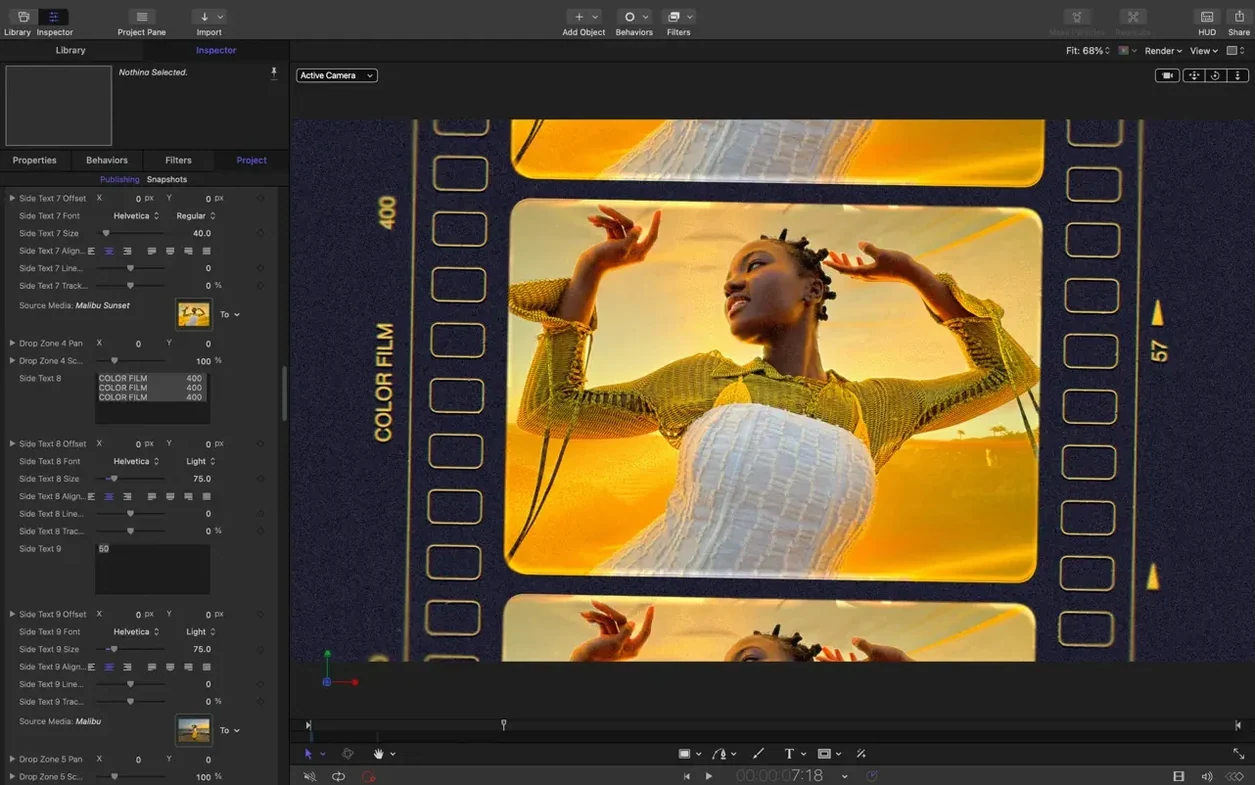
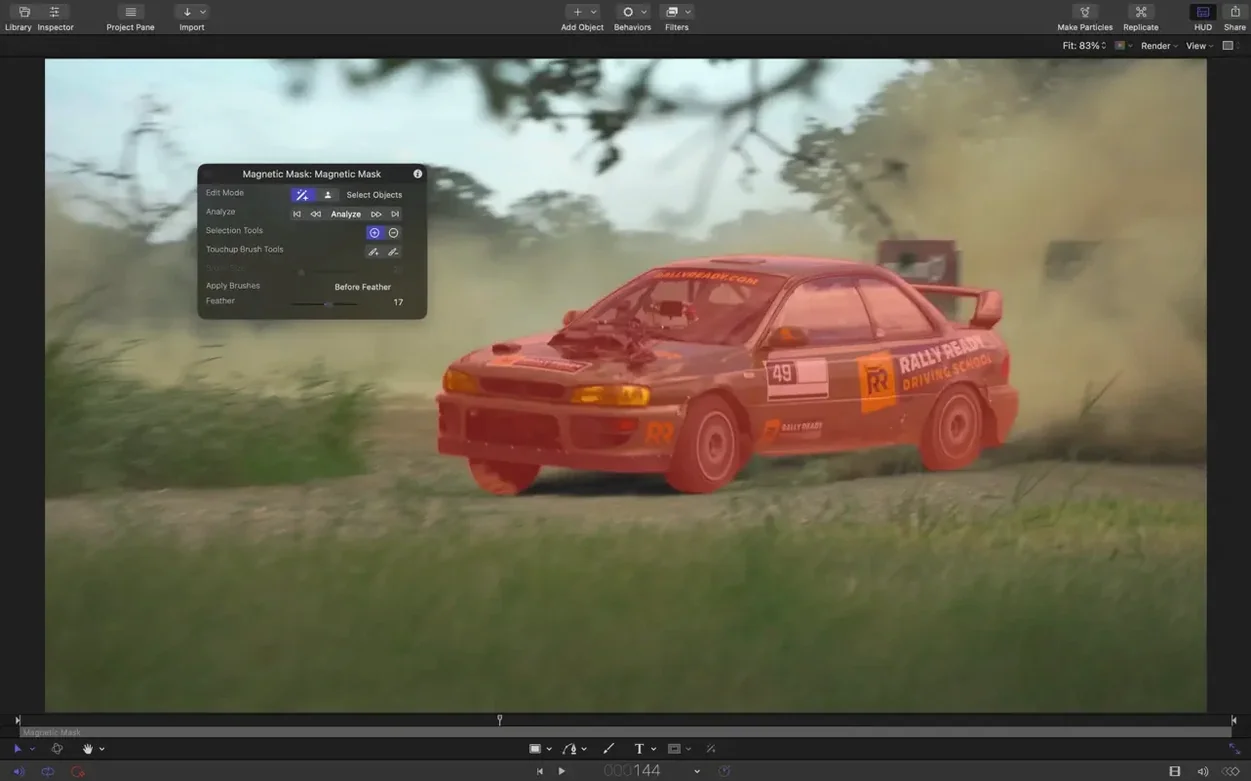
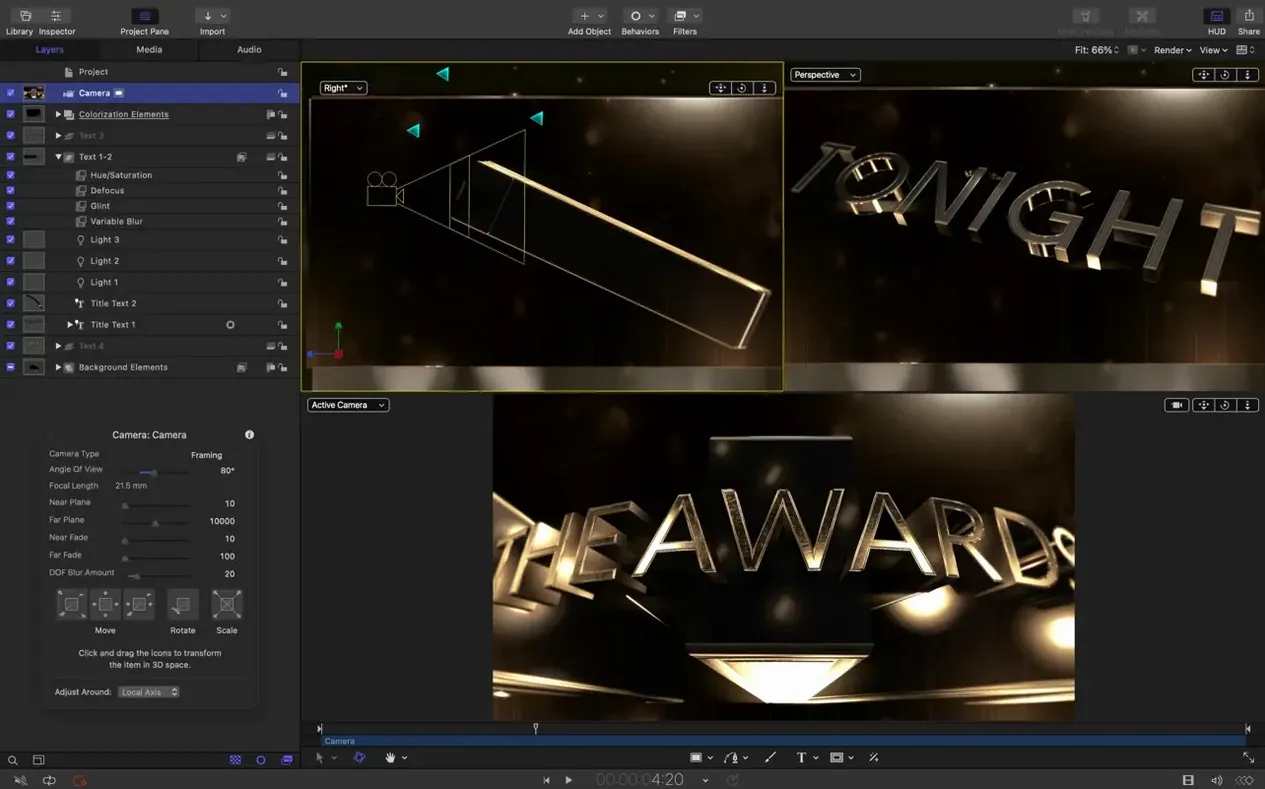
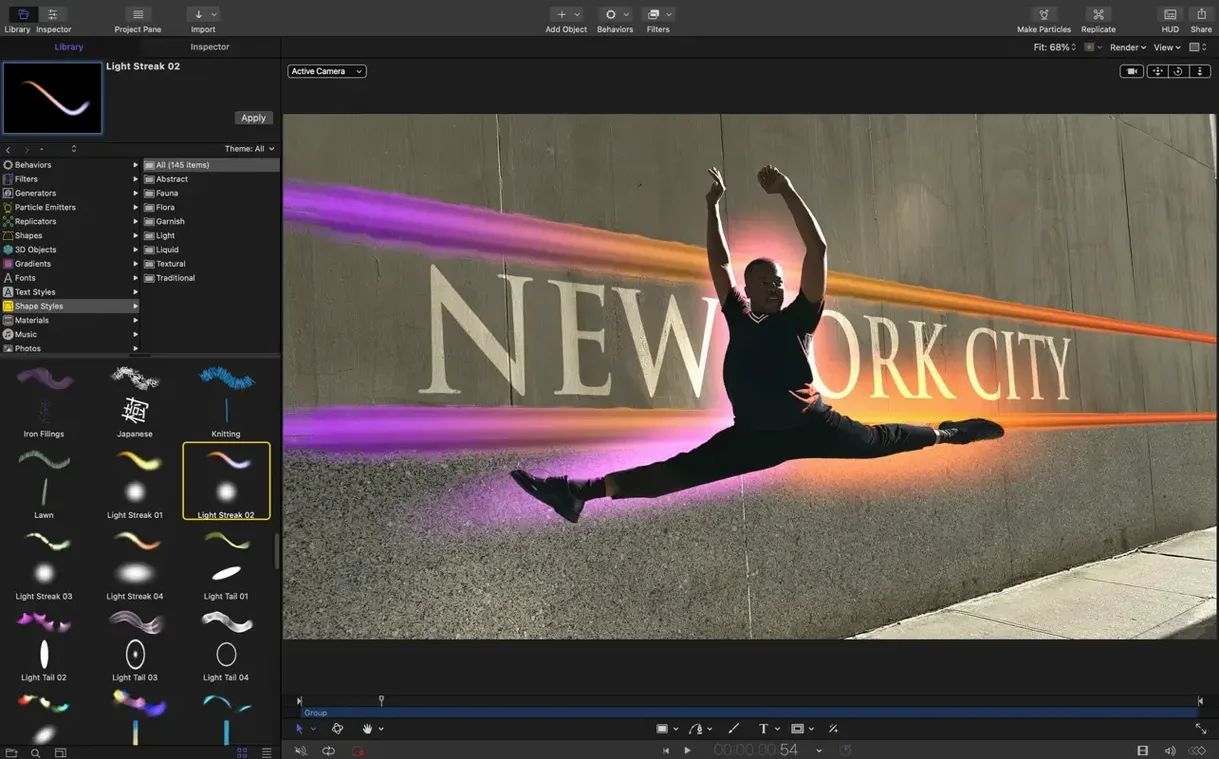
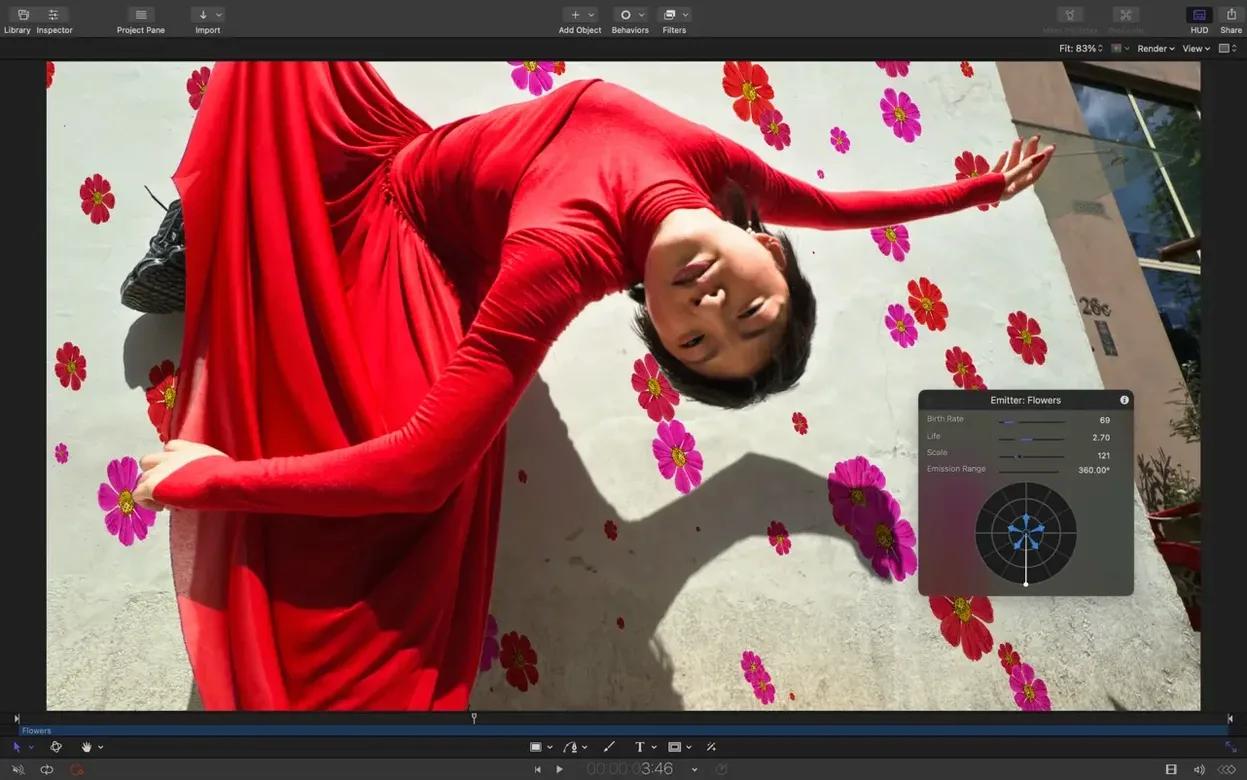
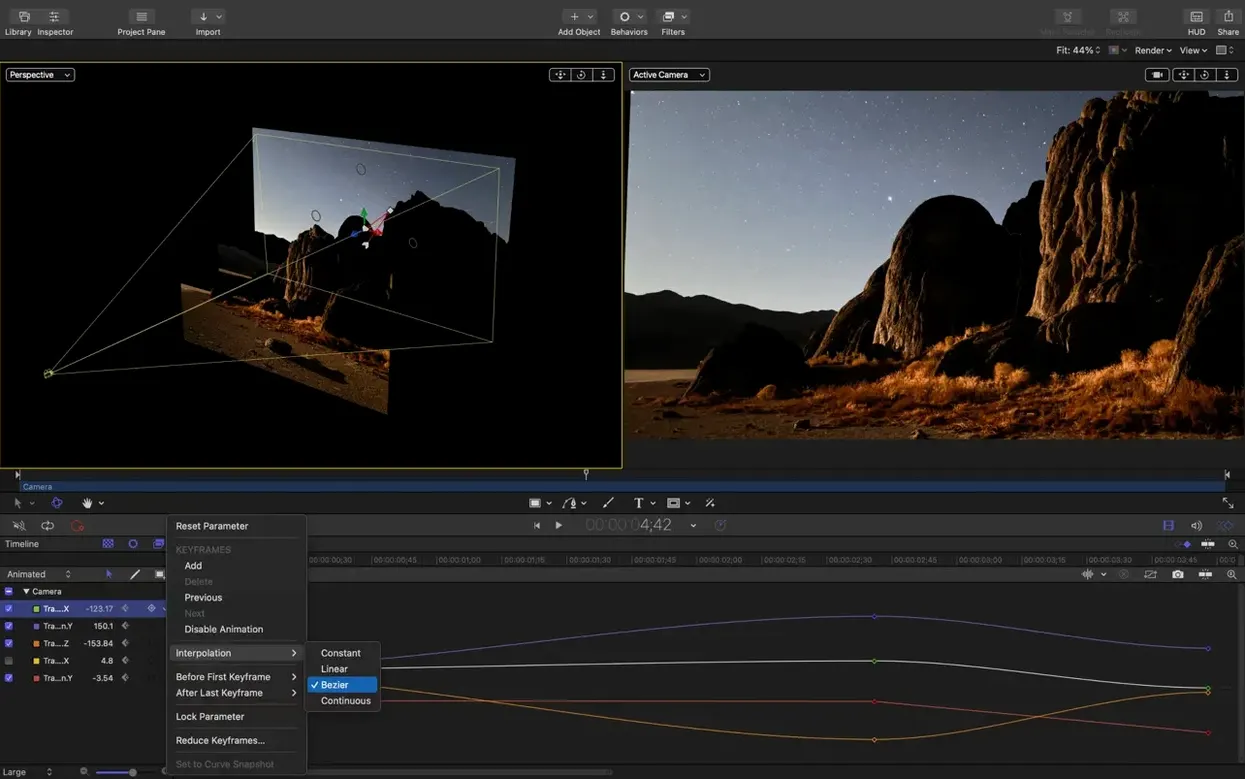
Motion is Apple’s motion graphics companion for Final Cut Pro X. You build animated titles, custom transitions, and visual effects directly, then use them inside Final Cut without round-tripping. It handles 2D and 3D text, particle emitters, replicators, and keyframe animation. The current version — 6.3 — runs on both Apple Silicon and Intel 64-bit Macs, and it fixes a few bugs from earlier releases, like Bezier Mask vertex selection and color correction filters rendering too bright on macOS 26.
For video editors who outgrew Final Cut’s title presets
Motion is for video editors who need more than Final Cut’s built-in title presets. It’s also used in film and television post-production, where custom lower thirds and animated overlays are part of the daily workflow. If you work with presentations, the same toolset applies: animated logos, transitions, and text reveals.
With Final Cut Pro X integration that avoids re-importing
Motion suits a few overlapping groups. Video editors who already work in Final Cut Pro X get the tightest integration — there’s no export-and-import dance. They build a title or transition once and it appears inside Final Cut as a template. Editors who do broadcast work for television or commercials will find the real-time preview useful when clients are watching over a shoulder and need changes made on the spot. Motion designers who prefer a node-style toolset (the Layers and Behaviors panels) will feel at home, though the app is lighter than a dedicated compositor like Nuke or After Effects. Presentation designers and corporate video producers also get mileage from it: animated charts, end cards, and logo reveals are faster to build here than in Final Cut alone.
Anyone who needs SVG graphics that scale cleanly — common in modern broadcast graphics where resolution can vary from HD to 4K — benefits from version 6.3’s SVG import support. Graphics keep their sharpness at any size, which means you don’t have to re-render raster assets at different resolutions.
Scenario: a commercial editor building a title package
Imagine you’re a corporate video editor who got a brief for a product launch. The client wants a 15-second opener with the product name, a tagline, and a dissolve transition between two animated backgrounds. In Final Cut alone you could time a title and a cross dissolve, but it’s fiddly to animate scale, opacity, and rotation across multiple layers. You open Motion instead. You import the company logo as an SVG — the sharp vector lines scale to the timeline’s frame size automatically. You build a 3D title for the product name, apply a behavior to fade the tagline in after the logo lands, and set the transition to cascade between the two backgrounds. Because Motion previews in real time, you can show the client the rough version without waiting for a render. When they ask for the logo to stay visible one second longer, you adjust the stagger controls and the timeline updates immediately. You save the project as a Final Cut template, and it appears in your Final Cut browser ready to apply to any clip in the sequence.
Stagger and cascade controls for multi-layer editing
Motion’s defaults work, but a few adjustments make the day-to-day smoother. The stagger and cascade controls for clips — new in 6.3 — are worth enabling early if you work with multiple layers. Instead of keyframing each layer’s start time by hand, you select the clips and set the stagger or reverse behavior. It saves time on title sequences where every word or logo needs a staggered entrance. The SVG import also works out of the box, but check that your source SVG files are saved without embedded raster images; Motion handles pure vector SVGs best. If you frequently switch between Motion and Final Cut, open the preferences and confirm that the linked workflow (the Automatic Save to Final Cut folder option) is enabled — it keeps your templates in sync without manual export steps.
Requires macOS 15.6; runs on Apple Silicon and Intel
Motion 6.3 requires macOS 15.6 or later. It runs on both Apple Silicon and Intel 64-bit Macs — no architecture-specific version is needed. The app installs from a disk image: you drag it to the Applications folder, then open it from Launchpad. No additional software is required, though it integrates with Final Cut Pro X and Apple Compressor if you have those installed. The interface is in English, German, Spanish, Chinese (Simplified), French, or Japanese, depending on your system language. As a motion graphics tool, it is heavier than a text editor but lighter than a full compositing suite — expect it to use system resources proportional to the number of active emitters, particles, and 3D text objects in your project.
SVG import that eliminates pre-conversion steps
Version 6.3 introduced SVG import, which is the most visible change for everyday editors. Instead of converting vector graphics to PNGs or PDFs before bringing them into a project, you drop an SVG file directly into the canvas. It scales to any resolution without losing sharpness, which matters when you’re exporting at 4K or higher. The new stagger, cascade, and reverse clip controls also change the daily workflow — you can animate a row of clips to enter one after another without writing keyframes or expressions. These are behaviors, not manual adjustments, so they stay editable after you apply them.
On the bug-fix side, three issues from earlier versions are now resolved. Bezier Mask vertex selection works when you drag across multiple vertices — previously the selection did not register, which meant editing a mask required clicking each vertex individually. 3D text and particle emitters no longer display the wrong texture media during playback — a problem that caused placeholder or scrambled graphics in some projects. And color correction filters that rendered brighter than expected on macOS 26 now match the intended brightness, so a grade you applied looks the same across system versions.
These are incremental improvements, not a redesign. The workflow for editors who already use Motion remains the same; the fixes remove friction in specific scenarios. The performance updates mentioned in the release notes are general — no specific feature or panel changed, but the app feels more responsive under typical timeline scrubbing and preview use.
- Import SVG files that scale to any size and keep graphics sharp at any resolution.
- Adds controls to stagger, cascade, or reverse clips.
- Includes performance updates.
- Fixes Bezier Mask vertex selection.
- Fixes incorrect texture media during playback for some 3D text and particle emitters.
- Fixes brighter rendering for some color correction filters on macOS 26.
- macOS 15.6
- Apple Silicon or Intel 64-bit processor
Questions from the notes
Does Motion work on Apple Silicon Macs?
Yes, Motion 6.3 supports both Apple Silicon and Intel 64-bit Macs.
Can I use Motion without Final Cut Pro X?
Yes, you can use Motion to create motion graphics for other uses, but it integrates most closely with Final Cut Pro X.
What file format can I import in Motion 6.3?
Motion 6.3 can import SVG files, which scale to any size and keep graphics sharp at any resolution.
Install procedure
- Open the downloaded disk image.
- Drag the app into the Applications folder alias.
- After copying finishes, open the app from Launchpad.
Reports from players
Sign in or create a tester account to file a report.
No reports filed yet.