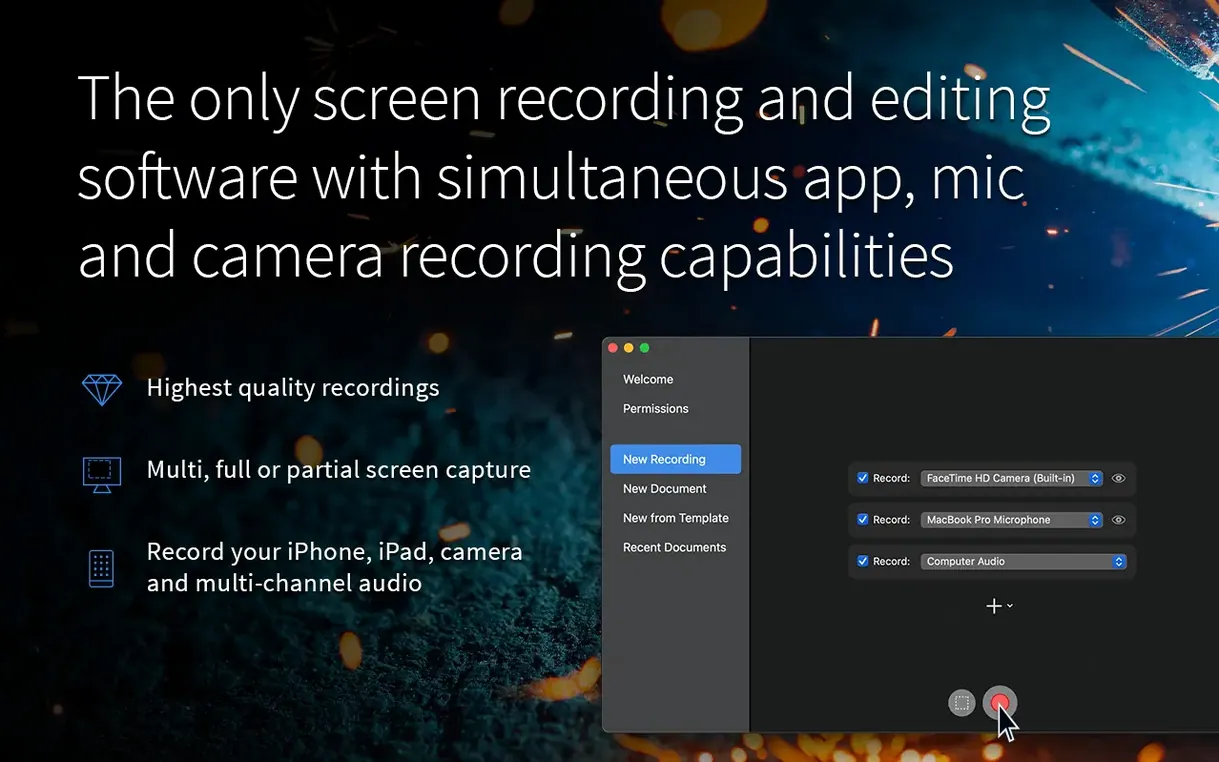
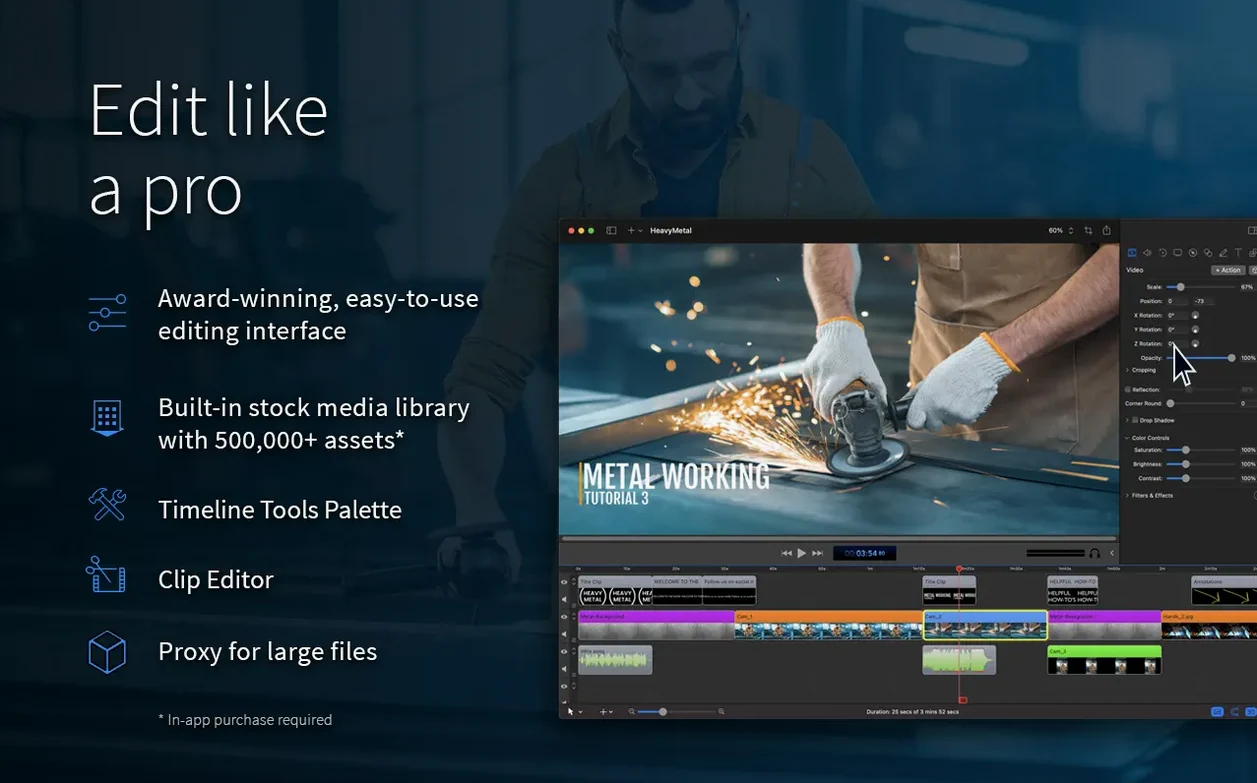
ScreenFlow is for people who need to record and edit video on a Mac without switching between a capture tool and a separate editor. It is a macOS app that records part of the screen or an entire monitor, and can capture camera video, iPad or iPhone video, microphone input, multichannel audio input, and computer audio at the same time. Once the footage is in, the editing tools handle images, recordings, clips, text, audio, and other video files.
The standout features are the ones that save time in production. Zoom and pan effects let you direct attention without re-recording. Callouts and annotations mark up exactly what matters. Subtitles make the video accessible. Chroma key removes a background cleanly, and video motion effects add movement to stills or text. Exports go out as ProRes or MP4, so the files fit into most workflows.
Version 10.5.2, released on 2026-02-12, fixes exports with Chroma Key for certain screen recordings, addresses a crash with macOS 26.2 or higher, and corrects the manage button under licenses. The app is designed exclusively for macOS.
A complete workflow: record a tutorial, edit it, export it
Here is how a typical tutorial production runs from start to finish in ScreenFlow. This covers the recording stage, the edit, and the final export.
Start by opening the recording panel. Choose to record the screen only, or add camera video and microphone input simultaneously. You can capture computer audio too, which matters if you are narrating over system sounds or a video call. Set the recording area to a portion of the screen or the full monitor. Hit record.
Once you stop recording, the footage opens in the timeline automatically. Trim the beginning and end first. Then add callouts or annotations over the parts you want to emphasize. Zoom and pan effects work well for directing attention to a button or detail — you set the start frame and the end frame, and ScreenFlow handles the transition. If you recorded a talking head with a plain background, apply chroma key to replace the background with a slide or screenshot.
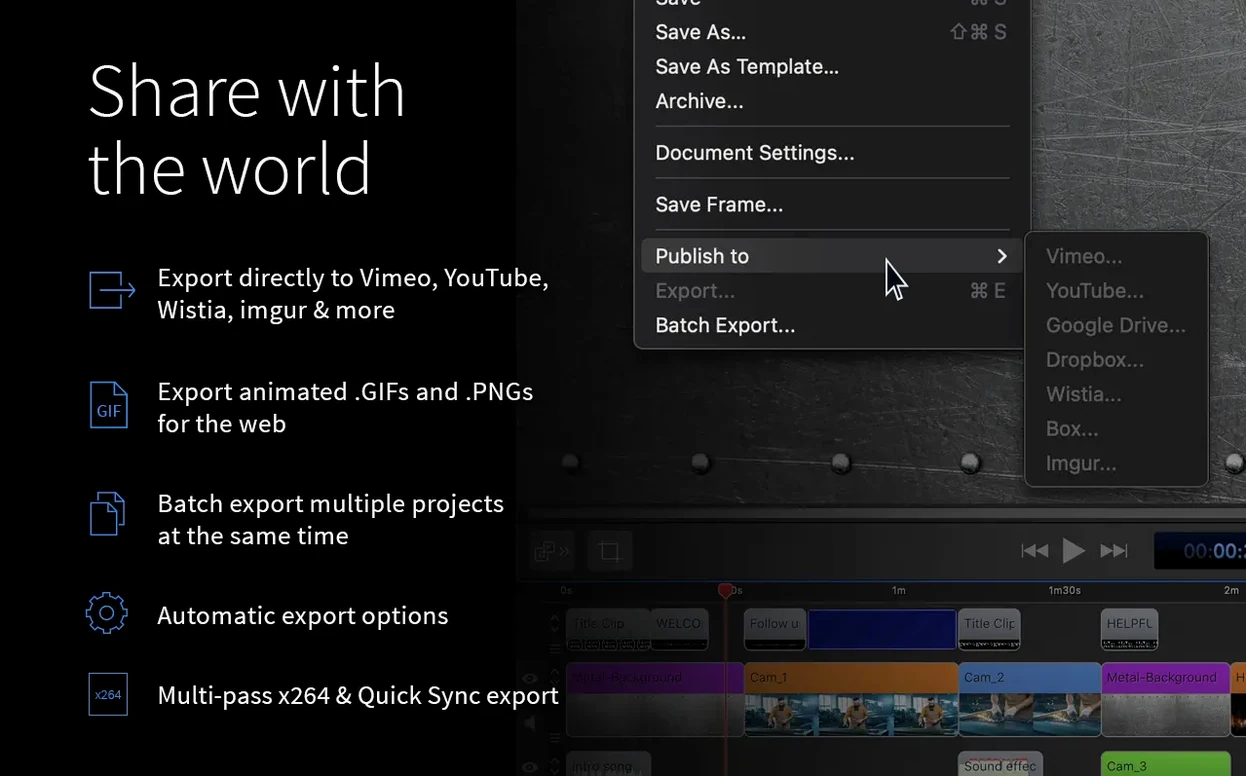
Add subtitles for accessibility or for viewers watching without sound. ScreenFlow lets you type in the text and position it in the video. When the edit is complete, export as ProRes for further work in another editor, or as MP4 for direct upload. The export dialog also offers direct sharing to Vimeo, YouTube, Wistia, Facebook, Google Drive, Dropbox, Box, and Imgur.
Chroma Key export failures fixed in day-to-day use
The 10.5.2 update does not add new features. It fixes three things that affect how reliably the app works day to day:
- If you use Chroma Key, exports for certain screen recordings no longer fail. That fix matters if you regularly key out a background in recorded screencasts.
- If you run macOS 26.2 or later, the app no longer crashes on launch or during a session. Without this fix, the app was unusable on that system version.
- The manage button under licenses now points to the correct URL instead of a broken link. This only matters if you need to manage licenses within the app.
These are stability and corner-case fixes. The interface, the recording options, and the editing tools are unchanged from version 10.5.1.
Run a test recording before your first real session
ScreenFlow records everything you allow it to. Before your first real session, run a short test recording that includes screen, microphone, and camera at the same time. This confirms your audio levels are balanced and the camera framing looks right.
When you record a tutorial, plan your screen area ahead. Recording the full monitor and cropping later works, but it creates larger files and slower scrubbing. Recording only the relevant region keeps the timeline manageable.
The editing timeline can hold recordings, imported video files, images, and audio tracks. If you drag in an MP4 file that was recorded on another device, it appears as a clip you can trim and layer just like a ScreenFlow recording.
For exports, ProRes is the better choice if you plan to send the file to another video editor, because it keeps the quality high. MP4 is the better choice for uploads and sharing, because the file size is smaller and most platforms accept it directly.
Tutorial creators can produce finished videos without leaving the app
Tutorial creators are the obvious audience. The combination of simultaneous screen, camera, and audio capture plus editing tools means you can produce a finished video without leaving the app. Annotations, callouts, and zooms cover the most common teaching gestures.
Video editors who work mostly with screen recordings also benefit. If your raw material is captured desktop footage rather than camera footage, ScreenFlow skips the import stage and lets you edit from the moment you stop recording. The zoom and pan effects, chroma key, and subtitle tools cover the post-production needs of screencast work.
Mac users who create animated GIFs or APNG files will find the export options useful. The app can output these formats directly, which saves a conversion step.
People who regularly upload to multiple platforms get a practical advantage from the built-in sharing. Publishing to Vimeo, YouTube, Wistia, Facebook, Google Drive, Dropbox, Box, or Imgur happens from the export dialog without leaving ScreenFlow.
Record iPad video and capture multichannel audio
The app records iPad and iPhone video through a wired or wireless connection. This is useful if you demonstrate a mobile app or a game on a portable device.
Multichannel audio input is supported during recording. That lets you capture separate audio streams from different microphones or sound sources, which gives you more control during editing.
Animated GIF and APNG export are built in. Many editors require a separate tool or plugin for these formats.
The interface is available in five languages: English, German, Spanish, French, and Japanese. The language selection happens at the system level, so you do not need to dig through settings to switch it.
ScreenFlow requires macOS 10.15 or later and runs on both Apple Silicon and Intel 64-bit Macs. This ensures it works on the majority of Macs still receiving system updates.
- Fixed a crash with macOS 26.2 or higher.
- Fixed exports with Chroma Key for certain screen recordings.
- Fixed the manage button under licenses going to a non-existent URL.
- macOS 10.15 or later
- Intel or Apple Silicon
Questions from the notes
What macOS versions does ScreenFlow support?
ScreenFlow requires macOS 10.15 or later and runs on both Intel and Apple Silicon Macs.
Can ScreenFlow record both screen and camera at the same time?
Yes, it can capture screen, camera, microphone, multichannel audio input, and computer audio simultaneously.
What video formats does ScreenFlow export?
It exports ProRes and MP4 files.
Install procedure
- Mount the disk image and run Open Gatekeeper friendly.
- In Terminal, press Enter to bypass Gatekeeper.
- Drag the app to the Applications folder.
- Open the app to start using it.
Reports from players
Sign in or create a tester account to file a report.
No reports filed yet.