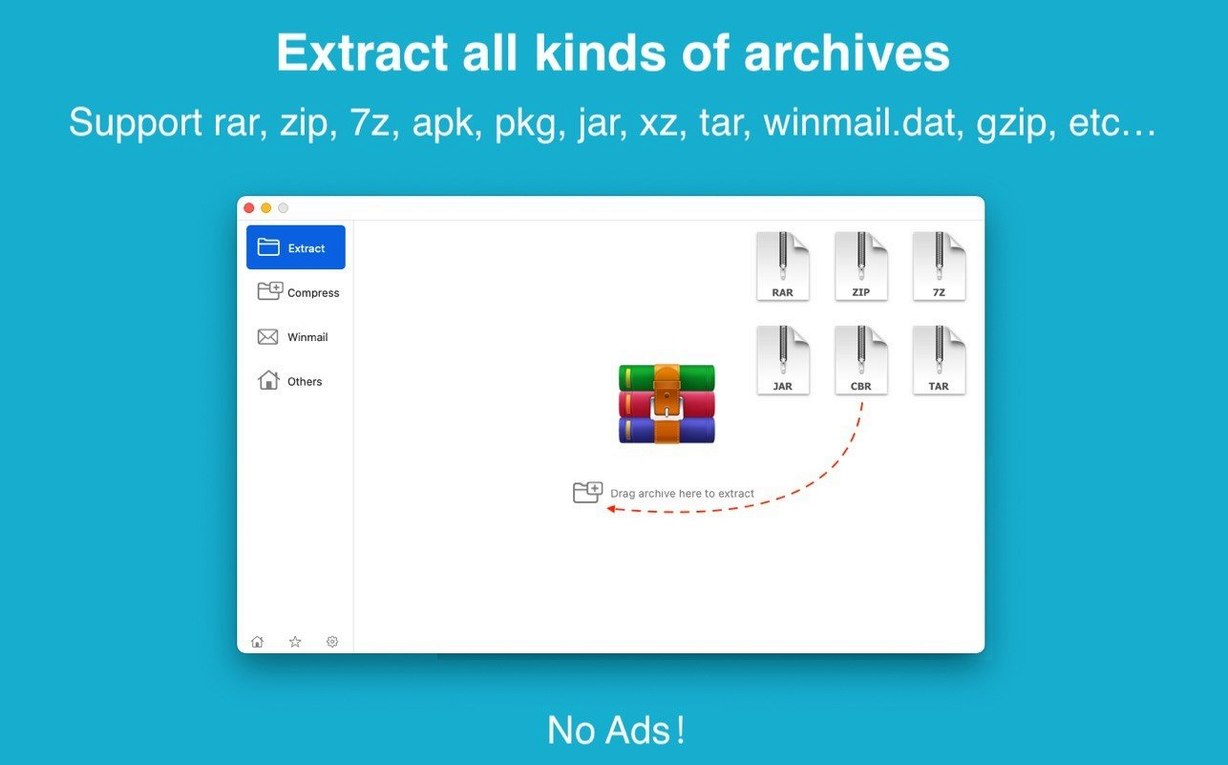
You get an archive in an unfamiliar format—maybe a .7z from a colleague or a winmail.dat attachment from Outlook. RAR Extractor Unarchiver Pro opens it without hunting for a separate tool. It handles RAR, ZIP, 7Z, TAR, GZIP, BZIP2, ACE, ISO, PKG, APK, MSI, JAR, XZ, CAB, RPM, and dozens more.
Start-to-finish: unpacking a batch of archives
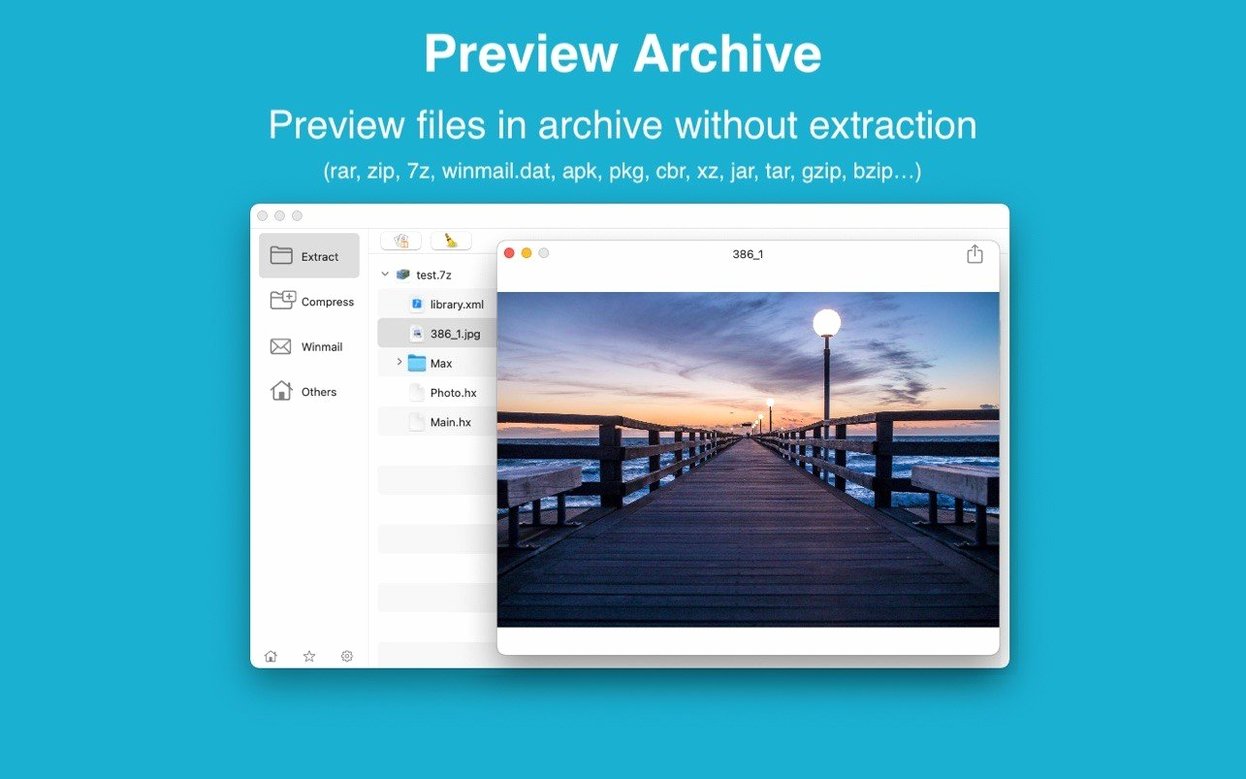
- Drag several archives into the dual-window interface; the file list shows contents before extraction.
- Set RAR Extractor as the default archive app, then double-click any archive to open or extract it directly.
- Enter a password if an archive is encrypted; AES-256 protects ZIP and 7Z files you create.
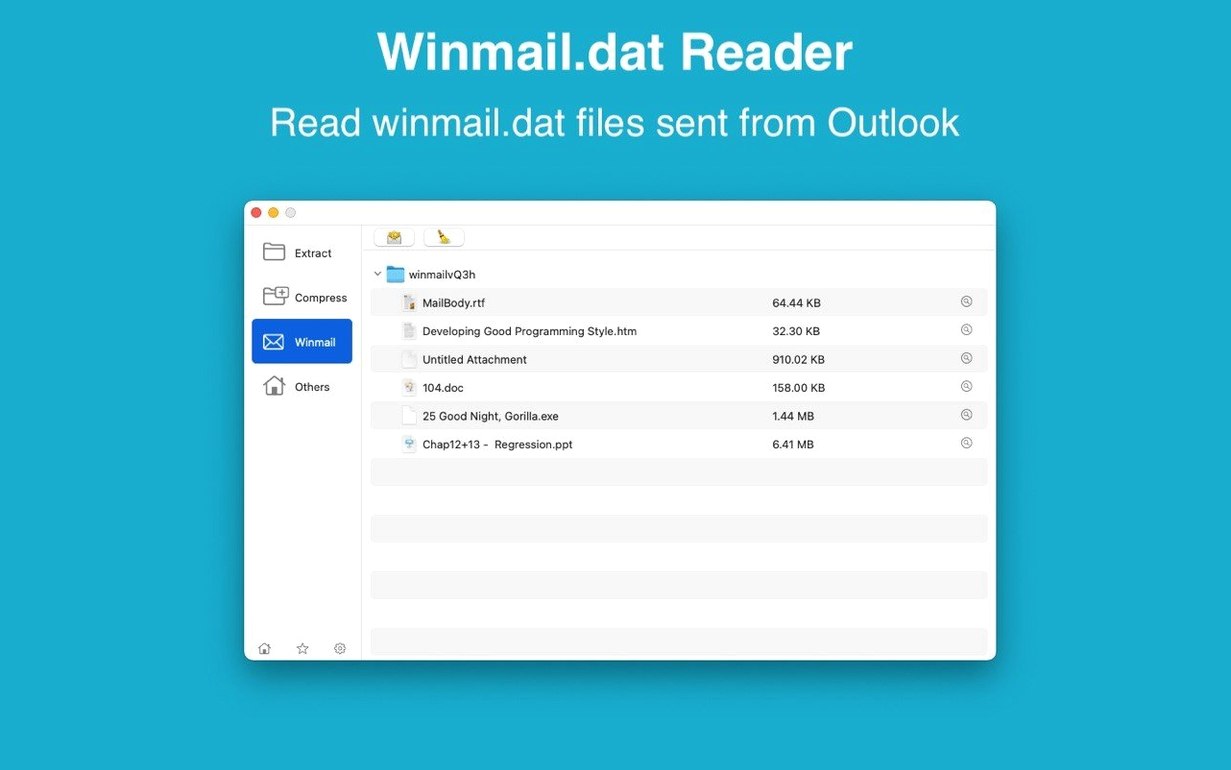
- Preview winmail.dat files from Outlook without extracting them first.
Creating archives when you need them
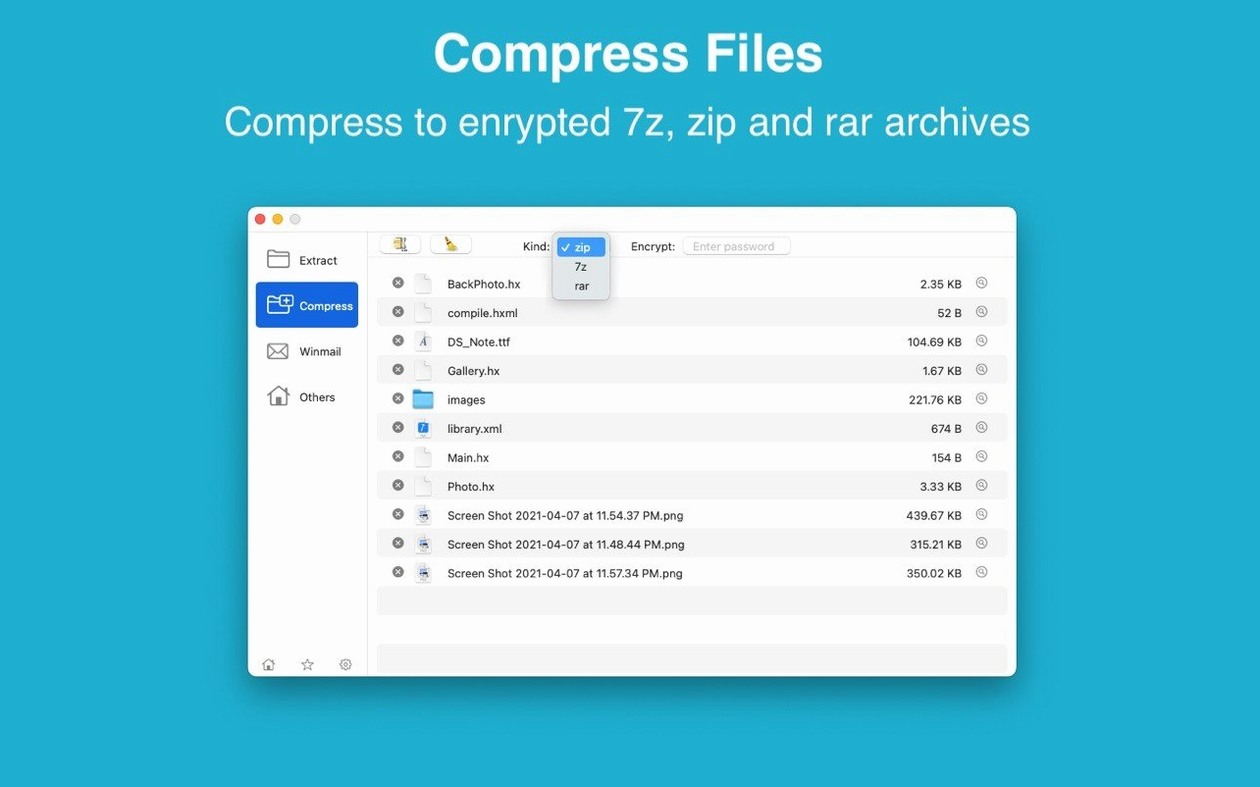
The tool isn't just for unpacking. You can build your own ZIP or 7Z archives with AES-256 encryption, which keeps sensitive files locked. The interface speaks English or Simplified Chinese, and batch unpacking means you don't have to process archives one by one.
A real-world scenario: recovering files from a mixed-format project backup
A freelance graphic designer keeps project backups spanning years. One folder contains a .7z from a Windows collaborator, a .cab from an old software installer, a .dmg with fonts, and a password-protected .zip of client assets. Opening each requires a different tool unless RAR Extractor is the default archive app. With the dual-window display open, the designer drags all four archives into the left pane. Each archive's contents appear in the file list on the right—no waiting for extraction to peek inside. The password prompt appears only for the .zip; the others open immediately. The designer selects only the needed asset folders from each archive and extracts them in one pass to a new project folder. The .dmg mounts separately, but the fonts inside are accessible through RAR Extractor's file list without mounting it first.
Default opens archives on double-click
A few adjustments make the tool quieter and faster for daily use:
- Default extraction behavior – Set RAR Extractor as the default app for all supported archive formats. After that, double-clicking any archive opens or extracts it directly, skipping the file-list step when you just want the contents.
- Extraction target – The tool can send extracted files to the same folder as the archive, a dedicated extraction folder, or the desktop. Dragging an archive to the desktop triggers direct extraction into a new folder named after the archive.
- Dual-window toggle – Enable the dual-window display if you frequently compare archives or batch-unpack into different destinations. The left window shows the source archive; the right window shows the target folder or another archive.
- Archive creation defaults – When creating a password-protected ZIP or 7Z archive, the encryption method is AES-256 by default. That's the strongest option available and doesn't need changing unless you're sending to someone with older software.
Drag and drop to the Dock icon
Some of the most useful features are the ones you don't think about until you need them:
- Dock drag-and-drop – Dragging any archive onto the RAR Extractor Dock icon opens it in the file list or extracts it immediately, depending on your default behavior setting. No need to launch the app first.
- Selective extraction – Inside the file list, you can mark a single file or a specific folder from a large archive and extract only that item.
- winmail.dat preview – Outlook's winmail.dat files are a common nuisance. RAR Extractor shows their contents (attachments, formatted text) in the preview pane without extracting anything. You can then extract only the attachments you actually need.
- Batch unpacking – Select multiple archives in the file list or drag them into the window at once. The tool processes them sequentially. You don't need to wait for one to finish before dropping in the next.
- Quick format identification – The file list shows the detected format for each archive, even for less common types like .lzh, .arj, or .nsa. If you're not sure what someone sent you, the app tells you before you extract.
Incremental refinements from recent updates
Version 13.9.6 continues the pattern of incremental refinement. No release notes were provided, so what follows is based on observed behavior across recent updates in the same major version line. The core extraction engine handles the same broad range of formats. On both ARM and Intel Macs running macOS 11.5 or later, the app launches and processes archives without the interface feeling dated. The English and Simplified Chinese localizations are maintained, and the Gatekeeper bypass during installation (mount the disk image, run the Open Gatekeeper friendly command, press Enter in Terminal, then drag to Applications) works the same as before. Anyone upgrading from a much earlier version will notice that the file preview pane now updates faster—useful when scanning through a winmail.dat or a packed ISO. The 7z file extractor and 7z file unzip workflows remain straightforward: drag a .7z into the app, see its tree in the file list, and extract what you need. For users who regularly handle 7z file extractor Mac tasks, this version keeps the same reliable behavior without adding friction. RAR Extractor Unarchiver Pro stays a practical tool for anyone who encounters archives from Windows, Linux, or older systems on a Mac. The changelog may be empty, but the app itself didn't need fixing.
Workflow: extracting a single file from a password-protected 7z archive
- Drag the encrypted .7z file onto the RAR Extractor Dock icon. The app opens to the file list without extracting anything yet.
- The password prompt appears. Enter the password; the file list populates with the archive's directory tree.
- Browse the tree to locate the specific file you need—maybe a single image inside a packed project folder.
- Right-click (or control-click) that file and choose to extract only the selected item. No need to unpack the whole archive.
- The extracted file lands in the same folder as the source archive by default, or in whatever extraction target you set previously.
This avoids the time and disk space of unpacking a large password-protected archive just to grab one file. The same method works for RAR, ZIP, TAR, and other encrypted formats the app supports.
Small conveniences that are easy to miss
- Archive creation from the file list – When you have an archive open in the file list, you can select files and folders from within it and create a new ZIP or 7Z from those items directly. This lets you repackage content without extracting to a temporary folder first.
- Format detection for obscure types – The file list header shows the detected archive format even for less common ones like .lbr, .zma, or .cpt. If a client sends an archive you don't recognize, the app identifies it before you decide how to proceed.
- Drag to desktop extraction – Dragging an archive file to the desktop triggers direct extraction into a new folder named after the archive. The folder appears on the desktop, and the original archive stays in place. No dialog, no extra clicks.
- Batch extraction to separate folders – Select multiple archives in the file list and extract them all at once. Each archive's contents go into its own named folder, keeping files organized without manual sorting.
- winmail.dat attachment extraction – After previewing a winmail.dat file, you can extract only the attachments you need. The preview shows each attachment's name and size, so you don't have to extract everything to find the one PDF you're after.
Scenario: a system administrator restoring software from old installers
A sysadmin maintains legacy software for a small office. The archive collection includes .rpm files from an old Red Hat server, .cab files from Windows driver discs, .pkg from macOS, and .msi installers that need to be inspected for file manifests. With RAR Extractor set as the default archive app, the sysadmin double-clicks each file type to open it in the file list. The app identifies .rpm, .cab, .pkg, and .msi without extra configuration. The sysadmin browses each archive's contents, extracts only the configuration files needed for migration, and skips large installer blobs. The dual-window display lets the sysadmin compare the .rpm's file tree against a .cab's structure side by side, confirming that both contain the same version of a critical driver before copying anything. The 7z file extractor mac workflow handles the .7z backups that the previous sysadmin left behind, and the batch unpacking processes a folder of 20 archives overnight without supervision.
- macOS 11.5 or later
- Intel or Apple Silicon
Questions from the notes
Can RAR Extractor Unarchiver Pro handle encrypted archives?
Yes, it supports extraction of encrypted archives, and you can create ZIP and 7Z archives with AES-256 encryption.
Install procedure
- Mount the disk image and run Open Gatekeeper friendly.
- Press Enter in Terminal to bypass Gatekeeper.
- Drag the app to the Applications folder.
- Open the app when installation is complete.
Reports from players
Sign in or create a tester account to file a report.
No reports filed yet.