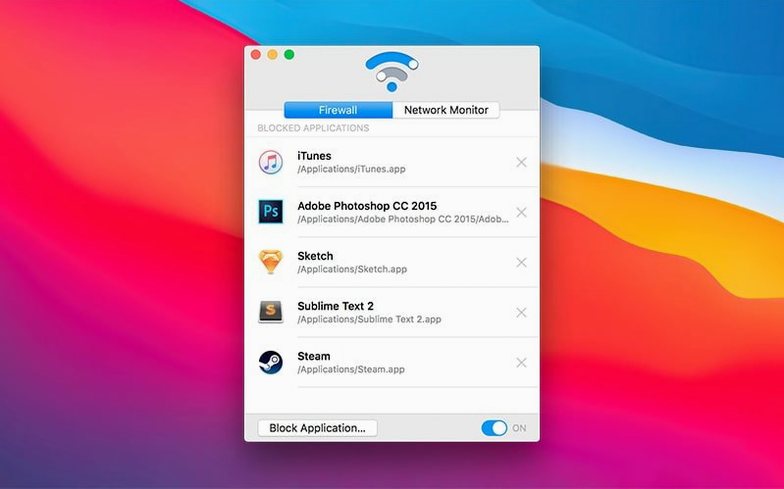
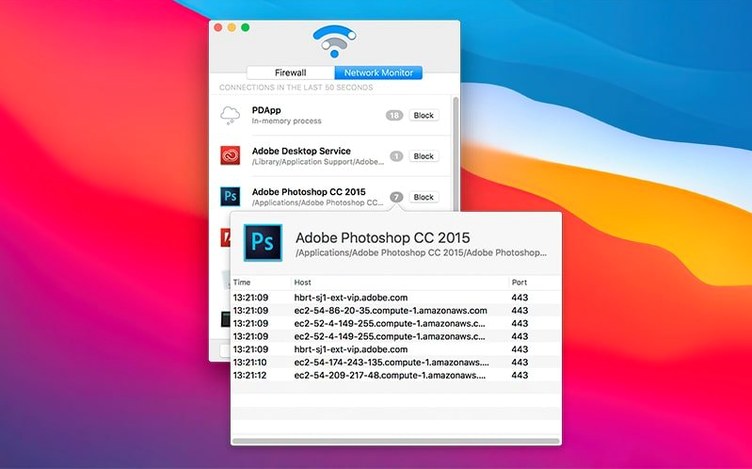
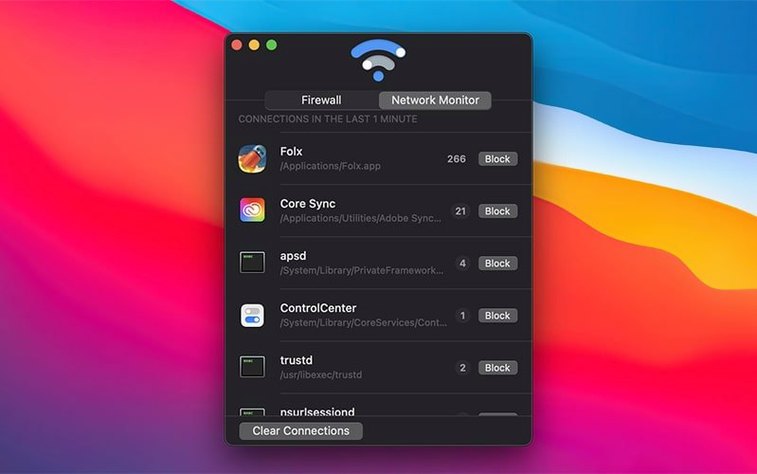
Radio Silence runs on any Mac with macOS 10.15 or later, on both Intel and Apple Silicon. It is a small firewall and network monitor that lists connections started by applications and lets you block selected apps from using the internet.
working through the deeper tools
- Open the Firewall tab. You will see a list of apps that have attempted connections. The list updates as apps start new connections.
- Find the app you want to cut off. The monitor shows incoming connections initiated by apps, so you can spot what is phoning home without digging through logs.
- Block it. The app goes onto the blocked list and stays there until you remove it. You can remove apps from the block list whenever you want.
The menu bar stays clean — no icon for Radio Silence, which suits a tool that should not draw attention. Version 3.4 adds a help view with troubleshooting info if the app fails to launch, plus better handling of installation errors and missing permissions. For a utility, those details matter more than the headline features.
suits anyone who wants app-level blocking
Radio Silence suits anyone who wants to know what their Mac is doing behind the scenes. It is not a general-purpose firewall that blocks ports or networks — it is app-level blocking. That makes it useful for:
- Users who want to stop a single application from phoning home without uninstalling it. That could be a game that checks for updates on launch, a media app that calls home for licensing, or a utility that contacts a server you do not trust.
- People who run software that demands an internet connection they do not want to give it. A video editor that wants to send crash reports, a browser plugin that talks to a third-party server, a chat app that insists on presence updates.
- Users who monitor what their Mac sends and receives. The real-time connection list gives a live view of which apps are talking to which servers. That is useful for troubleshooting a slow connection, finding a misbehaving app, or just understanding your machine's traffic patterns.
It also fits users who prefer a lightweight tool that does not install a system-level driver or require a kernel extension. Radio Silence is a small application that runs when you need it and stays out of the way otherwise.
works with macOS's built-in firewall for outbound control
Radio Silence does not conflict with macOS's built-in firewall, which blocks incoming connections by default. The app handles outbound traffic at the application level, so the two can coexist without overlapping. macOS's firewall controls which ports are open; Radio Silence controls which apps can use those ports.
If you already use a VPN, Radio Silence still works because it blocks the app, not the network interface. An app blocked by Radio Silence cannot connect through the VPN either, since the block happens before the app can send data to any interface.
For users who run virtual machines or containers, Radio Silence treats the host app as the source. If you block QEMU or Parallels Desktop, all network traffic from guests is blocked too. That is a broad stroke — useful for testing or isolating a VM that should not reach the internet.
It also works alongside other network monitors like Wireshark or Little Snitch. Radio Silence does not capture packets or log DNS queries, so it does not duplicate their work. You use it for quick blocking and immediate visibility, not deep analysis.
block a phoning-home app in a few steps
Say you install a freeware app that phones home on every launch. You want it to work offline but not call out. Here is how to set up that block:
- Launch Radio Silence. The monitor window opens and starts listing connections.
- Launch the app you want to block. The monitor shows its connection attempts as they happen. You see the remote address and the app name.
- Select the app in the connection list. Click the Block Application button. The app is added to the firewall block list immediately.
- Open the Firewall tab to confirm. The app is listed there. Any future connection attempts from it will be rejected without a visible error in most cases.
- Close the app and reopen it. It should start without connecting. If it needs a network to function at all, it may fail gracefully or show a message. If it simply nags, the nag stops.
- To let it back online, open Firewall, select the app, and remove it from the block list. The next time the app tries to connect, the monitor shows it again.
That workflow uses only the two main tabs: the monitor for live visibility and the firewall for permanent blocking. No configuration files, no rules to write.
two settings to check after install: temporary pause and more
Radio Silence has few settings, which is part of its design. But there are two worth checking right after installation:
- Temporary pause. The firewall can be paused. If an app you blocked needs an update, pause the firewall, let it update, then resume. No need to remove and re-add the block.
- Check the help view if the app does not launch on first run. Version 3.4 added a help view with troubleshooting info. That is the first place to look if you see permission errors or it fails to install the filter driver.
That is it. The app is built to be used as-is, not tweaked. The main decision is whether to leave it running in the background or open it only when you need to block something. Since there is no menu bar icon, you will want to keep a shortcut in the Dock or launch it on demand.
- Installation guidance for macOS Tahoe.
- Better handling for installation errors and missing permissions.
- New help view with troubleshooting info if the app fails to launch.
- macOS 10.15 or later
- Intel or Apple Silicon
Questions from the notes
What does version 3.4 fix?
It adds installation guidance for macOS Tahoe, improves handling of installation errors and missing permissions, and includes a help view with troubleshooting information if the app fails to launch.
Install procedure
- Mount the downloaded disk image.
- Run the standard installation procedure.
Reports from players
Sign in or create a tester account to file a report.
No reports filed yet.