
You paste a YouTube link into PullTube on your Mac, and it grabs the video or just the audio track. That is the core job, and it handles it without extra steps.
What PullTube does on your Mac
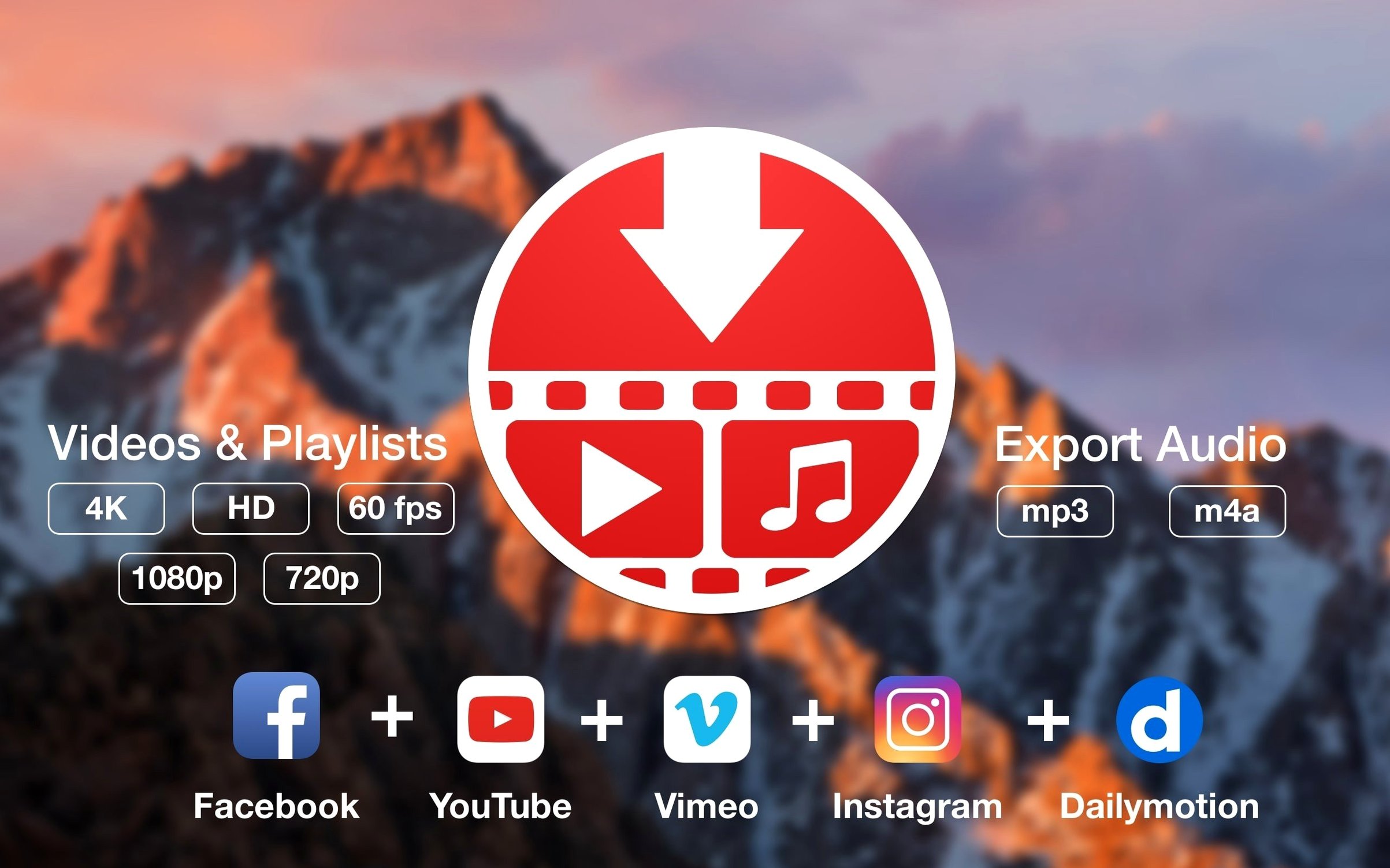
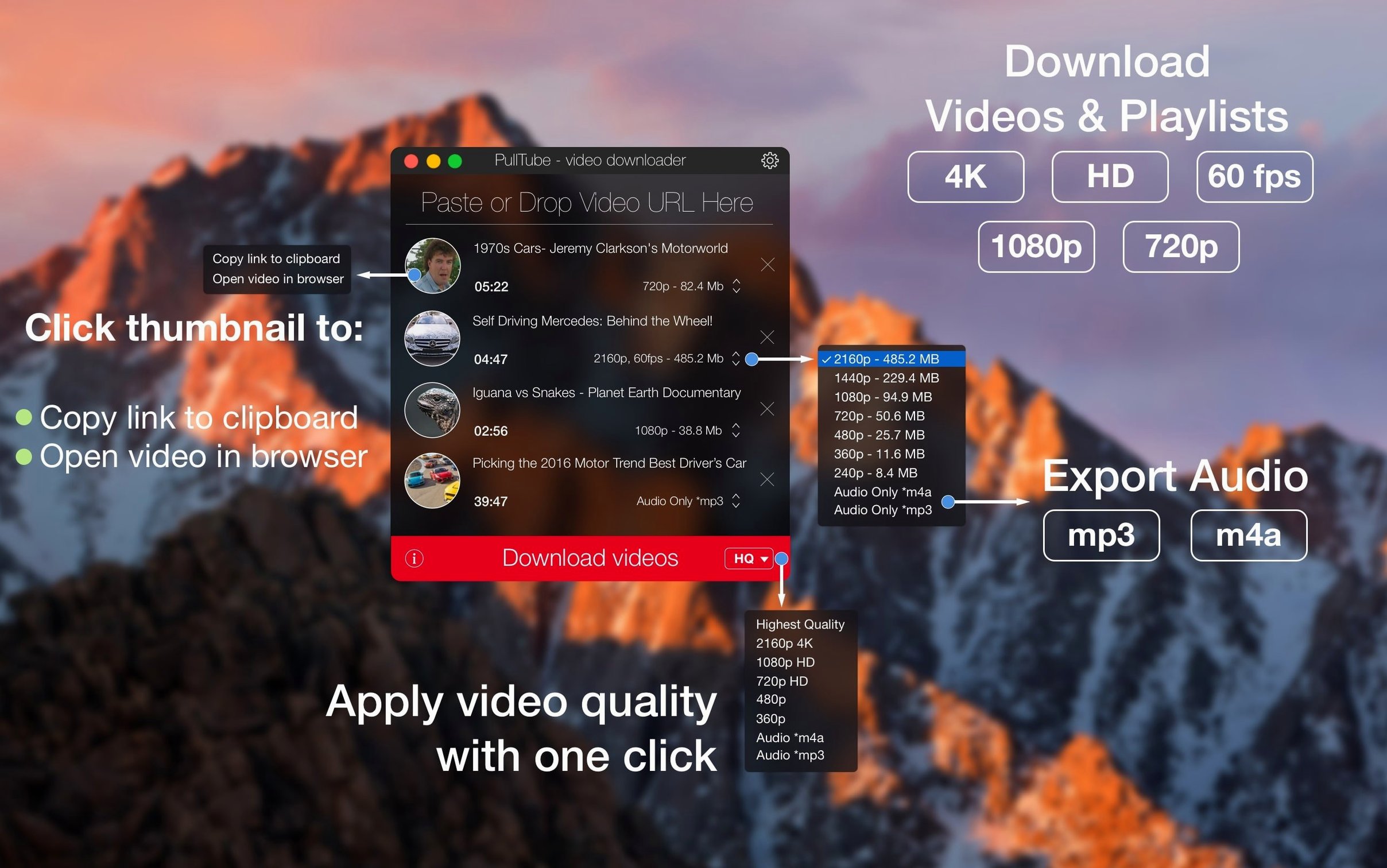
PullTube is a media downloader for macOS that works with YouTube and Vimeo. You can save video at quality levels from normal up to 4K, or extract audio as MP3 or M4A. The app detects playlists from pasted links, and you can also drag and drop links directly into the window. It runs on macOS 11 or later, on both Intel and Apple Silicon.
Questions before you install
People often ask about system requirements and whether it saves only audio. The answer to the first is macOS 11 or newer, with no architecture restrictions. The second is yes—choose audio-only mode and pick MP3 or M4A as the output format. That covers the main concerns before you try it.
Check output preferences before your first paste
When you first launch PullTube, take a moment to check the output preferences. The app defaults to video downloads, but switching to audio-only mode early saves you from re-downloading later. Open the settings panel before your first paste—this avoids the habit of rushing through a download and wondering where the file went.
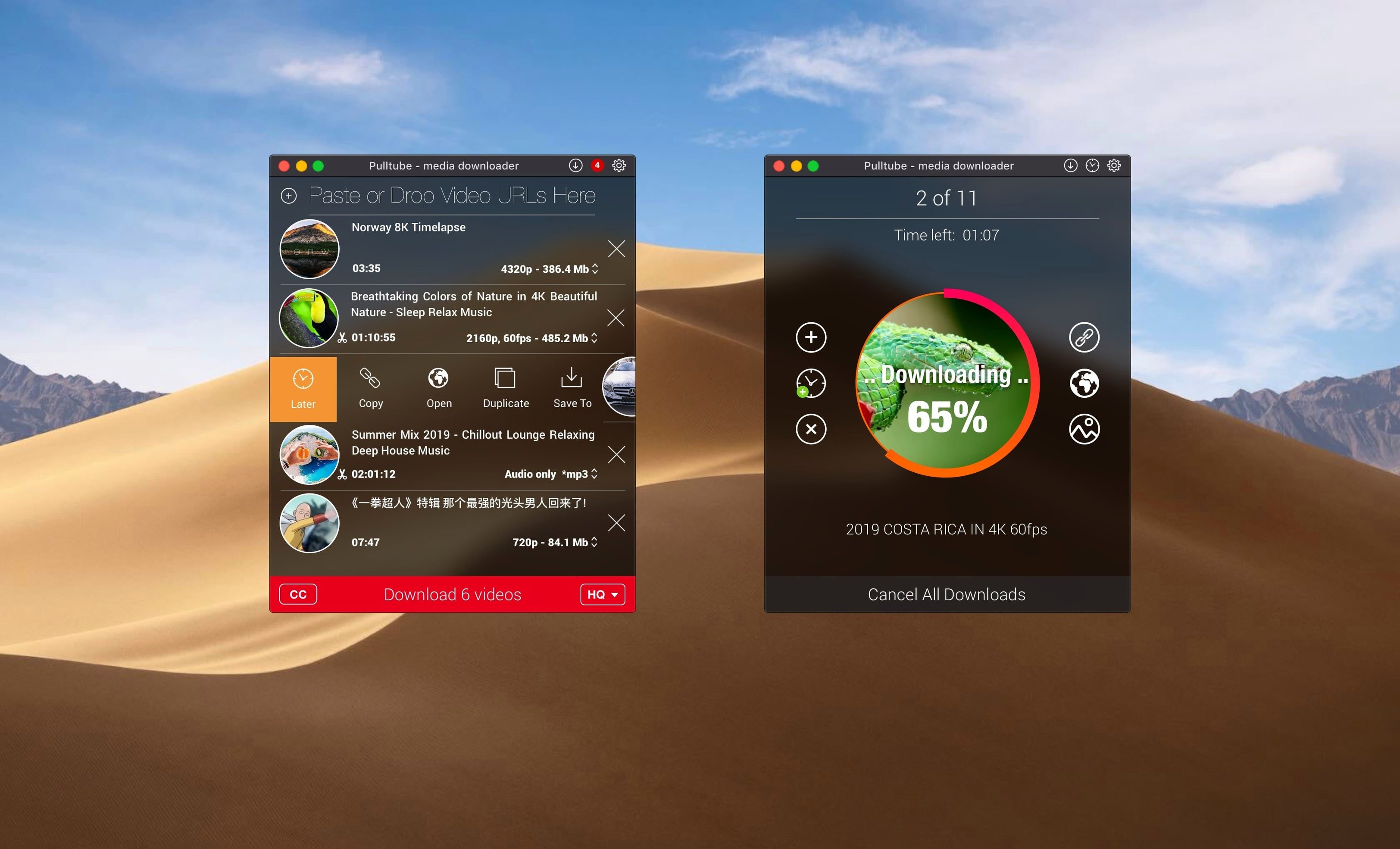
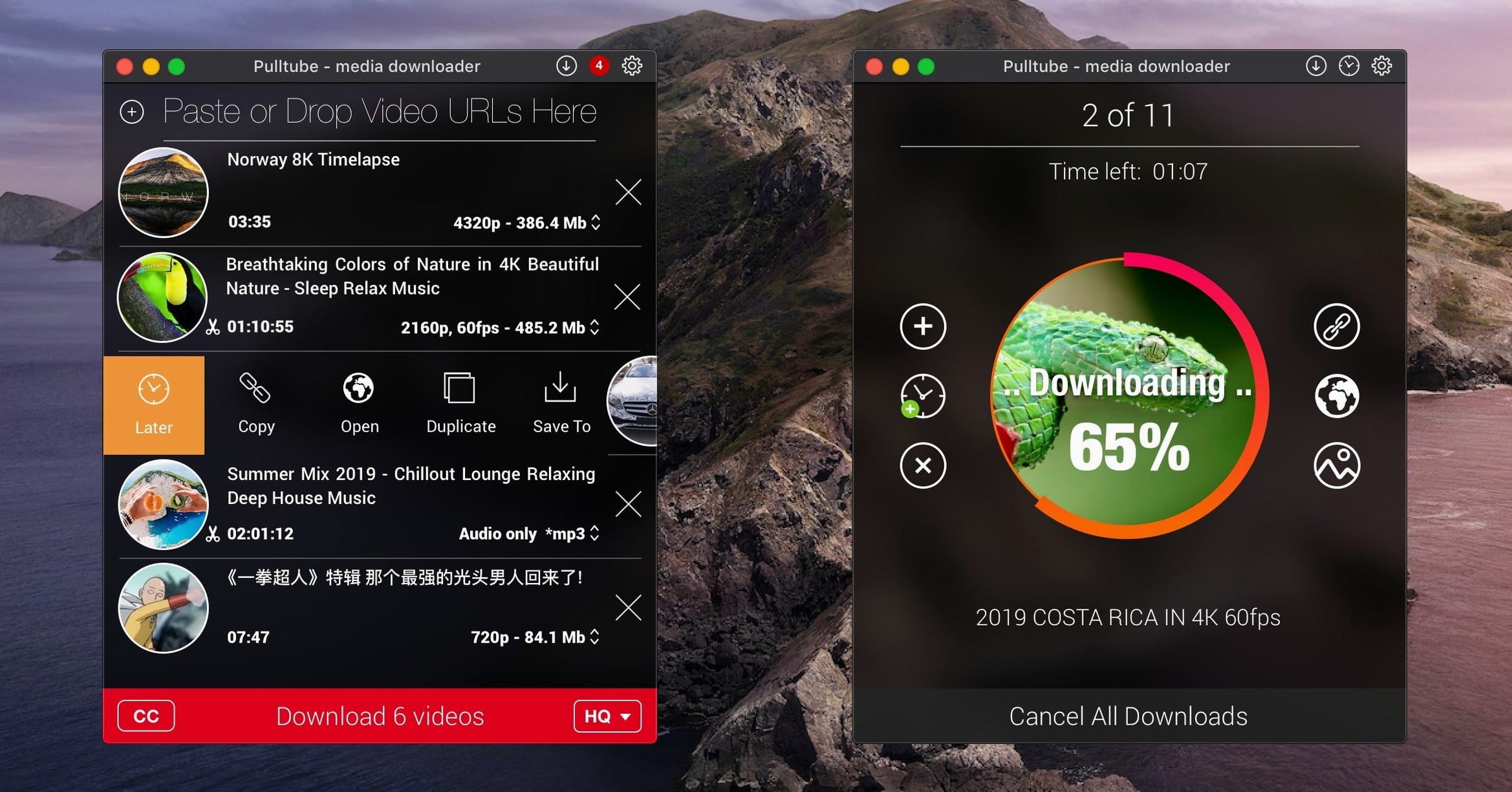
Keep the app window visible while you test the first few links. PullTube shows the video title, duration, and thumbnail before you confirm a download. This preview stage is where you verify you have the right link, especially with playlist detection. The app can grab an entire playlist from a single URL, but double-check the list before hitting download.
Organize your output folder from the start. PullTube saves files to a default location by default, but you can change that in preferences. A dedicated Downloads folder for video files keeps things tidy. The app also lets you append quality information to the file name—enable this early if you plan to store multiple versions of the same video.
Collecting tutorial videos from YouTube for offline reference
Imagine you are collecting a few tutorial videos from YouTube for offline reference. You copy a link from your browser and switch to PullTube. The app is already open, sitting in a corner of the screen. You paste the URL into the main field, and the preview loads almost immediately—title, duration, and a thumbnail appear.
You click the audio toggle, select MP3 as the format, and confirm the download. The app starts saving the file to your chosen folder. While it runs, you copy another link—this time a playlist of five short clips. You paste it, and PullTube detects the playlist automatically. The preview lists all five videos with their thumbnails and durations.
You select all of them and start the batch download. The app processes them one by one, and you set it to quit after all downloads finish. You leave your Mac and come back to find the files waiting in your folder, ready to move to a phone or tablet.
Later, you drag a Vimeo link directly into the PullTube window. The same preview appears, and you download it at the highest quality available. The whole session involves three pastes, one drag, and a few clicks—no extra tools or browser extensions needed.
Runs natively on Intel and Apple Silicon without Rosetta
PullTube requires macOS 11 or later. It runs natively on both Intel and Apple Silicon Macs, so no Rosetta emulation is needed on newer hardware. The app is lightweight in the sense that it does not install background services or kernel extensions—it is a standard application you drag into your Applications folder.
During the first launch, you will see the Gatekeeper warning. The install instructions involve mounting the disk image, pressing Enter in Terminal to bypass Gatekeeper, and then dragging the app to Applications. This is a one-time step. After that, the app runs like any other macOS program.
The interface shows a single window with a paste field and preview area. The language can be set to Russian, English, German, Spanish, Italian, Simplified Chinese, or French—change it in preferences if English is not your primary language.
Set output folder and file name format with quality info
Three settings improve the experience from the start. First, the output folder—set it to a location you check regularly, like a Downloads subfolder. Second, the file name format. Enabling the option to append quality information to the file name helps distinguish between a 4K copy and an HD copy later.
Third, the auto-quit option. If you download large playlists or multiple files, turn on "quit after all downloads finish." This prevents the app from sitting idle in your Dock after a batch job. These settings take effect immediately and require no restart.
- macOS 11 or later
- Intel or Apple Silicon
Questions from the notes
Can PullTube save only the audio from a video?
Yes. You can choose audio-only mode and extract the sound as MP3 or M4A files.
What macOS versions does PullTube support?
According to the developer, PullTube works on macOS 11 or later, on both Intel and Apple Silicon Macs.
Install procedure
- Mount the disk image and run Open Gatekeeper friendly.
- Press Enter in Terminal to bypass Gatekeeper.
- Drag the app to the Applications folder.
- Launch the app.
Reports from players
Sign in or create a tester account to file a report.
No reports filed yet.