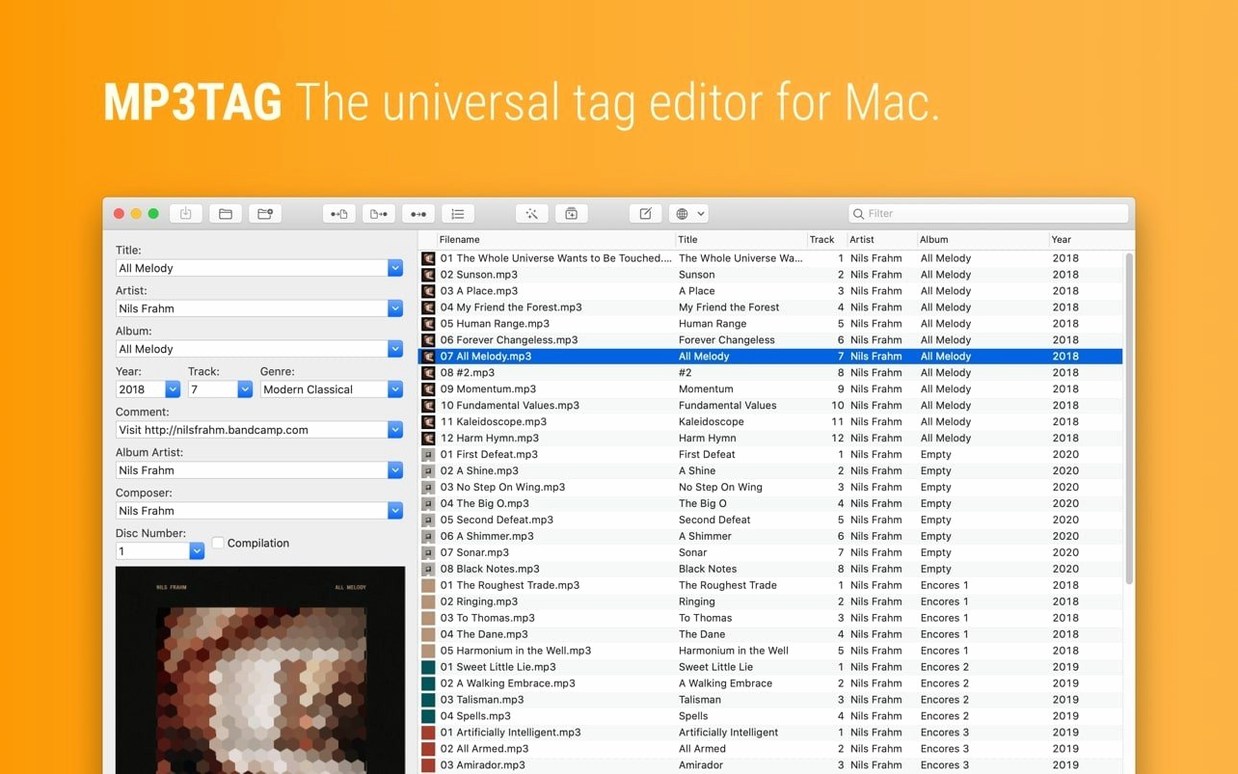
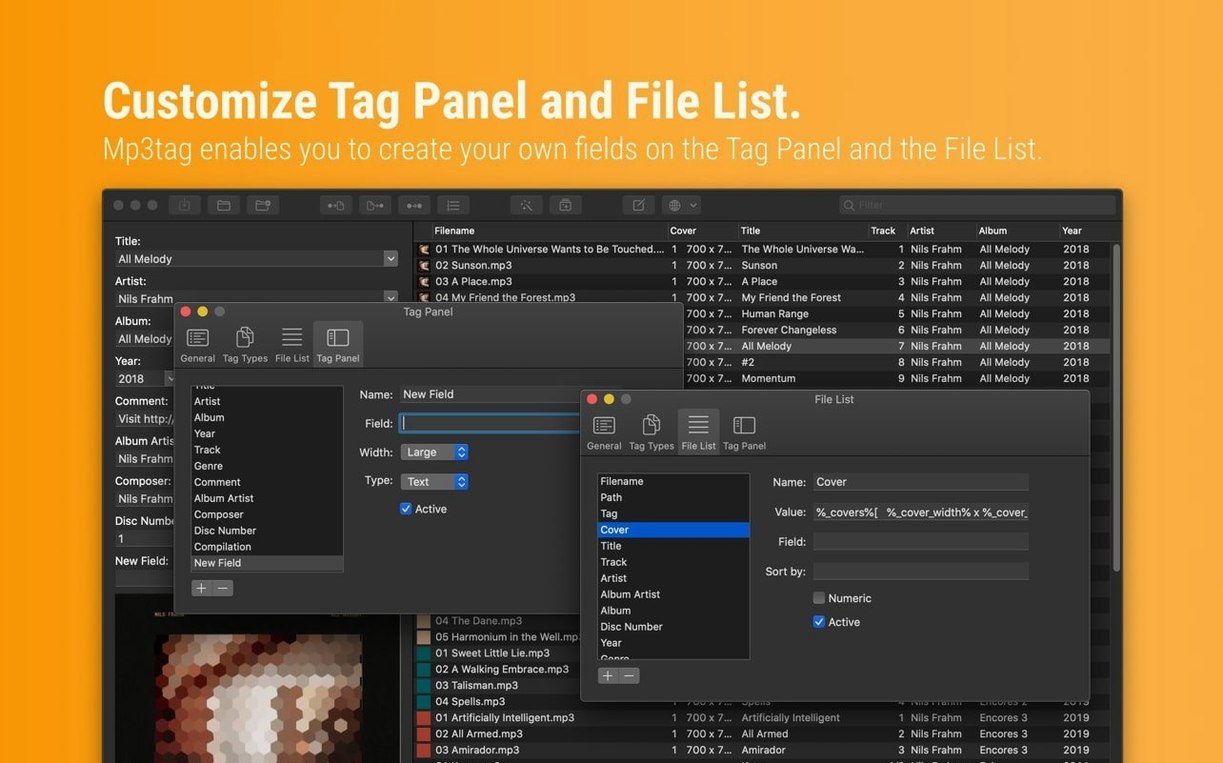
Mp3tag handles more than 20 audio formats and edits metadata for hundreds of files in one pass. It is the Mac port of the long-running Windows utility, aimed at anyone who maintains a music library and wants consistent tags without opening files one by one.
Batch-edit tags and rename files from tag data
- Batch editing of tags across multiple files simultaneously.
- Renaming files based on tag information, or writing filenames back into tags.
- Importing tag data from external sources.
- Adjusting embedded cover art size and format.
- Grouping repeated operations into action groups for one-click workflows.
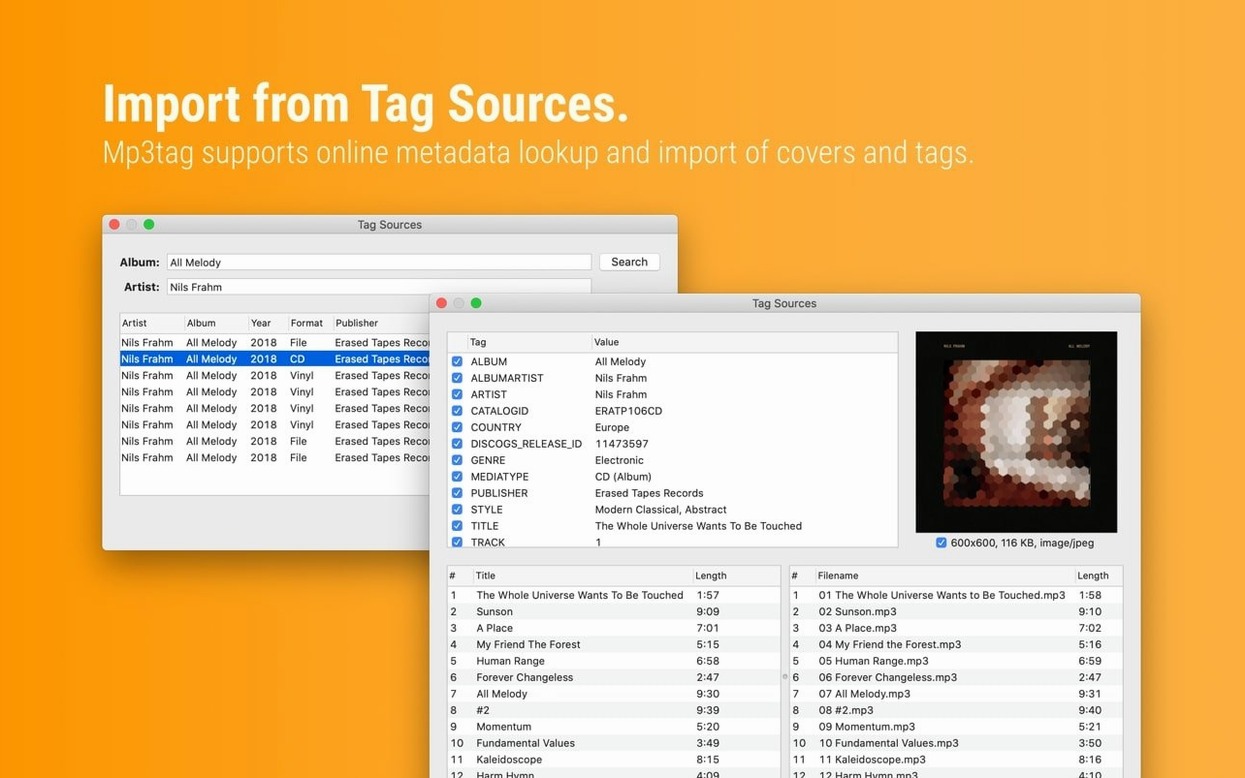
- Searching Discogs and MusicBrainz for metadata and cover images.
A tool for DJs, podcast editors, and home CD rippers
This is a tool for people who organize large libraries and care about consistent tagging. DJs, podcast editors, and home users ripping CDs all fit. It also works well for correcting genre spelling, normalizing artist names, or embedding proper artwork across a whole folder. The interface is plain and dense, which suits the job. Requires macOS 10.14 or later and runs on both Intel and Apple Silicon.
Fix inconsistent artist names like 'Feat.' versus 'ft.'
Music collectors with sprawling libraries of ripped CDs or downloaded FLAC files are the primary audience. A folder of 500 tracks that mix "Feat.", "feat.", "ft." and "with" in the artist field is unusable in any player until you fix it, and Mp3tag handles that in one pass. Podcast editors benefit from batch-writing episode numbers and dates to MP4 tags before publishing. DJs who maintain crates of mixed-format files — MP3, AIFF, WAV, FLAC — get a single interface to correct tagging inconsistencies across all of them before loading into rekordbox or Traktor. Anyone who has manually retyped the same artist name 80 times will understand the point.
The app also suits people who work with legacy files from multiple sources. If you have old MP3s with ID3v1 tags alongside newer FLACs with Vorbis comments, you can standardize them to a modern format without retagging each file individually. The batch approach is what separates it from using iTunes or Music's built-in editor.
A typical session
Monday afternoon. You have a folder called "Compilations - 2025" with 230 tracks from various sources. Some files are named "01 Track Name.mp3", others are "Artist - Title.flac". Cover art is missing from half of them.
First, you drag the folder onto Mp3tag's file list. It populates in seconds — all 230 files, showing existing tags, filenames, and format icons. You select all, then run a Tag Source lookup against MusicBrainz. For the 23 unmatched files, you manually type corrections into the Tag Panel, tabbing between fields.
Next, you use the Convert menu to resize embedded cover art to 500×500 pixels across the whole selection, which saves disk space. Then you run a Rename action to produce "Artist - Title.mp3" format for every file, using the now-corrected tags. You replace problematic characters too — all colons and question marks become dashes via a single Replace operation. The whole job, from drag to done, takes about ten minutes.
You finish by exporting a quick text list of the new filenames to paste into a spreadsheet. The app stays open in case you spot a mismatched genre on the last track.
Changes in version 1.14.1
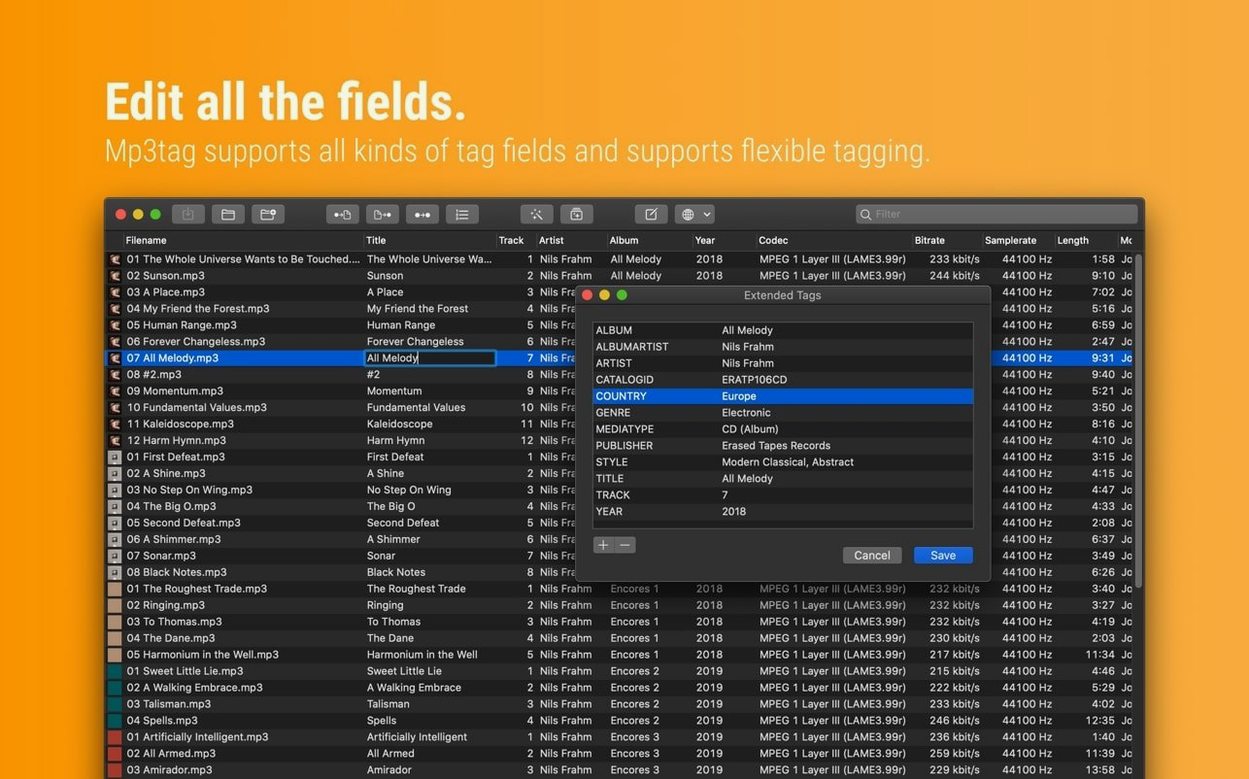
Version 1.14.1, dated September 2026, fixes three crashes and data-loss bugs that affected everyday use. The most immediate fix is that cover changes made in the Tag Panel are no longer discarded if you used Extended Tags before saving — a scenario that caused artwork to disappear after editing comment fields. Similarly, unsaved Tag Panel changes are now preserved when you use Cover Search, Tag Sources, Converters, Auto-Numbering, or Actions. Previously, modifying a tag and then running any of those tools would lose your unsaved edits.
A crash when adding action groups in the Actions Groups window on macOS 27 is resolved. Decimal BPM values are no longer truncated to integers when writing MP4 tags, which matters for DJs who rely on precise tempo information. These are targeted fixes that remove friction from common workflows, not feature additions.
Learn the Tag Sources panel with 20 test files first
Start with a small folder you do not care about — maybe 20 test files — and learn the Tag Sources panel. MusicBrainz and Discogs lookups are the fastest way to populate a library, but results depend on how well your files match the database. Experiment with the Action Groups window to chain a lookup, a rename, and a cover resize into one click. Once you get the pattern right, save it for reuse.
Get comfortable with the file list view. You can sort by any column and select non-contiguous files with Command-click, which helps when fixing only the tracks from a specific artist in a mixed compilation. The Replace function (under Convert → Replace) is a quick way to fix common spelling errors. For example, replace "Björk" with "Bjork" if your player cannot handle diacritics in filenames.
Keep a backup of your originals before the first big batch job. Mp3tag writes changes directly to the files — there is no undo for overwritten tags. If you are working with FLAC or AIFF, export a small tag list first to verify the fields parse correctly. Once you trust the process, you can clean a thousand files in one go.
Version 1.14.2 is a maintenance update with no user-facing changes listed.
- macOS 10.14 or later
- Intel 64-bit
Questions from the notes
Does Mp3tag for Mac support Apple Silicon?
Yes, the app runs natively on both Intel (64-bit) and Apple Silicon Macs.
Install procedure
At 13 MB this download needs next to no space and runs on any Intel Mac still on macOS 10.14 Mojave or newer. Four steps and the app is open.
- Mount the disk image and launch Open Gatekeeper friendly.
- Press Enter in the Terminal window that appears to bypass Gatekeeper.
- Drag the application into your Applications folder.
- The app is ready to use.
Reports from players
Sign in or create a tester account to file a report.
No reports filed yet.