Dropover 5.3.0 runs on macOS 12.0 or later on both Intel and Apple Silicon Macs. It shares the drag-and-drop space with applications you already use — Finder, Safari, Mail — without replacing anything.
gather files across windows
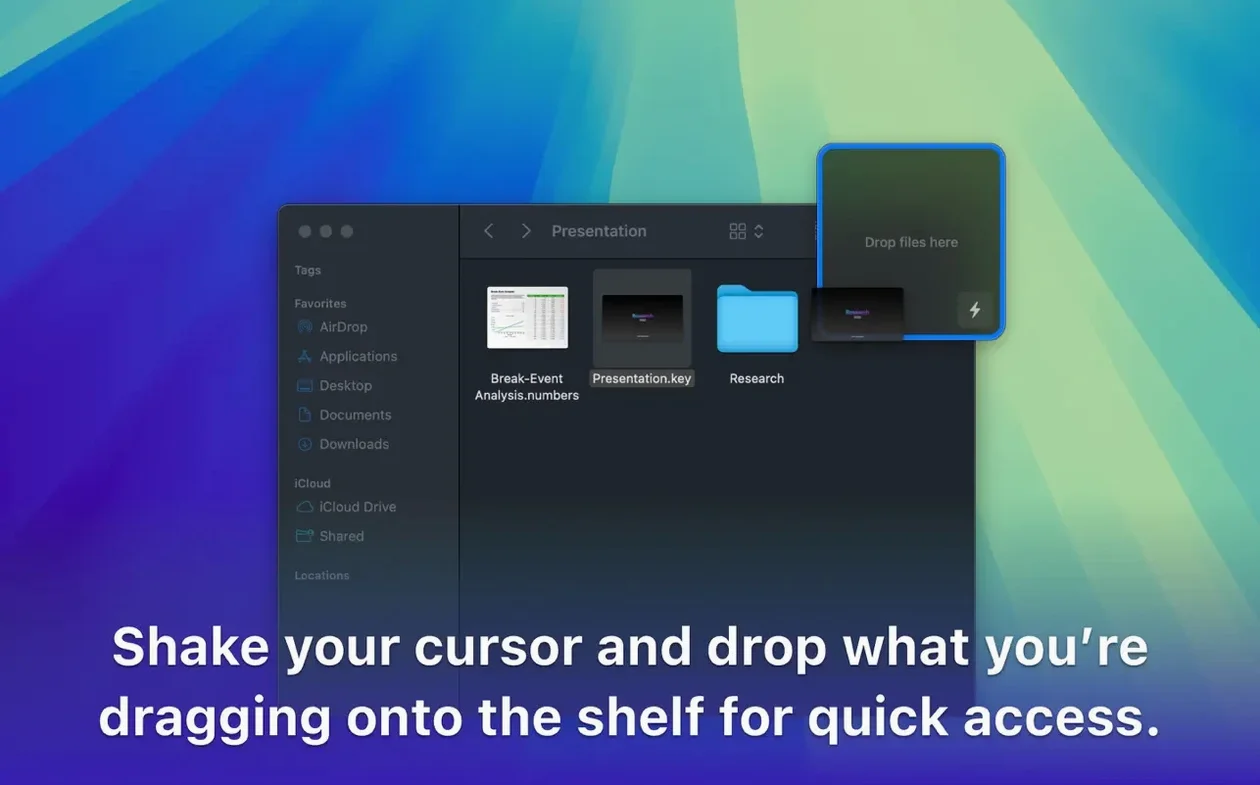
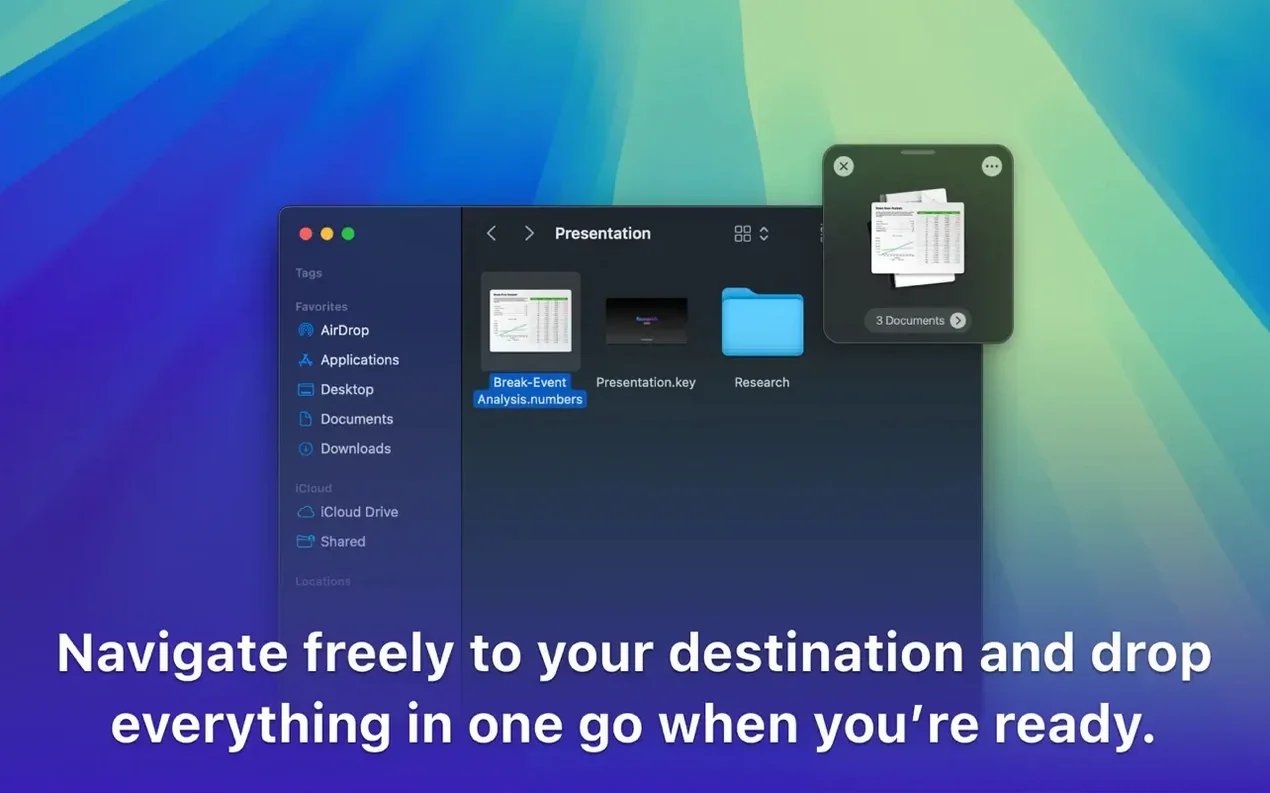
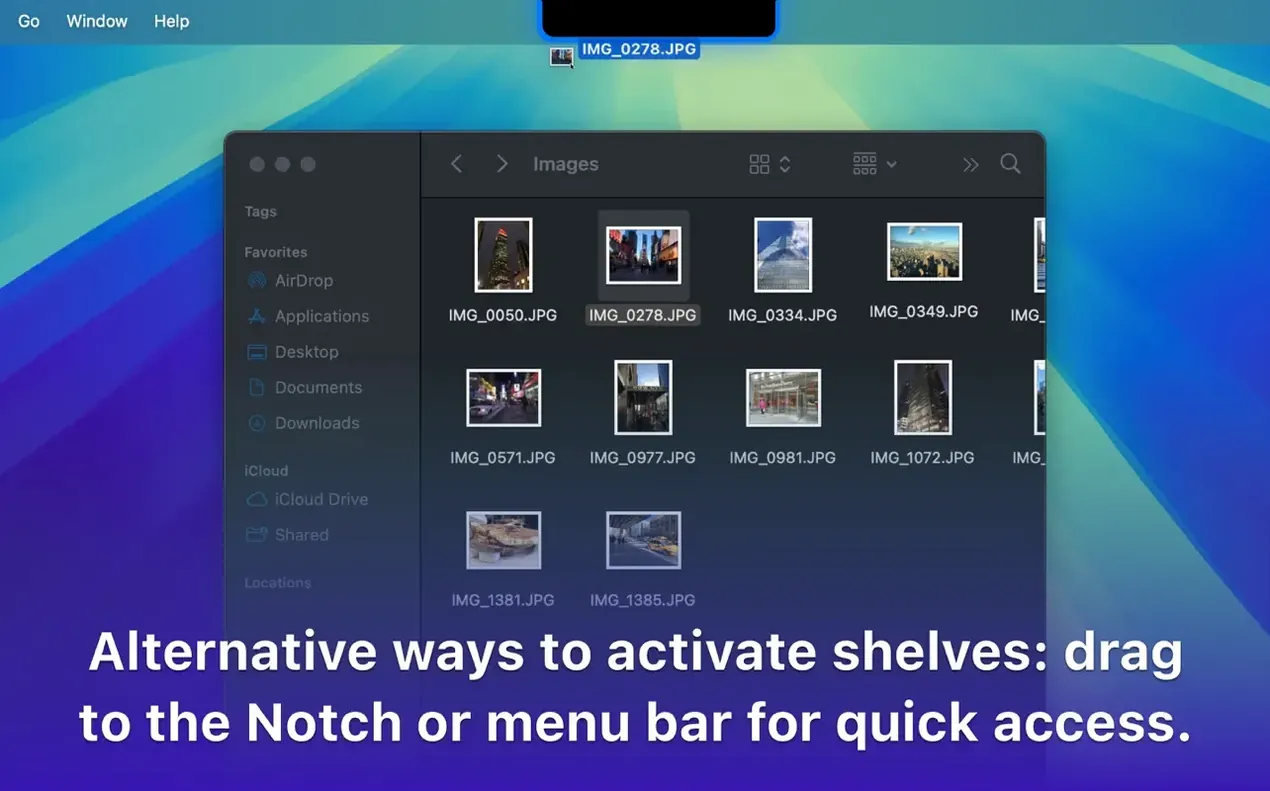
Drag files, folders, images, links, or text onto the temporary shelf that stays on screen while you switch between apps and workspaces. The shelf works like a staging zone before you move everything to its final destination.
move items between apps
Grab content from one application, drop it onto the shelf, then pick it up in another window. The shelf integrates with right-click context menus and macOS share sheets so you can send items to other services without leaving the drag.
organize from the shelf
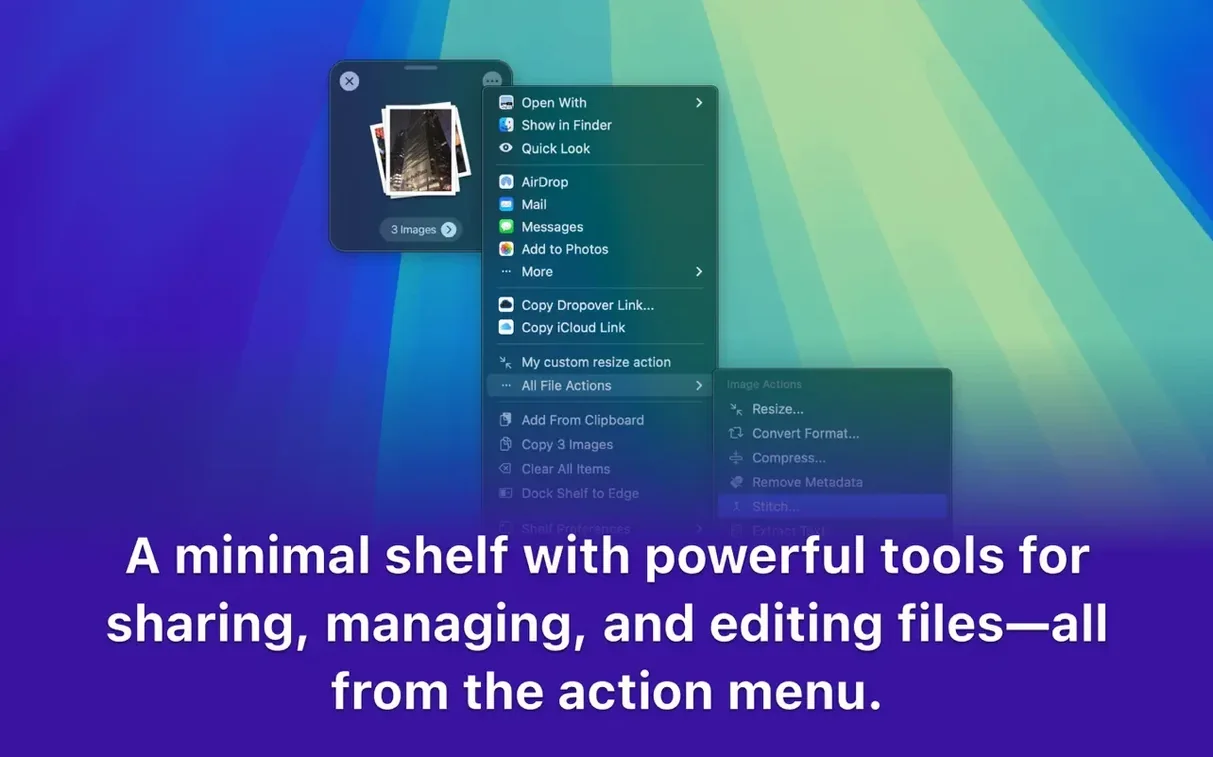
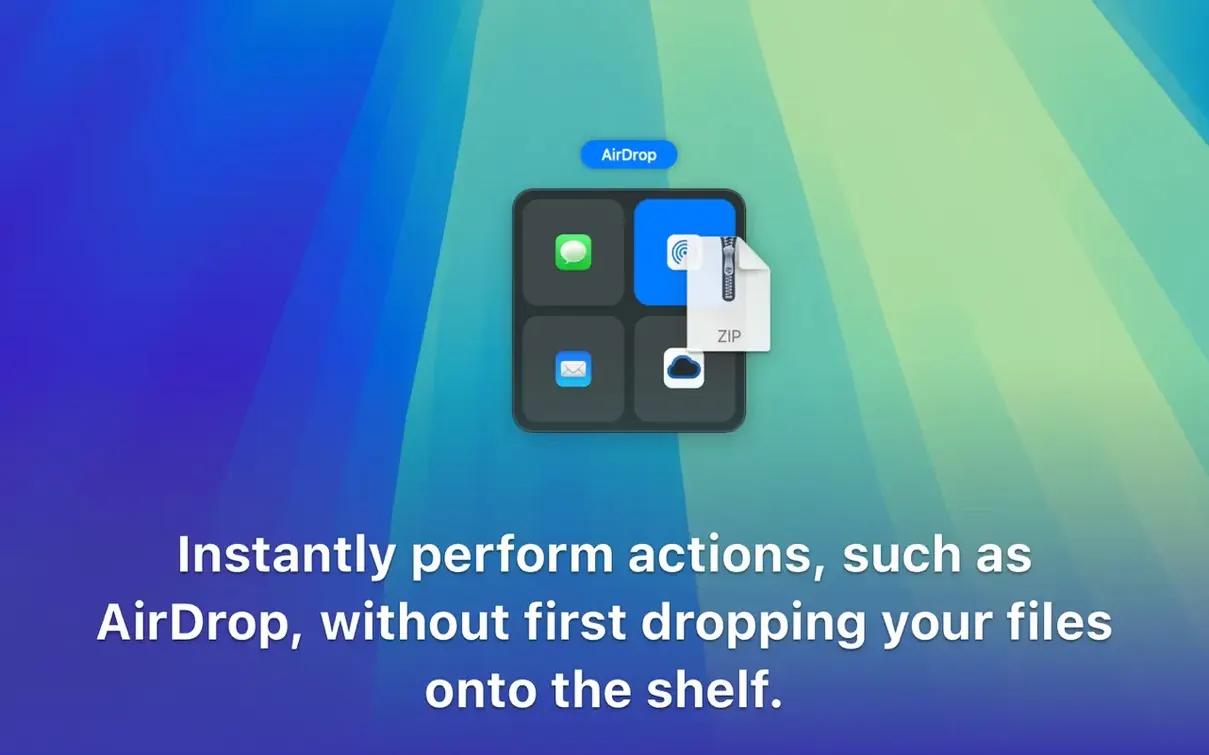
Dropover can archive, rename, or share items directly from the shelf. It also works with cloud services such as Google Drive and Dropbox, so you can stage files before moving them to synced folders.
works with what you already have
Dropover sits alongside macOS share sheets and context menus rather than replacing them. When you right-click a file in Finder, Dropover appears as an option, letting you send items to the shelf without opening the app first. The same applies to the share sheet in Safari or Mail — select "send to Dropover" and the item lands on the shelf for later use.
The utility also supports macOS Shortcuts, so you can build automated workflows that move files through the shelf. A Shortcut could watch a download folder, send new files to the shelf, then trigger a rename and upload to a cloud service. The shelf becomes a midpoint in a longer process instead of just a temporary holding area.
support for simplified Chinese and Dutch
No official release notes were available for version 5.3.0, so the changes are inferred from what the app now does. The shelf supports Simplified Chinese and Dutch in addition to English and German, which broadens its utility for teams or multilingual setups. The installer is a standard disk image that you mount, drag to Applications, and launch — no extra steps or background services to configure.
The activation method shipped with the build, meaning you do not need to enter a license key or create an account. That makes reinstalling or moving the app to another Mac simpler, as long as you keep a copy of the disk image.
first days: practical tips
Start by dragging a single file onto the shelf, then switch to another app and drag it off. That confirms the shelf position works with your screen layout. Move the shelf if it overlaps with toolbars or document edges — it stays where you put it until you change the position in settings.
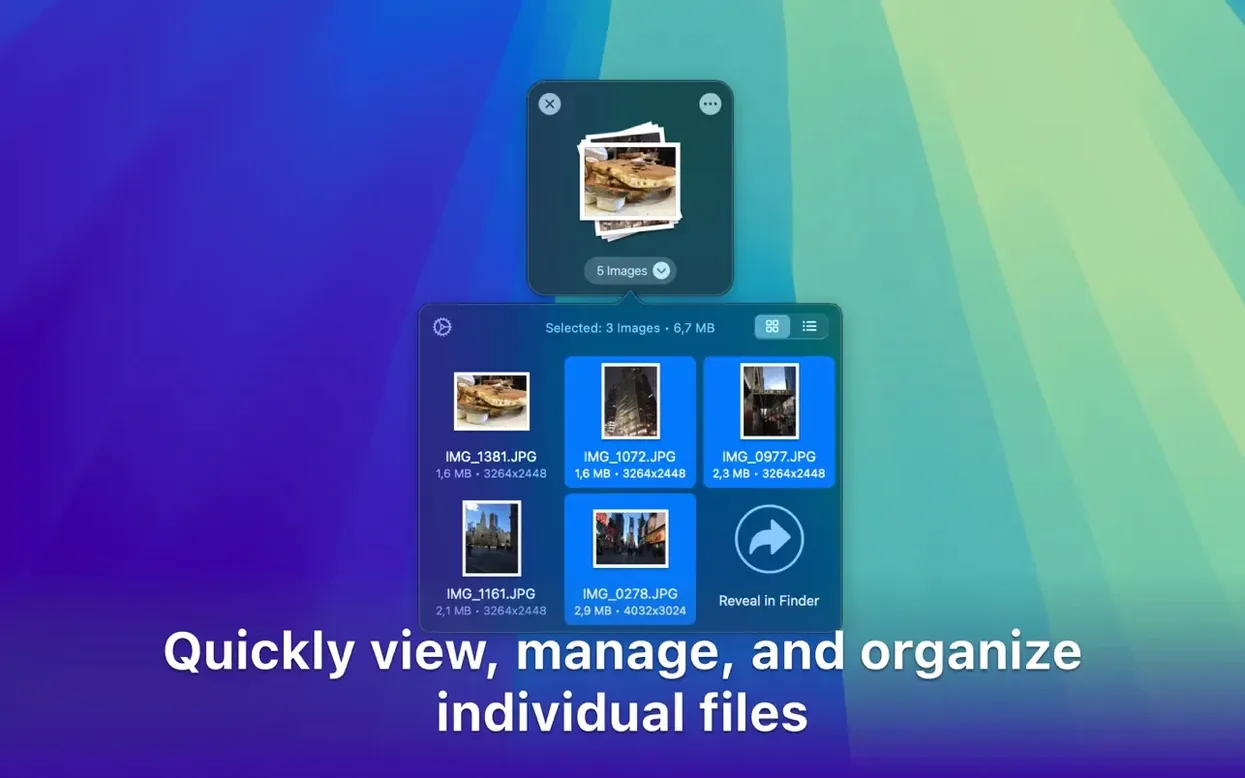
Try grouping files for a common task, such as gathering screenshots for a bug report or collecting reference images for a design. The shelf holds mixed content, so you can include links and text alongside files. Once gathered, drag the whole group into a message or a folder instead of moving items one by one.
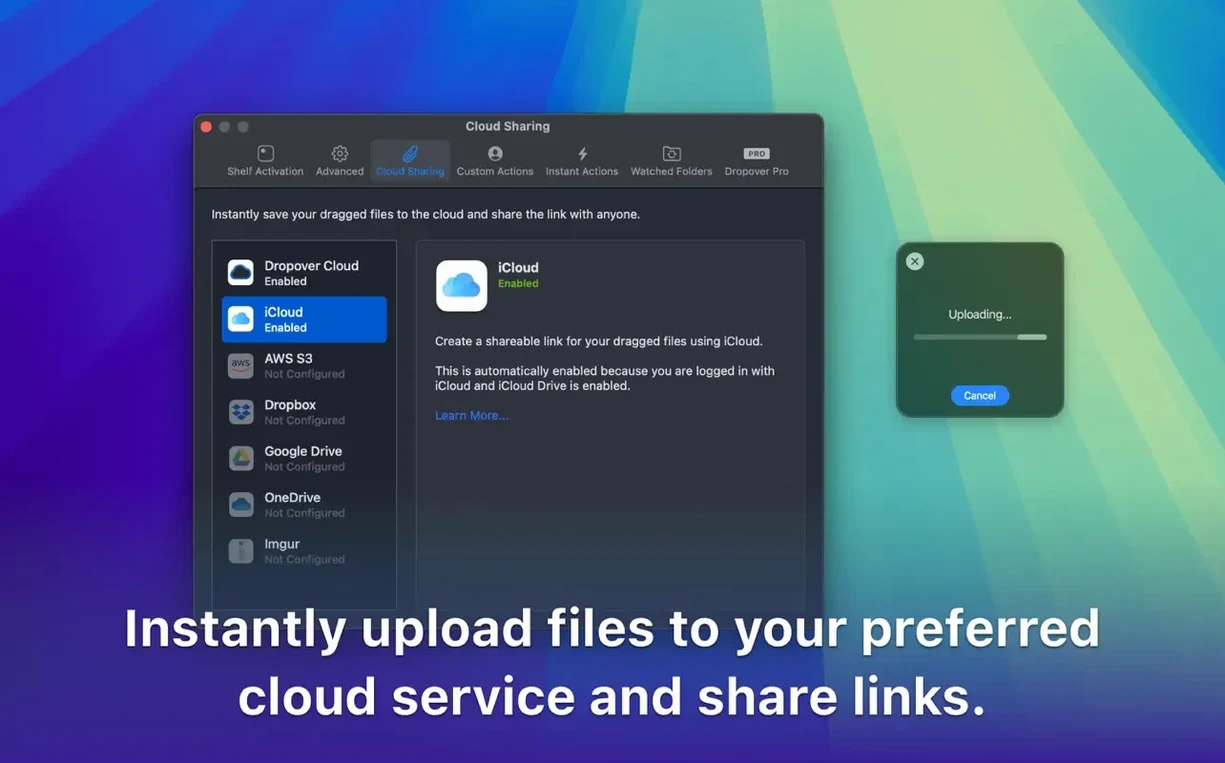
Test the cloud service integration early. Drag a file to the shelf, then use the share option to send it to Google Drive or Dropbox. If the cloud service is set up correctly, the file appears in your synced folder without extra clicks.
adjust shelf size and transparency to avoid blocking content
Open preferences and adjust the shelf size and transparency so it does not block content underneath. A smaller shelf with higher transparency works well for users who keep it on screen while working. Increase opacity if you often misplace the shelf among open windows.
Set a hotkey for showing and hiding the shelf. This lets you keep the shelf off screen until you need it, which reduces visual clutter. The hotkey also helps when you want to quickly stash a file without reaching for the mouse.
If you use multiple monitors, position the shelf on the screen that has the most drag-and-drop activity. The shelf stays on the same display until you move it, so placing it on a secondary screen keeps your main workspace clear.
- macOS 12 or later
- Intel or Apple Silicon
- English, German, Simplified Chinese, Dutch
Install procedure
- Mount the downloaded disk image.
- Drag the app to the Applications folder alias.
- Launch the app from Launchpad after copying finishes.
Reports from players
Sign in or create a tester account to file a report.
No reports filed yet.