dBpoweramp Music Converter 2026.09.13 — Mac build
Utilities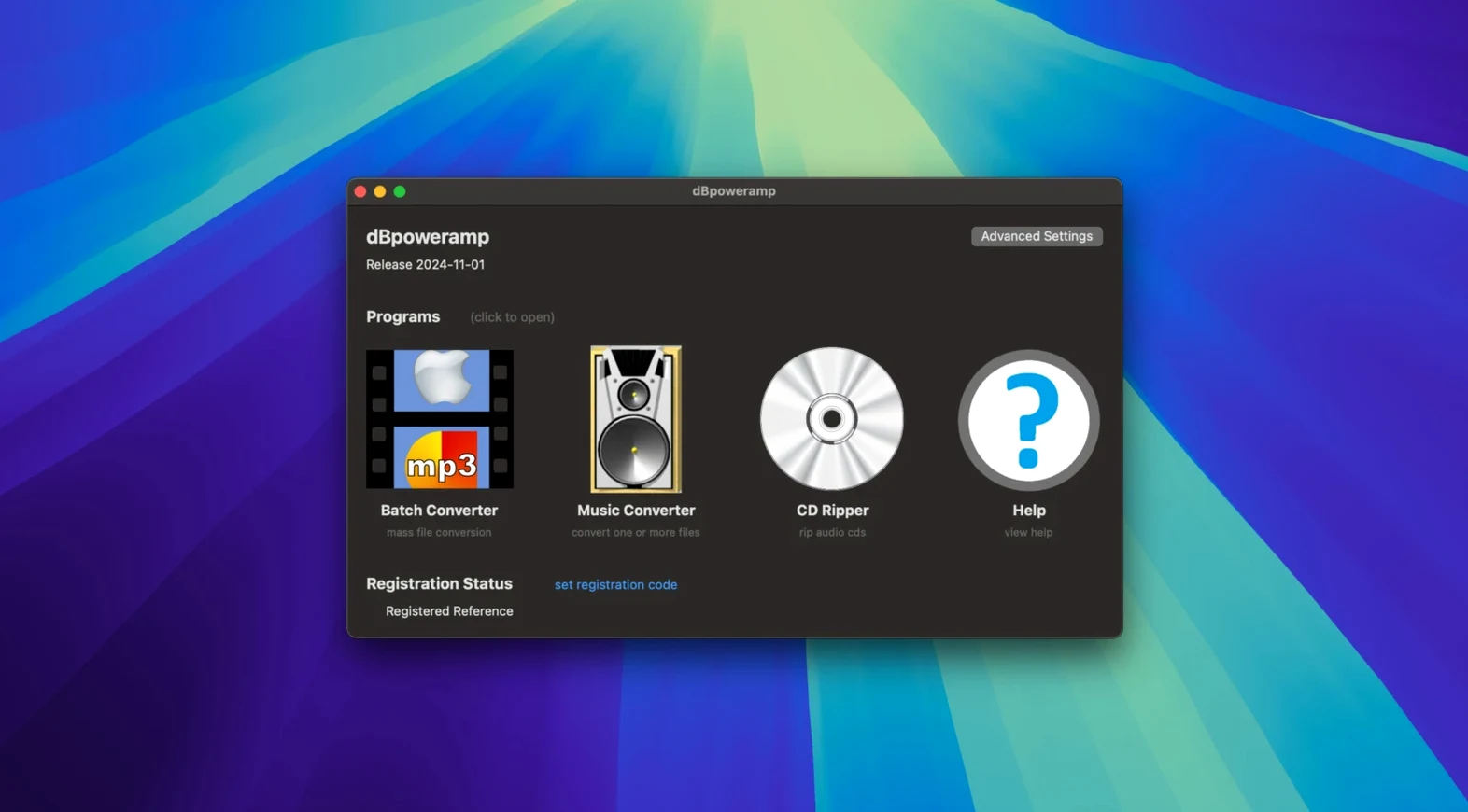
For large FLAC libraries that need occasional MP3 copies
dBpoweramp Music Converter fits a few specific scenarios better than general-purpose audio players or free converters. Audio collectors who maintain large libraries in FLAC or Apple Lossless and occasionally need to produce MP3 or M4A copies for portable devices will find the batch tools and tag preservation useful. Users who archive vinyl or cassette rips often end up with high-bit WAV or AIFF files; the DSP processing lets them normalize levels and down-convert to a more manageable format in the same step. Podcast editors who receive raw audio in mixed formats — WMA from one guest, M4A from another — can standardize everything to a common codec before editing. The Finder integration means the conversion option is available without launching the full application each time, which saves a few clicks during daily work. Less useful for someone who only plays music in iTunes or Music without ever converting: the app's value shows up when you move files between devices or platforms.
A conversion workflow from start to finish
The process runs entirely from Finder once dBpoweramp is installed.
- Select the FLAC files in Finder, right-click, and choose Convert with dBpoweramp from the context menu. The Music Converter window opens with the selected files already listed.
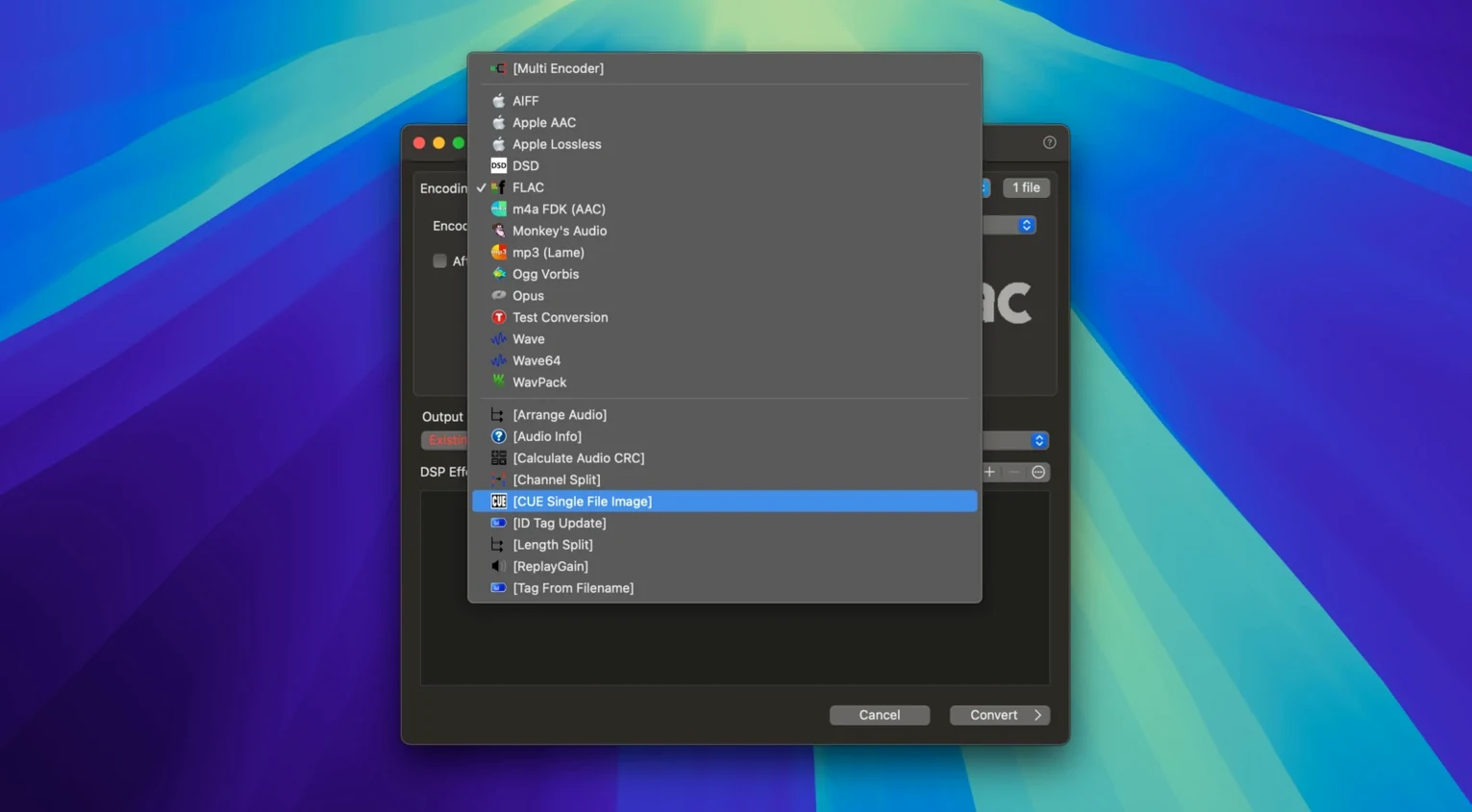
- In the output format dropdown, pick MP3 and set the bitrate to 320 kbps. The app remembers your last settings, so this step is faster on repeat conversions.
- Under DSP effects, enable volume normalization to avoid level jumps between tracks. If the source files are 24-bit, also set a bit-depth conversion to 16-bit — car audio systems rarely benefit from the extra bits.
- Choose a destination folder. The app preserves the original folder structure if you check that option; otherwise it dumps everything flat into one folder.
- Click Convert. The multi-core encoding splits the work across available CPU cores, so a typical album finishes in under a minute.
- When done, the ID tags and embedded album art carry over to the MP3 files automatically. Check a few tags with the ID Tag Editor if you want to tweak the genre or add a comment before syncing to the car.
The same workflow applies for other source-and-target combinations: AIFF to FLAC for storage, WMA to M4A for iTunes, or Apple Lossless to high-bitrate AAC for mobile use.
Test a single file before batch-converting a hundred tracks
- Right-click a single audio file in Finder and choose Convert with dBpoweramp before processing a folder. This tests your output format, bitrate, and DSP settings on one file, so you don't batch-convert a hundred tracks only to find normalization clipped the peaks.
- In the ID Tag Editor, use the multi-select feature to apply the same artist or album field to several tracks at once. The Enter key fix in version 2026.09.13 means you can confirm the field entry without accidentally closing the window.
- Keep a small test folder with one file per format you own. Run a conversion pass on that folder after updating dBpoweramp to confirm the resampling or format support still behaves as expected.
- If you convert the same format repeatedly — FLAC to MP3 every week — the app saves your last output settings. Just reselect the source files and go; no need to reconfigure bitrate or DSP each time.
- Batch Converter is useful when splitting a large folder by format: queue some files to FLAC, others to MP3 in the same session, then run all conversions together.
Converted files import into Apple Music and other players
Does dBpoweramp work with Apple Music or iTunes after conversion?
The converted files carry standard ID3 or Vorbis tags, so they import into Apple Music, iTunes, Plex, or any player that reads the target format. The app does not sync or manage playlists — it handles the conversion and metadata, and you handle the rest.
Can I convert a whole iTunes library without losing album art or ratings?
The app preserves embedded artwork and standard ID tags during conversion. iTunes ratings are stored in a separate database, not in the file tags, so those do not carry over regardless of the converter. Album art embedded in the source file does transfer.
Will it convert lossy to lossless?
Technically yes — the app will convert an MP3 to FLAC — but the result is a lossless container holding the same compressed audio. No quality is restored. The workflow is useful for unifying storage formats, not for quality recovery.
How does the macOS version compare to the Windows version?
The macOS version shares the core converter, DSP processing, ID tag editor, and CD Ripper. The interface is slightly rearranged to match macOS conventions, and the Finder integration replaces the Windows Explorer right-click menu. Feature parity is high for the conversion and tagging tasks that most users need.
Does it run on Apple Silicon natively or through Rosetta?
The build supports ARM and Intel 64-bit architectures natively under macOS 11 or later. No emulation layer is required on Apple Silicon machines.
- macOS 11 or later
- Intel 64-bit or Apple Silicon
- Interface: English
Questions from the notes
Does dBpoweramp run on Apple Silicon Macs?
Yes, the current version supports both Apple Silicon and Intel 64-bit Macs natively.
Does the macOS version include CD Ripper?
Yes, the macOS help page confirms CD Ripper is part of the application.
Install procedure
Reports from players
Sign in or create a tester account to file a report.
No reports filed yet.