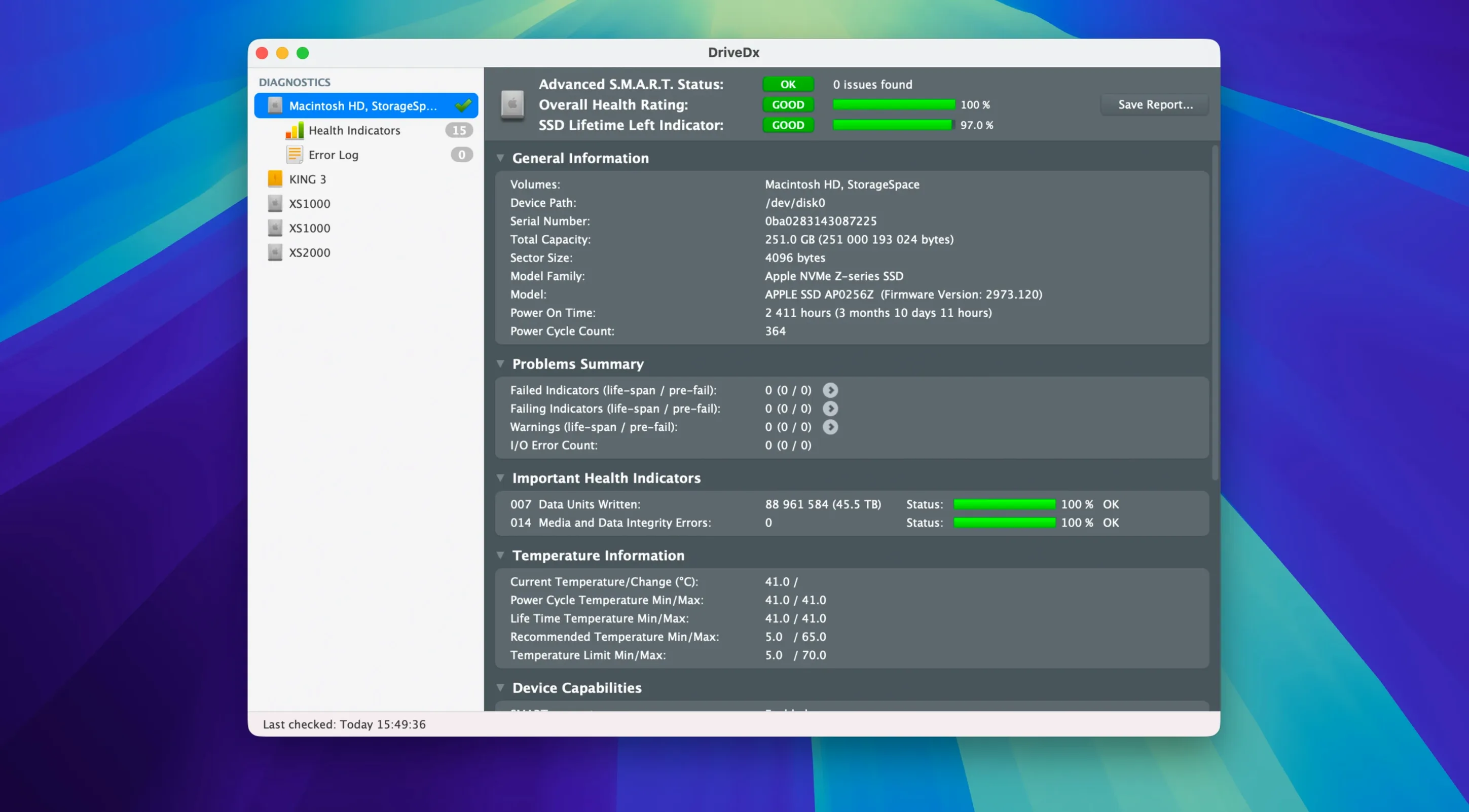
DriveDx 1.12.1 is a maintenance release, but it packs a few notable changes. It's now ready for macOS Sonoma, the driver installer no longer requires Rosetta 2, and diagnostic algorithms and heuristics got a refresh. Support for Patriot P200 SSDs also improved, so if you own one of those, this update is worth grabbing.
DriveDx itself is a third-party utility that keeps an eye on your HDD or SSD's health. It tracks SSD wear, reallocated sectors, pending bad sectors, I/O errors, and drive performance. Using heuristic algorithms, it can predict drive failures before they happen, giving you time to back up. Health states go beyond the usual OK and failed — you get warnings and failing states in between, so you know when something's trending wrong.
It can run in the background and periodically check your drives, and it includes short and full self-tests. That means you don't have to wait for a crash to find out a drive is dying.
Before installing, people usually ask about macOS compatibility and whether it works on Apple Silicon. DriveDx runs on both Intel and Apple Silicon Macs, and it needs macOS 10.9 Mavericks or later. The interface is in English. Installation is straightforward: mount the disk image, drag the app into Applications, and launch it from Launchpad.
Scan all connected drives for SMART health
I open DriveDx maybe once a week or when I hear a drive doing something odd. The first thing it does after launch is scan all connected drives for their SMART status. On a typical session, I see a list of my internal SSD and any external drives I have plugged in. Each one shows a health state — OK, warning, or failing — and a few key metrics like temperature, power-on hours, and reallocated sectors.
If I want more detail, I select a drive and run a short self-test. That takes a minute or two. For a deeper check, I schedule a full self-test when I know I won't need the machine for a while. During that test, I can leave it in the background and keep working, though the drive will be a little slower than usual. The test runs, finishes, and the results show up in the drive details pane.
For drives I monitor regularly, I set up background monitoring. That means DriveDx checks the drive at intervals I choose and sends a notification if something changes — like a spike in pending bad sectors or a drop in SSD remaining life. I get a macOS notification, and I can open DriveDx to see what triggered it. That way, I don't have to remember to check manually every day.
Change notification thresholds that catch early warnings
DriveDx has a few features that aren't obvious at first glance but make a difference over time. The health change notification thresholds are one. Version 1.12.1 updated those thresholds, meaning the app is better at telling you when a small change is actually worth paying attention to, not just noise.
- Multiple health states. Beyond OK and failed, DriveDx uses warning and failing states. That extra granularity helps you act before a drive is completely gone.
- Short and full self-tests. The short test is quick for a regular checkup. The full test scans every sector and takes longer, but it catches issues the short test might miss.
- Background monitoring. Once you enable it, DriveDx runs quietly and only interrupts you when something needs attention. No need to leave it open.
- Notifications on problems. When a drive's health changes, you get a macOS notification. You don't have to check the app daily.
Driver installer no longer requires Rosetta 2
DriveDx is mostly straightforward, but a few things trip people up, especially on newer Macs or after an OS update.
- Driver installation fails or requires Rosetta 2. In version 1.12.1, the driver installer no longer needs Rosetta 2, so this should be less of an issue on Apple Silicon Macs. If you still get a prompt about Rosetta, make sure you're running the latest version. If the driver fails to install, check that your system allows kernel extensions — sometimes security settings in macOS need to be adjusted.
- Drive not detected. If an external drive doesn't appear, make sure it's mounted and formatted in a way macOS can read. Unplug and replug it, then refresh the drive list in DriveDx.
- Background monitoring stops after a restart. DriveDx may need to be set to launch at startup. Check its preferences to enable that. Without it, background monitoring won't resume automatically after a reboot.
- Notifications don't appear. If you've enabled notifications but don't see them, check macOS notification settings. DriveDx uses system notifications, so if those are blocked or set to Do Not Disturb, you won't get alerts.
Run a short self-test for a health baseline
If you just installed DriveDx, here's how to get the most out of it without overcomplicating things.
- Run a short self-test on your main drive. This gives you a baseline. Note the health state and a couple of key metrics like reallocated sectors and temperature. That way, you have something to compare against later.
- Enable background monitoring. Go into preferences and turn it on. Set the check interval to something reasonable — every few hours or once a day, depending on how often you use the drive. This is where DriveDx earns its keep.
- Enable notifications. Make sure DriveDx is allowed to send macOS notifications. Without this, you'll have to remember to open the app to see if anything changed.
- Set DriveDx to launch at startup. If you want background monitoring to run consistently, add it to your startup items. The app is small and doesn't slow down boot time noticeably.
- Check any external drives you use regularly. External drives often get less attention than internal ones, but they're just as likely to fail. Run a short self-test on each one.
- Update when a new version comes out. Version 1.12.1 improved diagnostic algorithms and added Patriot P200 SSD support. Staying current ensures you have the latest heuristics and device support.
Scenario: a system administrator checking multiple drives
A system administrator at a small office manages a handful of Macs — some internal SSDs, a few external HDDs for backups, and a NAS that mounts on the network. They install DriveDx on each Mac. Every Monday, they open the app on each machine, run short self-tests on all drives, and review the health states. When a drive shows a warning state, they schedule a full self-test for the end of the day and prepare a replacement drive. The background monitoring catches sudden changes during the week, and notifications get sent directly to the admin's Mac. That setup means no drive failure catches them completely off guard, and they can plan replacements during maintenance windows rather than during a crisis.
- Maintenance release.
- Ready for macOS Sonoma.
- Driver installer no longer requires Rosetta 2.
- Improved drive diagnostic algorithms and heuristics.
- Better support for Patriot P200 SSDs.
- macOS 10.9 Mavericks or later
- Intel or Apple Silicon
Questions from the notes
Does DriveDx work on Apple Silicon Macs?
Yes, DriveDx supports both Intel and Apple Silicon architectures, and the current version runs on macOS Sonoma.
What drive health indicators does DriveDx monitor?
It monitors SSD wear, reallocated sectors, pending bad sectors, I/O errors, and drive performance, using heuristics to predict failures.
Install procedure
- Open the downloaded disk image.
- Drag the app to the Applications folder alias.
- After copying finishes, launch it from Launchpad.
Reports from players
Sign in or create a tester account to file a report.
No reports filed yet.