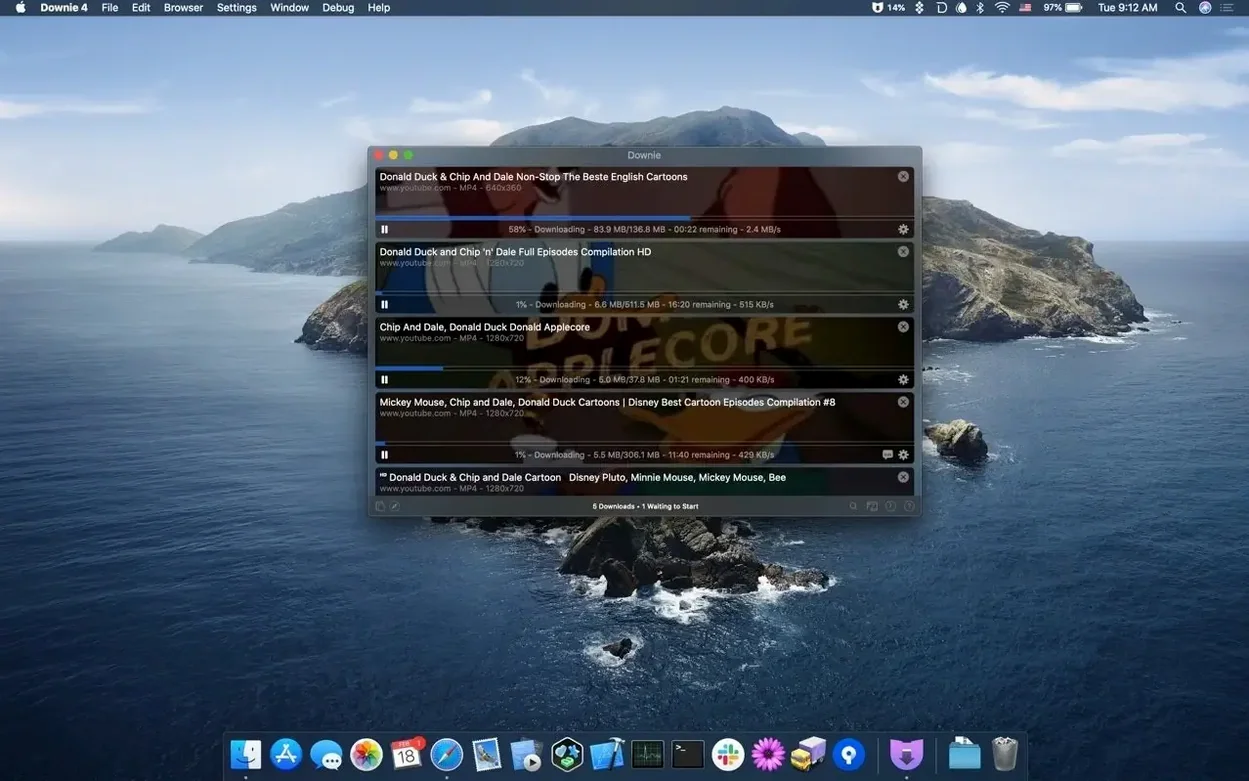
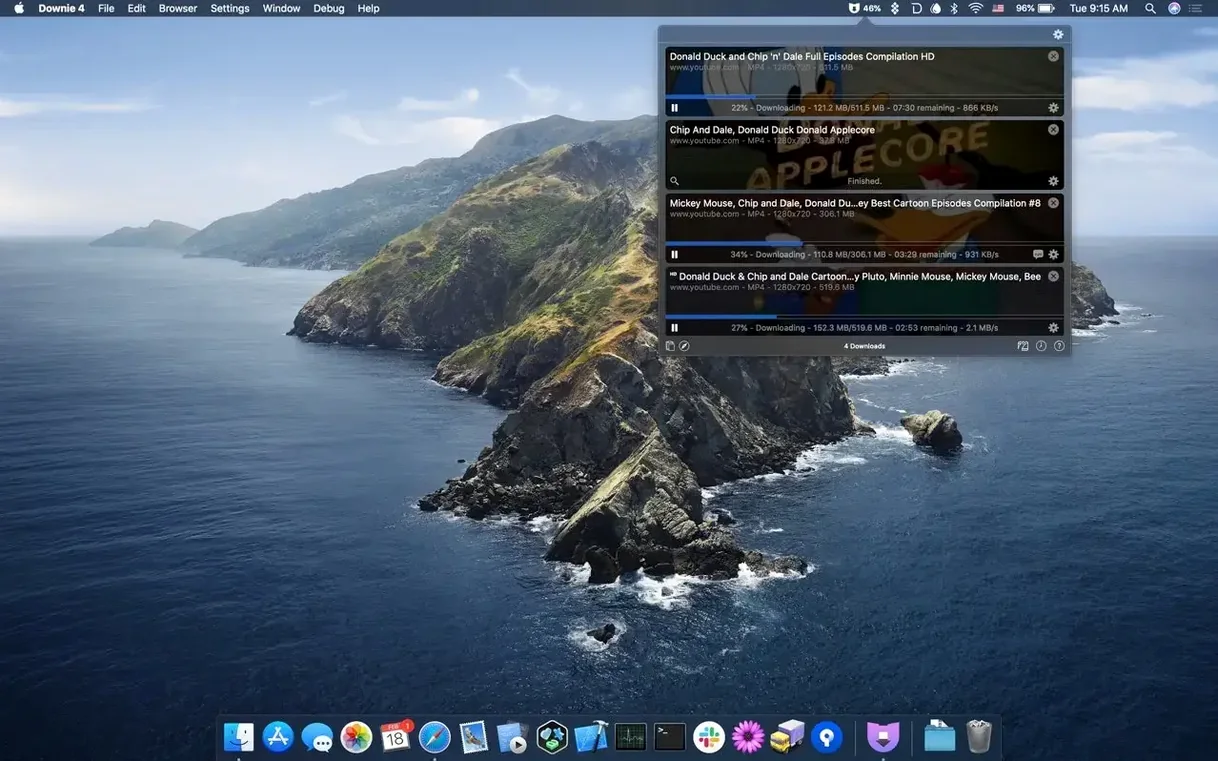
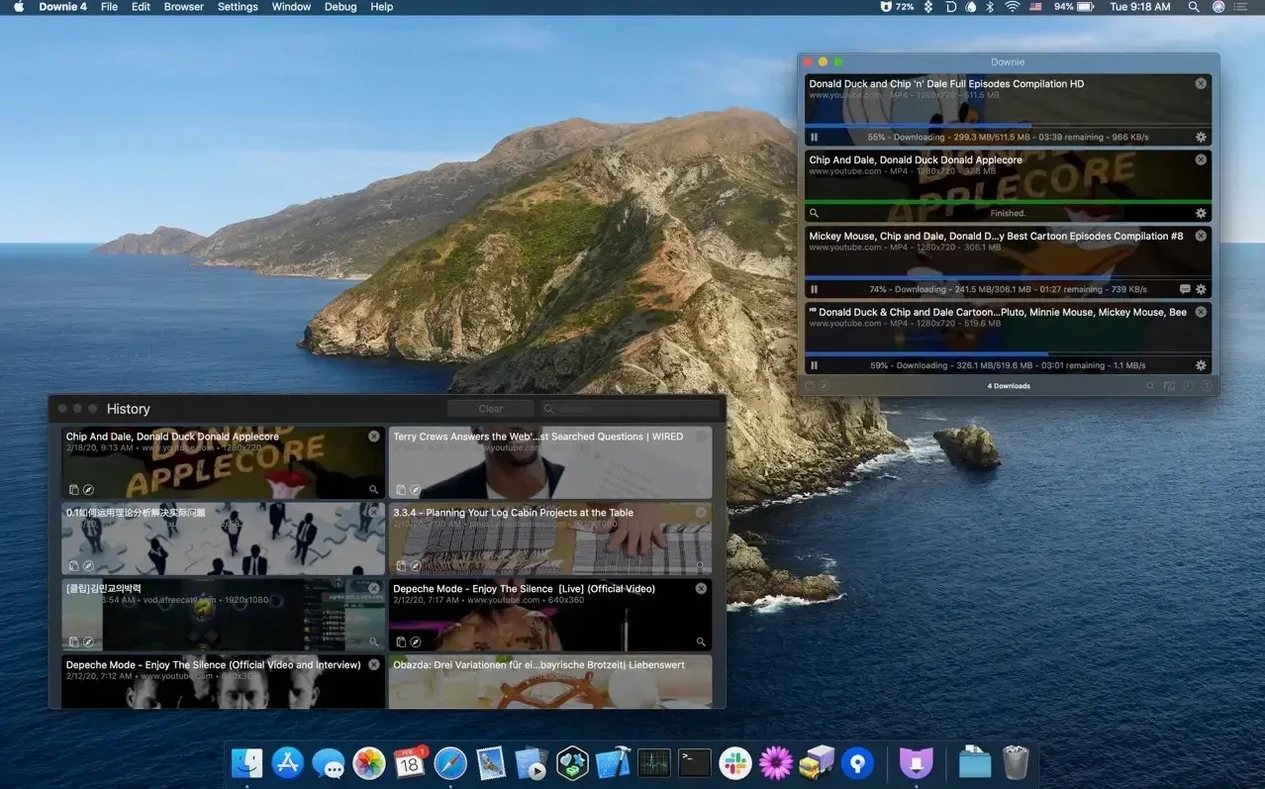
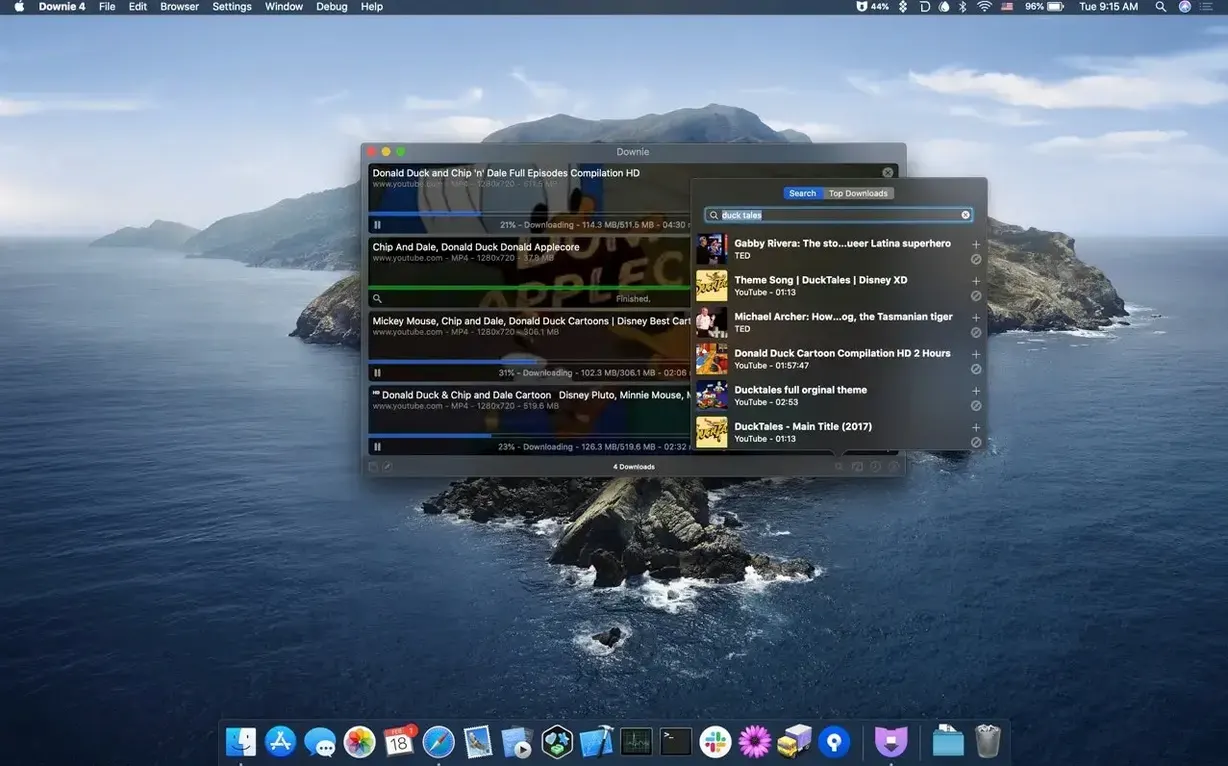
Downie 4 runs on any Mac with macOS 11 or later, whether it uses an Intel processor or Apple Silicon. It downloads videos from YouTube, Vimeo, Facebook, Instagram, and more than 1,200 other websites. That list covers most of what you’ll find online, including sites that don’t make it easy to save a local copy.
What it does and who it’s for
- Downloads video from a URL — paste the link and it grabs the best available quality.
- Can save just the audio track if you don’t need the video file.
- Integrates with Permute to convert formats or join parts of a downloaded video into one file.
- Includes browser extensions so you can trigger downloads without leaving Safari, Chrome, or Firefox.
- Lets you search for video content inside the app itself.
Why you might want it
If you archive content, build offline libraries, or work with video clips from various sources, Downie is a straightforward tool for that job. It handles the part of the process that takes the most time: actually getting the file onto your Mac. The extra step of pairing it with Permute for post-processing is useful if you need a specific format or want to clean up multi-part downloads without extra manual work.
Covers more than 1,200 sites
A few things come up often enough that they're worth answering directly.
Does it work with every website? Downie claims support for more than 1,200 sites. That covers the major platforms and many smaller ones. A site that changes its internal structure can break compatibility temporarily, but the developer usually updates the app to restore it. No downloader works with everything forever, and this one is no exception.
Can I download a whole playlist at once? Yes, you can paste a playlist URL and Downie will process each video in it. The app queues them and works through the list. This is one of the features that makes it useful for people who archive series or channels.
Do I need an account or login for any site? The app does not require you to log in anywhere. Some sites require authentication to access certain videos — Downie cannot bypass that. If a video is behind a login wall, you'll need to download it through the site's own interface.
Will it download live streams? Not reliably. The app is built for recorded, on-demand content. Live streams are a different technical problem and not something Downie handles well.
Saves content creators and podcast editors time
The typical user falls into one of a few groups. Content creators who pull reference clips from multiple platforms save time by pasting URLs instead of visiting each site manually. Podcast editors who need audio tracks from video sources can use the audio-only extraction feature to skip the re-encoding step. Researchers or journalists who archive public videos for documentation appreciate the batch download option and the ability to name files with custom titles when importing from a CSV or XML file.
Users who work with video in post-production workflows benefit from the Permute integration. You can set Downie to download and then hand the file off to Permute for format conversion or merging without dragging files between apps. That pairing reduces friction for anyone who processes downloaded videos regularly.
People who maintain offline media collections — for travel, for areas with poor internet, or for archival purposes — are another natural audience. The app removes the reliance on streaming connections once the file is local.
Redirects downloads from the default Downloads folder
A few preferences make the app behave the way you expect from the start. The default download location is the Downloads folder. If you process many videos, point it to a dedicated folder for your media so you don't mix raw downloads with other files. The setting is in the preferences panel under the general tab.
The auto-conversion to MP4 option is useful if you work with Apple devices or editors that prefer that container. Turn it on if you know your workflow expects MP4. Leave it off if you want the original format the site delivers, which is sometimes higher quality or contains additional data like chapter markers.
The browser extension integration is worth enabling if you use Safari, Chrome, or Firefox. It adds a button that sends the current page's video URL to Downie. That saves the step of copying and pasting the link manually. The extension is optional, but it speeds up the process noticeably for casual browsing.
Not checking the format before downloading
- Not checking the format before downloading. Downie picks the best quality by default, but that may be a format your player or editor cannot handle. Reviewing the format list before starting the download saves you from having to convert after the fact.
- Downloading the same video twice in different quality presets. Each preset creates a separate download. If you want multiple versions, name them clearly so you don't end up with duplicate files that differ only slightly.
- Ignoring the CSV/XML import feature. This is a power user feature, but it saves time for batch work. Beginners often paste URLs one by one when they could import a list with custom titles and have Downie process them unattended.
- Forgetting to set the audio-only mode before pasting a video link. If you want only the audio track, toggle the setting first. Downloading the full video and then extracting audio later is slower and uses more disk space.
- Assuming the app deletes temporary files automatically. Downie downloads parts of videos and then joins them. If a download is interrupted, partial files may remain in the temp directory. Check that folder periodically if you cancel downloads often.
- macOS 11 or later
- Apple Silicon or Intel processor
Questions from the notes
Does Downie work with YouTube’s current formats?
Yes, it handles YouTube and over 1,200 other sites, and the developer updates it to keep up with site changes.
Install procedure
- Mount the downloaded disk image.
- Drag the app to the Applications folder alias.
- Open the app from Launchpad after copying finishes.
Reports from players
Sign in or create a tester account to file a report.
No reports filed yet.