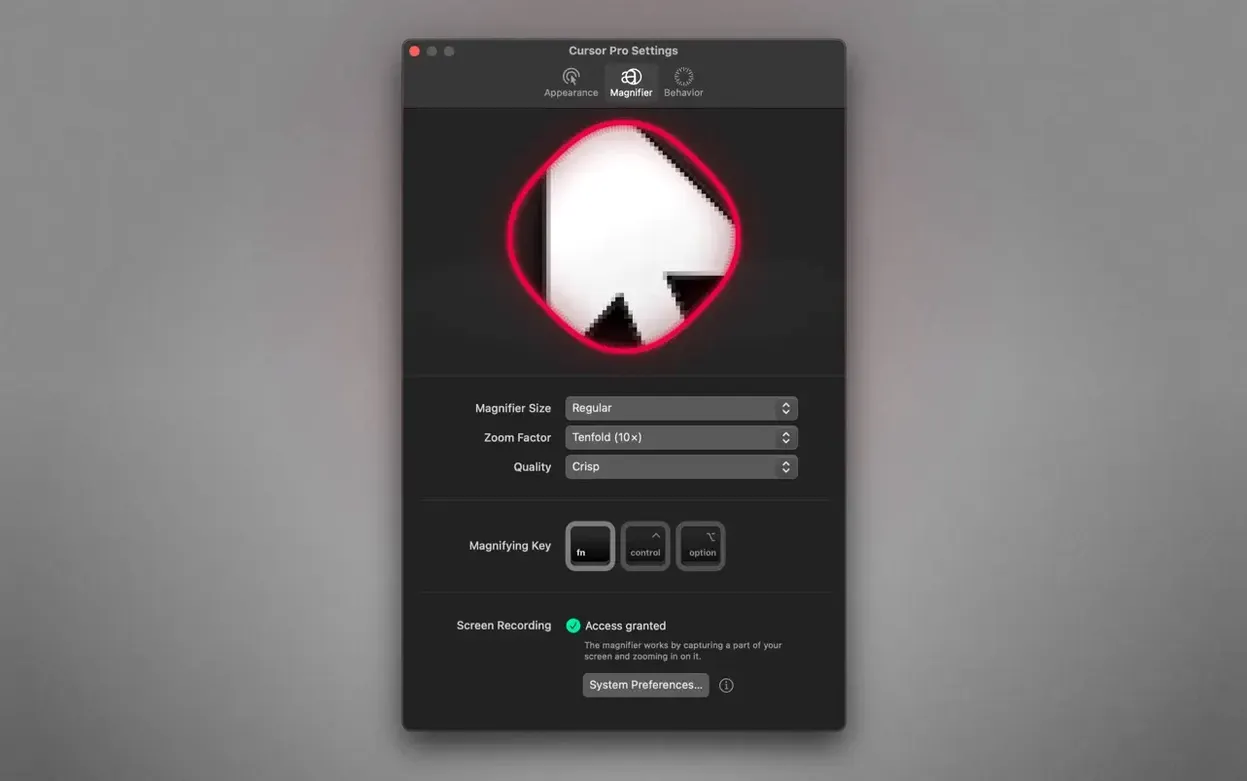
Cursor Pro 2.4 keeps the same focused approach: it highlights the mouse pointer and magnifies screen content, rather than grabbing the full screen. That makes it a practical tool for presentations and screen sharing, where a visible cursor keeps your audience oriented.
Runs on macOS 11 and later for both Intel and Apple Silicon
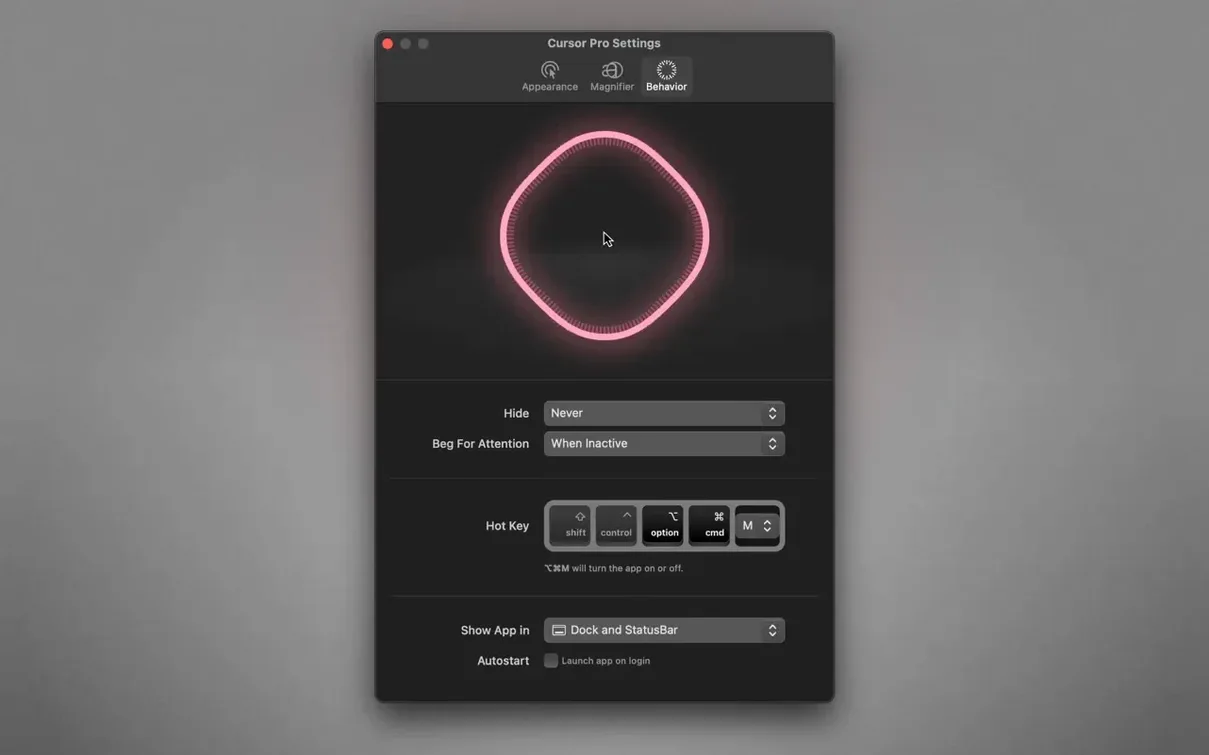
Cursor Pro runs on macOS 11 and later, on both Intel and Apple Silicon Macs. It installs from a disk image, works from the menu bar, and can appear in the Dock, the status bar, or both. You can set it to launch automatically at login, which is handy if you present often.
Customize the pointer shape, color, glow, and magnifier zoom factor
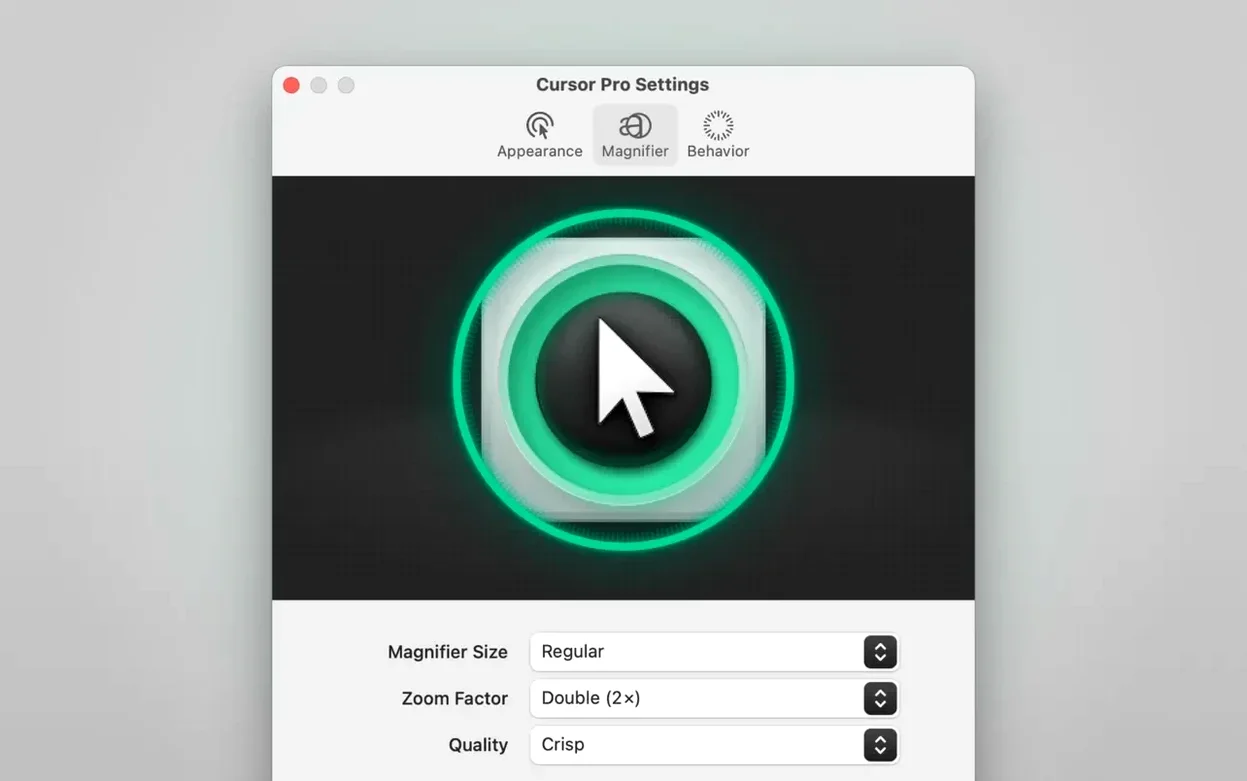
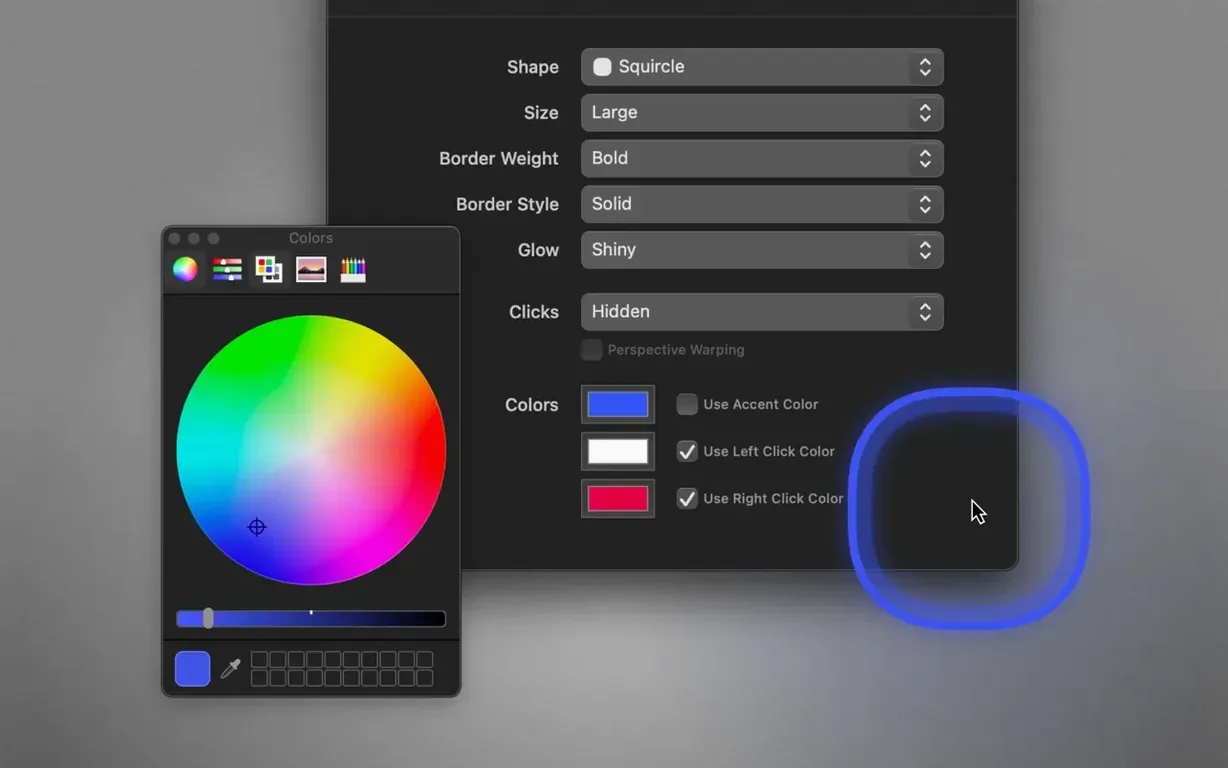
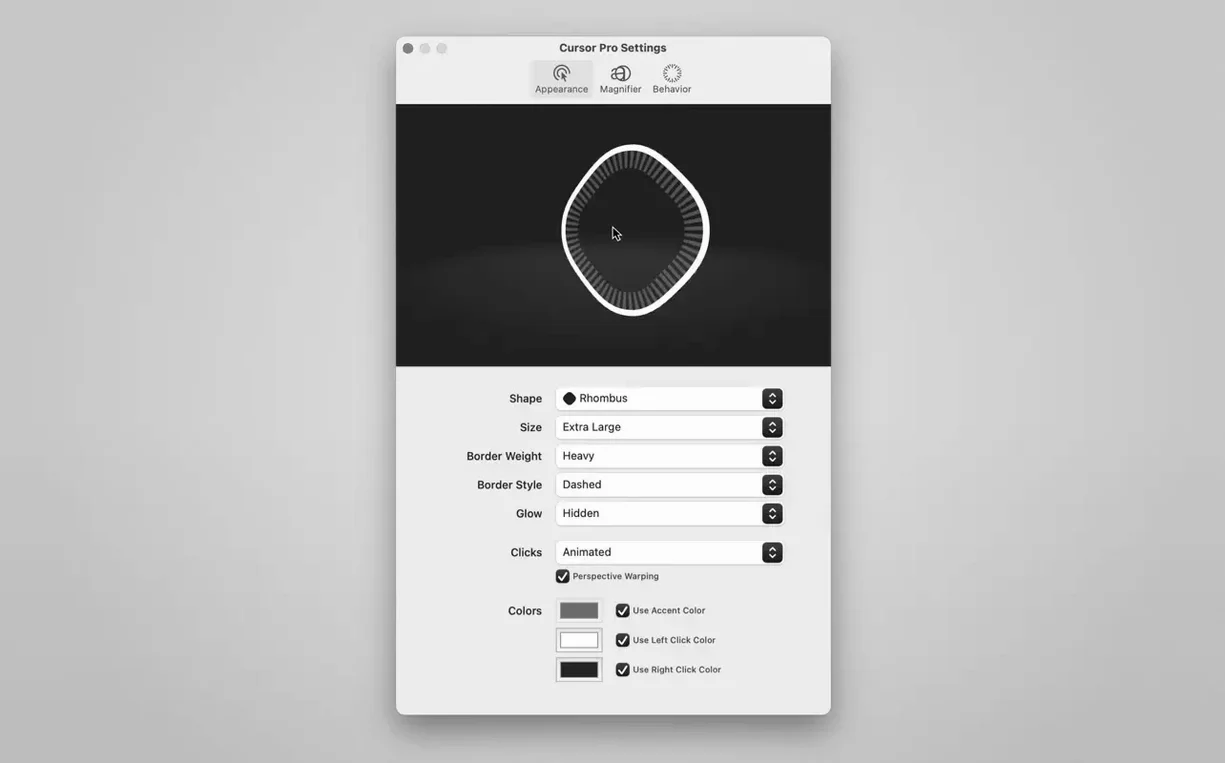
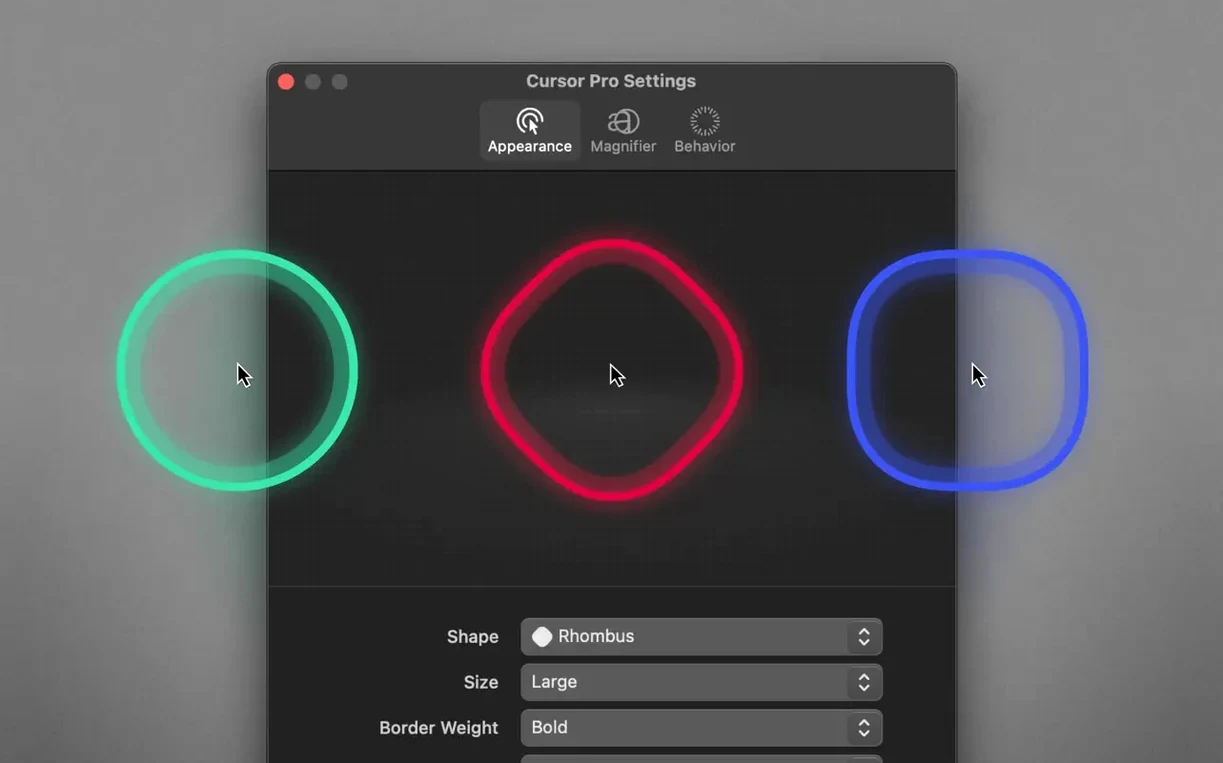
The pointer highlight is customizable: adjust the shape, color, and glow to match your setup. The magnifier has a configurable zoom factor, so you can dial in exactly how much detail you need. The app supports eight interface languages, including English, German, French, and Japanese. It is a lightweight utility that lives quietly in the menu bar until you need it.
Installs from a disk image with no surprises on ARM or Intel Macs
Given the requirements — macOS 11 or later, ARM or Intel — Cursor Pro should install and run without surprises. The disk image mounts like a physical disc; you drag the app to Applications and launch it from Launchpad. Once running, it sits in the menu bar. It does not take over your screen or show a window by default. The app lets you choose whether it appears in the Dock, the status bar, or both. If you prefer a clean Dock during recordings, you can move it to the status bar only. The auto-hide behavior hides the highlight after a set idle time, so the pointer looks normal until you move the mouse again. The global hotkey lets you toggle the magnifier or highlight on the fly without clicking back to the app window.
Workflow: preparing a screen recording with cursor emphasis
This walkthrough assumes you are about to record a short tutorial and want the cursor to stay visible.
- Open Cursor Pro from Launchpad or the menu bar. It loads as a small icon in the menu bar.
- Right-click the menu bar icon and open the preferences panel. Set the pointer shape to either circle or diamond. Pick a color that contrasts with your screen background — bright yellow or orange often works well. Enable glow if you want a soft halo around the cursor.
- Set the zoom factor on the magnifier to a moderate level, such as 1.5x or 2x. Keep it low enough that the magnified area does not cover the entire screen.
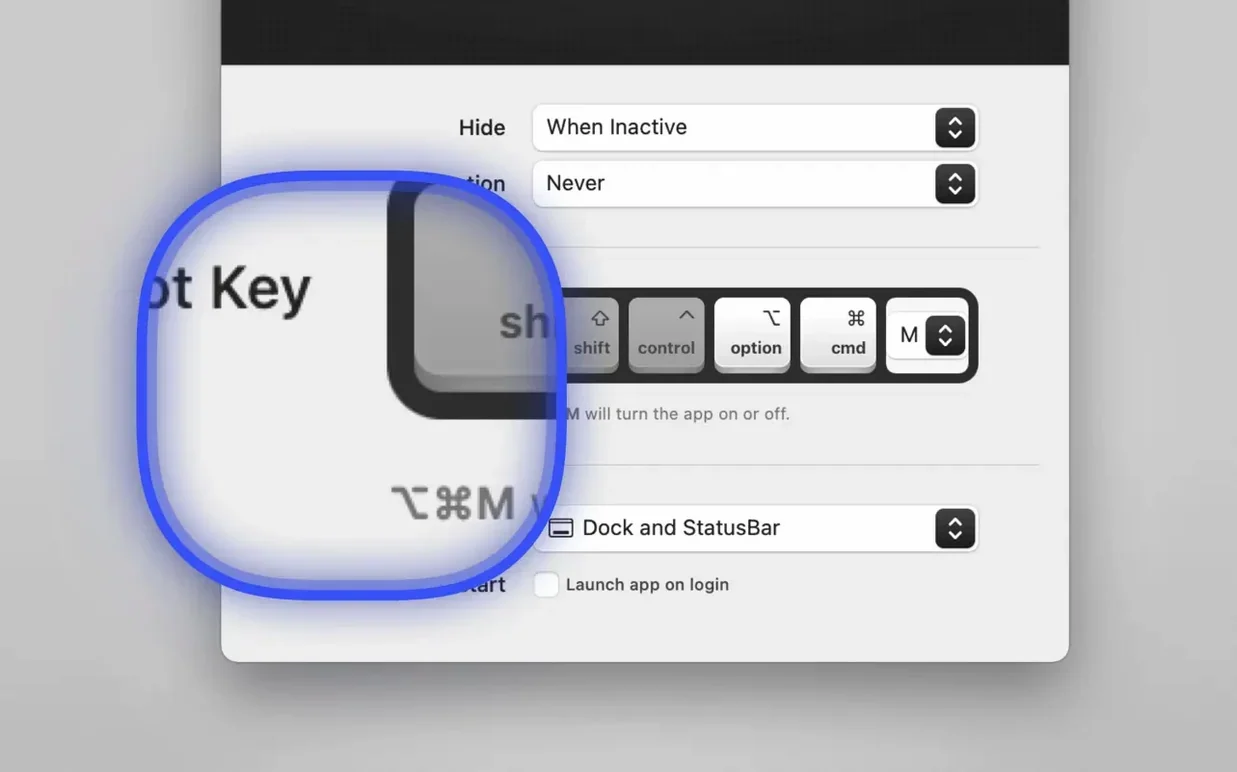
- Assign a global hotkey to toggle the magnifier. Test it a few times to make sure the combination does not conflict with your recording software.
- Open your screen-recording app. Share the entire screen, not a window. Cursor Pro works with screen-sharing apps when the full screen is shared.
- Start recording. Move the mouse normally. The highlight follows the pointer. When you need to show a small detail, press the hotkey to activate the magnifier. Press it again to return to the normal view.
- When the recording ends, exit Cursor Pro from the menu bar or leave it running for the next session.
Set it to launch at login and choose a single Dock or status bar location
Set the app to launch at login if you record or present daily. That way it is always available without remembering to start it. Choose a single location (Dock, status bar, or both) and stick with it for consistency. If you share a screen to a projector or a large display, enable the highlight and set the shape to diamond — it stands out better at a distance than a circle. For the magnifier, start with a zoom factor around 2x and adjust. If you find the magnified area distracting, lower the zoom or map it to a hotkey you can tap quickly. Auto-hide is useful during pauses: the highlight disappears after a few seconds, so attendees see a normal cursor when you are not moving the mouse, then the highlight reappears when you move again.
Lives in the menu bar with a subtle pointer pulse visual cue
The app lives in the menu bar, which keeps it out of the way but accessible. It does not clutter the Dock unless you choose that option. The pointer pulse is a subtle visual cue — it makes the cursor gently expand and contract, which helps during long explanations when the mouse is still. The global hotkey works system-wide, so you can toggle the magnifier from inside any application. Auto-hide is configurable, meaning you control how long the highlight stays visible after you stop moving the mouse. The app supports eight languages, so you can set the interface to match your preference without affecting the cursor behavior. These are not flashy features, but they reduce friction when you are focused on presenting rather than configuring the tool.
- macOS 11 or later
- Intel or Apple Silicon
Questions from the notes
Does Cursor Pro work on Apple Silicon Macs?
Yes, Cursor Pro is compatible with both Intel and Apple Silicon Macs, as long as you run macOS 11 or later.
Can I customize the pointer highlight?
Yes, the pointer highlight can be customized by shape, color, and glow.
Does Cursor Pro support screen sharing?
Cursor Pro is designed to support screen presentations and screen sharing by highlighting the pointer and magnifying content, not by capturing the full screen.
Install procedure
- Open the downloaded disk image.
- Drag the app into the Applications folder alias.
- After copying finishes, open the app from Launchpad.
Reports from players
Sign in or create a tester account to file a report.
No reports filed yet.