
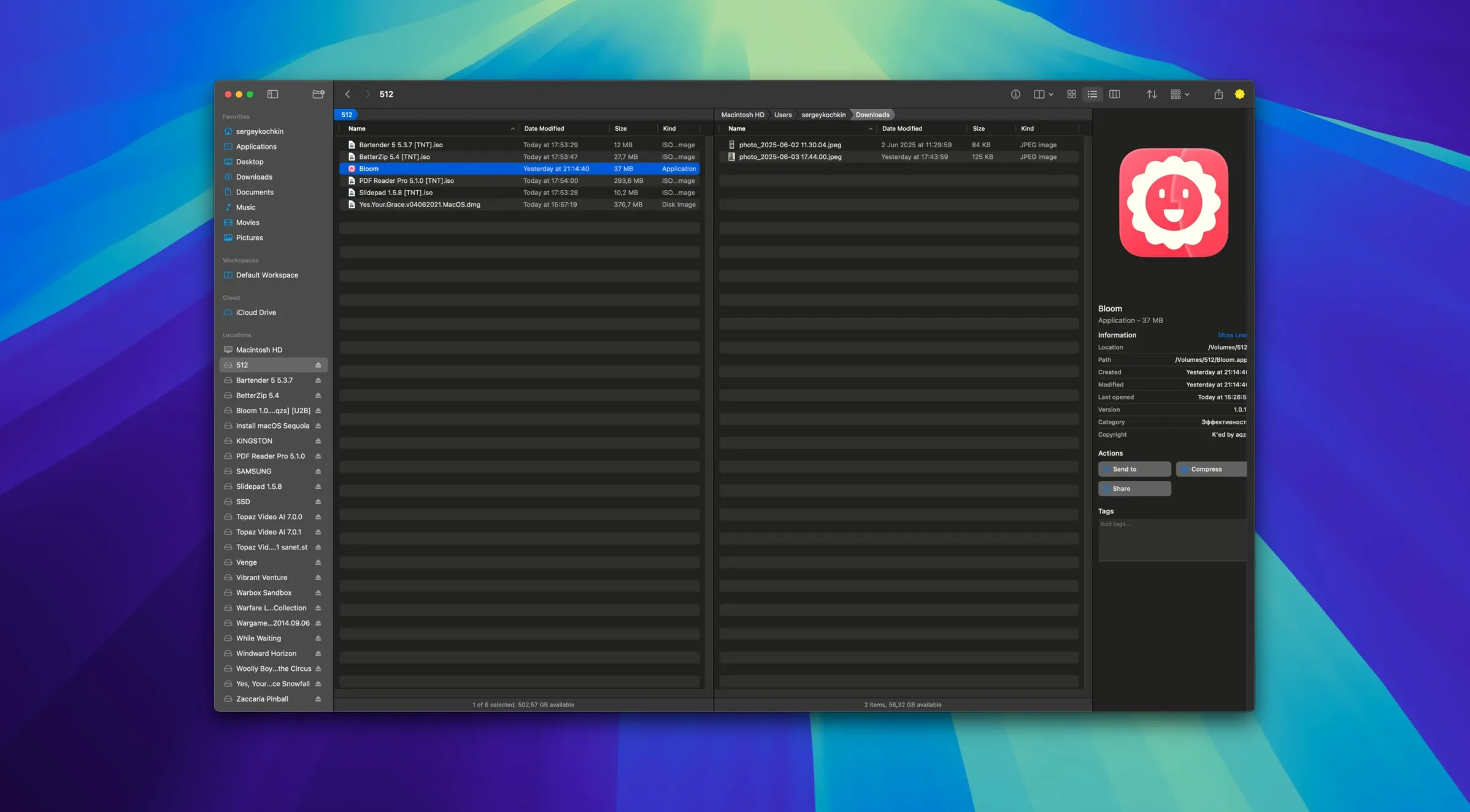
Bloom is for anyone who finds Finder gets in the way more than it helps. The developer, INCHMAN1900, built it as a straightforward alternative — no gestures to learn, no hidden panels. What follows are the first things worth trying after you drag it into Applications.
How do I get the compact Portal mode?
Press ⌘⇧P or find Portal mode in the Window menu. It collapses the sidebar and preview pane into a small floating window that can stay pinned above other apps or dock itself at the screen edge. Useful when you need to drag files between projects fast.
Can I rename a batch of files without third-party tools?
Yes. Select the files, hit ⌘⇧R, and use a regular expression pattern to rename them all at once. The preview shows the result before you commit. It handles numbering, replacing strings, or stripping unwanted text.
What about image handling?
Bloom can convert and optimize images from the context menu. Handy for resizing screenshots or changing formats without opening Preview. You can also insert images directly from a URL if you paste a link into the address bar.
How do I jump to a system folder instantly?
Press ⌘⇧⏎ to open the location dialog, type /Library or any path, and hit enter. No hunting through the sidebar. The same key combo works for the current Finder path.
Set your default view before you dig in
Before you dig in, open Preferences (⌘,). Three items matter most for day-to-day use:
- Default view — Switch to list or column view depending on your folder depth. Bloom remembers per folder, so set the global default to what you use most.
- Automatic column resizing — On by default, which is fine for general browsing. If you work with wide filenames or metadata columns, turn it off to keep custom column widths.
- Tag management — Set up a few color tags for active projects early. Bloom applies them instantly and filters by tag from the sidebar without indexing delays.
The task scheduler lives under Tools → Task Scheduler. It's idle until you schedule something, so no need to configure it upfront.
Requires macOS 14 or later on Intel and Apple Silicon
Bloom runs on macOS 14 or later, both Intel and Apple Silicon. The version here is 1.5.42. There are no hard numbers to cite beyond that, but here is what the requirements and feature set imply:
- The app updates itself after installation, so the first launch may briefly check for a newer build.
- It still indexes the same folder.
- The treemap view for disk usage scans the selected folder on demand. For large volumes, the scan runs in the background while you continue navigating.
- Preview works on text, images, and PDFs under 10 MB. Archive preview reads the file list without extracting anything — ZIP, RAR, and similar formats show their contents inline.
- iCloud Drive integration means your cloud files appear alongside local ones in the same panel. Sync state is handled by macOS, not Bloom.
Filter freelance screenshots by date as you type
Say you are organizing screenshots from a week of freelance work. You open Bloom from Launchpad, hit ⌘F inside the Screenshots folder, and type 2024-12 to filter by date in filenames. Results appear as you type. You press ⌘R to refresh after moving a few files in from the desktop.
Three files need renaming: you select them, press ⌘⇧R, type screenshot_(\d+).*\.png as the pattern and client_meeting_$1.png as the replacement. The preview shows all three renamed correctly. You hit Apply.
One PDF needs a quick look. You select it — the preview pane shows its first page. The screenshot you need to resize: right-click, choose Convert & Optimize Image, set a width, and export as JPEG. Done.
You finish by opening Terminal from the folder toolbar — it opens a terminal window already in the Screenshots directory — and run a quick du -sh out of habit. Bloom's treemap view would have shown the same thing visually.
Portal mode won't dock in full-screen mode
- Portal mode won't dock to the screen edge. Check that you are not in full-screen mode. Portal mode docks only when the window is a floating panel. Drag it near the edge until a blue guide appears, then release.
- Search finds nothing even though the file exists. Bloom searches by filename inside the current folder and subfolders. If the file is outside the indexed path, press ⌘⇧⏎ and enter the full path to open its parent folder first.
- Rename preview shows errors. Regular expressions are case-sensitive by default. If your filenames use mixed case, adjust the pattern or toggle case-insensitivity in the rename dialog. The preview updates live, so test with one file first.
- Image optimization produces a larger file. The tool uses lossless options by default. If file size is the goal, pick a lower quality or a different format (JPEG instead of PNG, for example) in the conversion settings.
- Task scheduler operations do not run. Verify the task is enabled (green indicator) and that the scheduled time has not already passed. The scheduler uses the system clock; if your Mac sleeps through the scheduled time, Bloom runs the task on next wake.
- macOS 14 or later
- Intel or Apple Silicon
Questions from the notes
Does Bloom support searching inside folders?
Yes. Press ⌘F while inside any folder to start a direct search — no need to open a separate search window.
Install procedure
- Mount the downloaded disk image.
- Drag the Bloom app onto the Applications folder shortcut.
- Once the copy finishes, open Bloom from Launchpad.
Reports from players
Sign in or create a tester account to file a report.
No reports filed yet.