Camtasia 2026.2.3 handles screen recording and video editing in one app. It targets software demos, product tutorials, online lessons, and recorded presentations. You can add text with drag-and-drop effects and ready-made video templates, then export without leaving the editor.
Requires macOS 13 or later on Intel and Apple Silicon
macOS version — requires macOS 13 or later.
Architecture — runs on both Intel and Apple Silicon Macs.
Platform — also available for Windows.
Bundles screen recorder, editor, effects, and templates
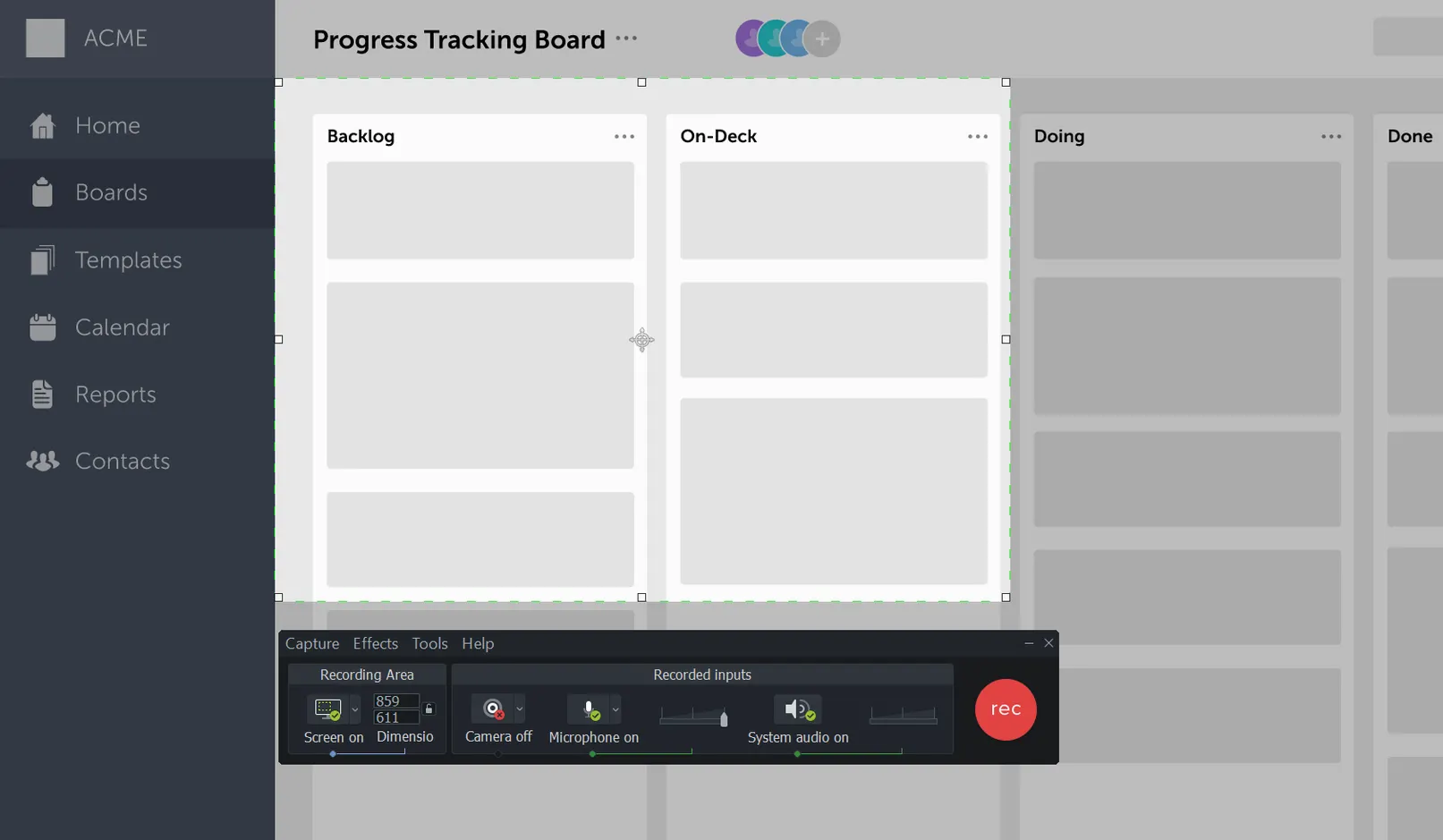
Screen recorder — capture the whole display, a region, or a specific window.
Video editor — cut, trim, and arrange clips on a timeline.
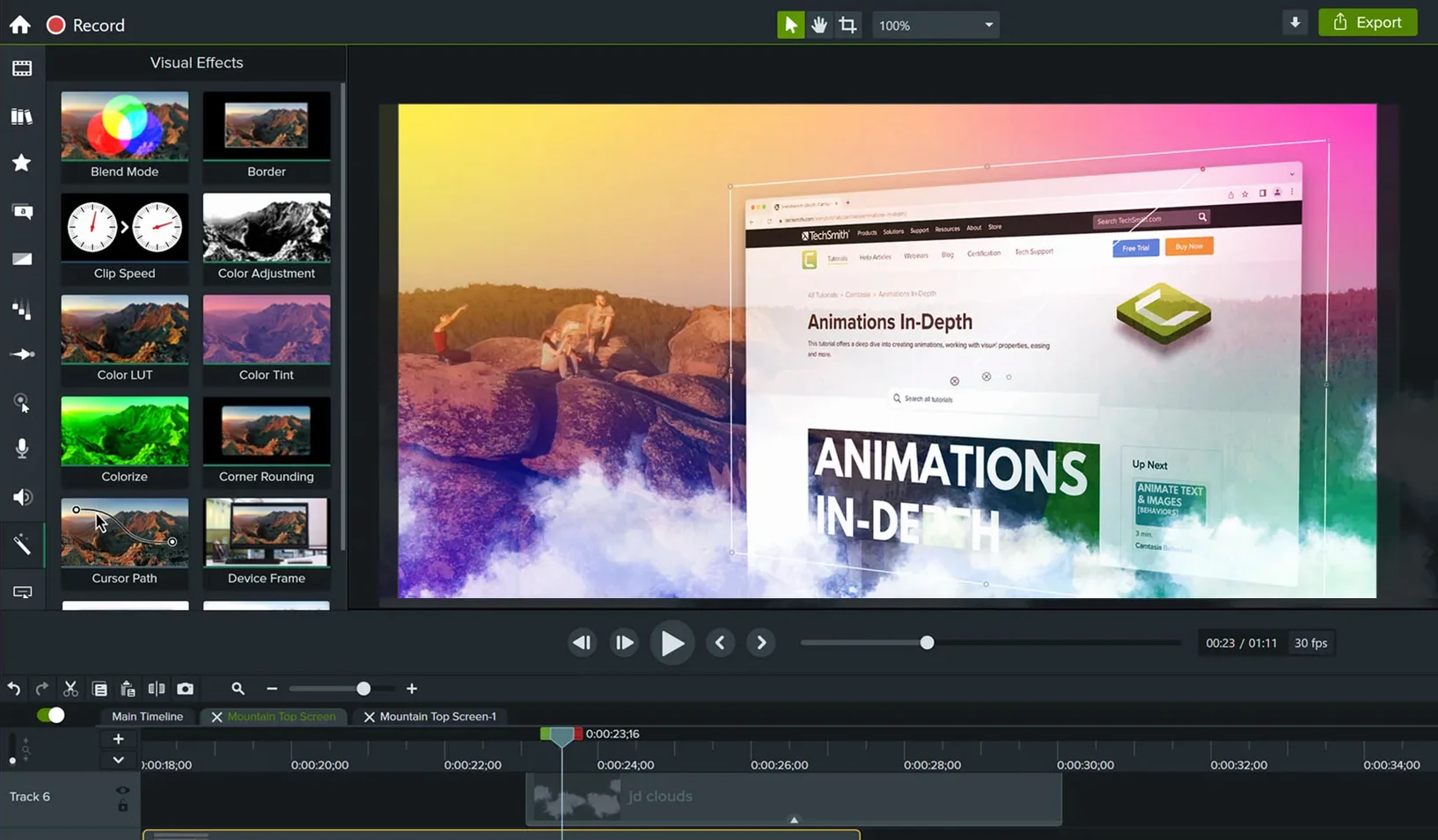
Effects — drag-and-drop transitions, annotations, and cursor effects.
Templates — pre-built intros and outros to speed up production.
Interface languages — English, German, Spanish, Simplified Chinese, Portuguese, French, and Japanese.
Recording a 3-minute walkthrough with the screen recording preset
Say you need to record a 3-minute walkthrough of a new feature. Start by launching Camtasia and selecting the screen recording preset. Choose a region that covers the app window — no need to record the full desktop. Hit record, walk through the steps, and stop the capture. Your footage appears on the timeline automatically.
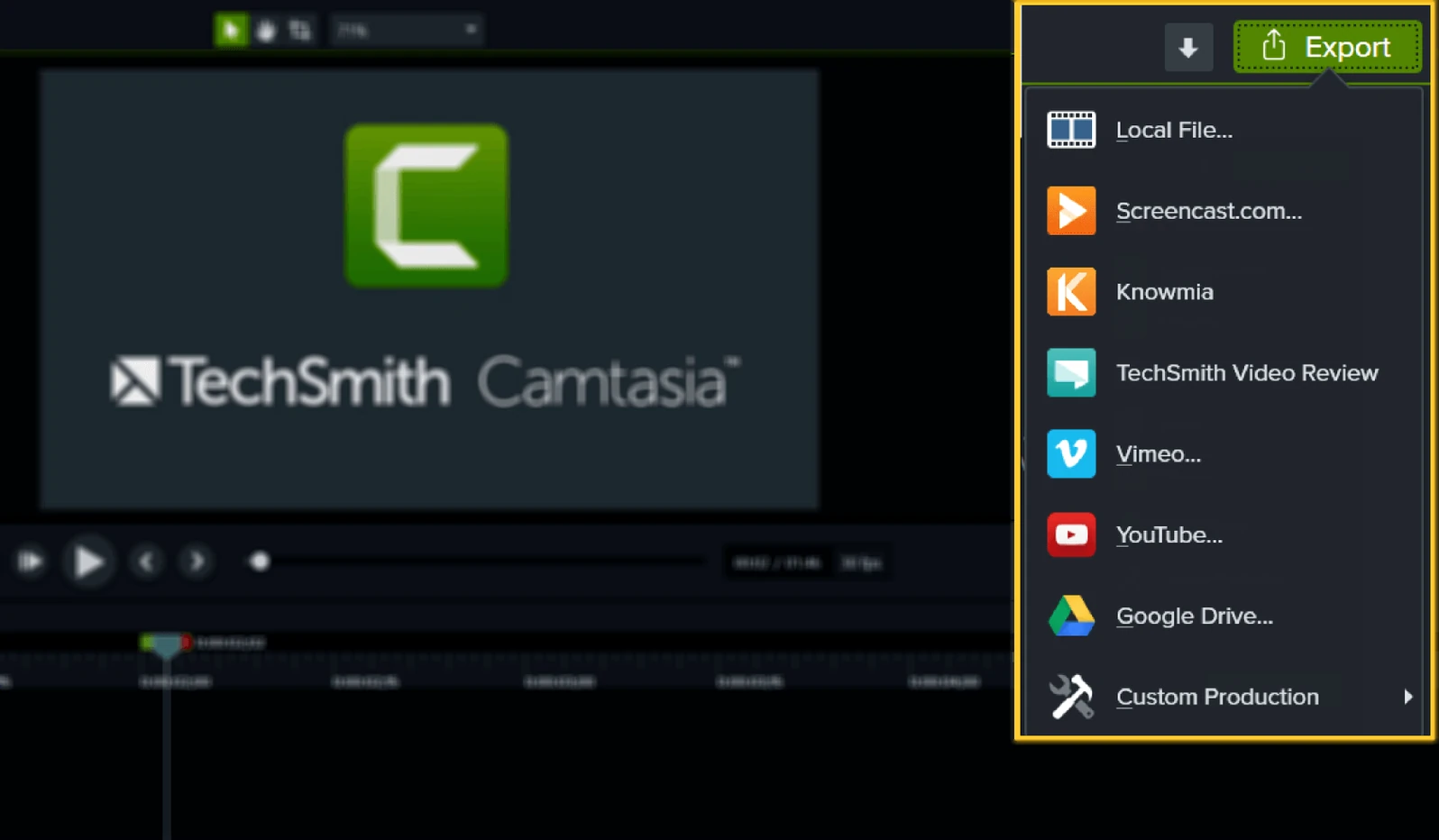
Trim the beginning and end to remove dead air. Use the cursor effects tool to highlight where the user should click — a red ring that follows the mouse. Add text by dragging a callout from the library onto the timeline: label the toolbar button you just clicked. For a smooth transition between scenes, drop a fade effect between two clips. Export as MP4. The whole process, from capture to export, stays inside a single project file.
Scenario: a course creator preparing a lecture
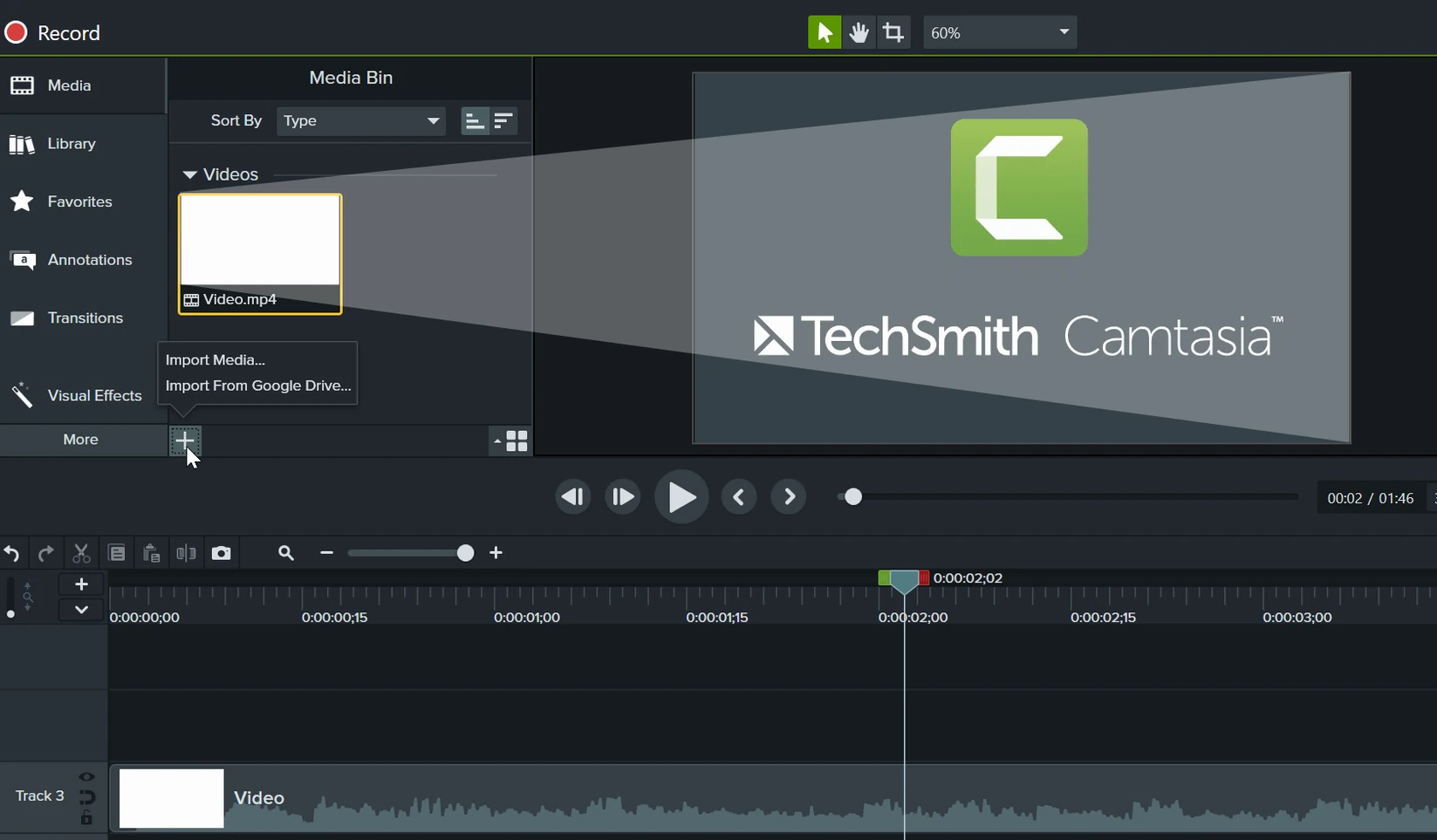
Marie teaches a college-level coding course. She records her terminal and slides side-by-side using the screen recorder. Her workflow: import the PowerPoint slides into the project first, then layer the terminal recording over them as a picture-in-picture box. She adds a text annotation to define each new command. The ready-made video template for intros gives each module a consistent title card. She exports to 1080p and uploads to the learning management system. No second-pass editing in a separate tool.
Best for software trainers and course creators
Three types of Mac users benefit most.
- Software trainers — need to capture exact steps, add on-screen labels, and produce clean demos without a full production team.
- Course creators — already recording lectures or slide decks; the template library and PowerPoint import cut prep time.
- Presentation makers — record webinars or internal walkthroughs. They want drag-and-drop polish, not a steep learning curve.
Users who produce shorter, focused videos — the kind that explain one feature or concept — save the most time because the built-in tools handle the common tasks of trimming, labeling, and transitions without switching tabs.
Set a fixed recording region and select the right microphone
After installing, open the preferences and adjust these:
- Recording region — set it to a fixed width and height, like 1280×720. That keeps your capture area consistent across multiple takes.
- Audio source — choose the correct microphone input before your first recording. Changing it mid-project creates gaps in the timeline.
- Export preset — pick a resolution and format you use most (1080p MP4 is the common default) so you don't reconfigure every time.
- Prevents lost work if the app closes unexpectedly.
OBS Studio is free for streaming but lacks a built-in editor
Three alternatives cover similar ground.
OBS Studio — free and more flexible for live streaming, but its editor is limited to basic cutting and scene switching. You need a separate video editor to add text, callouts, or transitions. Camtasia bundles capture and editing in one timeline.
Screenflow — another Mac-native screen recorder and editor. Its editing model is closer to a video editor than a tutorial tool. It supports annotations and cursor effects, but its template library and PowerPoint import are not as deep. Camtasia's ready-made templates save time for users who produce a high volume of short videos.
Descript — built for script-driven editing. It transcribes your audio and lets you edit by deleting words. That approach works well for podcasts and talking-head videos, but less for software demos where precise cursor timing and screen annotations matter. Camtasia lets you place callouts directly on the timeline at the exact second a feature appears.
Workflow: adding voiceover narration to a recorded demo
Start with a recorded screen capture already on the timeline. Open the audio track panel and mute the original system audio if it picked up keyboard clicks or background noise. Position the playhead at the start of the timeline and enable the voiceover recording mode — this lets you narrate while watching the playback. Speak through each step as the cursor moves across the screen. The new audio track syncs automatically with the existing video. If you stumble on a sentence, stop recording, delete that section of the audio track, and re-record only that portion. No need to redo the entire walkthrough.
Once the narration is in place, adjust the volume levels so the voiceover sits slightly louder than any remaining background sound. Add a text annotation at the key moment — for example, a callout that reads “Enter your API key here” — and snap it to the frame where the cursor stops. Export as a single MP4. The timeline keeps every element editable, so returning later to swap a callout or re-record a sentence doesn’t require starting from scratch.
Scenario: a support engineer creating a fix video for a ticket
Leo works in technical support. A customer reports a recurring settings issue that is faster to show than to type. He records his screen at 1920×1080, captures the menu path that causes the problem, and narrates the fix in one take. Back in the editor, he trims the pause at the beginning and adds a red arrow callout over the Apply button. He exports to a compressed MP4 and attaches it to the ticket. Total time from recording to upload: under ten minutes. The customer replies that the video resolved the issue on the first try — no follow-up needed.
Version 2026.2.5 is a maintenance update. The developer's notes point to the full release log for the specific fixes and adjustments in this build.
- macOS 13 or later
- Apple Silicon or Intel 64-bit Mac
Install procedure
- Mount the disk image and run Open Gatekeeper friendly.
- Press Enter to bypass Gatekeeper in the Terminal window.
- Drag the app into the Applications folder.
- The app is ready to use.
Reports from players
Sign in or create a tester account to file a report.
No reports filed yet.