Canopy runs on any Mac with macOS 26 or later — Intel and Apple Silicon both work. That means it covers most Macs from the last few years, and it’s built for the current OS only, so no legacy support.
What it does, in practice
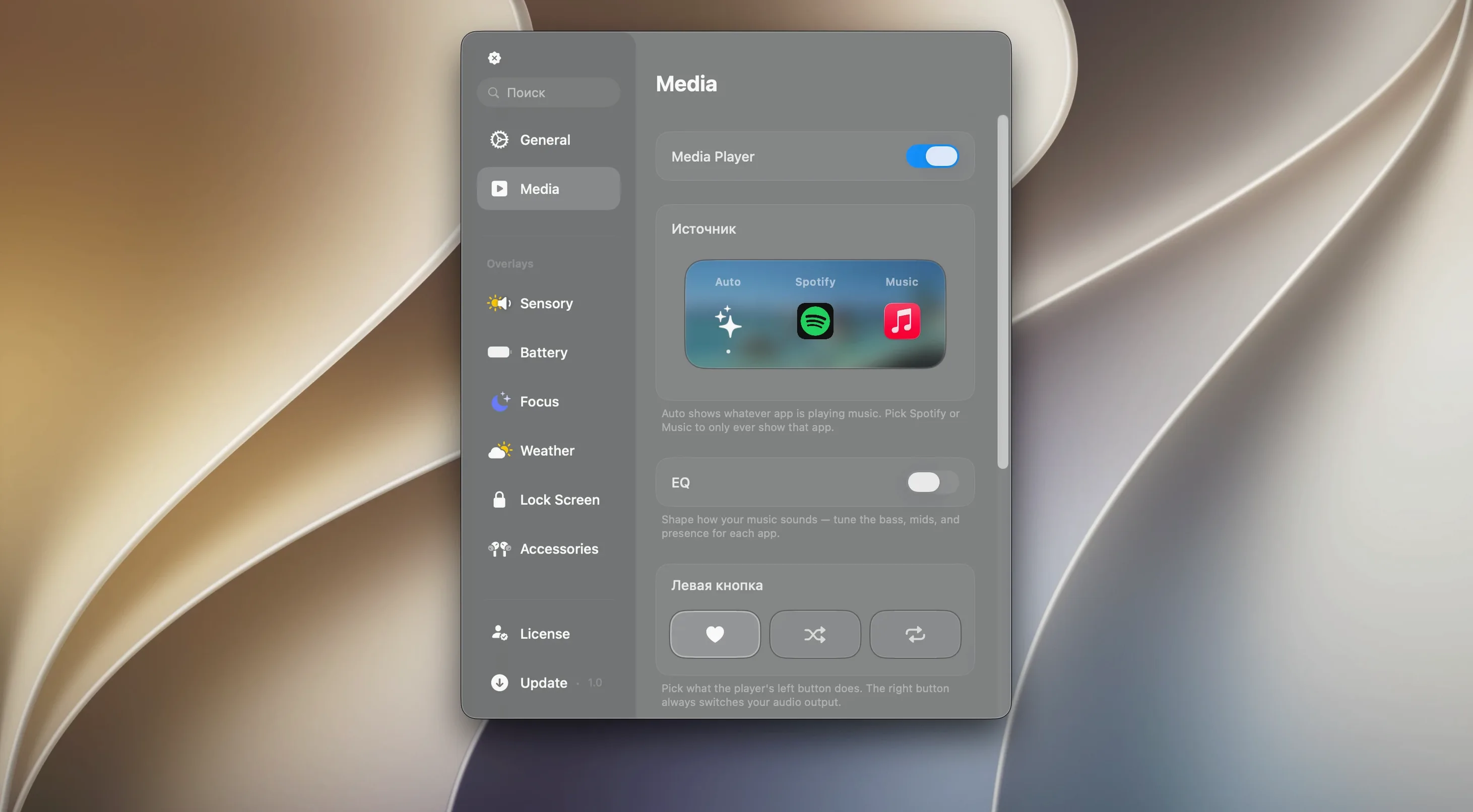
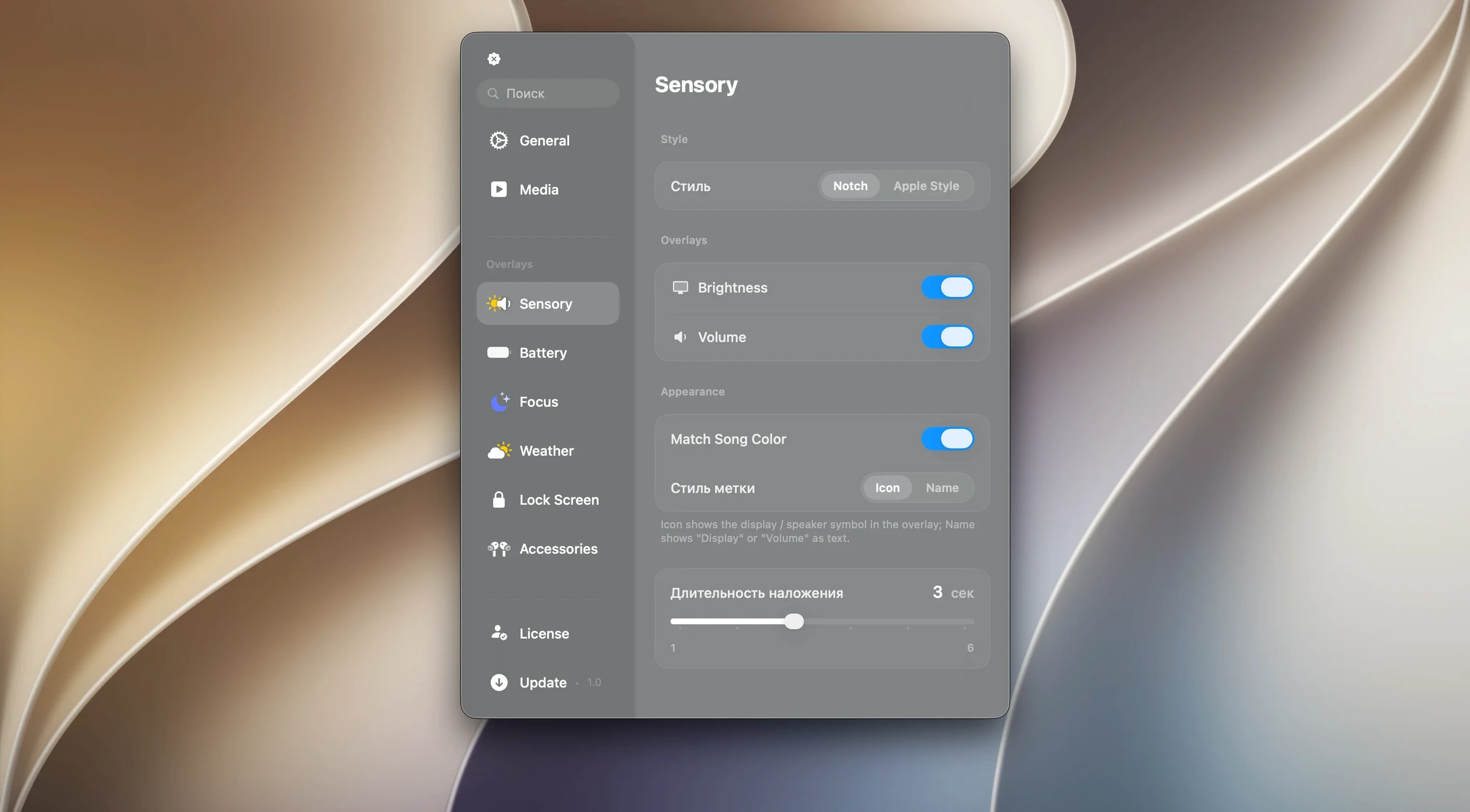
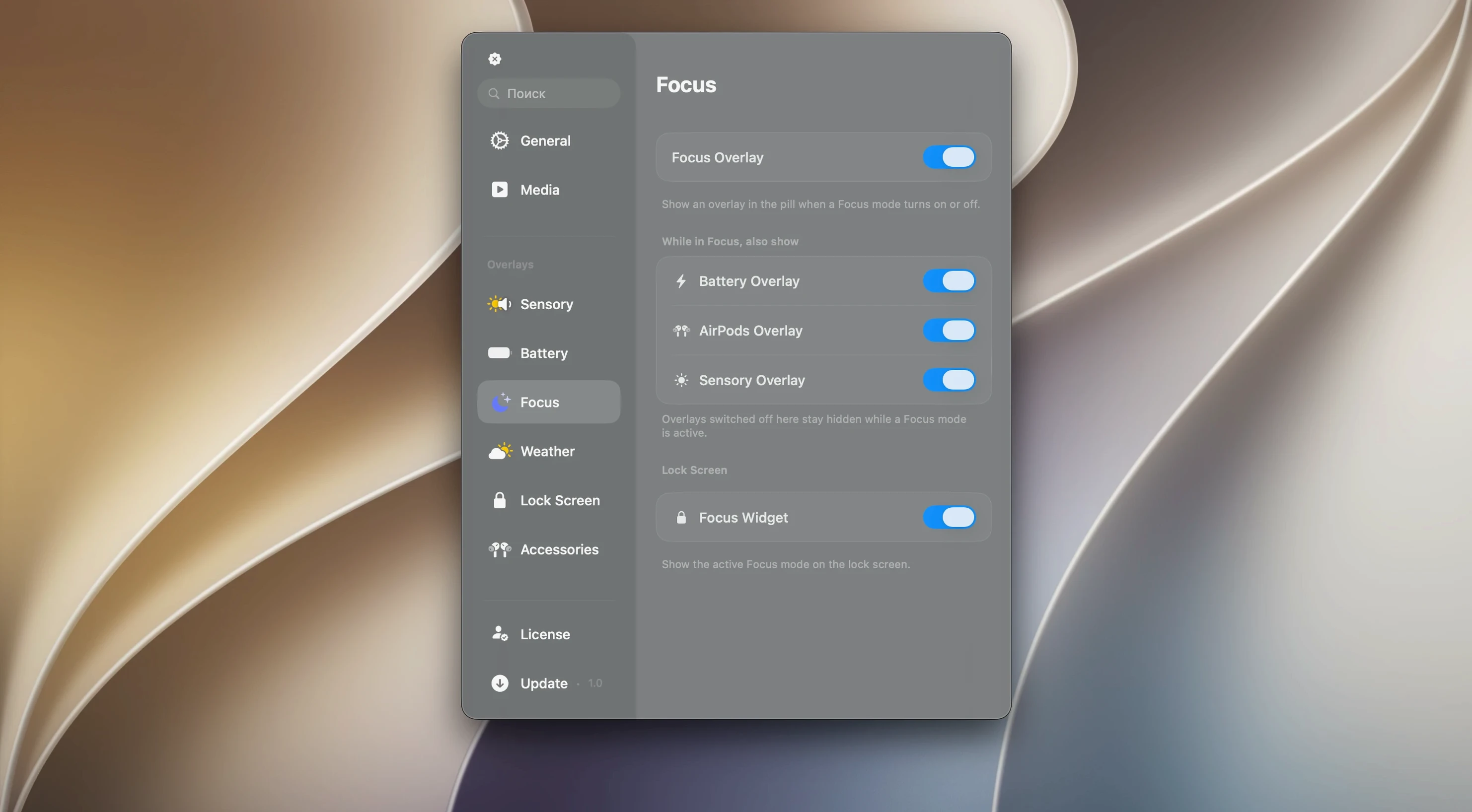
The app puts an interactive panel in the menu bar or notch. From there you get notifications, music controls, timers, and live activities. The Liquid Glass effects add some visual polish, but the core is about keeping those controls a click away instead of buried in a menu bar extra. If you use a lot of timers or music apps, it cuts down on the back-and-forth.
One realistic task
You have a timer running for a 10-minute break and a podcast playing in the background. Normally you’d open the Music app to pause, then switch to the Clock app to check the timer. With Canopy, both are in the notch panel. You pause the podcast there, see the timer countdown, and keep the current window focused. It’s a small time save, but it adds up over a work session.
Ignoring the notch-panel position on non-notched Macs
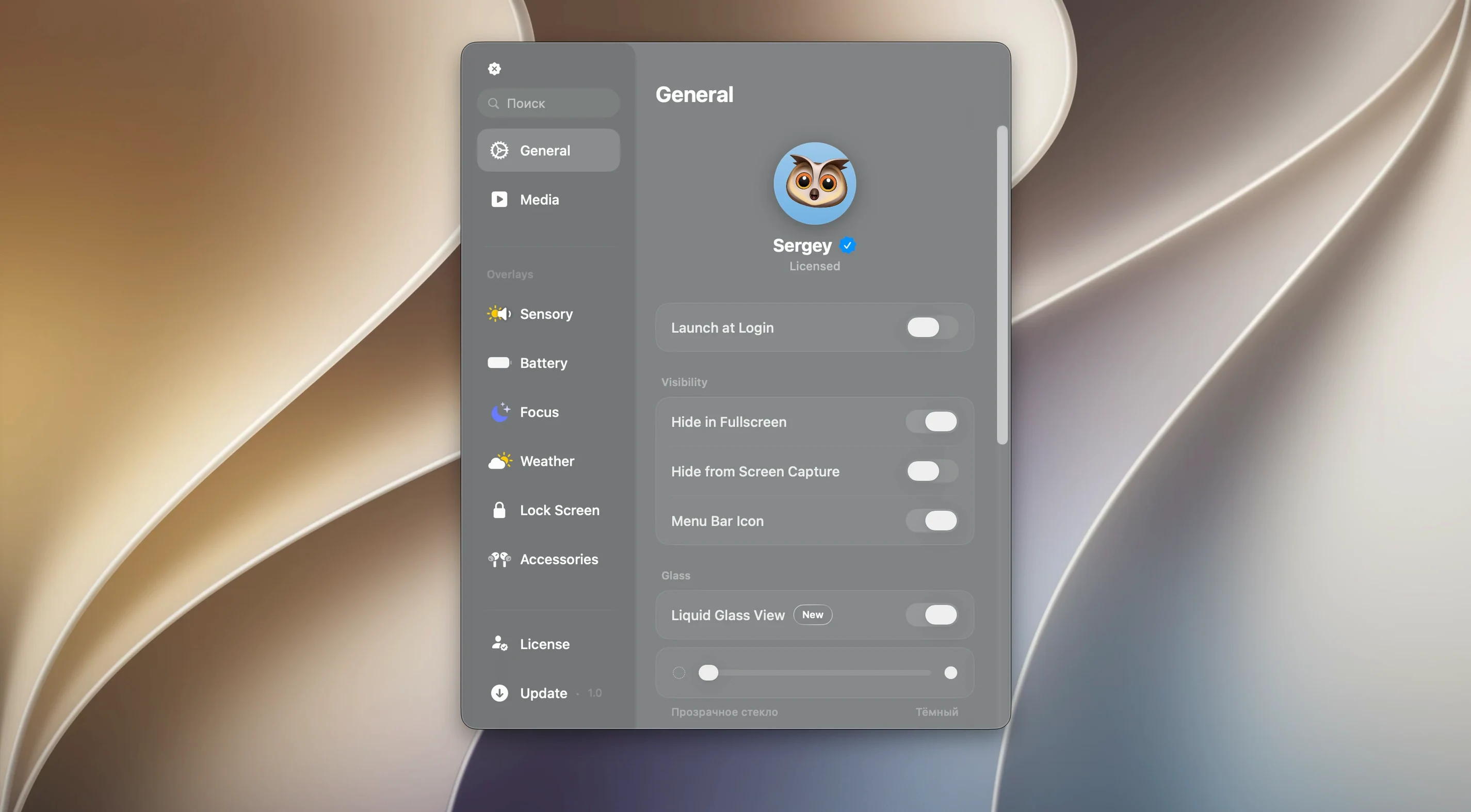
A few patterns show up when someone first runs Canopy. The most common is ignoring the notch-panel position. On a Mac without a notch, the floating widget appears at the top of the screen by default. People sometimes try to move it by dragging it like a normal window, which doesn't work. The fix is to quit and relaunch from Launchpad, which resets the position. Another one: launching the app and not seeing anything. That usually means the installer was opened but the app wasn't dragged to the Applications folder, or it was launched from the disk image instead. The icon in the menu bar is small. Beginners miss it because they expect a full window. The liquid glass effects also throw some people off. They think the transparency means the app is broken or partially loaded. It isn't — that's the intended look. A third mistake: trying to close the panel by clicking outside it. On some apps that works. Here you need the close button inside the panel itself.
Starting a 25-minute deep-focus timer after boot
Morning, sitting down at the desk. The Mac boots up. Open Launchpad, click Canopy. The icon appears in the menu bar. A blink of the Liquid Glass effect, and it's ready. First thing: start a timer for a 25-minute deep-focus block. Click the icon, the panel slides open from the notch. The timer starts counting down in the panel. Then start a music app. The track name shows up in the media controls section of Canopy without opening the music app. Volume is a bit low. Adjust it from the same panel.
Half an hour later. The timer finishes. A notification pops up in the panel and a small alert appears. No big sound, just a visual cue. Another focus block. This time set a 45-minute timer. While it runs, a system notification comes in. It appears in the panel without stealing focus from the current window. Check it, dismiss it. All from the notch.
Lunch break. Pause the music from the panel. Start a 15-minute timer for the microwave. The timer runs in the background while the Mac goes to sleep. Come back, wake the Mac, the timer is still counting in the panel. No need to re-launch anything. Resume the music from the same place.
Afternoon. No timers running. Just media controls. The panel stays collapsed most of the time. Click it only to skip a track or change volume. The widget is there but unobtrusive. That's the point — quick access without looking for it.
Liquid Glass effects replacing the flat panel look
The current build, version 2.1.0, is the update that brought the Liquid Glass effects. Before that, the panel used a flat look. The effect adds a subtle reflection and depth to the notification area. For everyday use, it means the panel feels less like a utility and more like part of the OS. The timers and media controls work the same way, so no relearning needed. The installer process also stayed identical: open the disk image, drag to Applications, launch from Launchpad. The main difference is visual — the notch panel now blends better with the rest of the interface, especially on Macs with a notch where it sits right next to the camera cutout. The notification behavior didn't change. Still pop-up, still dismissible from the panel. The media controls still support the same set of music apps. No new controls in this version, just the visual refresh and the underlying stability that comes with a point release.
Timer remembers your last duration without scrolling
A few features in Canopy 2.1.0 don't get mentioned in most walkthroughs. The first is that the timer section remembers the last duration you set. If you always use 25-minute focus blocks, you don't have to scroll each time — just tap confirm. The second: the media controls show the current track name even when the music app is minimized or in another workspace. That saves one alt-tab per track change. The third: the panel stays visible while you use other apps. It doesn't steal focus. You can click a different window while the panel is open, and it stays open. That's not common in menu bar utilities, which usually close as soon as you click outside them. The fourth: notifications from system apps appear in the panel without needing to configure anything. They just show up. No setup required. For anyone who uses Canopy mainly for timers and music, these small things make a difference over a full work day.
- macOS 26 or later
- Intel or Apple Silicon
- English interface
Questions from the notes
Does Canopy work on Intel Macs?
Yes, it works on both Intel and Apple Silicon Macs, as long as they run macOS 26 or later.
What can I control from the panel?
Notifications, music playback, timers, and live activities are all accessible from the menu bar or notch panel.
What language is the app in?
The interface is in English only.
Install procedure
- Open the downloaded disk image.
- Drag the app to the Applications folder.
- Launch it from Launchpad after the copy finishes.
Reports from players
Sign in or create a tester account to file a report.
No reports filed yet.