


The Sims 4 is a life simulation game where you create Sims, build and furnish homes, and direct their daily lives. Here’s what to expect running it on a Mac.
Runs on Apple Silicon and Intel Macs with macOS Sonoma
The game supports both Apple Silicon and 64-bit Intel Macs. It has been tested on macOS Sonoma and a MacBook Air (M1, 2020).
How do controls work on Mac?
Standard mouse and trackpad controls apply; keyboard shortcuts match the Windows version. No extra configuration is needed for basic play.
Launching the EA DLC Unlocker before the game loads
Starting a session with The Sims 4 usually begins before the game itself loads. If you've installed DLC add-ons, the first step is running the EA DLC Unlocker according to its instructions. That's a one-time setup, so after it's done, you can launch the game from the EA app or directly from your Applications folder.
The main menu loads and shows your saved households on a carousel. Most sessions start in one of two places: the household management screen or the Build/Buy mode button. For a fresh game, you click New Game, pick a world to move into, and start with a basic empty lot or one of the game's pre-built starter houses.
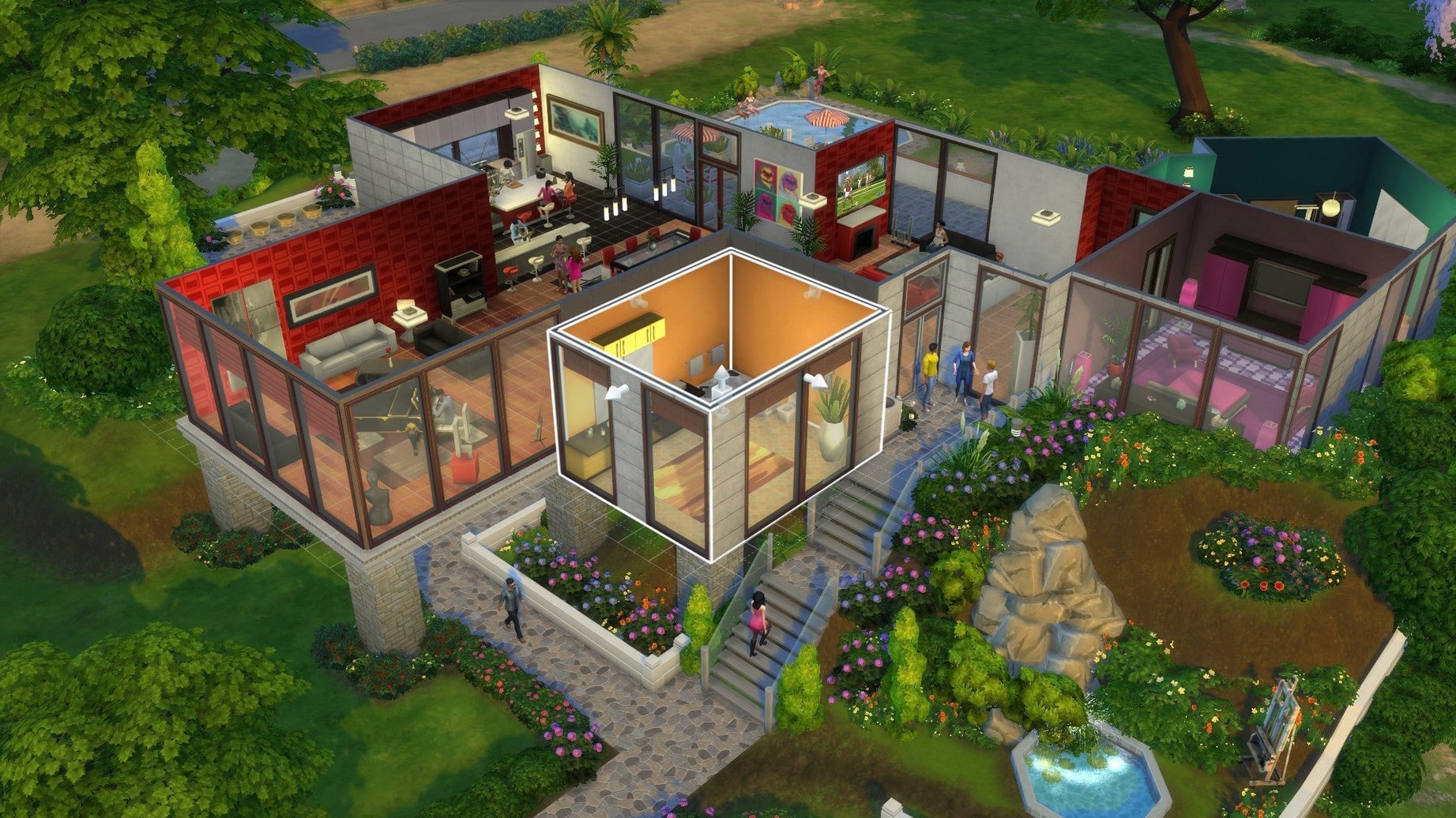
Once a household is placed, the game drops you into live mode. Time runs at a default speed, and you pause immediately if you want to queue up actions. A typical session moves between three modes: Live (where events happen), Build/Buy (where you edit walls, furniture, and terrain), and the map view (where you send Sims to other lots or community spaces).
After about twenty minutes, the rhythm sets in. You check needs panels — hunger, bladder, social, fun — and queue tasks accordingly. If a career workday appears on the calendar, you make sure the Sim leaves on time. Between those necessities, you scroll through the Gallery for inspiration or place a new piece of furniture you downloaded earlier.
Most sessions wrap up after a Sim reaches a milestone: a promotion, a completed aspiration, a wedding, or simply aging up. You save before exiting, since the game autosaves only at certain transitions like traveling or loading a lot. It's not aggressive about it, so manual saves are the habit worth forming.
Character creators and storytellers get the most from CAS tools
The Sims 4 appeals to a broad range of Mac users, but some groups get noticeably more mileage from it than others.
Players who enjoy character creation and storytelling. The CAS (Create a Sim) tools let you adjust facial features, body shapes, walk styles, and voice pitch. If you spend as much time crafting a character as you do playing, this is the audience the game was built for. The Gallery lets you share your creations or download others', which feeds back into the storytelling loop.
Mac users with older Intel machines and integrated graphics. The game runs on a wide range of hardware, including MacBook Airs and older Mac minis without dedicated GPUs. It won't look as sharp on those machines — you'll want to lower the graphics preset in the settings — but it stays playable for building and basic simulation. If your Mac struggles with newer titles but handles this one, you can still get hours of use out of it.
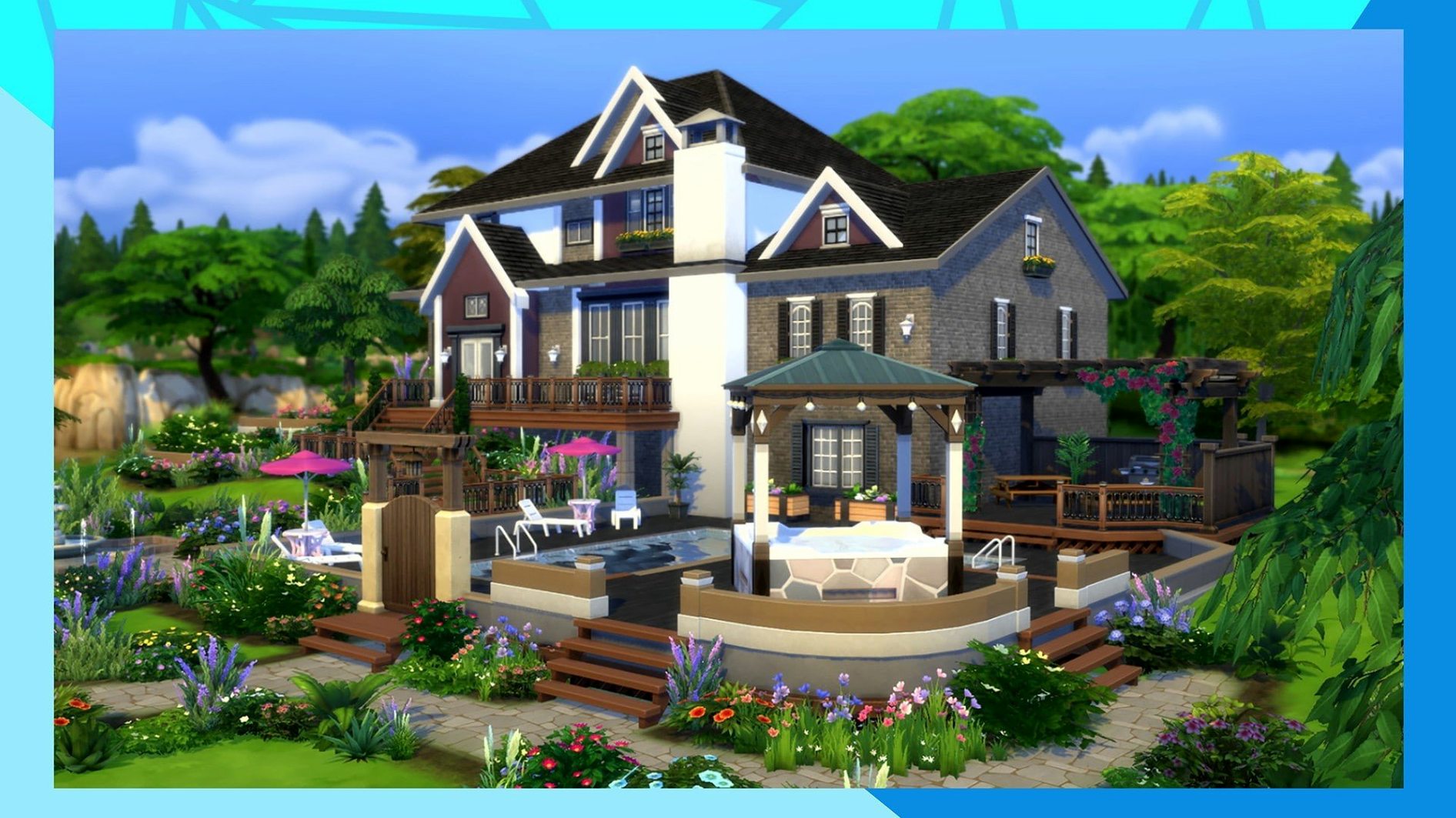
Players who enjoy building and architecture. The Build/Buy toolset is surprisingly deep for a life sim. You can adjust wall heights, create unfurnished rooms, paint individual tiles, and place objects freely without a grid lock. Mac users who also dabble in design or interior layout apps find this mode particularly absorbing.
Users who play in short bursts. The game saves quickly, and sessions can be as short as fifteen minutes. You can enter, handle a few needs, send a Sim to work, and save without feeling like you've abandoned a complex campaign. That suits Mac users who play on a lunch break or between work tasks.
Users with Apple Silicon Macs get consistent performance at medium to high settings. The M1 and later chips handle the game well, and the fans stay quiet on most models unless you're running a heavily filled lot with many Sims and objects active at once.
Adjusting graphics and performance settings before your first household
Before you start your first household, there are a few settings that make a real difference to how the game feels on a Mac. These are not hidden, but they are easy to skip in the initial splash of options.
- Graphics quality. Set this to Medium or High depending on your Mac. On integrated graphics, Medium keeps the game stable and still looks good. On Apple Silicon, High works fine for most lots. Dropping to Low blurs textures noticeably.
- Sim details. This slider controls the quality of Sim faces and clothing textures. Keep it one notch below the overall graphics setting on older Macs. The eyes and skin details are the first thing to look waxy when this is turned down too far.
- Edge smoothing. Turn this to at least medium. Without it, Sim models show jagged edges on character outlines, especially in CAS mode. The performance cost is small on modern hardware.
- Unlimited FPS in background. Disable this. The game will keep rendering at full speed even when you tab out, which uses unnecessary resources.
- Auto-aging for played Sims. Change this to match your playstyle. If you want a long-term story, set it to Only Active Household or turn it off entirely. The default setting ages every Sim in the world, which can lead to a lot of unexpected gravestones.
These settings are saved per user profile, so you can tweak them once and forget about them.
Using Mission Control and Spaces to switch between the game and other apps
The Sims 4 integrates with macOS in a few useful ways that aren't always obvious.
Mission Control and Spaces. The game respects standard macOS window management. You can put it in its own Space and switch to a browser or Notes app without the game minimizing. This is handy if you're following a build tutorial or referencing a Sim's biography you wrote elsewhere. The game pauses when you switch away, which is the default behavior — no need to fumble for the pause key.
Screenshots. Mac's built-in screenshot tools (Command-Shift-3 or Command-Shift-4) capture the game window correctly. The game also has its own screenshot function through the camera icon in the UI, which saves to the Sims 4 screenshot folder. If you want clean, high-resolution images for sharing, the Mac approach gives you better control over framing.
The Gallery and Safari. The in-game Gallery pulls content from the EA servers. It works best with a stable internet connection. If you find it slow, the official Mac release notes for update 1.127.41.1030 mention improvements to Marketplace browsing and image caching, so the first load of popular content takes less time on subsequent visits. You can also browse the Gallery through the EA website, though the in-game version is more convenient for one-click downloads.
Mods and custom content. The Sims 4 mods folder sits in Documents/Electronic Arts/The Sims 4/Mods on every Mac. You can drop .package and .ts4script files there directly from Finder. The game scans this folder at launch, so you don't need a separate mod manager unless you're organizing large libraries. If a mod breaks after an update, removing it is a simple drag to the Trash.
System-wide audio. The game uses the default audio output. If you use multiple audio devices — say, Bluetooth headphones for focus and built-in speakers for casual play — you can switch without restarting the game. The audio settings inside the game let you adjust master volume, music volume, and sound effect volume independently.
A builder who designs code-free houses on her MacBook Pro
A user I'll call Mariana works as an architectural draftsman during the week. On weekends, she opens The Sims 4 on her MacBook Pro to unwind by building houses that don't have to follow real building codes. Her session starts in Build/Buy mode on a large lot in the Windenburg world. She sets wall height to the tallest option, lays out a two-story shell, and starts placing windows and roofing.
She uses the eyedropper tool to match wall colors from the Gallery's featured builds. The room tool lets her define spaces quickly — she drags out a kitchen rectangle, a living room, and a hallway, then uses the half-wall tool to separate them without solid barriers. The game's roofing system takes a few tries to get right: she uses the auto-roof feature for the main structure, then manually tweaks the eaves and adds a dormer by splitting the roof plane.
Mariana doesn't play live mode much. She builds four or five houses per session and saves each one to her personal library. Occasionally she downloads a house from the Gallery, remodels it, and re-uploads it with credit to the original creator. The game's search filters in the Gallery help her find builds by lot size or room count, which saves time browsing.
For her, The Sims 4 is a sandbox for spatial thinking. The grid-based placement forces constraints that feel like a real architectural problem, but the lack of permits and budgets makes it relaxing. She keeps the game running in its own Space, with a browser open to a reference image board on the adjacent desktop. She can switch between them without the game closing or stuttering, which keeps her flow intact.
Intel Macs with dedicated graphics handle it better.
- Marketplace browsing was improved.
- Marketplace images are now cached after the first download.
- Bug fixes were included in the update.
- macOS: Sonoma (tested), supports older versions
- Architecture: Apple Silicon and 64-bit Intel
- Tested on: MacBook Air (M1, 2020)
Questions from the notes
What languages are supported?
The Sims 4 supports 17 languages including English, French, German, Spanish, Italian, Dutch, Polish, Portuguese, Finnish, Czech, Swedish, Danish, Russian, Korean, Japanese, Traditional Chinese, and Simplified Chinese.
Install procedure
- Download the EA DLC Unlocker and read the included instructions.
- Download the DLC add-ons as separate files or as one file.
- Open the EA App without the DLC Unlocker to change the language.
- In the game properties, find the language setting and select your language.
- Save the change, close the window, then click Update to refresh the game.
- After the download finishes, launch the game.
- If the game freezes on the initial splash screen, clean the The Sims 4 folder in Documents and keep only Tray, Saves, and Mods if needed.
Reports from players
Sign in or create a tester account to file a report.
No reports filed yet.