If you've ever needed to send audio from one Mac application to another — say, from a web browser into a recording app or a streaming tool — the built-in macOS audio system doesn't make it easy. Loopback is the tool that solves that.
What does Loopback do?
Loopback creates virtual audio devices on your Mac. You can combine sound from multiple applications and physical input devices into one virtual device, then send that combined stream to any other app that accepts audio input.
Who is it for?
Podcasters, streamers, sound designers, and anyone who needs flexible audio routing without buying extra hardware. It pairs naturally with Audio Hijack for more advanced capture and processing.
How does the interface work?
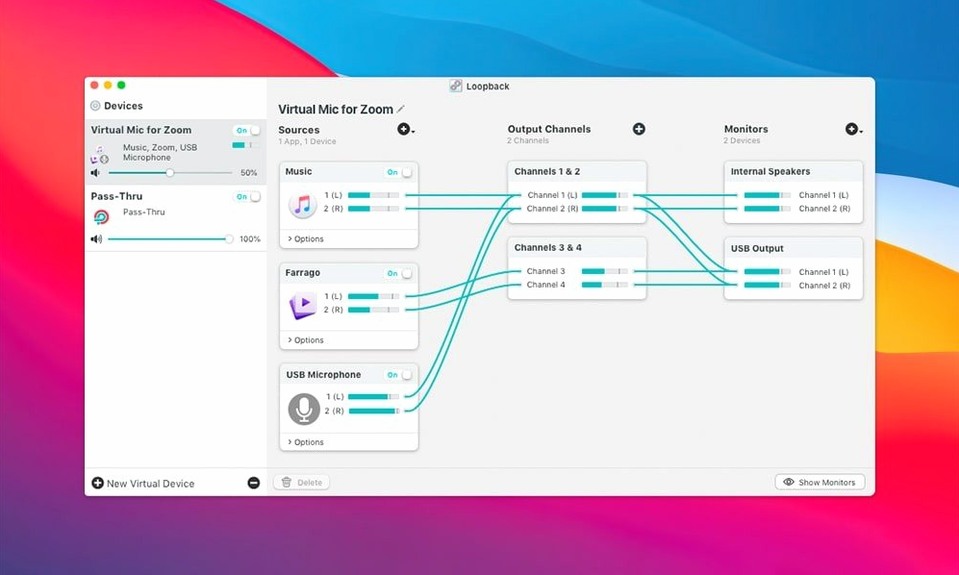
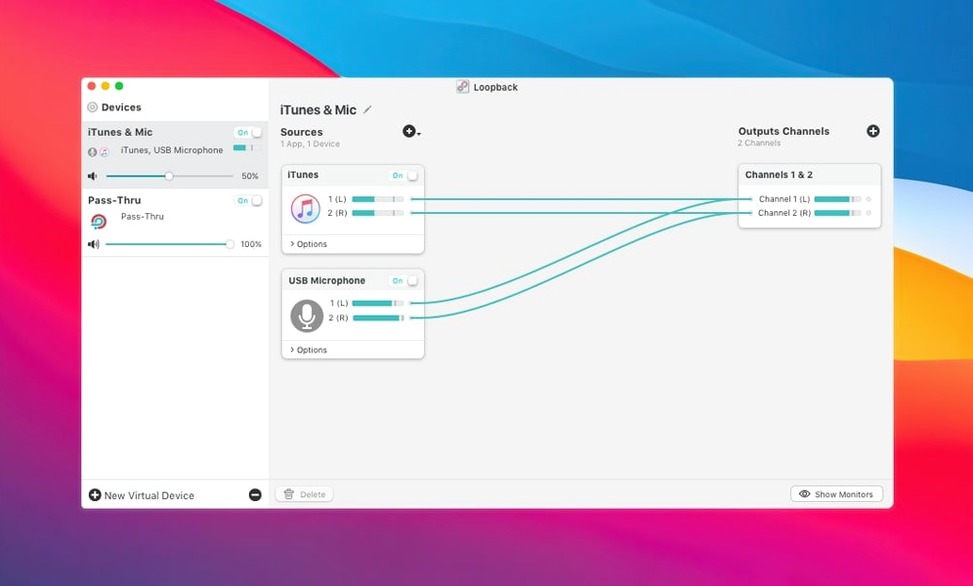
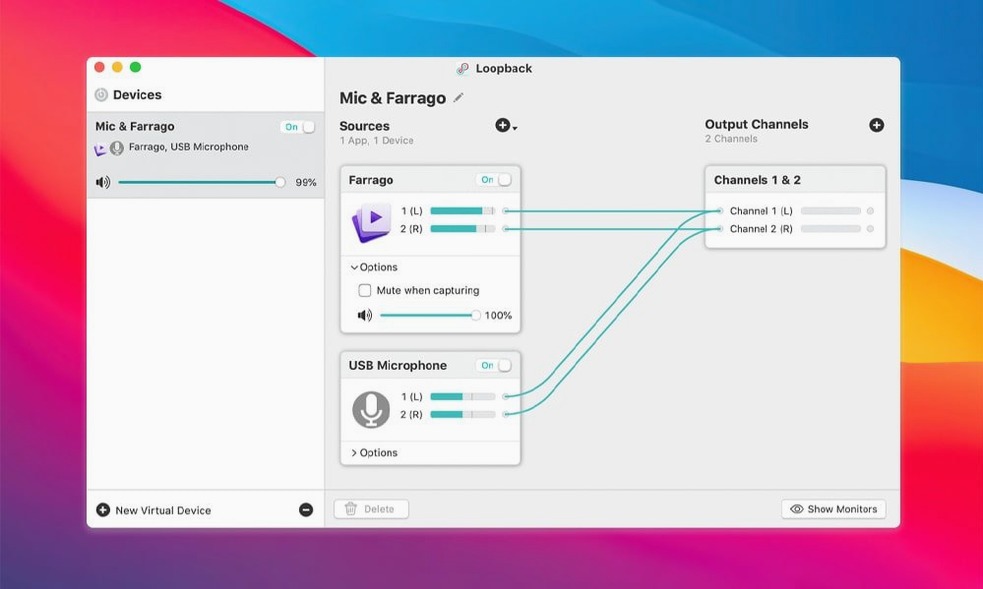
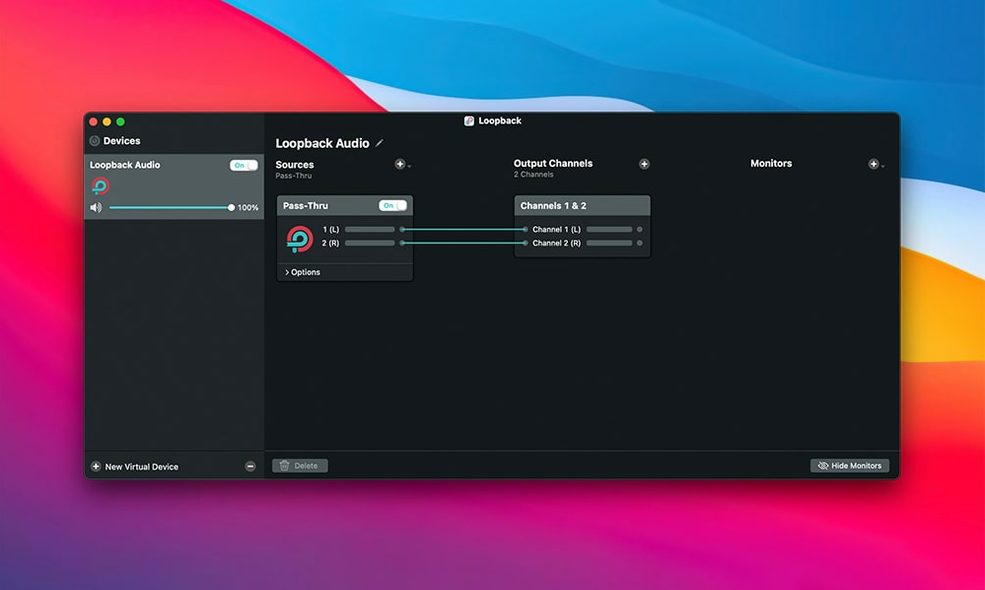
Loopback uses a wired interface: you connect sources (apps or input devices) to outputs visually. It's direct, no guesswork. The current version 2.5.0 runs on macOS 11 through 27 and no longer shows a launch warning on macOS 27.
Expecting Loopback to act like a hardware mixer
The most common error is expecting Loopback to behave like a hardware mixer. It does not appear in system audio preferences as a standard input or output device until you create one. New users often open System Settings, find nothing, and assume the install failed. You have to launch Loopback first, build a virtual device in the wiring panel, then select that device in your target app.
Another frequent slip is forgetting to add both sources before enabling the virtual device. If you wire only your microphone to an output but never connect the browser or game audio, you'll record silence from the app side. The wiring interface shows every connection as a line between boxes — if a box has no line leaving it, that source isn't feeding anything.
People also confuse Loopback with a recording app. It does not save audio to a file. It is a routing layer. You still need a destination app — QuickTime, OBS, Audacity, Audio Hijack — to actually capture what Loopback sends. Without a recording app on the output side, the virtual device has nowhere to go.
A quieter but persistent mistake: muting the wrong thing. Because Loopback creates a new audio path alongside the system's normal one, you can end up with two streams playing at once — one through the Mac's speakers and one through the virtual device. Beginners sometimes mute the system output to fix an echo and accidentally kill all sound. The fix is to mute only the source apps inside Loopback, not the Mac's master volume.
Resolving audio routing that breaks after a reboot
Audio crackles or drops out
This usually points to a sample rate mismatch. If your microphone is set to 48 kHz inside its own software but Loopback's virtual device defaults to 44.1 kHz, the conversion can introduce glitches. Check the sample rate in Loopback's source settings and match it to whatever your recording app expects. Most modern podcast and streaming setups use 48 kHz.
Loopback does not see an application
Some applications do not expose their audio streams the way Loopback expects. Web browsers usually work, but a few game clients or older VoIP tools may not appear in the source list. The workaround is to pass that app's audio through a system-level virtual cable or to use Audio Hijack as an intermediate capture device, then feed the result into Loopback. Rogue Amoeba's own site has a short compatibility list worth checking before you build a complex routing setup.
Virtual device disappears after restart
Loopback does not automatically recreate virtual devices across reboots. If you power off the Mac, the device you built is gone. You have to open Loopback again and either rebuild the wiring or save a preset. Version 2.5.0 includes a preset system — use it. One saved preset saves minutes of re-cabling every morning.
Microphone echo in voice chat
This happens when the app receiving the combined audio also plays it back through the Mac's speakers, and the microphone picks up that playback. The solution is to use headphones and, inside Loopback, make sure the microphone feed goes only to the virtual output, not to the system output as well. The wiring panel lets you control exactly where each source ends up.
Podcasters recording remote interviews into one device
The tool rewards people who work with multiple audio sources at once. That includes:
- Podcasters recording remote interviews. You can route a VoIP call and your own microphone into one virtual device, record that single stream in GarageBand or Audacity, and skip post-production syncing entirely.
- Streamers using Elgato Game Capture hardware. Loopback can feed microphone audio and game audio into a single output that the capture card sees. No second audio cable needed, no separate mic track to align later.
- Screen recorders who need voiceover and system sound. Creating a tutorial or a bug report video means the viewer needs to hear both your commentary and the app's clicks and alerts. Loopback combines them into one input that QuickTime Player or OBS can record in one pass.
Users who only record a single microphone into a single app rarely need Loopback. The built-in macOS audio path already does that. Loopback becomes valuable once the number of sources exceeds one.
macOS 27 launch warning removed in the latest update
The update focused on compatibility rather than new features. The main practical difference for users is the removal of the macOS 27 launch warning. If you are on macOS 27, the app starts without an extra dialog box — a small change that saves a click every time you open it.
The ARK plugin update to version 13.5 is invisible during normal use but affects how audio routing handles latency and buffer sizes under the hood. Rogue Amoeba's release notes describe it as a maintenance update, not a performance overhaul. For most users, the behavior before and after remains the same. If you run a high-channel-count setup or use Loopback as a destination for Audio Hijack capture chains, the updated plugin may behave slightly more predictably at low buffer settings.
Whether Loopback works without a physical audio interface
Does Loopback work on Apple Silicon Macs?
Yes. The current download supports both ARM (Apple Silicon) and x86 (64-bit) architectures. It runs natively on M1, M2 and M3 series Macs without emulation.
Do I need admin rights to install it?
The install process is simple: open the disk image, drag the app into the Applications folder alias, then launch it from Launchpad. That is a standard macOS user-level install. You do not need administrator permissions to complete it, provided your account can write to the Applications folder.
Can I use Loopback with a loopback license key from another source?
A loopback license key is not part of the install process. The download provided here does not require a key to run. If you acquire the software through other channels, activation rules may differ. For this version, the application is ready to use after copying it to your Applications folder.
Does Loopback add latency?
Every digital audio path adds some latency. Loopback introduces as little as the host system allows. The ARK plugin version 13.5 included in 2.5.0 handles buffer negotiation between sources. If you are routing audio through multiple hops — for instance, from a browser into Loopback, then into Audio Hijack, then into a recording app — total latency accumulates. For real-time voice chat, keep the chain short. For recording, latency is irrelevant because the file captures the synchronized stream regardless.
Can I send a Loopback virtual device to another computer?
Loopback operates only on the local machine. It creates virtual devices that live in macOS. To send audio over a network, you would need additional software such as Jacktrip or a DAW's networked audio feature. Loopback itself does not include network routing.
What happens if I uninstall Loopback?
Dragging the app from Applications to the trash removes it. Any virtual devices you created disappear with it. Presets are stored inside the app's data folder and are also removed. The macOS audio system returns to its default state with no trace of the virtual devices.
If you plan to come back to it later, save a backup copy of the app's preset file before deleting — that saves redoing wiring from scratch after a reinstall.
Version 2.5.1 is a maintenance update. No specific changes were detailed for this release.
- macOS 11 or later
- Apple Silicon or Intel 64-bit Mac
Questions from the notes
Does Loopback require a license key to function?
No, Loopback does not require a license key. It is a standard Mac application you install and run.
Can I use Loopback on both Intel and Apple Silicon Macs?
Yes, Loopback runs on both architectures. It supports macOS 11 and later.
Install procedure
A 33 MB download that lands on Apple Silicon and Intel Macs running macOS 11 or later. Three steps get you from disk image to fully routed audio.
- Open the downloaded disk image.
- Drag the Loopback app into the Applications folder shortcut.
- Once the copy finishes, launch Loopback from Launchpad.
Reports from players
Sign in or create a tester account to file a report.
No reports filed yet.