
Open Termius and the first thing you notice is the command palette. It is the quickest way to start a session: type a hostname, pick a credential, and you are in. No digging through menus.
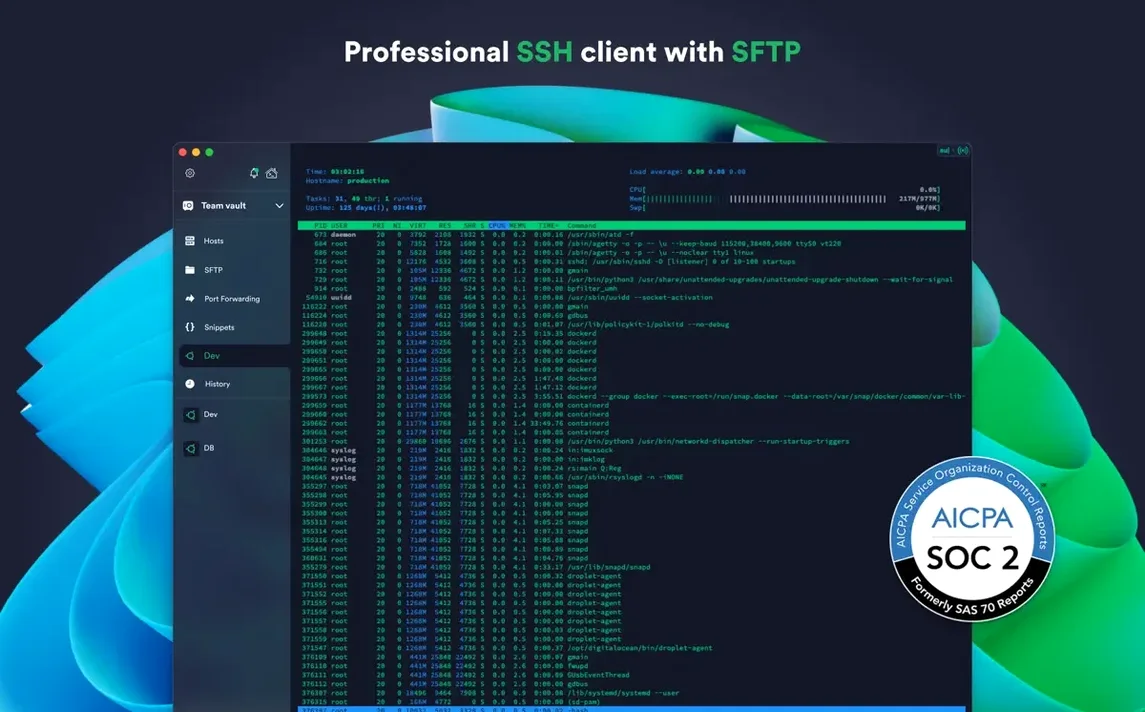
- Connects to remote hosts with SSH, Mosh, Telnet, port forwarding, and SFTP.
- Uses Touch ID or Face ID to protect saved credentials, so you don't have to type passwords every time.
- Syncs connection settings and credentials through encrypted cloud storage, making it easy to switch between your Mac and other devices.
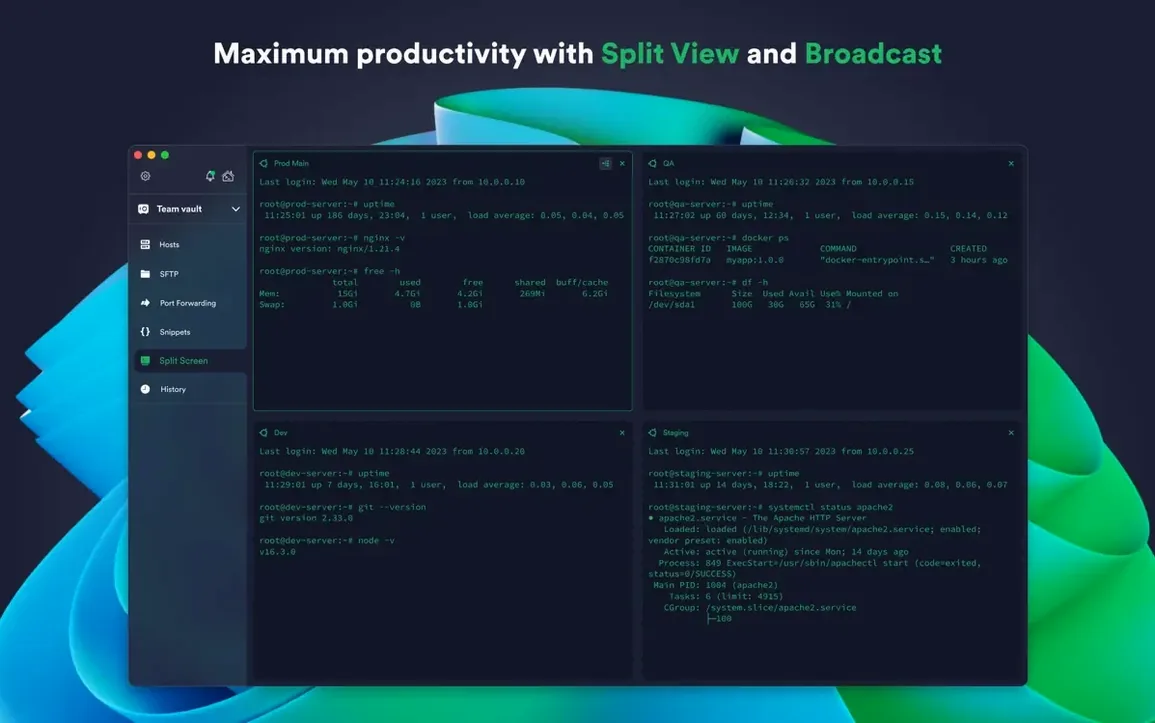
- Runs multiple sessions in tabs or split view, which helps when you are comparing logs or working on several servers at once.
- Lets you set per-connection terminal themes and fonts, so each environment can look the way you want.
- Supports proxy servers and jump servers, useful when you need to reach a host behind a firewall.
Version 9.35.4 brings stability improvements, which is the kind of update that does not make headlines but keeps the app from hiccuping mid-session. If you spend time on remote machines, Termius does the job without getting in the way.
Fewer connection drops and reliable key exchange
The only note for this release is "stability improvements." In practice, that usually means fewer connection drops, more reliable key exchange, and better handling of edge cases when switching networks. If you updated from an earlier 9.x version, you should notice that sessions hold steady even when your network hops between Wi-Fi and tethering. Nothing flashy, but the kind of change that saves you from reconnecting mid-deploy.
There are no new features or interface tweaks in 9.35.4. The command palette, tab system, and credential management all work the same as before. If you are coming from a significantly older version, say 8.x, you will find the cloud sync and the credential storage more polished. The FIDO2 support and the chacha20-poly1305 cipher were added in earlier releases, so 9.35.4 just makes them more reliable.
Set per-connection themes for production and staging
Out of the box, Termius uses a default theme and font. If you work with multiple hosts, set up per-connection themes early. That way, production servers get a red-tinted background and staging stays green. It takes two seconds per host and prevents the kind of mistake where you run a destructive command on the wrong machine.
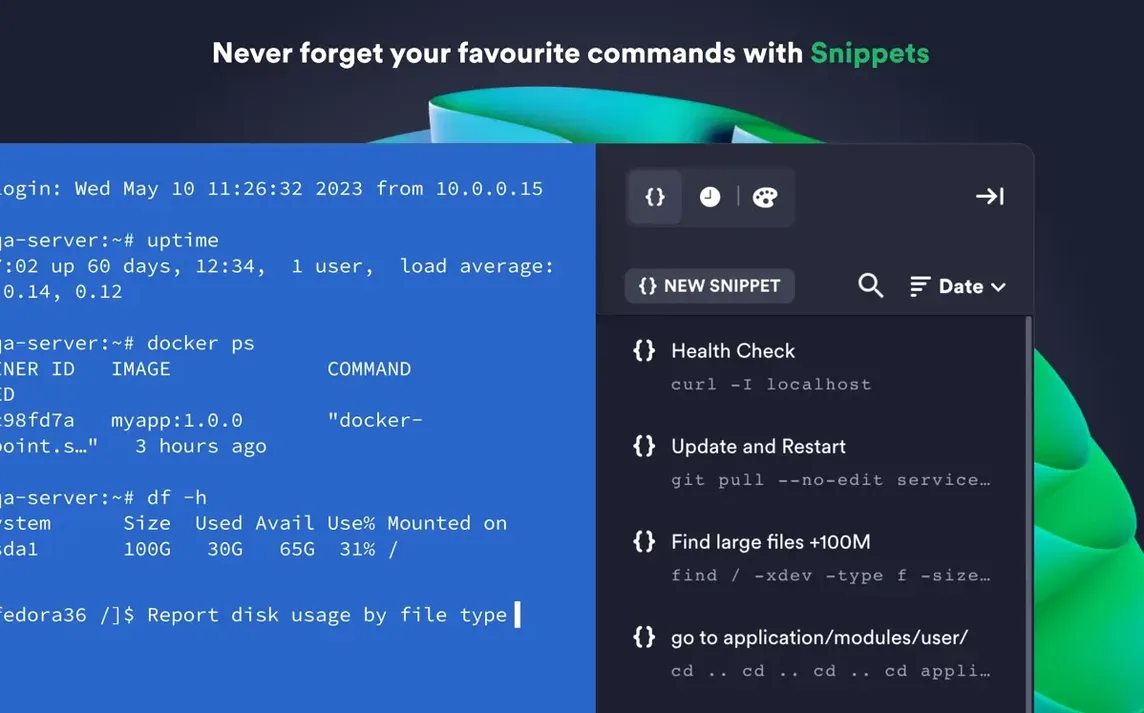
Enable the shared command history. It keeps a record of what you typed across sessions, which is handy when you need to rerun a complex chain of commands you used three days ago. The history syncs across devices if you use cloud sync, so your laptop and desktop stay in sync.
Set up Touch ID or Face ID for credential protection right after installation. It saves you from typing a master password every time you open the app, and it keeps your keys secure if you leave your Mac unattended. The same goes for two-factor authentication on your Termius account if you sync credentials. It adds a step during login, but it prevents someone else from pulling down your entire server list.
Runs on macOS 10.13 or later with Apple Silicon support
Termius runs on any Mac with macOS 10.13 or later. That covers High Sierra through the current release, and it works on both Intel and Apple Silicon hardware.
The app is a standard Cocoa application with a modern interface. It does not install background services or kernel extensions. It opens quickly and stays responsive even with a dozen tabs open. The split view lets you arrange terminals side by side, and the tabs work like any other macOS tabbed interface.
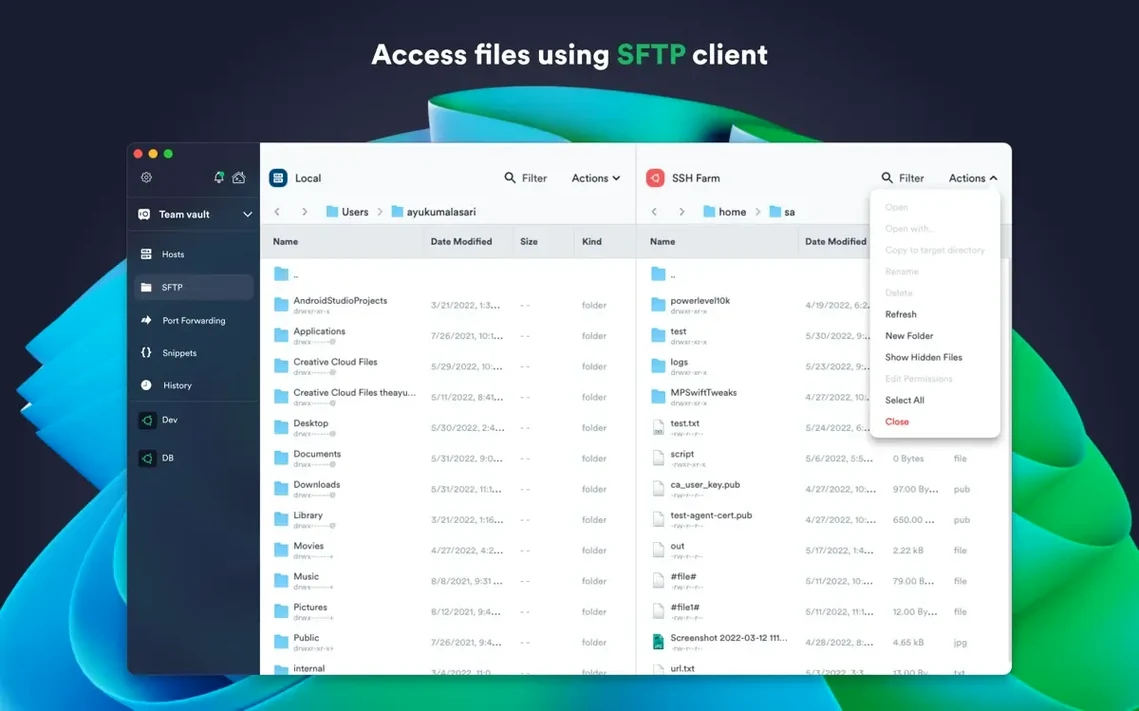
SFTP sessions work for file transfers. The direct download version gives you full access to your local file system in SFTP, so you can drag files from any folder.
Termius does not include a local terminal emulator. It is designed for remote connections only. If you need a local shell, you will still use Terminal.app or iTerm2.
Fix cloud sync by checking your Termius account
Cloud sync not working. If your credentials and hosts do not appear on another device, check that you are signed into the same Termius account on both machines. The sync uses encrypted cloud storage, so you need an account for it to work. Also verify that both devices have internet access and that no firewall is blocking Termius outbound.
FIDO2 key not recognized. Termius supports FIDO2 hardware-key authentication, but the key must be inserted before you start the connection. If you plug it in after initiating the session, the app may not detect it. Some keys also require a firmware update. If a particular key model does not work, check the manufacturer's documentation.
Jump server connections fail. When you configure a jump host, make sure the jump server credentials are saved and that the jump server itself is reachable. Termius tries to connect to the jump server first, and if that fails, the entire chain stops. Test the jump server in a separate session before chaining it.
Custom environment variables not applied. If you set environment variables per connection and they do not show up in the session, double-check that you saved the configuration after adding them. The variables apply only when you start a new connection, not to already active sessions. Close the tab and reconnect.
SFTP session cannot access a local folder. On the direct download version, this usually means Termius does not have permission to read that folder. Grant full disk access to Termius in System Settings > Privacy & Security > Full Disk Access.
- Stability improvements.
- macOS 10.13 or later
- Apple Silicon or Intel 64-bit
- English interface
Questions from the notes
Does Termius work on Apple Silicon Macs?
Yes, Termius supports both Apple Silicon and Intel 64-bit Macs, and it runs on macOS 10.13 or later.
Can I use Termius to transfer files?
Yes, Termius supports SFTP, so you can transfer files to and from remote hosts in addition to terminal sessions.
How does Termius protect my credentials?
Termius uses Touch ID or Face ID to protect credentials, and also offers two-factor authentication for your account.
Install procedure
- Open the downloaded disk image.
- Drag the app into the Applications folder shortcut.
- After copying finishes, open the app from Launchpad.
Reports from players
Sign in or create a tester account to file a report.
No reports filed yet.