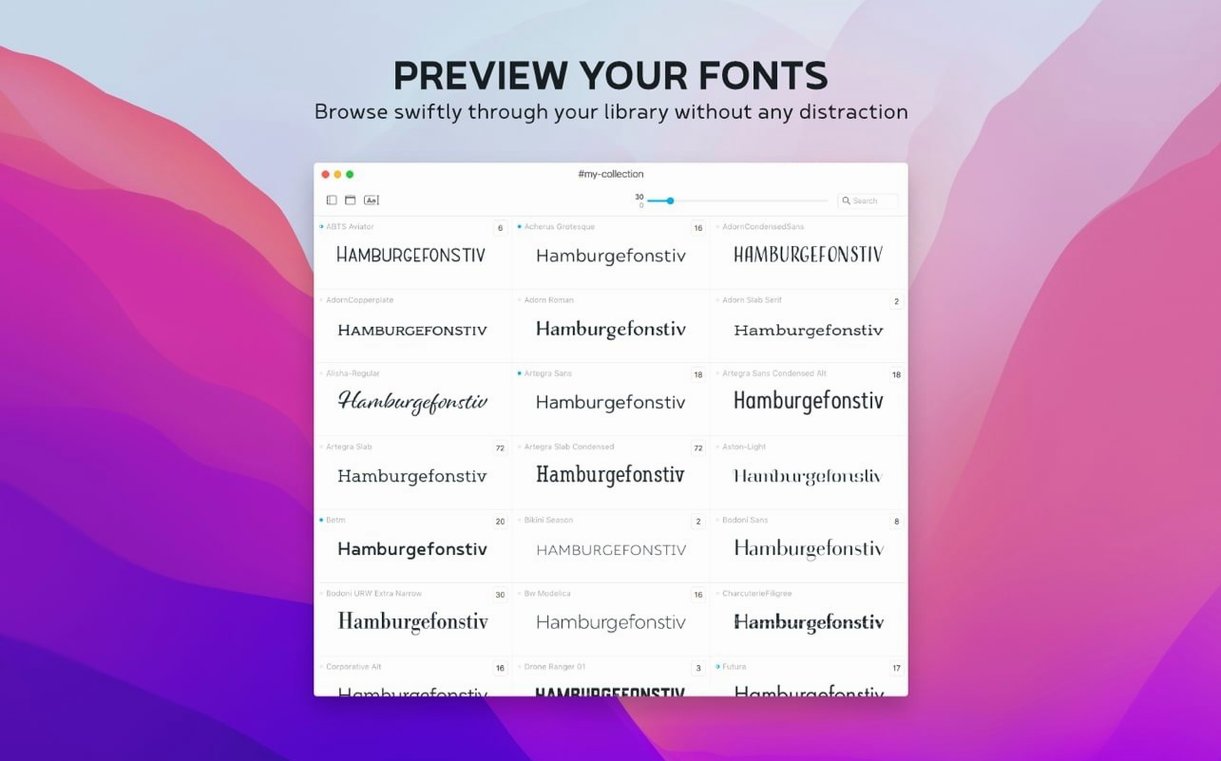
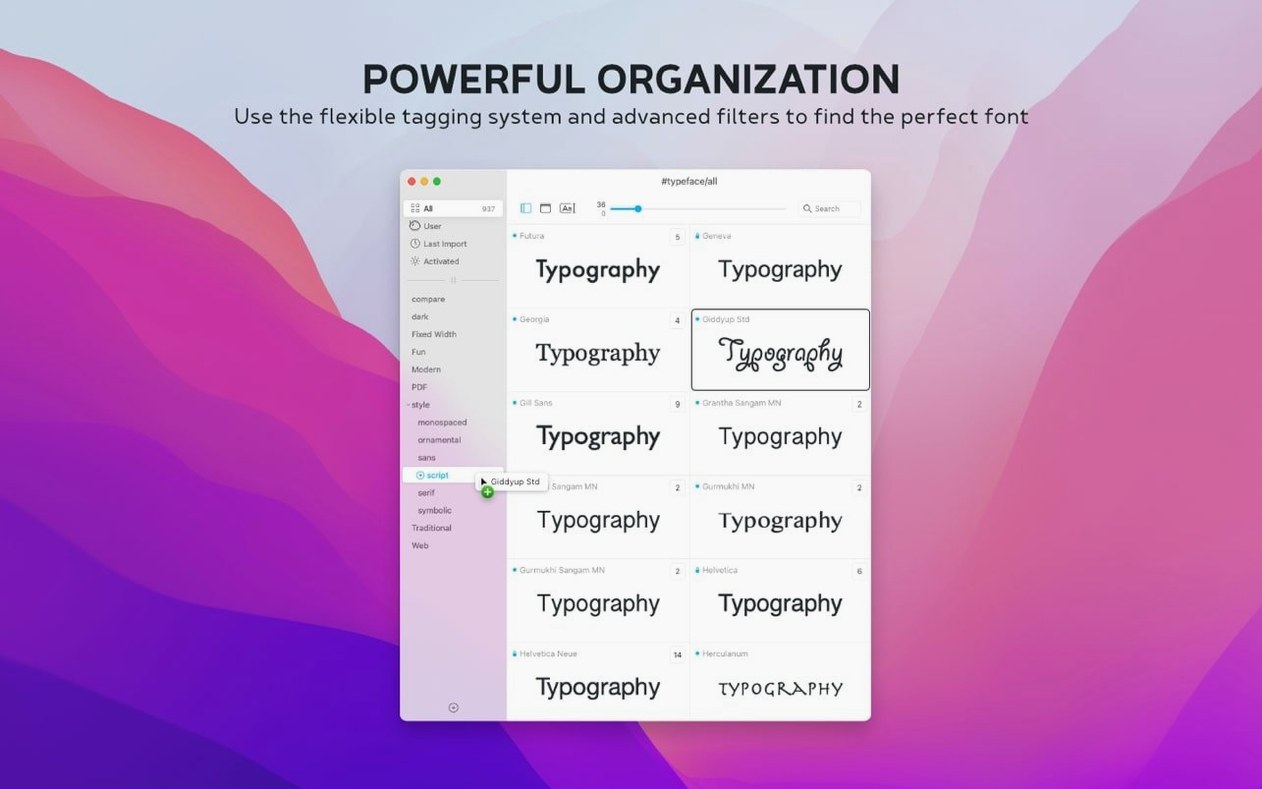
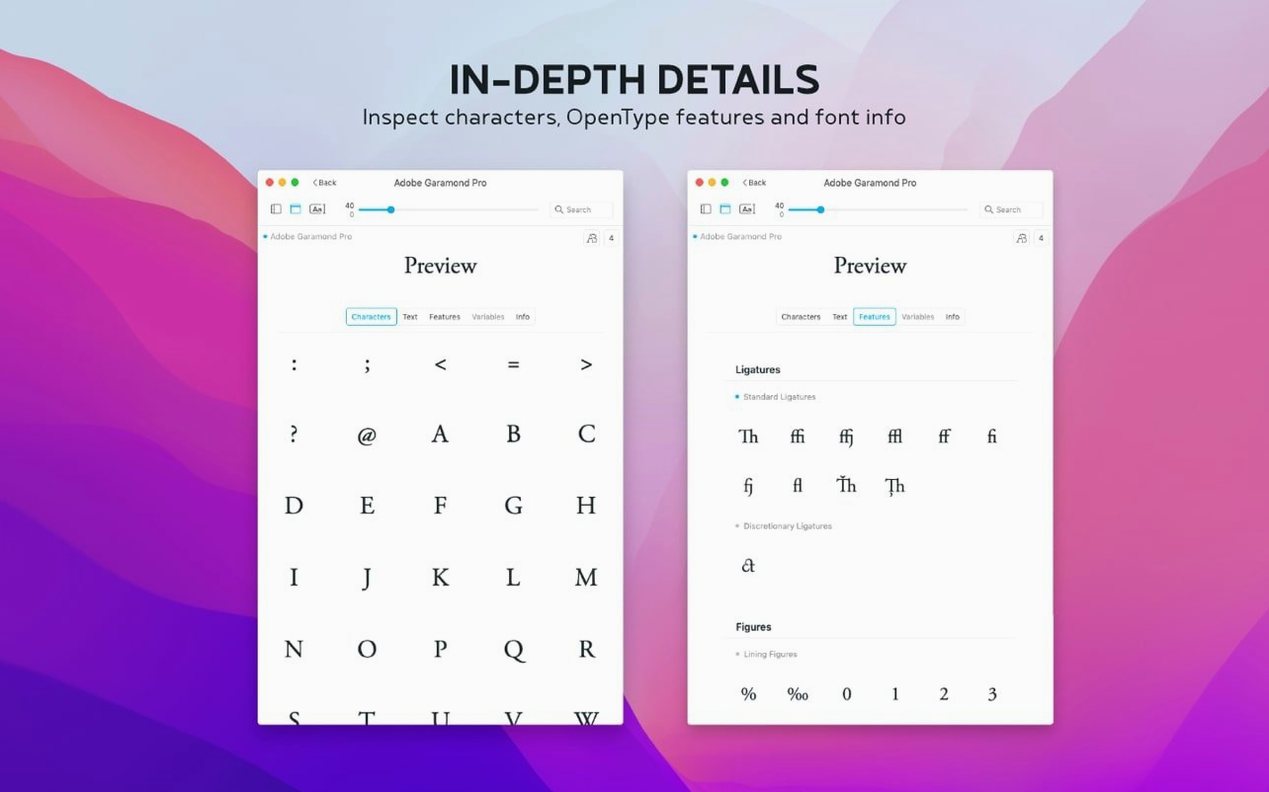
Typeface 4.5.0 manages fonts on macOS 12 or later, on both Apple Silicon and Intel Macs. It handles installed Mac fonts, custom fonts, and imports from other managers or the internet. You can assign a font to multiple groups using tags, and the Info tab shows metadata, copyright history, tags, and groups.
Good for:
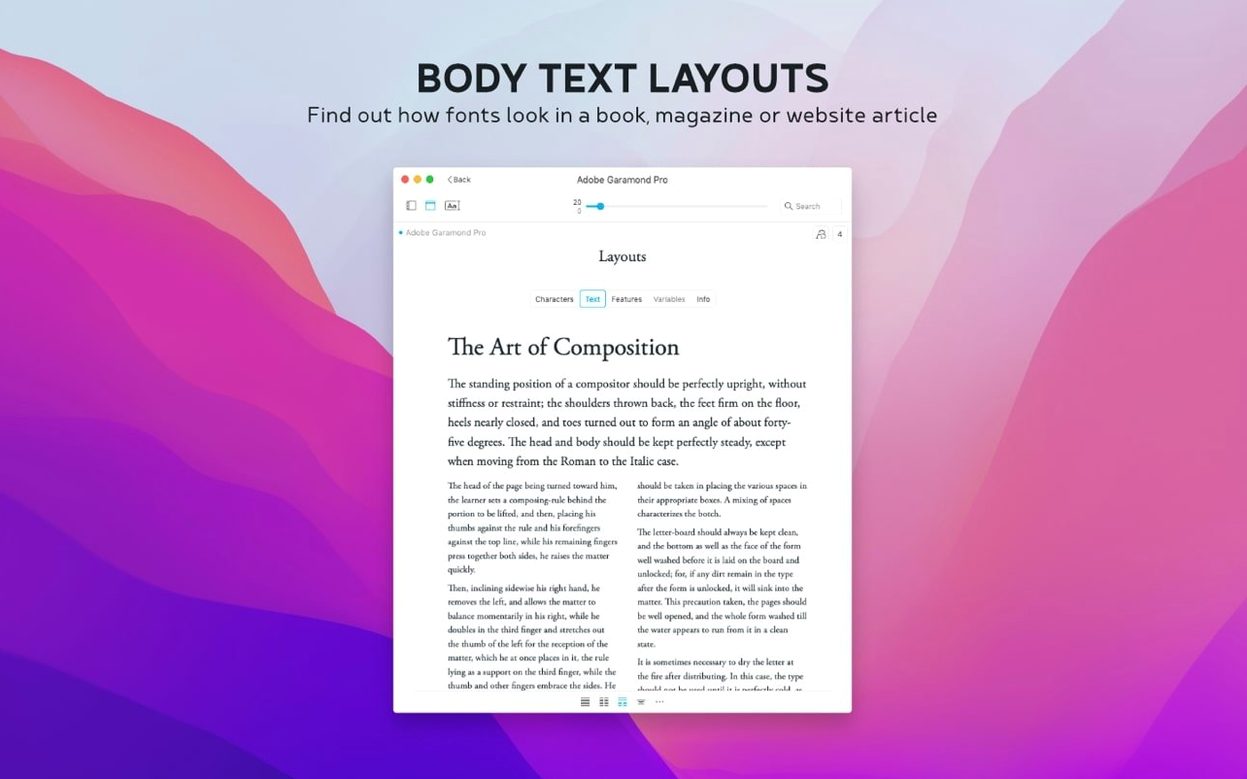
- Previewing fonts at different sizes and sample texts, with weight and other effects.
- Comparing fonts side by side before committing to one.
- Sorting by last activated date — new in 4.5 — to see what you actually use.
- Adding notes to fonts and searching those notes later.
- Working with .otc font files, which version 4.5 now supports.
Keep in mind:
- Running it requires macOS 12 or newer; no older versions are supported.
- Interface languages include English, German, Dutch, French, Czech, and Japanese.
- Fonts activated from the internet or other managers may need the source app to remain installed.
Launches from a single app file you drag into Applications
It launches from a single app file you drag into your Applications folder, and it works with whatever fonts macOS itself can see. That includes every font installed through system-level installers, Adobe Fonts, or other font managers, as long as macOS recognizes them.
The app runs in one window with a sidebar and a main preview area. It loads all installed fonts at startup, so the initial launch may take a moment depending on the size of your font library. After that, navigating between fonts is immediate — it does not need to rebuild a cache each time you switch views.
Because it is a native macOS app built for both architectures, it does not require Rosetta on Apple Silicon machines. It also does not install anything into system directories like /Library/Fonts on its own; it only reads from them. This keeps the system font folder unchanged and avoids the kind of conflicts that sometimes happen with heavier font management suites.
File format support in version 4.5.0 includes .otc (OpenType Collection) files, which were not available in earlier releases. If you work with font packs that ship as .otc, this version can read them directly without conversion. Standard .otf, .ttf, and .ttc files remain supported as well.
Does not activate or deactivate fonts system-wide
Will Typeface slow down my Mac if I have thousands of fonts?
The app is designed to work with large font libraries, but it does not activate or deactivate fonts system-wide — it shows everything macOS already has installed. If your system has thousands of active fonts, macOS itself may feel slower regardless of which manager you use. Typeface does not add extra background processes beyond what you see on screen.
Can I try a font before installing it permanently?
Yes. Typeface lets you preview any font that macOS sees, including fonts you have not yet permanently installed — for example, fonts loaded from a font manager like FontBase or RightFont, or fonts stored in a folder you have pointed macOS at. The preview shows size, sample text, weight, and other effects without requiring the font to be in your system Fonts folder.
What happens if I delete the app?
Since Typeface does not modify system files or install its own daemons, deleting the app leaves your font setup exactly as it was. All your installed fonts remain, and any custom collections or notes stored inside Typeface are gone unless you export them first.
Does it work with fonts I downloaded from a typeface torrent or other internet sources?
Yes. If the font file is in a format macOS can read — .otf, .ttf, .ttc, .otc — and you have placed it where macOS can see it (your user Fonts folder, the system Fonts folder, or a font manager that exposes fonts to the system), Typeface will show it in the list. The app does not judge where fonts came from; it only reads what is available.
Sidebar shows all font families with a search field
You open the app from Launchpad. The main window appears with a sidebar on the left listing all font families currently installed on your Mac. At the top of the sidebar, a search field lets you type a font name or a note you wrote earlier — version 4.5.0 searches both font names and notes in one step.
You click a family in the sidebar. The preview area updates to show that font in a default size with sample text. You adjust the size slider up to see how the font looks at display sizes, then type your own sample text — a client name or a headline you are working on — into the text field. The preview updates as you type.
To compare two fonts, you select a second font from the sidebar while holding Command. The preview area splits into two panels, each showing the same sample text in a different font. You can adjust size and weight independently per panel, or keep them the same for a clean comparison.
You notice a font you use frequently but can never remember where you found it. You click the Info tab for that font, scroll to the Notes field — added in version 4.5 — and type "Licensed from XYZ, good for body text." Later in the session, you search for "body text" in the overview search bar and the font appears immediately, even if you forgot its name.
You create a custom collection called "Client A" and drag fonts into it from the sidebar. A single font can belong to multiple collections because Typeface uses tags — you assign the tag "Client A" to three different fonts, and later assign two of them to a tag called "Headings." The font list remains unchanged; only the tags get added.
Before closing, you sort the font list by the Last Activated column — a new column in version 4.5 — to see which fonts you have opened recently. This helps you decide which ones to keep active and which ones you might remove from your system.
Start with a custom collection like 'Current project'
Start with a small collection.
If you have hundreds of fonts, the sidebar can feel crowded. Create one or two custom collections first — for example, "Current project" and "Favorites" — and drag a handful of fonts into them. This gives you a clean workspace while you learn the interface.
Use the Info tab early.
The Info tab shows metadata like designer, foundry, and copyright. It also shows tags and groups, so adding a note there on day one helps you remember why you installed each font.
Test .otc files if you have them.
Version 4.5.0 added .otc support for a reason. If you have OpenType Collection files from a font bundle or a foundry, drag them into your Fonts folder and see how Typeface presents them. It will show each font inside the collection as a separate entry, grouped by family.
Search by note before you forget.
The new notes search works across all fonts. On the first day, pick five fonts you use often and write a short note for each — something like "used for logo drafts" or "client preferred this." When you need that font again in a week, you will find it by typing those keywords rather than scrolling through every family.
Set the interface language once.
Typeface supports six interface languages: English, German, Dutch, French, Czech, and Japanese. The language can be set in the app preferences (usually under the app menu or a gear icon). Pick the one you are most comfortable with before you start organizing fonts, because switching later changes all menu and panel labels and may be disorienting if you already memorized button positions.
- Adds a Notes field for fonts in the Info tab.
- Adds search for notes in the overview.
- Adds a Last Activated column and sorting by last activated date.
- Adds support for .otc font files.
- macOS 12 or later
- Apple Silicon or Intel
Questions from the notes
Does Typeface run on Intel Macs?
Yes, Typeface runs on both Apple Silicon and Intel Macs, as long as you're on macOS 12 or later.
Can I organize a font into more than one group?
Yes, you can assign a font to multiple groups using tags, and the Info tab displays those tags and groups.
Install procedure
- Open the downloaded disk image.
- Drag the app to the Applications folder.
- Launch the app from Launchpad once copying finishes.
Reports from players
Sign in or create a tester account to file a report.
No reports filed yet.