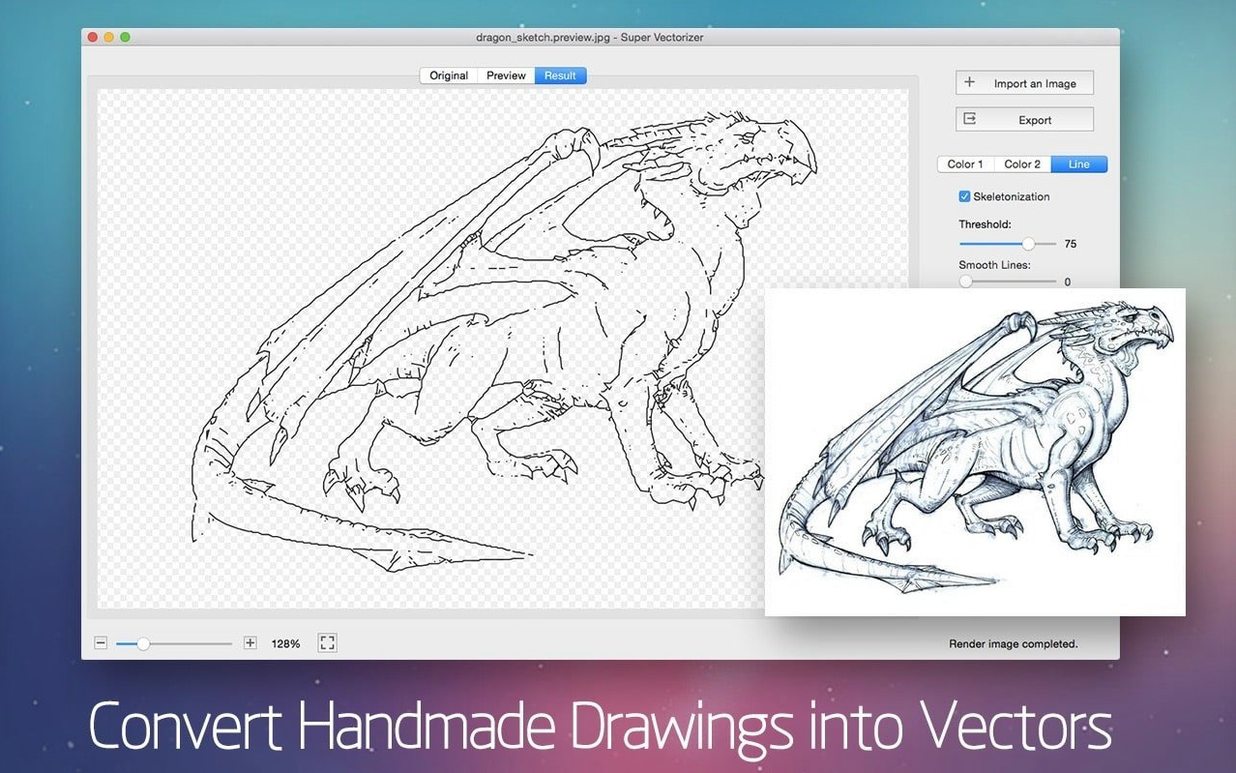
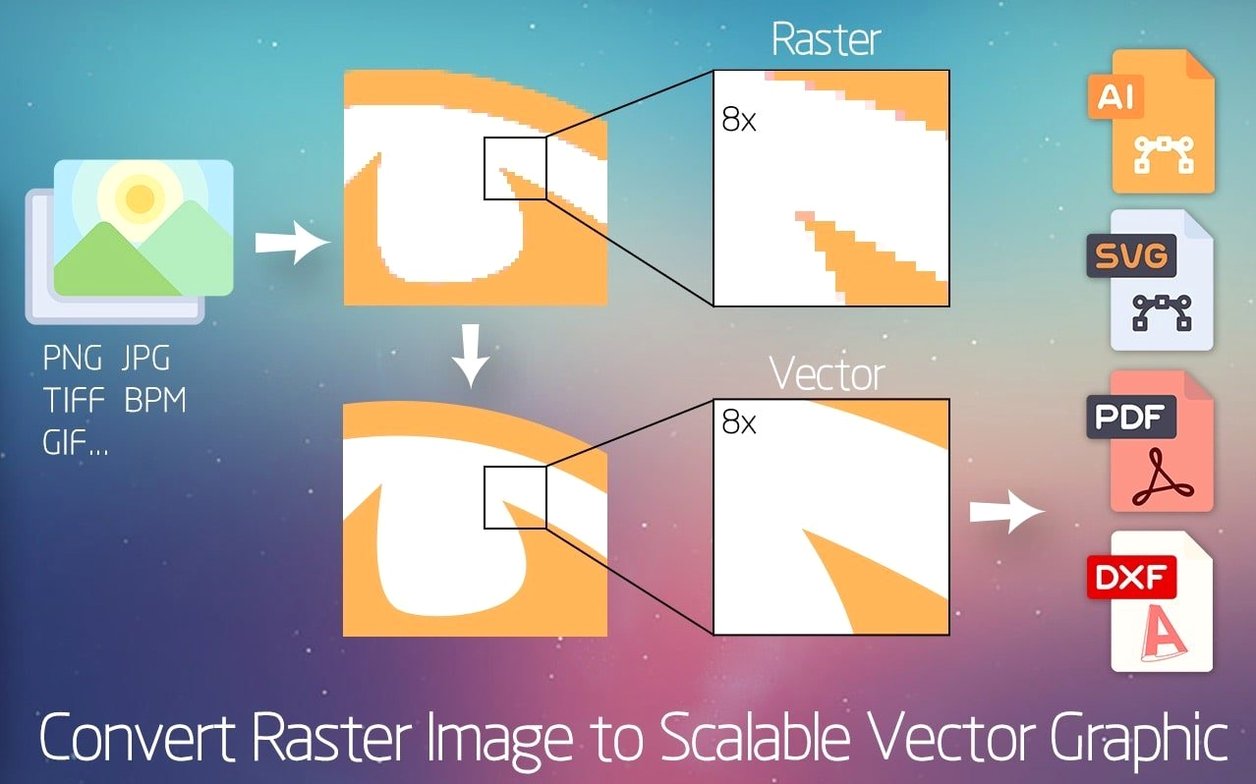
Bitmap images get messy when you scale them up. Pixels stretch, edges blur, and the file becomes a liability. Super Vectorizer Pro turns that bitmap into a clean vector file you can edit in Illustrator or Corel.
Workflow: from scan to vector
- Open the raster image. The app reads more than 70 input formats, so most scans or exports work without conversion.
- Set the color count. Up to 64 colors are supported; fewer colors mean a flatter, more stylized result.
- Watch the preview. The vectorization effect updates in real time, so you can adjust settings without waiting for a full render.
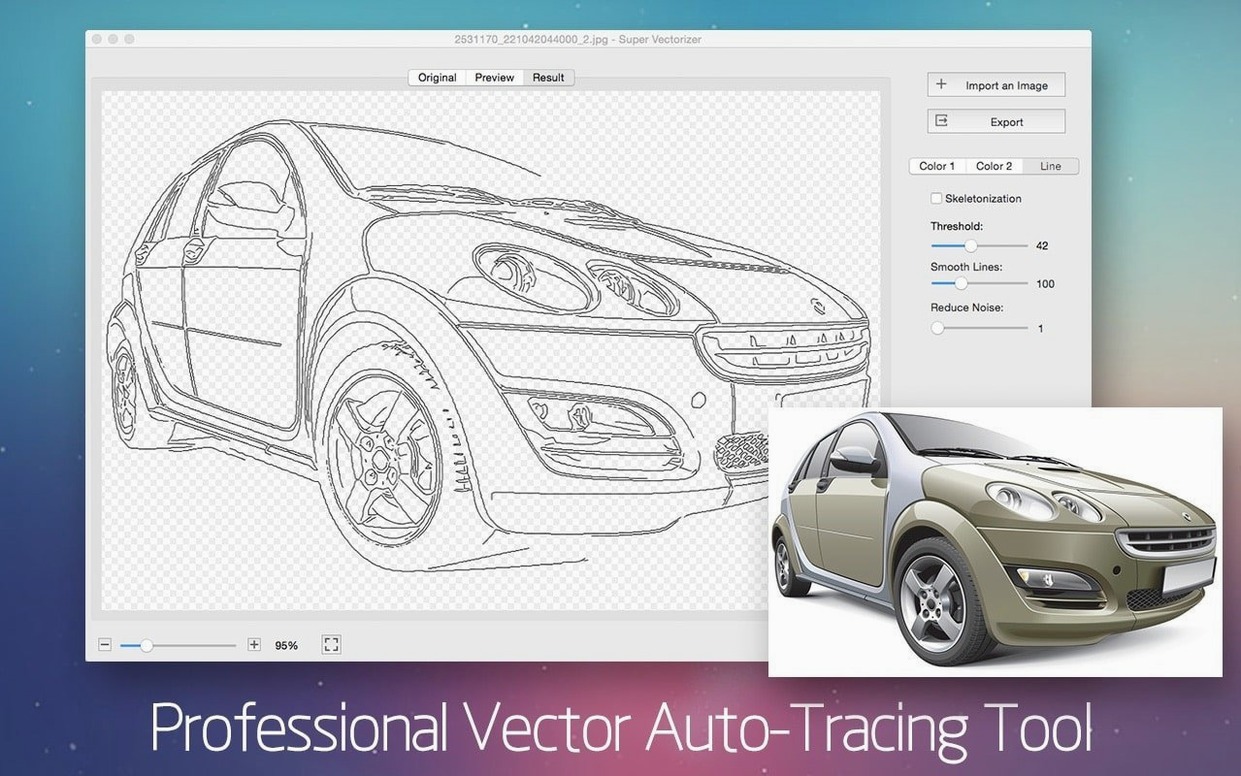
- Enable skeletonization if you need line art instead of filled shapes. This works well for diagrams, signatures, or technical drawings.
- Export the result. Super Vectorizer Pro writes files compatible with Illustrator, Corel, and other Mac vector editors.
What the system requirements mean for your Mac
Super Vectorizer Pro 2.3.3 requires macOS OS X 10.10 or later. That covers every version from Yosemite through the current macOS releases, so it runs on hardware from the 2014 Mac mini up to the latest M3 models. The app supports both ARM and 64-bit x86 architectures, which means it works natively on Apple Silicon without Rosetta overhead on recent machines, but also loads on older Intel-based Macs that haven't been upgraded in a while.
The 64-color limit and the real-time preview place modest demands on the GPU compared to full photo-editing suites. On Intel Macs with integrated graphics, expect the preview to refresh slower when you bump the color count toward the maximum. On ARM Macs, the vectorization engine runs without translation, which helps the real-time preview stay responsive with larger source images.
That said, the app does not mention any specific VRAM requirement. If you work with 10,000-by-10,000-pixel scans, the real-time preview may lag on older hardware. The transparent-background export option produces standard vector data, not a composited preview, so the file itself stays lean regardless of your machine.
Avoiding the default auto-trace trap with low-resolution images
The first mistake is treating Super Vectorizer Pro like an auto-trace button. Importing a low-resolution JPEG and accepting the default settings gives you a blocky vector that looks worse than the original. The color count setting defaults to a moderate value, but beginners often leave it at the default without adjusting it for the image type. A logo with two colors should use two colors, not sixteen.
Another frequent error is ignoring the skeletonization function. People trace a pencil sketch and end up with filled shapes instead of lines, then spend time cleaning the result in Illustrator. If you want line art, toggle skeletonization before you export. It changes the output fundamentally.
Beginners also export to the wrong format. The app writes AI, SVG, DXF, and PDF files. AI files open directly in Illustrator but need conversion for other editors. SVG works universally, including for web use. DXF is for CAD programs. PDF is a container that preserves vector data. Choosing the wrong one creates extra steps downstream.
Finally, some users run the app on macOS versions earlier than 10.10 and wonder why the installer does not open. The app requires OS X 10.10 at minimum. Trying to install it on Mavericks or older will fail, and the Gatekeeper bypass method described in the install steps only applies when the OS supports it.
Workflow: vectorizing a business logo from a scanned print
Say you have a printed business card with a logo you need to reuse at billboard size. The print is a physical card, so you scan it at 600 DPI as a PNG or TIFF. Super Vectorizer Pro accepts both formats.
- Open the scan in the app. The preview shows the full bitmap.
- Reduce the color count to match the logo. If the logo has three distinct colors plus white, set the count to four. The real-time preview updates immediately, showing how the vectorizer interprets each solid area.
- Enable skeletonization only if the logo contains thin lines or outlines that matter. For a flat-color logo, leave it off.
- Check the preview for noise. Small specks from the scan show up as tiny vector shapes. Lowering the color count further or adjusting the source image before import removes most of them, but you can also delete stray shapes after export.
- Export as SVG or AI. SVG keeps the file universal; AI is better if you plan to edit in Illustrator immediately.
- Open the exported file in your vector editor. The shapes are clean, the colors match the originals, and you can scale the logo to any size without pixelation.
How Super Vectorizer Pro differs from Vectoraster and Vector Magic
Vectoraster, Vector Magic, and Super Vectorizer Pro all convert bitmaps to vectors on the Mac, but they approach the task differently.
Vectoraster specializes in stippling and halftone effects. It can produce a vector from a photo, but its output is more artistic than precise. If you need a clean logo trace, Vectoraster adds stylistic noise you have to remove. Super Vectorizer Pro keeps the trace straightforward and color-limited, which suits logo work.
Vector Magic runs as a web service or a desktop app. It does a thorough job of auto-detecting shapes and colors, and its output is generally high-quality. But it processes images off-device in the web version, which means uploading and waiting. Super Vectorizer Pro handles everything locally, with a real-time preview, and does not require an internet connection. The trade-off is that Vector Magic's auto-trace often produces more accurate curves without manual adjustment, while Super Vectorizer Pro gives you more control over the color count and skeletonization before export.
Super Vectorizer Pro converts raster images to clean, editable vector graphics for Mac users. It is not a general-purpose image editor. It does one thing — bitmap-to-vector conversion — and it does it without the extra filters and tools that complicate a program like Adobe Illustrator's Image Trace feature.
The app runs on both Apple Silicon and 64-bit Intel Macs, so it fits into most current setups.
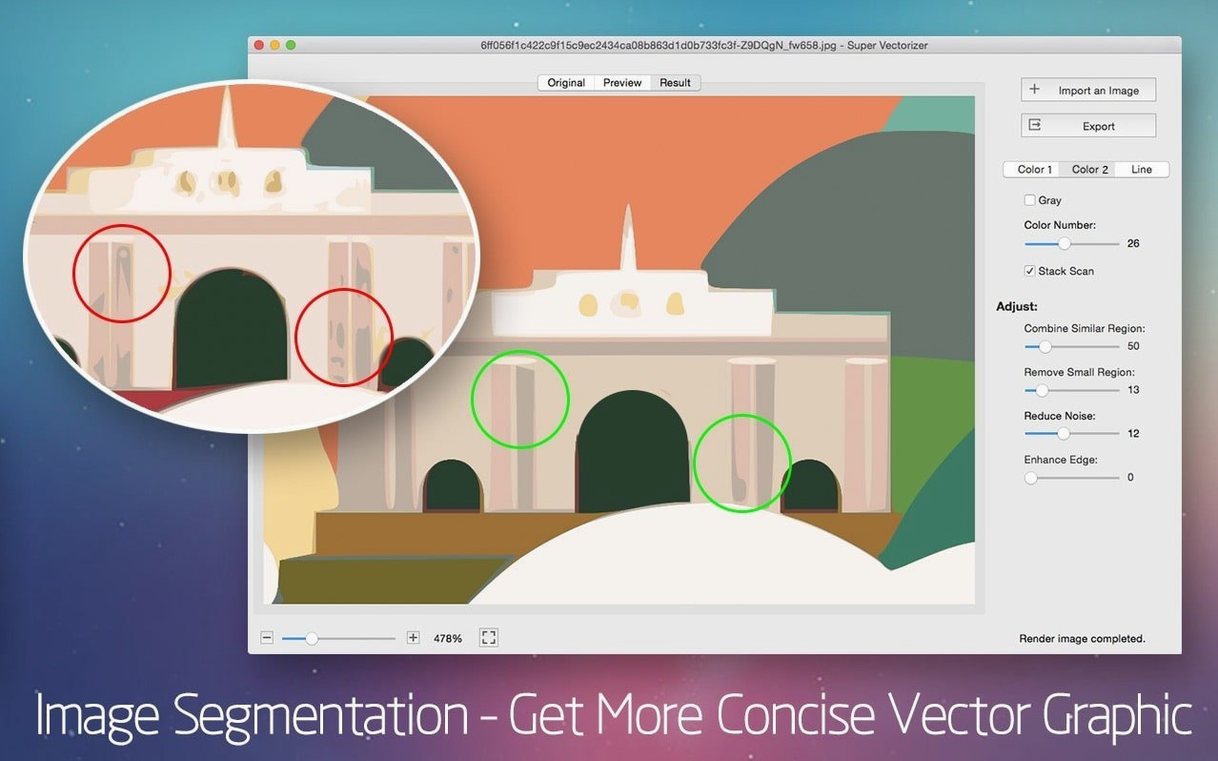
Version 2.4.0 adds a proper region-based tracer. It splits the image along real edges and fills each region with its own color, so a portrait can resolve thousands of regions without being limited by a fixed palette. Gradients and fine structure hold up.
- Edge pass rewritten. Colors snap at the boundary and the boundary stays put. No more soft halos or white seams around shapes.
- Two new controls. Simplify merges similar-colored regions; Min Area removes speckles. Both were previously tied to a single slider.
- Ten built-in presets. Portrait, Landscape, Icon, Manga, Line Art, and Text, plus Icon and Manga presets for Color mode.
- AI super-resolution preprocessing. Small images and line art get upscaled before tracing for cleaner edges; exports stay at the original dimensions. Apple Silicon only.
- EPS output. The format is now supported for export.
- macOS 10.13 or later
- Apple Silicon and Intel 64-bit
Questions from the notes
Can I control how many colors appear in the vector output?
Yes. The app supports up to 64 colors in vectorization, letting you choose between a detailed or a simplified result.
Does Super Vectorizer Pro work on Apple Silicon Macs?
Yes, it supports both ARM and 64-bit x86 architectures, so it runs natively or under Rosetta depending on your Mac.
Install procedure
- Mount the disk image and run Open Gatekeeper friendly.
- Press Enter in Terminal to bypass Gatekeeper.
- Drag the app into the Applications folder.
- Launch the app after installation.
Reports from players
Sign in or create a tester account to file a report.
No reports filed yet.