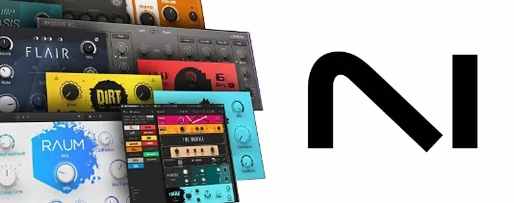
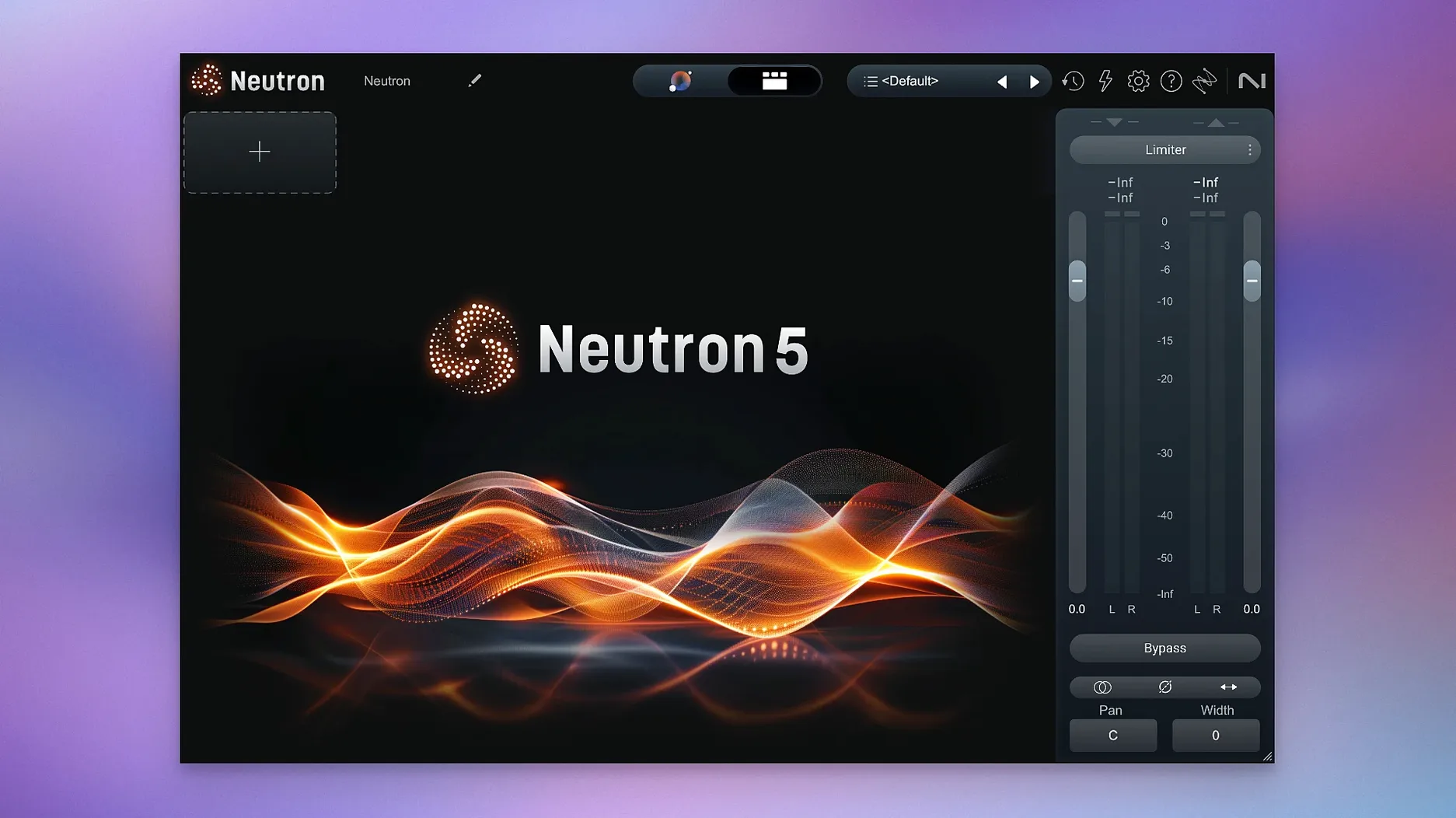
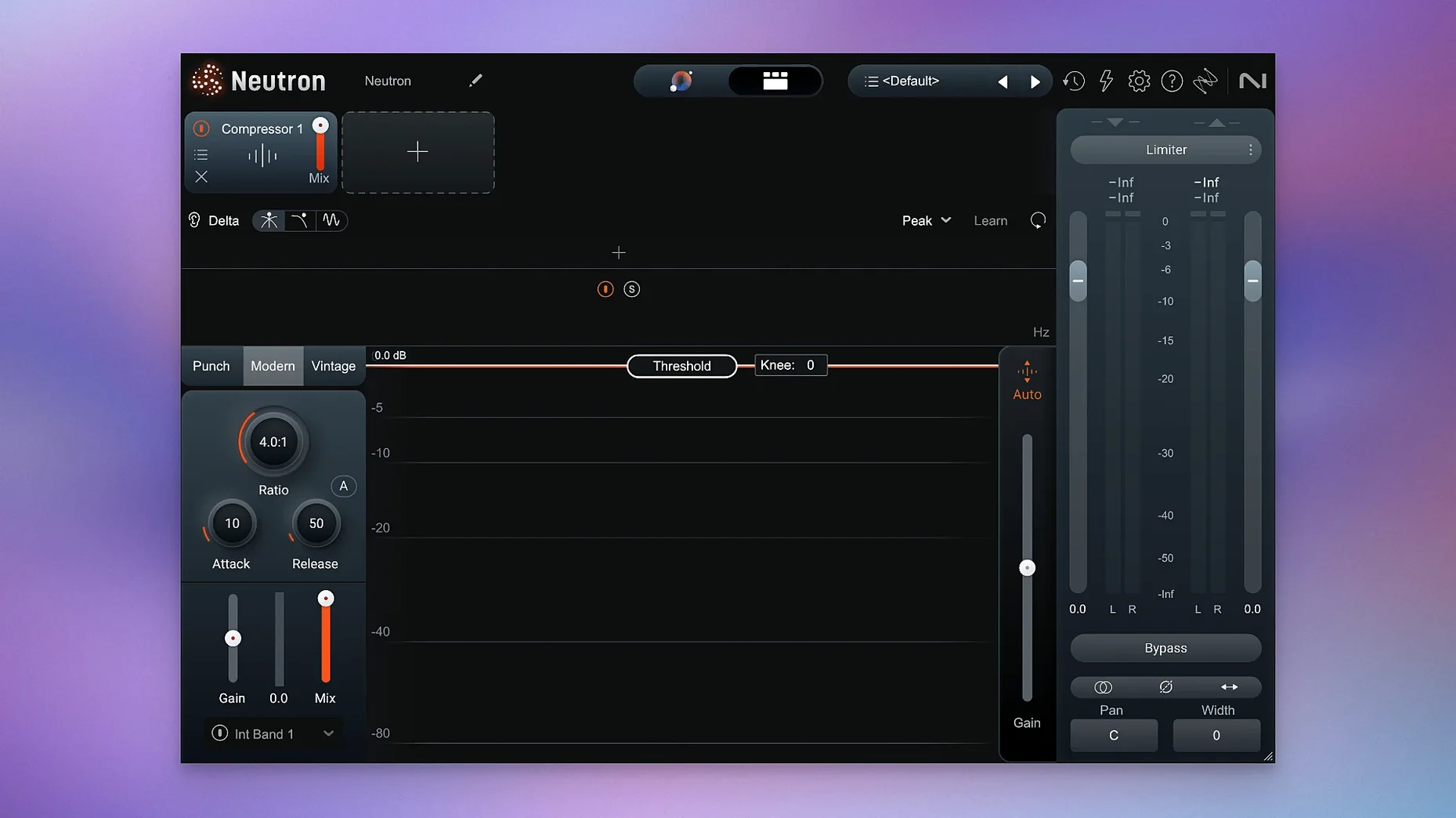
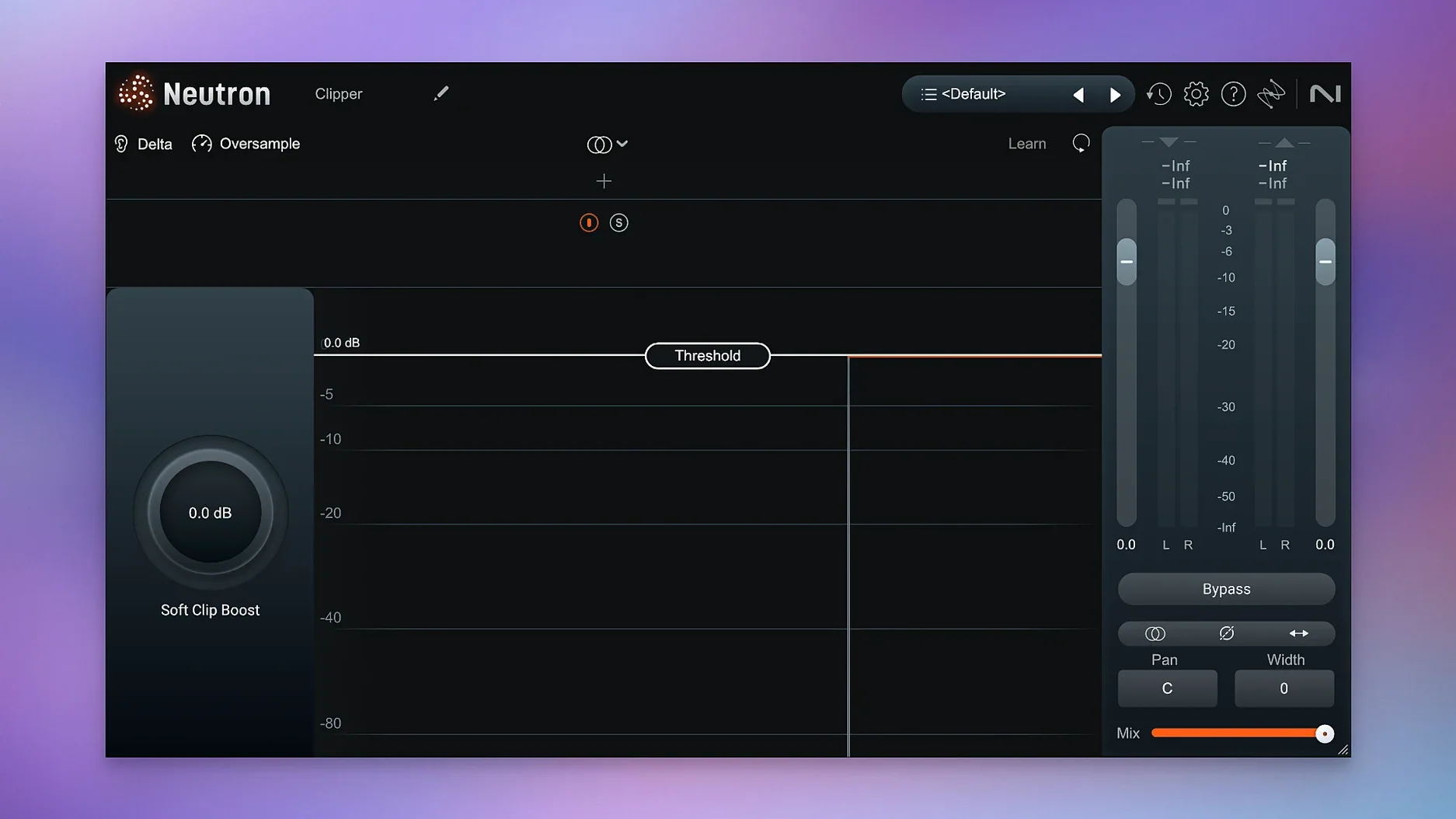
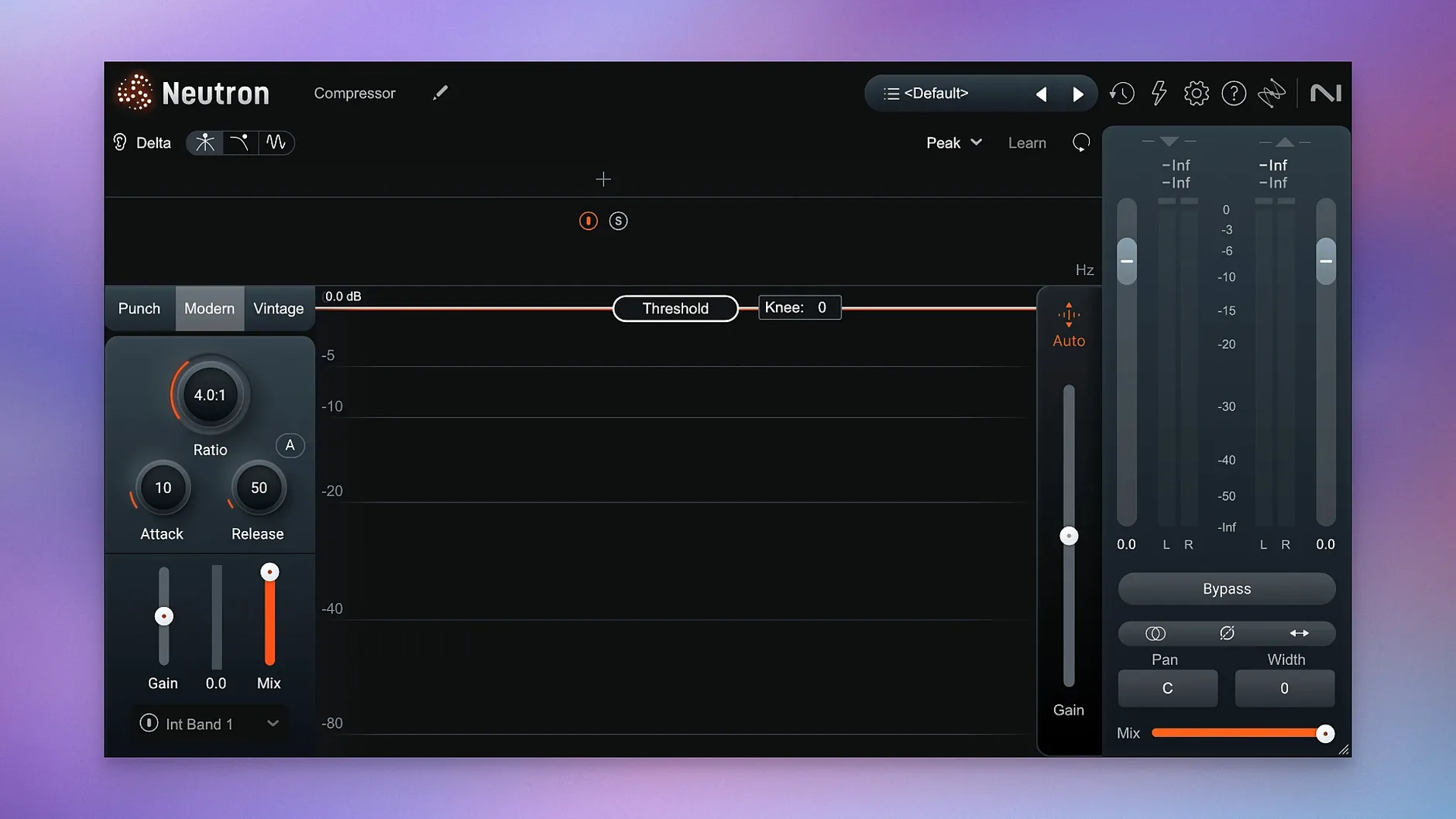
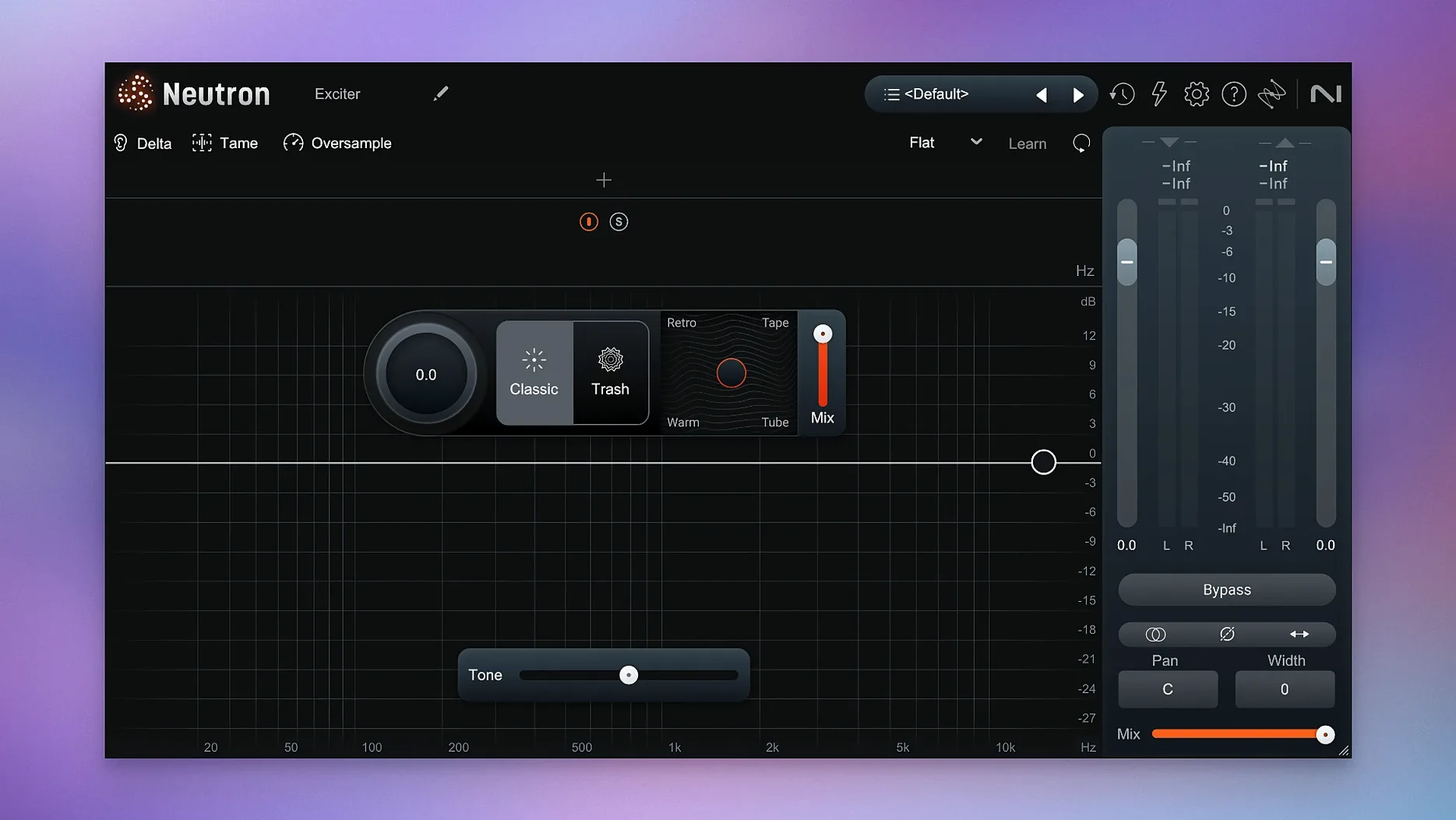
Think of the channel strip you already know, then add a set of tools that watch each other’s back. Neutron 5 is that strip, expanded into 11 modules that share one interface. The Mix Assistant analyzes your audio and suggests starting points, but the real work happens in the individual modules.
- Masking module finds where two tracks fight for the same frequency space and shows you exactly where to cut or duck.
- Delta Buttons in every module let you hear only what the module is changing — a quick way to judge if the processing is helping or hurting.
- Assistant View has been reworked in 5.2.0, making the AI suggestions easier to read and adjust.
- 11 component plugins cover EQ, compression, transient shaping, excitation, and more, so you can load just the tool you need.
- Surround support now works with iLok authorization, fixing a previous limitation in 5.2.0.
- macOS 13.4 and later is the supported range, and the plugin runs on both Intel and Apple Silicon.
The interface stays in English, and the whole suite is designed to fit into your existing workflow without forcing a new routing scheme. If you prefer a lighter setup, Neutron 5 Elements covers the core modules as a separate product.
Delta Buttons reveal what each module is doing
Neutron 5 has a few features that don’t advertise themselves loudly but save time once you know they’re there. The Delta Buttons in each module are one of them. Click one, and you hear only the difference the module is applying — no guessing whether your EQ cut is actually cleaning up the low end or just making the track quieter. It’s a practical reality check that works in any module.
The metering and visualization in version 5.2.0 are clearer than in previous releases, but the real convenience is that each module’s display updates in real time without adding noticeable delay. You can watch compression gain reduction and EQ curves simultaneously without switching views.
Another detail: the Assistant View remembers your last settings per session. If you tend to start every mix with a masking analysis, the assistant will default to that view after the first use. It’s a small thing, but it avoids clicking through menus repeatedly.
Bundles EQ, compression, and shaping unlike FabFilter Pro-Q 3
Neutron 5 sits in a category with other mixing suites that bundle EQ, compression, and shaping tools. FabFilter Pro-Q 3 is a strong EQ plugin with excellent visual feedback and dynamic EQ, but it doesn’t include compression, transient shaping, or a masking analyzer in one package. You’d need to buy separate FabFilter plugins for those tasks. Neutron 5 gives you all of them in a single install, with the added benefit of the Mix Assistant that can analyze your track and suggest starting points.
Waves Scheps Omni Channel is another channel strip plugin that packs EQ, compression, and saturation into one interface. It’s straightforward and sounds good, but it lacks the AI-assisted features of Neutron 5. The Masking module in Neutron 5 is something Scheps Omni Channel doesn’t offer at all — you’d need a separate plugin like Waves F6 for dynamic EQ and manual masking fixes.
iZotope’s own Ozone is a mastering suite, not a mixing suite. Ozone handles final processing on a stereo bus, while Neutron 5 works on individual tracks. They complement each other if you use both, but Neutron 5 is the better choice for track-level mixing work.
Works inside Logic Pro, Ableton, Pro Tools, and other macOS DAWs
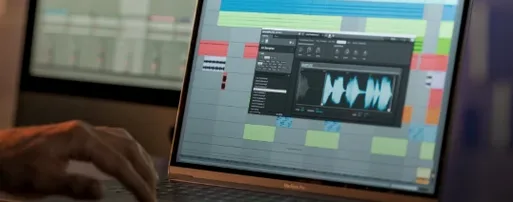
Neutron 5 is a plugin, so it works inside any DAW that supports AU, VST3, or AAX formats. On macOS, that includes Logic Pro, Ableton Live, Pro Tools, Cubase, Reaper, and Studio One. The plugin doesn’t require any additional system extensions or drivers — it installs into your usual plugin folders and shows up in your DAW’s plugin list after a rescan.
macOS features like Audio MIDI Setup or Core Audio aren’t directly used by Neutron 5, but they affect how your DAW handles audio routing. If you’re using a multi-output interface or aggregate devices, Neutron 5 follows whatever routing your DAW provides. The plugin doesn’t add its own audio engine, so it doesn’t interfere with system-level audio settings.
For users who work with both Neutron 5 and iZotope Ozone, the two can be used together in a single session. Neutron 5 handles individual tracks, Ozone handles the master bus. The visual style and metering are consistent between them, which makes switching between mixing and mastering less jarring.
Mix Assistant presets are a starting point, not a finished mix
One common mistake is relying too much on the Mix Assistant presets without checking the Delta Button or adjusting afterward. The assistant gives a starting point, not a finished mix. Beginners sometimes accept the suggested EQ curve or compression setting without verifying whether it improves the track. Using the Delta Button for a few seconds shows if the processing is actually working.
Another mistake is ignoring the Masking module until the mix is almost done. Masking problems are easier to fix early when you’re still deciding which tracks take priority. If you wait until the mix is mostly finished, you may need to undo several other adjustments to solve frequency conflicts.
Some users also forget that Neutron 5’s modules can be loaded individually. You don’t have to insert the full channel strip on every track. If a vocal needs only EQ, you can load just the EQ module as a lightweight plugin. Loading the full suite on every track uses more CPU and can slow down your session unnecessarily.
Finally, beginners sometimes assume that the plugin’s suggestions are “correct” for any genre. The assistant adapts to the instrument profile you choose, but it doesn’t understand your mix context. A suggested EQ cut that works for a solo piano might clash with a bass part in a full arrangement. Always listen in context, not soloed.
Use the Delta Button on every module for ten minutes the first day
- Spend ten minutes with the Delta Button on every module. Cycle through EQ, compression, and transient shaper while listening to a track you know well. This builds a mental reference for what each module changes.
- Try the Masking module on a pair of tracks that often conflict — bass and kick drum, or vocals and guitar. Let the module scan the session, then make one EQ adjustment on each track based on what it shows. Listen before and after to hear how the mix opens up.
- Use the Mix Assistant on one track, but don’t accept its suggestions immediately. Listen to the assistant’s proposed settings, then bypass the plugin entirely and compare. If the assistant’s version sounds better, keep it and refine. If not, start from scratch with manual adjustments.
- Load a single module (like the EQ) on a track that only needs frequency shaping. This keeps CPU usage low and makes your session easier to read. Save a session template with your most-used modules for faster setup later.
- After a few days, revisit a mix you made without Neutron 5 and try the assistant on one or two tracks. You’ll get a feel for how the plugin prefers to work with different instrument types, and whether its suggestions fit your workflow.
- Fixed iLok authorization not functioning in surround instances.
- Changed supported macOS versions.
- macOS 13.4 or later
- Intel or Apple Silicon
Install procedure
- Install the plugin.
- Follow the activation instructions included in the package.
Reports from players
Sign in or create a tester account to file a report.
No reports filed yet.