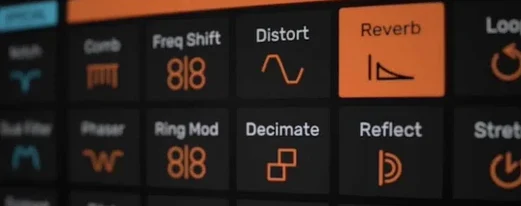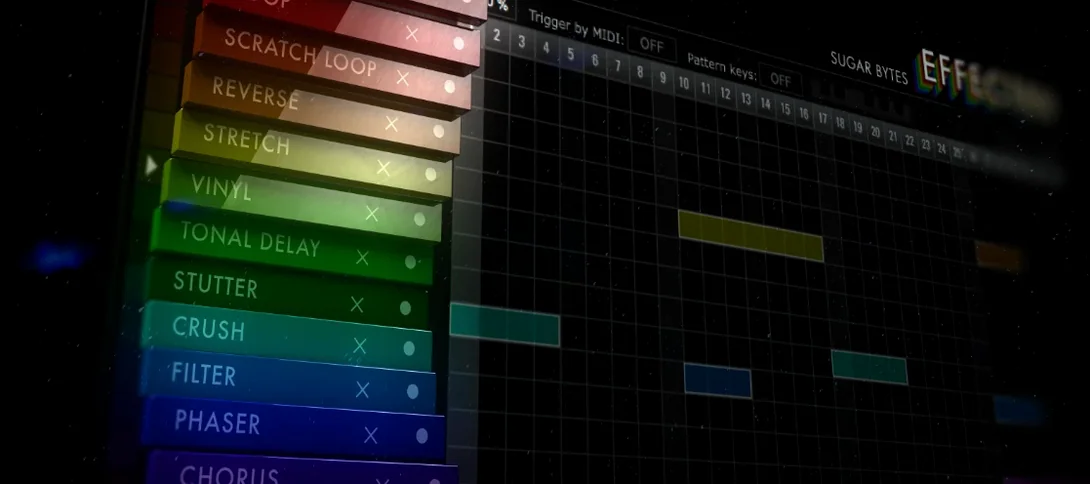
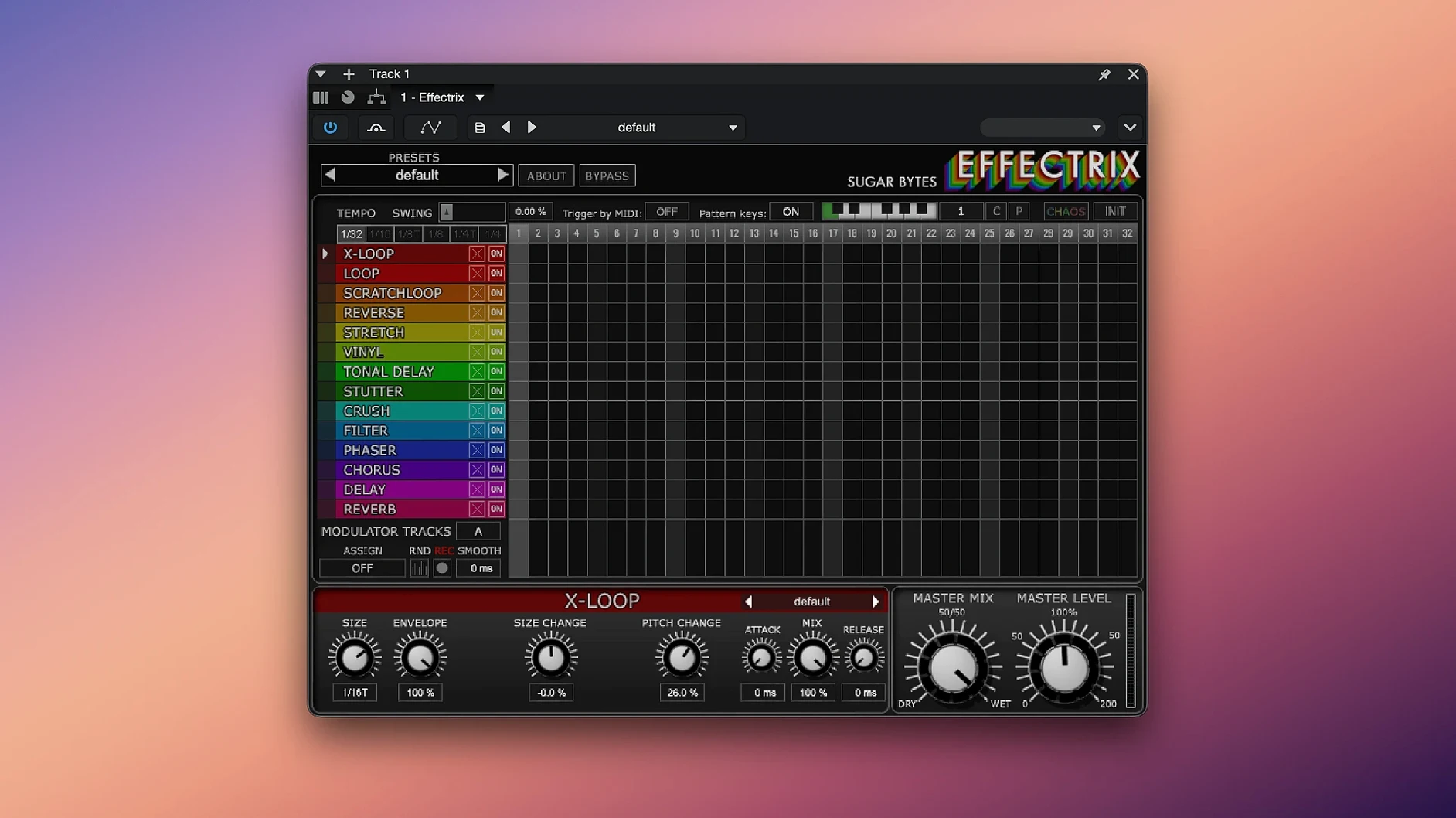
If you've used Sugar Bytes' other sequencers, Effectrix works the same way: you draw steps on a grid, and each step triggers or modulates one of 14 effects. The difference is that Effectrix is built for quick, synchronized audio mangling — loop a bar, set a pattern, and let the plugin cycle through flangers, bit crushers, delays, or whatever else you pick. Cycle length is adjustable, so you can lock it to a single measure or stretch it across several. A swing function loosens the timing if the grid feels too rigid.
What makes it practical for testing or production: you can copy and paste patterns between slots, recall up to 12 patterns from a MIDI keyboard, and browse hundreds of global presets per effect. Version 1.4.8 runs as a 64-bit plugin on macOS 10.14 or later, with both Intel and Apple Silicon support. The installer includes activation instructions — nothing unusual.
Set the cycle length early
Effectrix comes with default settings that work for general use, but a few adjustments make it feel better suited to your workflow. The cycle length is worth setting early: it defaults to 16 steps, but you can shorten or extend it depending on your track's tempo and the effect pattern you want. If you're working with a four-bar loop, stretching the cycle to match keeps the sequence from resetting too often.
The swing function is another setting to check before you start drawing steps. The Chaos button is also worth trying early: it randomizes the active steps and parameters for the current effect, which is useful when you're stuck on a pattern or want something unexpected. Just remember that Chaos overrides whatever you've drawn, so use it after you've saved a pattern you like.
Each of the 14 effects has its own parameter set, and the plugin saves them per preset. If you find yourself adjusting the same effect settings repeatedly, save a preset for that effect alone — it saves time later.
Start with one effect per pattern
Start with one effect per pattern. With 14 effects available, it's easy to layer too many at once and lose track of what each step is doing. Pick a delay or a filter, draw a simple four-step pattern, then listen for a few bars before adding more. The two modulation tracks are best used sparingly at first: assign one to a parameter like wet/dry mix or cutoff, and let it move slowly across the cycle.
Use the copy and paste feature to duplicate a working pattern into an empty slot, then modify the copy. This preserves the original if you want to compare later. The 12-pattern recall from a MIDI keyboard is surprisingly useful for live switching, but it requires setting up the MIDI mapping first — the included activation instructions don't cover this, so check the plugin's own documentation or the in-interface help tooltips.
Browse the global presets for each effect early. Hundreds of presets exist for each of the 14 effects, and some of them are more playable than what you'd dial in from scratch. It's a good way to learn what each effect can do without reading a manual. When you find a preset that almost works, tweak one or two parameters and save it as a new user preset.
Runs on Intel and Apple Silicon Macs
Effectrix 1.4.8 runs as a 64-bit plugin on macOS 10.14 or later, with both Intel and Apple Silicon support. That means it works on any Mac from the 2013 Mac Pro through the latest M-series machines, as long as the OS is Mojave or newer. The installer includes the plugin in Audio Unit, VST2, VST3, and AAX formats, plus a standalone version if you want to run it outside a DAW.
On Apple Silicon Macs, the plugin runs natively — no Rosetta translation needed. On Intel Macs, it runs as expected. The standalone version is useful for testing effect chains without loading a full project, but it still requires a working audio interface or built-in output. The actual disk usage depends on the preset library and any user presets you save.
Make sure your DAW scans the right plugin folder
Plugin doesn't appear in your DAW. This is usually a scan path issue. After installing, make sure your DAW's plugin manager scans the correct folder for Audio Unit or VST formats. On macOS, Audio Units go to /Library/Audio/Plug-Ins/Components/, VST2 to /Library/Audio/Plug-Ins/VST/, and VST3 to /Library/Audio/Plug-Ins/VST3/. If you moved the plugin files manually, re-run the installer or move them back to these standard locations.
No sound from the effect. Effectrix processes audio that passes through it, so it needs an active signal on its input. Check that your track is sending audio to the plugin, not just MIDI. If you're using the standalone version, verify that the audio output device is selected in the preferences — it doesn't always pick the default output.
Patterns reset when changing effects. That's by design. Each effect slot stores its own step pattern and parameter settings. If you switch effects, the pattern for the new effect is loaded. Save a preset (up to 12 sequences per preset) before switching, so you can come back to the original effect and pattern later.
MIDI recall doesn't work. The 12-pattern recall from a MIDI keyboard requires the plugin to receive MIDI notes on the correct channel. Check your DAW's MIDI routing and make sure the track with Effectrix is set to receive MIDI from your controller. Some users find that assigning notes outside the standard range (C0 to B0, for example) helps avoid conflicts with other instruments.
Swing sounds off. The swing function applies a timing offset to every other step. If it sounds wrong, try reducing the swing percentage and adjusting the cycle length to match your project's tempo. Effectrix synchronizes to the host DAW's tempo, so if the host tempo is drifting or unsteady, the swing will feel uneven.
- macOS 10.14 or higher
- 64-bit host with AU or VST support
- Intel or Apple Silicon processor
Questions from the notes
Can I recall patterns live without opening the GUI?
Yes, Effectrix lets you recall up to 12 patterns directly from a MIDI keyboard.
Does it support Apple Silicon Macs?
Yes, the official page states it supports both Intel and Apple Silicon Macs.
Install procedure
Reports from players
Sign in or create a tester account to file a report.
No reports filed yet.