Arturia Emulator II V 1.6.2 — Mac build
VST Plugins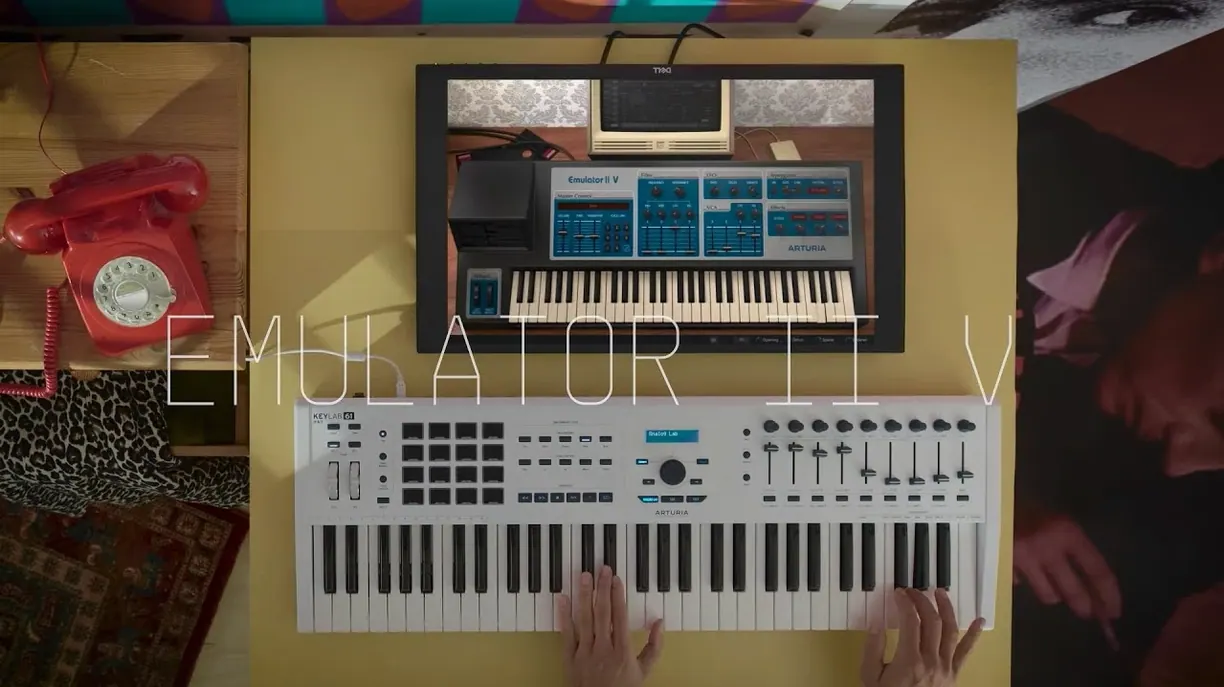
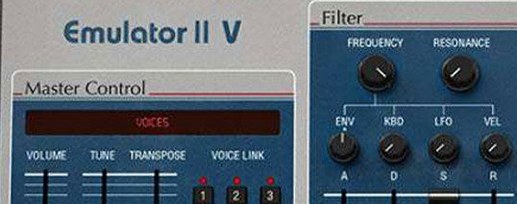
Arturia Emulator II V is a software instrument based on the E-Mu Systems Emulator II 8-bit hardware sampler. It runs as a plugin inside a DAW, handling samples across tracks and buses. Here is where it typically sits in a session:
- Loaded as a multitimbral instrument on a track, with up to 8 voices splitting or layering samples per MIDI channel.
- Each layer runs through its own VCF, ADSR envelope, LFO, and VCA with ADSR, so you can shape the sound without extra bus processing.
- Works on aux/bus tracks for parallel processing—send a dry sample layer to a reverb bus while keeping the original layer clean.
- Supports 32-voice polyphony (modern addition above the original hardware), suitable for pads or layered hits on a single track.
- Includes an arpeggiator and modern effects, so you can handle rhythmic parts and spatial placement within the plugin instead of routing to external FX buses.
- 64-bit ARM and x86 support means it runs natively on both Intel and Apple Silicon Macs within the same session.
The plugin keeps the original Emulator II character—8-bit grit and velocity-switched sample sets—while adding enough modern modulation and effects to fit into a current mix without extra outboard gear.
Sound designers get the most from the 8-bit character and lo-fi aliasing
This plugin is not a general-purpose sampler. Its strength is in its specific character, which suits a few types of users better than others.
- Sound designers working on film, game, or TV audio get the most mileage. The 8-bit companding, 27.7 kHz sample rate, and velocity-switched layers give a distinct lo-fi texture that is hard to dial in with a modern sampler. You can layer a clean synth pad underneath the Emulator II V for contrast, or let it sit alone for a deliberate retro feel.
- Music producers making electronic, synthwave, or lo-fi hip-hop will find the 250 original presets a quick starting point. The arpeggiator and extra modulation let you generate movement without writing complex MIDI automation. The 32-voice polyphony means you can stack chords or runs without hitting voice limits during a verse.
- Keyboard players who perform live or record in one take benefit from the multitimbral setup. You can split a keyboard across several MIDI channels, with each zone triggering a different sample layer or effect chain, all inside one plugin instance.
- DAW users who already run other Arturia plugins will find the workflow familiar. The interface follows the same layout conventions, and the activation method is consistent with the rest of the V Collection.
Workflow: Recreating a classic pad from scratch
A common use is to build a layered pad that shifts texture over time. Here is a step-by-step workflow from start to finish.
- Load the plugin on a new instrument track in your DAW. Set the track to receive on MIDI channel 1. Open the Emulator II V interface.
- Pick a base sample from the curated sample library. Look for a sample that is short and mid-range, like a single brass or string note from the Emulator or Synclavier sets. The original hardware worked with short samples, so start with something that has a clear attack and quick decay.
- Assign the sample to Layer 1. Adjust the VCF to cut some low end (around 300 Hz) and the ADSR to a medium attack (about 30 ms) and a longer release (2 seconds). This becomes the foundation.
- Add a second layer with a different sample—something airy or with more high-frequency noise, like a breath or a thin pad. Route Layer 2 through the same MIDI channel but with a slightly higher velocity range. Set its LFO to modulate the VCF cutoff at a slow rate (0.1 Hz) so the filter opens and closes gradually.
- Engage the arpeggiator to create a rhythmic pattern on Layer 2. Set the speed to half notes, direction to up, and range to two octaves. This gives movement without writing a separate arpeggio MIDI clip.
- Add one of the modern effects—a reverb or delay—to Layer 2 only. Keep Layer 1 dry. This creates depth without smearing the original character.
- Play a few chords on a keyboard or draw in a MIDI clip. The 32-voice polyphony handles six-note chords without stealing voices. Listen to how the two layers blend. Adjust the ADSR and filter on each layer until the attack hits together but the release feels layered.
- Automate the arpeggiator speed in your DAW for a build section. Speed it up to quarter notes over eight bars, then drop it back to half notes for the verse.
Ignoring the 8-bit companding forces extra EQ and compression work
Three common errors show up when people first work with the Emulator II V.
- Ignoring the 8-bit companding. The companding process is not just a filter effect—it is part of how the original hardware handled dynamic range. Some users try to clean up the sample by adding a noise gate or heavy EQ on the layer, which kills the texture. The better approach is to let the companding do its work; if the sample is too noisy, pick a different source sample from the library rather than processing it flat.
- Overloading layers with effects. The plugin includes modern effects, and it is tempting to chain reverb, delay, and modulation on each layer. The result is a muddy sound that loses the Emulator II character. A cleaner method is to keep at least one layer dry and route the others to a shared reverb bus inside the DAW.
- Using too many voices. The original hardware had only 8 voices. The 32-voice polyphony is a modern addition, but using all 32 for every chord can eat CPU without adding musical benefit. For most parts, 8 to 12 voices are enough. Reserve the full polyphony for wide pads or runs that need every note to ring out.
Load the 250 original presets in your first session to hear its character
Start with these habits to avoid frustration and make the plugin part of your regular setup.
- Spend the first session on presets only. Load each of the 250 original presets and play a few notes. Listen for how the sample layers interact, how the filter moves, and where the arpeggiator patterns sit. This gives you a mental library of what the plugin can do before you start editing.
- Set up a template track. Create a DAW project with one instance of Emulator II V already loaded on a track, with a neutral preset. Save it as a template. Next time you want a quick lo-fi pad or a retro lead, you can drop it in without browsing through the library first.
- Map velocity ranges early. The velocity-switched layers respond to how hard you play. Spend ten minutes playing single notes at different velocities and watch which layer activates. Adjust the crossfade or change the sample assignment if the transitions are too abrupt. Once set, save that mapping as a user preset.
- Check the activation instructions inside the package. The 1.6.2 (5305) version includes the standard Arturia authorization process. Read the included instructions before attempting to open the plugin for the first time—skipping a step can lock you out until you re-read the guide.
- macOS 11 or later
- Intel or Apple Silicon (64-bit)
- Interface language: English
Questions from the notes
Does Arturia Emulator II V support multitimbral operation?
Yes, it supports 8 voices of multitimbral sampling, allowing different samples or patches on separate MIDI channels.
What are the system requirements for the Mac version?
It requires macOS 11 or later, and supports both Intel (x86_64) and Apple Silicon (ARM) architectures.
Does the plugin include an arpeggiator?
Yes, it includes an arpeggiator along with modern effects and extra modulation options not present in the original hardware.
Install procedure
- Download the package from the torrent.
- Open the included setup and run the installer.
- Follow the activation instructions inside the package to authorize the plugin.
Reports from players
Sign in or create a tester account to file a report.
No reports filed yet.