Remove temporary files
The core job is deleting temporary and unused files from the system. That includes caches and recent-file lists left behind by other applications, which is where most of the reclaimed space comes from.
Keep it simple and safe
Piriform designed it to be simple to use, and it shows: you pick what to scan, run it, and review what gets removed. The interface speaks 11 languages, including English, French, German, and Russian, so language barriers are not a concern.
Run it on older Macs
It requires OS X 10.10 or later and runs on Intel 64-bit architecture. If your Mac is old enough that the newest CCleaner feels heavy, this version works without the overhead.
A typical session: what gets done
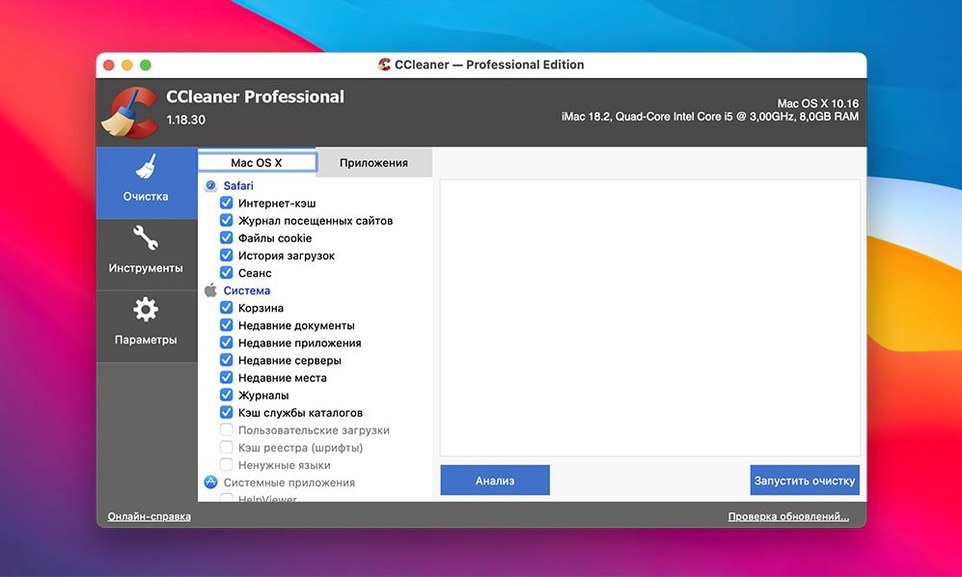
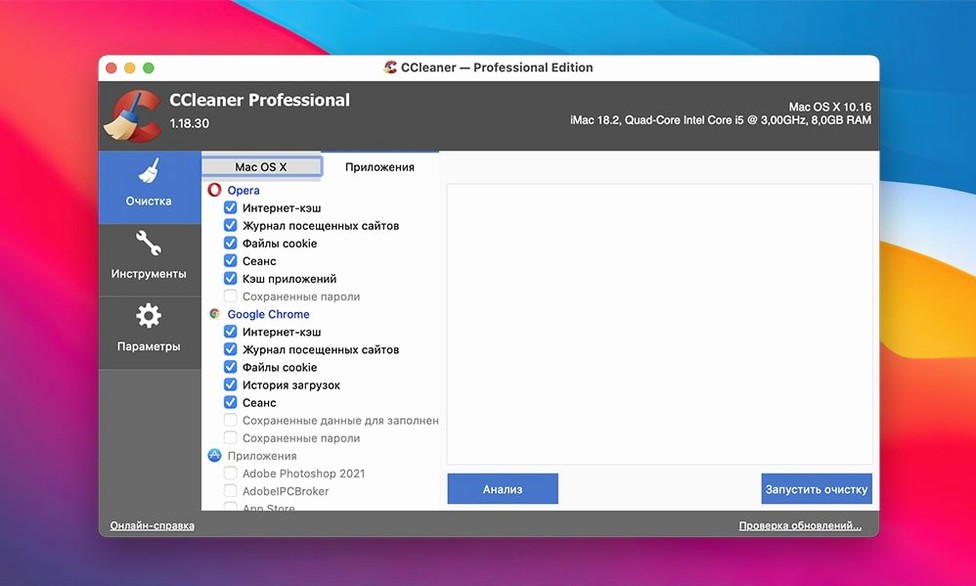
You open CCleaner Pro and land on the main screen. The first thing is checking the boxes under Windows, applications, and browser caches — that section lists Safari, Chrome, Firefox, Opera, and the system-level temporary folders. I mostly leave the defaults, but there is a case for unchecking browser history if you want to keep autocomplete suggestions alive.
Next, you click Analyze. The scan finishes in a few seconds on an average Intel Mac — it is reading directory listings, not moving data. The result shows a breakdown by category: so many megabytes in Safari cache, so many in application temp files, and so on. You review the list and uncheck anything you intend to keep. Downloads folder, for example, stays unchecked unless you explicitly let it in.
Now the actual deletion. Click Run Cleaner. You get a confirmation dialog that lists what is about to go. Confirm, and it deletes. The interface shows a progress bar — short, because it is just unlinking files. After that, you see a summary of how much space was freed.
If you want to erase a file permanently rather than just deleting it, you switch to the File Wiper panel. You select a file, pick an overwrite cycle count (the options go from 1 to 35 passes), and run it. For a simple spreadsheet you do not want recovered, 3 passes is enough. For something sensitive, you can set it higher.
That is the whole session: scan, review, clean, optionally wipe. It takes maybe two minutes once you are used to the layout.
Works alongside macOS tools and other apps
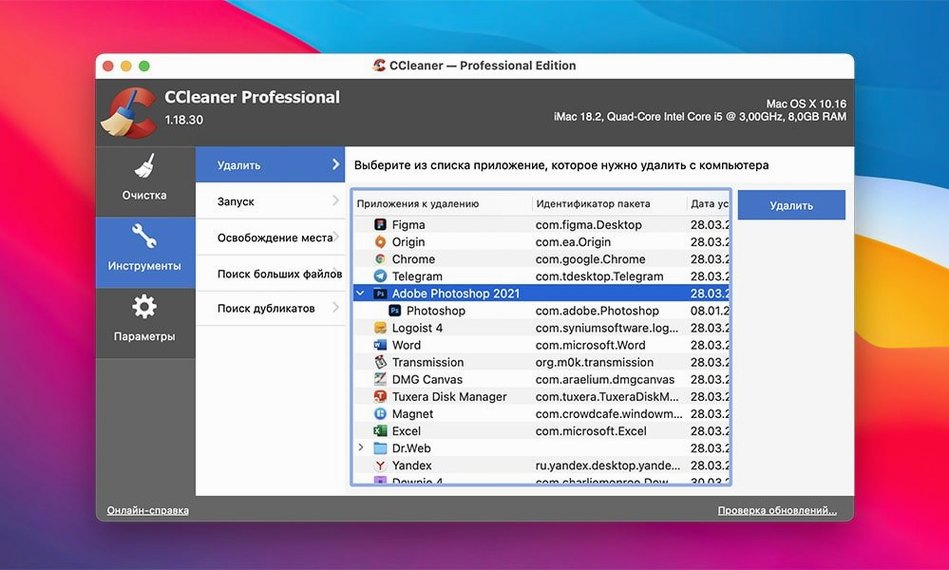
CCleaner works alongside the built-in macOS storage management tools. It does not duplicate Disk Utility's repair functions, and it does not compete with Time Machine for backups. What it adds is a faster way to clear browser caches and application temp files without digging into ~/Library/Caches manually. The Finder shows used vs. free space in the status bar, but it does not tell you what uses those gigabytes — that is where CCleaner's category breakdown helps.
If you use multiple browsers for different tasks, cleaning them one by one in their own settings panels is tedious. CCleaner handles all of them in one pass. That is practical if you test web apps across Safari and Chrome, or if you download files in Firefox and they accumulate in the default folder without you noticing.
The file wiper integrates into the right-click context menu on some file managers after you install it. That is convenient for quick erase actions: right-click a sensitive PDF, pick the wipe option, and it goes through the overwrite cycles without you opening CCleaner first. macOS does not have a native overwrite-delete function, so this fills that gap.
Prevents low-disk warnings by clearing temporary files
Three groups benefit most. Cleaning temporary files every couple of weeks can keep the system from hitting the low-disk notification.
The second group is heavy browser users. If you keep 20 tabs open in Chrome and swap between Safari for work tasks, the accumulated cache and cookies can reach a few gigabytes. CCleaner clears that in one action.
The third group is anyone who handles sensitive files: contracts, scanned documents, or personal records. The file wiper with its multiple overwrite passes gives a way to delete those securely, which the standard macOS Trash does not offer.
Less useful for people who never clean caches, or who rely entirely on cloud storage where local temp folders stay small. If you do not notice disk space pressure, the benefit is marginal.
Uncheck Downloads and browser history to avoid data loss
- Uncheck Downloads — it is in the cleaning list by default. Unless you want it cleaned automatically, remove the checkmark. Accidentally clearing your recent downloads is a common mistake.
- Turn off browser history cleaning if you rely on autocomplete. It is on by default. You can leave cache cleaning active while keeping history intact.
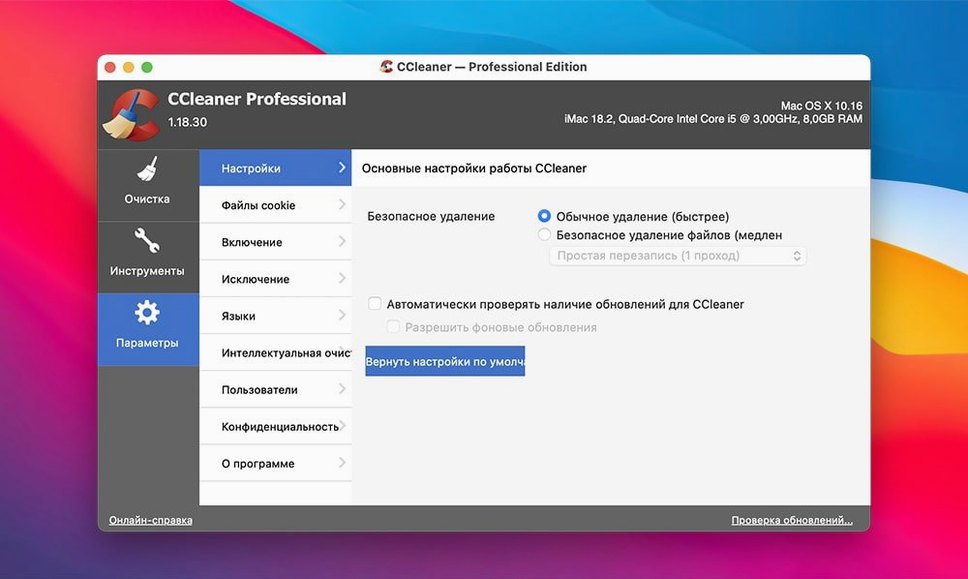
- Adjust the file wiper passes before the first use. The default is usually a middle value. For everyday wipe tasks, 3 passes is adequate. Set it to 1 if you just want speed and do not care about recovery.
- Skip the Apple system logs unless you are troubleshooting. They are small and clearing them does not free meaningful space.
These are not mandatory, but they prevent the tool from over-cleaning on your first run. You can always re-run it with different selections later.
- macOS: OS X 10.10 or later
- Architecture: Intel 64-bit
Questions from the notes
Does CCleaner Pro for Mac clean files from other apps?
Yes. It removes temporary files and recent-file lists from other applications, not just system junk.
What macOS versions does this version support?
It requires OS X 10.10 or later, and it is built for Intel 64-bit Macs.
Install procedure
- Mount the disk image and run Open Gatekeeper friendly.
- Press Enter in Terminal to bypass Gatekeeper.
- Drag the app into the Applications folder.
- Launch the app when installation is complete.
Reports from players
Sign in or create a tester account to file a report.
No reports filed yet.