
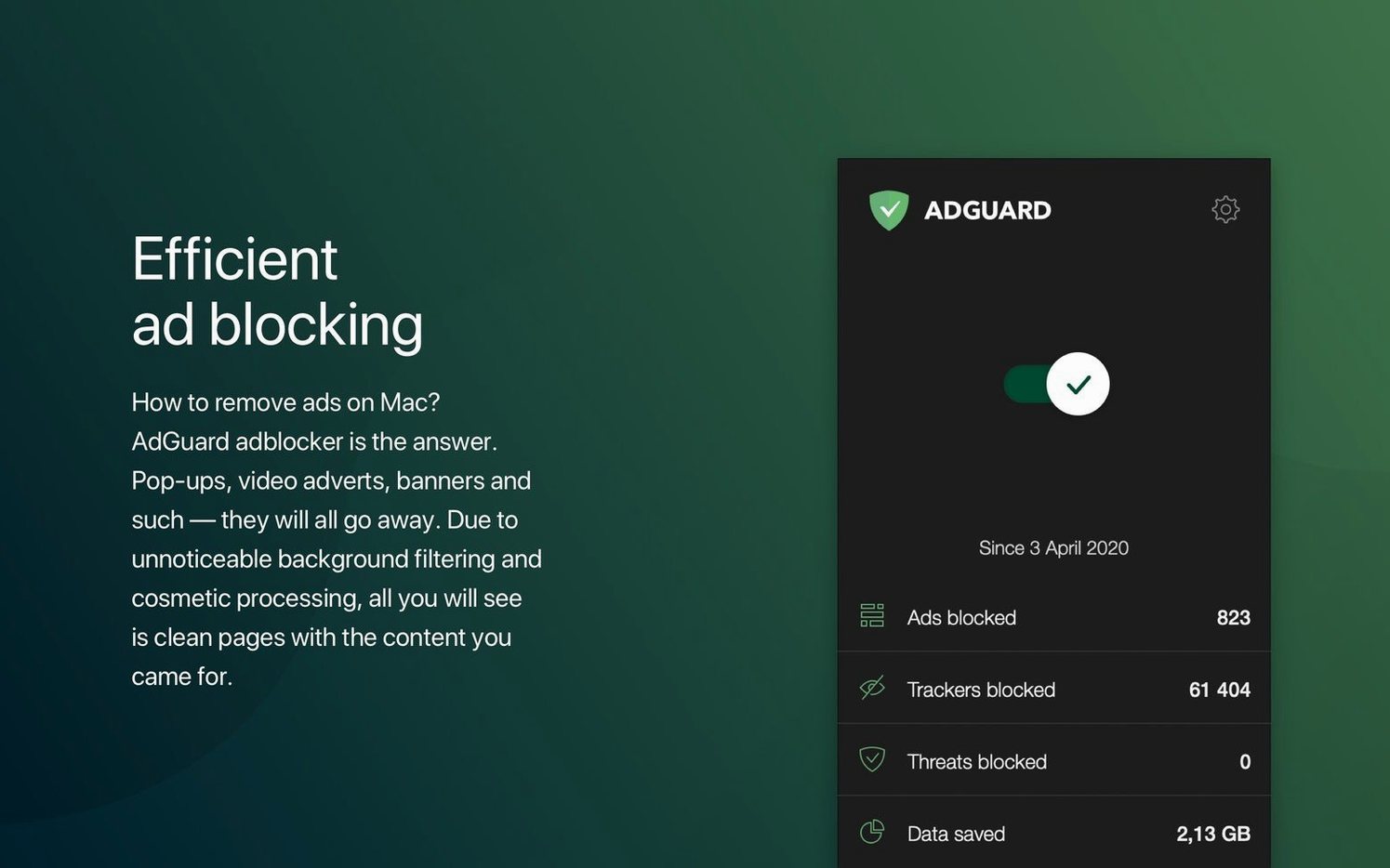
Browser extensions only cover one angle of ad blocking. AdGuard for Mac sits at the system level, filtering traffic in all browsers and apps. Version 2.18 adds support for three AI-powered browsers and tightens stability — it’s the kind of release that keeps a practical tool from drifting.
Filtering ads inside apps
Ad blocking that stops at the browser edge leaves in-app banners and analytics. AdGuard catches traffic from native macOS applications too. The same filtering engine that strips web page clutter also handles requests from apps you didn’t think to block.
Spyware filter without setup
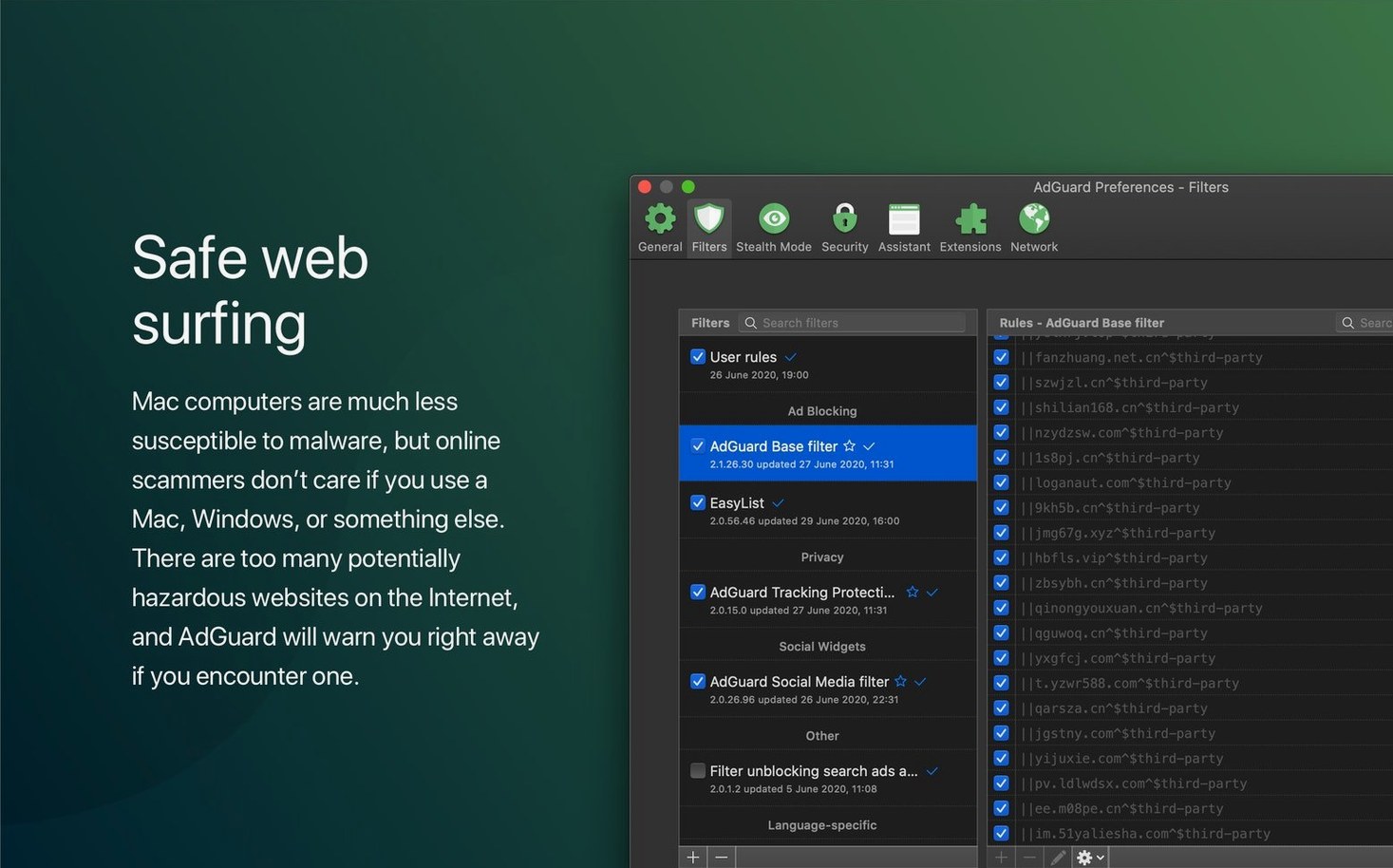
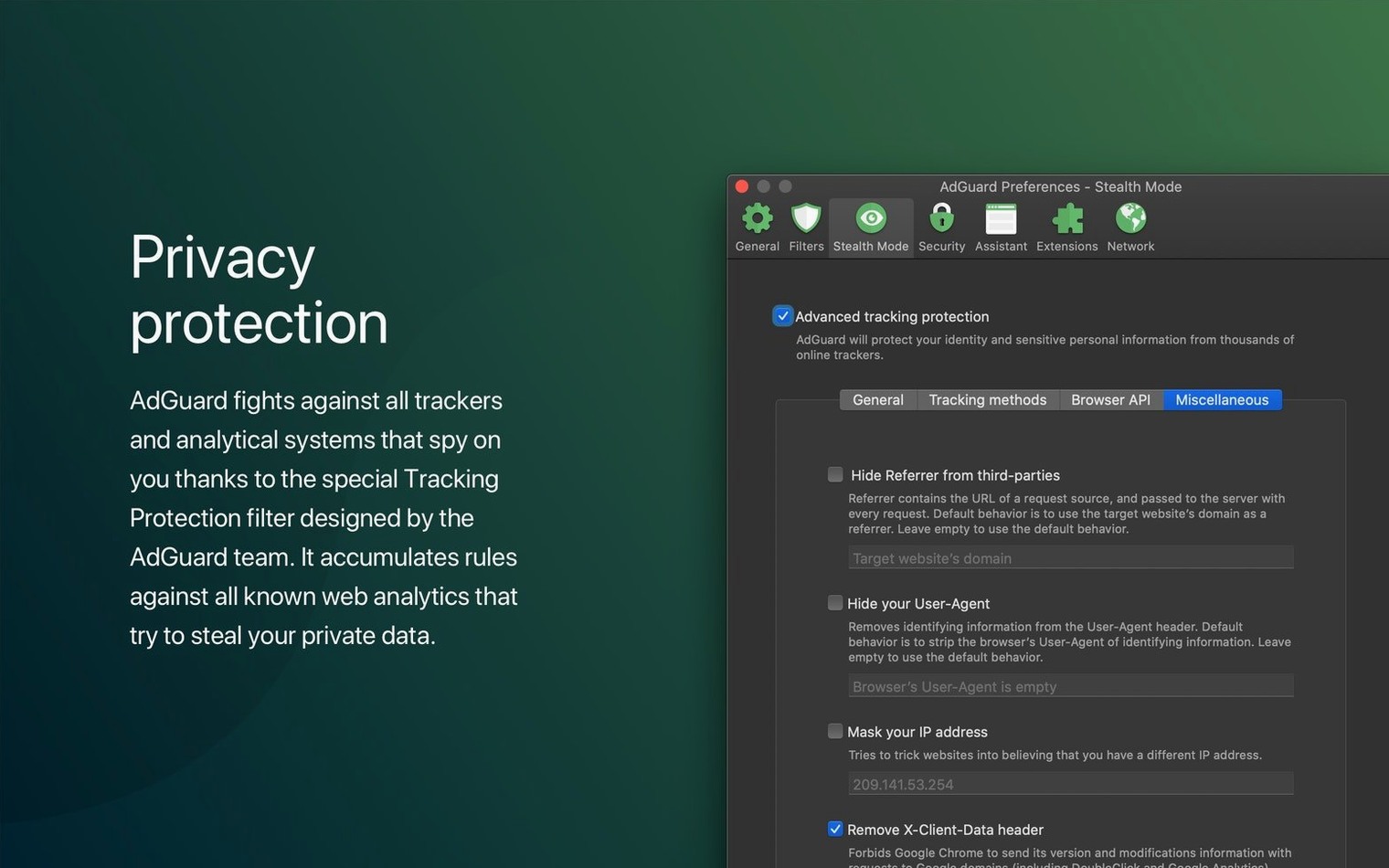
The built-in spyware filter runs by default. It targets known tracking domains and analytics endpoints before they phone home.
Covering AI-powered browsers
Version 2.18 explicitly supports three AI-powered browsers, keeping the filter functional on newer browsing tools. For everything else — standard browsers, Safari via AdGuard Mini, or standalone apps — the same system-level routing applies. The interface stays simple; the changes are under the hood.
Fix a site that won't load by pausing its filter
A few things trip people up with AdGuard. The most frequent one: a site doesn't load, or loads with broken layout. AdGuard's filter can be too aggressive on some pages. The fix is to pause filtering for that site. It's a per-site toggle in the main window, and it remembers the setting. No need to disable the whole thing or dig through config files.
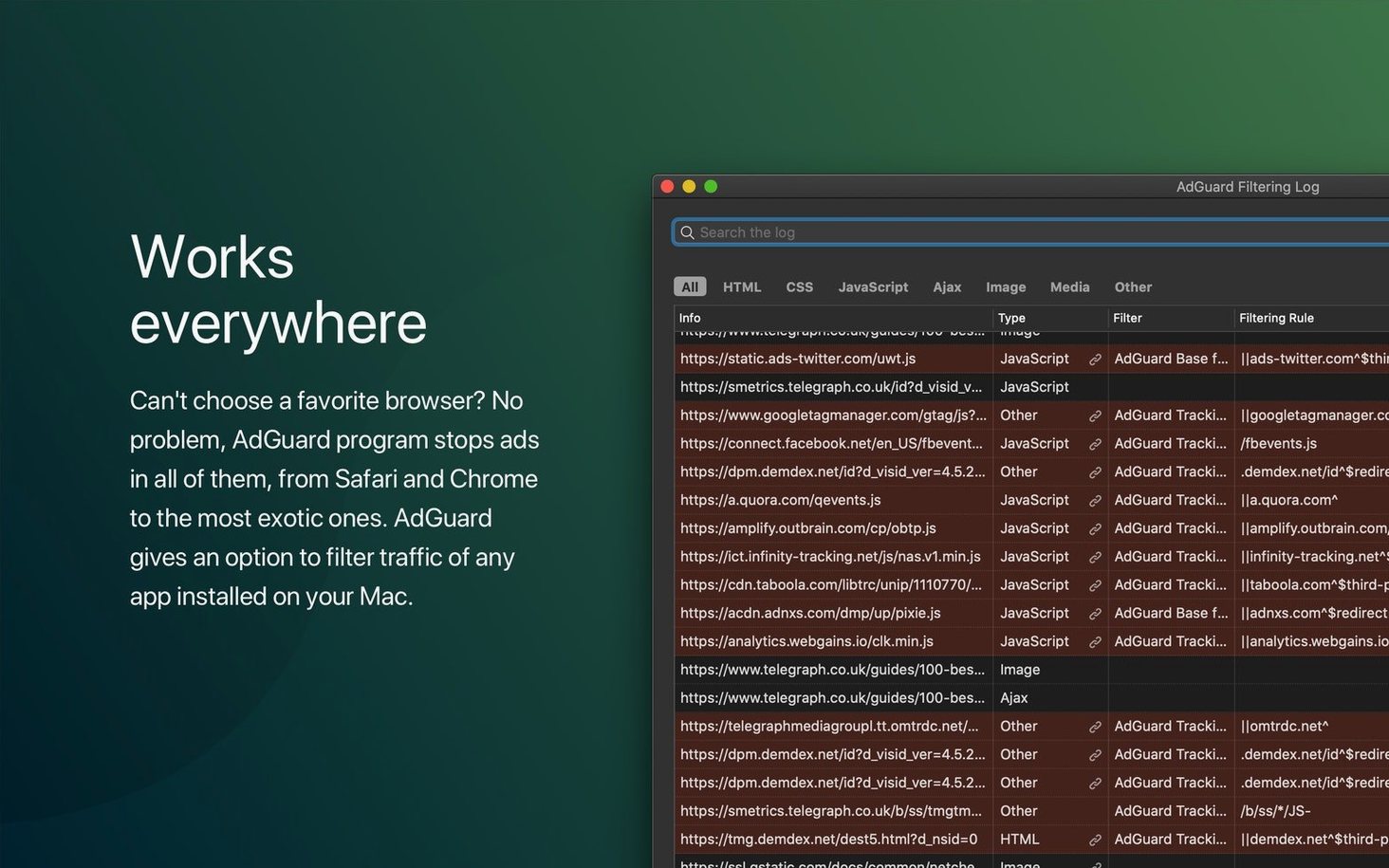
Another common issue is that an app stops connecting to the internet. AdGuard filters app traffic by default. If a game launcher or a chat app refuses to connect, check whether AdGuard is blocking its domains. The filter log shows what was blocked and why. Whitelisting the app's addresses usually solves it. You can also disable filtering for specific applications entirely from the settings.
Some users notice that VPN connections behave oddly with AdGuard running. The two tools handle network traffic at different layers. If a VPN tunnel drops or DNS leaks, try adding the VPN's interface to the exclusion list inside AdGuard. That keeps the VPN traffic unfiltered while the rest of your machine stays protected.
A minor but persistent annoyance: the system tray icon sometimes shows a different status than the actual filter state. This is a known visual glitch. The actual blocking still works. Restarting the AdGuard service from the application menu usually syncs the icon back.
Check the filter log to catch false positives and missed blocks
The biggest one is installing AdGuard and never looking at the filter log. The log tells you what got blocked, what slipped through, and what false positives occurred. Without checking it, you have no feedback loop. Beginners often assume it works perfectly or not at all, when in reality it needs occasional attention.
Another mistake: enabling every filter list in the catalog. More lists do not mean better blocking. They mean more CPU usage and a higher chance of breaking a site. The default set is already balanced for most users. Adding the Russian list, the Dutch list, and the malware list on top of each other creates overlap and conflicts. Stick to the defaults unless you have a specific reason to add more.
Beginners also forget that AdGuard runs at the system level. Closing the window does not disable it. If you want to test whether AdGuard is causing a problem, you have to pause filtering explicitly. Many people close the app and assume it stopped, then wonder why a site still looks broken.
Lastly, people install AdGuard and then install a second adblocker in their browser. That creates redundancy and sometimes breaks page rendering. AdGuard already handles browser traffic. A second extension adds overhead and can conflict. Pick one layer and stick with it.
AdGuard blocked a developer's local test site with placeholder ads
Marie is a freelance web developer who tests her sites on a local server. She uses Safari for daily browsing and Firefox for testing. Her issue: AdGuard blocked her own development site because a placeholder ad image in her test environment happened to be served from a known ad domain. The site loaded, but the placeholder was blank, and the analytics callback didn't fire. She spent an hour debugging before she remembered AdGuard was running.
Her solution: she added the development domain to the exclusion list and set AdGuard to log all blocked requests from that domain. Now she catches false positives during development without disabling the filter entirely. She also keeps AdGuard running for her production browsing, where it blocks the same sort of trackers she spends all day coding around.
A workflow: blocking ads in a media-heavy app
Some media apps embed in-stream ads that are not served from a browser. AdGuard can filter them, but it needs a small setup. Here is the workflow:
- Open the AdGuard main window and navigate to the filter log. This is where you see live traffic.
- Launch the media app and play something. Watch the filter log for domains that appear repeatedly and match known ad servers. They often look like
ads.example.comortracker.cdn.net. - Right-click any matching entry and select "Block this domain" or manually add it to the custom blocklist under User Rules. This creates a permanent rule.
- Test by replaying the same content. If the ad is gone and the content plays without interruption, the rule works.
- If the content also breaks, remove the rule and try blocking a more specific subdomain. Some apps serve content and ads from the same domain. In that case, blocking the whole domain is too broad.
This workflow applies to any app that calls home. The first run always generates some noise in the log. After that, the rules persist. The adguard crack mac or adguard torrent download page might be where you found the package, but the real work is in fine-tuning the rules for your own use.
For users searching specifically for adguard release or adguard mac torrent, the current version 2.18.0.2089 works on both Intel and Apple Silicon Macs. The installation and activation instructions are included in the package.
- Added support for three AI-powered browsers.
- Updated system requirements.
- Improved overall stability.
- macOS 10.15 or later
- Intel 64-bit or Apple Silicon processor
Questions from the notes
Does AdGuard for Mac block ads in YouTube?
Yes, it blocks ads in browsers and apps that stream video, including YouTube, provided the traffic passes through the system filter.
What is the difference between AdGuard for Mac and AdGuard Mini for Mac?
AdGuard for Mac is a system-level blocker that filters traffic in all browsers and apps. AdGuard Mini is a separate Safari-only ad blocker from the same developer.
Does AdGuard for Mac work on Apple Silicon Macs?
Yes, it supports both Apple Silicon and Intel 64-bit Macs running macOS 10.15 or later.
Install procedure
- Copy the application to your Applications folder.
- Open the app and follow the on-screen instructions to enable the system filter.
- Use the provided activation details to unlock the full version.
Reports from players
Sign in or create a tester account to file a report.
No reports filed yet.