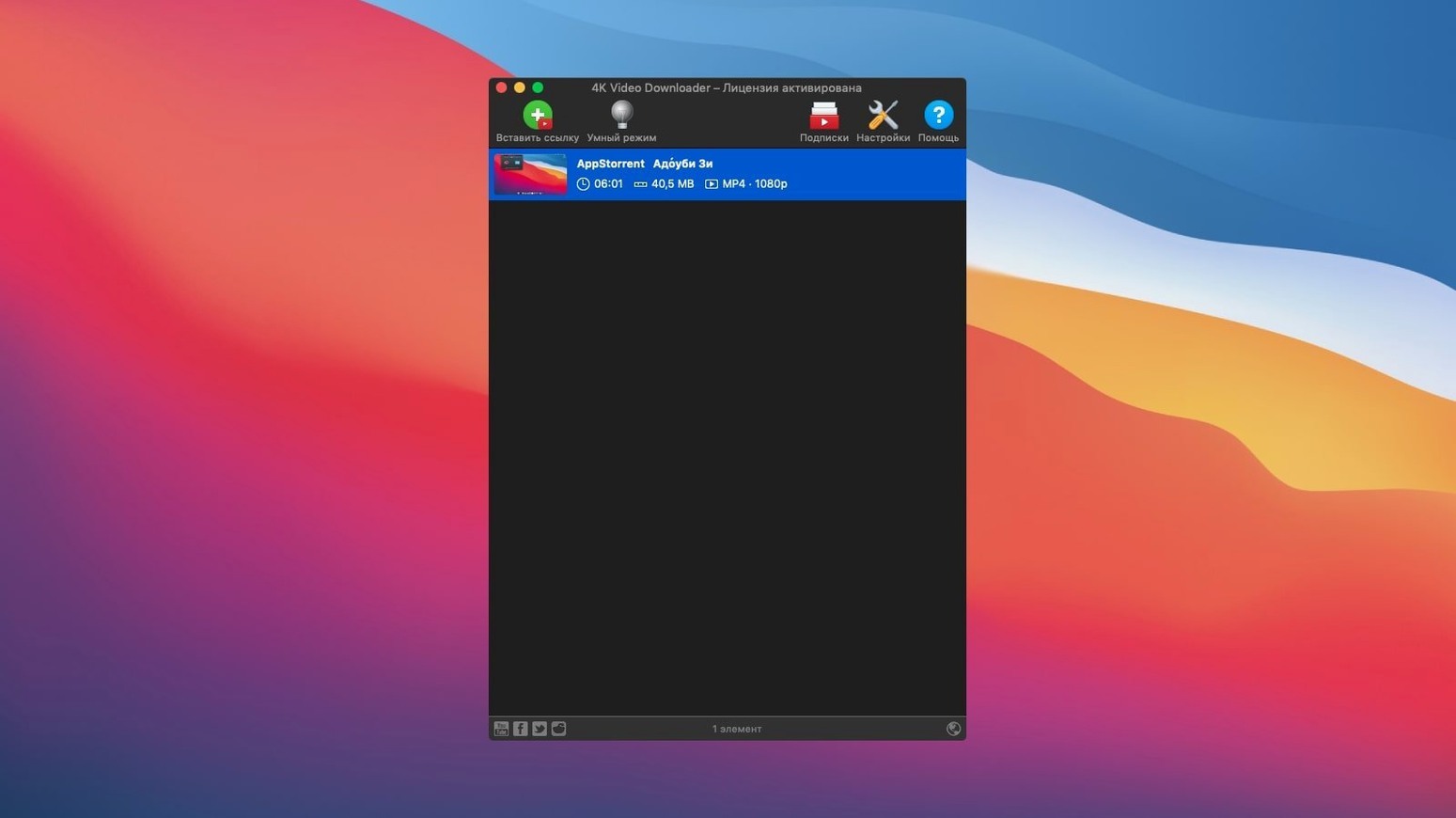
People who grab videos for offline viewing, archive playlists, or pull audio from streams ask the same things before installing. Here is what 4K Video Downloader Plus Pro actually does.
Clipboard link — what it means
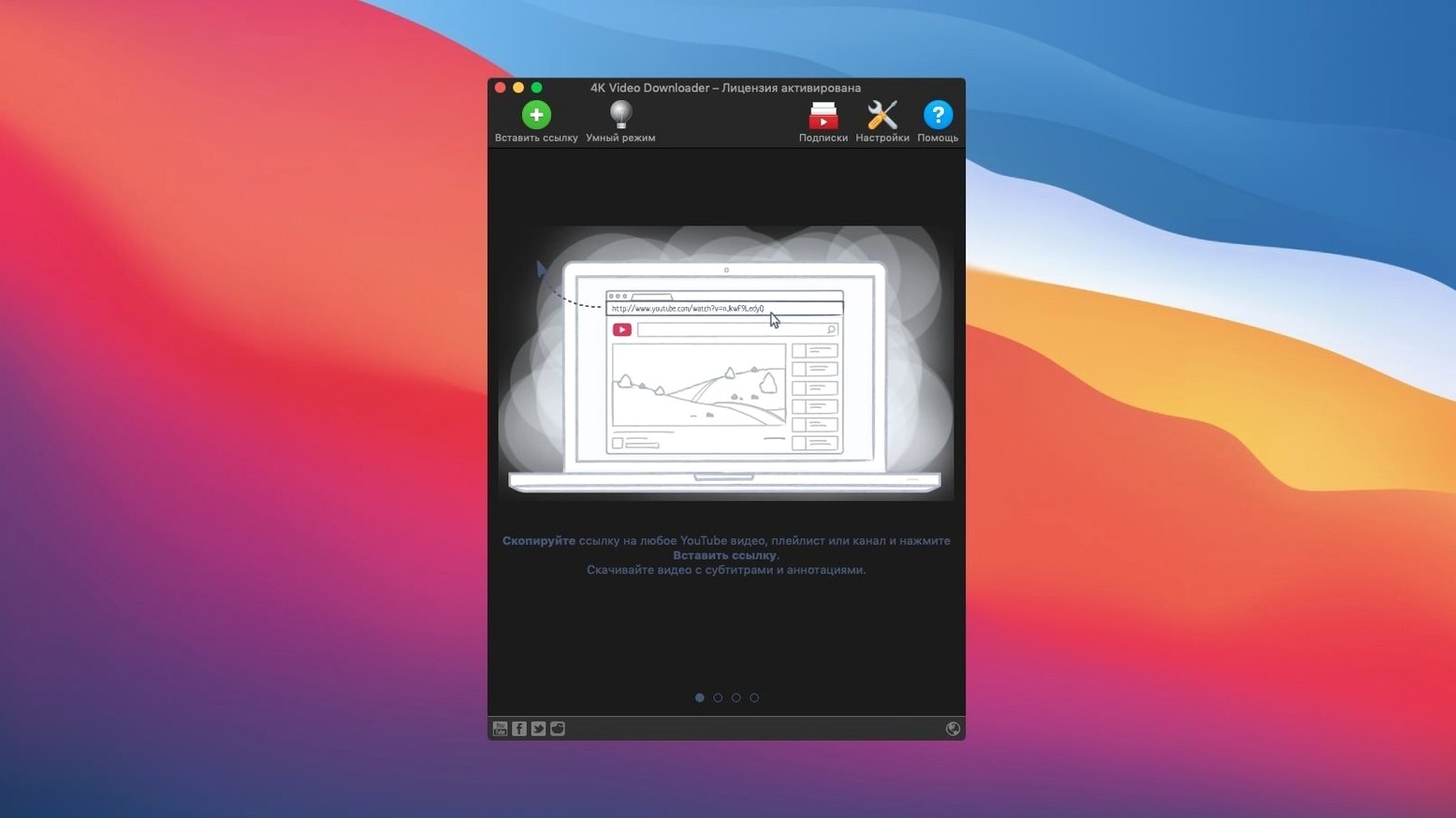
The app watches your clipboard. Copy a URL from a supported site, open the Paste Url action, and the download starts without manually pasting the link.
M3U file — what it means
For playlists, the app can generate an M3U file that lists all the videos. Useful if you want to keep the playlist structure for later viewing in a media player.
Supported sites — what they are
Besides YouTube, it covers Vimeo, SoundCloud, Flickr, Facebook, DailyMotion, and Instagram. Videos, audio, and subtitles are all within reach.
Output formats — what you get
MP4, MKV, M4A, MP3, FLV, and 3G. It also handles 3D videos and can save entire YouTube channels.
Set the language and smart mode before your first download
After moving 4K Video Downloader Plus Pro to Applications and launching it, take a minute to check the language setting. The installer picks English by default, but the Preferences panel lists sixteen languages if you prefer another.
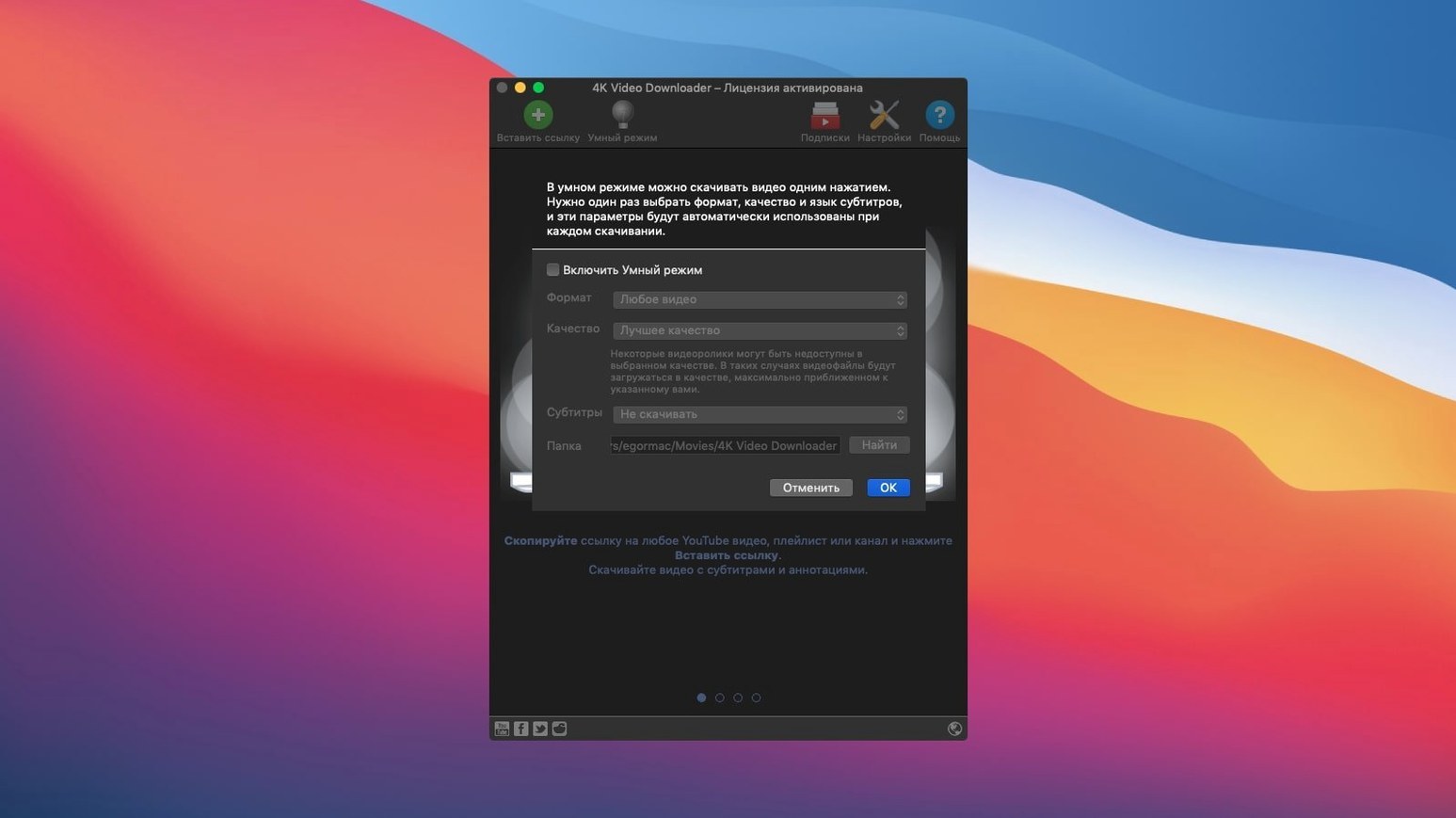
Set up Smart Mode before your first download. Smart Mode remembers your chosen output format, quality, and subtitle preferences. That way every video you paste through the clipboard link uses those settings without extra clicks. Smart Mode is especially useful for pulling audio — pick MP3 and 320 kbps once, and every subsequent audio grab follows suit.
Test the clipboard behavior with a single YouTube video first. Copy a URL, click Paste Url in the app, and confirm the download starts. This confirms the clipboard monitoring works on your specific macOS version. Some users on macOS 14 report that the app requests clipboard access permission on first use — grant it and the behavior becomes automatic afterward.
If you plan to download whole channels, start with a small channel to check how the app handles the queue. The app downloads videos sequentially by default. A channel with fifty videos will take time, but the queue is stable. You can pause and resume individual items if you need to pause a large batch.
Subtitles are worth testing early. The app can save them as separate SRT files or embed them directly into the video file. Try both methods with a single video to see which fits your workflow. Embedded subtitles work well for media players that support MKV containers, while SRT files are better if you edit videos later.
Workflow: download a YouTube playlist as MP3 files with an M3U index
This workflow covers a common task: grabbing the audio from a music playlist and keeping the track order intact.
- Open the playlist page in your browser and copy the URL.
- Open 4K Video Downloader Plus Pro and click Paste Url. The app detects it is a playlist and shows all videos in the list.
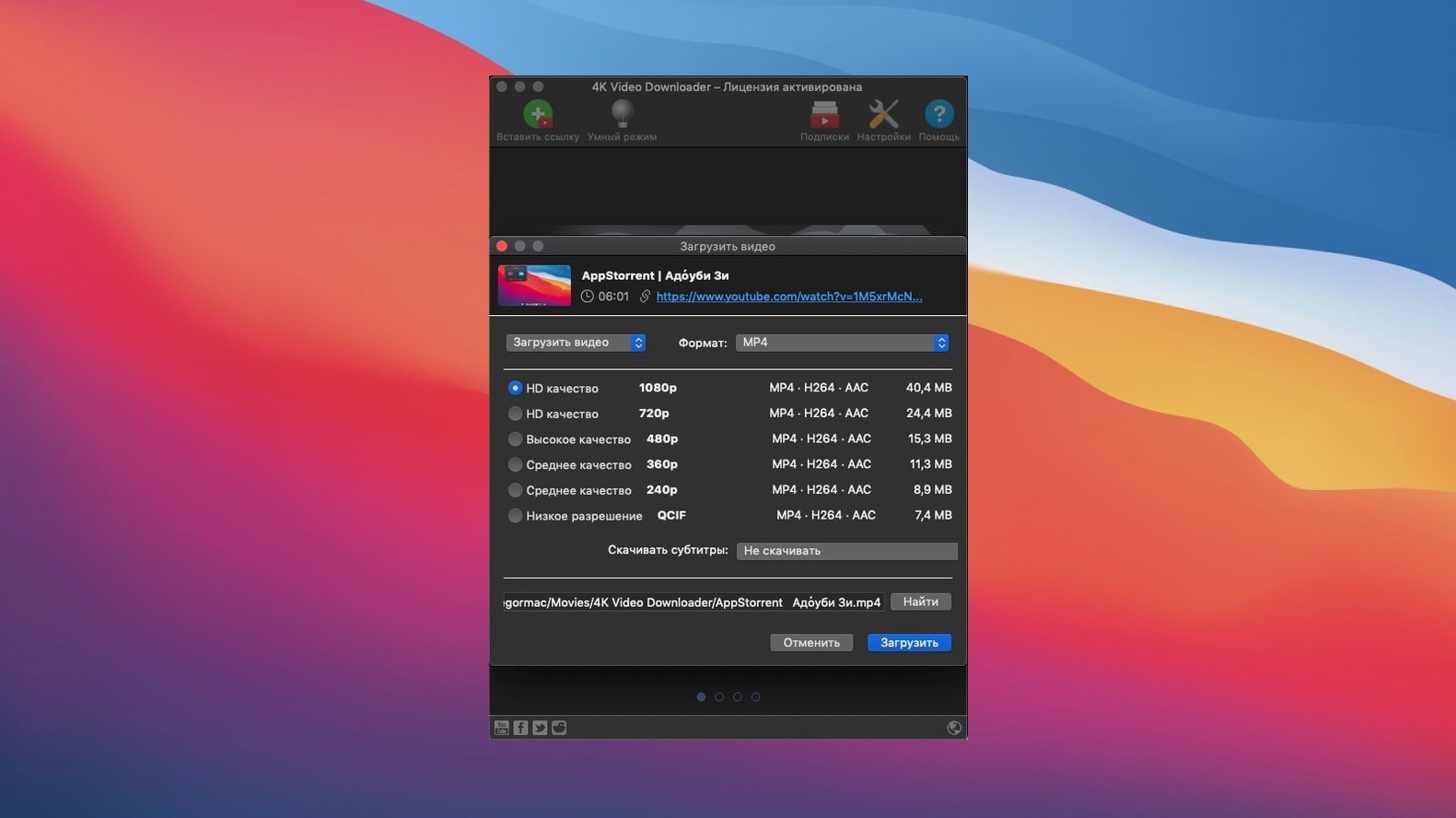
- In the format dropdown, select MP3. The app warns that audio-only extraction will discard video — confirm.
- Choose the audio quality. The options depend on the source, but 128 kbps and 320 kbps are typical. Pick higher if you archive music.
- Enable subtitle download if the playlist has subtitles you want as metadata. Choose SRT format for separate files.
- Check the box to create an M3U file. This generates a playlist file that media players like VLC or iTunes can read.
- Click Download. The app processes each video in sequence, extracts the audio, and saves MP3 files plus the M3U file in a folder named after the playlist.
- Open the folder in Finder. The M3U file sits alongside the MP3 files. Double-click the M3U file to load the playlist in your default media player.
The M3U file preserves the order from YouTube. If you add or remove files from the folder later, you will need to regenerate the M3U file by running the download again — the app does not update existing playlists.
Opens smoothly with VLC, IINA, QuickTime, and iTunes
4K Video Downloader Plus Pro works well alongside common Mac tools. The MP4 and MKV files it creates open in VLC, IINA, or the built-in QuickTime Player without conversion. MP3 files load into iTunes or Apple Music immediately, though you may need to add them to the library manually if they land outside the Music folder.
The clipboard integration means you can keep your browser open and the app in the background. Copy a link in Safari or Firefox, switch to 4K Video Downloader Plus Pro, and paste. The app does not need a browser extension or plug-in to function.
For users who edit video, the downloaded files are standard formats that Final Cut Pro, DaVinci Resolve, or iMovie can import. Subtitles as SRT files are text-based, so you can edit timing or text in any text editor before importing into a video project.
macOS features like file tagging and Finder preview work as expected. MP4 files show thumbnails in Finder, and you can tag them with keywords or ratings. MKV files may not show thumbnails in older macOS versions, but playback works fine.
If you use automation tools like Hazel or Keyboard Maestro, the app accepts command-line arguments for basic operations. You can script a workflow that monitors a folder for text files containing URLs and feeds them to the app for download.
Comparison with similar Mac apps
4K Video Downloader Plus Pro vs. YTD Video Downloader. YTD supports fewer sites outside YouTube and Vimeo. Its interface is older and the format selection is limited to MP4 and AVI. 4K Video Downloader Plus Pro offers MKV, FLV, 3G, and audio-only formats, plus subtitle handling that YTD lacks entirely. YTD does not generate M3U files for playlists.
ClipGrab. ClipGrab is open-source and covers YouTube, Vimeo, and DailyMotion. It lacks support for SoundCloud, Facebook, and Instagram. ClipGrab does not handle subtitles, 3D videos, or embedded YouTube videos from web pages. Its queue management is basic compared to the pause-resume system in 4K Video Downloader Plus Pro.
JDownloader. JDownloader is a general-purpose download manager that handles videos among many file types. Its interface is cluttered and the learning curve is steeper. JDownloader does not offer the same preset-driven workflow (Smart Mode) or M3U generation. For someone who only downloads videos and audio from the supported sites, 4K Video Downloader Plus Pro is more focused and simpler to use.
Check compatibility with your macOS version and video sources
Does it download 4K video from YouTube?
Yes, the app can download videos in 4K resolution from YouTube, provided the source video is available in 4K. The same applies to 1080p and 720p. The quality options you see in the format list depend on what YouTube serves for that specific video.
Can I download only audio without the video file?
Yes. Select M4A or MP3 as the output format, and the app extracts the audio track without saving the video. The resulting file is smaller and suitable for music or podcasts.
Download private YouTube videos while logged into your Google account
Only if you are logged into your Google account in the browser. The app itself does not handle authentication. Copy the URL while you are logged in, paste it into the app, and it downloads the private video like any other. The same applies to unlisted videos.
Can I download an entire YouTube channel at once?
Yes. Paste the channel URL into the app, and it lists all visible videos. You can select all or pick specific ones. The app downloads them sequentially. A channel with hundreds of videos will take time, but the queue is reliable and you can pause and resume.
Does the app support Apple Silicon natively?
The version described here is built for Intel 64-bit Macs. On Apple Silicon models, it runs under Rosetta 2 emulation. Some users report that Rosetta 2 handles the app without noticeable issues, but native performance is not guaranteed.
Can I download subtitles in languages other than English?
Yes. The app shows available subtitle tracks for a video. You can choose one or multiple languages. Subtitles can be saved as separate SRT files or embedded into the video container. The app does not download auto-generated captions from YouTube, only uploaded subtitle tracks.
Requires macOS 12 or later. Built for Intel 64-bit Macs, so Apple Silicon users need Rosetta or a different route.
- macOS 12 or later
- Intel 64-bit architecture
Install procedure
- Mount the disk image and run Open Gatekeeper friendly.
- Press Enter in Terminal to bypass Gatekeeper.
- Drag the app to the Applications folder.
- Launch the app from Applications.
Reports from players
Sign in or create a tester account to file a report.
No reports filed yet.