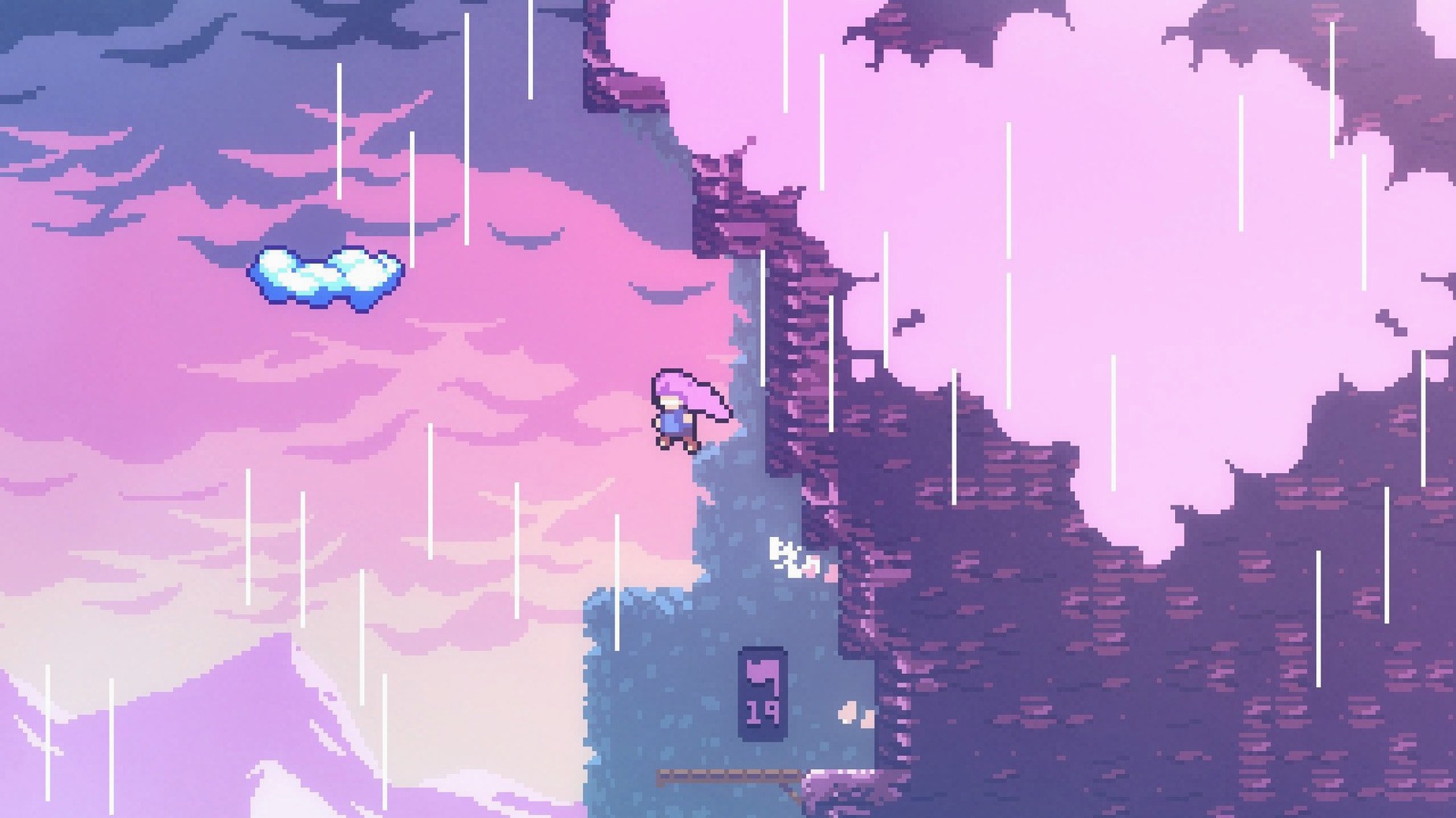
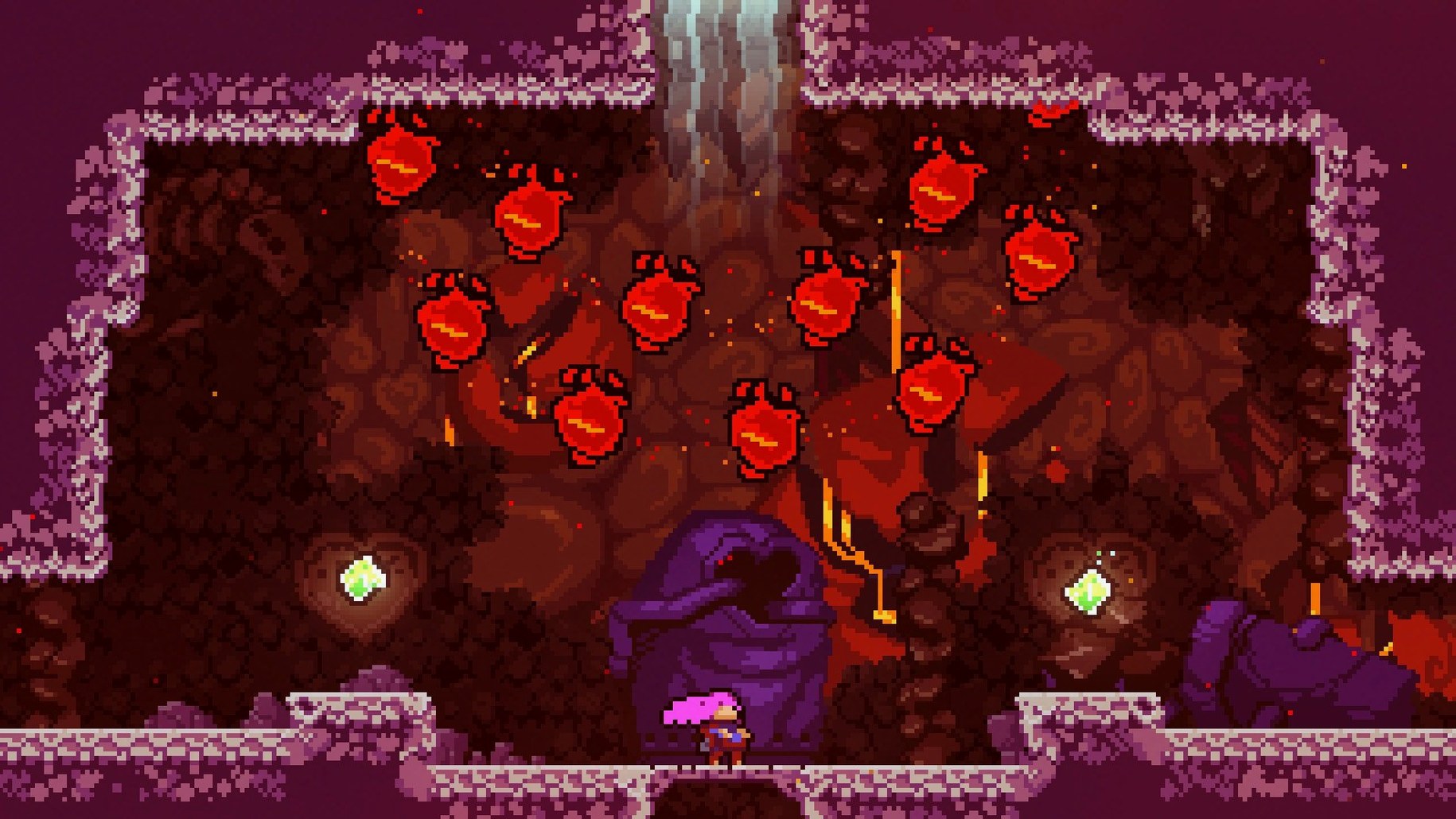
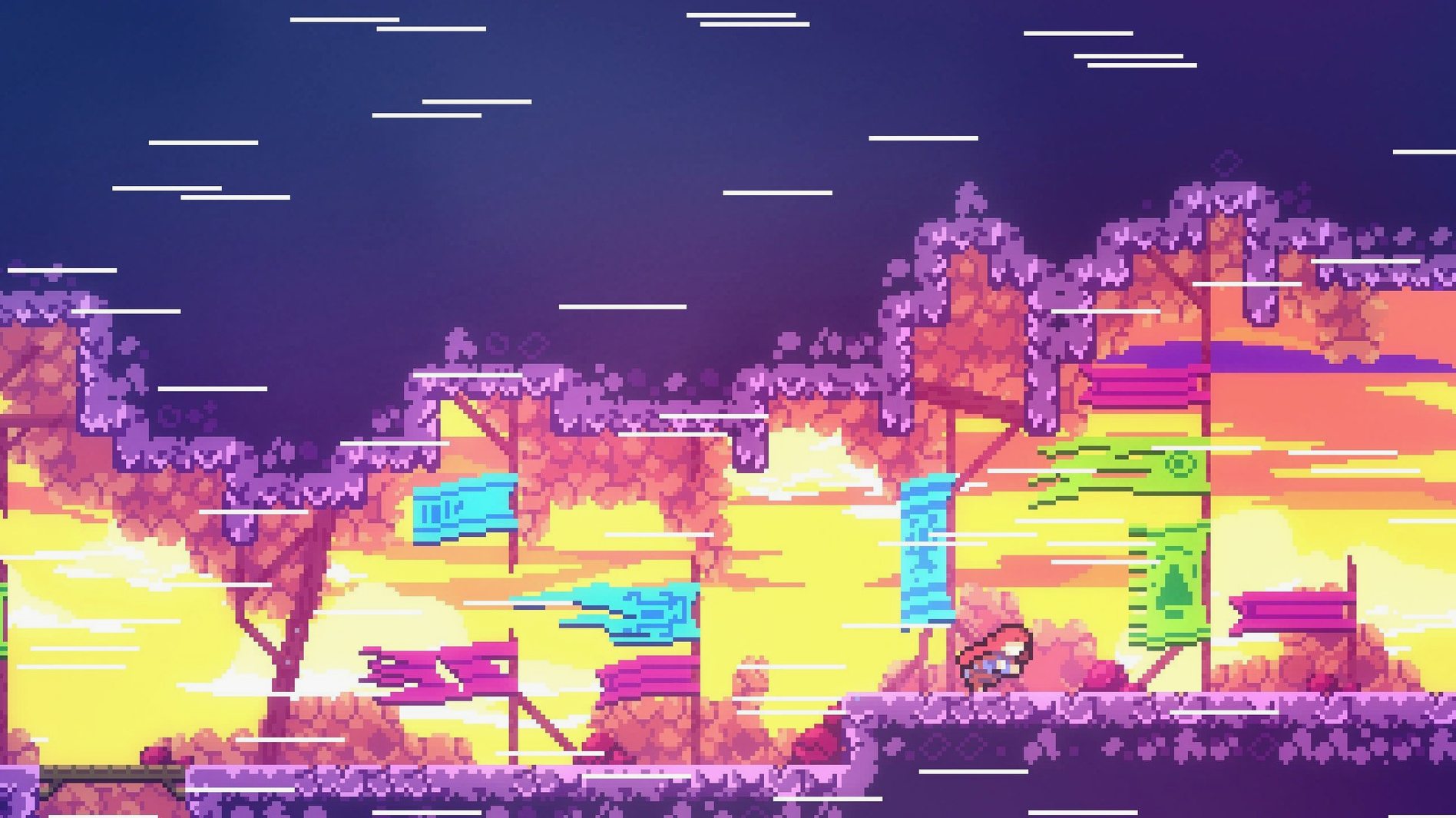
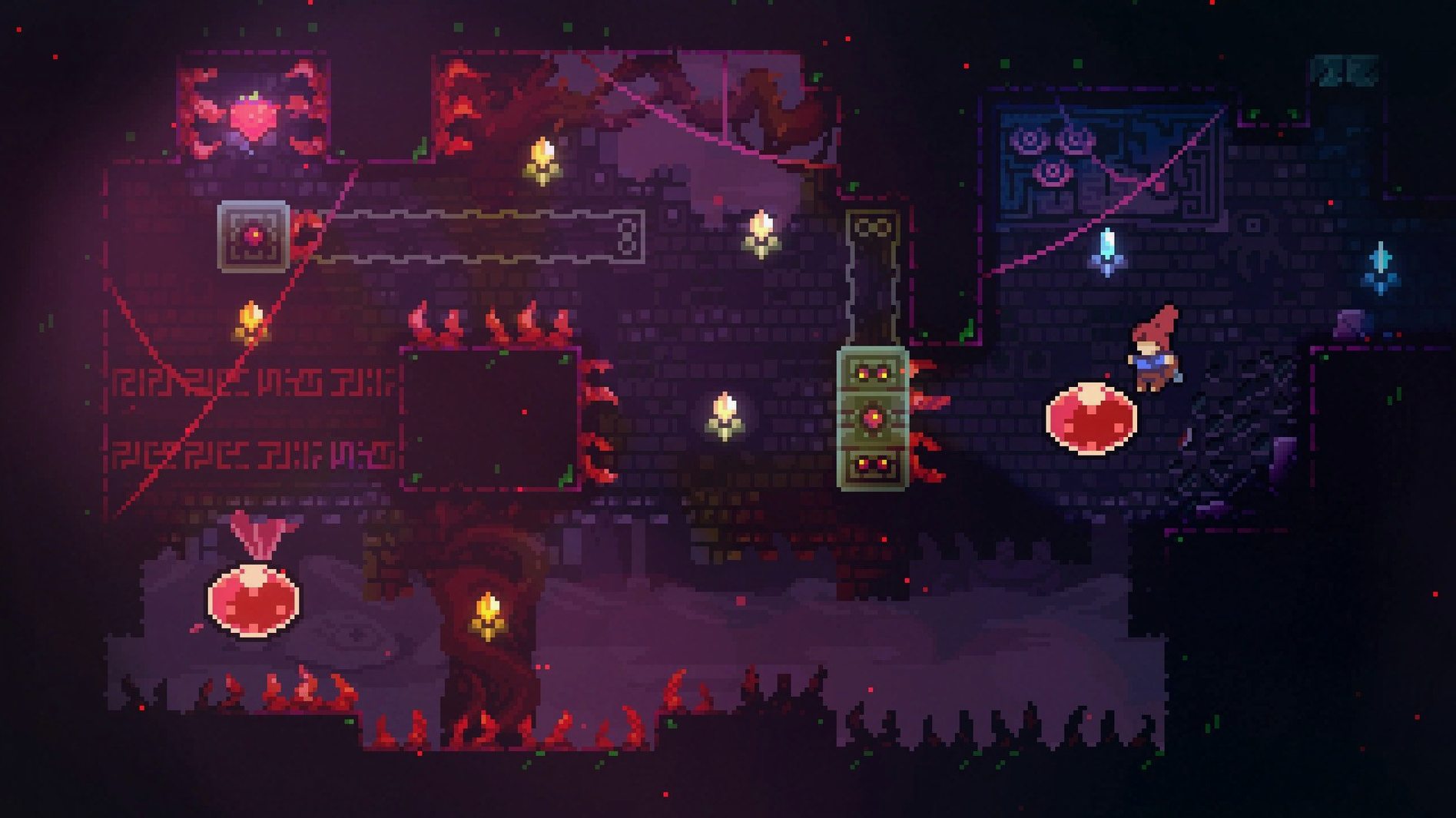
If you already know the feeling of dying on the same jump twenty times and still wanting to try again, Celeste fits that toolset. This single-player platformer treats failure as the primary teaching method. You control Madeline climbing Celeste Mountain across 700 screens, each one a carefully designed challenge that asks for precision and patience.
| Detail | Value |
|---|---|
| Version | 1.4.0.0 |
| Architecture | Intel |
| Bonus content | Bonus chapters included |
| Music | Two hours of soundtrack |
| Hidden areas | Yes |
| Languages | English, French, German, Spanish, Italian, Portuguese, Japanese, Simplified Chinese, Russian |
Celeste rewards players who enjoy learning a level through repeated attempts. The controls are simple and responsive — movement, dash, climb — but the challenge lies in how you combine them. Hidden areas and bonus chapters extend the run time for those who dig deeper. Who might not enjoy it: players who prefer casual exploration or forgiving mechanics. The game was tested on macOS Sonoma on a 2020 MacBook Air with M1 (running through Rosetta), so Intel Macs and Apple Silicon Macs with Rosetta 2 should handle it.
Common snags with Celeste on Mac usually come from the keyboard layout and the copy method itself. The installer notes a US keyboard layout when starting the game — if your system uses AZERTY or another layout, the dash and climb keys may not respond as expected. Switching your keyboard input to US (QWERTY) before launching the game solves this without any deeper configuration. If the game does not start at all, confirm the disk image fully mounted and that you dragged the entire game folder, not just a shortcut, into the Applications alias. Some antivirus or system permission tools can block the first launch; allowing the game through those tools fixes it. A small number of users report the game fails to detect saved progress after a restart — Celeste stores save files in a system folder, so if you reinstall, back up that folder to avoid losing hours of climbing.
Players who thrived on Super Meat Boy's difficulty
This game fits two groups well. One: players who grew up on hard platformers like Super Meat Boy or The End Is Nigh and want another mountain to grind. Celeste's rhythm of die, learn, and retry matches that style exactly. Two: anyone on a Mac with limited game time who wants a focused session — twenty minutes can mean real progress on one screen, and the game saves regularly, so you can stop anywhere. Mac users with older Intel hardware will notice the game runs at its designed speed because the 2D art and 700 screens do not demand constant high-end graphics. People who enjoy modding or speedrunning should note the community has a small but active scene for custom maps and time trials, though the vanilla game already offers hidden areas and bonus chapters to explore. If you have a controller, plugging it in on macOS usually works with no extra setup.
Remap jump and dash for faster reflex
A few in-game settings matter more than others for a better start. The first thing is the control bindings — the default keyboard layout assigns jump to the up arrow and dash to the X key, but you can remap these to whatever feels natural. Many players prefer jump on the spacebar for quicker taps. Second, the audio mix may help: the two hours of soundtrack are excellent, but the sound effects for dashes and landings can overlap the music. Lowering the music volume slightly in the options makes the sound cues clearer. Third, the screen shake toggle matters for comfort — Celeste has a screen shake effect on deaths and landings that can cause motion issues for some. Turning it off does not change gameplay. Finally, the display mode (windowed, fullscreen, borderless) depends on your multitasking habits; windowed with a fixed resolution works well if you keep reference material or a walkthrough open alongside the game.
Warm up on a cleared screen before each session
Start each session by warming up on an earlier screen you already cleared. The muscle memory for dashes and wall jumps needs a few minutes to reestablish. Do not try to clear a screen in one perfect run — Celeste teaches by letting you fail fast and retry faster, so treating each attempt as a learning pass works better than forcing a single successful climb. When you hit a new hidden area, save your progress manually (the game auto-saves, but backing up the save folder once a day prevents losing those finds if something goes wrong). For players on Macs with limited storage, the game takes up a modest amount of space, but the disk image should be removed from the downloads folder after installation to free the space back. If you play on a MacBook, lowering the screen brightness a notch on darker levels helps with seeing the background platforms against the black void. After the first few hours, revisit the settings once more to adjust the dash to a key that does not strain your hand — the repeated dashing can cause fatigue on smaller keyboards.
- macOS ?
- Architecture: Intel
Install procedure
- Mount the downloaded disk image.
- Drag the game to the Applications folder alias.
- Launch the game after copying finishes.
- Use a US keyboard layout when starting the game.
Reports from players
Sign in or create a tester account to file a report.
No reports filed yet.