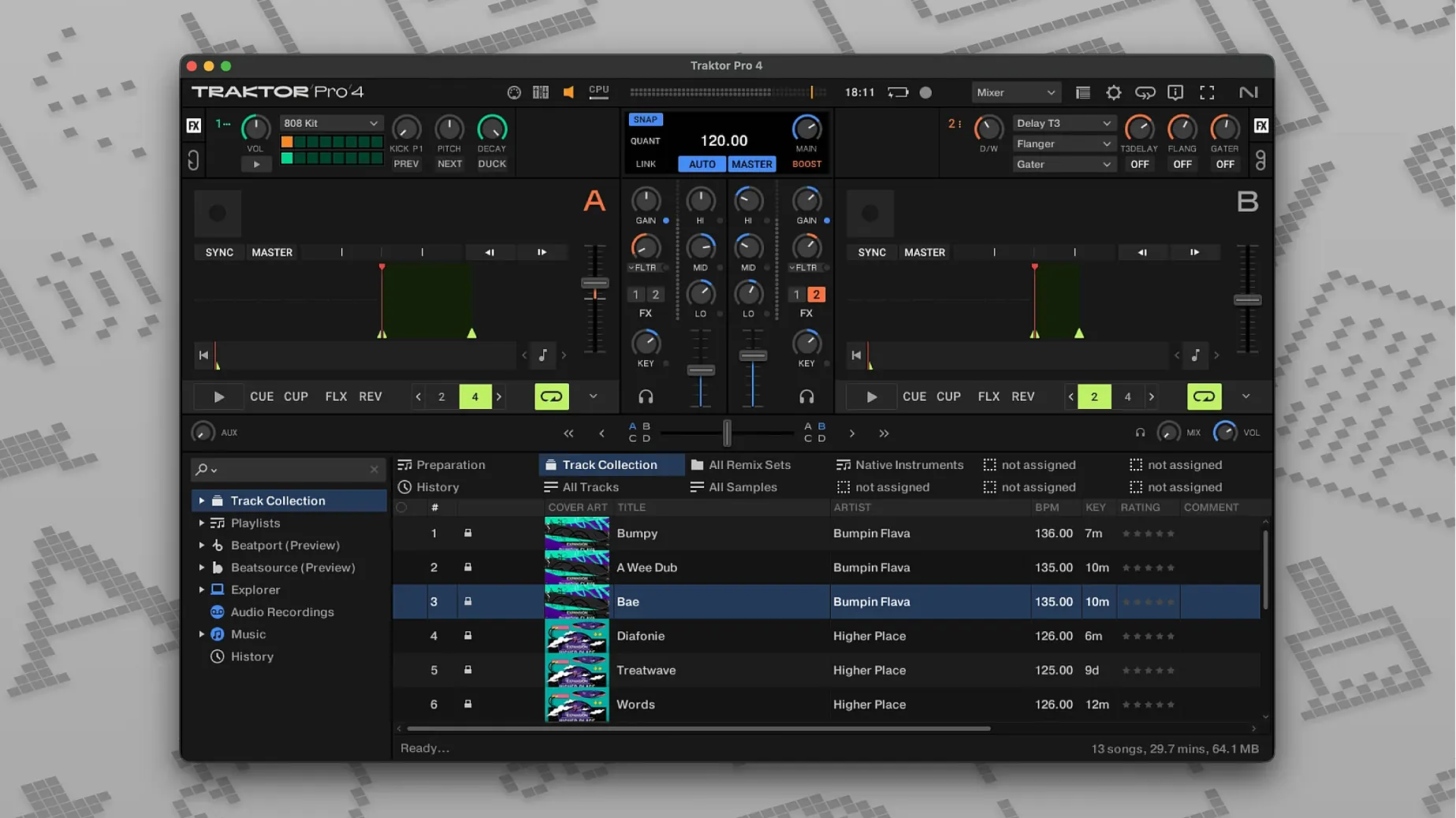
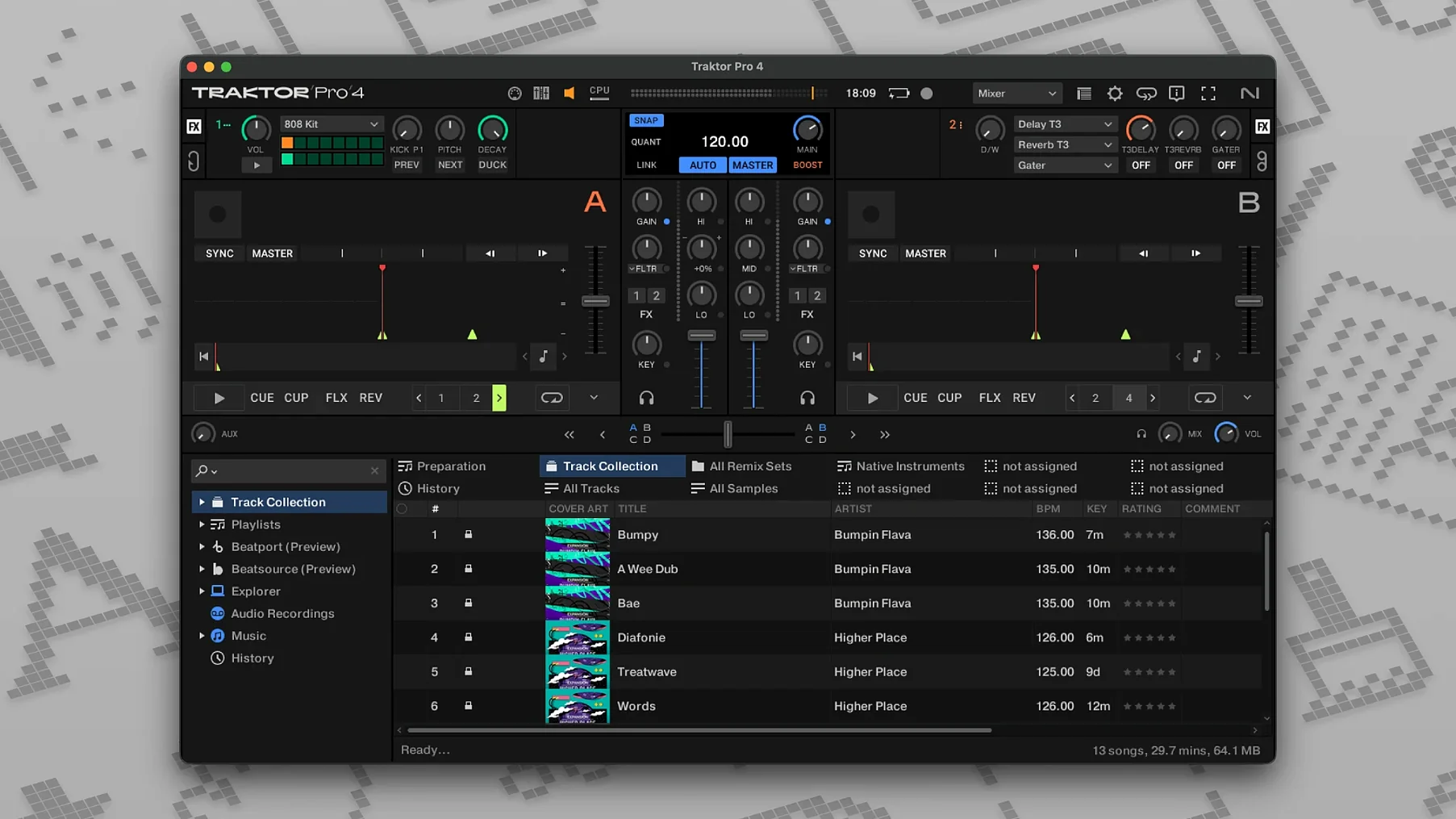
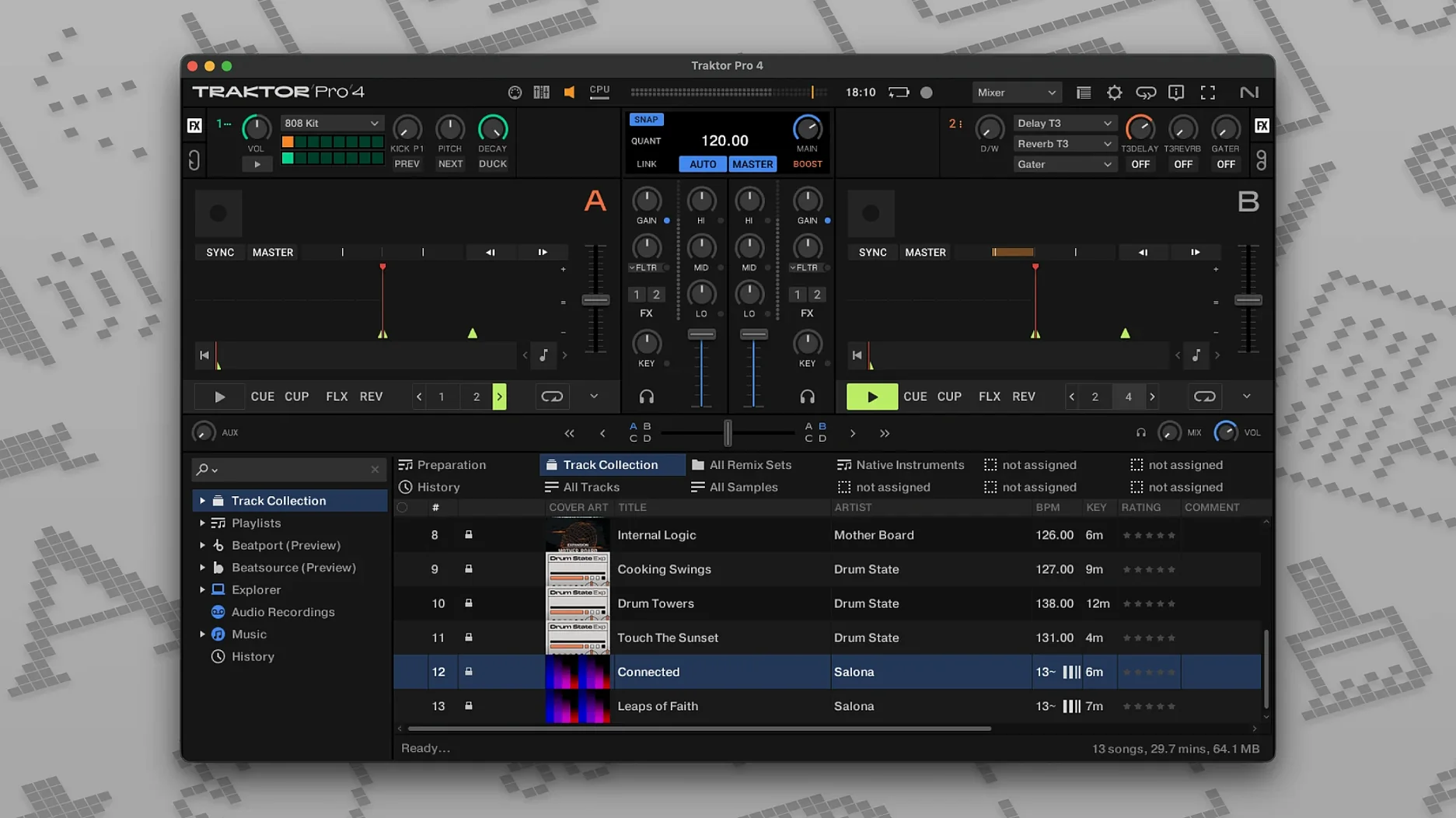
Mixing live sets on a Mac often means juggling time-coded vinyl, MIDI controllers, and audio interfaces—and hoping nothing slips. Traktor Pro 4 handles that by giving you four virtual decks, each with its own EQ, filter, and effects chain. You route audio through an external interface or straight to your Mac’s output, and the software keeps sync tight across all decks.
- Load tracks onto any of the four decks. Traktor reads your library, including iTunes tags and ID3 metadata, so you can sort by BPM or key without extra prep.
- Assign a MIDI controller or a Traktor Kontrol hardware unit to those decks. Every fader and knob maps directly—no menu diving once you’re in a set.
- Mix live, record the entire session, and export as WAV or AIFF. The recording captures everything you hear, including cue transitions if you want them.
User-defined keyboard shortcuts replace mouse clicks for common actions like loading tracks or toggling sync. It’s a setup built for the kind of mixing where you need four hands and a clean signal path, not a three-minute setup delay.
Stability update improved stem separation
Version 4.5.1.21 is a maintenance update that focuses on stability rather than flashy new features. The most noticeable change for regular users is improved stem separation performance. Earlier versions of Traktor Pro 4 could sometimes produce audible artifacts when separating vocals from tracks with heavy bass—that's been cleaned up in this release. The separation engine now handles tracks with overlapping frequency ranges more cleanly, which matters if you regularly pull vocals or drums out of full mixes during a set.
Beatport streaming integration also got a quiet fix. Users who rely on Beatport's catalog for gig prep reported that the browser would occasionally lose connection after extended browsing sessions. That issue is resolved here—the stream stays connected as long as your internet does. No more mid-session re-authentication popups.
Custom mapping users will find that MIDI assignments now save more reliably when switching between deck types. If you jump from a Track Deck to a Stem Deck mid-set, your controller knobs won't suddenly map to the wrong parameters. That was a rare bug, but it's gone now.
What to check before installing
Can I use Traktor Pro 4 without a Native Instruments controller?
Yes. The software works with any MIDI controller, an external DJ mixer, or even just keyboard shortcuts and a mouse. You lose the tactile feel of a Kontrol unit, but the core mixing engine, effects, and recording features are identical. Many users run it with third-party controllers or time-coded vinyl setups through an audio interface.
Will my Traktor Pro 3 mappings and settings carry over?
Mostly. Traktor Pro 4 reads collections and track analysis data from version 3 without conversion. Controller mappings need to be re-imported or re-assigned in the new version's preferences panel—they don't migrate automatically. If you have a complex custom layout with dozens of MIDI assignments, plan an hour to rebuild it. The default keyboard shortcuts and layout presets are new in version 4, so you'll want to check those before your first live set.
Does stem separation work offline?
Yes. The stem separation engine runs entirely on your Mac. No cloud processing, no internet required. That's good news for mobile DJs who play in venues with spotty WiFi. The trade-off is that processing time depends on your Mac's CPU—longer tracks on older Intel machines take noticeably longer to analyze than on Apple Silicon.
Syncs with Ableton via MIDI Clock or OSC
Yes, through MIDI Clock or OSC synchronization. You can sync Traktor's tempo to an external sequencer or sync Ableton to Traktor's master clock. The latency is tight enough for live performance, though you'll want to test the connection before a gig. This works best with an audio interface that handles multiple outputs cleanly.
Prepping a weekend gig with saved BPM analysis
Friday afternoon, prepping for a weekend gig. You open Traktor Pro 4 and point it at your main music folder. The browser scans your collection, reading ID3 tags and BPM analysis from previous sessions because you saved them in version 3. You drag a dozen tracks into a new playlist, filtering by key to avoid clashing transitions.
You load a track onto Deck A and another onto Deck B. The waveforms display with phase markers, so you can see exactly where the downbeats align. You engage sync on both decks, and the software matches tempo automatically—no manual pitch-slider wrestling. You drop the first track's volume fader up, cue the second track in your headphones using Deck B's cue button, and start blending the EQs. The filter knob on Deck A sweeps out the low end as you bring Deck B's bass in.
Ten minutes into the mix, you decide you want a vocal-only section. You switch Deck A to Stem Deck mode, load the same track, and the waveform splits into four color-coded stems: drums, bass, vocals, and melody. You mute everything except vocals, loop a four-bar phrase, and let it ride over the track on Deck B. The transition sounds clean—no artifacts from the separation.
You record the entire session from the start. When you finish an hour later, you export the mix as a 44.1 kHz WAV file, ready to upload or burn to a USB for the car ride home. The ID3 tags you set—artist, track name, mix title—write directly into the file's metadata.
Fixing stem artifacts and sync drops
Audio crackling or dropouts during playback
This usually comes from buffer settings that are too low for your Mac. Open the audio setup panel and increase the buffer size from 256 to 512 samples. If you're on an Intel Mac with a built-in audio output, that's often the culprit. For Apple Silicon machines, the default USB audio interface settings work fine but third-party interfaces sometimes need their own driver updates.
Controller not responding after a deck type switch
When you switch a deck from Track to Stem or Remix Deck mode, the MIDI mapping for that deck's controls may reset. The fix is to re-select your controller template in the controller manager for each deck type you use. Save the mapping as a preset after you've assigned it, so you can reload it fast during a set.
Stem separation takes too long
The software shows a progress bar in the deck header—you can still mix on other decks while it works. If you need stems live, pre-separate your tracks before the session. The analysis is saved to the track's metadata and loads instantly next time.
Beatport streaming shows "Connection Lost"
Check your internet connection first. If it's stable but the error persists, log out of Beatport in Traktor's preferences and log back in. This resets the authentication token. The 4.5.1.21 update fixed the timeout issue, but a poor WiFi signal at a venue can still drop the stream.
Best for professional DJs needing four-deck mixing
Traktor Pro 4 serves a specific range of Mac users well. If you're a professional DJ who plays regular gigs and needs reliable four-deck mixing, stem separation, and recording, this is the software for you. The four deck types give you flexibility—you can mix three tracks while looping a stem on the fourth, or run two live inputs through an external mixer with MIDI sync.
Live performers who use hardware controllers benefit the most. The ability to map every parameter to a physical fader or knob means you can build a setup that mirrors your own workflow. If you already own a Traktor Kontrol unit, the integration is immediate—no configuration needed for the basics.
Mixing beginners also get value if they're willing to learn the interface. The four-deck layout looks intimidating, but you can start with two decks and add the others later. The keyboard shortcuts and browser filters make track selection fast once you memorize a dozen key combinations. Stem separation is a forgiving way to learn phrasing—you can see exactly which elements drop in and out.
Remix users will appreciate the Remix Deck type, which lets you load sample loops and trigger them live. It works with any MIDI pad controller, not just Native Instruments hardware. If you produce your own loops in a DAW and want to incorporate them into a DJ set, the workflow is straightforward: export as WAV or AIFF, load into a Remix Deck, and trigger on the fly.
On the other hand, users who only need two-deck mixing with basic effects may find the feature set excessive. The custom mapping and layout options require time to configure, and the stem separation engine adds CPU load that simpler software avoids. For those users, an older version like Traktor Pro 3 might be a better fit—or a lighter DJ app that skips the studio-level features entirely.
- macOS 12 or later
- Intel or Apple Silicon
Install procedure
- Open the downloaded disk image.
- Run the standard installation procedure.
Reports from players
Sign in or create a tester account to file a report.
No reports filed yet.